In June 2025, ClickUp began rolling out one of its most requested features to the majority of users — native 2-way sync with Microsoft Outlook Calendar. For many teams that rely on both Microsoft and ClickUp ecosystems, this marks a major step forward in productivity and planning efficiency. The integration is designed to save time, eliminate scheduling conflicts, and allow ClickUp to serve as a single source of truth for both tasks and time-based events.
In this article, we will explore exactly how this new feature works, how to connect it, what users can expect, and how businesses can take full advantage of it. Whether you are a team leader, a busy professional, or an enterprise decision-maker, this is a detailed breakdown of what the feature does and how to use it correctly.
What Is 2-Way Outlook Calendar Sync in ClickUp?
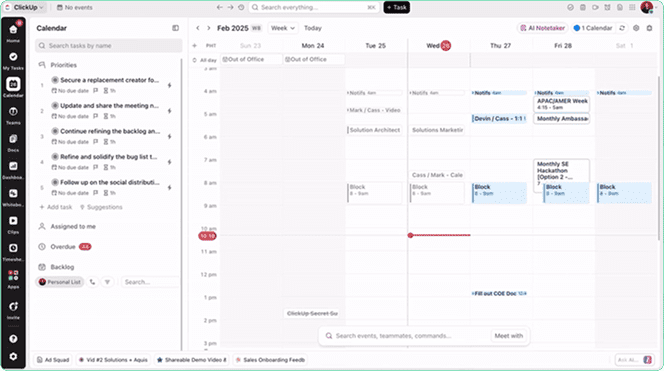
The 2-way sync feature allows tasks and calendar events to be shared and updated between ClickUp and Microsoft Outlook. This means that when a user creates or edits a meeting in Outlook, it will appear automatically in ClickUp’s calendar view. Similarly, if a task in ClickUp is time-blocked or rescheduled, that information is pushed to the Outlook Calendar.
The sync works both ways, ensuring that information stays aligned in real time across both platforms. For professionals who rely heavily on Outlook for meeting management and ClickUp for task tracking and project planning, this provides a seamless scheduling experience.
Before this rollout, ClickUp offered limited calendar functionality. One-way syncs, manual exports, and third-party connectors were the norm. Now, native integration offers a direct, reliable, and secure link between both systems.
Who Can Use This?
As of now, the 2-way sync is rolling out to most ClickUp users, especially those using ClickUp 3.0. If you don’t see it yet, you may be added soon.
🔗 Try it now or join the waitlist if you don’t see the feature yet!
Core Features and Benefits of ClickUp’s Outlook Calendar Integration
Real-Time Calendar Synchronization
The core advantage of the integration is the real-time nature of the sync. Any change made in one calendar reflects instantly in the other. You do not need to refresh or manually update anything. Meetings, events, and tasks remain current across your workspace and your email platform.
Intelligent Task Scheduling with AI
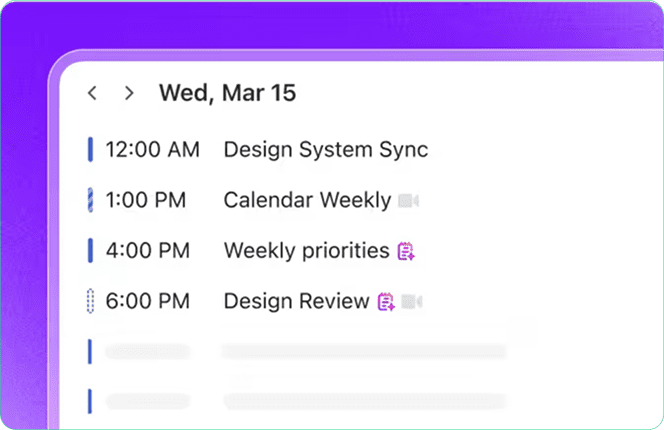
ClickUp’s Calendar is not just for viewing. It uses AI to analyze your workload, calendar events, deadlines, and priorities to automatically block time for your most important work. When a new meeting is added to Outlook, ClickUp can automatically adjust your schedule by rescheduling tasks, finding gaps, and keeping you on track. It can also distinguish between meetings, focus blocks, and reminders.
Unified View of Tasks and Events
This integration brings both events and task responsibilities into a single interface. With everything visible in one place, you do not need to switch between tabs, systems, or tools to plan your day. You gain a clear understanding of what is upcoming, what is urgent, and when you actually have time to get things done.
Native Support for Call Platforms
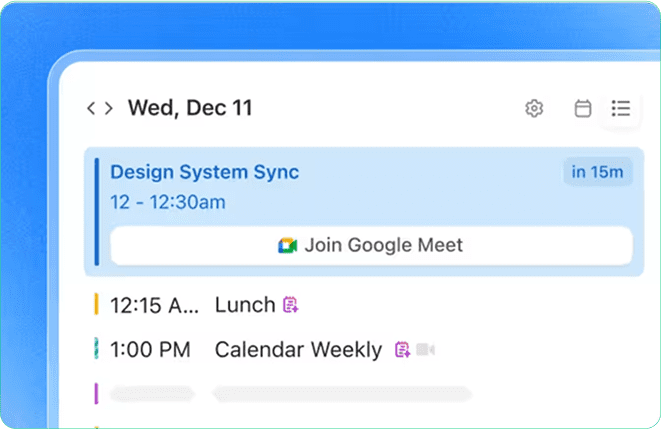
ClickUp supports Microsoft Teams, Zoom, and Google Meet. When synced, you can launch meetings from within the ClickUp interface without needing to open your Outlook inbox. This helps reduce context switching and minimizes time lost looking for links or invitation details.
Meeting Notes and Action Items
ClickUp AI also provides features like smart note-taking and action item creation. During or after meetings, the platform can generate meeting notes, transcribe conversations, and turn those into assigned tasks. These tasks are directly linked to calendar events and stored in Docs or attached to relevant ClickUp tasks.
Cross-Team and Multi-Calendar Visibility
The calendar integration allows users to see not only their own schedule but also compare it with team calendars. This is especially useful in project management, cross-functional collaboration, and capacity planning. Managers can quickly determine availability without sending multiple emails or chat messages.
Step-by-Step Guide: How to Set Up 2-Way Sync with Outlook Calendar
Connecting your Microsoft Outlook Calendar to ClickUp is simple but powerful. Below is a comprehensive walkthrough of the process.
Step 1: Access the Calendar Integration Settings in ClickUp
- Log in to your ClickUp workspace
- Navigate to the top search bar and locate the “Calendar” module
- In the top right corner of the calendar view, click on the gear icon to open Calendar Settings
Step 2: Select Microsoft Outlook as Your Calendar Provider
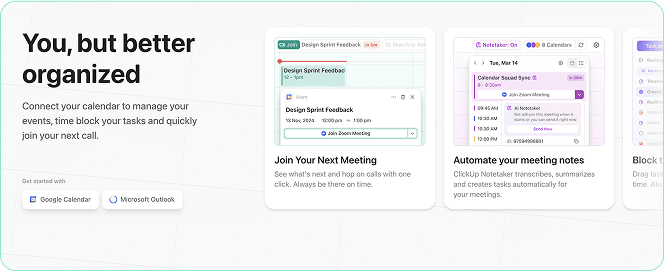
- You will see two options for calendar integration: Google Calendar and Microsoft Outlook
- Click on “Microsoft Outlook” to proceed with the setup
Step 3: Authenticate Your Microsoft Account
- A new window will open with Microsoft’s login prompt
- If you are already signed in, it will display your account name and email address
- Click your account to proceed or choose “Use another account” if necessary
Step 4: Approve Permissions Requested by ClickUp
- Microsoft will request your permission to allow ClickUp to access your calendar data
- Permissions typically include the ability to view, create, and modify calendar events
- Click “Accept” to allow ClickUp to sync both ways with your Outlook account
Step 5: Select Calendar Preferences
Once authenticated, you will return to ClickUp and be prompted to:
- Choose which calendar(s) to sync (primary, shared, delegated, etc.)
- Decide whether to sync all-day events or limit to work hours
- Choose if you want ClickUp tasks to be added as events in your Outlook calendar
- Review and confirm your preferences before clicking “Connect”
What to Expect After Setup
Once connected, ClickUp will begin importing Outlook events into the calendar view. ClickUp will also begin pushing task data into Outlook. Tasks that have a start time, due date, or estimated time can be blocked in the calendar as events. If a task is marked complete, the calendar entry is updated.
Likewise, if a new meeting is scheduled in Outlook, that entry will show up in ClickUp’s calendar. Tasks with time conflicts may automatically reschedule based on your AI settings, or ClickUp may notify you to review the conflict manually.
The integration supports:
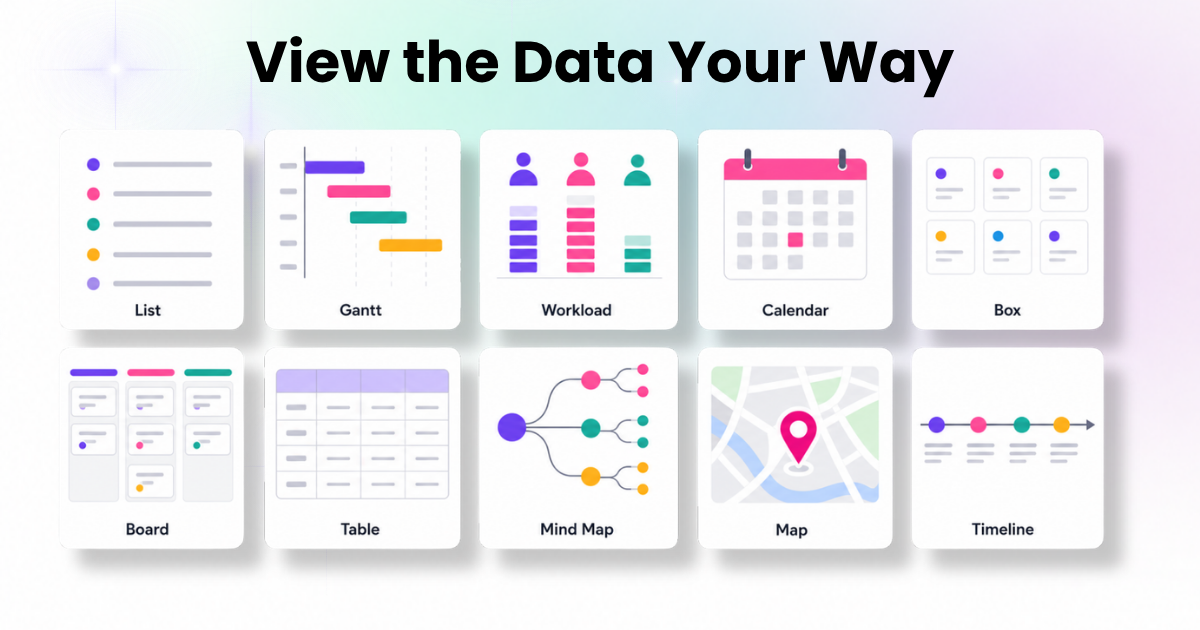
- Daily, weekly, and monthly calendar views
- Infinite horizontal scroll for timeline visualization
- Time tracking integrations
- Work location and working hours visibility
- Team calendar comparisons
- Event reminders and alerts
Advanced Capabilities Coming Soon
ClickUp has announced that more features will be added to enhance the integration, including:
- Automatic task creation from meeting conversations
- Integrated scheduling links for booking meetings (similar to Calendly)
- AI-based schedule queries, where you can ask, “When is my next one-on-one with Alex?” and receive an instant response
- Smart suggestions for rescheduling or workload balancing
- Automatic generation of action items from call transcripts and meeting notes
These updates aim to turn ClickUp into a complete smart calendar and planning system, not just a calendar viewer.
Who Benefits the Most From This Integration
Project Teams and Agencies
Project teams that balance deadlines, meetings, and task dependencies benefit from having both their timeline and workload visible in one place. It helps reduce scope creep, clarify deliverables, and create realistic project schedules.
Sales and Client-Facing Teams
Sales professionals can manage client calls, prep tasks, and follow-up actions in one platform. This reduces the risk of dropped communication and ensures every opportunity is tracked effectively.
Executives and Department Heads
Leaders can oversee their own schedules alongside key projects. Having one unified platform simplifies time management and supports higher-level planning and delegation.
Remote and Hybrid Teams
For teams spread across multiple locations and time zones, real-time synchronization with Outlook ensures that everyone is on the same page, even if they use different devices or tools.
Common Setup Issues and How to Fix Them
- If tasks do not appear in Outlook, check that “Sync ClickUp tasks to calendar” is enabled
- If events do not show in ClickUp, ensure the correct Outlook calendar is selected and not hidden
- Make sure your Microsoft account has admin permission if connecting from a work domain
- If permissions are denied accidentally, re-authorize the integration through ClickUp settings
For persistent problems, re-authenticating the calendar connection or contacting workspace administrators may resolve the issue.
How Dtech Systems Can Help You Set Up and Scale ClickUp
While connecting Outlook Calendar is a quick task for individuals, deploying it at scale across departments requires a structured approach. This is where Dtech Systems can help.
We are the only verified ClickUp partner in Saudi Arabia. Our consultants have deep expertise in:
- ClickUp onboarding and full workspace setup
- Custom calendar integration workflows for large teams
- Smart scheduling using ClickUp AI
- Task-to-calendar automation and conflict resolution
- Time management dashboards for leadership teams
- Onboarding and support for Microsoft 365 environments
If your organization wants to improve productivity, centralize planning, and reduce manual scheduling, we offer tailored solutions to make that happen efficiently.
Contact Dtech Systems to learn how we can design, deploy, and optimize your ClickUp environment.
Conclusion
ClickUp’s 2-way Outlook Calendar sync is more than just a convenience. It transforms the way individuals and teams plan their work. By connecting tasks, meetings, and goals into a single real-time schedule, ClickUp offers true visibility and control over time and priorities.
Whether you are an individual professional or managing a team of hundreds, this integration enables smarter decision-making, fewer scheduling mistakes, and better alignment between projects and time availability.
Start small by connecting your calendar, or go further with AI-powered planning, team-wide rollout, and executive reporting. With the right setup, this feature can help you reclaim hours each week and streamline how your team works.
For complete implementation or support, Dtech Systems is here to assist.
Let your calendar finally work for you — not the other way around.