



However, one particularly frustrating limitation stands out for teams trying to scale or migrate bulk data into ClickUp: the inability to map imported CSV fields directly to existing custom fields during the import process. While ClickUp technically allows imports from CSV files, the feature currently works in a two-step process that often causes confusion, redundancy, and extra cleanup work.
In this article, we will break down what this limitation means, how it affects real-world onboarding and data migration efforts, what workarounds teams are using today, and what ClickUp has said about fixing it.
Understanding the CSV Import Limitation in ClickUp
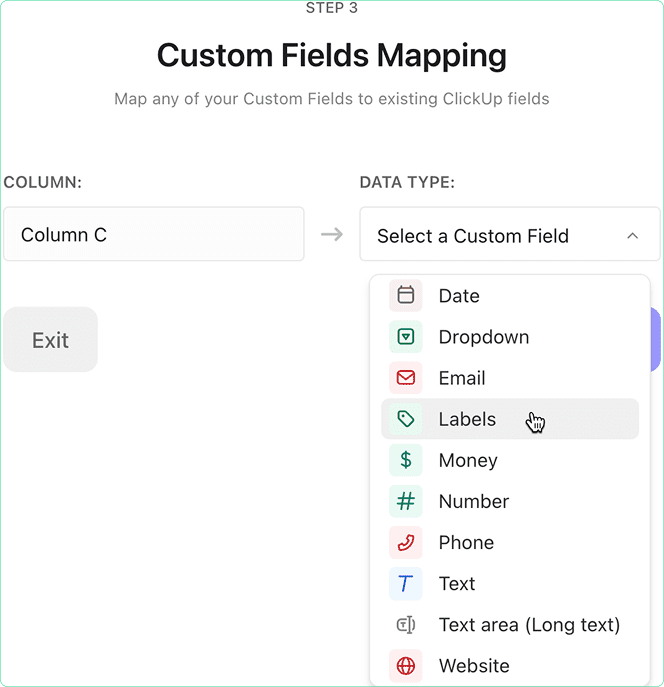
When you upload a CSV file to ClickUp, the importer walks you through a mapping process, matching columns from your spreadsheet to task fields like Task Name, Due Date, Status, and so on.
However, here’s the catch: you cannot map your CSV columns to existing custom fields that already live in your ClickUp workspace. Instead, you’re forced to:
- Complete the CSV import process.
- Go back and manually link or convert the imported data to your intended custom fields.
- Clean up any duplicate or mismatched fields that the importer created.
This becomes especially problematic when you’re trying to onboard a large dataset, such as when importing hundreds or thousands of records from a legacy Excel file, or merging client task data from another system.
Why This Is a Problem for Growing Teams
The limitation may seem small on the surface, but it has wide-reaching implications for teams working at scale. Here’s how:
1. Disrupts Smooth Onboarding
Organizations often rely on the CSV importer to bring existing data into ClickUp. This might include:
- A backlog of tasks stored in Excel
- A campaign calendar from Google Sheets
- A project tracker from Trello exports.
The inability to link data directly to the correct custom fields means admins or project leads must spend hours manually reconfiguring fields post-import.
2. Creates Duplicate Fields
When the importer doesn’t recognize or allow selection of existing fields, it creates new ones. For instance, instead of assigning imported “Client Region” data to your existing “Client Region” custom field, ClickUp may create a new field called “Client Region (imported)”.
This duplication causes:
- Confusion for team members
- Extra columns in views
- Manual merging of data
- Report inconsistencies
3. Leads to Mapping Errors and Data Loss
Even for teams that try to map fields correctly in the second step, there’s a high risk of human error. Some fields may be missed, others wrongly mapped, and others not recognized at all — especially if formatting in the CSV isn’t perfect.
4. Slows Down Large-Scale Imports
A bulk import that should take minutes ends up taking hours or even days. You’re not only uploading the data but also cleaning it up and standardizing it post-import. For enterprise users or teams migrating from another tool, this is a major operational slowdown.
Workarounds Teams Are Using Today
Until ClickUp provides a full resolution, users have adopted various workarounds to deal with the current system’s limitations. Some are more effective than others, but all come with trade-offs.
1. Manual Post-Import Remapping
This is the most common approach. After the CSV data has been imported, users go into each field and:
- Reassign the data to the proper custom field
- Delete or archive the incorrect field created by the importer
- Adjust views and filters to use the corrected fields.
While simple, this is tedious and impractical for large data sets. It’s also prone to error.
2. Pre-Aligning Field Names Before Import
Some teams attempt to “trick” the importer into creating the correct fields by naming CSV columns exactly the same as existing ClickUp custom fields. This occasionally works, but only if:
- The data format matches exactly (e.g., dropdown options are pre-defined)
- The custom field is already attached to the List you are importing into
This is a fragile solution and doesn’t work reliably across all field types like relationships, formula fields, or rollups.
3. Cleaning and Updating via the API
Tech-savvy teams sometimes choose to skip the native importer and use ClickUp’s API to push data into the correct fields from external sources. This approach requires:
- Development resources
- Knowledge of ClickUp’s API structure
- Ongoing maintenance
It is not feasible for most business teams or non-technical users.
4. Using a “Staging List” for Imports
Some users create a dedicated List for importing data. They allow the importer to create its custom fields, then use automation or manual copying to transfer the data from the “staging” tasks to tasks in the real project List, where correct custom fields exist.
This approach isolates the mess, but still doubles the work and causes overhead.
What the Community Is Saying
The ClickUp feedback board has been flooded with comments about this issue, with over 676 upvotes on the post titled “CSV Importer – Ability to Map All Custom Fields”. Users have shared frustration, confusion, and suggestions:
- “It was possible before. Why is that? Also, not able to set the comma as my separator — the import isn’t working at all for me.” – Ana Llabrés
- “Please allow us to map to relationship fields. We can’t do this currently.” – Alex Norton
- “Being able to update existing task custom fields through CSV would be huge.” – Gurminder Dhami
- “We signed up for beta testing but didn’t hear back — our whole process depends on this working.” – Lisa Martin
ClickUp has acknowledged the problem. Lily Chan from the ClickUp team posted an update in April 2025:
“We’ve paused turning this on for additional customers while we resolve some bugs. Once fixed, we’ll continue enrolling more Workspaces.”
This suggests the feature is under development but not fully rolled out. Many users are in limbo — having signed up for the beta but not received access or communication.
What Could Solve the Problem
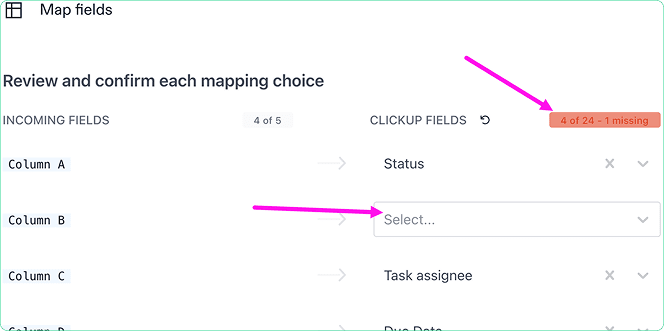
A fully functional CSV importer in ClickUp should ideally allow users to:
- Map each CSV column to existing custom fields at the time of import.
- Update existing records with new values (based on task ID or task name).
- Support advanced field types including relationships, formulas, and dropdowns.
- Retain data formatting and delimiter preferences.
This would bring ClickUp’s import capabilities on par with tools like Airtable, Monday.com, and Smartsheet, which all offer robust field-mapping interfaces during CSV uploads.
Tips to Prepare for Future Imports
While we wait for ClickUp’s improved importer, here are a few practical tips you can follow to minimize friction:
- Audit your custom fields before import. Clean up duplicates and standardize naming conventions.
- Use templates that already contain your most common custom fields. Import CSVs into Lists built from these templates.
- Limit imports to smaller chunks when possible. It’s easier to clean 100 tasks than 1000 if something goes wrong.
- Back up your CSV data in its original format. If the import fails or corrupts data, you’ll need to revert.
- Use staging Lists to test the import before applying it to live projects or clients.
What’s Next from ClickUp
ClickUp has marked this feature as “In Progress,” meaning it is actively being developed. However, based on the number of bug reports and the paused beta rollout, it may take time before the updated importer is widely available.
In the meantime, businesses that rely heavily on structured data should continue to document their processes, streamline workarounds, and consider whether an API-based or hybrid import strategy might better suit their scale.
Conclusion
The current CSV importer in ClickUp presents a significant hurdle for teams that need to migrate or update large amounts of data. Without the ability to map directly to existing custom fields, users are left with a clunky, manual process that increases the risk of errors, duplicates, and inefficiencies.
This is not just a technical gap; it impacts ClickUp’s core value proposition of being a centralized and scalable workspace for teams. Fortunately, ClickUp has acknowledged the issue and is working toward a fix. Until then, organizations must rely on tested workarounds and careful import planning.
Need help cleaning up imports or building a scalable data migration process in ClickUp? DTech Systems can help. As the only verified ClickUp reseller in Saudi Arabia, we specialize in onboarding, automation, and workflow optimization so your team doesn’t waste hours on broken imports.
👉 Reach out to Dtech Systems and let us streamline your ClickUp setup the right way.
