Introduction
Project deadlines slip. Tasks get assigned on weekends. Teams burn out.
Most of the time, it’s not because of poor planning; it’s because the plan didn’t match the team’s actual work schedule.
ClickUp’s Work Schedule feature fixes that by letting you define exactly when your team works: which days, what hours, and when the office is officially closed. It then syncs that calendar across all your task timelines, Gantt charts, and workload views, so your planning becomes realistic and your execution more reliable.
This guide walks you through how to set it up, why it matters, and how to make the most of it alongside other ClickUp tools like Timeline, Workload, and Calendar sync.
What Is the ClickUp Work Schedule Feature?
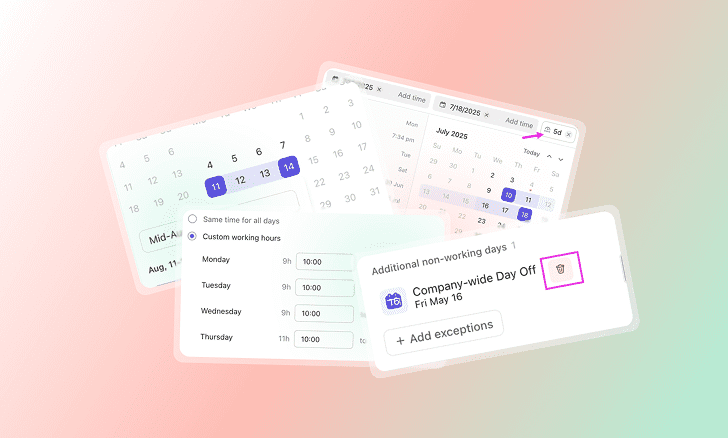
The ClickUp Work Schedule feature allows workspace owners and admins to define custom working days, hours, and holidays for their entire organization. This means you can tailor your workspace to reflect your team’s actual availability, ensuring that tasks and projects are scheduled only during working periods.
Key capabilities include:
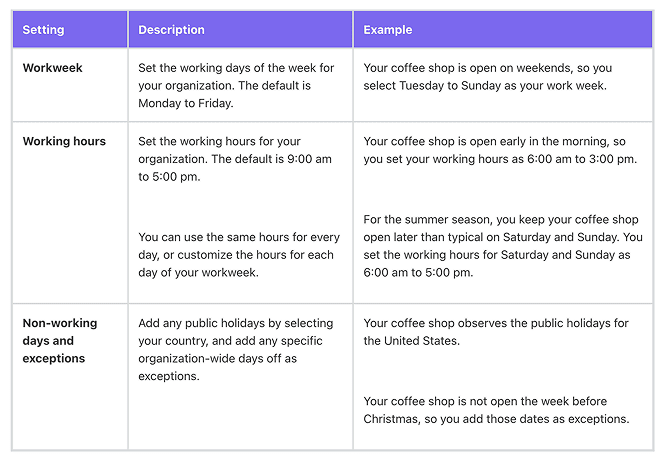
- Setting the organization’s workweek (e.g., Monday to Friday, or including weekends)
- Defining standard or custom working hours for each day
- Adding public holidays and company-wide non-working days as exceptions
- Automatically skipping non-working days when scheduling tasks
- Visualizing non-working days in Gantt, Timeline, and Workload views
By aligning ClickUp’s scheduling logic with your real-world work calendar, you can prevent tasks from starting or ending on days when your team isn’t available, leading to more accurate project timelines and better resource management.
Why Is the Work Schedule Feature a Game-Changer?
1. Accurate Project Planning
Traditional project management tools often assume a standard Monday-to-Friday, 9-to-5 workweek. However, many organizations operate on different schedules, have flexible hours, or observe unique holidays. ClickUp’s Work Schedule feature lets you reflect these realities in your workspace, ensuring that project plans are both realistic and achievable.
2. Reduced Scheduling Conflicts
By automatically skipping non-working days, ClickUp prevents tasks from being scheduled on weekends, holidays, or other days off. This reduces the risk of missed deadlines, overworked team members, and last-minute rescheduling.
3. Enhanced Team Productivity
When your team’s workload is aligned with their actual availability, productivity soars. Team members can focus on their tasks during working hours, while managers gain a clear view of capacity and can plan accordingly.
4. Improved Transparency and Communication
With non-working days clearly marked in project views, everyone from team members to stakeholders; can see when work is (and isn’t) expected to happen. This transparency fosters better communication and sets clear expectations.
How to Set Up the ClickUp Work Schedule Feature
Setting up your organization’s work schedule in ClickUp is straightforward. Here’s a step-by-step guide:
Step 1: Access Work Schedule Settings
In ClickUp, click your Workspace avatar in the upper-left corner.
- Select Settings from the dropdown menu.
- Click on Work Schedule.
Step 2: Configure Your Workweek
Choose which days of the week are considered working days. For example, select Monday to Friday, or include weekends if your business operates seven days a week.
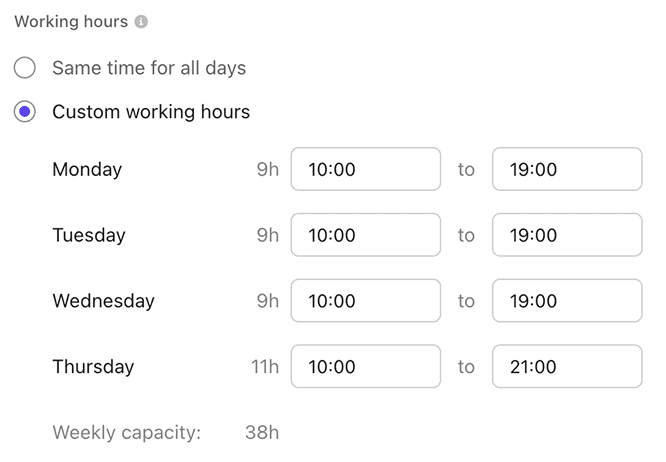
Step 3: Set Working Hours
Define the standard working hours for your organization (e.g., 9:00 am to 5:00 pm).
You can set the same hours for every day or customize hours for each day of the week.
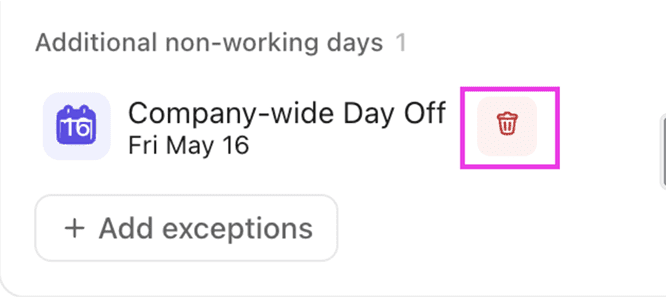
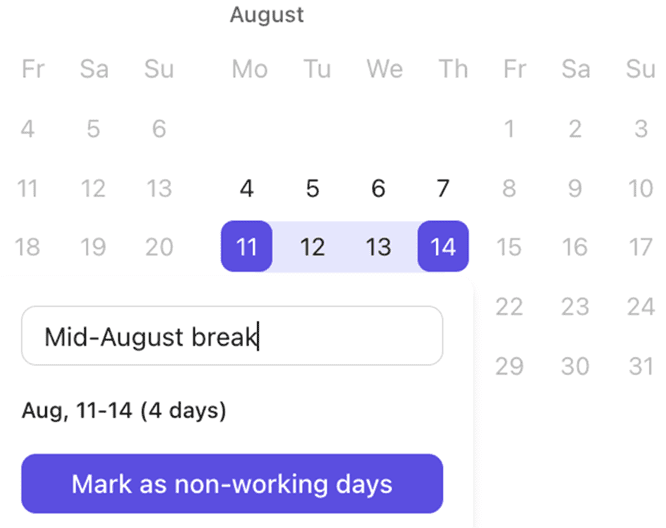
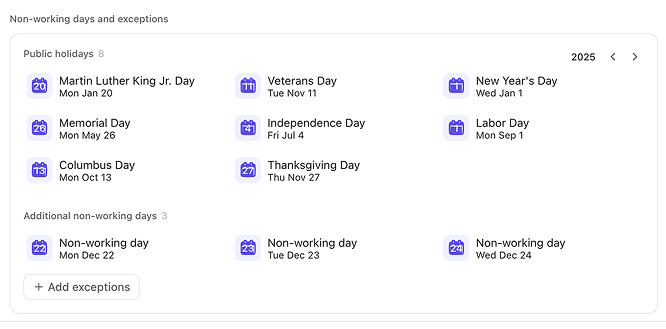
Step 4: Add Non-Working Days and Exceptions
Click Select public holidays to add regional holidays based on your country.
Add custom exceptions for company-wide days off, such as annual retreats or special events.
Step 5: Save Changes
Once you’ve configured your workweek, hours, and exceptions, click Save changes in the lower-right corner.
Pro Tip: You can update your work schedule at any time to reflect changes in your organization’s calendar.
How the Work Schedule Feature Impacts Task Scheduling
Once your work schedule is set, ClickUp automatically takes it into account when scheduling tasks and projects. Here’s how it works:
1. Skipping Non-Working Days
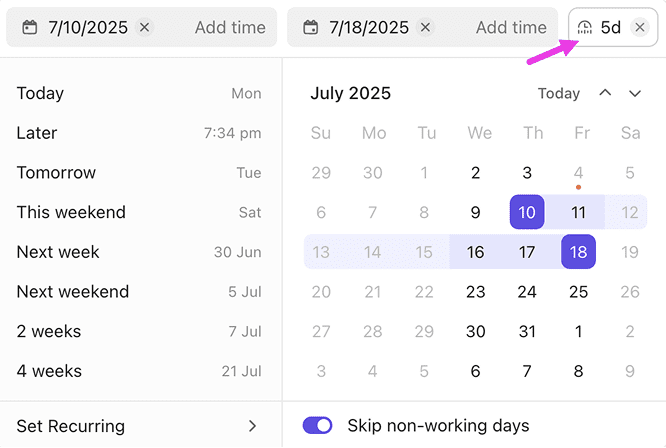
When you set a task’s start date and duration, ClickUp will automatically skip non-working days. For example, if a task starts on Friday and has a duration of three days, but Saturday and Sunday are non-working days, the task will be scheduled to end on the following Tuesday.
2. Visual Indicators in Views
Non-working days are displayed in grey in Gantt, Timeline, and Workload views, making it easy to see at a glance when work is not expected to occur.
3. Integration with Scheduling ClickApps
The Work Schedule feature works seamlessly with other ClickUp scheduling tools, such as:
- Duration ClickApp: Set task durations and let ClickUp calculate start or due dates.
- Skip Non-Working Days ClickApp: Ensures tasks are only scheduled on working days.
- Reschedule Dependencies ClickApp: Automatically adjusts dependent tasks when dates change.
- Remap Subtask Due Dates ClickApp: Keeps subtasks aligned with parent task changes.
Best Practices for Using ClickUp’s Work Schedule Feature
Once your work schedule is set, ClickUp automatically takes it into account when scheduling tasks and projects. Here’s how it works:
1. Involve Key Stakeholders
Before setting your organization’s work schedule, consult with HR, operations, and team leads to ensure all working patterns and holidays are accurately reflected.
2. Regularly Update Holidays and Exceptions
Keep your work schedule up to date by adding new holidays or company-wide days off as they arise. This ensures your project plans remain accurate throughout the year.
3. Communicate Changes
Notify your team whenever the work schedule is updated. This helps everyone stay informed and prevents confusion about task deadlines.
4. Use Scheduling ClickApps
Activate relevant ClickApps to maximize the benefits of the Work Schedule feature. For example, use the Skip Non-Working Days ClickApp to ensure all tasks respect your defined schedule.
5. Use Templates with Smart Scheduling
When creating project templates, include durations and dependencies. This allows ClickUp to automatically schedule tasks based on your work schedule, saving time and reducing manual adjustments.
Frequently Asked Questions (FAQs)
Q1: Who can set up the Work Schedule in ClickUp?
Only workspace owners and admins have permission to configure the Work Schedule feature.
Q2: Can I set different working hours for different teams?
Currently, the Work Schedule feature applies to the entire workspace. For organizations with multiple teams on different schedules, consider creating separate workspaces or using custom fields to track team-specific availability.
Q3: How does the Work Schedule feature handle public holidays?
You can add public holidays by selecting your country in the Work Schedule settings. ClickUp will automatically skip these days when scheduling tasks.
Q4: What happens if I change the work schedule after tasks are already scheduled?
If you update the work schedule, future task scheduling will respect the new settings. Existing tasks may need to be manually adjusted if their dates now fall on non-working days.
Q5: Does the Work Schedule feature integrate with external calendars?
Yes! ClickUp now offers 2-way sync with Microsoft Outlook Calendar and Google Calendar, allowing you to keep your ClickUp schedule aligned with your external calendars.
Advanced Tips: Integrating Work Schedule with Outlook and Google Calendar
ClickUp’s new 2-way calendar sync allows you to connect your workspace with Microsoft Outlook or Google Calendar. This integration ensures that meetings, events, and tasks are always up to date across platforms.
Benefits include:
- Real-time synchronization of tasks and events
- AI-powered scheduling that blocks time for important work
- Unified view of all responsibilities in one place
- Reduced scheduling conflicts and improved time management
For a detailed setup guide, check out: ClickUp’s 2-Way Outlook Calendar Sync: A Complete Guide to Smarter Scheduling.
Conclusion
ClickUp’s Work Schedule feature is a powerful addition for any organization looking to optimize project planning, resource allocation, and team productivity. By allowing you to define custom working days, hours, and holidays, ClickUp ensures that your project timelines are realistic and aligned with your team’s actual availability.
Whether you’re managing a small team or a large enterprise, leveraging the Work Schedule feature can help you avoid scheduling conflicts, improve transparency, and deliver projects on time. Combine it with ClickUp’s other scheduling tools and calendar integrations for a truly seamless project management experience.
Ready to get started?
Set up your organization’s work schedule today and experience the difference in your project planning and execution.
Need expert help implementing ClickUp for your team?
DTech Systems is the only verified ClickUp partner in Saudi Arabia, trusted by companies across the region to design smarter, faster workflows. Whether you’re setting up ClickUp from scratch or want to tailor the Work Schedule feature to match your team’s availability, we can help.
👉 Let’s talk! Visit stage-in.dtechsystems.co/ to schedule your free ClickUp consultation