If you’ve ever tried to manage a project in ClickUp using the Gantt view and ended up feeling more like a juggler than a project manager, you’re not alone
As ClickUp experts, we’ve seen firsthand how this powerful tool can sometimes feel more like a puzzle than a solution. Let’s dive into the common frustrations users face with ClickUp’s Gantt view and explore some practical solutions.
The Promise of Gantt Charts
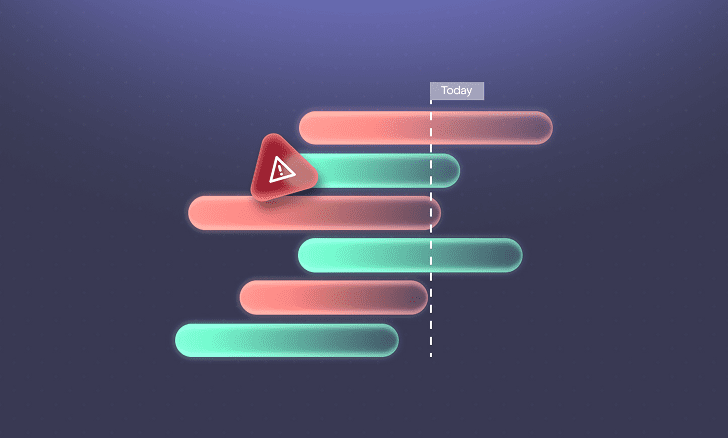
Gantt charts are designed to provide a visual timeline of your project, showing tasks, their durations, and dependencies. In theory, they should make project management more straightforward. However, in practice, especially within ClickUp, they can introduce a new set of challenges.
Common Frustrations with ClickUp’s Gantt View
1. Auto-Scheduling Breaks Dependencies
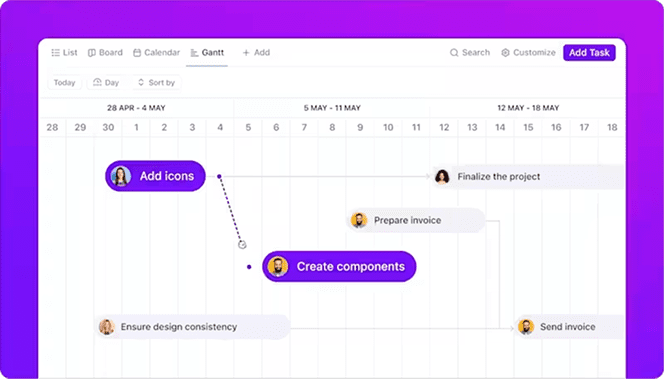
One of the key features of ClickUp’s Gantt view is its ability to auto-schedule tasks based on dependencies. However, many users have reported that this feature doesn’t always work as expected. For instance, when a task’s due date is pushed back, its dependent tasks should automatically adjust. But this isn’t always the case.
“I’m just trying to get a dependent task to update its start date when the task it’s dependent on changes… and it will not work.” – Reddit user
Moreover, the auto-scheduling feature only pushes dates forward. If a task is completed earlier than expected, its dependent tasks don’t automatically move up, leading to inefficiencies.
“If I pull Task 1’s date back, Task 2 remains at the date adjusted when Task 1 was pushed out.” – Reddit user
Why This Happens:
- Tasks might lack start/due dates, making them “invisible” to the scheduling engine.
- The “Reschedule Dependencies” toggle (critical for chain reactions) gets accidentally disabled.
- Subtasks aren’t properly nested under parent tasks, confusing the hierarchy.
The Fix:
- Enable “Reschedule Dependencies” in Gantt Settings > Layout Options. This feature allows dependent tasks to adjust automatically when their parent tasks are rescheduled.
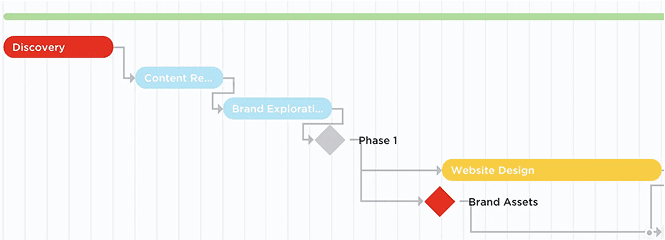
- Use milestones (diamond icons) for anchor points. They don’t shift and keep phases aligned.
- Turn on “Critical Path” (Business Plan+). It highlights tasks that’ll delay your whole project if they slip, so you know where to focus.
- “When rescheduling dependencies from Gantt view, only visible tasks and their dependencies are rescheduled.” – ClickUp Help
Pro Tip: If a task won’t reschedule, check its start date. No start date? ClickUp treats it as a free agent!
2. Cluttered and Confusing Interface
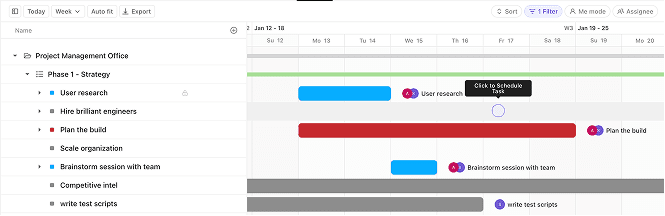
As projects grow in complexity, the Gantt view can become overwhelmingly cluttered. Tasks, subtasks, and dependencies can overlap, making it difficult to get a clear picture of the project’s progress.
“With a complex project hierarchy containing many nested tasks and subtasks, the sidebar can become cluttered and difficult to work with.” – UpSys Blog
Why This Happens:
- By default, Gantt view shows your entire hierarchy (Spaces > Folders > Lists), even if tasks are filtered.
- Progress bars for Lists/Folders appear based on task dates within them, but if tasks are hidden, the bar stays, creating visual noise.
- Subtasks often hide unless you manually expand every parent task.
The Fix:
- Click “Hide Empty Locations” in Customize > Layout Options. This removes folders/lists with no visible tasks.
- Color-code by priority/status to quickly spot fires. Blue = active, red = urgent, yellow = milestone.
- Use status-based filtering to only show “In Progress” or “Approved” tasks, clearing out the “noise” of pending or done items.
3. Drag-and-Drop Isn’t Intuitive
While the drag-and-drop feature is meant to simplify task rescheduling, many users find it unintuitive. Adjusting tasks can lead to unexpected shifts in the timeline, especially when dependencies are involved.
“Timeline drag/drop not intuitive for all users.” – User feedback
Why This Happens:
- Zoom levels (day/week/month) drastically change drag sensitivity. A “day” zoom requires pixel-perfect dragging; “month” view is forgiving.
- Laptop trackpads struggle with precision dragging across long timelines.
- Weekend skipping (if enabled) can “jump” tasks unexpectedly
The Fix:
- Hold CTRL/CMD + scroll to zoom smoothly without losing your place.
- Bulk reschedule by dragging a Folder/List’s progress bar. All tasks inside, shift relatively – no more manual tweaking!
- Use the sidebar scheduler: Hover over a task, click the date field, and type dates manually. Faster than dragging for micro-adjustments!
4. Inconsistent Task Ordering Between Views
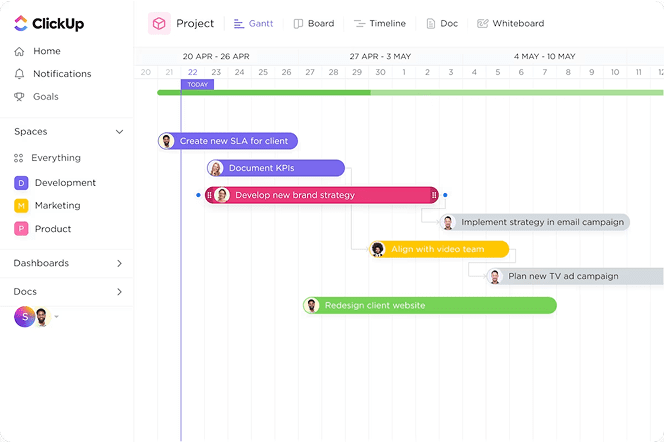
Users have reported inconsistencies between the Gantt view and other views like List. Reordering tasks in the Gantt view doesn’t always reflect in the List view, leading to confusion.
On Gantt I’ll do Task 1, then Task 2 that depends on it below… But when I go back to List, it has whatever order it was in before.” – Reddit user
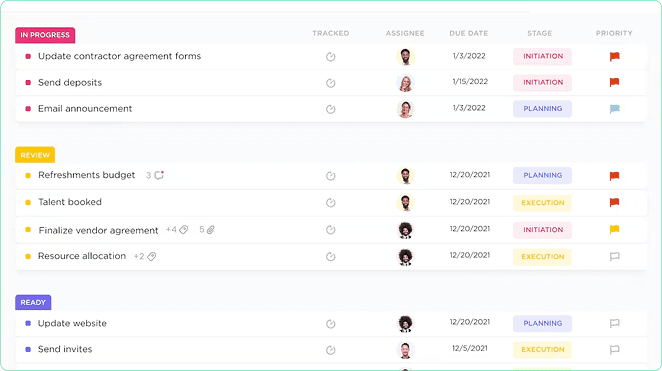
Why This Happens:
- Placement of different grouping options in Gantt and List views.
The Fix:
- Avoid applying different sorting or grouping options in each. Keeping both views ungrouped and unsorted ensures that task orders remain consistent.
- “The order of tasks on Gantt view and List view are connected if you group by ‘none’ on the List view and sort by none Gantt view.” – Reddit user
How Dtech Systems Can Help You Master ClickUp’s Gantt View
If you’ve been nodding along to the Gantt view frustrations we’ve discussed, it might be time to bring in some expert help. DTech Systems is the only official ClickUp partner and reseller in Saudi Arabia, with a proven track record of helping teams across the globe (including Pakistan, the UK, and the Middle East) optimize their workflows and get the most out of ClickUp.
If you’re ready to transform your ClickUp experience and eliminate Gantt view frustrations, DTech Systems is here to help. Book a free consultation today and discover how our expert ClickUp consulting and integrations can streamline your workflow and boost productivity.