Quick Answer: An app-to-app workflow connector is a pre-built integration that lets two business tools — like Slack and ClickUp—automatically send data, trigger actions, and sync updates between each other without manual copy-paste or custom code. For example, a Slack-ClickUp connector can let teams turn a Slack message into a ClickUp task, post task updates back to a Slack channel, and preview full task details without leaving Slack. This helps turn conversations into trackable work automatically, rather than requiring someone to manually re-enter information later.
What Is an App-to-App Workflow Connector?
An app-to-app workflow connector is middleware — usually delivered as a native integration inside the app itself, or through automation platforms like Zapier and Make — that maps specific triggers in one app to specific actions in another. Instead of a human moving information between tools, the connector does it automatically, in real time or on a schedule.
The Slack-ClickUp connector is a clean example of this pattern. It’s built as a native integration rather than a third-party workaround: teams connect it from ClickUp’s App Center, authorize access to a Slack workspace, choose which channels and events to sync, and the two tools start talking. From that point on, a task created, assigned, or updated in ClickUp can post automatically into the right Slack channel, and a Slack message can be turned directly into a ClickUp task — no copy-paste, no separate tab.
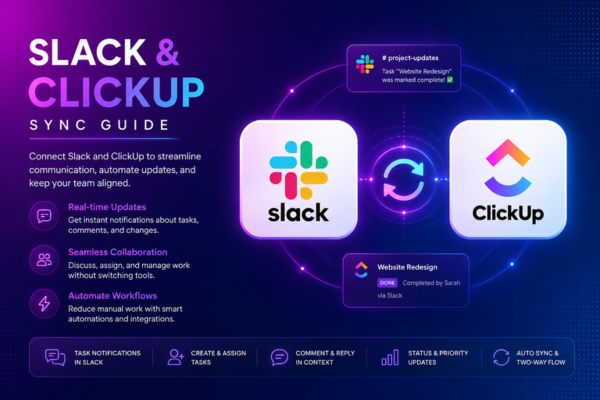
How an App-to-App Workflow Connector Works
Every app-to-app workflow connector follows roughly the same mechanics: authenticate once, map fields between the two systems, define triggers, and let actions fire automatically. In the Slack and ClickUp example, setup takes minutes: open ClickUp’s workspace settings, find Slack under Integrations, authorize the connection with workspace owner or admin permissions, then choose which ClickUp spaces sync with which Slack channels. After that, no one needs to manually announce task changes in chat or manually log a Slack decision as a task — the connector does both automatically.
Actions a Typical Connector Automates
Based on how the native Slack and ClickUp integration works today, a solid app-to-app workflow connector usually supports:
- Create task from message — turn a Slack conversation into a trackable ClickUp task instantly
- Post status updates — reflect new tasks, assignments, and status changes directly in a Slack channel
- Unfurl task links — preview full ClickUp task details and take quick actions without leaving Slack
- Route notifications by channel — send the right updates to the right team, not a single noisy feed
- Two-way sync on comments — keep discussion connected to the task it’s actually about
This is the difference between “the apps are technically connected” and “the apps actually work together.” A connector that only does the first (a login-level integration) still leaves people doing manual translation between systems. A well-built app-to-app workflow connector removes that translation step entirely.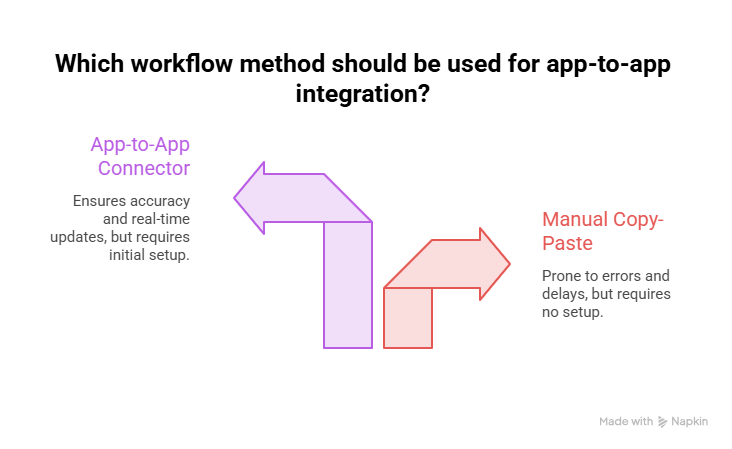
How to Connect ClickUp and Slack: Step-by-Step
Setting up the Slack-ClickUp app-to-app workflow connector takes a few minutes and doesn’t require a developer. Here’s the full process, from opening the integration settings to testing that it actually works.
Step 1: Open ClickUp’s Integrations Settings
From your ClickUp workspace, go to Settings → Integrations (or the App Center) and search for Slack. This is where every native connector in ClickUp lives, so it’s the same starting point regardless of which tool you’re connecting.
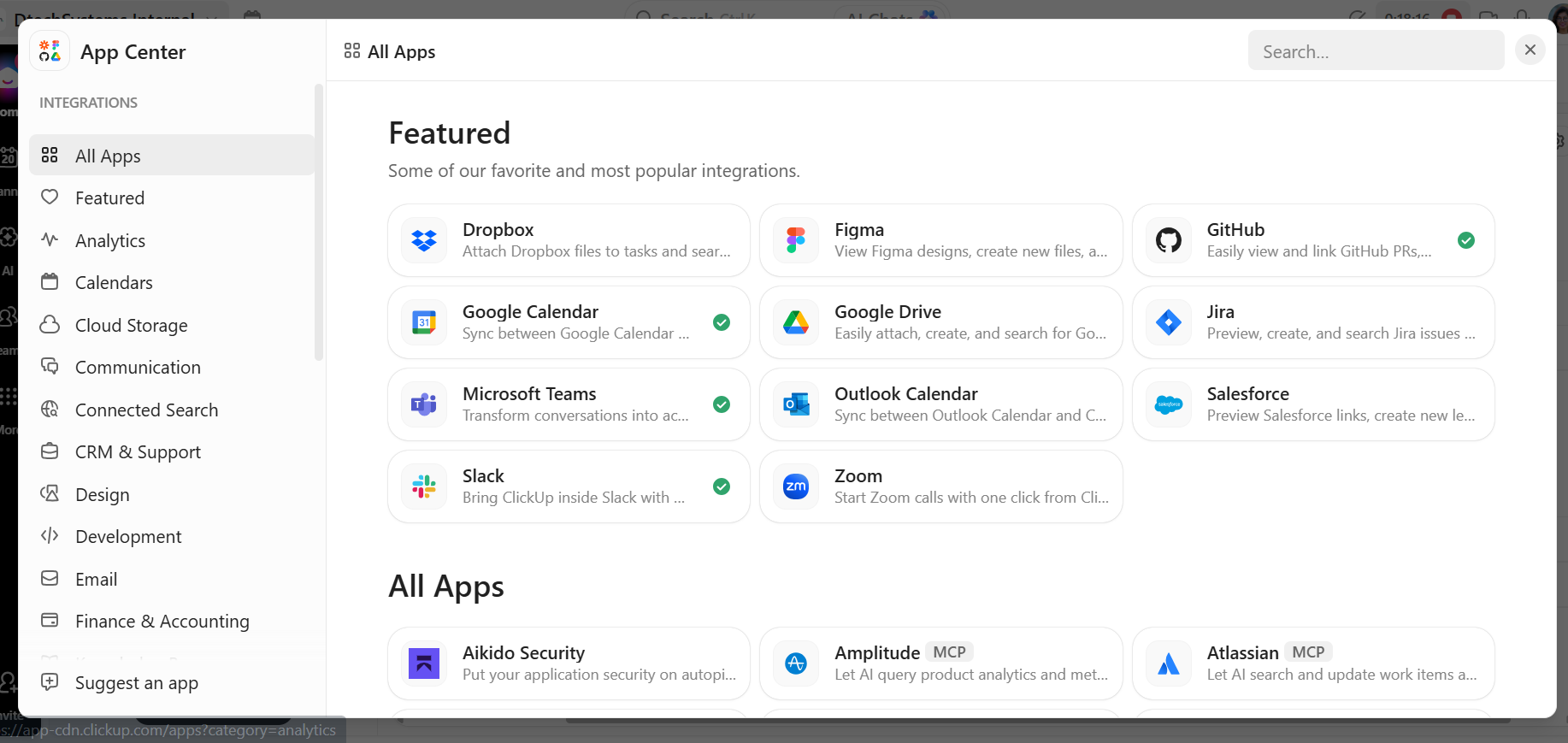
Step 2: Click Connect and Authorize Slack
Select Slack and click Connect. You’ll be redirected to Slack to sign in and approve the permissions ClickUp is requesting — this authorizes the app-to-app workflow connector to read and post messages on your workspace’s behalf.
Note: You’ll need workspace owner or admin permissions in ClickUp to complete this step. Check your role under Settings → Members if the Connect button is greyed out.
Step 3: Choose the Slack Account and Workspace
Confirm you’re authorizing the correct Slack workspace — ideally one owned by the team or organization, not a personal account, since that’s what other members will need access to going forward.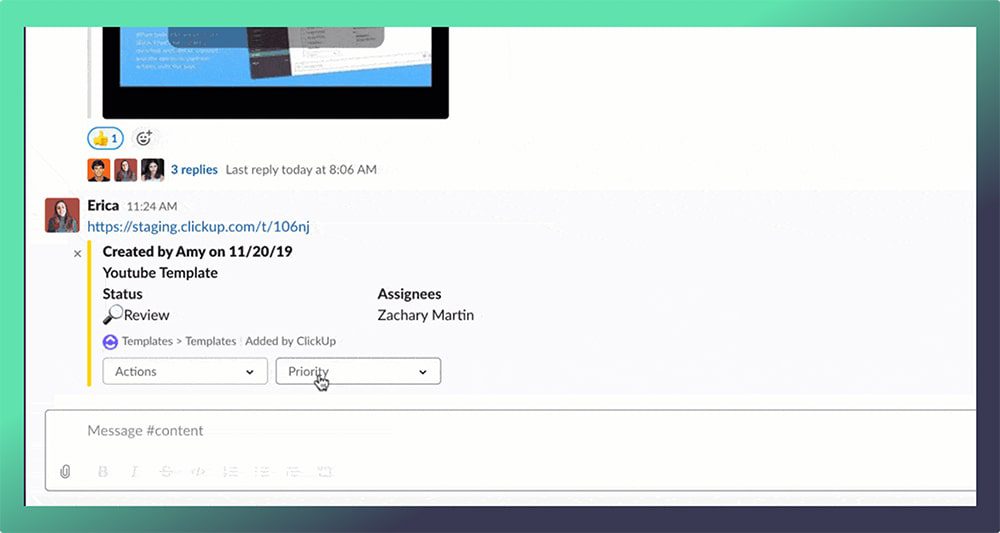
Step 4: Map ClickUp Spaces to Slack Channels
Back in ClickUp, choose which Spaces, Folders, or Lists should sync with which Slack channels. This mapping is what turns a generic connection into an actual app-to-app workflow connector — it decides where task updates get posted and which channel’s messages can become tasks.
Step 5: Select Which Events Trigger Notifications
Pick the specific events you want synced — new task created, task assigned, status changed, comment added, due date approaching, and so on. Narrowing this down early prevents the channel from turning into notification noise that people start muting.
Step 6: Test With a Real Task
Create a task in ClickUp and confirm it appears — or triggers a notification — in the connected Slack channel. Then try the reverse: turn a Slack message into a ClickUp task using the message’s “More actions” menu, and confirm it lands in the right list.
Where Most Connector Rollouts Actually Fail
Quick Answer: An app-to-app workflow connector is a pre-built integration that lets two business tools — like Slack and ClickUp — automatically send data, trigger actions, and sync updates between each other without manual copy-paste or custom code. For example, a Slack-ClickUp connector can let teams turn a Slack message into a ClickUp task, post task updates back to a Slack channel, and preview full task details without leaving Slack. This helps turn conversations into trackable work automatically, rather than requiring someone to manually re-enter information later.
Frequently Asked Questions (FAQs)