Key Takeaways
- Intercom supports over 45 languages including Arabic, Urdu, Japanese, French, and Spanish
- You can run your Help Center, Messenger, Fin AI Agent, Workflows, and Copilot in multiple languages
- Fin can understand the user’s language, find answers in that same language, or translate from fallback content
- Real-time translation means you can create one set of content and still support many languages
- You can preview how your setup looks and test Fin responses before going live
- Reports show how your multilingual support is working in every language
- Everything is built into Intercom, no need for extra tools or coding
Step 1: Choose the languages you want to support
Your first step is to tell Intercom which languages your customers speak.
To do this:
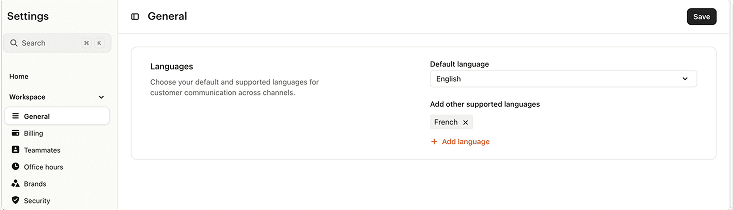
Go to Settings → Workspace → General → Languages
Here, you will set your main language, like English, and then add other languages such as Arabic, Urdu, French, or Chinese. Once selected, Intercom will automatically recognize the user’s browser settings and show Messenger and Help Center in the language that matches.
Step 2: Turn on multilingual support in your Help Center
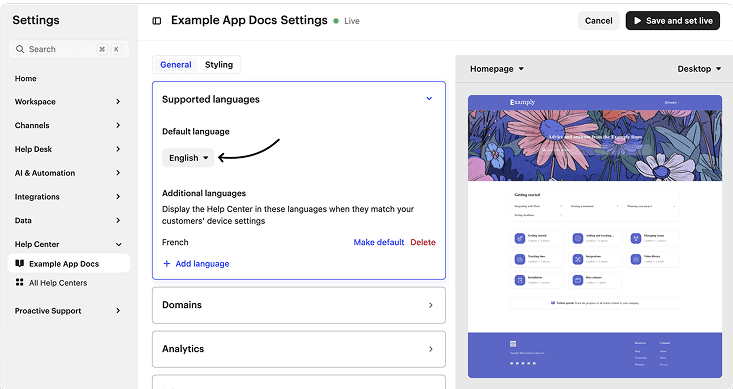
Your Help Center is visited by users to read helpful articles. To make sure everyone can understand them, you need to activate the Help Center for multiple languages.
Here’s how:
Go to Help Center → Open Settings → Choose Languages
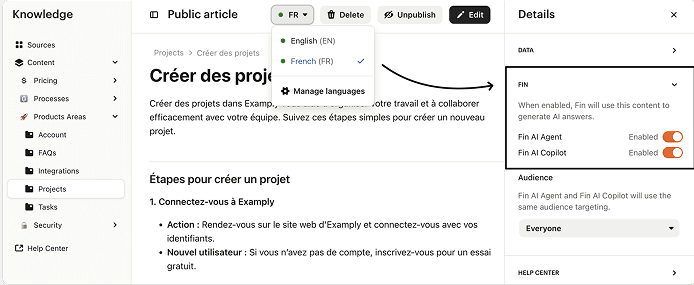
Now you can add more languages and write articles in each one. For example, you can have the same article in both English and French, and Intercom will show the right version to the right person. You don’t need separate websites or accounts, just add your translations to the same article.
Step 3: Train Fin AI Agent to work in multiple languages
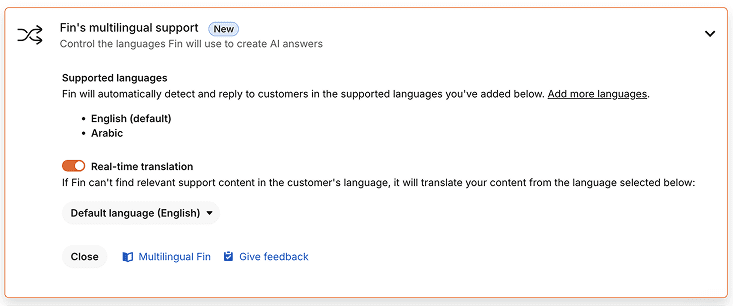
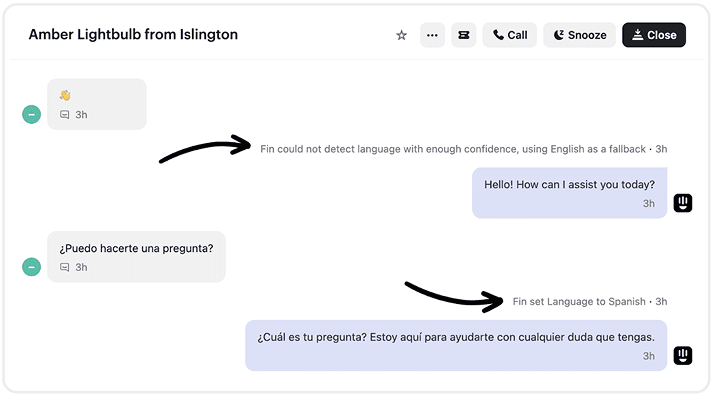
Fin AI Agent can understand and respond in over 45 different languages. This means your users can type a question in their own language, and Fin will either find an answer written in that same language or translate the response if needed.
Here’s how Fin handles multilingual conversations:
- It first checks the language of the customer’s question
- Then it searches for matching content in that language
- If a match is found, it replies using that content
- If not, it can translate fallback content into the customer’s language
To enable this:
Go to Fin AI Agent → Fin Settings → Multilingual Support → Select your supported languages
Step 4: Use real-time translation if content is missing
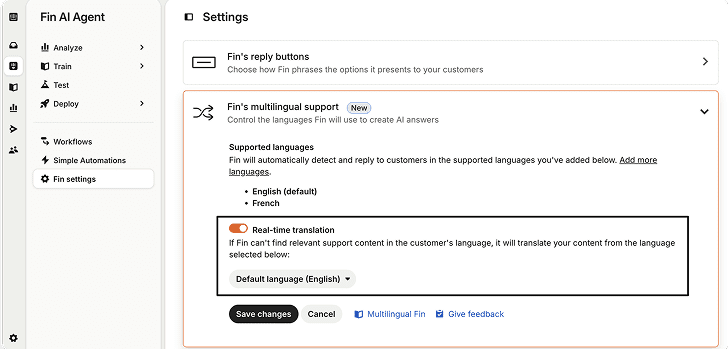
If you do not have content in every language, Fin can still help using real-time translation. This means that even if your Help Center articles or snippets exist only in one language, Fin can translate the answer before replying to the user.
To enable real-time translation:
Go to Fin AI Agent → Fin Settings → Multilingual Support → Turn on Real-time Translation
Once this is enabled, Fin can translate any answer and respond in the customer’s language, making the experience smoother without extra work from your team.
Step 5: Build smart workflows for different languages
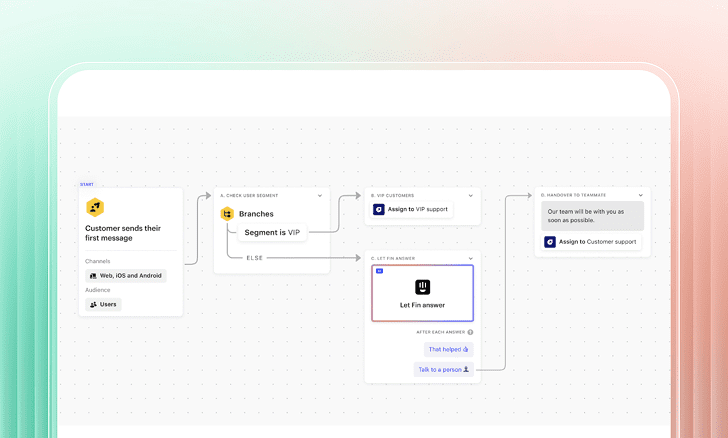
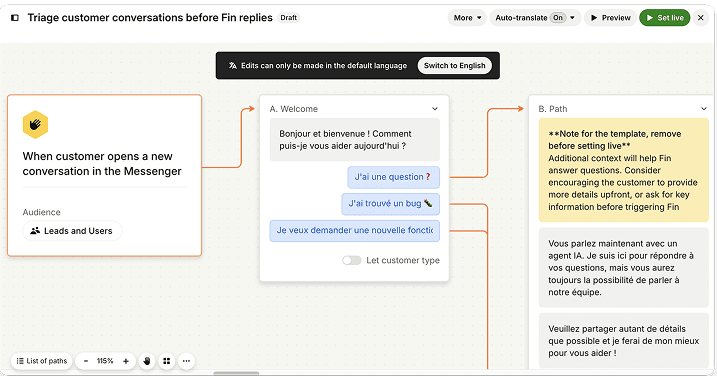
Workflows help you automate conversations by guiding users through answers, forms, or questions. You can set up workflows that change based on the user’s language.
To build this:
Go to Automation → Workflows → Create a new Workflow
Inside the workflow, you can add conditions like:
- If the user’s browser language is French, show the French flow
- If the user’s language is Arabic, show the Arabic path
- Use the Let Fin Answer step in each path to answer questions in that specific language
This setup allows your automation to feel more human, showing buttons, replies, and guidance in the exact language the customer expects.
Step 6: Improve Messenger with multilingual experiences
The new Intercom Messenger is faster and better for global users. It automatically matches the customer’s language and displays everything in a familiar way.
Once languages are selected in your workspace settings, the Messenger will show its interface in the user’s language & display welcome messages in their language
You don’t need to create separate widgets or setups. Everything happens in the same Messenger, just smarter.
Step 7: Show special notices in multiple languages
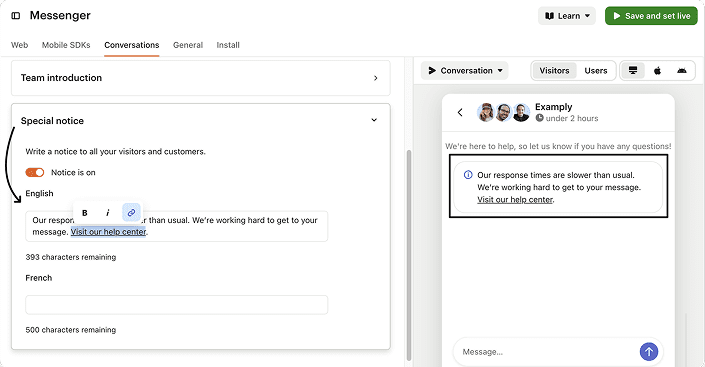
Sometimes you want to inform your users about special updates, like a holiday, a system issue, or a change in support hours. You can use special notices for this.
To show them in different languages:
Go to Messenger → Proactive Support → Special Notices
Write different versions of your message in each language, and set the rule to show the correct version to the right audience. For example:
- Users with their language set to Arabic will see the Arabic notice
- Users browsing in Spanish will see the Spanish version
This ensures clear communication with everyone, even when you’re not available live.
Step 8: Use Copilot to help your team respond in different languages
Copilot helps your support agents by suggesting helpful replies based on your content. It can now support multiple languages too.
To set this up:
- Make sure your multilingual content is available and tagged for Copilot use
- Activate Copilot inside your Inbox settings
- Copilot will detect the language of the user’s question and suggest replies in the same language
This saves time for your team and keeps the conversation consistent and accurate, no matter who is replying.
Step 9: Preview and monitor performance by language
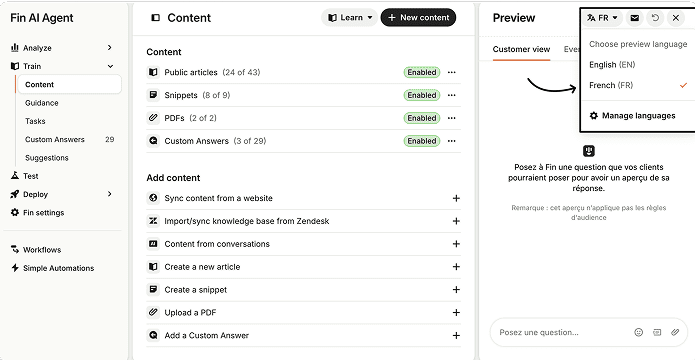
Before going live, you can test how Fin responds in different languages using the preview tool.
Ask questions in that language to see how Fin replies. You’ll see test conversations appear in your Inbox under the name Preview user, so your team can also review them.
After going live, you can keep track of performance by filtering conversations and reports.
To check how things are going:
- In your Inbox, create views filtered by language and Fin involved
- In your Reports, open the Fin AI Agent report
- Click Add Filter → Choose Language
- Review how Fin performs in each language and see which ones might need better content
This helps you keep your support quality high in every region and improve where needed.
Wrap-up
Intercom makes it easy to give support in different languages without building different systems for every region. Whether you’re working with users from Asia, Europe, or the Middle East, you can guide them clearly, answer their questions, and offer help in the language they understand best.
By using Fin AI Agent, smart Workflows, real-time translation, and language-based custom messages, you create a support experience that feels personal and respectful. And with Copilot and Messenger also working in multiple languages, your team stays efficient without extra effort.
Multilingual support is no longer a luxury. It’s the new standard. And with Intercom, it’s easier than ever to do it well.
If you need help setting this up, our team is ready to walk you through every step.