Agent Orchestration with ClickUp: How Businesses Can Coordinate AI Agents and Human Work

Setting up your first AI agent is the easy part. The trouble usually starts with the third or fourth one.
Two agents post the same update. A handoff gets missed because nobody knew it was the agent’s turn. Someone asks, “Who approved this?” and nobody’s sure.
AI agent orchestration is how you prevent that. You decide who does each step, how work moves from one step to the next, and where a person checks it before it goes further.

Give every step an owner
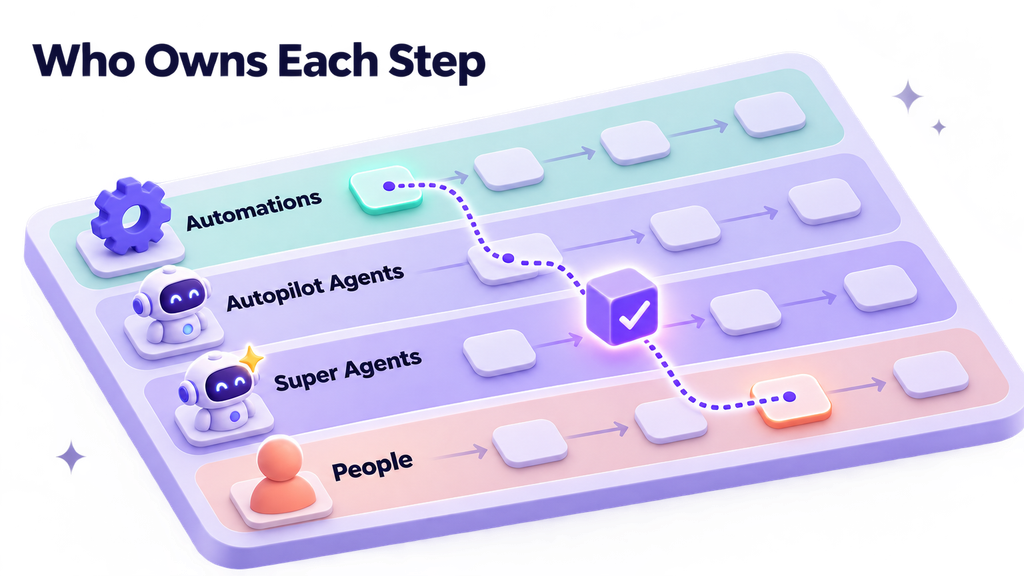
In ClickUp, work can be done by four kinds of “teammates.” Each one is suited to a different kind of step:
| Who | Best for |
| Automations | Fixed steps that never change, like applying a template or moving a status |
| Autopilot Agents | Repeated jobs inside one List, Folder, Space, or Chat channel |
| Super Agents | Work that needs context from across the Workspace, like drafting a brief from past notes |
| People | Decisions, approvals, and anything that goes to a client |
If you can’t say who owns a step, that’s where things will slip.
Use triggers as your handoffs
A Super Agent only starts when something triggers it. In ClickUp, that can be an @mention, a direct message, a task assigned to it, a schedule, or an Automation.
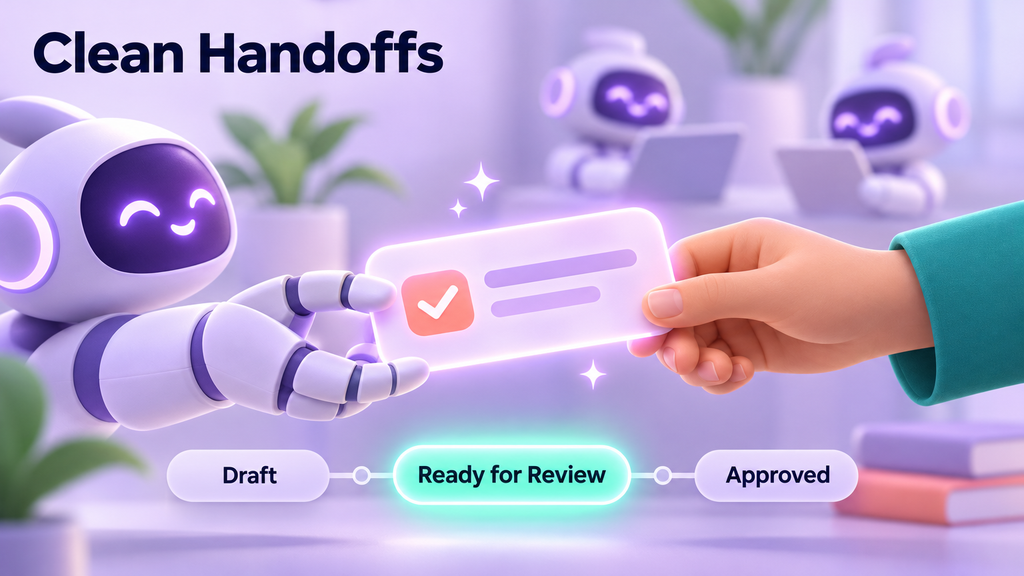
For orchestration, Automations matter most. When a status changes, an Automation can start the next agent, so nobody has to remember to pass the work on.
It also works the other way. A clear status like “Ready for review” tells a person that it’s their turn.
An example: onboarding a new client
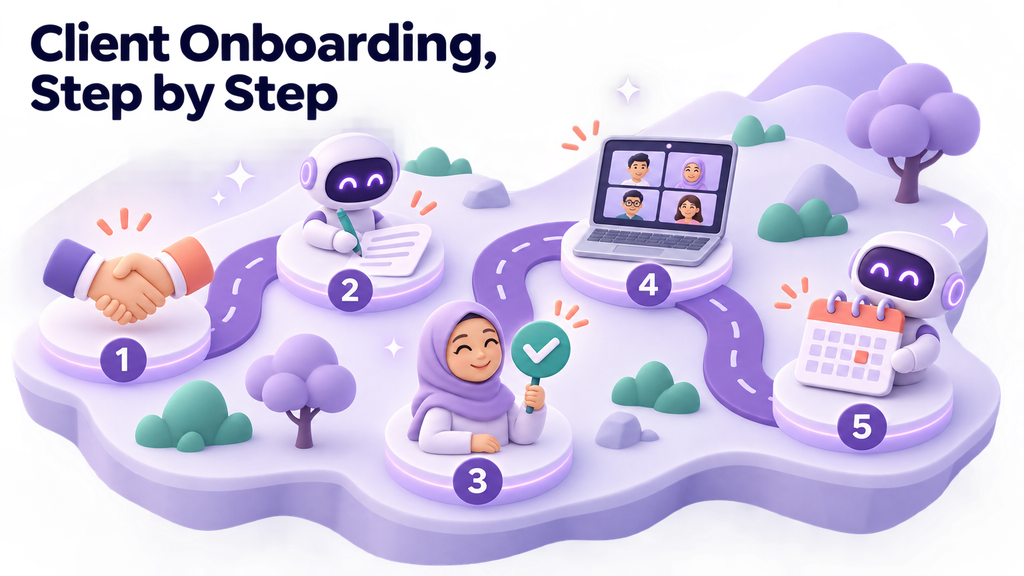
Here’s how a service business could coordinate one client onboarding:
- Sales marks the deal as won. An Automation creates the onboarding task from a template.
- A Super Agent prepares the kickoff brief. It pulls the sales notes and past conversations into a draft.
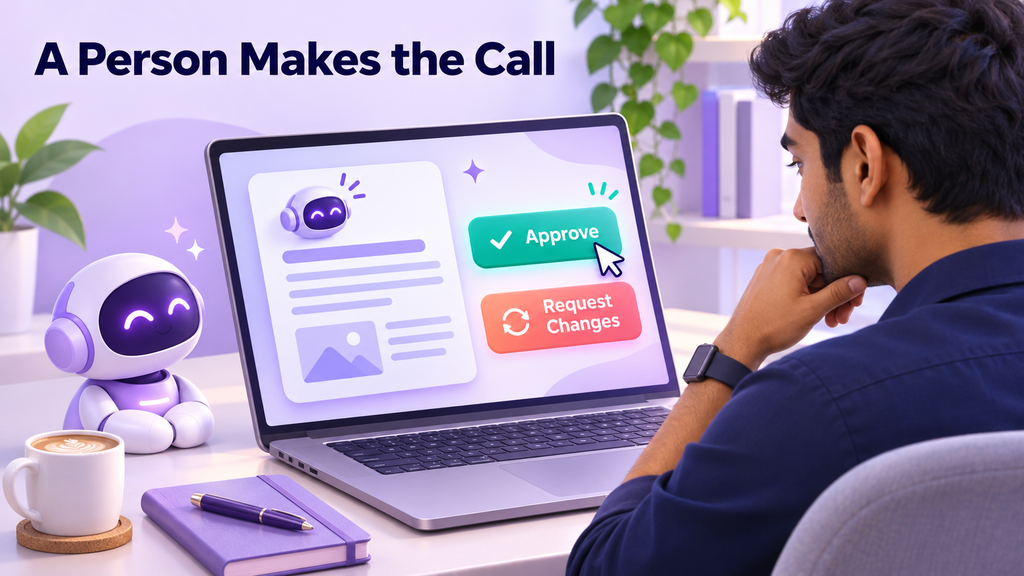
- The account manager reviews the brief. They fix what’s wrong, then move the task to “Approved.”
- The kickoff call happens. Only people are involved here.
- A scheduled agent checks progress every Monday. It flags any onboarding step that hasn’t moved in a week.
Every step has one owner, and every handoff has a status. The client only ever hears from a person.
Decide where people step in
Some steps should always stay with a person, like anything that:
- goes to a client
- involves pricing, contracts, or commitments
- affects someone’s role or pay
If you want an agent to check with someone before it acts, write that into its instructions. Don’t assume it will check on its own.
Be careful with what agents can see
Super Agents can see all the public parts of your Workspace. You choose their tools, so an agent without the Docs tools can’t edit Docs, for example.
Private information needs more care. If you add a private List to an agent’s knowledge, the agent can use it to answer anyone who’s allowed to use that agent, even people who can’t open the List themselves. Only add private information when every person using the agent should see it.
Check what your agents are doing
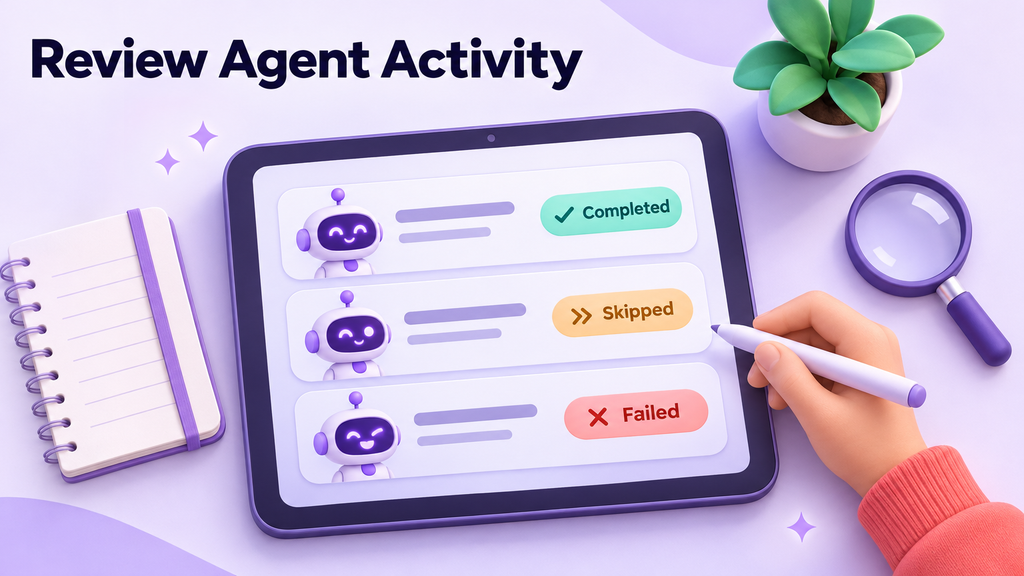
ClickUp’s Super Agent Activity view shows when each agent ran, what triggered it, who started it, and whether the run failed or was skipped.
Look at it every week for the first month. An agent that keeps failing or skipping usually has unclear instructions, is missing a tool, or has a trigger firing at the wrong time.
Before you add another agent
Ask three questions:
- Is another agent already doing this? Two agents on one job means duplicate updates.
- Does every handoff have a status? If not, work will sit waiting.
- Does every agent have a person responsible for it? Someone needs to update its instructions when the process changes.
If you answer no to any of these, fix it before you build the next agent.
Feature availability depends on your ClickUp plan and Workspace settings.
How Dtech can help
Dtech helps businesses plan how AI agents, automations, and people work together in ClickUp. That includes mapping the workflow, setting up agents and handoffs, and training the team that works alongside them.
Book a free ClickUp consultation atdtechsystems.coto map one workflow and see where agents fit.