Startups often work in a fast-paced environment where efficiency and organization are crucial. With limited resources and a strong need for streamlined workflows, project management software can be transformative for small teams. Among the various options available, ClickUp stands out as an ideal choice for startups, offering a flexible, all-in-one solution that can grow with the business. Here’s why ClickUp is the best project management tool for startups and how it can help improve productivity and collaboration.
All-in-One Solution for Task Management
Centralized Hub for Multiple Needs
One of the biggest challenges for startups is managing multiple tools for different aspects of project management—task tracking, communication, document sharing, and more. ClickUp solves this problem by offering an all-in-one platform that combines these features into a single hub. This centralized system provides several benefits:
Reduced cost and complexity: Using one platform minimizes the need for multiple subscriptions, saving money and reducing overhead.
Seamless task management: Teams can assign tasks, set deadlines, and track progress all within the same tool.
Easy access to information: Everything related to a project, from files to messages, is accessible in one place.
ClickUp’s integrated approach ensures that startups don’t waste time switching between different applications, making it easier to stay organized and focused.
User-Friendly Interface
Simple Layout and Navigation
ClickUp’s interface is designed to be intuitive and easy to navigate, making it accessible for teams that don’t have time for extensive training. For startups, where rapid onboarding is essential, this is a significant advantage. Here’s why ClickUp’s interface stands out:
Straightforward layout: Workspaces, projects, and tasks are arranged in a clear, hierarchical structure, making it easy to locate information.
Customizable views: Teams can choose from various views—like List, Board, and Gantt—based on their preferred working style, allowing each member to view tasks in a way that suits them.
Quick access to tools: All essential project management tools are just a click away, allowing teams to manage tasks, communicate, and share files without navigating complex menus.
This user-friendly design reduces the learning curve, making ClickUp a powerful yet easy-to-adopt project management tool.
Highly Customizable to Fit Any Team
Tailored Task Management
One of ClickUp’s strongest features is its flexibility. Startups come in all shapes and sizes, with unique needs and workflows. ClickUp offers deep customization options, allowing teams to tailor the platform to fit their specific requirements. Here are some of the customization features that make it ideal for startups:
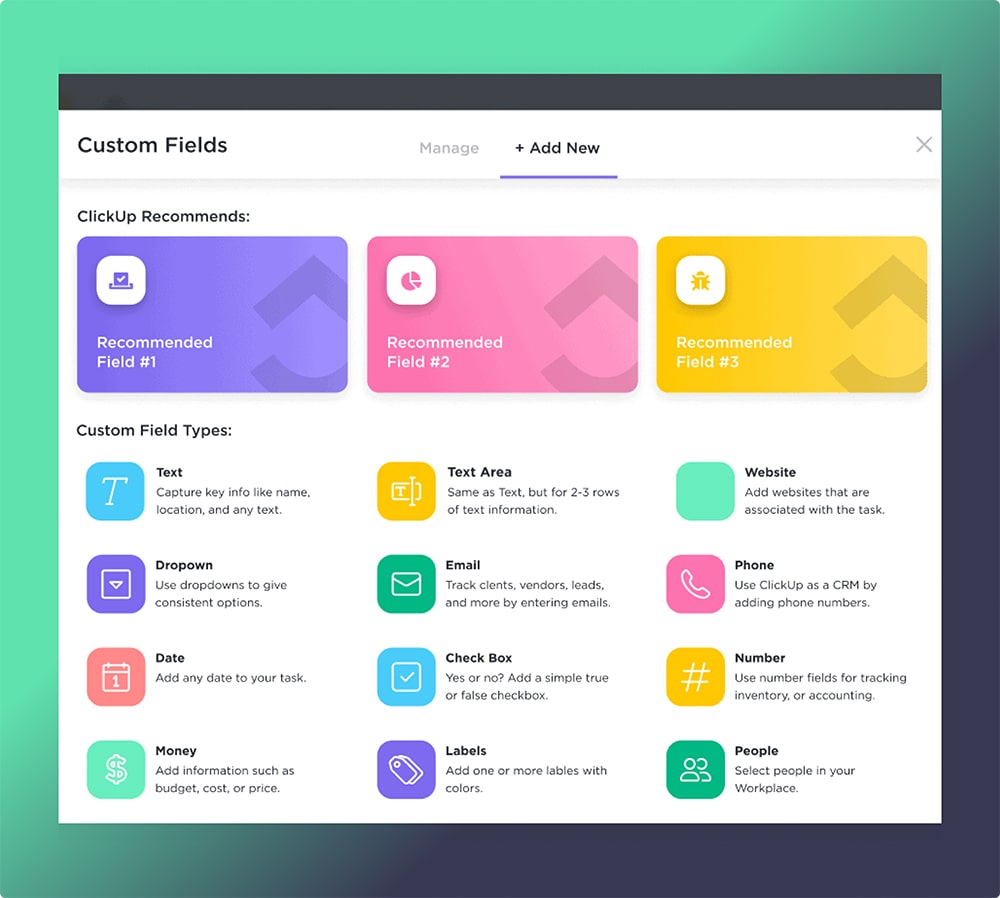
Customizable task options: Users can create custom fields, labels, and task statuses, allowing tasks to be adapted to reflect the exact stages of a project.
Templates for recurring tasks: Teams can save templates for projects or task workflows, which is especially useful for recurring tasks.
Personalized permissions and settings: ClickUp lets team members customize their workspace preferences and permissions, ensuring everyone sees what’s relevant to them.
Adjustable Notifications
ClickUp offers flexible notification settings, so users only receive updates that are relevant to their work. This reduces noise and ensures that critical information doesn’t get overlooked. In a startup environment, where everyone often wears multiple hats, this level of control over notifications can improve focus and productivity.
Advanced Collaboration Features
Real-Time Communication Tools
ClickUp goes beyond task management by providing robust collaboration tools, which are essential for startup teams that need to stay connected. Here’s how ClickUp facilitates communication:
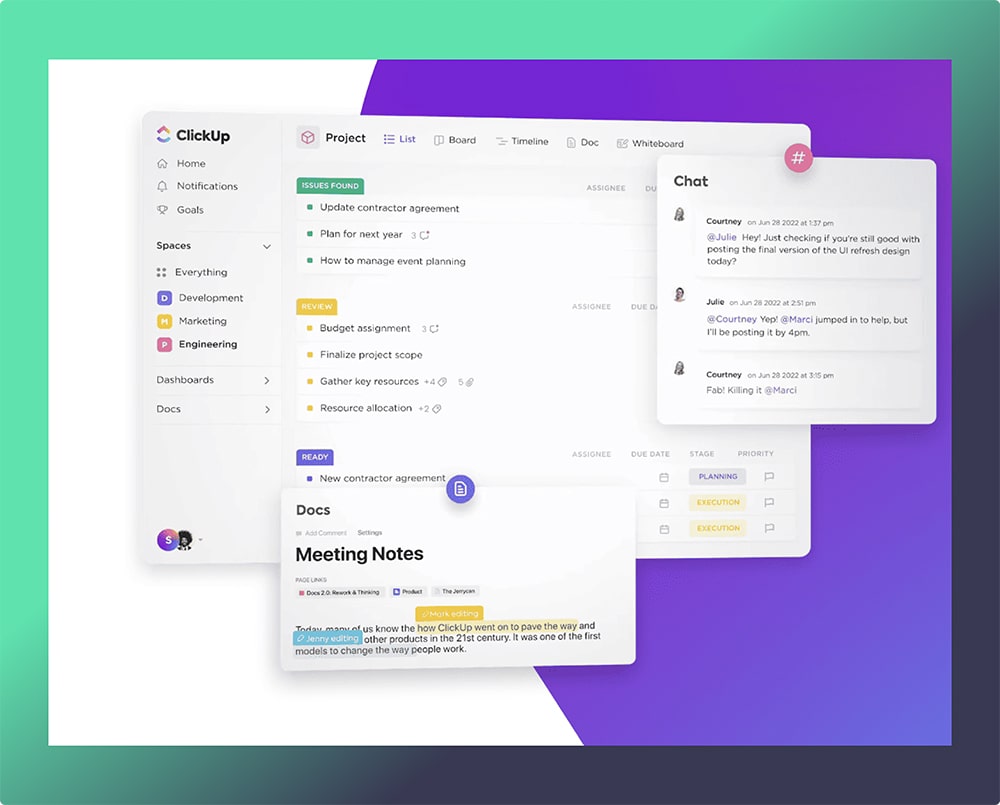
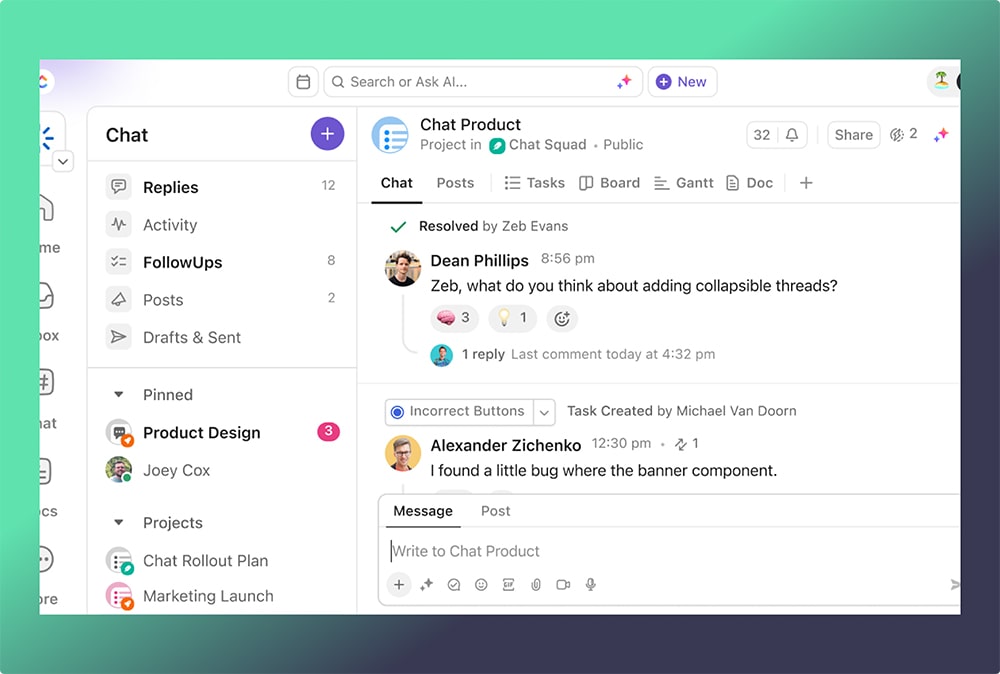
Built-in chat: Team members can communicate directly within tasks, reducing the need for external messaging platforms.
Comments and mentions: Users can leave comments and mention colleagues directly, making it easy to get feedback and clarify questions.
Collaborative document editing: ClickUp’s Docs feature allows teams to create, edit, and share documents collaboratively, making it easy to keep project details and notes in one place.
Shared Dashboards and Goal Tracking
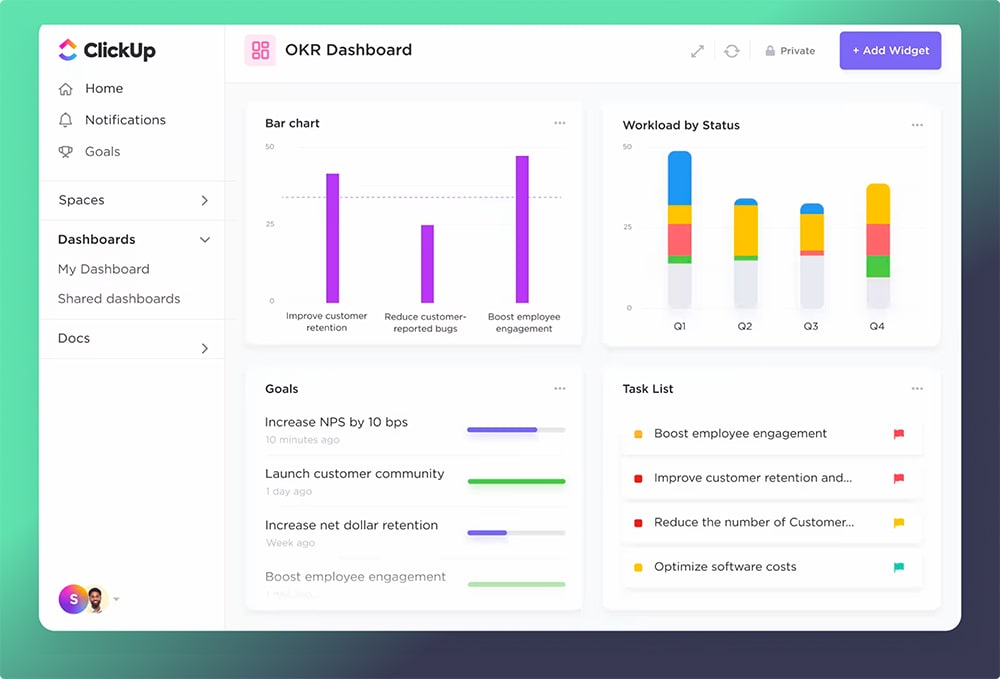
ClickUp’s dashboard feature enables teams to share key project metrics and updates at a glance. For startups, these dashboards can be customized to show essential KPIs, helping everyone stay aligned on company goals.
Efficient Time Management and Tracking
Time Tracking for Better Resource Allocation
For startups, understanding how time is spent is crucial for optimizing resources. ClickUp’s time tracking feature enables team members to log the hours they spend on tasks, providing valuable insights for project planning and budgeting.
Calendar and Scheduling Features
ClickUp’s calendar view allows teams to manage deadlines and set reminders, making it easier to stay on track. Tasks can be assigned due dates, and dependencies can be visualized, ensuring that no steps are overlooked. This is particularly helpful for startups working on tight schedules or juggling multiple projects.
Affordable and Scalable Pricing
Cost-Effective for Startups
ClickUp’s pricing model makes it an attractive option for startups. It offers a free plan with robust features and affordable paid plans that scale with team size and feature requirements. This makes it easier for startups to start small and upgrade as their needs grow.
Value for Growing Teams
As startups expand, so do their project management needs. ClickUp’s scalable pricing allows businesses to add more users, advanced features, and integrations without significant cost increases. This makes ClickUp a tool that can grow with the startup, ensuring it remains effective and relevant at every stage.
Powerful Reporting and Analytics
Customizable Reports
ClickUp provides customizable reports that give startups insights into project progress, task completion rates, and team performance. These reports can be tailored to focus on specific metrics, helping teams identify bottlenecks and optimize workflows.
Visual Analytics
With ClickUp, users can create visual reports that display data in formats like charts and graphs, making it easier to interpret and present information. This feature is particularly useful for startups that need to monitor KPIs and present results to stakeholders in an accessible format.
Integration with Other Tools
Seamless Integrations for Enhanced Productivity
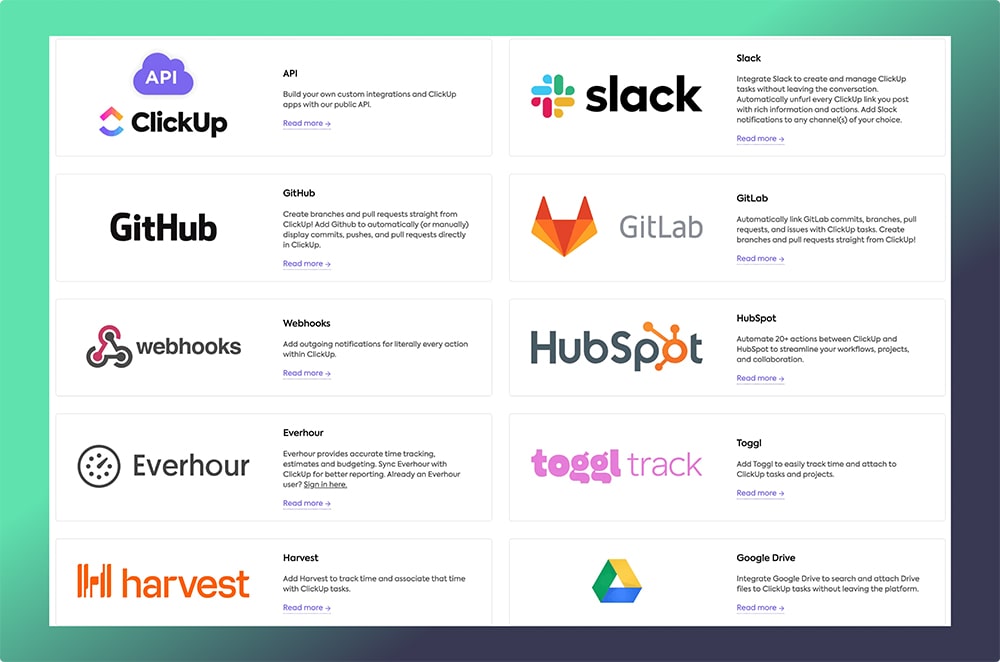
ClickUp offers integrations with popular tools like Slack, Google Drive, and Zoom. These integrations ensure that startups can continue using their favorite applications while centralizing project management in ClickUp.
Custom APIs and Automation
For startups with more specific needs, ClickUp’s custom API and automation options allow teams to build workflows that fit their unique processes. Automations reduce repetitive tasks, while custom API connections can extend ClickUp’s functionality to fit niche requirements.
Conclusion: ClickUp is Perfect for Startups
ClickUp’s all-in-one approach, flexibility, affordability, and robust features make it the ideal project management tool for startups. With easy-to-use features and extensive customization options, ClickUp adapts to each team’s unique needs, helping startups stay organized, productive, and on track for success.
For any startup looking to streamline operations, boost productivity, and stay agile in a competitive environment, ClickUp is undoubtedly one of the best project management tools available today.
Ready to see how ClickUp can transform your startup’s productivity? As a certified ClickUp reseller in Saudi Arabia, Dtech Systems can help you get started with tailored solutions and expert guidance. Contact us today to unlock the full potential of ClickUp for your business!
In 2024’s fast-changing digital world, managing tasks well is a must for everyone. From small startups to big companies, teams need tools that make work simpler, boost productivity, and help them work better together. That’s where ClickUp comes in—a powerful platform that is changing how we handle workflows.
This article will explore how ClickUp’s task management features can improve the way you work, help your team get more done, and lead to greater success.
Why Task Management Matters in 2024
Effective task management is crucial for:
Maximizing Productivity: Well-organized tasks reduce confusion and increase focus.
Enhancing Team Collaboration: Centralized systems ensure everyone is on the same page.
Meeting Deadlines: Task prioritization and automation minimize delays.
Boosting Employee Satisfaction: Organized workflows create less stress and higher engagement.
As hybrid and remote work models become the norm, adopting an agile task management tool like ClickUp ensures seamless coordination across geographies.
ClickUp: The Ultimate Task Management Solution
ClickUp stands out for itsflexibility, feature-rich environment, and scalability. Whether you’re managing a small team or handling enterprise-level projects, ClickUp caters to all with ease.
Key Features of ClickUp That Simplify Workflows
1. Customizable Task Hierarchies
ClickUp allows you to break down projects into smaller, manageable units:
Tasks: Core activities requiring completion.
Subtasks: Components of larger tasks.
Checklists: Step-by-step actions for precision.
This hierarchy ensures clarity in responsibilities and progress tracking.
2. Multiple Views for Versatility
ClickUp offers several views to manage tasks visually:
List View: Best for detailed breakdowns.
Board View: Ideal for Kanban-style project management.
Gantt Charts: Perfect for timeline tracking.
Calendar View: Focuses on deadlines and scheduling.
Having multiple perspectives enhances task visibility and adaptability.
3. Powerful Automation
With ClickUp’s automation tools, repetitive tasks become a thing of the past. Automate actions like:
Assigning tasks based on triggers.
Sending reminders for due dates.
Moving tasks to different statuses automatically.
This saves time and reduces errors.
4. Real-Time Collaboration
ClickUp’s task-level commenting, real-time chat, and file-sharing options streamline team communication. Whether brainstorming ideas or tracking updates, ClickUp ensures smooth interaction.
5. Comprehensive Integration
With over 1,000 integrations—including Google Drive, Slack, Zoom, and GitHub—ClickUp fits into any existing tech stack, ensuring effortless workflow continuity.
How ClickUp Streamlines Workflows
Here’s a closer look at how ClickUp optimizes workflows step by step:
1. Centralized Task Management
In ClickUp, all tasks are housed in one place. The platform allows you to:
Assign tasks to team members.
Add deadlines and dependencies.
Monitor task progress in real-time.
This centralization minimizes confusion and keeps everyone aligned.
2. Enhanced Team Collaboration
Collaboration becomes effortless with features like:
Task Comments: Team members can discuss updates directly within tasks.
Mentions: Notify teammates or departments.
Real-Time Editing: Collaborate on documents and tasks simultaneously.
3. Improved Time Management
ClickUp’s time tracking and calendar integrations ensure teams stay on schedule. Managers can allocate resources more effectively, reducing bottlenecks.
4. Streamlined Workflows
Using ClickUp templates, you can automate complex workflows, ensuring consistency and saving time. Workflow automations handle repetitive tasks, letting teams focus on high-value activities.
5. Advanced Reporting and Analytics
ClickUp’s dashboards and reporting tools offer insights into task completion rates, team performance, and project status. This helps managers make informed decisions.
Key Benefits of Using ClickUp for Task Management
Adopting ClickUp’s task management features yields tangible benefits, such as:
1. Increased Productivity
Automation and streamlined workflows minimize manual intervention, enabling teams to achieve more in less time.
2. Improved Task Clarity
With ClickUp’s hierarchical task structures and priority settings, teams know exactly what to focus on.
3. Better Collaboration
ClickUp fosters teamwork by eliminating communication gaps, ensuring alignment across departments.
4. Flexibility and Scalability
From startups to enterprises, ClickUp adapts to your team size and complexity level.
5. Reduced Costs
By consolidating multiple tools into one platform, ClickUp reduces the need for additional software, saving operational costs.
Real-World Use Cases of ClickUp’s Task Management
1. Managing Agile Sprints
ClickUp is a favorite among Agile teams for managing sprints. By using the Sprint View and automating backlog prioritization, Scrum Masters can:
Assign stories to team members.
Track sprint progress using Gantt charts or dashboards.
Automate the creation of new sprints when current ones are completed.
2. Marketing Campaign Management
Marketing teams can utilize ClickUp to:
Plan campaigns with detailed timelines in Timeline View.
Track content creation using Kanban boards.
Monitor performance metrics using custom dashboards.
3. Customer Support and Ticketing
ClickUp’s custom statuses are perfect for creating a support ticketing system. For example:
New tickets can be logged automatically using integrations with tools like Zendesk.
Support agents can assign priorities and resolve issues efficiently.
Dashboards offer insights into resolution times and team performance.
4. Freelancers and Small Teams
Freelancers can use ClickUp to manage client work:
Use time tracking to log billable hours.
Automate invoicing using ClickUp integrations with tools like QuickBooks.
Keep client feedback organized with task-level comments.
Advanced Features in ClickUp You Shouldn’t Miss
1. ClickUp AI
ClickUp introduced AI tools in 2024 to supercharge productivity. These features include:
Automating task descriptions.
Suggesting deadlines based on past performance.
Analyzing task data to provide actionable insights.
2. Whiteboards for Brainstorming
Collaborate in real-time using ClickUp’s Whiteboard feature. Use it for:
Mind mapping ideas for projects.
Visualizing workflows.
Planning strategies interactively with remote teams.
3. Dependencies and Critical Path
ClickUp’s dependency feature ensures tasks are completed in the correct order. The critical path tool highlights the essential tasks that determine the project’s timeline, ensuring timely delivery.
4. Docs Integration
Teams can create, share, and collaborate on documents directly within ClickUp. Docs are integrated with tasks, allowing for a seamless workflow where content creation aligns with project goals.
Pro Tips for Maximizing ClickUp in 2024
To fully leverage ClickUp’s potential, follow these best practices:
1. Customize Workspaces
Tailor ClickUp to match your workflow by creating custom statuses, fields, and templates.
2. Leverage Automations
Set up automations to handle repetitive tasks, saving time and improving consistency.
3. Integrate Existing Tools
Connect ClickUp with your favorite tools like Slack, Microsoft Teams, and Zapier for seamless operations.
4. Regular Training
Ensure your team is up to date with ClickUp’s latest features. Utilize ClickUp University or partner with certified experts like DTech Systems for training.
Dtech Systems, as a certified ClickUp reseller and expert, offers unmatched expertise in setting up and optimizing ClickUp for businesses. From initial setup to advanced automations, Dtech ensures a seamless ClickUp experience.
Our Services Include:
Custom Workflow Design: Tailored to your business needs.
Training and Support: Comprehensive training for teams.
Integration Assistance: Connecting ClickUp with your existing tools.
Partnering with Dtech Systems guarantees a hassle-free ClickUp experience, enabling your team to focus on what matters most—delivering results.
Conclusion: Transform Your Workflow with ClickUp
ClickUp is more than just a task management tool; it’s a platform that revolutionizes the way teams work. By centralizing tasks, fostering collaboration, and streamlining workflows, ClickUp empowers businesses to achieve more with less effort.
Ready to unlock your team’s full potential? Contact Dtech Systems, the leading ClickUp reseller in Saudi Arabia and the Gulf, for expert guidance and implementation. Let us help you take your workflow to the next level!
Integrating ClickUp with HubSpot streamlines workflows, enhances team collaboration, and boosts overall productivity. This comprehensive guide provides step-by-step instructions on connecting these two powerful platforms, ensuring you leverage their full potential.
Introduction to ClickUp and HubSpot
ClickUp is a versatile project management tool that consolidates tasks, documents, goals, and more into a unified platform. HubSpot, on the other hand, is a leading customer relationship management (CRM) system designed to assist businesses in managing marketing, sales, and customer service operations. Integrating these platforms enables seamless data flow between project management and CRM activities, fostering improved efficiency and collaboration.
Benefits of Integrating ClickUp with HubSpot
Enhanced Collaboration: Synchronize customer data and project tasks, ensuring all teams have access to up-to-date information.
Automated Workflows: Utilize automations to reduce manual data entry, allowing teams to focus on strategic tasks.
Improved Visibility: Gain comprehensive insights into customer interactions and project statuses within a single interface.
Accelerated Project Delivery: Streamline processes to deliver customer value more rapidly.
Prerequisites for Integration
Before initiating the integration, ensure the following:
ClickUp Plan: Your Workspace is on the Unlimited Plan or higher.
Permissions: You possess owner or admin rights in ClickUp.
HubSpot Access: You have an active HubSpot account with the necessary permissions.
Step-by-Step Guide to Integration
Authenticating HubSpot in ClickUp
Access App Center: In ClickUp, click the Quick Action Menu (located next to your avatar) and select “App Center.”
Find HubSpot: Use the search function to locate and select “HubSpot.”
Manage Integration: Click “Manage,” then “Add to HubSpot.”
Authorize Connection: In the authorization popup, choose the HubSpot account you wish to connect with ClickUp.
Note: Only Workspace owners or admins can perform this authentication.
Creating ClickUp Tasks from HubSpot Deals
Navigate to Workflows: In HubSpot, go to the “Workflows” section.
Initiate New Workflow: Click “Create workflow” and select “Deal-based.”
Set Up Triggers: Define triggers based on deal properties that will initiate actions in ClickUp.
Add ClickUp Action: Within the workflow, add an action and select “Create a task” under ClickUp.
Configure Task Details: Specify the Workspace, Space, Folder, List, task name, and description. You can incorporate deal tokens to include dynamic HubSpot data.
Save and Activate: Save the workflow and activate it to enable automation.
Setting Up HubSpot Automations with ClickUp
Enable Automations ClickApp: Ensure the Automations ClickApp is activated in ClickUp.
Access Automations: Navigate to the Space, Folder, or List where you want the automation to apply and click “Automate.”
Add New Automation: Click “+ Add Automation” and select “HubSpot” from the options.
Choose and Customize: Select a predefined automation or create a custom one, then configure the triggers and actions as needed.
Finalize Automation: Click “Create” to implement the automation.
Mapping HubSpot Fields to ClickUp Custom Fields
To ensure data consistency:
Equivalent Fields: Map HubSpot fields to corresponding ClickUp Custom Fields (e.g., HubSpot email fields to ClickUp Email Custom Fields).
Pre-Create Custom Fields: If an automation requires a specific HubSpot field, create the equivalent Custom Field in ClickUp beforehand to facilitate mapping.
Note: Custom Field mapping is not supported for HubSpot workflows.
Linking ClickUp Tasks to HubSpot Records
Using HubSpot Triggers: Combine a HubSpot object creation trigger with the “Create task” action to automatically link new records to ClickUp tasks.
Using ClickUp Triggers: Pair a ClickUp task creation trigger with a “Create HubSpot object” action to establish links from ClickUp to HubSpot.
Note: HubSpot entities such as companies, contacts, deals, line items, products, tasks, and tickets can be linked using these methods.
Best Practices for Integration
Maintain Organized Hierarchies: Use existing Spaces, Folders, and Lists in ClickUp to keep your workflow structured.
Utilize Templates: Apply task templates in ClickUp to standardize processes initiated from HubSpot.
Regularly Review Automations: Periodically assess and update automations to align with evolving business processes.
Use Cases: Who Benefits Most from the ClickUp-HubSpot Integration?
Integrating ClickUp and HubSpot creates a unified platform for managing projects and customer relationships. Below are key use cases where this integration delivers significant value:
1. Sales Teams Streamlining Pipeline Management
Scenario: A sales team uses HubSpot to track deals and ClickUp to manage follow-ups, proposals, and contract preparation.
Benefit: Automatically creating tasks in ClickUp for each deal stage in HubSpot ensures sales representatives stay on top of their commitments without manual task creation.
Example: When a deal moves to the “Negotiation” stage, a task is auto-assigned to the sales manager for follow-up calls or approvals.
2. Marketing Teams Managing Campaigns
Scenario: Marketing teams use HubSpot to execute email campaigns and track leads, while ClickUp organizes content production and campaign tasks.
Benefit: Synchronizing campaign performance metrics from HubSpot with ClickUp tasks keeps marketing teams aligned on deadlines and deliverables.
Example: When a lead qualifies in HubSpot, ClickUp automatically creates a task for the marketing team to prepare a nurturing email sequence.
3. Customer Support Teams Enhancing Service Delivery
Scenario: A support team tracks customer tickets in HubSpot but uses ClickUp to manage internal workflows for resolving complex issues.
Benefit: Linking customer support tickets in HubSpot to ClickUp tasks allows seamless handoff and collaboration between departments.
Example: A customer query requiring technical support generates a task in ClickUp, with all details linked back to the HubSpot ticket for easy tracking.
4. Project Managers Aligning Cross-Functional Teams
Scenario: A project manager oversees initiatives involving sales, marketing, and customer success teams, with data spread across HubSpot and ClickUp.
Benefit: Centralizing tasks in ClickUp and linking them to HubSpot records ensures all stakeholders are updated on project progress.
Example: Sales updates from HubSpot trigger project adjustments in ClickUp, keeping the timeline on track.
5. SMBs Tracking Customer Onboarding
Scenario: Small and medium-sized businesses (SMBs) need to manage customer onboarding using HubSpot for tracking and ClickUp for planning.
Benefit: Automating task creation for each onboarding step in ClickUp helps SMBs maintain a consistent customer experience.
Example: When a deal closes in HubSpot, an onboarding checklist is created in ClickUp, assigning specific steps to team members.
By addressing these diverse use cases, the ClickUp-HubSpot integration proves to be a versatile solution for businesses of all sizes, ensuring smoother workflows and improved productivity.
Troubleshooting Common Issues
Problem: Tasks Not Syncing
Solution:
Verify the integration is active.
Check if triggers in HubSpot workflows are correctly configured.
Problem: Field Mapping Errors
Solution:
Ensure custom fields in ClickUp match the data types of HubSpot properties.
Problem: Authentication Issues
Solution:
Re-authenticate the integration by logging into both platforms again.
Conclusion
Integrating ClickUp with HubSpot bridges the gap between project management and CRM, enabling teams to deliver exceptional results. From automating workflows to gaining deeper insights into project and customer data, this integration transforms the way businesses operate.
Ready to optimize your business operations with ClickUp and HubSpot? Let Dtech Systems, Saudi Arabia’s trusted ClickUp reseller, guide you. Contact Us today to explore tailored solutions for your business!
Managing complex projects often requires using the best tools available, and two of the most powerful platforms for productivity and project management are ClickUp and Jira. Integrating these two tools can transform how your teams work, combining ClickUp’s flexibility with Jira’s robust issue-tracking capabilities.
This comprehensive guide explores how to seamlessly integrate ClickUp with Jira, its benefits, key features, and practical tips to maximize efficiency.
What Are ClickUp and Jira?
ClickUp: A Versatile Productivity Platform
ClickUp is an all-in-one productivity and project management tool designed to streamline tasks, documents, goals, and team collaboration. Known for its adaptability, ClickUp supports various industries and workflows, from marketing teams to software development groups.
Jira: A Leading Issue-Tracking Tool
Jira, developed by Atlassian, is a globally recognized project management tool. It excels in managing tasks, issues, and workflows, making it especially popular among Agile teams using Scrum or Kanban frameworks.
By integrating these two tools, organizations can harness the unique strengths of both platforms to create a cohesive project management ecosystem.
Why Integrate ClickUp with Jira?
Integrating ClickUp and Jira provides several advantages:
1. Unified Workflows
The integration creates a single source of truth for teams working on the same project but using different tools. It eliminates the need to duplicate efforts or switch between platforms.
2. Improved Collaboration
With seamless communication between ClickUp and Jira, all team members—whether developers in Jira or project managers in ClickUp—can stay updated and aligned.
3. Enhanced Visibility
Managers can track both ClickUp tasks and Jira issues from one place, gaining a comprehensive view of the project’s progress and performance.
4. Reduced Manual Effort
Automation reduces the need for manual updates, saving time and minimizing errors. Changes made in one tool are automatically reflected in the other.
5. Increased Productivity
By bridging the gap between different teams and workflows, this integration allows employees to focus more on their tasks, leading to better outcomes.
Key Features of ClickUp-Jira Integration
1. Two-Way Sync
The two-way syncing capability ensures that updates made in ClickUp are reflected in Jira and vice versa. This keeps both platforms in sync without the need for manual adjustments.
2. Task and Issue Linking
You can link Jira issues to ClickUp tasks to maintain project context. This feature is especially useful for cross-functional teams where developers rely on Jira, and managers prefer ClickUp.
3. Custom Field Mapping
Map custom fields from one platform to the other to ensure relevant information is accurately shared. This customization helps tailor the integration to your team’s specific needs.
4. Automated Updates
Automate notifications and task updates between platforms, so teams stay informed without constantly checking both systems.
5. Agile Support
If your team uses Agile methodologies, this integration enhances sprint planning by linking tasks and issues across platforms.
How to Set Up the ClickUp-Jira Integration
1. ClickUp’s Built-In Jira Integration
ClickUp provides a native integration with Jira, allowing for seamless connectivity. This option is ideal for teams looking for a straightforward way to link tasks and issues across both platforms.
Features:
Two-way sync for tasks and issues.
Automatic updates between ClickUp and Jira.
Field mapping for custom fields.
Steps:
Navigate to ClickUp’s App Center.
Search for Jira and enable the integration.
Connect your Jira account and configure the integration settings.
2. Using Third-Party Integration Tools
If the native integration doesn’t meet your needs, you can use third-party tools to build advanced workflows. Here are the most popular tools:
a. Zapier
Zapier connects ClickUp and Jira by creating “Zaps” (automated workflows). It’s a no-code solution suitable for basic to intermediate integration needs.
Example Workflows:
When a task is created in ClickUp, create a corresponding issue in Jira.
Update task status in ClickUp when a Jira issue is resolved.
b. Make (formerly Integromat)
Make provides more advanced and customizable automation options compared to Zapier. It’s ideal for teams that require granular control over integrations.
Another tool for creating simple integrations, Automate.io connects ClickUp and Jira with user-friendly workflows.
Example Workflows:
Sync comments or attachments between ClickUp and Jira.
Trigger a new task in ClickUp when a specific issue type is created in Jira.
3. API-Based Custom Integration
For organizations with unique workflows, a custom integration using the ClickUp and Jira APIs offers unmatched flexibility. This option requires coding knowledge or a development team.
What You Can Do:
Build a tailored integration to fit your organization’s specific needs.
Automate highly customized workflows, such as syncing complex data structures.
Steps:
Access ClickUp’s API documentation.
Retrieve Jira’s API documentation.
Develop scripts or applications to enable the desired functionality.
4. Using Atlassian Marketplace Apps
Atlassian Marketplace offers various apps designed to integrate Jira with external tools, including ClickUp.
Example Apps:
Exalate: Enables bi-directional synchronization between ClickUp and Jira.
Unito: Specializes in workflow management and syncing tasks across platforms.
Key Benefits:
Pre-built templates for quick setup.
Flexible mapping options for fields and workflows.
5. Browser Extensions and Plugins
Browser extensions can provide lightweight integrations between ClickUp and Jira.
Examples:
ClickUp Chrome Extension: Allows you to create tasks directly from Jira pages or pull data from Jira into ClickUp tasks.
Jira plugins that enable exporting data for use in ClickUp.
6. Data Export/Import
If syncing in real-time isn’t critical, you can use a manual or automated data export/import process.
How It Works:
Export tasks/issues from Jira as a CSV file.
Use ClickUp’s import feature to bring Jira issues into ClickUp.
Similarly, export ClickUp data to Jira as needed.
7. Integrating Through Cloud Storage
Both platforms allow integration through cloud storage solutions like Google Drive or Dropbox. This method focuses on sharing related files between ClickUp and Jira tasks.
Steps:
Attach relevant files from Google Drive to ClickUp tasks.
Link these files to corresponding Jira issues.
8. Integration via Webhooks
Webhooks enable event-driven updates between ClickUp and Jira.
How It Works:
Set up a webhook in Jira to send notifications to ClickUp when specific events occur (e.g., issue creation or status change).
Configure ClickUp to receive webhook data and trigger updates.
Use Cases:
Automatically update ClickUp tasks when Jira issues are modified.
Send alerts to ClickUp when new bugs are reported in Jira.
9. Hybrid Integration
Some teams may benefit from combining multiple methods. For instance:
Use ClickUp’s native integration for basic syncing.
Supplement with Zapier or Make for advanced automation needs.
Employ API-based customizations for unique requirements.
10. Slack or Microsoft Teams as a Bridge
If your team uses communication tools like Slack or Microsoft Teams, you can integrate them with both ClickUp and Jira. These tools can act as a bridge for indirect integration.
Example:
Use Slack notifications to relay updates between ClickUp and Jira.
11. Integration Through Reporting Tools
Reporting tools like Tableau or Power BI can consolidate data from both ClickUp and Jira into unified dashboards, offering insights without direct syncing.
12. Native Automations in ClickUp and Jira
Both platforms have built-in automation features that can work together when configured properly.
Examples:
Use ClickUp Automations to trigger status updates based on custom fields synced from Jira.
Configure Jira Automations to mirror ClickUp task updates.
Best Practices for Using ClickUp-Jira Integration
To maximize the benefits of integrating ClickUp with Jira, follow these best practices:
1. Establish Clear Workflows
Define how tasks and issues will move between ClickUp and Jira. For example:
Use ClickUp for high-level project planning and progress tracking.
Use Jira for detailed issue tracking and development tasks.
2. Align Field Mapping
Ensure custom fields in ClickUp and Jira align properly to avoid data inconsistencies. For instance, priority levels or task types should match between the two platforms.
3. Train Your Team
Educate team members on using the integrated system effectively. Highlight how changes in one platform will impact the other.
4. Monitor Integration Performance
Regularly check the integration for any errors or inefficiencies. Address sync issues promptly to maintain smooth operations.
5. Leverage Automation
Take advantage of automation rules to streamline repetitive tasks, such as updating task statuses or sending notifications.
Use Cases for ClickUp-Jira Integration
The integration is particularly beneficial in the following scenarios:
1. Cross-Functional Teams
Product managers and marketing teams using ClickUp can collaborate seamlessly with development teams using Jira.
2. Agile Development
Agile teams can link sprint tasks in Jira to overarching project goals in ClickUp, ensuring alignment across the organization.
3. Remote Work Environments
In distributed teams, integration keeps everyone on the same page, regardless of the platform they prefer.
Challenges and How to Overcome Them
While the ClickUp-Jira integration offers many benefits, teams may face certain challenges:
1. Initial Setup Complexity
The setup process requires administrative permissions and some technical knowledge. Solution: Follow ClickUp’s step-by-step guide or seek help from experts.
2. Managing Customization
Customizing field mappings and workflows can be time-consuming. Solution: Start with basic configurations and iterate based on team feedback.
3. Training Needs
Team members may struggle to adapt to the new system initially. Solution: Provide training sessions and create easy-to-follow documentation.
Why Choose Dtech Systems for Your Integration Needs?
Dtech Systems is a verified ClickUp reseller with deep expertise in project management tools. We provide tailored solutions for integrating ClickUp with Jira, ensuring that your workflows are optimized for maximum productivity.
What We Offer:
Expert consultation for setting up integrations.
Custom configurations based on your team’s unique requirements.
Ongoing support to ensure seamless operations.
Conclusion
Integrating ClickUp with Jira is a game-changer for organizations aiming to streamline their workflows and enhance team collaboration. By combining the strengths of these two platforms, you can achieve unified project management, reduced manual effort, and improved productivity.
Whether you’re managing Agile projects or aligning cross-functional teams, this integration provides the tools needed to succeed in today’s fast-paced work environment.
ClickUp and Trello are two of the best tools for managing projects. While Trello is known for its simple and visual Kanban boards, ClickUp offers more features like task tracking, time management, and automations.
By connecting these two platforms, you can make your team’s work easier, faster, and more organized. This guide explains all the ways to integrate ClickUp and Trello, so you can choose the one that works best for your team.
Understanding ClickUp and Trello
ClickUp is an all-in-one project management platform offering customizable features like task views, time tracking, goal setting, and workflow automations. Its robust functionality makes it ideal for teams that require a centralized hub for all project-related activities.
Trello, on the other hand, is renowned for its simplicity and visually appealing Kanban boards. It enables users to manage tasks through cards, lists, and boards, making it an excellent choice for lightweight project management.
Integrating these two platforms bridges their unique strengths, providing flexibility and enhanced productivity.
Why Integrate ClickUp with Trello?
Here are some reasons to connect ClickUp with Trello:
Work in One Place: Combine tasks from both tools to manage everything in one spot.
Save Time: Stop switching between apps. Automate tasks and updates across both platforms.
Improve Teamwork: Keep everyone on the same page by syncing data and updates in real time.
Migrate Easily: Move from Trello to ClickUp without losing your tasks, lists, or attachments.
Ways to Connect ClickUp and Trello
There are different methods to connect these tools. Below are four popular ways you can try.
1. Import Trello Data into ClickUp
If you’re switching to ClickUp, this is the easiest method. ClickUp lets you directly import your Trello boards, lists, and cards.
How to Do It:
Open Workspace Settings in ClickUp.
Go to Import/Export and click Start Import.
Select Trello and log into your Trello account.
Pick the boards you want to import.
Map Trello boards to ClickUp spaces or folders.
Start the import process.
This method is quick and works well for teams moving fully to ClickUp.
2. Automate Workflows with Zapier
Zapier is an easy-to-use tool that connects apps. It helps automate tasks between ClickUp and Trello without manual work.
What You Can Do:
Create a ClickUp task when a new card is added to Trello.
Move tasks between the two tools automatically.
Steps to Set Up Zapier:
Sign up for Zapier.
Create a new Zap and choose Trello as the trigger app.
Set the event, like “New Card Created.”
Select ClickUp as the action app and set the action, like “Create Task.”
Test and turn on your Zap.
Zapier is perfect if you need quick automations without coding.
3. Advanced Automation with Make
Make (formerly Integromat) is for teams that need advanced automations. It connects apps with custom workflows and supports more complex tasks than Zapier.
What You Can Do:
Create workflows with multiple steps.
Add conditions (e.g., only update ClickUp tasks if a Trello card is marked as “Done”).
How to Use Make:
Sign up for Make.
Create a scenario and add ClickUp and Trello.
Set triggers and actions (e.g., “When a card is archived in Trello, close the task in ClickUp”).
Test and run the scenario.
Make is ideal for tech-savvy teams that want to customize workflows.
4. Real-Time Sync with Unito
Unito offers two-way syncing, meaning any changes made in ClickUp or Trello will automatically update in the other tool.
Why Use Unito?
Keep Trello and ClickUp tasks synced in real time.
Sync assignees, due dates, comments, and more.
How to Set It Up:
Create a Unito account.
Connect ClickUp and Trello.
Choose the boards and spaces to sync.
Map fields between the two apps (e.g., Trello card name → ClickUp task name).
Start syncing!
Unito is great for teams that need both tools running simultaneously.
Key Features of ClickUp and Trello Integration
Two-Way Sync: Ensure tasks are updated in both tools without manual work.
Custom Field Mapping: Map task details like due dates, assignees, and priorities for seamless tracking.
Automation: Use triggers and actions to automate repetitive workflows.
Migration Support: Move entire projects with attachments and labels easily.
Real-Time Collaboration: Keep both tools aligned so your team can focus on work, not updates.
Challenges of Integration and How to Solve Them
Duplicate Tasks
Solution: Set rules in your automation tool to avoid creating duplicate entries.
Data Overload
Solution: Import only active tasks and projects to keep your workspace clean.
Syncing Errors
Solution: Regularly review logs and test integrations to ensure they work smoothly.
Team Adoption
Solution: Provide simple training to help your team understand the integration.
Comparison: ClickUp vs. Trello – When to Use Each
While integrating these tools is beneficial, understanding their strengths can help you decide when to use each platform.
ClickUp Strengths:
Advanced reporting and analytics
Multiple task views (List, Gantt, Calendar)
Time tracking and resource management
Ideal for large, complex projects
Trello Strengths:
Easy to use and set up
Best for visual task tracking with Kanban boards
Simple interface suitable for small teams or personal projects
When to Use Both Together:
Teams who want to combine Trello’s simplicity with ClickUp’s advanced features
Organizations transitioning from Trello to ClickUp
Real-Life Use Cases for ClickUp and Trello Integration
Marketing Teams
Plan campaigns on Trello for brainstorming.
Track execution on ClickUp for task deadlines, dependencies, and collaboration.
Product Development
Use Trello for feature requests and backlog prioritization.
Migrate critical tasks to ClickUp for sprint planning and tracking.
Freelancers or Consultants
Manage personal projects on Trello.
Use ClickUp for client reporting, time tracking, and invoices.
Best Practices for Integration
Back Up Data: Before integrating, ensure all critical data is backed up to prevent accidental loss.
Train Team Members: Provide training sessions to familiarize your team with the integrated system.
Monitor Syncing: Regularly review sync logs to identify and resolve any discrepancies.
Use Custom Automations: Leverage advanced automation rules to tailor integrations to your team’s specific needs.
Consolidate Redundant Tasks: Merge overlapping tasks to avoid confusion and enhance productivity.
Conclusion
Integrating ClickUp and Trello can help your team work smarter by combining the best features of both tools. Whether you’re moving data, syncing tasks, or automating workflows, there’s a solution for every team.
Dtech Systems is here to help you with your ClickUp and Trello integration. As the only certified ClickUp reseller in Saudi Arabia and the Gulf, we can set up your workflows, automate tasks, and provide expert guidance.