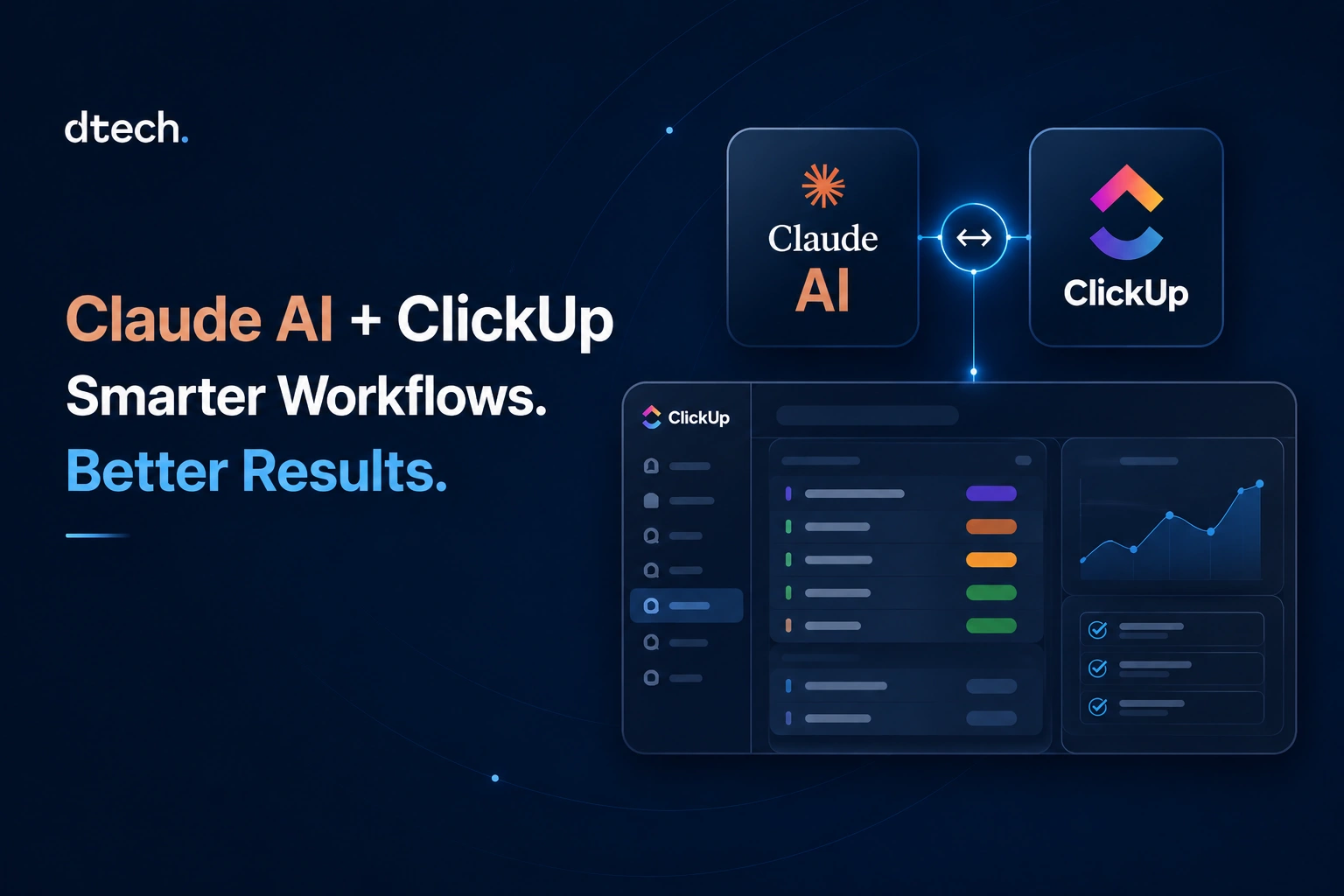
A practical look at Claude AI ClickUp integration and how Dtech Systems uses it to get more out of both.
A client we’d been working with for months had shared their requirements across a dozen different touchpoints. Emails, Word docs, a few PowerPoint decks, WhatsApp messages, and call notes. No single person on our team had the full picture in one place, and some things had quietly fallen through the cracks because of it. We fed everything into Claude, and within minutes it had connected the dots, flagged what we’d missed, and given us a complete picture of what the client actually needed. That context had been sitting there the whole time. We just hadn’t had a way to hold it all at once.
That was the moment Claude stopped being something we were “exploring” and started being something we actually relied on.
If you’ve been exploring how to integrate ClickUp with Claude agent SDK or looking into Claude ClickUp integration in general, this breakdown should give you a practical starting point.
The Problem We Were Solving
Dtech Systems manages ClickUp implementations with a core focus on clients in Saudi Arabia, the UAE, and Qatar, alongside a growing base across the UK and Pakistan. We handle everything from initial workspace setup to ongoing consulting, automation design, and client training.
The challenge was never complexity. It was volume and repetition. Before Claude, here’s where time was quietly disappearing:
- Writing task descriptions, SOPs, and status updates from scratch for every new client
- Manually translating client requirements, often arriving as voice notes or scattered email threads, into clean ClickUp structures
- Drafting polished client-facing communication: follow-ups, meeting recaps, scoping summaries
- Rebuilding similar ClickUp logic across projects without a good way to document or reuse it
A Quick Note on ClickUp Super Agents
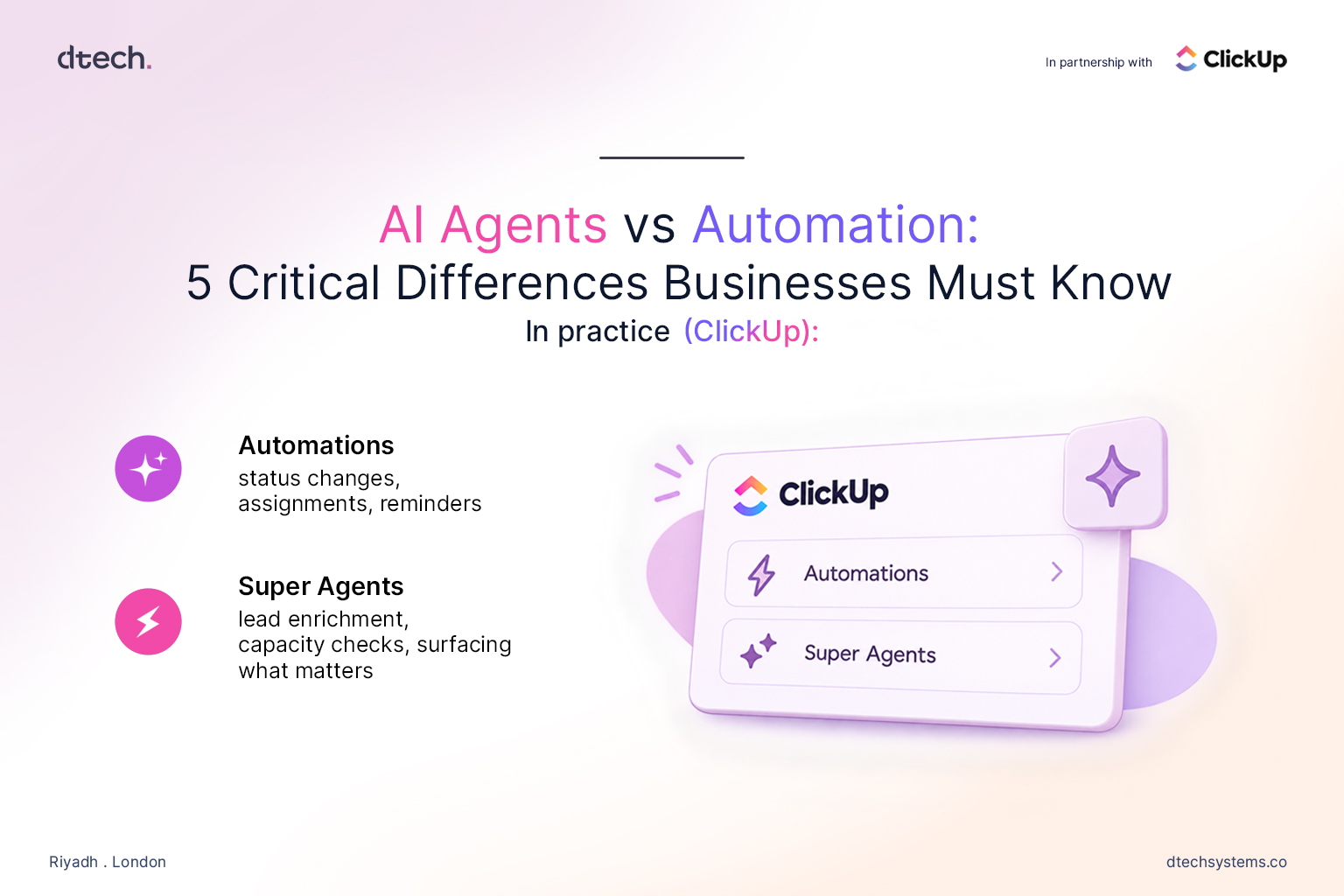
Before getting into how we use Claude, it’s worth being clear about something: for workflows that are well-defined and repeatable, ClickUp Super Agents remain the stronger option. Super Agents have full native context of your ClickUp workspace and are purpose-built for automating structured, predictable processes inside it. If you have a workflow that follows a clear pattern, Super Agents will handle it more reliably and with less setup overhead.
Claude is not a replacement for that. Where Claude shines is in ad hoc, context-heavy tasks that require reasoning across unstructured inputs. Think of Super Agents as your automation engine and Claude as your thinking partner.
How to Integrate Claude AI into ClickUp Workflows
This is the approach we use when setting up a Claude AI ClickUp integration for internal workflows and client use cases. Getting Claude connected to your ClickUp workspace through its native ClickUp connector is simpler than most people expect. Here’s how it works:
- Connect ClickUp through Claude’s Connectors settings
- Authorize the ClickUp connection and configure the appropriate read and/or write permissions for your use case
- Once connected, configure the permissions directly within Claude’s Connectors settings
- Once connected, Claude can read your workspace data, tasks, lists, and custom fields based on the permissions enabled, and respond to prompts that reference them directly
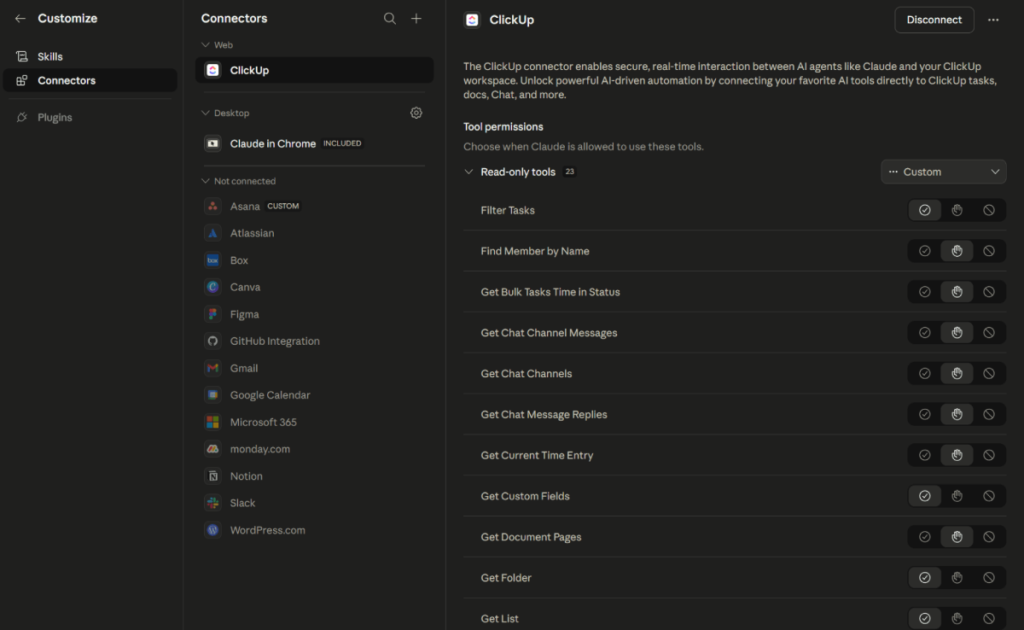
Start with read-only permissions while you’re getting familiar with how Claude interprets your workspace. Add write permissions gradually and only for workflows where you’re confident in the inputs and prompts being used. More on why this matters in the lessons section below.
The Use Cases: Where Claude Actually Lives in Our Workflow
Use Case 1: Reading Through Client Data and Making Recommendations
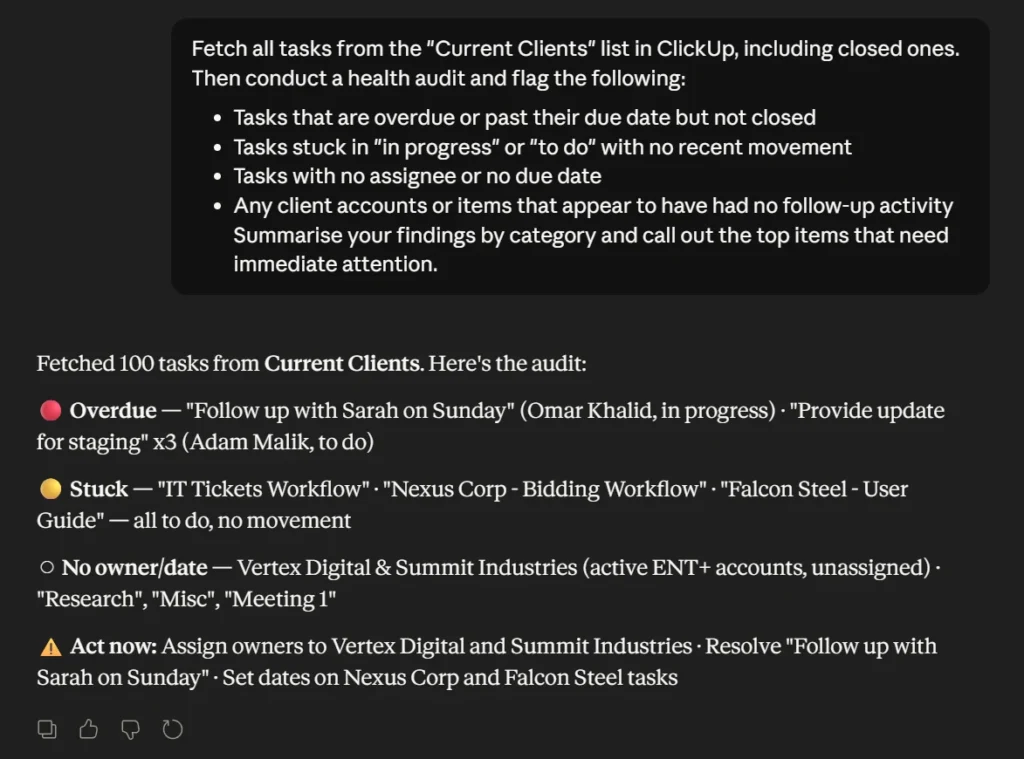
This is the one that genuinely surprised us with how useful it turned out to be.
We work with clients who have been running ClickUp for years. That means lists with hundreds of tasks, archived projects, client records going back a long time, and a lot of accumulated context that no single person has fully in their head.
Claude can go through all of it. We point it at a client list, it reads through years of content, and it surfaces things like clients who haven’t been followed up within months, contracts that are approaching expiry, tasks that have been sitting open with no movement, or structural patterns that suggest the workspace has outgrown its original setup. It also recommends how to streamline the existing system based on what’s actually being used versus what’s just taking up space.
This now forms part of our standard new-client discovery process. Every audit follows the same logic, and it surfaces things that a manual review would either miss or take much longer to find.
Use Case 2: Building ClickUp Workflows From Client Documents
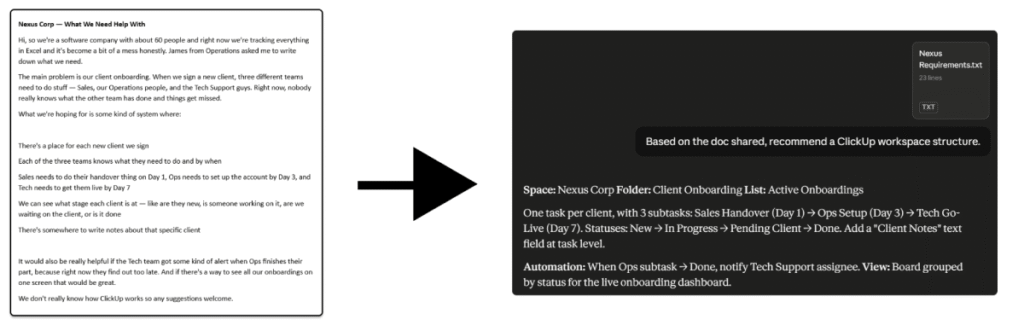
Clients almost never arrive with clean requirements. What they actually share is a mix of Excel sheets, PowerPoint decks, Word documents, onboarding packs, and process maps that live across different folders and drives.
Our approach now is to gather all of that material and use it as a context pool inside Claude. We feed it everything the client has shared, ask Claude to identify the underlying workflows and processes, and then design the ClickUp structure around what we find. Lists, folders, custom fields, automation logic, all of it gets shaped by what the client’s actual working patterns look like rather than a generic template.
It produces ClickUp setups that fit how the client already operates, which makes adoption significantly smoother.
Use Case 3: Time Entry Reports That Actually Get Done
Time tracking in ClickUp is only useful if someone actually pulls the data and turns it into something readable. That part tends to get skipped when things are busy.
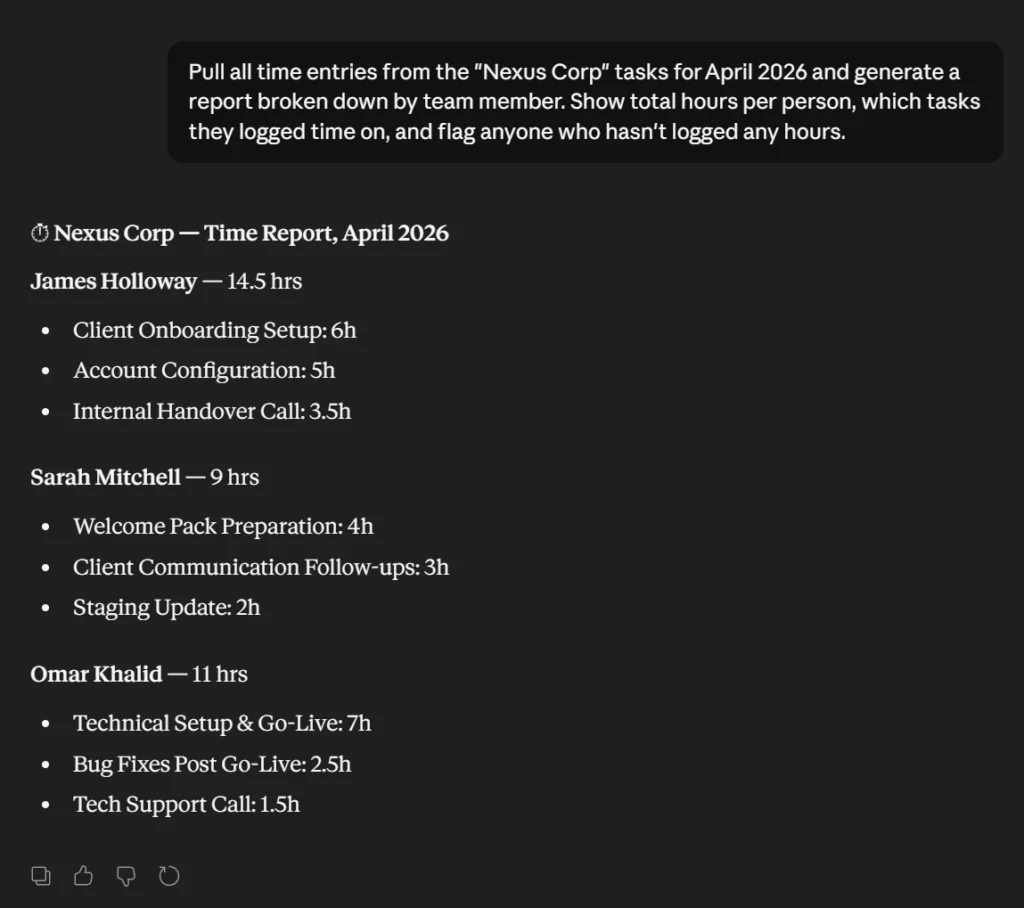
Claude can pull time entries directly from tasks using the ClickUp connector, then generate reports based on whatever lens is useful: by client, by project, by team member, by date range. The output can be formatted for internal review, dropped into a client-facing update, or used to spot where hours are going in ways that aren’t immediately obvious from looking at the workspace.
This is one of those use cases where the value isn’t dramatic, but the consistency is. The reports get done every time now, rather than whenever someone has a spare hour to compile them.
What to Keep in Mind Before You Start
A few lessons from doing this in real client work, not in a controlled setup.
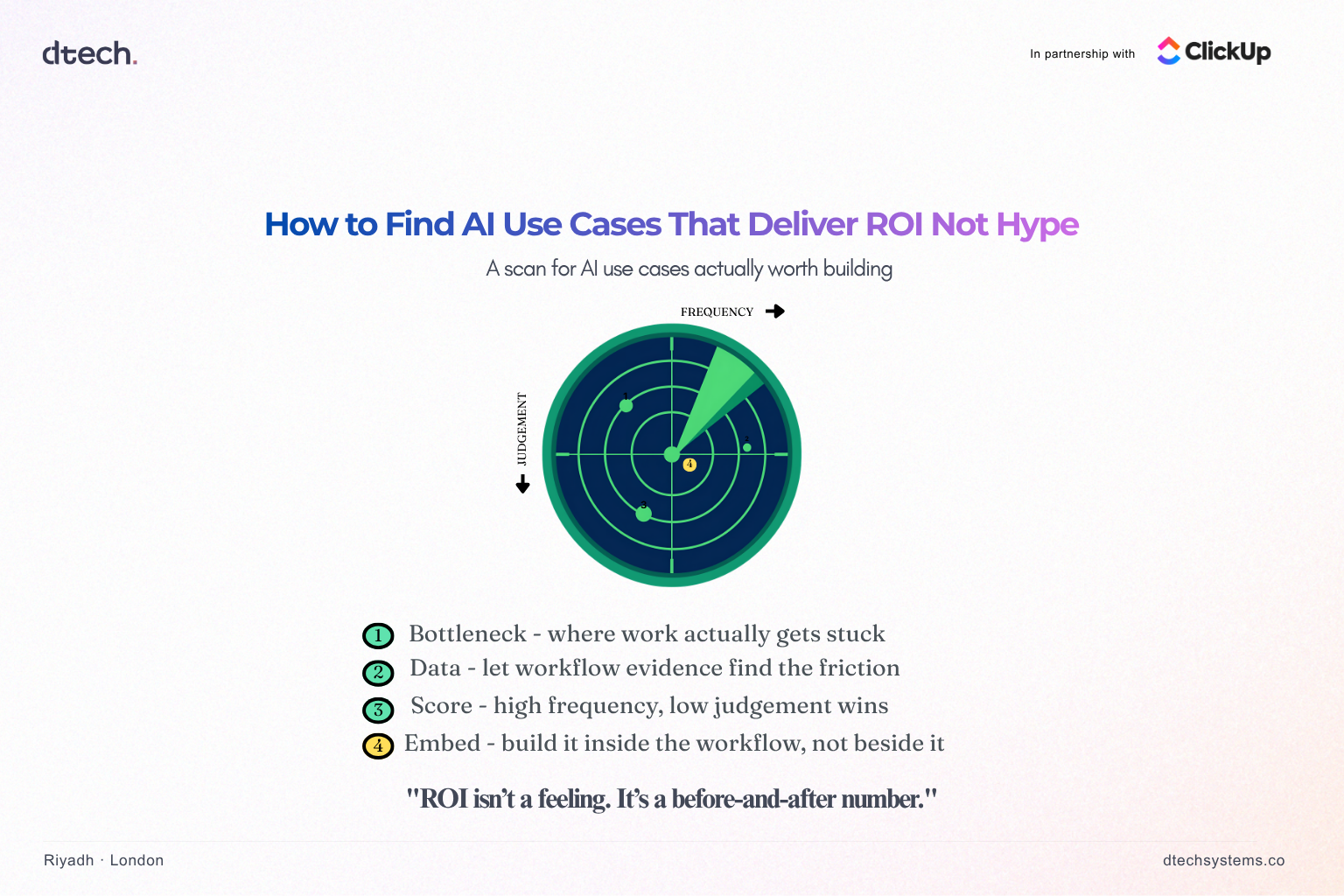
- Start with one high-friction workflow, not everything at once.
Trying to bring Claude into multiple parts of your workflow at the same time leads to inconsistent outputs and unclear prompts. Pick one repetitive task, such as structuring client requirements or generating reports, and get that working reliably first. Expand only after that. - Your ClickUp conventions matter more than the tool itself.
Claude is only as good as the structure you give it. If your naming conventions, custom fields, and hierarchy are loosely defined, the output will be inconsistent. Taking the time to clearly define how your workspace is structured makes a noticeable difference in the quality of results. - Be specific about both context and output format.
Most weak outputs come from vague prompts. If you don’t clearly define what Claude should read, what context to consider, and what format the output should follow, you’ll end up rewriting most of it anyway.
For example, asking Claude to summarize a document will give you a paragraph. Asking it to extract workflows and convert them into a ClickUp-ready structure will give you something you can actually use. - Treat Claude as a first draft, not a final decision-maker.
For anything that affects client communication or workspace structure, a quick review step is essential. The output is usually close to what you need, but skipping the review is where small mistakes turn into bigger issues. - Be deliberate with permissions, especially as you scale usage.
Start with read-only access while you’re learning how Claude interacts with your workspace. As you introduce write permissions, make sure prompts are clear and scoped properly. The more specific your instructions, the safer and more predictable the outcome.
Where This Is All Heading
The combination of ClickUp’s native automation capabilities and Claude’s ability to reason through unstructured input covers a lot of ground. Super Agents handle the predictable. Claude handles the messy. Between the two, there’s very little left that has to be done entirely by hand.
For teams already running ClickUp seriously, adding Claude to your toolkit is low friction and high return. The setup takes an afternoon. The benefits show up within the first week.
We’re continuing to build on this at Dtech, and we’ll keep sharing what we learn as the workflows evolve.
Dtech Systems
Dtech Systems is a ClickUp consulting partner specializing in Saudi Arabia, the UAE, and Qatar, with clients across the UK and Pakistan. We specialize in ClickUp implementation, workflow design, and building AI-assisted productivity systems on top of ClickUp infrastructure.
In addition to implementing ClickUp, we also help teams set up AI-powered productivity workflows on top of their existing systems, enabling them to get more value out of their data, automate repetitive work, and operate more efficiently.