
In today’s evolving workspace, remote teams need robust tools to stay organized, communicate effectively, and maintain productivity. ClickUp is a powerful all-in-one platform designed to help remote teams manage tasks, projects, and communication in a single space. This guide covers best practices and essential templatesfor remote teams to unlock the potential of ClickUp, ensuring a smooth and productive workflow.
Why ClickUp for Remote Teams?
ClickUp combines task management, team communication, and productivity tracking into a unified platform. Here’s why it stands out:
- Comprehensive Toolset: ClickUp covers tasks, docs, goals, and time tracking.
- Flexible Customization: Tailor ClickUp to suit your team’s unique workflows and structure.
- Centralized Communication: Keep conversations tied to tasks for better context.
Let’s dive into the best practices to help remote teams use ClickUp effectively, along with templates you can implement right away.
Best Practices for Using ClickUp in Remote Teams
1. Organize Your Workspace for Clarity
ClickUp’s hierarchy is essential for structuring your workspace effectively. Use this approach to create a clear structure that keeps everyone aligned.
Recommended Workspace Structure
- Workspace: This represents your entire company or team’s ClickUp account.
- Spaces: Create Spaces for broad categories such as departments or major clients.
- Folders: Use folders to group related projects or key initiatives.
- Lists: Organize projects, tasks, or phases within folders.
2. Establish Consistency with Task Templates
Using task templates in ClickUp will help keep tasks standardized, minimizing confusion and improving efficiency across the team.
Common Task Templates
- Weekly Check-In: A recurring template for team updates on key metrics and project progress.
- Project Kick-Off: Outline tasks for the initial stages of a project, including objectives, timelines, and responsibilities.
- Client Meeting Prep: Standardize preparation steps for client meetings, such as agenda setting and documentation.
How to Create a Template:
- Create a new task in ClickUp with the details you want in each occurrence.
- Save the task as a template for future use.
3. Leverage ClickUp’s Communication Tools
Remote teams rely on seamless communication to stay connected. ClickUp’s comments, mentions, and in-task chats help keep all discussions organized and accessible.
Best Practices for Communication
- Use @mentions to notify specific team members, reducing missed updates.
- Threaded Comments: Respond within threads to keep conversations clear.
- Real-Time Chat: Use ClickUp’s chat feature within each task for quick questions or updates.
Example: Embed project feedback directly within tasks instead of external emails, centralizing communications and keeping them contextual.
4. Automate Routine Processes
Automations save remote teams significant time and reduce repetitive actions. ClickUp’s automation options allow you to streamline workflows by setting up triggers for common actions.
Useful Automations
- Status Change Alerts: Automatically update team members when a task status changes.
- Recurring Task Creation: Set up recurring tasks (e.g., weekly reports, monthly performance reviews).
- Auto-Assignment: Automatically assign specific team members when tasks are created in certain lists.
5. Track Team Progress with Dashboards and Reporting
Dashboards and reports are essential for managers to keep tabs on productivity and project progress. ClickUp allows you to build custom dashboards for at-a-glance insights.
Recommended Dashboard Widgets
- Task Completion Rate: See the percentage of completed tasks vs. pending ones.
- Time Logged: Track hours logged on different projects to manage resources.
- Milestone Tracker: Monitor project milestones to ensure timely completion.
6. Streamline Task Management with Customizable Task Views
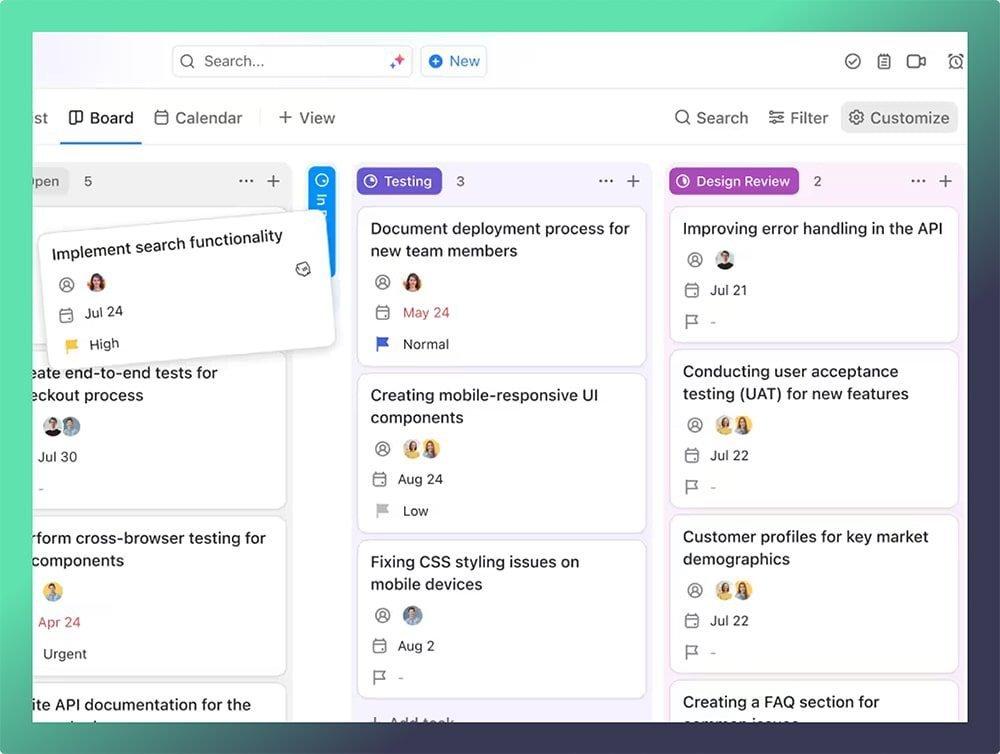
ClickUp’s Tasks feature is foundational for any remote team, allowing you to manage projects of all sizes with customizable views. Whether you prefer List, Board (Kanban), or Gantt views, ClickUp makes it easy to visualize tasks in a way that matches your workflow.
- Plan and Organize: Break down projects into tasks, assign them to team members, and set due dates.
- Collaborate in Real-Time: Attach files, add comments, and tag teammates directly in tasks for quick feedback.
- Set Priorities and Track Progress: Label tasks with priorities and monitor status in real time
7. Keep Documentation Centralized with ClickUp Docs
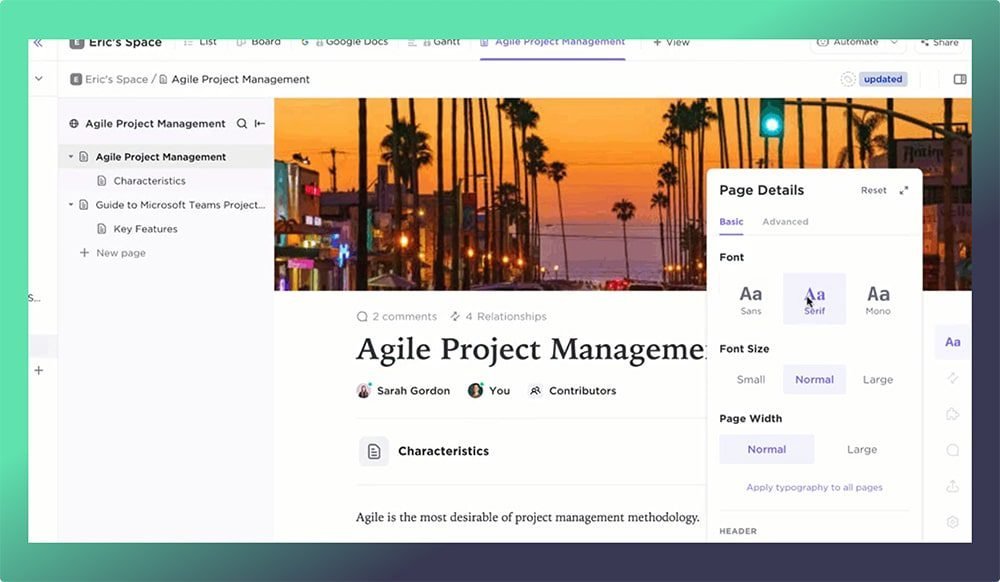
With ClickUp’s Docs, you can create and share beautiful documents, wikis, and knowledge bases that are directly linked to your workflows. For remote teams, keeping documentation accessible and organized is essential for alignment.
- Create a Shared Wiki: Build a living document for team knowledge, company policies, or project details.
- Embed Docs in Tasks: Link Docs to specific tasks so that essential information is always accessible.
- Collaborate on Ideas: Brainstorm and document ideas within ClickUp, keeping everything in one place.
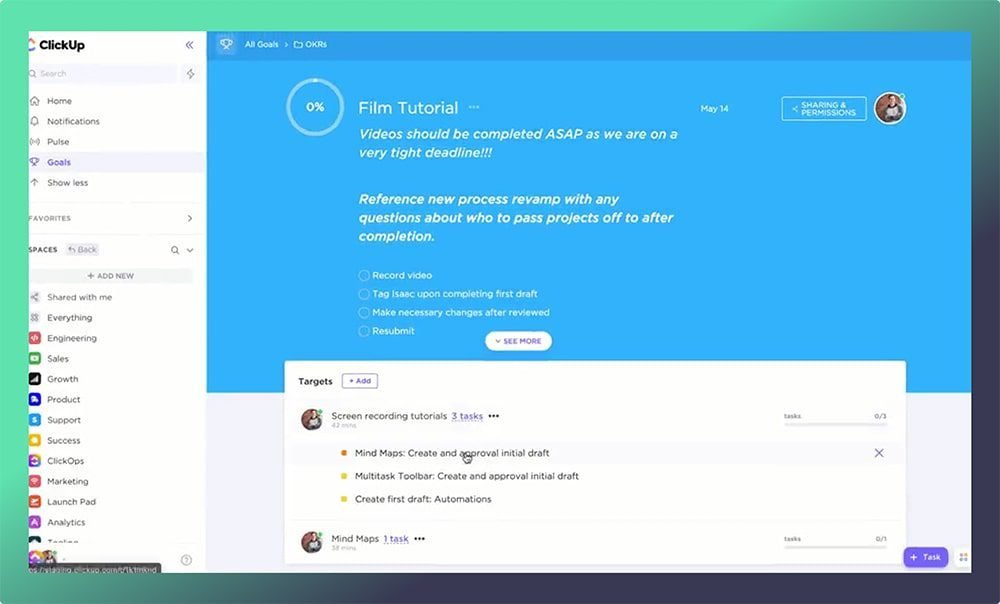
8. Align and Achieve Goals with ClickUp Goals
Setting and tracking goals keeps your remote team motivated and aligned with company objectives. ClickUp’s Goals feature helps you create measurable targets with clear timelines and automatic progress tracking.
- Track Key Objectives: Define your goals and break them down into measurable Key Results.
- Set Timelines: Use ClickUp’s Goals feature to keep teams focused on hitting key milestones.
- Monitor Progress Automatically: Track the status of goals with real-time updates for each key result.
9. Communicate Seamlessly with Native Integrations
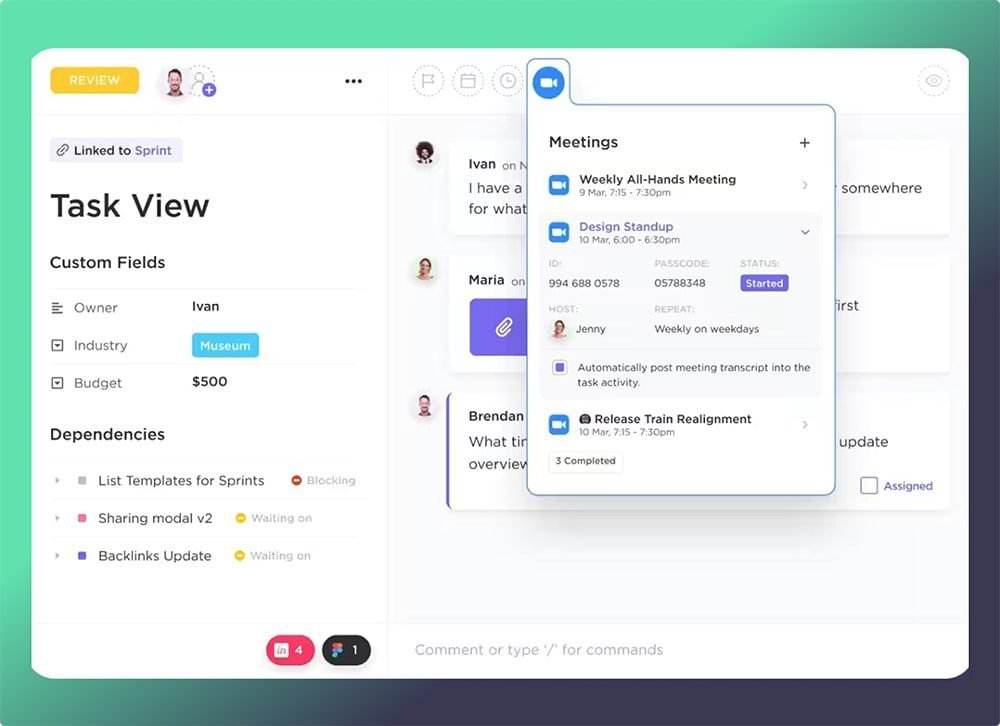
ClickUp integrates with key remote work tools, enabling your team to streamline communication and productivity without switching between apps.
Top Integrations for Remote Teams
- Zoom: Schedule and join Zoom meetings from within ClickUp tasks, complete with meeting details and recording links.
- Slack: Get task updates and notifications in Slack, making it easy to stay informed on ClickUp activity.
- Google Drive & Dropbox: Attach and manage cloud storage files within tasks, keeping all resources in one place.
- MS Teams: Manage tasks directly from MS Teams to stay organized and track updates seamlessly.
BONUS: Must-Have ClickUp Templates for Remote Work Success
In addition to best practices, implementing templates can significantly boost team efficiency. Here are some templates that are particularly useful for remote teams.
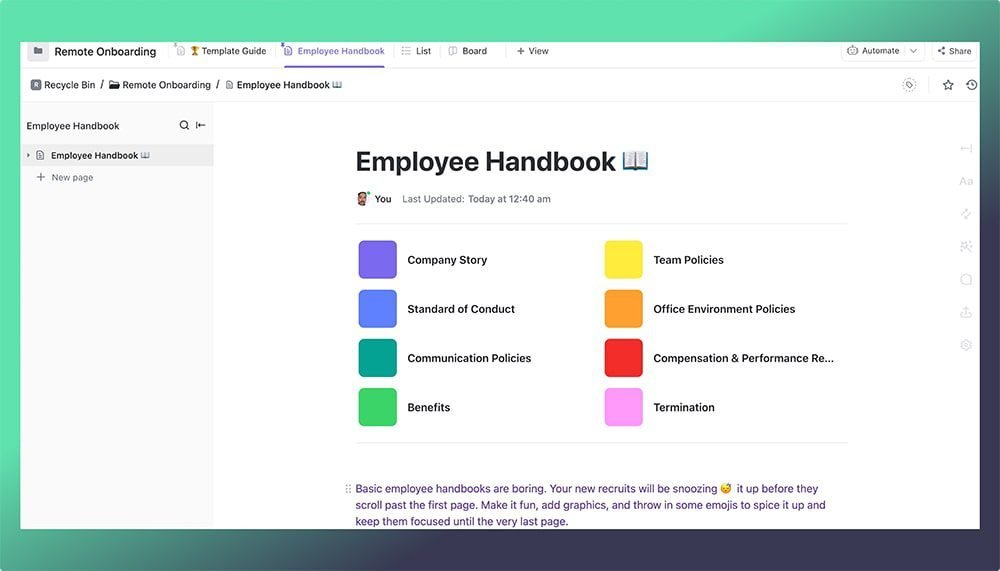
1. Remote Onboarding Template
Help new hires get up to speed quickly with a structured onboarding template. Include sections for training, introductory meetings, and key resources.
- Step 1: Company Overview and Policies
- Step 2: Team Introductions and Role Overview
- Step 3: Tools Training and Setup (including ClickUp!)
Get the Template: Remote Onboarding Template
2. Weekly Team Sync Template
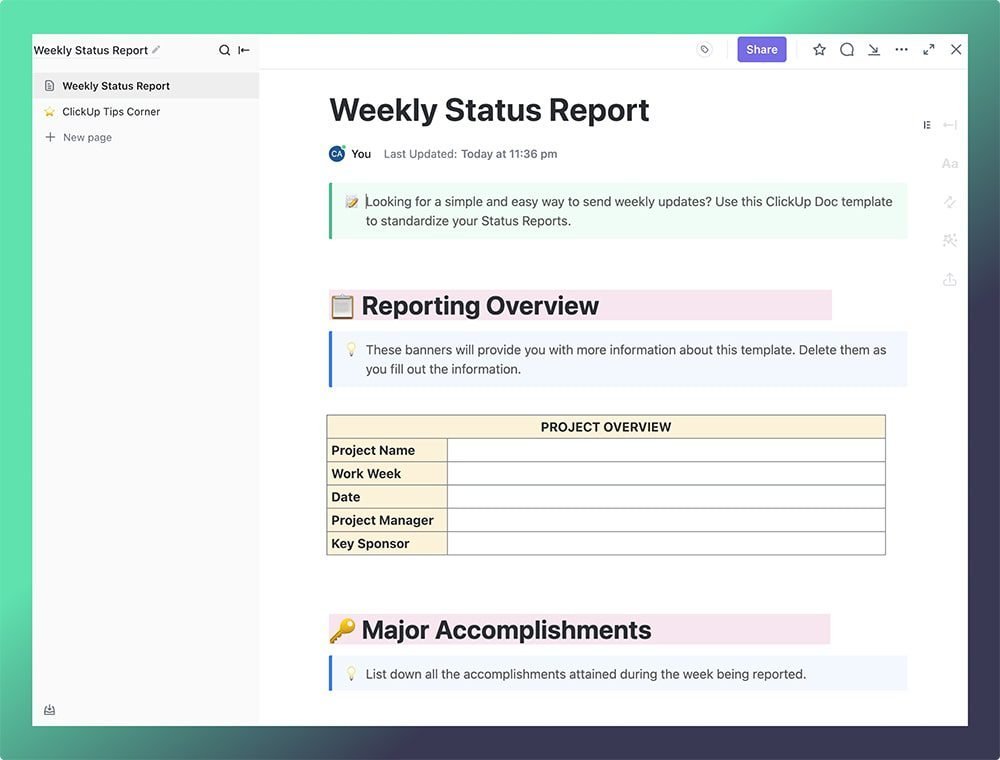
Hold weekly syncs with a standardized agenda that keeps everyone informed about priorities and project updates.
- Updates: Current project statuses and upcoming deadlines.
- Challenges: Discuss any roadblocks and potential solutions.
- Goals for Next Week: Establish team focus for the upcoming week.
Get the Template: Weekly Status Report
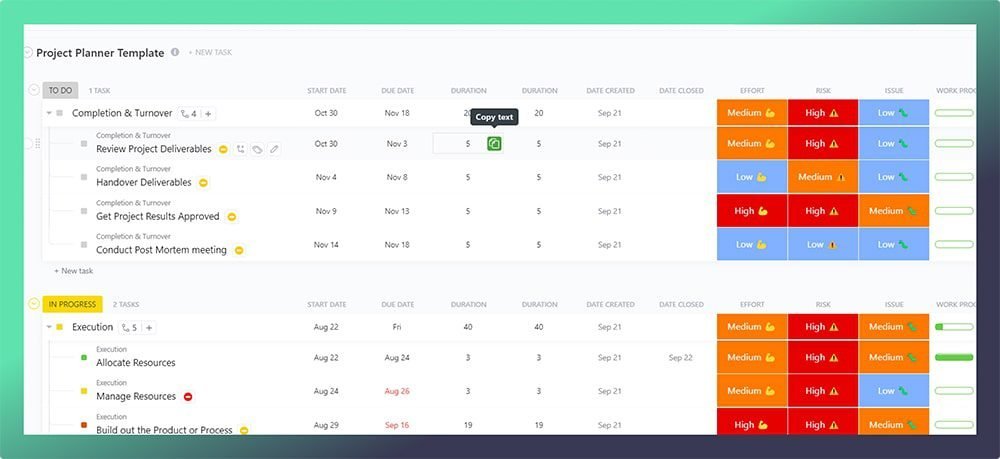
3. Project Plan Template
Every project can benefit from a clear outline. Use this template to create a step-by-step project plan that includes tasks, dependencies, and timelines.
- Scope Definition: Objectives, timelines, and deliverables.
- Task Breakdown: List tasks, assignees, and dependencies.
- Milestones: Set project milestones for regular progress tracking.
Get the Template: Project Planning Template
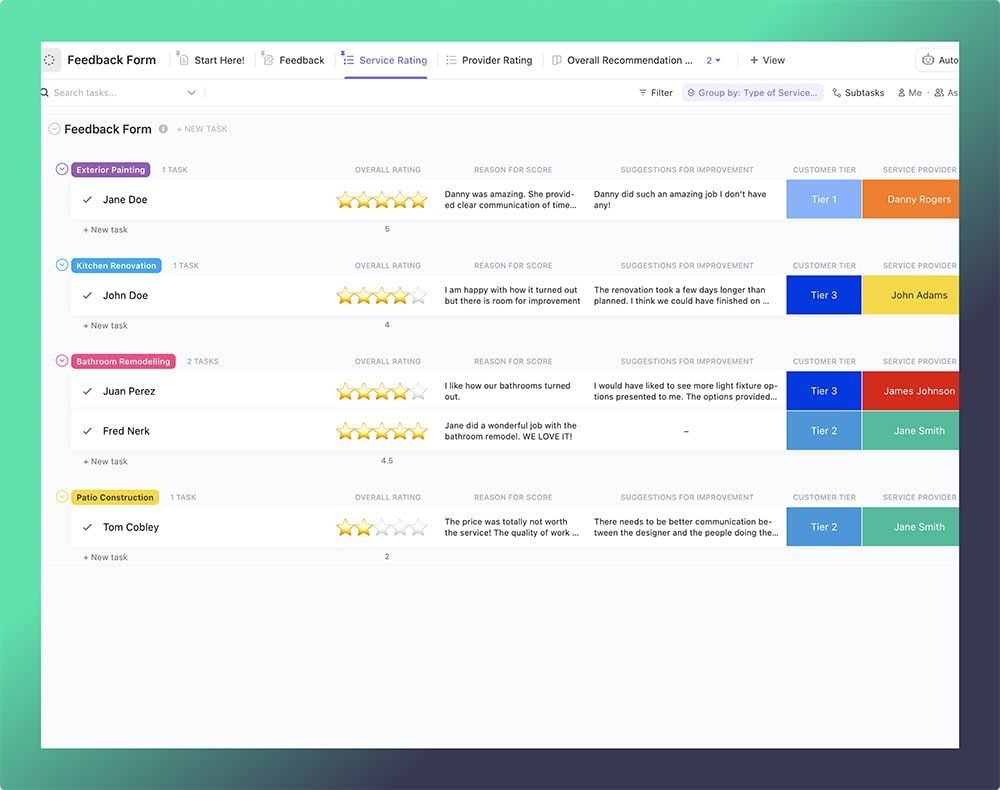
4. Client Feedback Collection Template
Use this template to gather and organize client feedback in a structured format, allowing you to keep track of responses, requested changes, and follow-up actions.
- Feedback Summary: Key points of feedback or concerns.
- Action Items: List tasks created based on feedback.
- Status Updates: Keep clients informed on progress.
Get the Template: Feedback Template
Additional Tips for Maximizing ClickUp for Remote Teams
- Encourage Documentation: Always document key decisions and updates in ClickUp Docs.
- Regularly Review Workflows: Optimize workflows based on team feedback and performance data.
- Use Milestones and Checkpoints: Break larger projects into smaller, achievable milestones to help the team stay motivated and trackable.
Let Dtech Systems Help You Implement ClickUp for Remote Teams
Setting up ClickUp effectively can transform your remote team’s productivity, but it takes time and expertise to get it right. Dtech Systems, a certified ClickUp partner, specializes in helping remote teams set up and optimize ClickUp, customizing workflows and templates to match unique team needs.
Ready to take your remote team’s efficiency to the next level? Contact Dtech today for a personalized ClickUp setup that will boost your productivity and streamline your team’s workflow.