
How to Build a Claude Workflow Your Whole Team Can Use
A Claude workflow for teams almost never starts as a team decision. It starts with one person — someone on ops, someone in marketing, someone drowning in a specific recurring task — who quietly gets good results out of Claude and never tells anyone how they did it. That knowledge stays trapped in one person's chat history, and the rest of the team keeps doing the task manually.
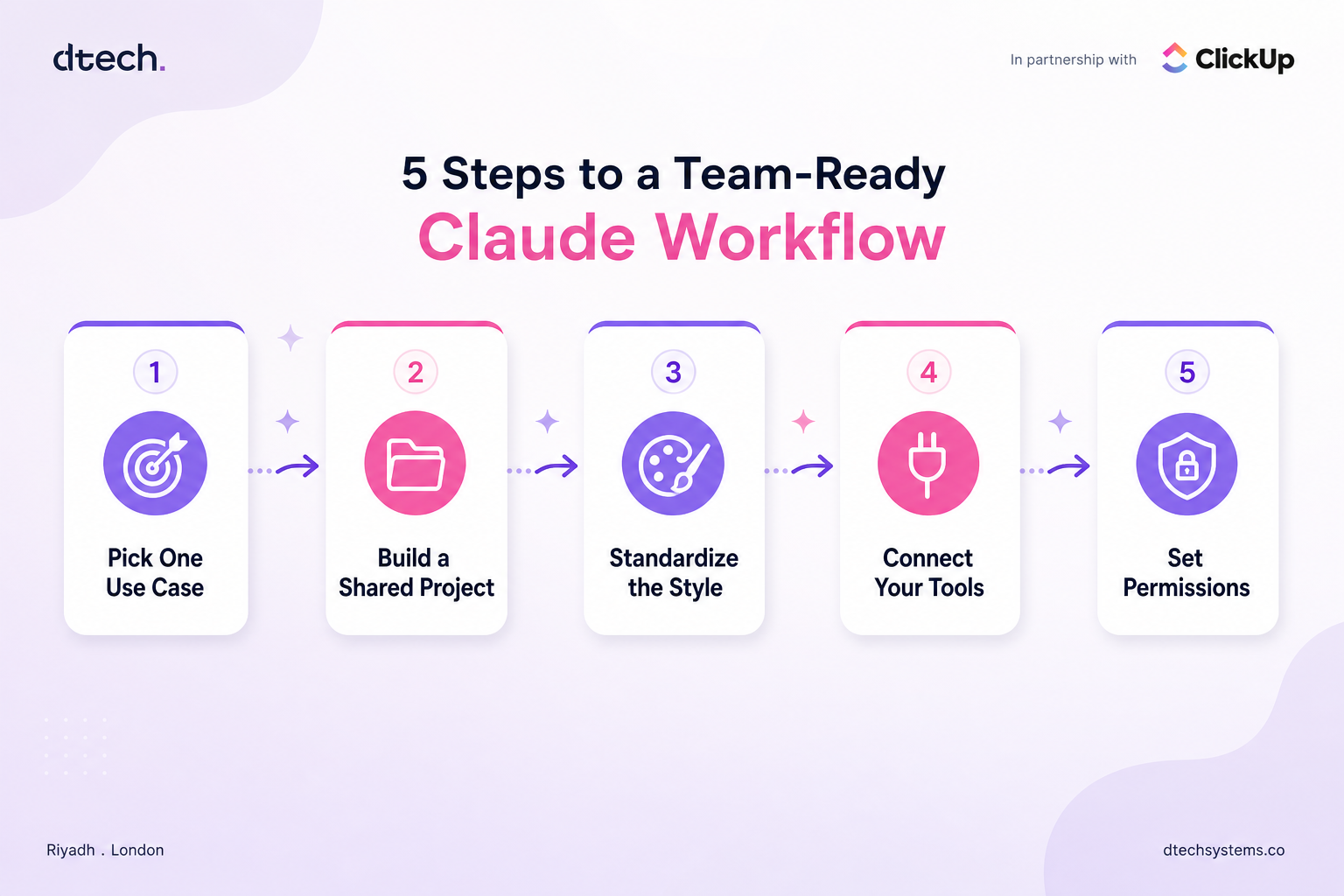
Building an actual Claude workflow for teams means turning that one person's setup into something repeatable: shared context, a consistent style, the right permissions, and a habit the whole team can follow without re-learning it from scratch. Here's how to do it in five steps.
1. Claude Workflow for Teams: Start With One Repeatable Use Case
The biggest mistake teams make when building a Claude workflow is starting with "let's use AI more" instead of starting with a specific, recurring task. A workflow needs a target. Pick one thing your team does often enough that improving it matters — drafting client updates, summarizing meeting notes, first-pass responses to recurring questions, turning a messy brief into a structured plan.
The test for a good starting point: is this something at least three people on the team do regularly, in roughly the same way, where the output quality currently varies a lot depending on who's doing it? That variance is exactly what a shared Claude workflow for teams is built to close.
Resist the urge to solve five problems at once. A workflow that does one thing consistently well gets adopted. A workflow that tries to do everything gets ignored.
2. Claude Workflow for Teams: Build a Shared Project as the Foundation
Set it up with two things:
A knowledge base — the documents, templates, past examples, and reference material Claude should already know before anyone asks it anything. This is what stops every team member from re-explaining context in every single chat.
Custom instructions — the standing rules for this workflow specifically: tone, format, what to always include, what to never do. This is what makes five different people's output actually consistent.
On Team and Enterprise plans, this Project can be shared directly with the relevant team members, so everyone is working from the same context instead of five slightly different personal setups.
3. Claude Workflow for Teams: Standardize Tone and Format With a Saved Style
Inconsistent output is the fastest way a Claude workflow for teams loses credibility internally. If five people use Claude for the same task and get five different tones, formats, and levels of detail back, the workflow looks unreliable even when the underlying answers are good.
Save a style once — the voice, structure, and formatting conventions your team wants by default — and apply it across the workflow instead of every person writing their own instructions from memory. This is a small setup cost that pays off every single time the workflow gets used afterward, because nobody has to remember or re-type the same formatting rules.
A Claude workflow for teams that requires constant copy-pasting between tools won't survive contact with a busy week. Wherever possible, connect Claude to the systems your team already works in, so the workflow pulls in real, current information instead of relying on someone manually feeding it context every time.
Depending on how your team works, this might mean connecting Claude to your project management tool, your email, or your team chat — or, for teams that want to delegate tasks without leaving Slack, using something like Claude Tag to bring Claude directly into the channel a task already lives in. The goal is the same either way: reduce the number of steps between "I need this done" and "Claude has what it needs to do it."
5. Claude Workflow for Teams: Set Permissions and a Lightweight Review Habit
The last step is often skipped, and it's usually why a promising Claude workflow for teams quietly falls apart after a month: nobody decided who owns it. Set clear sharing permissions — who can edit the Project's instructions and knowledge base versus who can just use it — and build in a lightweight review habit, even something as simple as a monthly five-minute check on whether the outputs are still on-brand and the knowledge base is current.
Workflows drift. Instructions written for one moment stop fitting six weeks later as the team's actual process changes. A Claude workflow for teams that nobody maintains slowly becomes a Claude workflow for teams that nobody trusts.
What Good Looks Like
This is the same principle that runs through AI agents vs automation: the setup work at the beginning is what determines whether the tool becomes reliable infrastructure or just another thing one person uses quietly on the side.