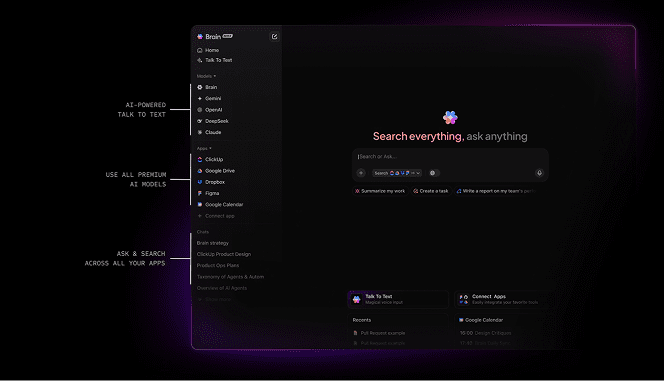
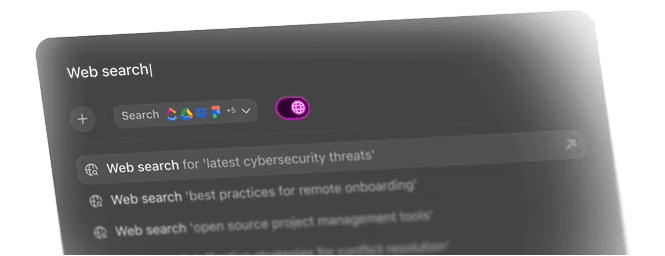
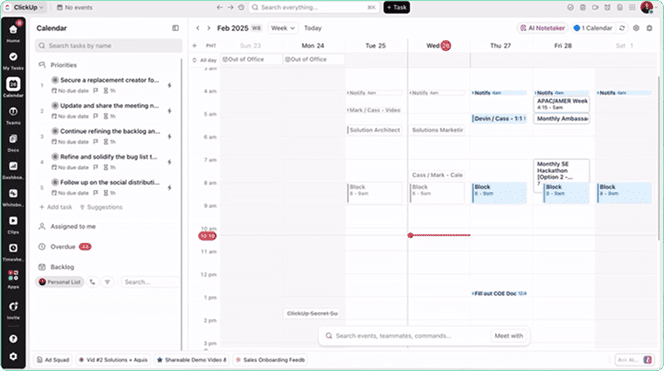
Brain MAX is an AI desktop companion for Windows and macOS (macOS 13+), designed to unify your work across ClickUp, the web, and apps like Google Drive, Figma, GitHub, and SharePoint. It leverages leading AI engines including ClickUp Brain, ChatGPT (GPT‑4.1), Claude (Sonnet 4, Opus 4), and Gemini (2.5 Pro, 2.5 Flash) to help you find, create, and act on information faster. With Brain MAX, you can:
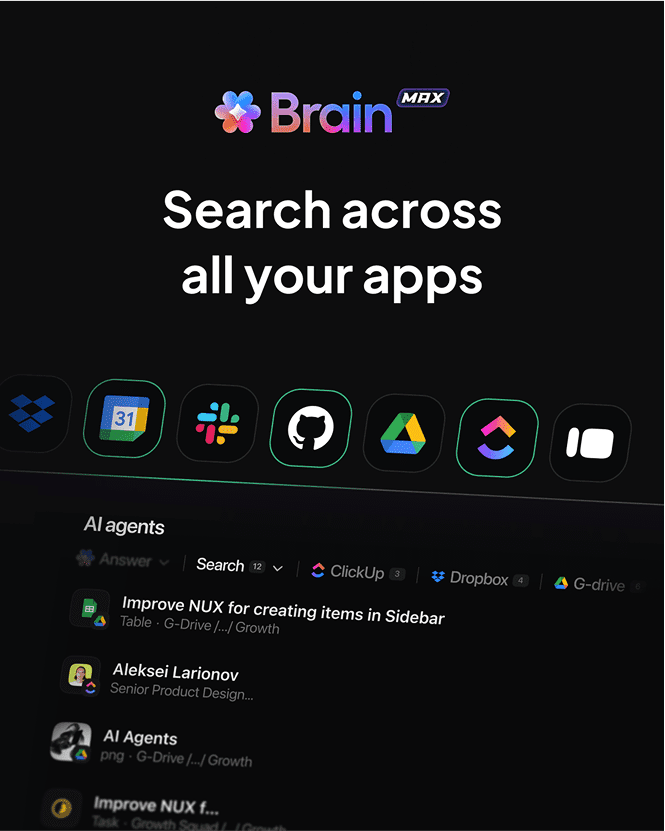
Search across all your tools with one query.
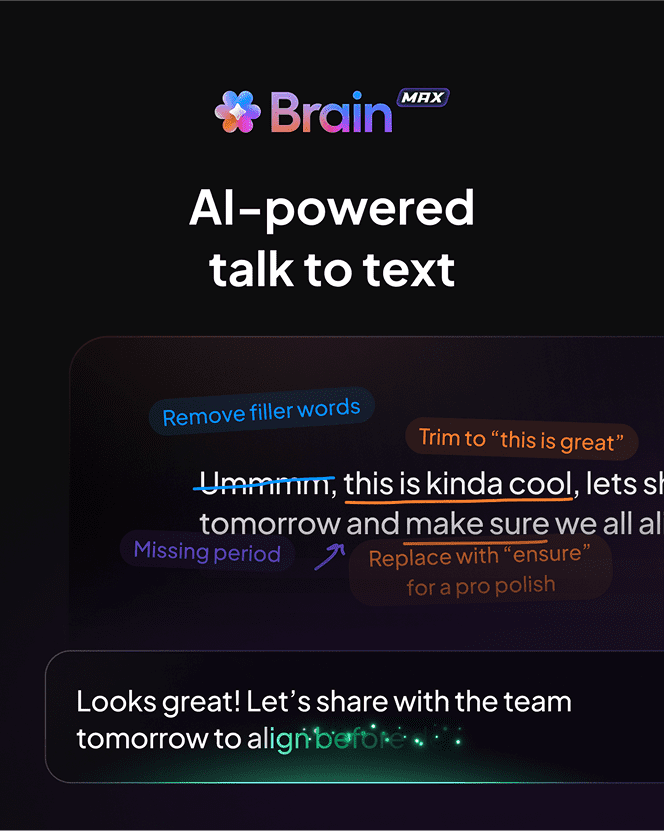
Dictate notes, emails, and content with Talk to Text, up to 3x faster than typing.
Automate repetitive tasks using reusable prompts and workspace Q&A.
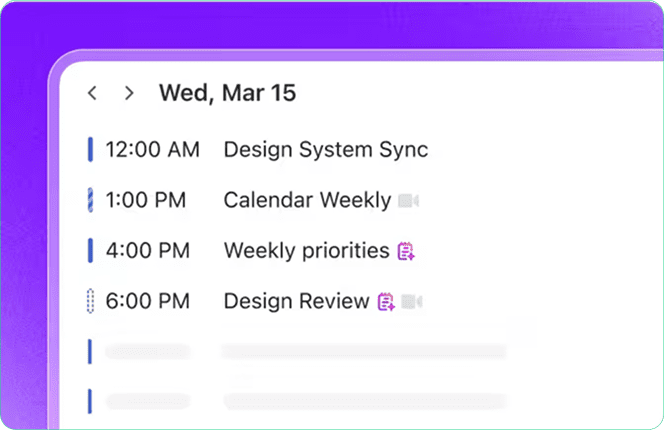
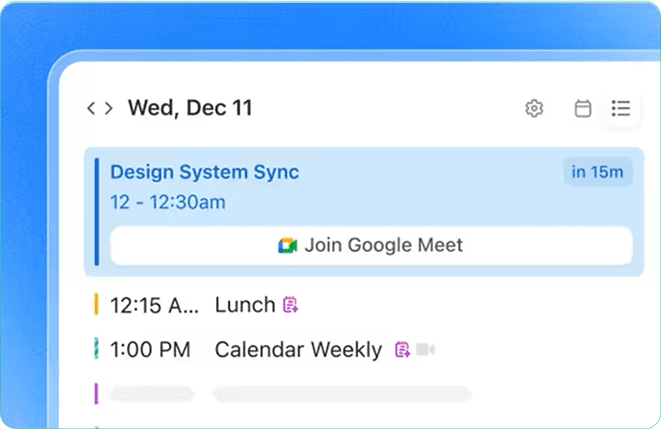
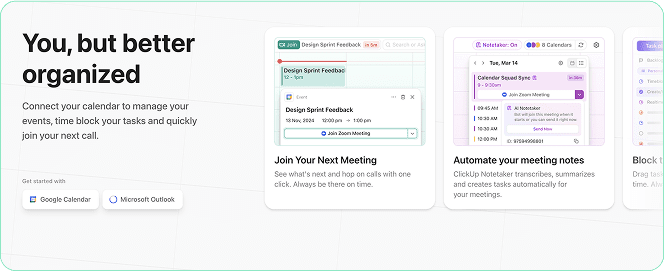
Stay focused with integrated calendars, recent files, and context-driven suggestions.
Key Features
1. Unified Search Across Apps and the Web
Search Anything: Instantly search ClickUp tasks, Docs, web results, or files in connected apps.
Smart Suggestions: Brain MAX learns from your queries for faster, more accurate results.
App Filters: Focus results on Google Drive, Figma, or any linked app.
Asset Mentions: Use @mentions to reference tasks, Docs, or teammates.
2. Multiple AI Models
Choose from ClickUp Brain (default), ChatGPT, Claude, or Gemini for different needs.
Only ClickUp Brain accesses your workspace data; other models handle general AI tasks.
3. Talk to Text: Hands-Free Voice Productivity
Talk to Text lets you dictate directly into Brain MAX or any app, emails, meeting notes, search queries, or documents. Why it’s a game changer:
3x faster than typing: Speak at 120–150 words per minute vs. typing at 40–50.
Hands-free workflows: Dictate notes or tasks while multitasking.
AI-enhanced output: Auto-correct grammar, clean filler words, or polish your tone.
How it Works:
Hold the fn key (or custom shortcut) to start recording.
Release to stop, your speech is converted to text instantly.
Works in Brain MAX search, any text field, or web/app inputs.
Customization:
Style Modes: Minimal (raw), Smart (corrected), or Polished (professional).
Dictionary: Add names and terms for accurate transcription.
Shortcuts: Customize hotkeys for starting/stopping recording.
Languages: Set your preferred output language.
Usage Limits (Trial and Paid):
Free/Business Plans: 2,000–10,000 words (trial).
AI Talk to Text Add-On: 25,000 words per Workspace (doesn’t reset).
AI Autopilot Bundle: Unlimited, fair-use transcription.
Access transcripts under Talk in the sidebar; copy, export, delete, or replay audio as needed.
4. Saved Prompts and Workspace Q&A
Save prompts for recurring queries or automation.
Ask workspace-specific questions and get instant, context-aware answers.
5. Home Cards and Dashboard Customization
AI-driven suggested actions based on your work.
View calendar events, recent files, and connected app assets.
Show or hide cards for a clean, personalized dashboard.
6. Integrations: Work Without Switching Tabs
Brain MAX connects to your most-used tools, enabling unified search and contextual actions. How It Works:
Connect apps via the Apps section in the sidebar.
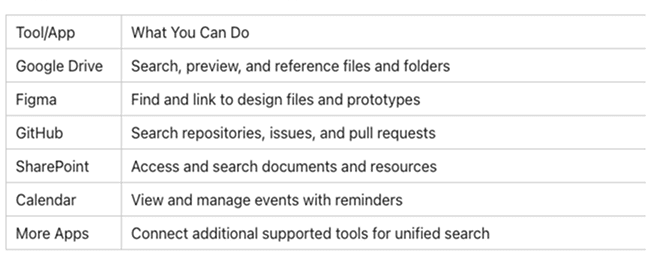
Authorize Google Drive,
Figma, GitHub, SharePoint, and more.
Search across all apps or filter by one for targeted results.
@mention assets or pull in related emails, files, and events.
Calendar Integration: See today’s meetings and reminders without leaving Brain MAX.
Why It Saves Time:
Save up to 1 hour per day by reducing app switching (based on ClickUp surveys).
Search and retrieve files in seconds, no need to check Drive, email, or Figma separately.
Supported Integrations Summary
7. Appearance, Shortcuts, and Settings
Themes: Light, Dark, or System mode.
Floating Brain: Keep a mini toolbar for Talk to Text and search.
Auto-Launch: Start with your computer.
Custom Shortcuts: Speed up navigation and recording.
8. Security and Privacy
Brain MAX does not share your data with AI models.
SSO and 2FA are fully supported.
All integrations use ClickUp’s secure authentication.
Getting Started with Brain MAX
Download: Get Brain MAX for macOS or Windows.
Sign In: Use your ClickUp account (Free Forever Workspace created if new).
Connect Apps: Link Drive, Figma, GitHub, and more.
Customize: Adjust appearance, Talk to Text settings, and shortcuts.
Start Working: Use the Home or New Chat button to search, dictate, and automate.
FAQs
Do I need a ClickUp account? Yes, but one is created for free if you don’t have one.
Is my data used to train AI? No, your data is secure and not used for training external AI models.
How do updates work? Brain MAX updates automatically; restart if needed.
Why It’s Faster and Smarter
Talk to Text: Up to 3x faster than typing, cutting meeting notes and emails from 5 minutes to 1.
Unified Search: Save up to 1 hour daily by skipping manual app switching.
Instant Context: View related files, emails, and events without leaving Brain MAX.
ClickUp Brain MAX is more than a productivity tool, it’s an AI-powered partner that centralizes your work, speeds up your writing and searching, and saves hours every week. Whether you’re dictating, searching, or integrating tools, Brain MAX helps you work smarter, faster, and without friction.
Conclusion
Ready to supercharge your workflows with ClickUp Brain MAX?
As Saudi Arabia’s only verified ClickUp reseller, Dtech Systems can help you implement Brain MAX, connect your apps, and train your teams to get the most out of AI-driven productivity.
ClickUp is an incredibly flexible project management platform, but with that flexibility comes complexity especially when it comes to tracking progress. One of the most misunderstood aspects of ClickUp, especially among teams with multiple departments or stakeholder layers, is the difference between Manual Progress and Planned Progress.
While ClickUp gives users the ability to report on both types, it does not offer a native way to compare them intelligently or flag inconsistencies between the two. This results in confusion, inaccurate dashboards, misaligned team expectations, and ultimately poor decision-making.
In this article, we’ll explore what each type of progress means, why confusion is so common, and the detailed technical and strategic solutions we’ve implemented across multiple organizations including a fully working solution delivered for a global automotive group to bring alignment and accountability back to progress reporting.
What’s the Difference Between Manual and Planned Progress?
Manual Progress
Manual progress typically refers to a custom percentage field or dropdown field where team members manually enter the status of a task or objective. This is usually based on their judgment or a subjective interpretation of how “done” the work is.
Example: A project owner might mark a task as “75% Complete” based on recent updates or personal evaluation, even if most of the subtasks are still open.
Planned Progress
Planned progress refers to calculated progress based on objective data such as:
Time elapsed between the start and due dates of a task
The percentage of completed subtasks
The number of linked deliverables completed
Any weighted formulas based on task complexity or duration
It is driven by structure and scheduling rather than user input.
Example: If a task is scheduled from May 1 to May 31 and today is May 16, the planned progress is automatically calculated as 50%, assuming work should progress evenly over time.
Why Are Teams Getting Confused?
Without formal training or a unified system, teams often assume that the progress they are seeing or entering represents reality. However, different people use different fields. This leads to inconsistent data, poor visibility, and contradictions across reports.
Here are common signs this confusion is happening:
Reports show a project as nearly complete, but multiple deliverables are still open.
One stakeholder updates a project to 90% manually, while the timeline and subtasks suggest it’s only halfway done.
Executives ask for real-time status but receive dashboards that reflect subjective updates rather than true work completion.
Teams rely on subtasks being checked off to signal progress, while others override that with manual input based on perceived status.
This leads to inaccurate decision-making, miscommunication, and in some cases, duplicate or unnecessary work.
Formula-Based Solution: Comparing Manual vs. Planned Progress
To solve this, we’ve implemented a custom formula field that compares both values and surfaces discrepancies. This allows stakeholders to immediately see whether the manual updates are in line with what is expected based on the plan.
Example Formula:
This formula checks if the manual progress is within 95% of the planned progress. If it is, the task is considered on track. If not, it flags the task for further review.
This comparison field can be:
Displayed in list views
Used in dashboards
Filtered to show only “at-risk” tasks
Integrated into weekly review workflows
Other Useful Formulas to Compare Manual Progress with Planned Progress in ClickUp
If you want alternatives for different tones or formats, here are a few more options:
1. Multi-Range Status Indicator
Purpose: Adds three-level status indicator (On Track, Slightly Behind, Critical) for dashboards
2. Progress Variance in Percentage
Purpose: Calculates the numerical variance between manual and planned progress to show how far off they are.
Add this as a separate field labeled “Variance (%)” for analytical dashboards.
3. Tolerance Check with Custom Ranges
Purpose: Shows whether manual progress is within a custom acceptable range (+/- 10% of planned).
4. Alert Flag for Executive Review
Purpose: Triggers a flag if manual progress exceeds planned by too much (suggests possible inflation).
5. Formula for Visual Dashboard Tags
Purpose: Creates color-coded tags for dashboards based on how closely aligned the progress is.
6. Delayed but Overreported Flag
Purpose: Identifies cases where manual progress is greater than planned progress AND the task is overdue.
7. Progress Delta with Positive/Negative Sign
Purpose: Adds a +/- sign to make variance direction clear.
8. Textual Explanation Output
Purpose: Displays an explanatory message for reports or training dashboards.
9. Variance Band Classification
Purpose: Classifies how significant the misalignment is in plain terms for stakeholder reports.
These formulas have been deployed across different types of reporting dashboards OKRs, project portfolios, KPI scorecards, RAID logs, and milestone reviews and can be adjusted depending on the % thresholds, acceptable variances, and user roles involved.
Solution Implementations Across Different Clients
We have applied this solution in many ways across different industries and use cases. Below are examples of how we adapted the solution for various real-world needs, including a complex configuration for a large automotive group (without naming the client) that had to support multiple business units and leadership layers.
Use Case 1: Task-to-Objective Alignment
In environments where teams update progress manually but leaders need objective status tied to deliverables, we set up:
Manual Progress as a dropdown field (0%, 25%, 50%, 75%, 100%)
Planned Progress calculated based on task duration
A formula that highlights tasks where manual progress significantly exceeds or lags behind planned progress
This solution helped ensure that manual status updates were supported by actual delivery timelines.
Use Case 2: Weekly Dashboard Review
For teams conducting weekly reviews, we configured dashboards to include:
A field that compares manual and planned progress
A visual indicator for misalignment (e.g., red, yellow, green)
Filters for overdue or “behind” tasks
This dashboard became the central location for sprint reviews and status checks without relying on verbal updates or manual slide decks.
Use Case 3: Implementation for a Global Automotive Enterprise
This particular group required progress reporting across multiple business units, including HR, supply chain, and product delivery. Manual updates were being entered at various levels, while the PMO expected data-driven tracking for milestone achievement.
We delivered a hybrid solution with the following structure:
Manual Progress field labeled clearly as “Reported Progress”
Planned Progress field using a combination of time-based logic and subtask completion
Formula that validated whether the reported progress matched scheduled expectations
Dashboard showing three columns: Planned, Manual, and Variance Status
Variance thresholds set to 5% tolerance (within range = green, over/under = flagged)
The PMO team used this configuration during review meetings with directors and aligned it with executive-level reporting metrics. This brought clarity across dozens of departments and helped standardize progress reporting without requiring changes to existing team workflows.
How We Train Teams to Understand the Difference
Technology alone does not solve the issue. To truly prevent confusion, we provide structured training and workspace design support, including:
Custom field naming conventions such as:
“Manual % (Entered by User)”
“Planned % (Based on Schedule)”
Formula field labels such as:
“Variance Status”
“Aligned or Not Aligned”
In-field descriptions to explain what the field means and how it works
Recorded Loom videos or live sessions showing teams how to interpret dashboards
Validation processes during weekly planning or closeout calls
This reduces ambiguity and builds long-term reliability in how progress is tracked.
Limitations of ClickUp’s Native Functionality
ClickUp does not currently offer a built-in method to compare manual and planned progress or to alert users when values fall out of sync. There are no default settings or system alerts for misalignment, which means these issues can go unnoticed without custom configuration.
Until ClickUp offers native features for this, the solution remains:
Custom fields
Calculated formulas
Consistent workspace standards
Targeted training
Dtech Systems: Your Partner in Progress Tracking
As the only verified ClickUp Partner in Saudi Arabia, DTech Systems has worked with organizations across government, logistics, manufacturing, finance, and education to solve exactly this type of challenge.
We offer:
Full ClickUp implementation
Custom formula development for KPI and progress reporting
Dashboard design for department-level and executive-level users
Workspace training for end users and project managers
Continuous support and scaling as your workspace grows
If your team struggles with inconsistent reporting or confusion between different progress indicators, we can deliver a structured, scalable solution.
Contact Dtech Systems for a free audit of your current ClickUp reporting setup.
Final Thoughts
The confusion between Manual and Planned Progress is more than a minor reporting detail. It can break trust in your dashboards, delay decision-making, and weaken your ability to manage performance at scale.
Using custom fields, targeted formulas, and structured training, Dtech Systems helps teams solve this problem and build reporting dashboards that reflect true project status. Whether your team is reporting to stakeholders, managing OKRs, or tracking departmental KPIs, progress must be measured correctly to be useful.
We’ve done it across industries, team sizes, and complexity levels. We can do it for you.
Let’s build clarity into your ClickUp environment, one formula at a time.
However, one particularly frustrating limitation stands out for teams trying to scale or migrate bulk data into ClickUp: the inability to map imported CSV fields directly to existing custom fields during the import process. While ClickUp technically allows imports from CSV files, the feature currently works in a two-step process that often causes confusion, redundancy, and extra cleanup work.
In this article, we will break down what this limitation means, how it affects real-world onboarding and data migration efforts, what workarounds teams are using today, and what ClickUp has said about fixing it.
Understanding the CSV Import Limitation in ClickUp
When you upload a CSV file to ClickUp, the importer walks you through a mapping process, matching columns from your spreadsheet to task fields like Task Name, Due Date, Status, and so on.
However, here’s the catch: you cannot map your CSV columns to existing custom fields that already live in your ClickUp workspace. Instead, you’re forced to:
Complete the CSV import process.
Go back and manually link or convert the imported data to your intended custom fields.
Clean up any duplicate or mismatched fields that the importer created.
This becomes especially problematic when you’re trying to onboard a large dataset, such as when importing hundreds or thousands of records from a legacy Excel file, or merging client task data from another system.
Why This Is a Problem for Growing Teams
The limitation may seem small on the surface, but it has wide-reaching implications for teams working at scale. Here’s how:
1. Disrupts Smooth Onboarding
Organizations often rely on the CSV importer to bring existing data into ClickUp. This might include:
A backlog of tasks stored in Excel
A campaign calendar from Google Sheets
A project tracker from Trello exports.
The inability to link data directly to the correct custom fields means admins or project leads must spend hours manually reconfiguring fields post-import.
2. Creates Duplicate Fields
When the importer doesn’t recognize or allow selection of existing fields, it creates new ones. For instance, instead of assigning imported “Client Region” data to your existing “Client Region” custom field, ClickUp may create a new field called “Client Region (imported)”.
This duplication causes:
Confusion for team members
Extra columns in views
Manual merging of data
Report inconsistencies
3. Leads to Mapping Errors and Data Loss
Even for teams that try to map fields correctly in the second step, there’s a high risk of human error. Some fields may be missed, others wrongly mapped, and others not recognized at all — especially if formatting in the CSV isn’t perfect.
4. Slows Down Large-Scale Imports
A bulk import that should take minutes ends up taking hours or even days. You’re not only uploading the data but also cleaning it up and standardizing it post-import. For enterprise users or teams migrating from another tool, this is a major operational slowdown.
Workarounds Teams Are Using Today
Until ClickUp provides a full resolution, users have adopted various workarounds to deal with the current system’s limitations. Some are more effective than others, but all come with trade-offs.
1. Manual Post-Import Remapping
This is the most common approach. After the CSV data has been imported, users go into each field and:
Reassign the data to the proper custom field
Delete or archive the incorrect field created by the importer
Adjust views and filters to use the corrected fields.
While simple, this is tedious and impractical for large data sets. It’s also prone to error.
2. Pre-Aligning Field Names Before Import
Some teams attempt to “trick” the importer into creating the correct fields by naming CSV columns exactly the same as existing ClickUp custom fields. This occasionally works, but only if:
The data format matches exactly (e.g., dropdown options are pre-defined)
The custom field is already attached to the List you are importing into
This is a fragile solution and doesn’t work reliably across all field types like relationships, formula fields, or rollups.
3. Cleaning and Updating via the API
Tech-savvy teams sometimes choose to skip the native importer and use ClickUp’s API to push data into the correct fields from external sources. This approach requires:
Development resources
Knowledge of ClickUp’s API structure
Ongoing maintenance
It is not feasible for most business teams or non-technical users.
4. Using a “Staging List” for Imports
Some users create a dedicated List for importing data. They allow the importer to create its custom fields, then use automation or manual copying to transfer the data from the “staging” tasks to tasks in the real project List, where correct custom fields exist.
This approach isolates the mess, but still doubles the work and causes overhead.
What the Community Is Saying
The ClickUp feedback board has been flooded with comments about this issue, with over 676 upvotes on the post titled “CSV Importer – Ability to Map All Custom Fields”. Users have shared frustration, confusion, and suggestions:
“It was possible before. Why is that? Also, not able to set the comma as my separator — the import isn’t working at all for me.” – Ana Llabrés
“Please allow us to map to relationship fields. We can’t do this currently.” – Alex Norton
“Being able to update existing task custom fields through CSV would be huge.” – Gurminder Dhami
“We signed up for beta testing but didn’t hear back — our whole process depends on this working.” – Lisa Martin
ClickUp has acknowledged the problem. Lily Chan from the ClickUp team posted an update in April 2025:
“We’ve paused turning this on for additional customers while we resolve some bugs. Once fixed, we’ll continue enrolling more Workspaces.”
This suggests the feature is under development but not fully rolled out. Many users are in limbo — having signed up for the beta but not received access or communication.
What Could Solve the Problem
A fully functional CSV importer in ClickUp should ideally allow users to:
Map each CSV column to existing custom fields at the time of import.
Update existing records with new values (based on task ID or task name).
Support advanced field types including relationships, formulas, and dropdowns.
Retain data formatting and delimiter preferences.
This would bring ClickUp’s import capabilities on par with tools like Airtable, Monday.com, and Smartsheet, which all offer robust field-mapping interfaces during CSV uploads.
Tips to Prepare for Future Imports
While we wait for ClickUp’s improved importer, here are a few practical tips you can follow to minimize friction:
Audit your custom fields before import. Clean up duplicates and standardize naming conventions.
Use templates that already contain your most common custom fields. Import CSVs into Lists built from these templates.
Limit imports to smaller chunks when possible. It’s easier to clean 100 tasks than 1000 if something goes wrong.
Back up your CSV data in its original format. If the import fails or corrupts data, you’ll need to revert.
Use staging Lists to test the import before applying it to live projects or clients.
What’s Next from ClickUp
ClickUp has marked this feature as “In Progress,” meaning it is actively being developed. However, based on the number of bug reports and the paused beta rollout, it may take time before the updated importer is widely available.
In the meantime, businesses that rely heavily on structured data should continue to document their processes, streamline workarounds, and consider whether an API-based or hybrid import strategy might better suit their scale.
Conclusion
The current CSV importer in ClickUp presents a significant hurdle for teams that need to migrate or update large amounts of data. Without the ability to map directly to existing custom fields, users are left with a clunky, manual process that increases the risk of errors, duplicates, and inefficiencies.
This is not just a technical gap; it impacts ClickUp’s core value proposition of being a centralized and scalable workspace for teams. Fortunately, ClickUp has acknowledged the issue and is working toward a fix. Until then, organizations must rely on tested workarounds and careful import planning.
Need help cleaning up imports or building a scalable data migration process in ClickUp? DTech Systems can help. As the only verified ClickUp reseller in Saudi Arabia, we specialize in onboarding, automation, and workflow optimization so your team doesn’t waste hours on broken imports.
In June 2025, ClickUp began rolling out one of its most requested features to the majority of users — native 2-way sync with Microsoft Outlook Calendar. For many teams that rely on both Microsoft and ClickUp ecosystems, this marks a major step forward in productivity and planning efficiency. The integration is designed to save time, eliminate scheduling conflicts, and allow ClickUp to serve as a single source of truth for both tasks and time-based events.
In this article, we will explore exactly how this new feature works, how to connect it, what users can expect, and how businesses can take full advantage of it. Whether you are a team leader, a busy professional, or an enterprise decision-maker, this is a detailed breakdown of what the feature does and how to use it correctly.
What Is 2-Way Outlook Calendar Sync in ClickUp?
The 2-way sync feature allows tasks and calendar events to be shared and updated between ClickUp and Microsoft Outlook. This means that when a user creates or edits a meeting in Outlook, it will appear automatically in ClickUp’s calendar view. Similarly, if a task in ClickUp is time-blocked or rescheduled, that information is pushed to the Outlook Calendar.
The sync works both ways, ensuring that information stays aligned in real time across both platforms. For professionals who rely heavily on Outlook for meeting management and ClickUp for task tracking and project planning, this provides a seamless scheduling experience.
Before this rollout, ClickUp offered limited calendar functionality. One-way syncs, manual exports, and third-party connectors were the norm. Now, native integration offers a direct, reliable, and secure link between both systems.
Who Can Use This?
As of now, the 2-way sync is rolling out to most ClickUp users, especially those using ClickUp 3.0. If you don’t see it yet, you may be added soon.
Core Features and Benefits of ClickUp’s Outlook Calendar Integration
Real-Time Calendar Synchronization
The core advantage of the integration is the real-time nature of the sync. Any change made in one calendar reflects instantly in the other. You do not need to refresh or manually update anything. Meetings, events, and tasks remain current across your workspace and your email platform.
Intelligent Task Scheduling with AI
ClickUp’s Calendar is not just for viewing. It uses AI to analyze your workload, calendar events, deadlines, and priorities to automatically block time for your most important work. When a new meeting is added to Outlook, ClickUp can automatically adjust your schedule by rescheduling tasks, finding gaps, and keeping you on track. It can also distinguish between meetings, focus blocks, and reminders.
Unified View of Tasks and Events
This integration brings both events and task responsibilities into a single interface. With everything visible in one place, you do not need to switch between tabs, systems, or tools to plan your day. You gain a clear understanding of what is upcoming, what is urgent, and when you actually have time to get things done.
Native Support for Call Platforms
ClickUp supports Microsoft Teams, Zoom, and Google Meet. When synced, you can launch meetings from within the ClickUp interface without needing to open your Outlook inbox. This helps reduce context switching and minimizes time lost looking for links or invitation details.
Meeting Notes and Action Items
ClickUp AI also provides features like smart note-taking and action item creation. During or after meetings, the platform can generate meeting notes, transcribe conversations, and turn those into assigned tasks. These tasks are directly linked to calendar events and stored in Docs or attached to relevant ClickUp tasks.
Cross-Team and Multi-Calendar Visibility
The calendar integration allows users to see not only their own schedule but also compare it with team calendars. This is especially useful in project management, cross-functional collaboration, and capacity planning. Managers can quickly determine availability without sending multiple emails or chat messages.
Step-by-Step Guide: How to Set Up 2-Way Sync with Outlook Calendar
Connecting your Microsoft Outlook Calendar to ClickUp is simple but powerful. Below is a comprehensive walkthrough of the process.
Step 1: Access the Calendar Integration Settings in ClickUp
Log in to your ClickUp workspace
Navigate to the top search bar and locate the “Calendar” module
In the top right corner of the calendar view, click on the gear icon to open Calendar Settings
Step 2: Select Microsoft Outlook as Your Calendar Provider
You will see two options for calendar integration: Google Calendar and Microsoft Outlook
Click on “Microsoft Outlook” to proceed with the setup
Step 3: Authenticate Your Microsoft Account
A new window will open with Microsoft’s login prompt
If you are already signed in, it will display your account name and email address
Click your account to proceed or choose “Use another account” if necessary
Step 4: Approve Permissions Requested by ClickUp
Microsoft will request your permission to allow ClickUp to access your calendar data
Permissions typically include the ability to view, create, and modify calendar events
Click “Accept” to allow ClickUp to sync both ways with your Outlook account
Step 5: Select Calendar Preferences
Once authenticated, you will return to ClickUp and be prompted to:
Choose which calendar(s) to sync (primary, shared, delegated, etc.)
Decide whether to sync all-day events or limit to work hours
Choose if you want ClickUp tasks to be added as events in your Outlook calendar
Review and confirm your preferences before clicking “Connect”
What to Expect After Setup
Once connected, ClickUp will begin importing Outlook events into the calendar view. ClickUp will also begin pushing task data into Outlook. Tasks that have a start time, due date, or estimated time can be blocked in the calendar as events. If a task is marked complete, the calendar entry is updated.
Likewise, if a new meeting is scheduled in Outlook, that entry will show up in ClickUp’s calendar. Tasks with time conflicts may automatically reschedule based on your AI settings, or ClickUp may notify you to review the conflict manually.
The integration supports:
Daily, weekly, and monthly calendar views
Infinite horizontal scroll for timeline visualization
Time tracking integrations
Work location and working hours visibility
Team calendar comparisons
Event reminders and alerts
Advanced Capabilities Coming Soon
ClickUp has announced that more features will be added to enhance the integration, including:
Automatic task creation from meeting conversations
Integrated scheduling links for booking meetings (similar to Calendly)
AI-based schedule queries, where you can ask, “When is my next one-on-one with Alex?” and receive an instant response
Smart suggestions for rescheduling or workload balancing
Automatic generation of action items from call transcripts and meeting notes
These updates aim to turn ClickUp into a complete smart calendar and planning system, not just a calendar viewer.
Who Benefits the Most From This Integration
Project Teams and Agencies
Project teams that balance deadlines, meetings, and task dependencies benefit from having both their timeline and workload visible in one place. It helps reduce scope creep, clarify deliverables, and create realistic project schedules.
Sales and Client-Facing Teams
Sales professionals can manage client calls, prep tasks, and follow-up actions in one platform. This reduces the risk of dropped communication and ensures every opportunity is tracked effectively.
Executives and Department Heads
Leaders can oversee their own schedules alongside key projects. Having one unified platform simplifies time management and supports higher-level planning and delegation.
Remote and Hybrid Teams
For teams spread across multiple locations and time zones, real-time synchronization with Outlook ensures that everyone is on the same page, even if they use different devices or tools.
Common Setup Issues and How to Fix Them
If tasks do not appear in Outlook, check that “Sync ClickUp tasks to calendar” is enabled
If events do not show in ClickUp, ensure the correct Outlook calendar is selected and not hidden
Make sure your Microsoft account has admin permission if connecting from a work domain
If permissions are denied accidentally, re-authorize the integration through ClickUp settings
For persistent problems, re-authenticating the calendar connection or contacting workspace administrators may resolve the issue.
How Dtech Systems Can Help You Set Up and Scale ClickUp
While connecting Outlook Calendar is a quick task for individuals, deploying it at scale across departments requires a structured approach. This is where Dtech Systems can help.
We are the only verified ClickUp partner in Saudi Arabia. Our consultants have deep expertise in:
ClickUp onboarding and full workspace setup
Custom calendar integration workflows for large teams
Smart scheduling using ClickUp AI
Task-to-calendar automation and conflict resolution
Time management dashboards for leadership teams
Onboarding and support for Microsoft 365 environments
If your organization wants to improve productivity, centralize planning, and reduce manual scheduling, we offer tailored solutions to make that happen efficiently.
Contact Dtech Systems to learn how we can design, deploy, and optimize your ClickUp environment.
Conclusion
ClickUp’s 2-way Outlook Calendar sync is more than just a convenience. It transforms the way individuals and teams plan their work. By connecting tasks, meetings, and goals into a single real-time schedule, ClickUp offers true visibility and control over time and priorities.
Whether you are an individual professional or managing a team of hundreds, this integration enables smarter decision-making, fewer scheduling mistakes, and better alignment between projects and time availability.
Start small by connecting your calendar, or go further with AI-powered planning, team-wide rollout, and executive reporting. With the right setup, this feature can help you reclaim hours each week and streamline how your team works.
For complete implementation or support, Dtech Systems is here to assist.
Let your calendar finally work for you — not the other way around.
Which platform helps you run more productive, less stressful meetings in 2025?
We’ve all been there. You attend a 45-minute meeting, nod along, and leave thinking, “Wait, what did we actually decide?” Then come the follow-up emails, the forgotten tasks, and the classic “who was supposed to do that again?” moments.
But what if your project management tool could help you remember everything? What if it could take care of all your post-meeting jobs like making meeting summaries, noting down action items, and turning them into tasks automatically? AI-powered meeting intelligence can take care of all that and more.
If you are choosing between ClickUp and Monday.com based on how their AI meeting intelligence fares, this article will help you decide which platform is better at running (and remembering) your meetings for you.
What is AI Meeting Intelligence?
Before we dive into the tools, let’s break down what “meeting intelligence” actually means.
In simple terms, it’s the use of AI to:
Take notes during meetings
Summarize discussions
Identify action items
Create tasks automatically
Help everyone stay aligned without manual effort
Meet your new assistant who never zones out or misses a detail!
ClickUp AI for Meetings: Your Smartest Team Member
ClickUp has taken a big leap with its AI features, and meeting intelligence scores big with its users. Here’s how it works:
1. Real-Time Transcription
When you use ClickUp AI Notetaker during meetings, AI can transcribe conversations in real time. You don’t have to type out notes. Just talk, and it captures everything. Users even praise its ability to handle accents and technical jargon.
2. Instant Meeting Summaries
ClickUp AI can instantly create a summary of what was discussed. It breaks down long meetings into short, easy-to-read paragraphs, ready to be shared or saved.
3. Action Item Detection
One of the coolest features is how AI spots when someone says something like “Let’s finalize the design by Friday” and automatically highlights it as an action item.
4. Automatic task creation
Once AI has picked out key items from your meeting, it delegates them to the right team member, creating clear next steps in no time (no more losing information through cracks).
5. Context That Stays Connected
Since everything happens inside ClickUp, you don’t need to jump between apps. Notes, tasks, recordings, and projects all live in the same place.
6. Enhanced Search Capabilities
On average, knowledge workers spend 1.8 hours daily just searching for information.
ClickUp AI makes meeting notes fully searchable. Just type in your keyword in the search bar and magically free up one-fifth of your workday with a single click!
7. Cost-efficient: ClickUp’s AI starts at $9/user/month, and AI Notetaker starts at $145/month. It also has a free tier that includes basic automation, making it a go-to tool for startups.
Monday.com: A Manual Approach to Meetings
Monday.com is a powerful work OS with colorful boards and a friendly interface. But when it comes to AI meeting intelligence, it’s not quite on the same level – yet.
While Monday.com offers some great features like meeting note templates inside boards and integration with Zoom or Microsoft Teams, here’s where its usage gets cumbersome:
Manual note-taking: Users need to input meeting notes manually.
No built-in transcription or summarization: Unlike ClickUp, Monday.com lacks native AI features for meetings.
Third-party integrations required: To achieve similar functionalities, users must integrate external tools like Otter.ai for transcription.
Beta-Level Maturity: Monday’s AI assistant is still in beta, with core features like “Project Analyzer” and “Digital Workforce” labeled “coming soon.” Users report inconsistent performance in non-English meetings and limited customization.
Mobile Limitations: Monday’s app lacks parity with its web version. Teams on the go can’t access AI-driven insights, crippling remote collaboration.
Disjointed Workflow: Users report that AI-generated insights rarely translate to actionable next steps.
Heavier on the pocket: Monday’s advanced AI Pro/Enterprise plans start at $20/user/month and limit users to 500 AI credits/month. So, if you’re a data-heavy team, that means encountering paywalls.
In short, you can still run meetings using Monday, but you’ll need to take more manual steps or rely on outside tools to match what ClickUp offers natively.
Which One’s Better for Smarter Meetings?
If your goal is to save time, reduce manual note-taking, and (actually) act on what you discussed in the meeting, ClickUp wins hands down.
That’s not to say Monday isn’t a solid platform. It’s great for organizing work, especially if you love visual boards. But if you want your meeting tool to act like a teammate, ClickUp’s AI gives you a big productivity edge.
Actionable Steps to Enhance Your Meetings
To leverage ClickUp’s AI for better meetings:
Assess your current meeting processes: Identify pain points like missed action items or lengthy note-taking.
Explore ClickUp’s AI features: Sign up for a trial and test its meeting tools.
Integrate with Zoom: Connect ClickUp to your Zoom account for seamless meeting management.
Train your team: Ensure everyone understands how to use the new tools effectively.
Monitor and adjust: Regularly review meeting outcomes and make necessary adjustments to workflows.
If you still feel that you’re not getting the most out of this powerful tool, Partner with Dtech Systems for Optimal ClickUp Implementation.
Implementing ClickUp’s AI features can revolutionize your meetings, but proper setup is crucial. Dtech Systems specializes in customizing ClickUp to fit your organization’s unique needs, ensuring you get the most out of its capabilities.
With experience across various industries in Saudi Arabia, Dtech offers:
Tailored ClickUp setups: Aligning the platform with your workflows.
Comprehensive training: Empowering your team to utilize AI features effectively.
Ongoing support: Ensuring continuous improvement and adaptation.
Ready to transform your meetings?
Book a free consultation with Dtech Systems today and take the first step towards smarter, more efficient meetings.
In today’s busy work environment, staying organized and managing tasks well is essential. Tools like ClickUp and Zapier have changed how people and teams work, making project management and automation easier than ever.
What is ClickUp?
ClickUp is a powerful, all-in-one project management platform designed to help teams plan, track, and manage their work efficiently. Whether you’re a freelancer juggling multiple projects or a large organization coordinating across departments, ClickUp provides the tools you need to stay productive. Its features include:
Task and project management
Custom workflows
Time tracking
Goal setting and progress tracking
Integrations with popular apps like Slack, Google Drive, and Zoom
With its highly customizable interface and robust functionality, ClickUp is suitable for virtually any industry, making it a go-to solution for professionals worldwide.
What is Zapier?
Zapier is an automation platform that connects over 5,000 apps to streamline workflows. It allows you to create automated processes—called “Zaps”—between different applications without writing a single line of code. Zapier helps eliminate repetitive tasks by automating actions, such as:
Sending notifications
Creating tasks
Syncing data between platforms
For example, Zapier can take an email from your Gmail account and automatically turn it into a task in ClickUp, saving time and reducing errors.
Why Combine ClickUp and Zapier?
When you pair ClickUp’s project management capabilities with Zapier’s automation power, you unlock endless possibilities. Together, they help you:
Save time by automating repetitive tasks.
Improve accuracy by reducing manual data entry.
Integrate your favorite tools seamlessly into one ecosystem.
This guide dives into the top 5 automations you can implement in 2025 to maximize ClickUp with Zapier, enhancing your productivity and ensuring a streamlined workflow.
Top 5 Zapier Automations to Supercharge Your ClickUp Workflow in 2025
1. Automate Task Creation from Form Responses
Managing inputs from various sources can be challenging, especially when you rely on forms for feedback, requests, or surveys. Zapier bridges the gap between form tools like Google Forms or Typeform and ClickUp, ensuring no response goes unnoticed. With automation, every form submission can instantly become a new task in your ClickUp workspace.
How This Automation Works:
Trigger: A new response is submitted in Google Forms or Typeform.
Action: Create a task in ClickUp with details like the form responder’s input in the task description.
This integration saves time by eliminating the need for manual data entry, ensuring your team acts on every response promptly. For example, HR teams can automatically create tasks for every job application submitted via forms, ensuring a structured recruitment process.
2. Sync Calendar Events with ClickUp Tasks
Juggling multiple platforms for scheduling and task management can lead to missed deadlines. By connecting Google Calendar, Outlook, or Apple Calendar with ClickUp, you can automatically create tasks whenever a new event is scheduled on your calendar.
Why It’s a Game-Changer:
Consolidates all deadlines and meetings in one place.
Helps align personal calendars with professional task management systems.
How This Automation Works:
Trigger: A new event is created in your calendar.
Action: Zapier creates a task in ClickUp with event details like date, time, and description.
For example, if you schedule a meeting with a client, this automation ensures a corresponding task is created in ClickUp to prepare for that meeting, set an agenda, or follow up afterward.
3. Turn Emails Into ClickUp Tasks
Emails often contain actionable requests, updates, or feedback that can get lost in the daily flood of messages. By integrating your email platform (e.g., Gmail or Outlook) with ClickUp via Zapier, you can turn important emails into tasks with just a few clicks—or no clicks at all.
How This Automation Works:
Trigger: A specific action occurs, such as starring or labeling an email in Gmail.
Action: Zapier creates a task in ClickUp using the email’s subject as the task title and the email body as the description.
Use Case:
Let’s say you receive a client request via email. By starring the email, Zapier can automatically create a task in ClickUp to address the request. The task can then be assigned to a team member, ensuring the request is handled on time.
4. Bridge Communication with Task Management Through Chat Apps
Communication apps like Slack and Microsoft Teams are the hubs of team collaboration. However, key discussions and actionable items can get buried in endless chat threads. By connecting Slack or Teams with ClickUp, you can create tasks directly from important messages.
Why This Integration Matters:
Ensures every critical message turns into actionable work.
Reduces the risk of overlooking important ideas or requests.
How This Automation Works:
Trigger: A message is posted in a specific Slack channel or includes a particular keyword.
Action: Zapier creates a corresponding task in ClickUp, pulling in the message’s details.
For example, during brainstorming sessions, team members can tag critical action points with a keyword like “#task.” Zapier then transforms these messages into tasks, keeping your ClickUp organized and on track.
5. Automate Task Updates Across Multiple Tools
Managing projects across several tools can lead to inefficiencies, especially if you’re duplicating efforts to keep everything updated. With Zapier, you can integrate ClickUp with other project management platforms like Trello, Monday.com, or Asana to automatically sync tasks between them.
How This Automation Works:
Trigger: A new task is created or updated in another tool (e.g., Trello).
Action: Zapier creates or updates a task in ClickUp with the same details.
Why This Matters:
This automation is invaluable for teams that use multiple tools for different purposes. For example, marketing teams using Trello for campaign planning can sync tasks with ClickUp’s development-focused workflows, ensuring cross-team collaboration and consistency.
Why Use Zapier for ClickUp Automations?
Zapier’s power lies in its simplicity. Even without coding skills, you can automate tedious workflows, saving countless hours and reducing human error. These automations work silently in the background, enabling your team to focus on high-value activities.
Key Benefits of Zapier with ClickUp:
Enhanced Productivity: Automate repetitive tasks like data entry or task updates.
Improved Accuracy: Minimize manual errors in task creation and updates.
Seamless Integration: Connect ClickUp with over 5,000 apps, including CRMs, marketing tools, and cloud storage platforms.
Time Savings: Free up valuable time for strategic tasks by automating routine workflows.
Additional Automations to Consider in 2025
While the top 5 automations are game-changers, there are countless ways Zapier can help you maximize ClickUp. Here are a few more ideas:
Generate Reports Automatically: Integrate ClickUp with tools like Google Sheets or Airtable to compile task data into structured reports.
Notify Teams in Real-Time: Use Zapier to send Slack or email notifications when critical ClickUp tasks are updated or completed.
Backup ClickUp Data: Automate backups by syncing ClickUp task data to cloud storage services like Google Drive or Dropbox.
Step-by-Step: Setting Up a Zap
Getting started with Zapier and ClickUp is straightforward:
Sign Up on Zapier: If you’re new to Zapier, create a free account at zapier.com.
Connect Apps: Link your ClickUp account and any other app you want to integrate.
Create a Zap: Define a trigger and action. For example, “When a new task is created in ClickUp, send a notification to Slack.”
Test Your Zap: Ensure the automation works as expected by running a test.
Turn It On: Once satisfied, activate the Zap to start automating your workflows.
Zapier provides an intuitive interface and helpful guides, making it easy to create and manage Zaps without technical expertise.
Conclusion
Zapier and ClickUp are a perfect pair for anyone looking to optimize their workflow in 2025. By automating repetitive tasks, syncing tools, and bridging communication gaps, you can boost your team’s productivity while minimizing errors. These five automations—along with countless others—empower teams to work smarter, not harder.
Are you ready to unlock the full potential of ClickUp and Zapier?Dtech Systems is here to help you make the most of ClickUp and Zapier. Whether you’re new to automation or looking to refine your workflows, our experts can guide you every step of the way. Contact us today and let’s elevate your productivity to new heights!
Content marketing in 2025 demands efficient processes, seamless collaboration, and strategic planning. ClickUp, a versatile project management tool, provides all the features a content marketing team needs to streamline workflows, from ideation to publishing. This guide explores how ClickUp can support every stage of your content marketing journey, optimizing productivity and enhancing team collaboration.
With ClickUp’s robust task management, calendar views, collaboration tools, and integrations, content marketers can elevate their operations to deliver consistent, high-quality content on time. Here’s how to set up and use ClickUp effectively for content marketing success.
Why Use ClickUp for Content Marketing?
In a field as dynamic as content marketing, project management is critical. Effective workflows keep ideas organized, tasks manageable, and deadlines on track. ClickUp provides an all-in-one solution for content marketers, consolidating your team’s work and communication in one central platform. This comprehensive approach to project management offers several benefits:
Streamlined Task Management: Organize tasks, set due dates, and assign roles all within a single platform. With ClickUp, you can break down projects into manageable pieces and track every stage of content creation.
Enhanced Collaboration: ClickUp’s real-time collaboration tools allow team members to communicate effortlessly, whether they’re editing a document together or leaving comments on a task.
Customization Options: Choose from various views like Kanban, List, and Calendar, and set custom fields tailored to your content strategy.
Goal Tracking and Reporting: Monitor your team’s performance with goals and progress tracking, making it easier to optimize your content marketing strategy over time.
Top ClickUp Features for Content Marketing Teams
ClickUp offers a variety of features that can transform content marketing workflows. Let’s break down the tools best suited for content marketers:
1. Content Templates and Custom Fields
ClickUp has pre-built templates for content calendars, editorial planning, and project management. These templates save setup time and promote consistency across projects.
Custom fields allow you to capture essential details like target keywords, publication dates, SEO focus, and content type, which are critical for tracking each piece’s purpose and status.
2. Task Management and Checklists
Each content task can have a checklist for steps like drafting, editing, approval, and publishing.
Assign tasks to specific team members, add deadlines, and set priorities to keep everything on schedule.
3. Content Calendar and Scheduling
ClickUp’s Calendar View is ideal for planning and scheduling content across channels. Visualize publication dates, track progress, and ensure your content aligns with important dates and events.
For recurring posts like weekly blogs, set tasks to recur so you never miss a deadline.
4. Collaboration with Comments and Real-Time Editing
Team members can add comments to tasks, tag colleagues, and share files, which streamlines communication and speeds up approvals.
Live editing and in-task comments make it easy for team members to review drafts, suggest changes, and move tasks through approval stages without switching platforms.
5. Goal Tracking and Dashboards
Set content-related SMART goals (e.g., publish 10 blog posts per month, increase engagement by 20%) and track progress through ClickUp’s dashboard.
Dashboards allow you to monitor engagement metrics, content performance, and team productivity in one place.
6. Automations to Save Time
Automate repetitive tasks like moving tasks to new stages, assigning tasks to editors, or sending reminders.
Use automation triggers to keep workflows efficient and minimize manual updates.
7. Integrations with Marketing Tools
Connect ClickUp with Google Docs, HubSpot, WordPress, and social media platforms to keep your work centralized.
Integrations streamline the content creation process and make it easier to track analytics and optimize campaigns.
Setting Up an Effective Content Marketing Workflow in ClickUp
A well-structured workflow is essential for maximizing productivity. Here’s how to set up a content marketing workflow in ClickUp:
1. Content Planning
Start by brainstorming ideas. Use ClickUp’s Mind Maps to organize topics and set up task lists based on your content strategy.
Create tasks for each content idea, adding essential details such as keywords, target audience, and SEO goals. This planning phase helps align your content with brand objectives.
2. Content Creation and Editing
Assign each content task to a writer or designer, complete with deadlines and priority levels.
Include a checklist in each task for critical steps, such as drafting, editing, SEO optimization, and final approval.
Use the Comments section to provide feedback and suggestions. Once the draft is ready, editors can make changes in real-time, speeding up approvals.
3. Content Approval and Publishing
Move tasks to an Approval stage once they’re ready for review. Collaborate with stakeholders for final sign-off.
For publishing, set up automations to send completed tasks to the Publishing stage and schedule posts with Calendar View.
4. Performance Analysis and Optimization
After content is published, track its performance using ClickUp’s reporting features or integrated analytics tools.
Use Dashboards to visualize key metrics, including engagement, reach, and conversions. Review metrics regularly to refine your content strategy based on performance.
Real-Life Use Cases for ClickUp in Content Marketing
Here’s how different marketing teams use ClickUp to drive efficiency and results:
Case 1: Social Media Management for a Marketing Agency
An agency managing multiple clients’ social media schedules can use ClickUp’s Calendar View to organize posts.
Each post is a task, assigned to designers and copywriters. Automations move tasks through creation, approval, and scheduling stages.
The social media manager uses ClickUp’s integrations with social media platforms to post content directly, streamlining the process.
Case 2: Managing a Blog Editorial Calendar
A B2B SaaS company uses ClickUp’s Content Calendar template to organize blog posts and ensure consistent publishing.
Tasks include SEO research, drafting, and editing stages. Custom fields show content types (e.g., blog, guide, case study) and target keywords for easy tracking.
With Goal tracking, the team monitors blog growth and engagement metrics over time.
Case 3: Running a Product Launch Campaign
For a product launch, a tech company uses ClickUp to manage content assets, from landing pages to email newsletters.
Each content type is assigned to specific team members, with deadlines and dependencies to ensure on-time delivery.
Real-time collaboration and task tracking ensure that every piece aligns with the launch timeline.
Advanced Tips for Optimizing ClickUp for Content Marketing
To make the most of ClickUp, here are some expert tips:
Use Tags for Better Organization: Add tags to categorize content by topic, campaign, or audience, making it easy to locate and filter tasks.
Automate Routine Workflows: Use automation to move tasks through stages, send reminders, and assign team members, reducing manual work.
Leverage ClickUp Docs for Content Collaboration: Create and edit content directly in ClickUp Docs, eliminating the need to switch platforms and allowing editors to review drafts in real time.
Track Key Metrics on Custom Dashboards: Design a dashboard to track essential metrics like engagement rates, post frequency, and content types.
Create Recurring Tasks for Consistent Content: Set up recurring tasks for ongoing content like newsletters or monthly updates to ensure they never get overlooked.
Bonus: Essential ClickUp Templates for Content Marketing
ClickUp offers several templates that can greatly enhance your content marketing workflows. These templates are tailored to support everything from content planning and management to KPI tracking, helping you stay organized and efficient. Here are some popular ClickUp templates that can be invaluable for content marketing teams:
1. Content Marketing Plan Template
This template is perfect for planning, tracking, and measuring the success of your content marketing initiatives.
It includes custom statuses like “Complete,” “For Approval,” and “In Progress,” along with fields such as “Channels,” “Publishing Date,” and “Content Pillar,” allowing for a streamlined content strategy. Explore the Content Marketing Plan Template
2. Content Management Template
Ideal for managing content across multiple channels such as websites, blogs, social media, and emails.
This template supports an end-to-end workflow, covering request intake, planning with docs, maintaining an editorial calendar, and delivering content to target audiences. Explore the Content Management Template
3. Content Marketing Editorial Calendar Template
Designed for teams that need to create, plan, and track their content strategies.
This template is essential for monitoring the success of your content marketing efforts.
Track and analyze key performance indicators, including audience engagement, brand awareness, website traffic, conversion rates, and social media metrics. Explore the Content Marketing KPI Tracking Template
These templates streamline content marketing processes, enhance team collaboration, and ensure you’re on track to meet your goals. By leveraging these templates, content marketing teams can efficiently plan, execute, and measure the impact of their content strategies.
Why Partner with Dtech Systems for Your ClickUp Setup?
Setting up ClickUp to meet the demands of content marketing requires a strategic approach, and that’s where Dtech Systems comes in. As the only verified ClickUp reseller in Saudi Arabia, we specialize in helping businesses leverage ClickUp to optimize their workflows. Our team offers:
Custom Setup and Training: We tailor ClickUp to your content marketing needs, from templates to automations.
Expert Integrations: Connect ClickUp with your existing tools to streamline your content process.
Ongoing Support: Get continuous support to ensure ClickUp aligns with your evolving content strategy.
Conclusion
ClickUp offers a transformative solution for content marketing in 2025, empowering teams to create, collaborate, and publish seamlessly. By centralizing your content strategy, ClickUp simplifies processes, promotes team collaboration, and keeps projects on track.
Ready to take your content marketing to the next level? Contact Dtech Systems to discover how we can help you implement ClickUp effectively and boost your content marketing performance!
Managing IT projects effectively requires a system that provides clarity, fosters collaboration, and ensures timely delivery. ClickUp, a versatile project management tool, has become a go-to platform for IT professionals looking to streamline their workflows. This article provides a detailed, step-by-step guide to setting up ClickUp for IT projects, ensuring your team maximizes productivity and achieves project success.
Why ClickUp for IT Projects?
ClickUp offers a range of features that make it uniquely suited for IT project management. From its customizable workflows to robust reporting tools, ClickUp simplifies complex processes such as IT service management, software development, and IT infrastructure upgrades. With options to tailor task statuses, enable automations, and create team-specific dashboards, ClickUp ensures your IT team stays aligned and productive.
Key benefits of ClickUp for IT professionals include:
Task Management Software: Streamlines workflows, organizes tasks, and increases team productivity.
Multiple Lists: Provides greater visibility across projects by allowing tasks to span multiple lists.
Clips: Enhances communication by enabling screen recordings directly within tasks.
Step-by-Step Guide to Setting Up ClickUp for IT Projects
Step 1: Understand ClickUp’s Hierarchy
ClickUp’s organizational hierarchy helps structure your IT projects effectively. Here’s how it works:
Workspace: The highest level where all projects and data are housed.
Spaces: Subsections within a Workspace, typically representing teams, departments, or major projects (e.g., Development, IT Support).
Folders: Groupings of related Lists, such as a folder for “Bug Tracking” within the Development Space.
Lists: A collection of tasks, each representing specific deliverables or objectives.
Tasks and Subtasks: Actionable items that can be broken into smaller components for granular tracking.
This structure ensures that IT projects remain organized and easy to navigate.
Step 2: Create a Workspace for Your IT Projects
Your first step is to create a Workspace that encompasses all IT-related projects. Include relevant team members and ensure permissions are properly set. Remember, workspaces are standalone entities—plan the structure carefully, as tasks and data cannot be moved across workspaces.
Step 3: Customize Spaces for Teams or Departments
Within your Workspace, create dedicated Spaces for each team or project type:
Development: For software and app development projects.
QA: To track testing and quality assurance processes.
IT Support: For managing service requests and troubleshooting tasks.
Customize each Space by enabling ClickApps (e.g., Custom Fields, Time Tracking, or Automations) based on the team’s workflow requirements.
Step 4: Organize with Folders and Lists
Folders and Lists provide the next level of organization within Spaces:
Folders: Group related tasks, such as “New Features” and “Critical Fixes” under a Development Space.
Lists: Break projects into specific phases, such as “Planning,” “Implementation,” and “Testing.”
This approach ensures a clear structure and allows team members to focus on their specific responsibilities.
Step 5: Define Workflow Statuses
Tailor task statuses to match your project’s unique workflow. For IT projects, consider statuses like:
To Do
In Progress
Under Review
Blocked
Completed
These statuses provide visibility into task progress and help identify bottlenecks early.
Step 6: Leverage ClickApps for Advanced Functionality
ClickApps enhance ClickUp’s flexibility by adding specialized features. Here are some essential ClickApps for IT projects:
Dependencies: Manage task relationships, ensuring prerequisites are completed before starting subsequent tasks.
Time Tracking: Monitor time spent on tasks to manage resources effectively.
Custom Fields: Add fields like “Priority,” “Impact Level,” or “Requester” to capture critical data.
Automations: Reduce repetitive work by automating task assignments, status updates, and notifications.
Enabling these ClickApps will tailor ClickUp to meet your IT project’s specific needs.
Step 7: Use IT-Specific Templates
ClickUp offers pre-built templates tailored to IT projects. The IT Service Management (ITSM) template, for instance, simplifies ticket management with pre-defined fields, task statuses, and automations. Similarly, software development templates streamline bug tracking and feature prioritization. Use these templates to accelerate your setup process.
Step 8: Assign Tasks and Subtasks
Tasks are the backbone of any ClickUp project. Here’s how to manage them effectively:
Create Clear Tasks: Ensure each task has a specific objective and clear instructions.
Use Subtasks: Break complex tasks into smaller components for better tracking.
Set Assignees and Deadlines: Assign tasks to the right team members and define realistic deadlines.
For recurring IT tasks like system updates or maintenance, set up recurring task schedules.
Step 9: Enable Automations to Save Time
Automations reduce manual effort and ensure consistent task handling. Examples include:
Automatically assigning tasks to team members based on status changes.
Sending notifications for overdue tasks.
Updating task priorities when a “High Severity” Custom Field is selected.
ClickUp’s automation library provides pre-built options, or you can create custom automations to suit your workflows.
Step 10: Visualize Work with ClickUp Views
Different views in ClickUp cater to various project needs:
List View: Ideal for detailed task tracking.
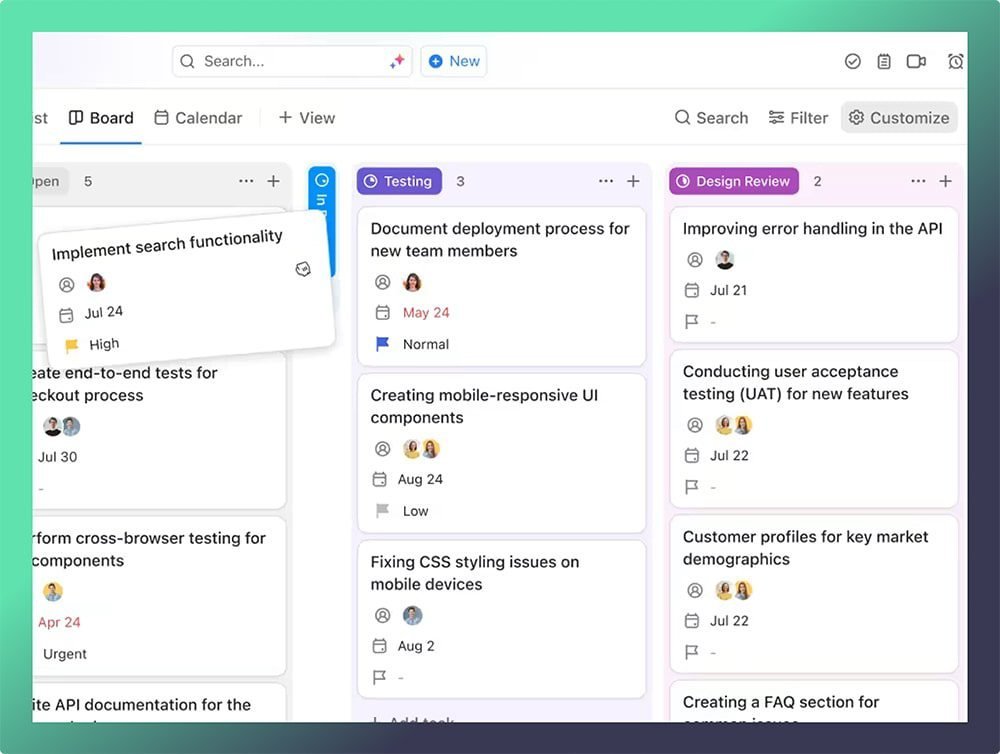
Board View: Perfect for Agile teams using Kanban workflows.
Gantt View: Visualize timelines and dependencies for project planning.
Calendar View: Track deadlines and plan team workloads.
Switch between views to get insights from different perspectives.
Step 11: Monitor Progress with Dashboards
Dashboards provide a centralized view of project performance. Use widgets to track:
Task completion rates.
Time tracked per team member.
Project milestones.
For IT projects, you can create dashboards focused on SLA compliance, ticket resolution rates, or sprint progress.
Step 12: Collaborate Effectively
ClickUp fosters collaboration with its communication features:
Comments and Mentions: Keep task discussions in one place.
File Attachments: Share relevant documents directly within tasks.
Team Chat: Use built-in chat for quick discussions.
These tools ensure seamless communication and easy access to project-related information.
Step 13: Track and Report Project Performance
ClickUp’s reporting features let you analyze key metrics. For IT projects, focus on:
Task completion trends.
Resource utilization.
SLA adherence rates.
These insights help refine processes and ensure project goals are met.
Step 14: Train Your Team and Continuously Improve
A successful ClickUp implementation depends on your team’s proficiency with the platform. Provide training sessions to familiarize them with ClickUp’s features and encourage feedback to refine workflows. Regularly review your ClickUp setup to align with evolving project requirements.
Advanced Features for IT Professionals
Gantt Charts for IT Project Management
ClickUp’s Gantt charts provide a visual representation of your project timeline. Use them to:
Plan tasks and milestones.
Track dependencies and adjust schedules.
Identify bottlenecks before they impact deadlines.
Multiple Lists for Greater Visibility
Tasks that span multiple projects or teams can appear in multiple lists. This ensures no task is overlooked and everyone has visibility into their responsibilities.
Clips for Seamless Communication
Capture and share screen recordings directly within ClickUp. Clips reduce the need for lengthy emails or meetings and improve clarity in task instructions.
Use Cases for IT Task Management
1. Agile Software Development
Sprint Planning: Assign tasks and track progress during sprint cycles.
Backlog Prioritization: Organize user stories, bugs, and features by priority.
Burndown Charts: Visualize remaining work against time.
Daily Stand-ups: Align team members on progress and blockers.
2. IT Infrastructure Management
Incident and Change Management: Track incidents and ensure timely resolution.
Asset Tracking: Manage hardware, software, and licenses.
Patch Management: Plan and track system updates.
Service Requests: Handle user requests for new hardware, software, or permissions.
3. IT Security and Compliance
Incident Response: Create tasks for responding to security breaches.
Compliance Audits: Manage tasks for audit preparation and execution.
Vulnerability Management: Track and remediate system vulnerabilities.
Security Awareness Training: Assign and track training sessions for employees.
4. IT Project Management
Resource Allocation: Assign tasks based on team capacity and skills.
Milestone Tracking: Set and monitor key project deliverables.
Budget Management: Assign tasks for cost tracking and approvals.
Risk Management: Create tasks to assess and mitigate potential risks.
Challenges ClickUp Solves for IT Professionals
Prioritization: Helps organize tasks based on deadlines and dependencies.
Progress Tracking: Offers real-time updates on task completion and milestones.
Resource Management: Provides clarity on team capacity and resource allocation.
Documentation: Centralizes files, wikis, and updates for easy access.
Tool Integration: Connects with IT tools like issue trackers and version control systems.
Security and Compliance: Ensures data integrity with advanced security features.
Conclusion
Setting up ClickUp for IT projects is a game-changer for IT teams looking to improve efficiency and collaboration. By following this guide, you can create a robust project management system tailored to your needs. From organizing tasks to automating workflows, ClickUp ensures every aspect of your IT project is handled efficiently.
Ready to optimize your IT projects? As the only verified ClickUp reseller in Saudi Arabia, Dtech Systems can help you get started with expert support and customized setups. Contact us today to transform your project management experience!
In today’s evolving workspace, remote teams need robust tools to stay organized, communicate effectively, and maintain productivity. ClickUp is a powerful all-in-one platform designed to help remote teams manage tasks, projects, and communication in a single space. This guide covers best practices and essential templatesfor remote teams to unlock the potential of ClickUp, ensuring a smooth and productive workflow.
Why ClickUp for Remote Teams?
ClickUp combines task management, team communication, and productivity tracking into a unified platform. Here’s why it stands out:
Comprehensive Toolset: ClickUp covers tasks, docs, goals, and time tracking.
Flexible Customization: Tailor ClickUp to suit your team’s unique workflows and structure.
Centralized Communication: Keep conversations tied to tasks for better context.
Let’s dive into the best practices to help remote teams use ClickUp effectively, along with templates you can implement right away.
Best Practices for Using ClickUp in Remote Teams
1. Organize Your Workspace for Clarity
ClickUp’s hierarchy is essential for structuring your workspace effectively. Use this approach to create a clear structure that keeps everyone aligned.
Recommended Workspace Structure
Workspace: This represents your entire company or team’s ClickUp account.
Spaces: Create Spaces for broad categories such as departments or major clients.
Folders: Use folders to group related projects or key initiatives.
Lists: Organize projects, tasks, or phases within folders.
2. Establish Consistency with Task Templates
Using task templates in ClickUp will help keep tasks standardized, minimizing confusion and improving efficiency across the team.
Common Task Templates
Weekly Check-In: A recurring template for team updates on key metrics and project progress.
Project Kick-Off: Outline tasks for the initial stages of a project, including objectives, timelines, and responsibilities.
Client Meeting Prep: Standardize preparation steps for client meetings, such as agenda setting and documentation.
How to Create a Template:
Create a new task in ClickUp with the details you want in each occurrence.
Save the task as a template for future use.
3. Leverage ClickUp’s Communication Tools
Remote teams rely on seamless communication to stay connected. ClickUp’s comments, mentions, and in-task chats help keep all discussions organized and accessible.
Best Practices for Communication
Use @mentions to notify specific team members, reducing missed updates.
Threaded Comments: Respond within threads to keep conversations clear.
Real-Time Chat: Use ClickUp’s chat feature within each task for quick questions or updates.
Example: Embed project feedback directly within tasks instead of external emails, centralizing communications and keeping them contextual.
4. Automate Routine Processes
Automations save remote teams significant time and reduce repetitive actions. ClickUp’s automation options allow you to streamline workflows by setting up triggers for common actions.
Useful Automations
Status Change Alerts: Automatically update team members when a task status changes.
Recurring Task Creation: Set up recurring tasks (e.g., weekly reports, monthly performance reviews).
Auto-Assignment: Automatically assign specific team members when tasks are created in certain lists.
5. Track Team Progress with Dashboards and Reporting
Dashboards and reports are essential for managers to keep tabs on productivity and project progress. ClickUp allows you to build custom dashboards for at-a-glance insights.
Recommended Dashboard Widgets
Task Completion Rate: See the percentage of completed tasks vs. pending ones.
Time Logged: Track hours logged on different projects to manage resources.
Milestone Tracker: Monitor project milestones to ensure timely completion.
6. Streamline Task Management with Customizable Task Views
ClickUp’s Tasks feature is foundational for any remote team, allowing you to manage projects of all sizes with customizable views. Whether you prefer List, Board (Kanban), or Gantt views, ClickUp makes it easy to visualize tasks in a way that matches your workflow.
Plan and Organize: Break down projects into tasks, assign them to team members, and set due dates.
Collaborate in Real-Time: Attach files, add comments, and tag teammates directly in tasks for quick feedback.
Set Priorities and Track Progress: Label tasks with priorities and monitor status in real time
7. Keep Documentation Centralized with ClickUp Docs
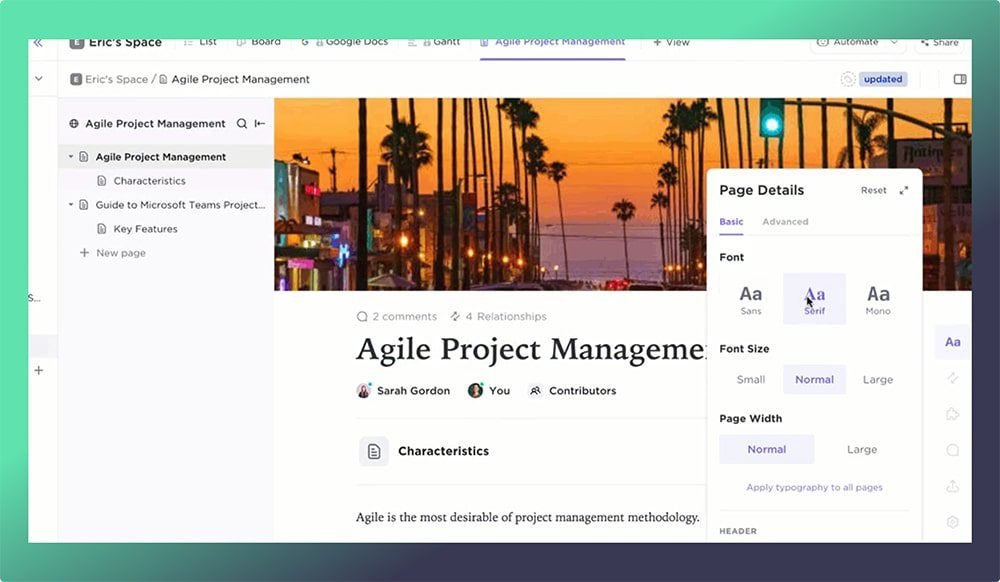
With ClickUp’s Docs, you can create and share beautiful documents, wikis, and knowledge bases that are directly linked to your workflows. For remote teams, keeping documentation accessible and organized is essential for alignment.
Create a Shared Wiki: Build a living document for team knowledge, company policies, or project details.
Embed Docs in Tasks: Link Docs to specific tasks so that essential information is always accessible.
Collaborate on Ideas: Brainstorm and document ideas within ClickUp, keeping everything in one place.
8. Align and Achieve Goals with ClickUp Goals
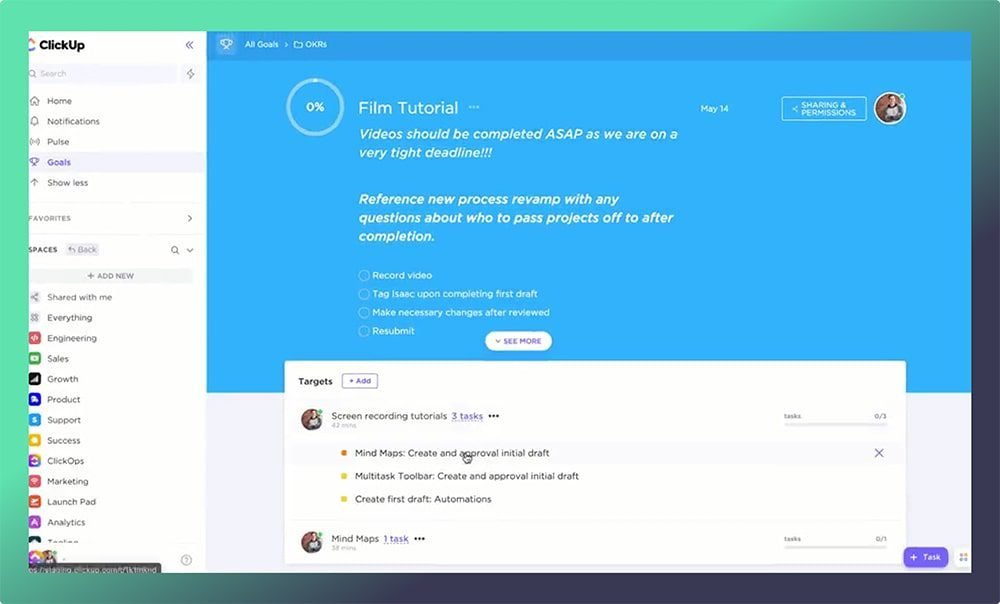
Setting and tracking goals keeps your remote team motivated and aligned with company objectives. ClickUp’s Goals feature helps you create measurable targets with clear timelines and automatic progress tracking.
Track Key Objectives: Define your goals and break them down into measurable Key Results.
Set Timelines: Use ClickUp’s Goals feature to keep teams focused on hitting key milestones.
Monitor Progress Automatically: Track the status of goals with real-time updates for each key result.
9. Communicate Seamlessly with Native Integrations
ClickUp integrates with key remote work tools, enabling your team to streamline communication and productivity without switching between apps.
Top Integrations for Remote Teams
Zoom: Schedule and join Zoom meetings from within ClickUp tasks, complete with meeting details and recording links.
Slack: Get task updates and notifications in Slack, making it easy to stay informed on ClickUp activity.
Google Drive & Dropbox: Attach and manage cloud storage files within tasks, keeping all resources in one place.
MS Teams: Manage tasks directly from MS Teams to stay organized and track updates seamlessly.
BONUS: Must-Have ClickUp Templates for Remote Work Success
In addition to best practices, implementing templates can significantly boost team efficiency. Here are some templates that are particularly useful for remote teams.
1. Remote Onboarding Template
Help new hires get up to speed quickly with a structured onboarding template. Include sections for training, introductory meetings, and key resources.
Step 1: Company Overview and Policies
Step 2: Team Introductions and Role Overview
Step 3: Tools Training and Setup (including ClickUp!)
Every project can benefit from a clear outline. Use this template to create a step-by-step project plan that includes tasks, dependencies, and timelines.
Scope Definition: Objectives, timelines, and deliverables.
Task Breakdown: List tasks, assignees, and dependencies.
Milestones: Set project milestones for regular progress tracking.
Use this template to gather and organize client feedback in a structured format, allowing you to keep track of responses, requested changes, and follow-up actions.
Feedback Summary: Key points of feedback or concerns.
Action Items: List tasks created based on feedback.
Status Updates: Keep clients informed on progress.
Additional Tips for Maximizing ClickUp for Remote Teams
Encourage Documentation: Always document key decisions and updates in ClickUp Docs.
Regularly Review Workflows: Optimize workflows based on team feedback and performance data.
Use Milestones and Checkpoints: Break larger projects into smaller, achievable milestones to help the team stay motivated and trackable.
Let Dtech Systems Help You Implement ClickUp for Remote Teams
Setting up ClickUp effectively can transform your remote team’s productivity, but it takes time and expertise to get it right.Dtech Systems, a certified ClickUp partner, specializes in helping remote teams set up and optimize ClickUp, customizing workflows and templates to match unique team needs.
Ready to take your remote team’s efficiency to the next level? Contact Dtech today for a personalized ClickUp setup that will boost your productivity and streamline your team’s workflow.
Construction projects require coordination across teams, careful time management, and a clear overview of progress and costs. ClickUp, an all-in-one project management platform, is designed to help construction teams streamline processes, improve collaboration, and ensure every task is completed on time and within budget. Here’s how ClickUp transforms construction project management and best practices to maximize its impact.
Why Use ClickUp in Construction?
ClickUp is uniquely suited to meet the needs of construction teams. It offers tools to centralize communication, track timelines, manage resources, and customize workflows—all critical for keeping projects on schedule and aligned with budgets.
Key Benefits of ClickUp for Construction Project Management
1. Streamlined Task Management
Custom Workflows: Adapt ClickUp’s task statuses to mirror your project phases, such as “Design,” “Permitting,” and “Construction.”
Task Assignment: Assign tasks to team members, set due dates, and track progress in real-time.
Dependencies: Set tasks to wait on others or act as blockers, ensuring each part of the project flows smoothly.
2. Efficient Communication and Collaboration
ClickUp keeps conversations organized within tasks. By tagging team members, adding comments, and using real-time messaging, the entire team stays on the same page. Clients and contractors can be added as guests with controlled access, simplifying collaboration while safeguarding sensitive information.
3. Document and File Management
Store essential files, like blueprints, permits, and RFIs, directly within tasks to avoid searching through emails or other software. Annotations and proofing tools make it easy to review designs and document feedback in one place.
4. Real-Time Project Tracking and Reporting
ClickUp offers multiple views—Gantt charts, Kanban boards, and Dashboards—to help track each stage of the project. With customizable dashboards, project managers can monitor KPIs, task progress, budget spending, and resource allocation at a glance.
5. Time Tracking and Budget Control
Time tracking and scheduling tools ensure accurate payroll management and billing. Teams can log hours directly within tasks, and managers can see where the most time is being spent. With expense-tracking features, ClickUp allows for real-time budget oversight.
Setting Up ClickUp for Construction
To make ClickUp work best for your construction projects, consider these steps:
Step 1: Structure Your Workspace
Organize ClickUp into workspaces, folders, and lists tailored to each project. Create folders for project phases (e.g., “Pre-Construction,” “On-Site Work”) and subfolders or lists for specific tasks like site prep or inspections.
Step 2: Customize Workflows and Statuses
Construction projects follow distinct stages, and with ClickUp’s customizable workflows, you can create specific statuses, like “In Progress,” “On Hold,” and “Completed.” Set up dependencies to reflect the sequential nature of construction, ensuring critical steps aren’t missed.
Step 3: Visualize Timelines with Gantt Charts
ClickUp’s Gantt chart feature helps plan timelines and visualize dependencies. Map out each task’s duration and sequence them to align with project milestones. Adjust schedules and resources as needed to avoid delays.
Step 4: Integrate with Key Tools
ClickUp integrates with essential construction tools like AutoCAD, Google Drive, and Slack. This integration streamlines workflow by keeping important documents, designs, and conversations in one place.
Step 5: Set Up Alerts and Automations
Automated notifications for due dates and task updates ensure nothing is overlooked. Set up rules so tasks move to new statuses automatically or notify team members when their input is required.
Best Practices for Using ClickUp in Construction
Here are some tips to ensure you’re getting the most out of ClickUp:
Leverage Templates for Routine Tasks
Construction tasks often repeat, such as inspections, safety reviews, and material orders. Save time by creating templates for common tasks, allowing you to duplicate them effortlessly when needed.
Optimize with Multiple Views
Each project phase may benefit from different views—use Gantt for scheduling, Board view to track task statuses, and Calendar view for deadline management. This flexibility keeps tasks organized according to the project’s needs.
Utilize Dashboards for Data-Driven Decisions
Dashboards allow you to keep track of critical metrics, from task completion to budget tracking. This real-time overview ensures that everyone, from project managers to stakeholders, understands the project’s current status.
Use Permissions for Controlled Access
Not all team members need the same level of access. ClickUp’s permissions system lets you manage who can view, edit, or comment on specific tasks, ensuring that contractors, clients, and team members only see relevant information.
Automate Repetitive Tasks
Set up automation rules to reduce time spent on routine updates, such as moving tasks to “Completed” once they’re marked as done or sending reminders before due dates. Automations save time and keep workflows moving smoothly.
Solving Construction Challenges with ClickUp
ClickUp addresses some of the most common challenges in construction project management, helping teams stay organized and reduce friction.
Challenge 1: Coordinating with Multiple Stakeholders
ClickUp centralizes communication, allowing team members and clients to stay updated in one place. By assigning tasks, adding comments, and sharing files, everyone has access to the latest information, reducing miscommunication.
Challenge 2: Tracking Multiple Job Sites
With ClickUp’s mobile app, project managers can access real-time updates from different job sites. This capability ensures managers and team members stay informed no matter where they are.
Challenge 3: Budget and Expense Oversight
Construction costs can quickly spiral out of control without oversight. ClickUp’s budgeting and time-tracking tools help project managers monitor expenses and labor hours, reducing unexpected costs and keeping the project within budget.
Challenge 4: Ensuring Safety and Compliance
Compliance is essential, with strict regulations and safety standards in place. ClickUp’s checklists and reminders help track audits, inspections, and safety checks, keeping projects safe and up to code.
Unlocking Additional ClickUp Features for Construction
Beyond task management and scheduling, ClickUp offers additional features that make managing construction projects easier:
Goal Tracking: Set and track milestones, whether it’s meeting a deadline or staying under budget.
File Embedding: Integrate Google Sheets, Docs, and design files directly within ClickUp tasks, keeping everything in one place.
Time Reporting: Monitor how time is spent across projects, ensuring accurate billing and payroll.
Custom Forms: Create forms for RFIs, approvals, or updates from contractors, assigning tasks based on submissions.
Conclusion: Building Better Projects with ClickUp
ClickUp is an invaluable asset for construction teams looking to enhance their project management capabilities. By bringing together task tracking, document management, communication, and reporting, ClickUp gives construction managers the visibility they need to execute projects with confidence. With ClickUp, projects can stay on schedule, under budget, and free of miscommunication, enabling teams to focus on what they do best: building.
Try ClickUp for your next construction project and experience the efficiency, organization, and peace of mind it brings to every phase of construction.