
DTECH INSIGHTS
How to Structure ClickUp for Enterprise Teams in Saudi Arabia
Hundreds of employees, several departments, multiple cities and dozens of projects running at once. Here is how to set up ClickUp for enterprise work that keeps all of it aligned without burying people in clicks.
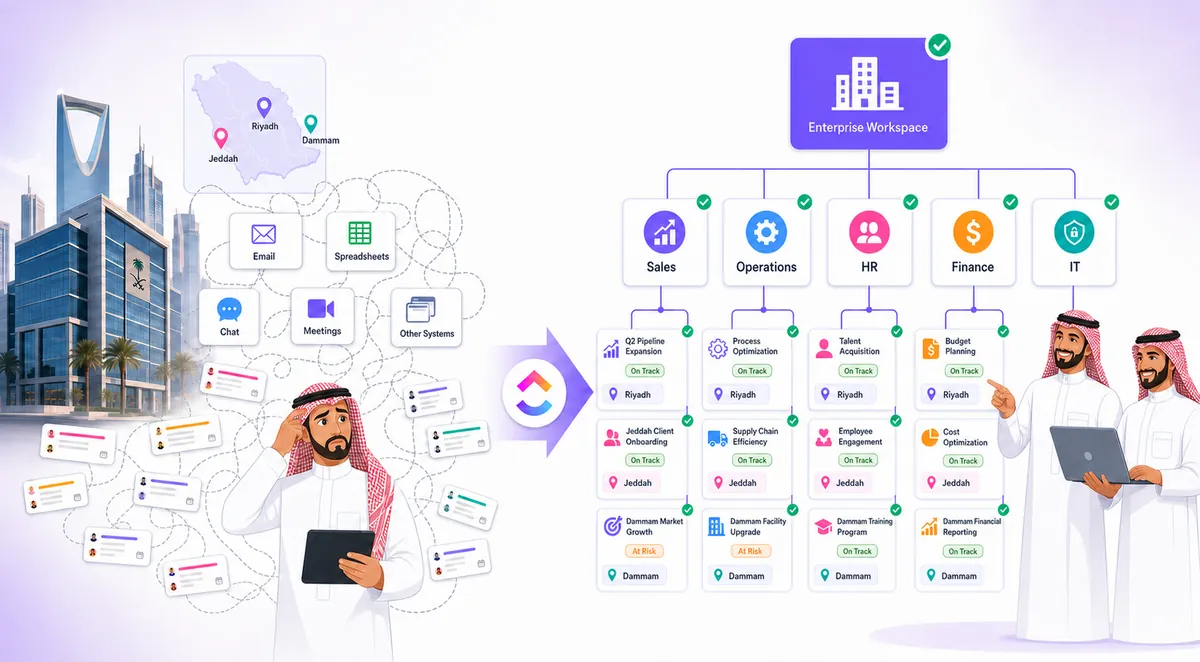
A growing Saudi enterprise can have hundreds of employees, multiple departments, different locations and dozens of projects running at the same time. The challenge is not simply managing more work. It is keeping everyone aligned when that work is spread across emails, spreadsheets, chats, meetings and different systems.
This is where ClickUp for enterprise becomes useful. But adding everyone to one workspace is not enough. The real value comes from building a structure that reflects how the organization actually works.
ClickUp for Enterprise Should Reflect Your Business
There is no universal structure for ClickUp for enterprise teams that works for every company. A Saudi enterprise might organize work around departments such as Sales, Operations, Marketing, Human Resources, Finance, IT and Customer Service.
Another company may need a structure based on business units, regions, clients or major projects. The important thing is that employees can look at the workspace and quickly understand where their work belongs.
- Your organization
- Your workflows
- Your ClickUp structure
Interactive: Which structure fits your organization?
Pick the way your company naturally organizes work. We will show a sample ClickUp for enterprise hierarchy you can start from.
Best for: companies where each department owns its own processes. Keep statuses department-specific, but share priority levels and naming rules.
Best for: holding companies and groups with subsidiaries. Shared Services stays central so HR, Finance and IT serve every unit from one place.
Best for: multi-city operations running similar work. Template every region's Space.
Best for: consultancies, contractors and agencies. One Folder template per client keeps onboarding fast and reporting consistent.
Do Not Build a Separate System for Every Department
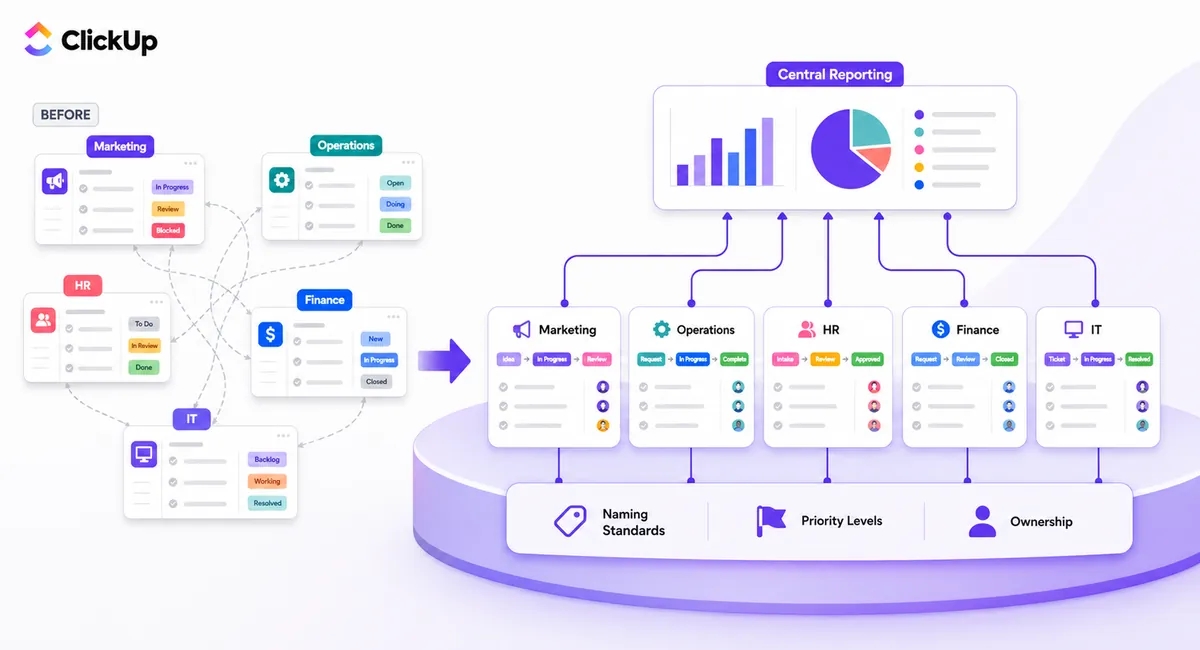
One of the easiest ways to make an enterprise workspace complicated is to let every department design its own system from scratch. Marketing may use completely different statuses from Operations. HR may create different fields for information that Finance also needs.
Before long, the company has one workspace but several disconnected ways of working, and the promise of ClickUp for enterprise visibility disappears. Some flexibility is useful. Too much creates confusion.
Keep the things that need to be consistent consistent, while allowing departments to manage work in ways that make sense for them. For example:
- Common naming standards
- Shared priority levels
- Consistent ownership
- Department-specific workflows
- Central reporting
This gives teams flexibility without losing company-wide visibility.
Use the ClickUp for Enterprise Hierarchy With a Purpose
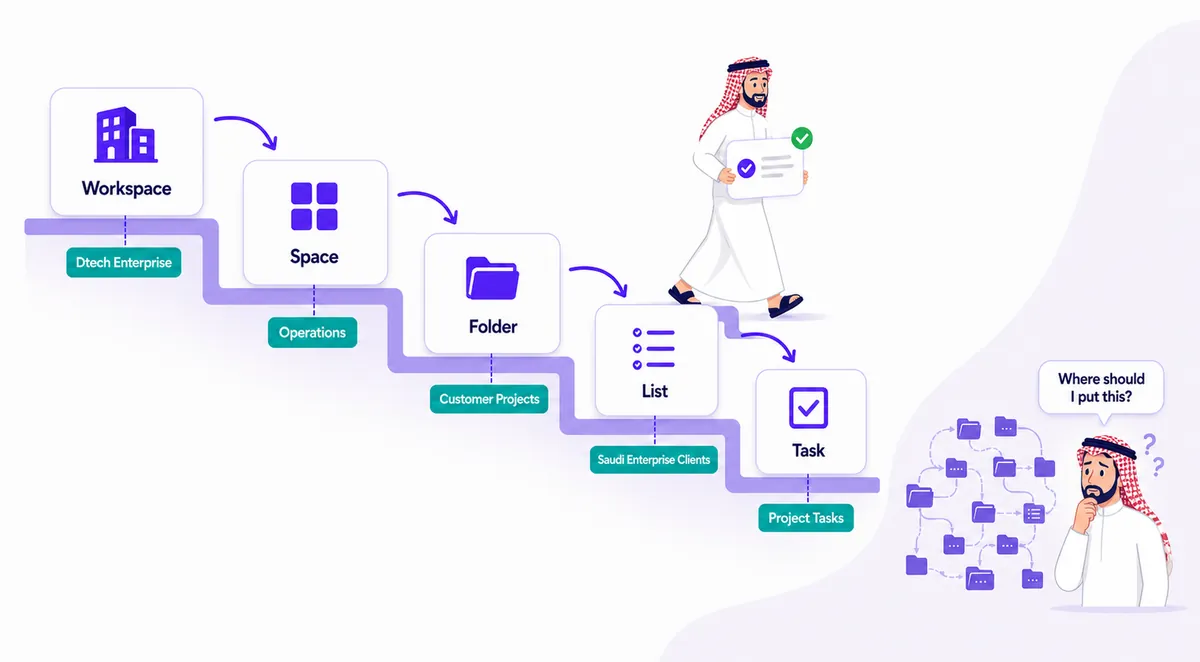
ClickUp gives enterprises several levels for organizing work, but using every level just because it exists makes a workspace harder to navigate. If you are new to the levels, ClickUp's own enterprise overview is a useful reference. A simple structure looks like this:
- Workspace
- Space
- Folder
- List
- Task
For example:
- Operations
- Customer Projects
- Saudi Enterprise Clients
- Project Tasks
The hierarchy should help people find work, not make them click through five layers just to create a task. If employees regularly ask, "Where should I put this?", the structure needs another look.
Build ClickUp for Enterprise Workflows Around Real Work
Different departments do different jobs, so forcing every team into the same workflow rarely works. The platform stays the same. The workflow changes according to the work. That is one of the biggest advantages of a properly designed ClickUp for enterprise implementation.
Interactive: Compare department workflows
Tap a department to see a sample status flow and the one automation worth adding first.
- Brief
- Content
- Design
- Review
- Published
First automation: when status moves to Review, assign the marketing manager and set a two-day due date.
- Request
- Investigation
- Development
- Testing
- Resolved
First automation: when a request is created with Priority = Urgent, notify the IT lead immediately.
- Request
- Review
- Approval
- Purchase
- Complete
First automation: when status moves to Approval, assign the budget owner based on the Department field.
- Offer Accepted
- Documents
- IT Setup
- Orientation
- Onboarded
First automation: when status moves to IT Setup, create a subtask for IT with the new hire's start date.
Think About What Management Needs to See
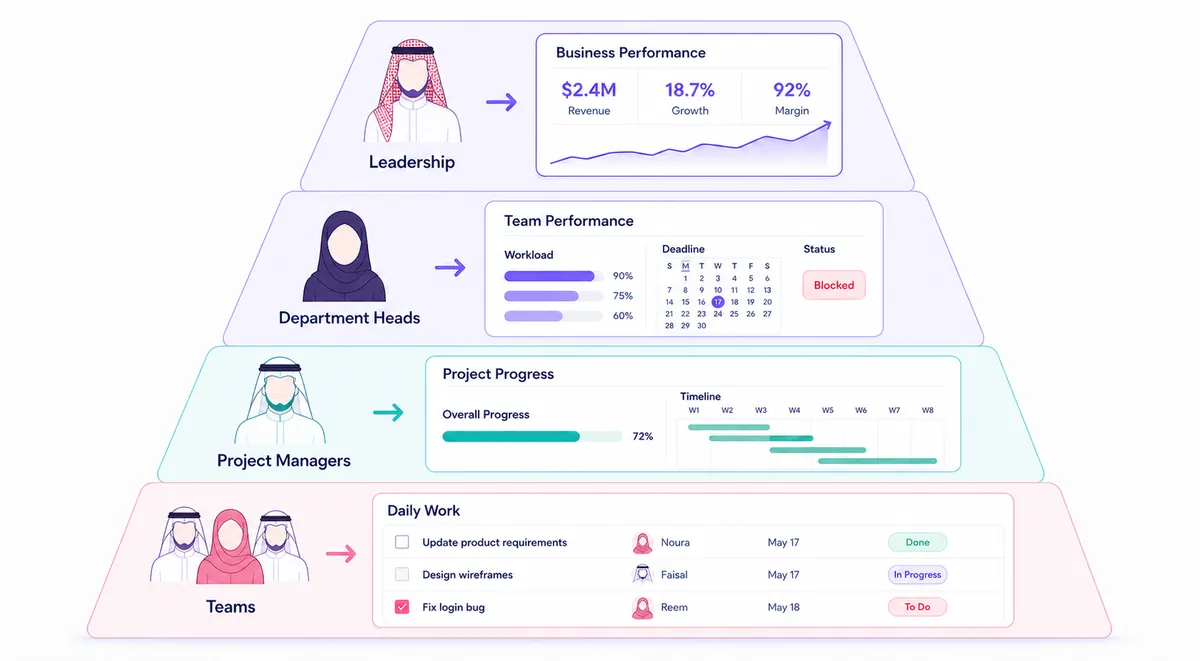
A CEO does not need to see every task. A department head may need team workload, deadlines and blocked work. A project manager may need task-level details.
This is where ClickUp Dashboards become valuable. Instead of creating one huge dashboard for everyone, build views around the decisions different roles need to make:
- Leadership: business performance
- Department heads: team performance
- Project managers: project progress
- Teams: daily work
The result is better visibility without overwhelming people with information. In a well-run setup of ClickUp for enterprise, every role should reach its own dashboard in one click.
Custom Fields Connect the Bigger Picture
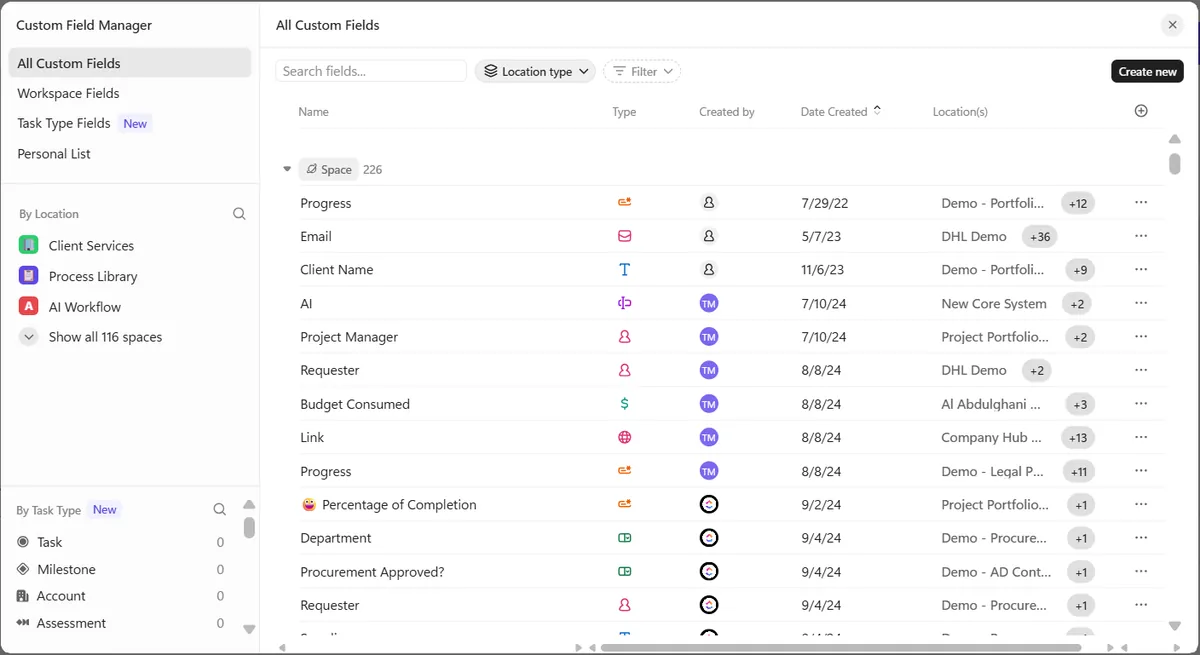
Enterprise work often needs more context than a task title and due date can provide. Useful ClickUp Custom Fields might include Department, Business unit, Region, Project type, Client, Priority and Approval status.
These fields make it easier to filter work and create meaningful reports across the organization, which is where ClickUp for enterprise reporting really pays off. Newer releases even group fields by task type, which we covered in our ClickUp 4.07 update breakdown.
But there is a catch: adding a field does not automatically make data useful. If employees have to fill in 20 fields before creating a task, they will stop using the system properly.
Capture what matters. Leave out what does not.
Automation Should Remove Friction
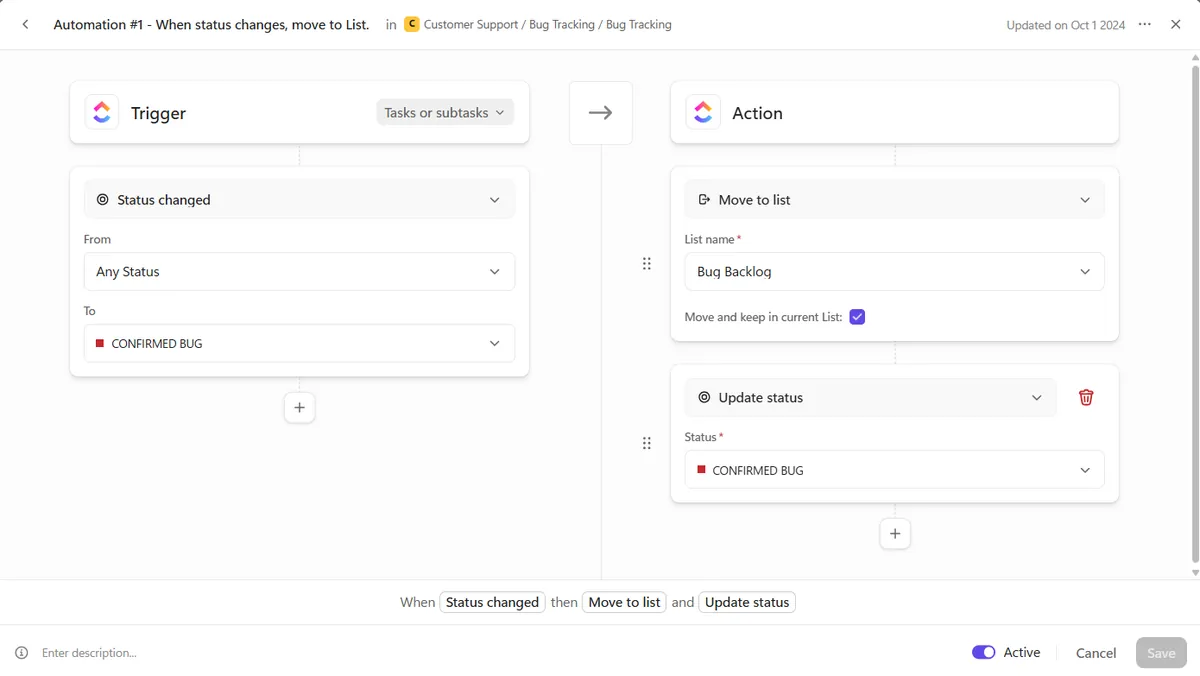
Large organizations have plenty of repetitive work that does not require human decision-making. When a request moves to an approval stage, ClickUp can notify the right person. When a task is completed, the next step can be assigned automatically. Recurring work can be created without someone setting it up every time.
- Trigger
- Automation
- Action
These small ClickUp Automations save significant time across large teams. For work that needs judgment, AI coworkers can take the next step, as we explain in Meet Super Agents. The goal is not to automate everything. It is to remove unnecessary administrative work.
Plan ClickUp for Enterprise Growth From Day One
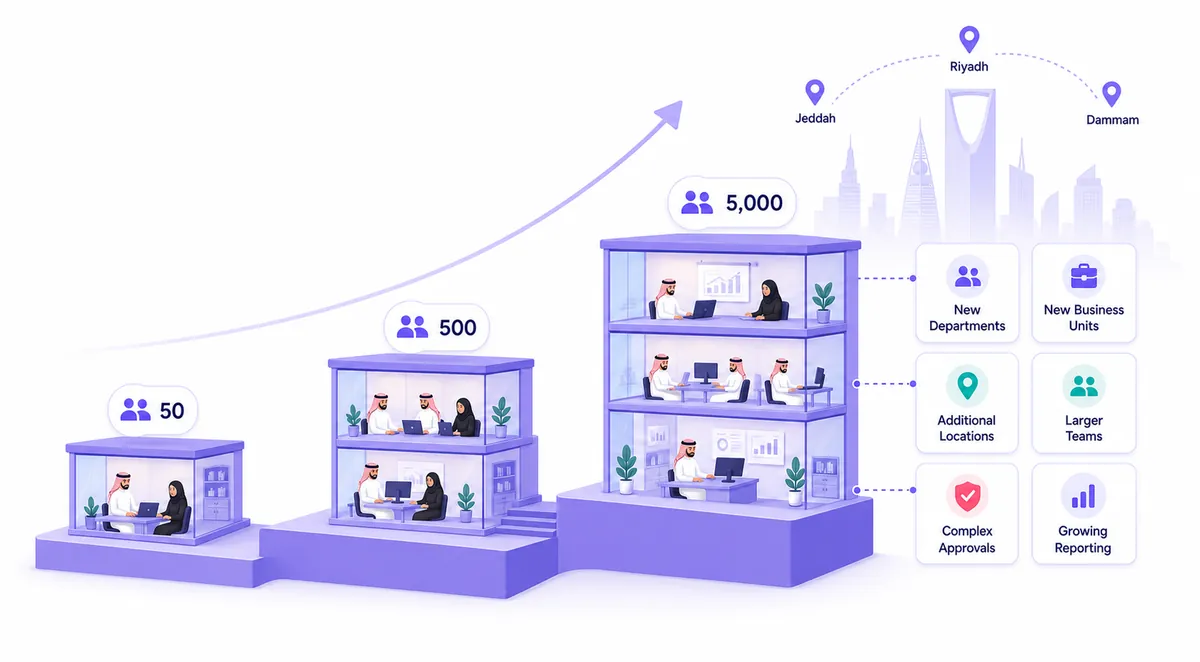
A workspace that works for 50 employees may become difficult to manage when the company grows to 500 or 5,000. Saudi enterprises also operate across multiple cities, business units, subsidiaries or regions, and some need more structured approvals, stronger governance or different reporting requirements.
That means scalability should be considered from the beginning. The workspace should be able to accommodate:
- New departments and business units
- Additional locations and larger teams
- More complex approval processes
- Increasing reporting requirements
A good ClickUp for enterprise setup grows with the organization instead of needing to be rebuilt every time the company expands.
Adoption Is Part of the Implementation
Even a perfectly designed workspace will fail if employees do not understand how to use it. People need to know where work belongs, what information to add, how statuses work and where to look for updates.
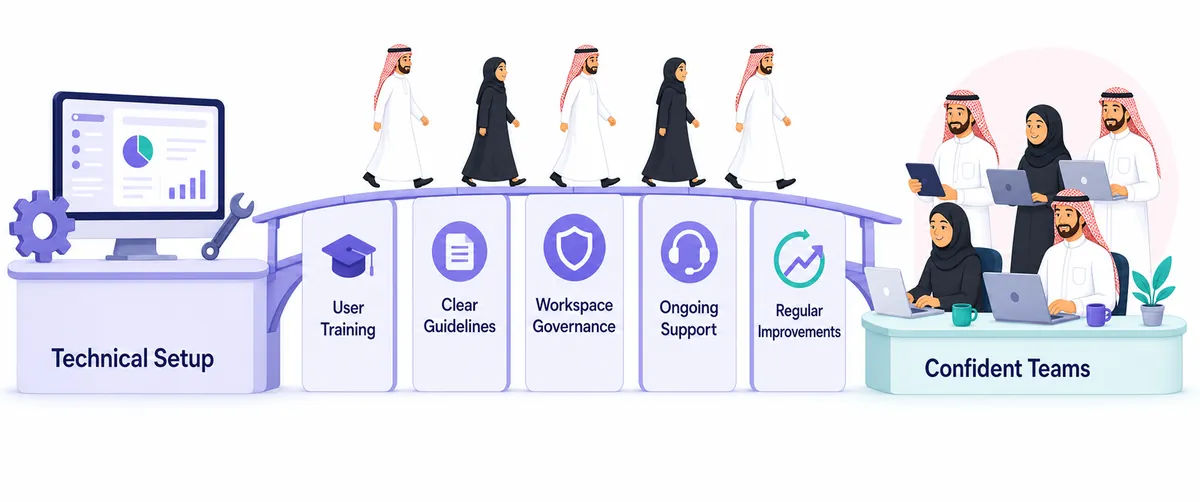
This is why rolling out ClickUp for enterprise is not just a technical setup. It also involves user training, clear guidelines, workspace governance, ongoing support and regular improvements.
Make the correct way of working the easiest way of working.
Keep the Workspace Clean
Enterprise workspaces get crowded over time. Old Lists stay active. Unused Custom Fields pile up. Automations keep running after a process has changed. Employees create duplicate views because they cannot find the original.
Regular reviews keep ClickUp for enterprise use healthy. Remove what is no longer useful. Simplify what has become complicated. Update workflows when the business changes. Not sure where yours stands? Run the quick check below.
Interactive: Enterprise workspace health check
Tick every statement that is true for your workspace today. Your score updates instantly.
Score: 0 / 9
Tick the statements above to see your verdict. Scores of 7 or more usually mean a healthy workspace; 4 to 6 means some structure needs tightening; 3 or less means it is time for a redesign.
The Goal Is Not a Perfect Workspace
The goal is a workspace people can actually use. For a Saudi enterprise, that means enough structure to provide control and visibility without making everyday work unnecessarily complicated.
The right approach looks different for every organization, but the principle stays the same:
- Business needs
- Workspace design
- Team workflows
- Automation
- Visibility
- Continuous improvement
When ClickUp is built around the way the organization actually works, it brings projects, processes, people and information into one connected environment. That is what turns ClickUp for enterprise use from another project management tool into a practical system for running work at enterprise scale.
ClickUp for Enterprise: Frequently Asked Questions
What is the best way to structure ClickUp for enterprise teams?
Start from how your company already organizes work: departments, business units, regions or clients. Map that to Spaces, use Folders only when they help people find work, and keep shared standards like priorities and naming consistent across every team.
Should every department have its own Space?
Usually yes, if departments own distinct processes. Give each Space its own statuses, but keep company-wide Custom Fields such as Department, Region and Priority so leadership can report across the whole workspace.
How many Custom Fields should an enterprise workspace use?
As few as your reporting needs. A good rule is no more than five required fields when creating a task. Every extra field adds friction and lowers data quality.
Can ClickUp handle approvals for Saudi enterprises?
Yes. Approval stages can be built into statuses, and automations can assign the right approver, notify them and move work forward once approved, which suits multi-level approval processes common in larger organizations.
How long does a ClickUp enterprise implementation take?
It depends on scope. A focused rollout often starts with one or two departments, proves the structure, then scales. Training and governance should be planned from day one, not after launch.
Dtech Systems is a ClickUp-authorized partner. We design, implement and train enterprise ClickUp workspaces for organizations in Saudi Arabia and beyond, so your structure scales with your business instead of fighting it.