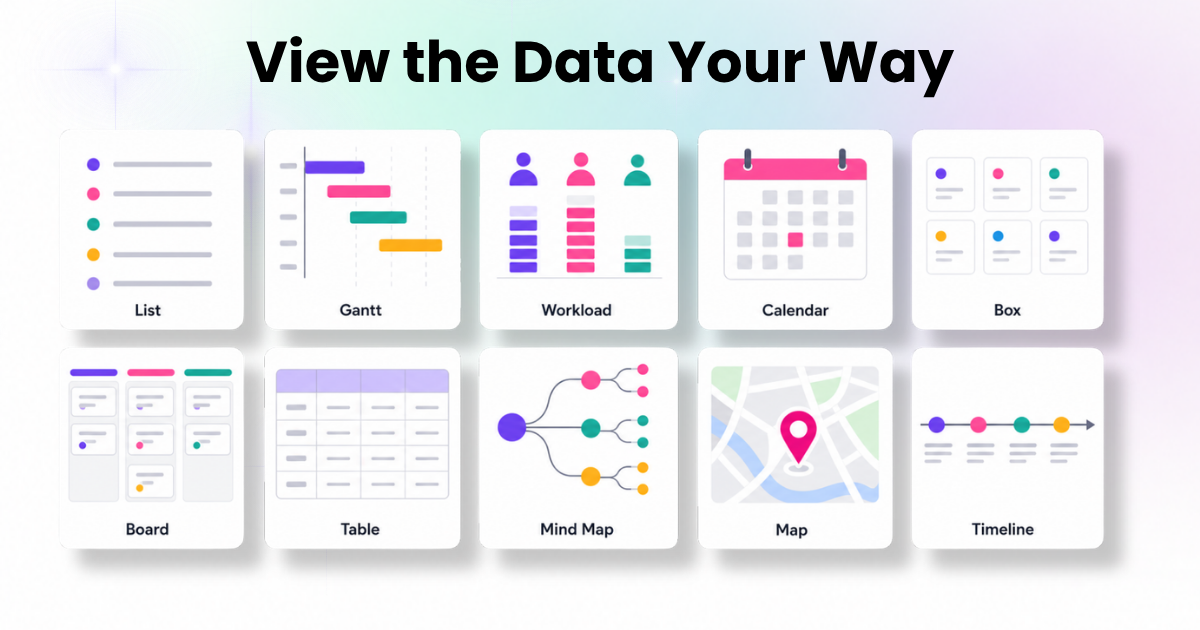
ClickUp gives every team 16 built-in options for viewing the data including List, Board, Gantt, Calendar, Table, Workload, Timeline, Mind Map, Map, and Box — so the exact same project data can be displayed as a checklist, a kanban board, a timeline, or a chart without ever duplicating information. Each data view simply re-renders the underlying tasks, dates, assignees, and statuses in a different layout, which means a project manager can work in Gantt while a developer works in Board and a leadership team checks Workload — all looking at one live dataset instead of three separate spreadsheets.
What Is a Data View, Exactly?
A data view is a saved way of displaying a set of tasks. It isn’t a copy of your data—it’s a lens on it. Change a due date in the Table data view and it instantly updates in the Calendar data view, the Gantt view, and the Board view, because all 16 views pull from the same underlying records. This is the core idea behind ClickUp’s “10+ Views to View Your Work Your Way”: one dataset, sixteen ways to look at it, zero re-entry.
Why One Dataset, Many Views, Matters
Most teams don’t fail because they lack data—they fail because the right person can’t see that data in the right format at the right time. A single data view forces everyone into one mental model. A finance lead wants a table. A designer wants a board. A PMO wants a Gantt chart. Giving each role its own data view—while keeping one source of truth underneath—is what actually drives adoption, not just installation.
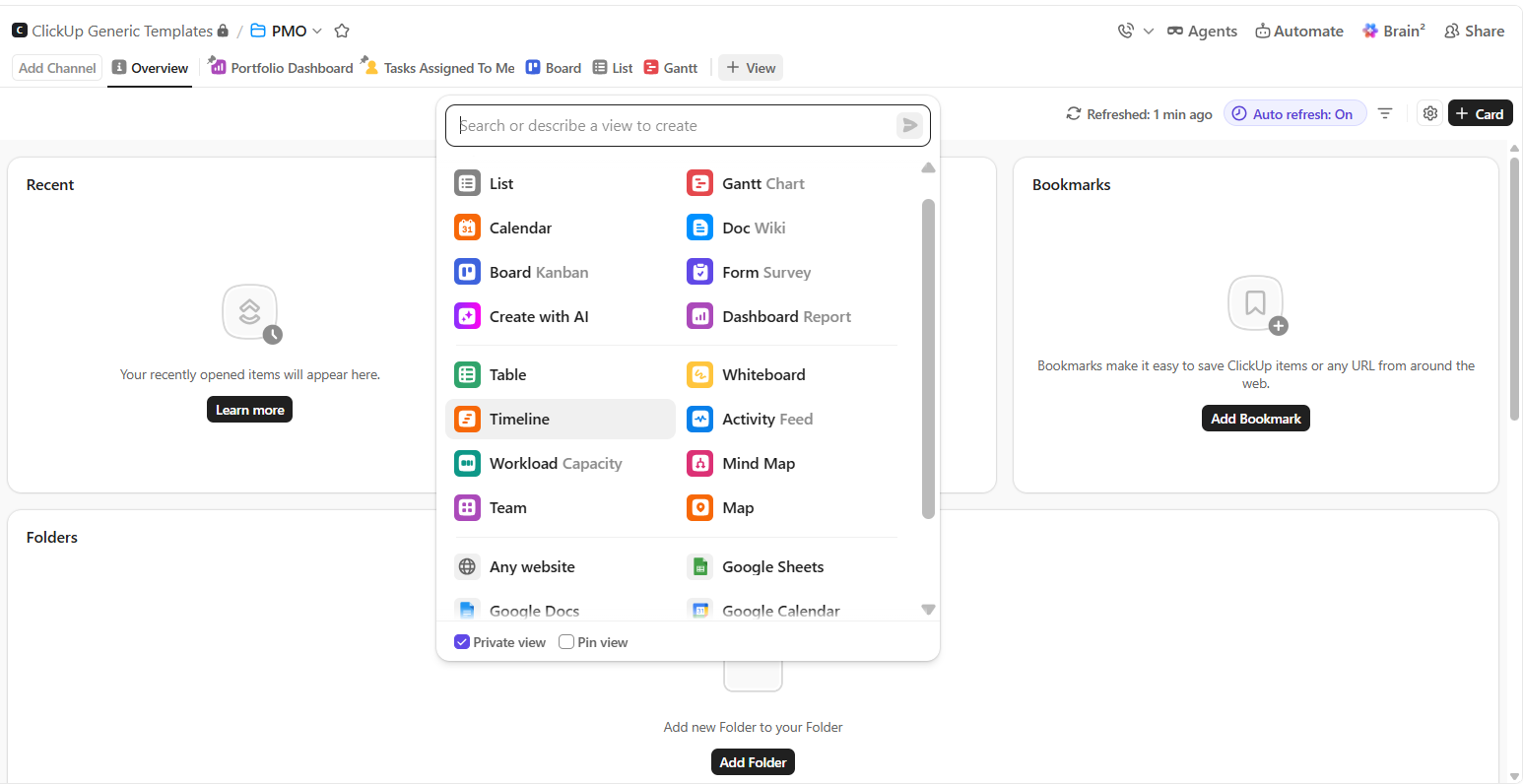
The 16 ClickUp Data Views, Explained
List View — The default data view: a scannable, sortable checklist of tasks, grouped by status, priority, or assignee. Best for day-to-day execution.
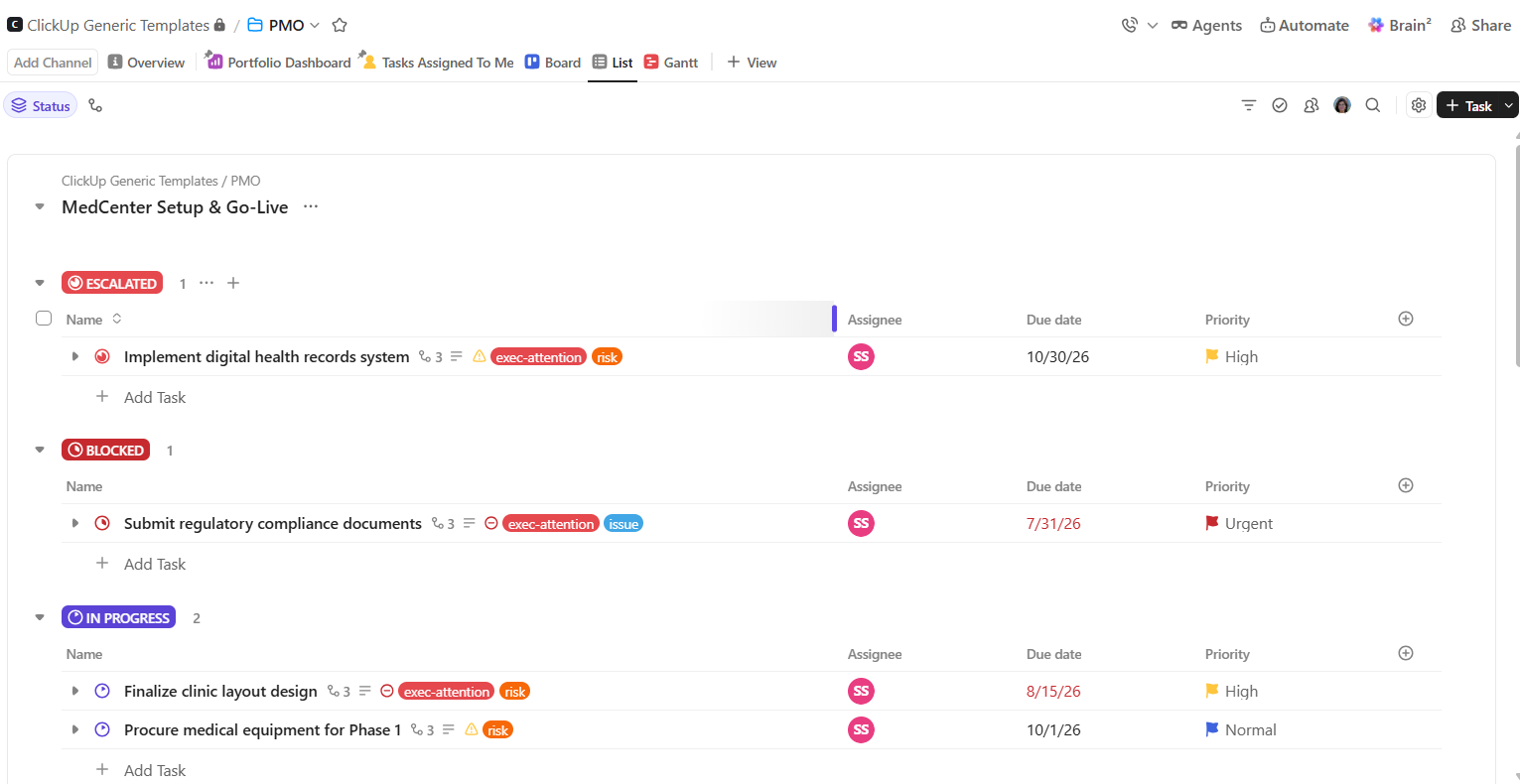
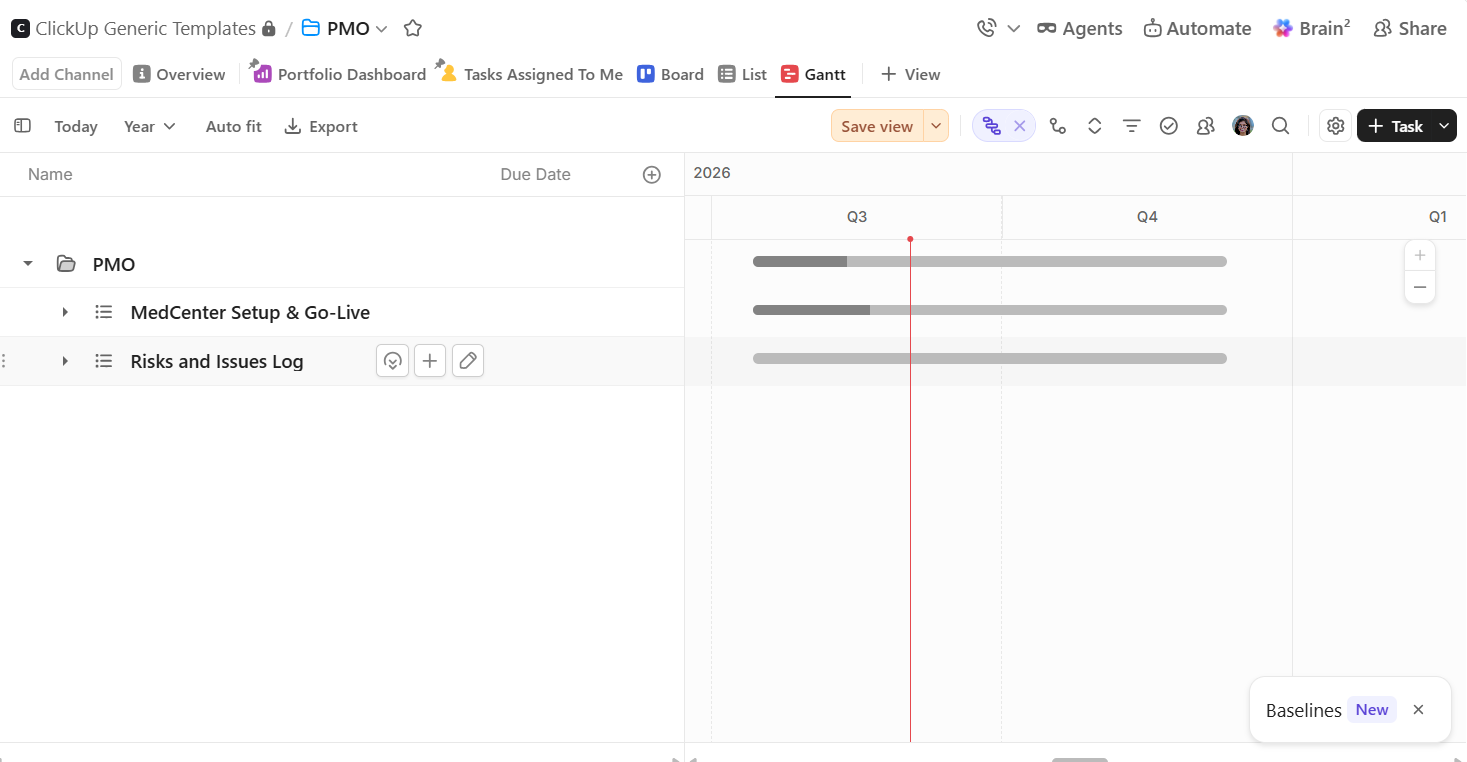
Gantt View — A timeline-based data view that maps task dependencies, start/end dates, and critical paths, ideal for project managers tracking delivery schedules.
Workload View — A capacity-planning view showing how much work is assigned to each person, color-coded so overloaded team members are obvious at a glance.
Calendar View — A date-first view for teams that think in weeks and months rather than task lists—great for content calendars and scheduling.
Box View—A people-first view that groups every task by assignee, so managers can see individual workloads without opening each profile.
Board View — The classic kanban-style data view: cards move across status columns (Ready, In Progress, Review), suited to agile and creative workflows.
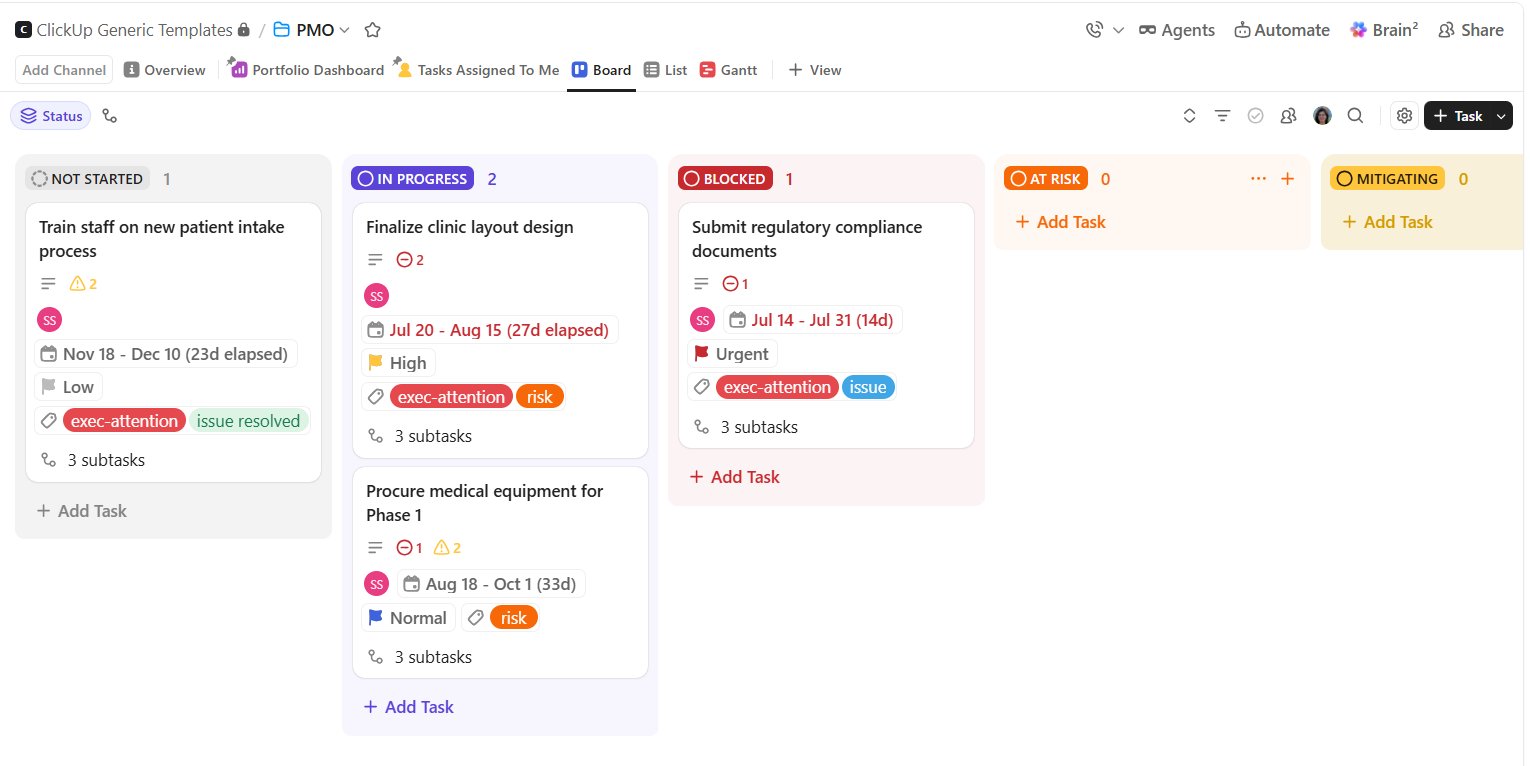
Table View — A spreadsheet-style view with custom fields, formulas, and bulk editing — the closest thing to Excel inside ClickUp.
Mind Map View — A visual, node-based view for brainstorming and structuring hierarchy before tasks are even created.
Map View — A location-based view that plots tasks with addresses on an actual map, used by field service, logistics, and real-estate teams.
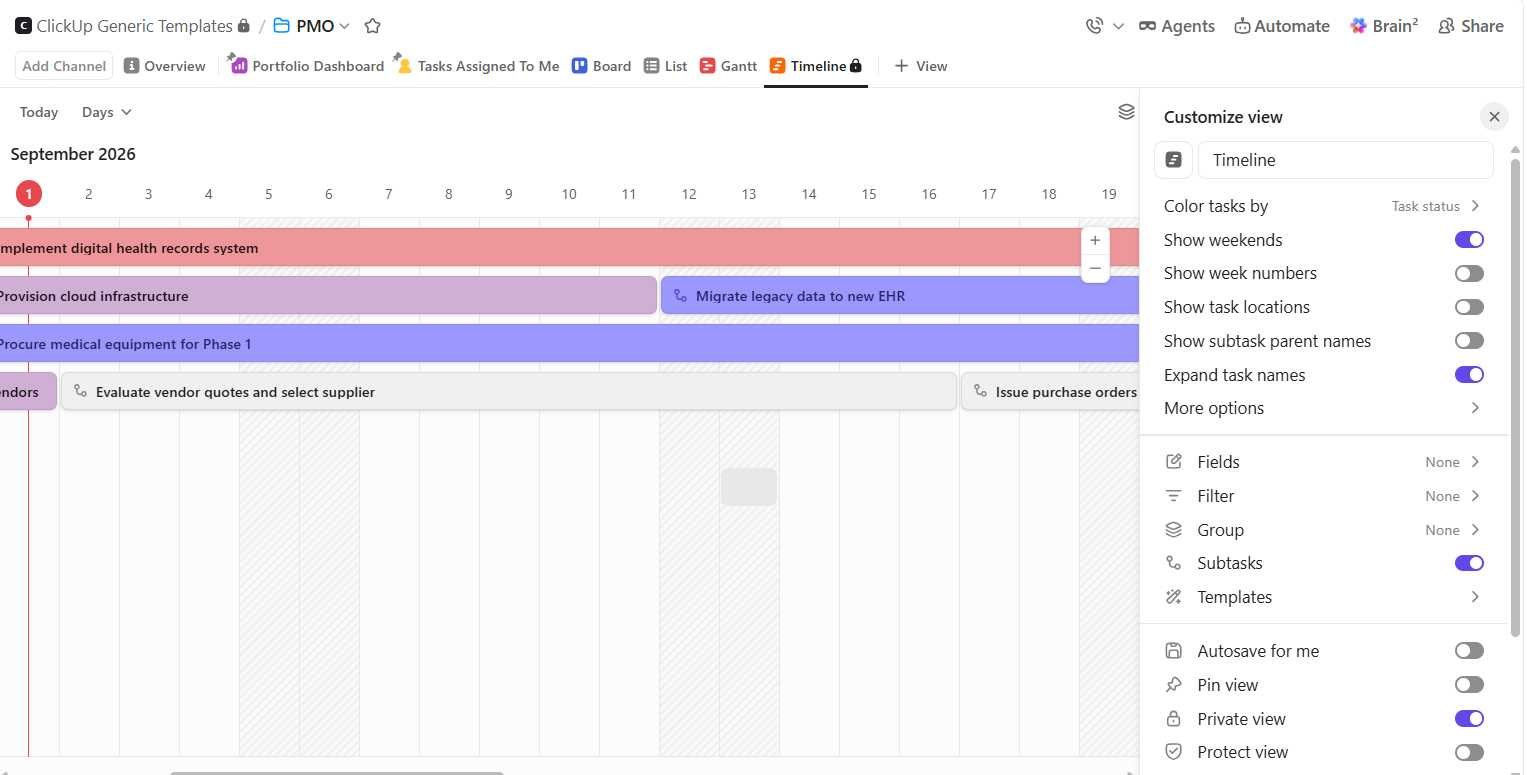
Timeline View — A simplified, horizontal-bar data view for high-level scheduling without full Gantt complexity.
How to Choose the Right View Option for Your Team
Rather than standardizing on one view for the whole company, high-performing teams typically:
- Assign a default view per role (Board for execution teams, Table for operations, Gantt for PMOs, Calendar for marketing).
- Use Workload and Box views specifically during resourcing conversations, not daily standups.
- Reserve a mind map for the planning phase, before a project is broken into tasks.
- Let dashboards roll everything up for leadership.
The mistake most companies make isn’t picking the wrong data view—it’s never customizing views by role in the first place, so the whole team defaults to List and never explores the other 15.
How Dtech Systems Helps Teams Actually Use Every Data View
Buying ClickUp gets you the platform and all 16 data views on day one. It doesn’t get you a team that knows which data view to use for which decision—and that gap between having the tool and using it well is exactly what Dtech Systems is built to close. Dtech describes its role as helping teams design, automate, and optimize their ClickUp workspaces, workflows, and reporting so they can move faster with clarity (Dtech Systems, dtechsystems.co).
Dtech is a ClickUp Diamond Partner operating out of Riyadh and London, and its case against buying direct is straightforward: a license is not a workflow, and a workspace nobody trusts is just another tab (Dtech Systems, “Why Dtech”). In practice, that means Dtech doesn’t just switch on the Gantt or Workload data view and walk away. Senior consultants rebuild workflows live on the team’s own work rather than demos, configuring custom fields, dashboards, and each relevant data view around how the business actually runs.
For teams evaluating ClickUp’s 16 views, that’s the practical difference: any team can turn on a new data view, but a partner like Dtech makes sure the right people are looking at the right data view for the decision they’re actually making.
FAQs
Everything you need to know about ClickUp Data Views.
Is a "data view" the same as a dashboard in ClickUp?
No. A data view (List, Board, Table, Gantt, etc.) displays your actual tasks in a specific layout, while a dashboard aggregates data from multiple views and lists into charts, cards, and summaries — a dashboard is effectively a data view of your other data views, built for reporting rather than doing the work.
Do all 16 data views update automatically when I change a task?
Yes. Because every data view reads from the same underlying task, editing a due date, status, or assignee in one view (say, Table) instantly reflects across every other data view — Calendar, Gantt, Board, Workload — with no manual syncing or duplicate data entry required.
Which ClickUp data view should a new team start with?
Most teams start with List or Board as their default data view because they map closely to a simple to-do list or kanban process, then layer in Gantt or Workload once they need scheduling and capacity planning — this staged rollout is also where a ClickUp partner typically adds the most value, since role-specific view setup is the step most self-serve teams skip.