ClickUp Clips: Share Updates, Feedback and Training Videos Without Another Meeting

Some things are easier to show than explain. ClickUp Clips lets you record your screen, talk it through and share it with your team in a couple of minutes.

We’ve All Sent That Message
A colleague asks: “How do I submit my expense report in the new system?”
You start typing. “Open the portal. Click the menu on the left. No, the one under it…” Six paragraphs later, you hit send.
Twenty minutes later: “Sorry, still lost. Can we set up a quick meeting?”
And just like that, a two-minute question becomes a 30-minute meeting on everyone’s calendar.
It’s nobody’s fault. Some things are just hard to explain in writing. That’s where ClickUp Clips helps.
What Is ClickUp Clips?
ClickUp Clips is the screen recorder built into ClickUp. You record your screen and voice, and share the screen recording inside a task, Doc or Chat message. With ClickUp Brain, ClickUp’s built-in AI, switched on, it also creates an AI transcript of everything you said. It’s a simple way to send async video updates, so people can catch up without a live call.
New to ClickUp? It’s a workspace where teams keep their projects, tasks, documents and conversations in one place. Clips means your videos live there too, right next to the work they’re about. No separate app, no lost links.
Why Screen Recordings Work Better Than Long Messages
Think of the difference between someone describing directions over the phone and simply sending you a map pin.
A short Clip lets people:
- See exactly what you see, so nobody guesses which button you meant.
- Hear your tone, so feedback sounds friendly, not harsh.
- Watch when it suits them, without finding a time that works for everyone.
- Rewatch it as often as they need, without having to ask again.
4 Everyday Ways to Use ClickUp Clips
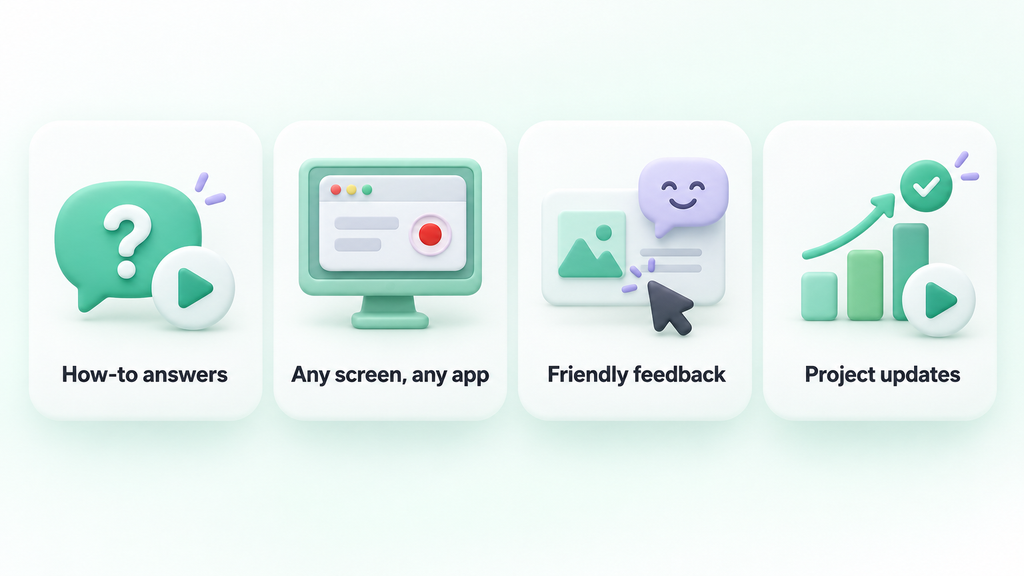
1. Answer “How do I do this?” questions
Instead of writing step-by-step instructions, record yourself doing it. Two minutes later, your colleague has a guide they can pause, replay and come back to. We do this with our own clients all the time, and it usually saves a call.
2. Show any app, not just ClickUp
You can record your entire screen, a window or a browser tab. So if you need to show something in another system, a website or a spreadsheet, Clips can capture that too.
3. Give feedback that feels human
Written feedback can sound colder than you meant. With a Clip, you can point at the exact spot and say “Love this, maybe just move this part up?” in your own voice.
4. Share async project updates
A two-minute video showing what’s done and what’s next can replace a 30-minute status meeting. Working with colleagues across Riyadh, Dubai and London? Pair it with scheduled ClickUp Chat messages so it arrives at the start of their day.
Build a Video Knowledge Center for Onboarding and Training
In most companies, important know-how lives in a few people’s heads: how the monthly report is prepared, how a new client is set up, how a request moves between teams. When those people are busy or on leave, everyone else is stuck.
With ClickUp Clips, you can record it once and keep it where your team already works:
- Onboarding videos that help new joiners settle in from day one.
- Training videos that show how to use a system or complete a task.
- Process walkthroughs that make sure everyone follows the same steps.
Organise these Clips in a ClickUp Doc by team or topic, and new starters have one place to learn from. No video team or special software needed.

AI Captions, Transcripts and Summaries
Many teams in Saudi Arabia and the Gulf switch between Arabic and English every day. In the UK and across EMEA, one office can have colleagues with many different first languages.
With ClickUp Brain switched on in your workspace, Clips helps everyone keep up:
- Captions on the video. What you say appears on screen as the Clip plays.
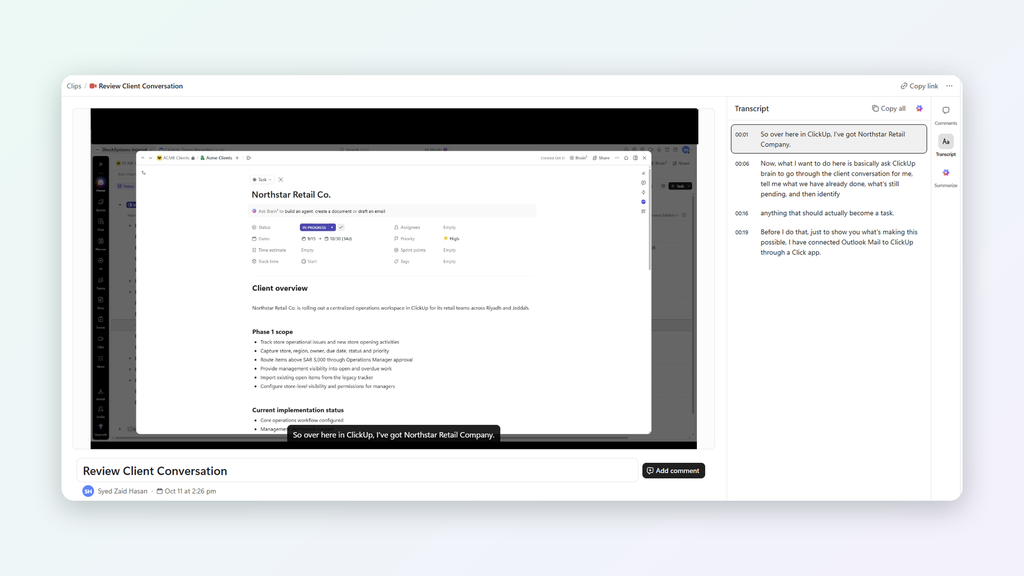
- A full AI transcript with timestamps. Viewers can read along, jump to the part they need, or copy the whole transcript in one click and translate it into the language they’re most comfortable with.
- An AI summary with action items. Short on time? Click Summarize, and ClickUp Brain gives you the key points and next steps from the video.
And here’s a handy one for your knowledge center: you can turn that summary into a ClickUp Doc. Record a walkthrough once, and you get both the video and a written guide to go with it.

How to Record Your Screen with ClickUp Clips
- Start a new Clip from the Clips icon in the top bar, the video icon in a comment, or the Clips Hub.
- Choose what to share: entire screen, a window or a browser tab.
- Pick a resolution. The default is 1080p.
- Choose your microphone.
- Click Record Clip, or press Cmd + Option + S (Mac) or Ctrl + Alt + S (PC). Recording starts after a three-second countdown.
- Stop and share your Clip in a task, comment, Doc or Chat.
Can’t find Clips? Ask your workspace admin to switch on Clip: Record & Share in ClickUp’s App Center.

Tips for Better Clips
- Keep it to two or three minutes. Split longer topics into a short series.
- Start with what you need, for example: “I need your approval on this by Thursday.”
- Close extra tabs before you hit record.
- Add it to the related task so it doesn’t get lost.
One honest note: Clips is great for explaining, showing and updating. For urgent or sensitive conversations, a call is still the better choice. And when you do meet, ClickUp AI Notetaker can capture the notes and action items.
FAQ: ClickUp Clips
What is ClickUp Clips?
It’s ClickUp’s built-in screen recorder. You can record your screen and voice and share the video in tasks, comments, Docs and Chat.
Can I record apps outside ClickUp?
Yes. You can record your entire screen, a window or a browser tab.
Does ClickUp Clips create transcripts?
Yes, when ClickUp Brain is switched on in your workspace. Each Clip then gets captions that play along with the video and an AI transcript with timestamps. Brain can also summarise the video and list its action items.
Can I use ClickUp Clips for onboarding and training?
Yes. Record onboarding, training and process videos, then organise them in a ClickUp Doc as your team’s knowledge center.
Where are my Clips saved?
In the Clips Hub, and also wherever you shared them.
Do I need a separate screen recording tool if my team uses ClickUp?
For most everyday needs, no. ClickUp Clips handles quick walkthroughs, feedback, async updates and training videos, and keeps each screen recording next to the work it belongs to.
Show It, Don’t Type It
Next time you’re on paragraph four of an explanation, stop and hit record instead. Your colleague will thank you.
At Dtech, a ClickUp Diamond Partner in Riyadh and London, we help teams across Saudi Arabia, the Gulf, the UK and EMEA get real value from ClickUp, from implementation to day-to-day adoption.
Want your team to get more out of ClickUp? Get in touch at dtechsystems.co.


