Dtech Insights
ClickUp Integrations That Help Your Team Work Smarter
Your team doesn't need fewer tools. It needs tools that talk to each other, so nobody spends the afternoon copying updates from one tab to another.
Picture a Monday at a growing company in Riyadh. A client request lands in Slack, the brief sits in Google Drive, the deal lives in HubSpot, and the actual work is tracked in ClickUp. Four tools, one job, and a project manager acting as the human glue between them.
That glue work is where good teams lose momentum. The fix isn't ripping out tools people already rely on. It's setting up the right ClickUp integrations so work flows into one place and updates flow back out on their own.
This guide covers the ClickUp integrations we set up most often for clients, how to choose yours by team, and the mistakes that turn a connected workspace into a noisy one.
Why ClickUp Integrations Matter More Than New Tools
Most "productivity problems" are really handoff problems. Information is created in one app and needed in another, and the gap between them is filled by screenshots, forwarded messages, and status meetings.
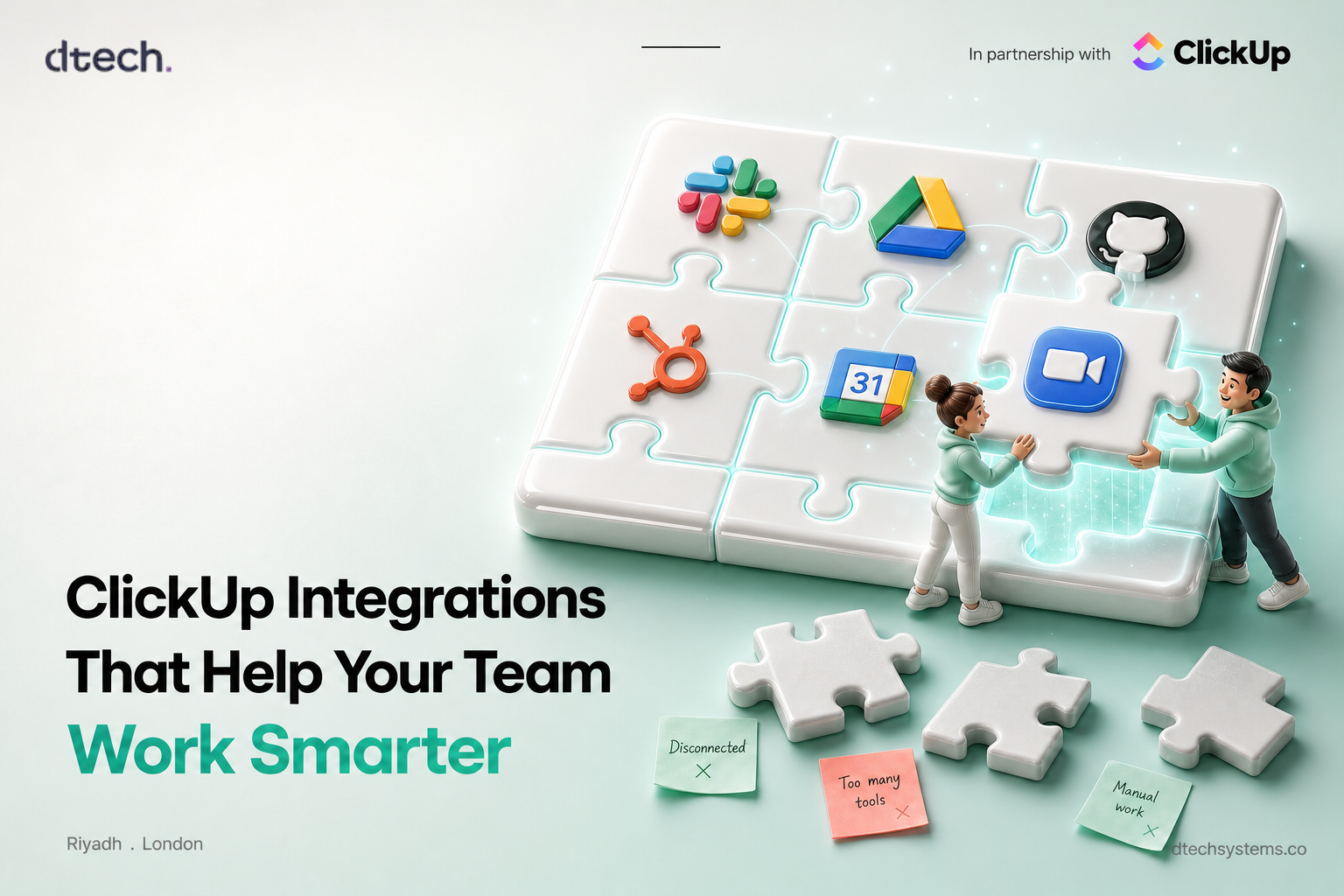
Integrations close that gap in three ways. They capture work where it starts (a Slack message becomes a task). They sync context where it's needed (a GitHub pull request shows on the task it belongs to). And they automate the follow-up (a merged PR moves the task to the next status). When all three are in place, ClickUp becomes the single source of truth without forcing anyone to abandon their favorite apps.
There's also an AI angle now. With Connected Search, ClickUp can search across apps you've connected, like Google Drive, Slack, GitHub, and Notion, so Brain and Super Agents can answer questions using context that used to be locked in other tools. You can see the full catalog on the official ClickUp integrations page.
7 ClickUp Integrations Worth Setting Up First
ClickUp connects with a long list of apps. These seven deliver the most value for the least setup effort in the workspaces we build.
1. Slack: turn conversations into tasks
Create ClickUp tasks straight from Slack messages, unfurl task links with live details, and sync updates from a Space, Folder, or List into a Slack channel. It's available on every ClickUp plan, and it's usually the single biggest win for teams that "decide things in chat and forget them by Thursday." We've written a full Slack and ClickUp sync guide if you want the step-by-step.
2. Google Drive: files where the work is
Attach Drive files to tasks and comments, preview them in ClickUp, and create new Docs, Sheets, or Slides without leaving the task. A Workspace connection also lets everyone search Drive files that are already shared across your organization, so private files stay private.
3. GitHub or GitLab: dev work in context
Link repositories to Spaces and commits, branches, and pull requests sync to the related tasks. You can even update task status from GitHub, so product managers stop asking engineers "is this done yet?"
4. HubSpot: sales to delivery without the handoff gap
Use deal-based triggers to create ClickUp tasks when a deal closes, and push updates back to HubSpot as contacts, tickets, or deals. Note that the HubSpot integration requires the Unlimited plan or above, and only admins can set it up.
5. Zoom, Teams, or Google Meet: meetings that leave a trail
Start calls from tasks, Docs, or Chat, and let ClickUp's AI Notetaker capture the conversation. Since the ClickUp 4.07 update, it also picks up in-meeting chat messages, so the link someone dropped in chat doesn't disappear when the call ends.
6. Google Calendar and Gmail or Outlook: time and inbox
Sync task dates with your calendar and turn emails into tasks. These are the quiet integrations: nobody gets excited about them, but they stop deadlines from living in two places that disagree.
7. The ClickUp API and MCP servers: for everything else
If your tool isn't on the list (common for local ERPs and government portals), the ClickUp API lets you build your own connection. And Super Agents can now connect to external MCP servers, which opens up CRMs, help desks, and data warehouses to ClickUp's AI.
Find your ClickUp integrations stack
Pick your team type to see the three integrations we'd set up first.
- Start hereSlackCapture requests from chat as tasks so nothing gets lost between messages.
- NextGoogle DriveKeep SOPs, contracts, and briefs attached to the work they belong to.
- ThenGoogle CalendarOne version of every deadline, visible where people plan their day.
How to Connect ClickUp Integrations the Right Way
Connecting an app takes a few clicks. Connecting it well takes a little thought. Before anything else, know the difference between the two connection types:
| Connection | Who sets it up | Best for |
|---|---|---|
| Personal | Any member | Your own calendar, inbox, or files. Only you see the data. |
| Workspace | Owners and admins | Shared search across approved sources for the whole team. |
Then follow a simple order. Start with one integration tied to a real pain point, not five at once. Map it to a location: sync one Slack channel to one List, one repo to one Space. Add an automation only after the basic sync works, for example "when a GitHub PR is merged, set status to In Review." ClickUp has prebuilt integration Automations for apps like Slack, GitHub, HubSpot, Gmail, Calendly, and Google Calendar.
Finally, review after two weeks. If a channel is flooded with notifications nobody reads, narrow the sync. An integration that creates noise is worse than no integration at all.
How much time could ClickUp integrations save you?
Enter your own estimate. We don't invent benchmarks: the result is simply your numbers multiplied out.
Formula: 10 people × 15 min × 22 days ÷ 60 = 55 hours. Tip: time one day of copying updates, hunting files, and chasing status. That's your real number.
Common Mistakes With ClickUp Integrations
Syncing everything everywhere. Piping every List into one Slack channel guarantees people mute it. Sync the few locations a channel actually cares about.
Skipping permissions. Workspace connections give shared search access, so decide which channels and folders are included before you flip the switch. Admin review here takes ten minutes and saves awkward conversations later.
Building automations on a messy structure. Integrations amplify whatever setup you already have. If your Spaces and statuses are inconsistent, fix that first. Our guide on how to get started with ClickUp covers a clean structure that scales.
Treating it as a one-time project. Tools change, teams change, and ClickUp ships new connections often. Put a quarterly integration review on someone's calendar.
ClickUp Integrations and AI: The Next Step
The newest value from ClickUp integrations isn't moving data, it's giving AI the full picture. When Drive, Slack, and GitHub are connected, Brain can answer "what did we agree with this client?" by searching all of them at once.
Super Agents take it further. Connected to external tools through MCP, they can triage requests, update records, and follow up, using the same context your team sees. The takeaway: every integration you set up today makes the AI you use tomorrow smarter.
FAQ: ClickUp Integrations
How many ClickUp integrations are available?
ClickUp offers native integrations with popular apps like Slack, GitHub, HubSpot, Google Drive, and Zoom, plus many third-party integrations and an open API for custom connections. Check the official integrations page for the current list.
Are ClickUp integrations free?
Many are available on every plan, including Slack. Some, like HubSpot, require the Unlimited plan or above. Check plan requirements on each integration's help page before you commit.
Who can set up ClickUp integrations?
Any member can create a personal connection for their own account. Workspace connections, which give the whole team shared search, can only be set up by Workspace owners and admins.
Can I connect a tool that ClickUp doesn't integrate with natively?
Yes. Use the ClickUp API for custom integrations, embed web apps in views, or connect external MCP servers to Super Agents for AI-driven workflows.
Which integration should a new team set up first?
Whichever tool your team lives in all day, usually Slack or email. Capturing requests where they start fixes more problems than any other single connection.