Put Claude inside ClickUp and it stops guessing. The same model that writes a polite template in a blank chat writes the real update inside your workspace, because now it can see the work.
Dtech Systems, ClickUp Partner6 min read3 interactive demos
Demo 1 · Same model, same prompt
Watch the blanks disappear.
Claude on its own has never met your team. Flip on the context and watch what Claude inside ClickUp writes instead.
ClaudeNo workspace context
Write this week’s update for the client on the portal launch.
Hi [client name], We’ve made good progress on [project] and are about [X%] complete.
8blanks left for you to fill
Illustrative example workspace. The pattern is real: with Claude inside ClickUp, the model can search the workspace you have access to.
What actually changes
Claude was never the problem. The empty room was.
Claude is one of the best reasoning and writing models out there. But in a standalone chat, every conversation starts cold. You paste the brief, re-explain the project, copy the last thread, and hope you didn’t leave anything out.
Getting Claude inside ClickUp is now one click. ClickUp Brain lets you pick Claude as the model, right next to ClickUp’s own default model (Max), GPT, and Gemini. And per ClickUp, every supported model gets the same workspace-aware abilities: it can search your workspace, use connected tools, and reference your data.
With Claude inside ClickUp, you’re not getting a different Claude. You’re getting Claude with a desk, a filing cabinet, and a seat in the team chat.
It answers from your work, not the internet’s average
Tasks, Docs, Chat, and comments you can already see become Claude’s source material. No copy-paste, no stale context.
It can do the work, not just describe it
Super Agents, ClickUp’s AI teammates, can run on Claude. You choose the model in the agent’s profile, and it acts on tasks, Docs, and Chat on triggers and schedules.
You can swap models mid-conversation
Each model keeps the chat history and workspace context. ClickUp’s own example: let Max gather the context, then hand it to Claude to structure the plan and write the brief.
Demo 2 · The model relay
One chat. Two models. Zero re-explaining.
Pass the baton →
Two ways in
Claude inside ClickUp, or ClickUp inside Claude?
There are two doors, and they solve different problems. Most teams we work with end up using both.
Door A · Claude inside ClickUp
Pick Claude in Brain or a Super Agent
Works for the whole team, where they already work
Super Agents can run on triggers and schedules
Admins can restrict which models are available
No separate AI accounts to manage
Door B · ClickUp inside Claude
Connect ClickUp to Claude via MCP
For people who live in Claude or Claude Code
Official connector reads and writes tasks, Docs, comments, time
OAuth sign-in, available on every ClickUp plan
Works inside a chat you start, no background triggers
Where it’s still you
Smarter AI doesn’t mean less judgment.
Putting Claude inside ClickUp gives it more reach. That’s exactly why the setup matters.
It sees what you see
Brain works within workspace permissions. If you can’t open it, the model can’t read it for you.
You control the context
Want an external model kept away from workspace data? Select only external sources in the context picker.
Agent drafts, human decides
Let Claude write the update, the plan, the triage. Keep the send button, the discount, and the apology with a person.
Turn it on
Set up Claude inside ClickUp in five minutes.
Open Brain from the sidebar, a task, a Doc, or the AI Command Bar.
Click the current model in the lower-right corner of the chat.
Pick a Claude model. Switch back to Max, GPT, or Gemini any time, even mid-chat.
Create a Super Agent, or open an existing agent’s profile.
Click the model in the upper-right. It’s set to Auto by default.
Choose Claude, then test. Not happy with a reply? Retry it with a different model from the thread.
In Claude (Pro, Team, or Enterprise), go to Settings → Connectors and add ClickUp.
Using a custom connector? The server URL is https://mcp.clickup.com/mcp
Sign in to ClickUp with OAuth and choose your workspace. Claude Code users can run claude mcp add --transport http clickup https://mcp.clickup.com/mcp
API keys and personal tokens aren’t supported by ClickUp’s official MCP server, only OAuth. That’s a feature, not a bug.
FAQ
Quick answers.
Can I use Claude inside ClickUp?
Yes. To use Claude inside ClickUp, open Brain and pick a Claude model from the model picker, alongside Max, ChatGPT, and Gemini. Super Agents can be configured to run on Claude too.
Does Claude see my whole workspace?
It sees what you have permission to access, and only what you bring into context. You can limit a chat to external sources if you don’t want workspace data involved.
Do I need a separate Claude subscription?
Not for Door A. Premium models, Claude included, come with ClickUp’s Brain AI plans. For Door B you use your own Claude account plus the free ClickUp MCP connector.
What’s the difference between Claude inside ClickUp and the ClickUp connector in Claude?
In Brain, Claude comes to your work and can power always-on Super Agents. With the connector, your work comes to Claude, but only inside chats you start.
Which model should our team default to?
Start with Brain’s default and switch to Claude for long-form writing, planning, and reasoning-heavy work. Keep what wins on your own tasks, not on benchmarks.
Dtech Systems · ClickUp Partner
The model is the easy part. The workspace is the edge.
Claude inside ClickUp is only as good as the context it gets. We structure ClickUp so Brain, Super Agents, and every model you pick actually know how your team works.
7 Claude Workflows That Can Save Your Team Hours Every Week
The time-saving Claude workflows that actually stick aren’t clever one-off prompts. They’re boring, repeatable setups that quietly take an hour off someone’s week without anyone having to think about it again.
Most teams try Claude once, get a good result, and never turn it into anything repeatable. The seven workflows below are the ones that survive past week one because the setup happens once and the payoff compounds every week after.
Which of these time-saving Claude workflows fits your role first?
Pick a role and we’ll jump you to the workflow worth setting up first.
Workflow 1 of 7
01
Weekly ritual
The Weekly Status Report Project
Build a Claude Project with last quarter’s reports, your team’s format, and current priorities loaded in as reference. Each week, drop in raw updates and Claude drafts the report in your actual format, not a generic one. Setup cost is paid once; the saving repeats every week indefinitely.
Setup: load 2–3 past reports plus a one-line description of what each section covers. Takes about 15 minutes and rarely needs touching again — one of the fastest time-saving Claude workflows to get live.
02
Every meeting
Meeting Notes to Action Items
Paste in raw notes or a transcript and have Claude pull out a clean summary with action items, owners, and deadlines, in a saved style matching how your team tracks follow-ups. The real saving isn’t the drafting — it’s that action items get captured consistently instead of living in someone’s memory.
Setup: save a style once with the exact fields you want — owner, deadline, status — so every summary comes out the same shape, ready to paste into your tracker. Of all the time-saving Claude workflows here, this is the one teams notice first.
03
Recurring replies
First-Pass Client and Vendor Replies
Load your team’s tone, common policies, and past good responses into a Project. When a repetitive-but-not-identical question comes in, Claude drafts a first-pass reply grounded in your actual documentation. A person still reviews and sends it, but the blank-page problem disappears.
Setup: add 5–10 of your team’s best past replies to the knowledge base. The more real examples it has, the less editing the first draft needs. This is a strong time-saving Claude workflow for any team fielding repetitive external messages.
04
No new app
Delegating From Slack With Claude Tag
Claude Tag lets anyone tag @Claude directly into a channel thread to hand off a task, using your organization’s tools and the context already there. The exchange stays visible in the thread, and anyone can follow along or pick up where it left off.
Setup: needs an admin to turn it on for Team or Enterprise plans. Once it’s live, there’s nothing for individual users to configure — just tag @Claude. For Slack-first teams, this is often the first of these time-saving Claude workflows worth switching on.
05
In the sheet
Cleaning Up Spreadsheets Without Starting Over
Messy exports and half-built formulas eat more time than they should. Claude in Excel works directly inside a spreadsheet your team already has open — cleaning data, fixing formulas, restructuring layout — without exporting to a new tool.
Setup: none required beyond having the add-in enabled. This one works well as a one-off too, not just a recurring habit — a low-effort entry point into time-saving Claude workflows for data-heavy teams.
06
First draft
Turning a Brief Into a First-Draft Deck
A rough outline or a previous deck is usually enough for a genuinely useful first draft from Claude in PowerPoint. It removes the blank-slide problem, leaving the team’s time for the part that actually needs judgment — the story and the framing.
Setup: keep one well-designed past deck on hand as a style reference — it noticeably improves how close the first draft lands to your actual brand look. A dependable time-saving Claude workflow ahead of any pitch or all-hands.
07
Stays in context
Research That Stays in Context
For work pulling information from multiple live pages — competitor research, market context — Claude in Chrome browses and works directly in the tabs your team already has open, instead of copying content back and forth. Pair it with a Project holding standing context to make the whole task repeatable.
Setup: keep a standing Project for the recurring research topic so each session builds on the last, instead of starting the background research over every time. Especially useful as a time-saving Claude workflow for teams doing ongoing competitive or market research.
What’s a Time-Saving Claude Workflow Actually Worth?
How to Roll Out a Time-Saving Claude Workflow Without It Dying in a Week
Pick one workflow, not all seven. The role matcher above is a shortcut to the one worth starting with.
Build the Project before the first real use. Load reference material in cold, not while someone’s waiting on output.
Run it for two weeks before judging it. The first output is rarely the best one; the knowledge base improves with use.
Put it somewhere the team will actually find it. A shared Project link in a pinned message beats something only one person remembers exists.
Why Some of These Stick and Others Don’t
The time-saving Claude workflows that actually last share one thing: the setup — the knowledge base, the saved style, the standing instructions — happens once, and the team benefits every time afterward. Skip that setup step and start from a blank chat every time, and nothing compounds; each use costs roughly what the last one did.
Ownership matters just as much as setup. A workflow with no one responsible for keeping the reference material current will drift for a few weeks and then quietly stop getting used — not because it failed, but because nobody noticed it needed a five-minute update.
FAQ: Time-Saving Claude Workflows
Do these workflows require a paid Claude plan?
Some do. Claude Tag is available on Team and Enterprise plans, and sharing a Project with the whole team also requires Team or Enterprise. Meeting notes or first-draft replies work on any plan with Projects.
Which of these workflows should a team set up first?
Whichever recurring task costs the most time across the most people, usually status reports or first-pass replies. A workflow used daily by several people pays back the setup time fastest.
Do these workflows replace the person doing the task?
No. Each one removes the blank-page or blank-spreadsheet starting point, not the review step. A person still checks and finalizes the output.
How much setup time do these workflows actually take?
Most can be set up in under an hour once the reference material — past reports, example replies, a template — is ready to load into a Project.
What happens if the output quality drops over time?
Usually the knowledge base has gone stale — old examples, an outdated template, priorities that changed. A five-minute refresh of the reference material fixes most quality drops.
Can more than one of these workflows run at the same time?
Yes, but stagger the rollout. Teams that try to launch several at once tend to properly bed in none of them; one workflow fully adopted beats three half-used.
When it comes to AI agents vs automation, most businesses are asking the wrong question. They’re not asking “which one do we need” — they’re asking “how do we get one of whatever everyone else is calling AI.” That’s how companies end up overpaying for intelligence they don’t need, or underbuilding a process that actually required judgment all along.
Every product update this year ships with the same headline: “now powered by AI agents.” Every vendor pitch leads with autonomy and intelligence. If you’re trying to figure out what your business actually needs, the noise has gotten loud enough to bury the one question that matters. This guide breaks the AI agents vs automation comparison down properly — the definitions, the cost implications, the common mistakes, and the practical framework you can apply to any process in your business starting today.
1. AI Agents vs Automation: The Core Definition
The starting point of any AI agents vs automation decision is understanding that these are not two versions of the same thing. One isn’t a “better” upgrade of the other. They are built to solve fundamentally different kinds of problems.
Automation is deterministic. It runs on a fixed set of rules: if X happens, do Y. There’s no interpretation, no judgment, no “it depends.” You define the trigger, you define the action, and it fires the same way every single time, regardless of context.
→ Where does a task sit waiting on a person for days before anyone notices? → Where does the same manual step get repeated across dozens of tickets, deals, or campaigns a week? → Where does someone spend an hour finding information that should take five minutes? → Where does a handoff between teams routinely lose context?
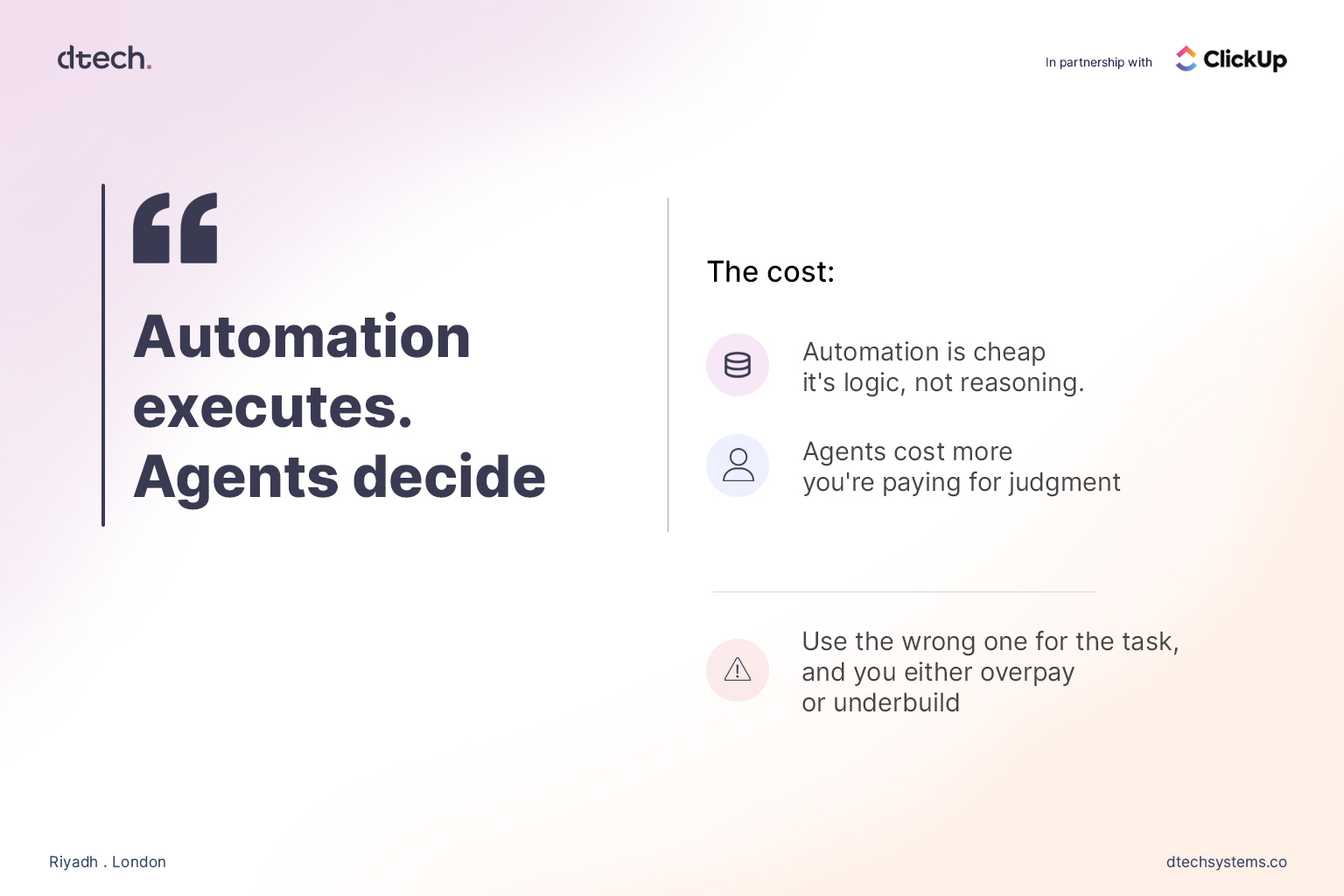
In the AI agents vs automation comparison, the distinction comes down to one line: automation executes, agents decide. Once a business internalizes that, the conversation stops being “which one is better” and becomes “which parts of our workflow actually need judgment, and which parts just need to run reliably.”
2. AI Agents vs Automation: Cost and Complexity
Cost is where the AI agents vs automation decision has real financial weight, and it’s where a lot of businesses get burned.
Automation is cheap to build and cheap to run. It’s logic, not reasoning — a rule engine executing the same instruction every time it’s triggered. There’s no ongoing “thinking” cost, no token spend, no variability in output. Once it’s configured correctly, it just runs.
AI agents cost more, because you’re paying for judgment, not just execution. Every decision an agent makes involves interpreting context, which means compute, and which means a price tag that scales with how much reasoning you’re asking for. That’s not a reason to avoid agents — it’s a reason to be deliberate about where you deploy them.
This is where businesses tend to go wrong in one of two directions:
Underbuilding: Forcing a static, rule-based workflow to handle a task that genuinely requires judgment. The rule can’t account for the exceptions, the edge cases, the “it depends” scenarios — so it either breaks, or it quietly produces the wrong outcome without anyone noticing until it’s a bigger problem
Common examples of automation:
Move a task to “Done” automatically once every subtask closes
Route a new support ticket by keyword or category
Send a Slack alert when a deadline is 24 hours out
Assign a new lead record to the right rep based on territory
Where does a task sit waiting on a person for days before anyone notices?
Where does the same manual step get repeated across dozens of tickets, deals, or campaigns a week?
Where does someone spend an hour finding information that should take five minutes?
Where does a handoff between teams routinely lose context?
3. AI Agents vs Automation: Where Companies Get It Wrong
The most common mistake in the AI agents vs automation debate isn’t picking the wrong tool — it’s skipping the workflow audit entirely.
Here’s the pattern: a business sees a competitor announce an “AI agent.” They don’t want to be left behind. They buy or build an agent and point it at a process that was never clearly defined in the first place — inconsistent task ownership, messy or incomplete data, no shared definition of what “done” actually looks like across the team.
The agent doesn’t fix any of that. It can’t. An agent making decisions inside a broken workflow just makes bad decisions faster and with more apparent confidence. Nothing has actually been solved — the chaos has just been automated and given a more convincing voice.
Where does a task sit waiting on a person for days before anyone notices?
Where does the same manual step get repeated across dozens of tickets, deals, or campaigns a week?
Where does someone spend an hour finding information that should take five minutes?
Where does a handoff between teams routinely lose context?
Only after answering those questions do they know where automation belongs and where an agent belongs — and in what order to build them.
4. AI Agents vs Automation: Sequencing Matters
There’s a sequencing mistake baked into most AI adoption efforts: companies try to deploy agents before they’ve automated the basics. That’s backwards, and it’s an expensive way to learn the lesson.
If your task statuses aren’t updating reliably, if your team is manually reassigning work that should route itself, if reminders are falling through the cracks — none of that gets fixed by adding an agent on top. It gets fixed by automation. Clean, rule-based automation is the foundation. It’s what makes your underlying data trustworthy and your workflow legible enough for an agent to operate inside without immediately going off the rails.
Skip that foundational step, and you’re asking a decision-making system to make decisions based on incomplete or inconsistent information. The output will look confident. It won’t be reliable — and confident, unreliable output is often worse than no automation at all, because it erodes trust in the system faster than a visible failure would.
Get the automation layer right first. Then decide, deliberately, where judgment genuinely needs to enter the picture — and that’s where an AI agent belongs in the stack.
5. AI Agents vs Automation: What This Looks Like in ClickUp
Automations handle the deterministic layer: status changes, task assignments, recurring work, due-date reminders, and notifications when something needs attention. None of it requires interpretation. None of it should cost you agent-level compute or complexity. It’s rules, running reliably, in the background, exactly the way they were configured to.
Super Agents handle the judgment layer. A new lead comes in — a Super Agent researches it, enriches the record with relevant context, and flags whether it’s genuinely worth a rep’s time before anyone manually touches it. A time-off request comes in — a Super Agent checks it against team capacity and existing coverage instead of someone manually cross-referencing five different calendars. Across a busy workspace, instead of a flat, undifferentiated list of a hundred open tasks, an agent can surface what actually needs attention right now and explain why.
You don’t have to pick one paradigm for your entire business. The AI agents vs automation line gets drawn task by task, process by process, inside the same workspace.
Before adding any AI tool — agent or otherwise — to your stack, there’s one question worth asking about the specific task in front of you:
Is this a decision, or is this a rule?
If it’s a rule — if the right action is always the same action, regardless of context — automate it. Do it now. It’s cheap, it’s fast to configure, and it removes the manual work without adding unnecessary cost or complexity.
Everything else — the tools, the hype, the “we’re an AI-first company” branding — is noise dressed up as strategy. The businesses that actually benefit from this moment aren’t the ones with the most AI. They’re the ones who took the time to understand the AI agents vs automation distinction and built accordingly, task by task.
FAQs
Everything you need to know about AI agents vs automation.
Is an AI agent just advanced automation?
No. Automation runs fixed rules with no interpretation — the
output never changes for a given trigger. AI agents make
decisions based on context that changes case by case. In the
AI agents vs automation comparison, they’re built to solve
different kinds of problems, and treating one as a simple
upgrade of the other is where most AI adoption mistakes start.
Should a business start with automation or AI agents?
Automation first, always. It builds the clean, reliable
workflow foundation an AI agent needs in order to make good
decisions on top of. Deploying agents before automating the
basics means asking a reasoning system to work with
incomplete or inconsistent data.
Can automation and AI agents work together?
Yes — and in most real workflows, they should. ClickUp
Automations handle the rule-based layer while Super Agents
handle the judgment layer, inside the same workspace, so
teams don’t have to choose one paradigm across the whole
business.
How do I know which tasks need an agent instead of automation?
Ask whether the correct action ever changes based on context.
If it’s always the same response to the same trigger, it’s a
rule — automate it. If the right response depends on details
that shift case by case, it’s a decision — that’s where an
AI agent belongs.
Quick answer: For most business teams in 2026, in Claude vs ChatGPT, Claude is the stronger choice for long-document analysis, coding, compliance-sensitive writing, and complex multi-step instructions, while ChatGPT is the stronger choice for image and voice generation, real-time web research, and a wider third-party app ecosystem.
Claude vs. ChatGPT for Business: Where Claude Wins
Anthropic’s growth story in 2026 has been concentrated almost entirely in the enterprise segment, and the numbers back it up. By the end of 2025, Anthropic commanded roughly 40% of enterprise LLM API spend, up sharply from just 12% in 2023, while OpenAI’s share fell to about 27%. Ramp’s March 2026 AI Index, which tracks corporate spending across more than 50,000 businesses, found that Claude wins approximately 70% of head-to-head matchups among companies buying enterprise AI tools for the first time.
Long Document Analysis and Context Window
This is Claude’s clearest technical advantage in any Claudevs ChatGPTfor business evaluation. Claude’s standard paid tier handles 200,000 tokens — roughly 150,000 words or 300 pages — and its API scales up to 1 million tokens for larger workloads. ChatGPT’s standard context window sits at 128,000 tokens on most paid plans. For teams working with employee handbooks, vendor contracts, or a quarter’s worth of customer feedback exports, that gap matters in practice, not just on paper.
Enterprise Coding and Reasoning
Claude holds roughly 54% of the enterprise coding market compared to OpenAI’s 21%, and on the SWE-bench Verified benchmark, Claude Opus scored 80.8% against GPT-5.2’s 80.0% as of May 2026 — a razor-thin gap, but one that has held steady in Claude’s favor. Claude’s reasoning also tends to hold up better on tasks requiring multiple simultaneous constraints, such as reviewing a contract against standard terms or following a detailed style guide across a long document.
Compliance-Heavy Industries
Roughly 70% of Fortune 100 companies use Claude today, with adoption concentrated in finance, legal, and healthcare — sectors where a single compliance error costs far more than the AI budget itself. Claude is generally considered more conservative about generating content that could create liability, making it a common default for regulated industries.
Claude vs ChatGPT for Business: Where ChatGPT Wins
ChatGPT still leads on scale and breadth. It has crossed 1.1 billion monthly users and maintains roughly 92% adoption across the Fortune 500, even as its share of the overall AI assistant market slipped below 50% for the first time in mid-2026. Its advantages are less about raw reasoning and more about ecosystem:
Multimodal generation — native image and video generation, plus voice interaction, in a single interface.
Real-time web access — stronger built-in browsing for market data, competitor research, or breaking news during drafting.
App and plugin ecosystem — 60+ integrations and a GPT Store that lets teams extend the tool without custom engineering.
Claude vs Chatgpt: A common setup many teams settle into: Claude for writing, document review, and client-facing content where tone consistency matters, and ChatGPT for tasks that need current data pulled from the live web or visual assets.
Claude vs ChatGPT for Business: Market Share and Adoption Data
The takeaway: In Claude vs Chatgpt comparison, ChatGPT still wins on consumer scale, but Claude has been winning where the money actually gets spent — inside operational, revenue-generating business workflows.
Making Claude vs ChatGPT for Business Work in Your Actual Workflow
Choosing a model is the easy part. The harder problem — and the one that determines whether any of these numbers translate into results for your team—is adoption.
This is where a firm like Dtech Systems fits into the picture. Dtech is a Diamond ClickUp and Anthropic partner based in Riyadh and London, and its entire model is built around the observation that licences get billed but habits rarely change. Rather than selling a platform and walking away, Dtech maps a team’s real processes first, then implements Claude directly inside a ClickUp workspace — grounded in a company’s actual tasks, documents, and decisions rather than the open internet. That means Claude can draft and summarise from what’s already in the workspace, automate routing and triage across a team’s real process, and answer questions from a company’s own operational record instead of a generic chat window.
CHOOSE CLAUDE IF
Output quality that needs minimal editing is your top
priority. You work with long documents (contracts,
research papers, reports) regularly. You want genuine
critical feedback on your work, not just positive
reinforcement. You need the strongest AI coding tools
(Claude Code powers Cursor and is the leading terminal
coding agent).
CHOOSE CHATGPT IF
You want the broadest feature set: image generation,
voice mode, plugins, and custom GPTs. You prefer the
largest ecosystem of third party integrations and
community created tools. You need a single tool that
covers the widest range of tasks, even if each individual
capability is not the absolute best.
Claude vs ChatGPT for business isn’t a question with one correct answer — it’s a question about which numbers matter most to your team. If your work runs on long contracts, codebases, or regulated documentation, Claude’s 200K–1M token context window and 70% win rate in head-to-head enterprise matchups make it the safer default. If your work leans on live web data, visual content, or a deep app ecosystem, ChatGPT’s 1.1 billion users and broader integrations still make it hard to beat. And if budget allows, the fastest-growing group of enterprise teams isn’t choosing at all — they’re running both.
Frequently Asked Questions (FAQs)
Claude vs ChatGPT which is better for business in 2026?
The best option ultimately depends on your business needs, existing tools, security requirements, and budget. For most businesses, ChatGPT is the better all-around choice in 2026 because it offers a broad range of capabilities for writing, research, data analysis, coding, automation, and business workflows. Claude can be an excellent choice for teams focused heavily on software development, technical work, and long-form document analysis.
How much does Claude vs ChatGPT cost for a business team?
Both platforms price their entry-level paid seat at roughly $20 per user per month — Claude Pro and ChatGPT Plus. Team and enterprise tiers add admin controls, single sign-on, and a default of not training on customer data, which is usually what justifies the higher price over an individual seat rather than any difference in raw model quality. Regulated industries should price whichever tier includes a data-processing agreement and a training-exclusion clause, regardless of vendor.
Do most companies need to pick just one, Claude or ChatGPT, for their business?
Not necessarily. Recent enterprise surveys in sectors like commercial real estate found that roughly 79% of enterprise users already pay for both platforms, using each for what it does best — Claude for financial document analysis and long-context work, ChatGPT for integrations and multimodal tasks. The bigger determinant of ROI isn’t which single tool you pick, but whether your team’s workflows and habits actually change to use it — which is why implementation and adoption support tend to matter more than the model choice itself.
The best option ultimately depends on your business needs, existing tools, security requirements, and budget. For most businesses, ChatGPT is the better all-around choice in 2026 because it offers a broad range of capabilities for writing, research, data analysis, coding, automation, and business workflows. Claude can be an excellent choice for teams focused heavily on software development, technical work, and long-form document analysis.
Both platforms price their entry-level paid seat at roughly $20 per user per month — Claude Pro and ChatGPT Plus. Team and enterprise tiers add admin controls, single sign-on, and a default of not training on customer data, which is usually what justifies the higher price over an individual seat rather than any difference in raw model quality. Regulated industries should price whichever tier includes a data-processing agreement and a training-exclusion clause, regardless of vendor.
Not necessarily. Recent enterprise surveys in sectors like commercial real estate found that roughly 79% of enterprise users already pay for both platforms, using each for what it does best — Claude for financial document analysis and long-context work, ChatGPT for integrations and multimodal tasks. The bigger determinant of ROI isn’t which single tool you pick, but whether your team’s workflows and habits actually change to use it — which is why implementation and adoption support tend to matter more than the model choice itself.
Claude x ClickUp is one of those integrations that sounds like a nice-to-have until you’ve felt the pain it solves. I want to start with a confession. For months, I was running two browser windows side by side: Claude in one tab, ClickUp in the other. I’d prompt Claude, get a solid response, highlight it, Ctrl+C, Alt+Tab, Ctrl+V into a ClickUp Doc, then manually decompose that output into tasks, set statuses, assign owners, estimate story points. Rinse and repeat, every single sprint.
That workflow had a name: context switching. And context switching, even when it feels productive, is one of the most expensive hidden costs in software development. Every tab flip is a cognitive context flush. You lose the thread. You re-read. You re-orient. Studies on developer productivity put the cost of a single unplanned interruption at 20-plus minutes of recovery time. Multiply that by how many times you’re bridging your AI tool and your project management system per day, and the number gets uncomfortable fast.
The Claude x ClickUp integration doesn’t just save clicks. It eliminates an architectural flaw in how most tech teams use AI: treating it as a standalone tool rather than an embedded reasoning layer inside the system where work actually lives.
“The best AI tools don’t replace human judgment — they eliminate the cognitive overhead that gets in the way of it.”
The Core Problem: Stateless AI in a Stateful Work Environment
What the MCP integration actually does under the hood
The Model Context Protocol is Anthropic’s open standard for connecting LLMs to external data sources and tools in a structured, permission-aware way. Think of it as a typed API contract between Claude and whatever system it’s plugged into. ClickUp’s MCP server exposes a defined set of operations: reading tasks, creating and updating tasks, querying lists and spaces, retrieving custom field definitions, and triggering automations.
When you interact with Claude inside ClickUp, your prompt gets routed through this MCP layer. Claude receives not just your text input but a structured representation of the relevant workspace context: task titles, descriptions, statuses, assignees, due dates, and relationships. It reasons over that combined input and returns outputs that are grounded in your actual data, not hallucinated from general knowledge.
This is a meaningful architectural shift from RAG-style integrations (Retrieval-Augmented Generation), where a separate retrieval step pulls potentially relevant documents and stuffs them into the prompt. MCP is tighter than that — it’s a live, structured interface rather than a fuzzy semantic search over workspace content. The result is more reliable, more precise, and less prone to the context pollution that makes RAG outputs feel slightly off.
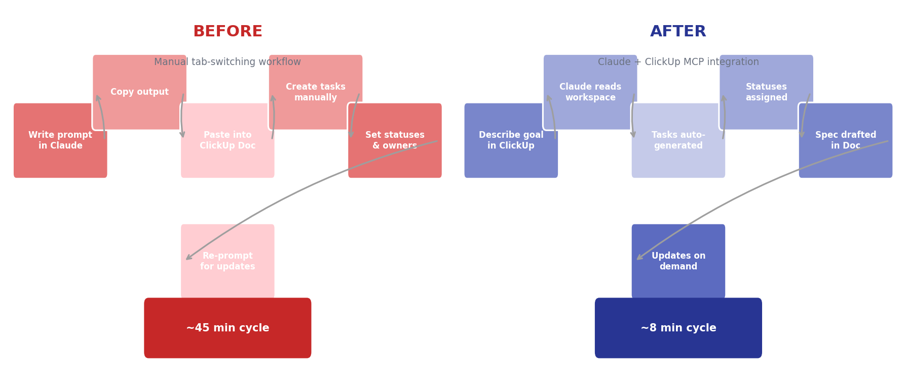
Fig. 1 — Before: 45-minute manual cycle per sprint loop. After: 8-minute integrated cycle with Claude reading live workspace state
Where Claude x ClickUp actually changed how we work
Enough architecture. Here’s what it looks like when your team is actually using it.
Sprint planning with real backlog awareness
Our sprint planning sessions used to involve a product manager reading task titles aloud while the engineering team estimated in Planning Poker. Painfully manual, and the estimates were often shaky because not everyone had read every task description beforehand.
Now, before we get into the room, I ask Claude to analyze the candidate backlog against our sprint goal and our team’s historical velocity. It flags underspecified tasks (missing acceptance criteria, no assigned owner, unresolved dependencies), surfaces tasks that are likely underestimated based on their scope description, and generates a recommended pull list with a rationale for each item. We walk into planning with a pre-processed backlog. The conversation shifts from “what is this task even asking for” to “do we agree with this prioritization.” That’s a fundamentally higher-quality use of the team’s time.
Automated spec generation from product briefs
One of the most painful handoffs in any tech team is the translation from product requirement to engineering specification. A PM writes a user story. An engineer reads it and has eight questions. The PM answers them. The engineer writes a spec. The PM reads it and realizes three things got lost in translation. This loop can eat a week before a single line of code gets written.
With Claude embedded in ClickUp Docs, a PM can paste a one-paragraph feature brief and ask Claude to expand it into a full technical spec. The output includes: user stories with clear actors and outcomes, functional requirements broken down by component, non-functional requirements (latency targets, error handling expectations, edge cases), and open questions flagged for engineering review. It’s not a finished spec — it’s a 70% draft that cuts the back-and-forth loops from five rounds to two. The PM and engineer spend their time refining, not bootstrapping.
Intelligent bug triage and routing
Bug triage is one of those engineering team functions that sounds straightforward and is actually really hard. You’re making rapid severity assessments, often with incomplete reproduction steps, while also trying to route issues to the right engineer without creating queue imbalances.
Claude can now sit at the front of that triage queue. When a bug ticket lands, it analyzes the description, compares it against open tasks to detect duplicates, assesses severity based on your team’s custom severity criteria (which live in ClickUp custom fields), and suggests an assignee based on component ownership. It’s not autonomous — every decision still goes through a human — but it compresses a 15-minute triage decision into a 2-minute review and approval. For a team shipping fast, that adds up.
Status reporting without the manual aggregation
Here’s a workflow that I genuinely dreaded: the Friday status report. Pulling data from 30+ tasks across multiple lists, synthesizing what actually moved versus what just had a comment added, formatting it for an audience that doesn’t live in ClickUp all day. It was a 45-minute exercise in tedium.
Now I ask Claude to generate the report. It reads task statuses, completion deltas since last week, active blockers, and upcoming due dates. It formats the output as a stakeholder update — plain-language narrative, not a data dump — and flags items that need executive attention. I review it, make adjustments, send it. Fifteen minutes total, and the quality is higher because Claude doesn’t skip the boring but important details the way I would when I’m tired on a Friday afternoon.
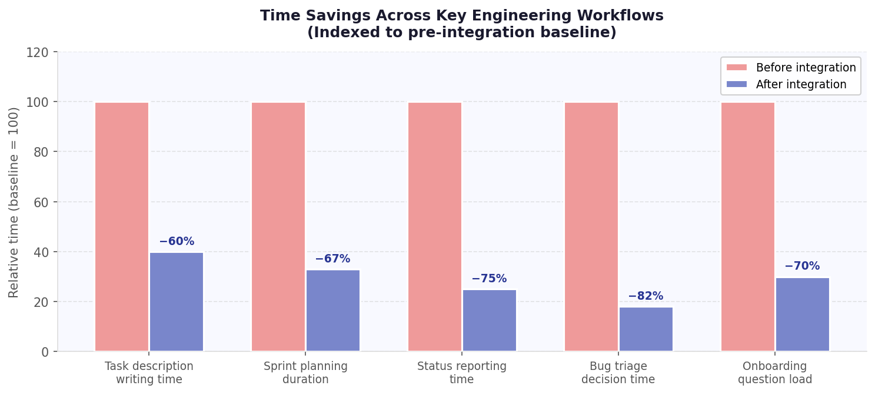
Fig. 2 — Time savings across five key engineering workflows, indexed to pre-integration baseline. Triage and reporting show the steepest gains
The technical qualities that make Claude the right fit
Not every LLM would work well in this context. A few specific properties make Claude particularly suited to project management integration:
Long context window: Claude can hold large workspace contexts — multiple tasks, Docs, and comment threads — without losing coherence. This matters when your sprint has 40 tasks and you want analysis across all of them, not just the first few.
Structured output reliability: Claude consistently returns well-formed, parseable responses when asked to generate structured data (task lists, specs, priority rankings). This is critical for downstream automation — if the output format is unpredictable, you can’t build reliable workflows on top of it.
Constitutional AI alignment: Claude is trained to surface honest assessments rather than agreeable ones. When I ask it whether our release timeline is realistic, it tells me the truth based on the data — not what I want to hear. That’s the behavior you want from a tool that’s informing decisions with real consequences.
Low hallucination rate on grounded tasks: because Claude reasons over actual workspace data (not parametric memory), the hallucination risk drops significantly. It’s not inventing task details — it’s analyzing ones that exist.
The limitations you should know going in
I want to be direct about where this integration has edges, because overselling it would waste your time.
First: garbage in, garbage out still applies. Claude’s output quality is a direct function of your workspace data quality. Vague task descriptions, missing custom fields, and inconsistent status usage will produce vague, inconsistent AI outputs. If your ClickUp hygiene is poor, the integration will surface that problem more visibly — which is actually useful information, but it’s not a magic fix.
Second: the MCP integration is read-heavy right now. Claude can read and analyze your workspace extensively, and it can create and update tasks. But complex multi-step automations — the kind that involve conditional logic across multiple spaces with external webhook triggers — still require manual setup. The conversational automation interface is genuinely useful for standard patterns, but it has limits at the edges of ClickUp’s automation engine.
Third: Claude operates within the boundaries of what’s documented in your workspace. Tribal knowledge — the architectural decisions that live in Slack threads and people’s heads, not in ClickUp Docs — is invisible to it. If your team’s context is mostly undocumented, you’ll see that gap reflected in Claude’s outputs. The integration is a strong incentive to document better, but it won’t do the documenting for you.
“Claude is a reasoning engine, not an oracle. It works from evidence. If the evidence is thin, the reasoning will be too.”
What this signals about where AI in dev tooling is going
Stepping back: the Claude x ClickUp integration is an early but clear example of a broader shift in how AI is being deployed in engineering and product organizations. The first wave of AI tooling in tech was about individual productivity — Copilot for code completion, ChatGPT for drafting, Claude for research. Useful, but fundamentally individual.
The second wave, which we’re entering now, is about systemic integration. AI as a reasoning layer embedded in the tools that orchestrate how teams coordinate — project management, documentation, CI/CD pipelines, incident management. The value isn’t in any single AI interaction; it’s in the compounding effect of AI having persistent access to organizational context and being able to apply that context consistently across the entire workflow.
What that means practically: teams that invest now in clean data structures, well-documented processes, and thoughtful AI integration into their existing toolchains will have a significant operational advantage within 18 to 24 months. Not because AI will do their work for them, but because they’ll have eliminated the coordination and documentation overhead that currently consumes 30 to 40 percent of a typical engineering team’s week.
The Claude x ClickUp integration is one of the most mature versions of this pattern I’ve seen in a project management context. It’s not perfect — no v1 integration is — but the architectural approach is right, the AI quality is high, and the workflow improvements are real.
If your team is already on ClickUp, connecting the Claude x ClickUp MCP integration takes under ten minutes. Run one sprint with it. Measure the planning time, the spec turnaround, the triage throughput. Let the data tell you whether it’s worth keeping. My bet is it will be.
A practical look at Claude AI ClickUp integration and how Dtech Systems uses it to get more out of both.
A client we’d been working with for months had shared their requirements across a dozen different touchpoints. Emails, Word docs, a few PowerPoint decks, WhatsApp messages, and call notes. No single person on our team had the full picture in one place, and some things had quietly fallen through the cracks because of it. We fed everything into Claude, and within minutes it had connected the dots, flagged what we’d missed, and given us a complete picture of what the client actually needed. That context had been sitting there the whole time. We just hadn’t had a way to hold it all at once.
That was the moment Claude stopped being something we were “exploring” and started being something we actually relied on.
If you’ve been exploring how to integrate ClickUp with Claude agent SDK or looking into Claude ClickUp integration in general, this breakdown should give you a practical starting point.
The Problem We Were Solving
Dtech Systems manages ClickUp implementations with a core focus on clients in Saudi Arabia, the UAE, and Qatar, alongside a growing base across the UK and Pakistan. We handle everything from initial workspace setup to ongoing consulting, automation design, and client training.
The challenge was never complexity. It was volume and repetition. Before Claude, here’s where time was quietly disappearing:
Writing task descriptions, SOPs, and status updates from scratch for every new client
Manually translating client requirements, often arriving as voice notes or scattered email threads, into clean ClickUp structures
Rebuilding similar ClickUp logic across projects without a good way to document or reuse it
A Quick Note on ClickUp Super Agents
Before getting into how we use Claude, it’s worth being clear about something: for workflows that are well-defined and repeatable, ClickUp Super Agents remain the stronger option. Super Agents have full native context of your ClickUp workspace and are purpose-built for automating structured, predictable processes inside it. If you have a workflow that follows a clear pattern, Super Agents will handle it more reliably and with less setup overhead.
Claude is not a replacement for that. Where Claude shines is in ad hoc, context-heavy tasks that require reasoning across unstructured inputs. Think of Super Agents as your automation engine and Claude as your thinking partner.
How to Integrate Claude AI into ClickUp Workflows
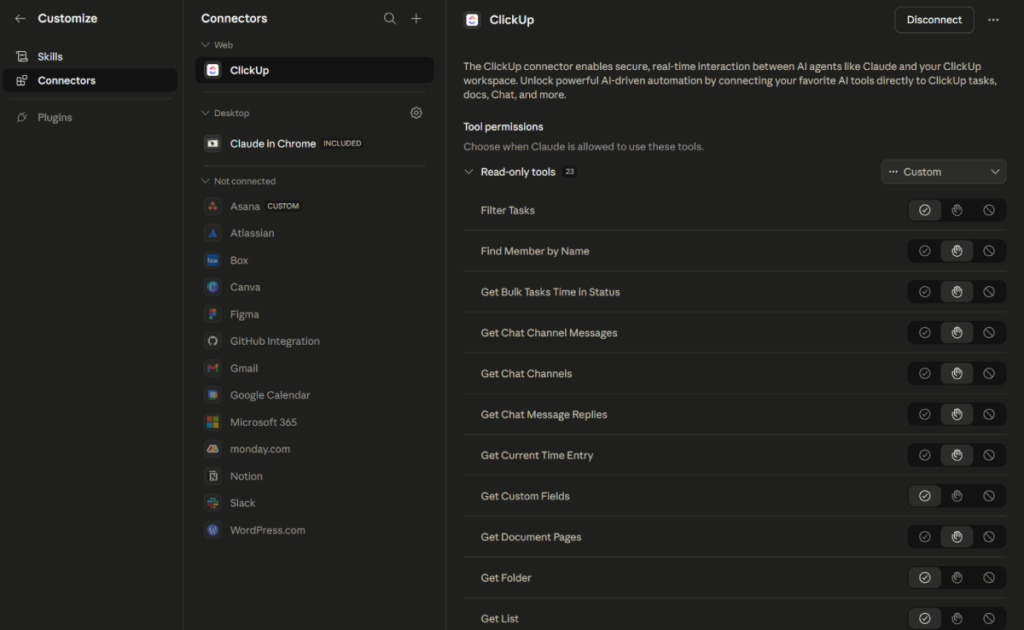
This is the approach we use when setting up a Claude AI ClickUp integration for internal workflows and client use cases. Getting Claude connected to your ClickUp workspace through its native ClickUp connector is simpler than most people expect. Here’s how it works:
Connect ClickUp through Claude’s Connectors settings
Authorize the ClickUp connection and configure the appropriate read and/or write permissions for your use case
Once connected, configure the permissions directly within Claude’s Connectors settings
Once connected, Claude can read your workspace data, tasks, lists, and custom fields based on the permissions enabled, and respond to prompts that reference them directly
Start with read-only permissions while you’re getting familiar with how Claude interprets your workspace. Add write permissions gradually and only for workflows where you’re confident in the inputs and prompts being used. More on why this matters in the lessons section below.
The Use Cases: Where Claude Actually Lives in Our Workflow
Use Case 1: Reading Through Client Data and Making Recommendations
This is the one that genuinely surprised us with how useful it turned out to be.
We work with clients who have been running ClickUp for years. That means lists with hundreds of tasks, archived projects, client records going back a long time, and a lot of accumulated context that no single person has fully in their head.
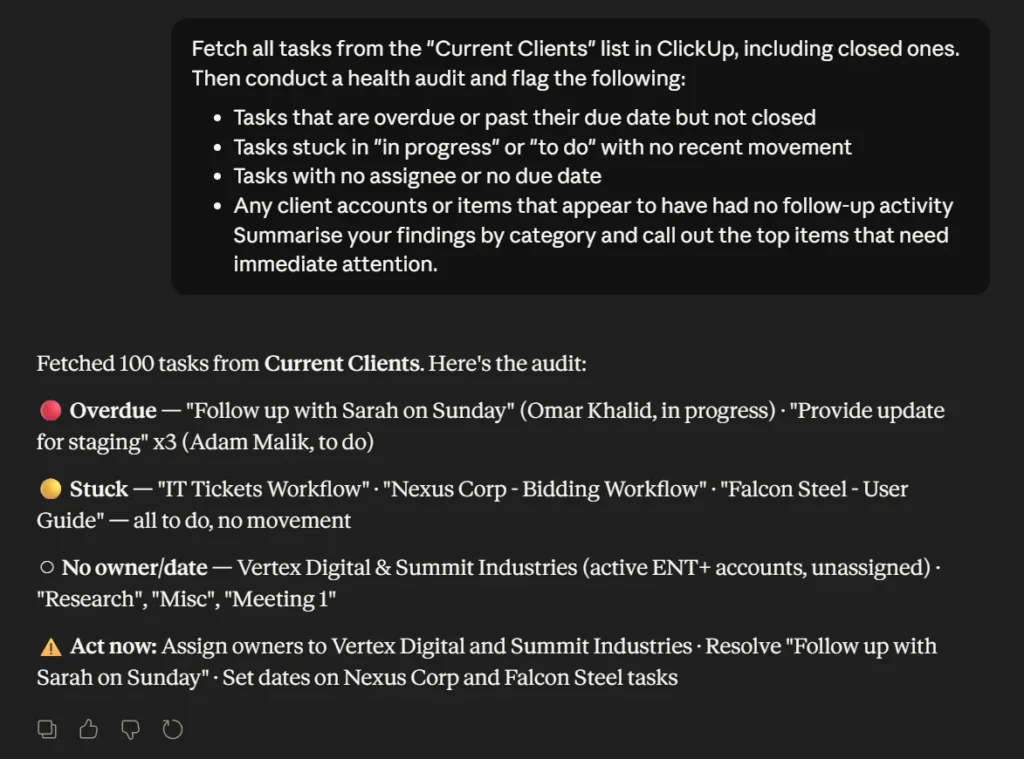
Claude can go through all of it. We point it at a client list, it reads through years of content, and it surfaces things like clients who haven’t been followed up within months, contracts that are approaching expiry, tasks that have been sitting open with no movement, or structural patterns that suggest the workspace has outgrown its original setup. It also recommends how to streamline the existing system based on what’s actually being used versus what’s just taking up space.
This now forms part of our standard new-client discovery process. Every audit follows the same logic, and it surfaces things that a manual review would either miss or take much longer to find.
Use Case 2: Building ClickUp Workflows From Client Documents
Clients almost never arrive with clean requirements. What they actually share is a mix of Excel sheets, PowerPoint decks, Word documents, onboarding packs, and process maps that live across different folders and drives.
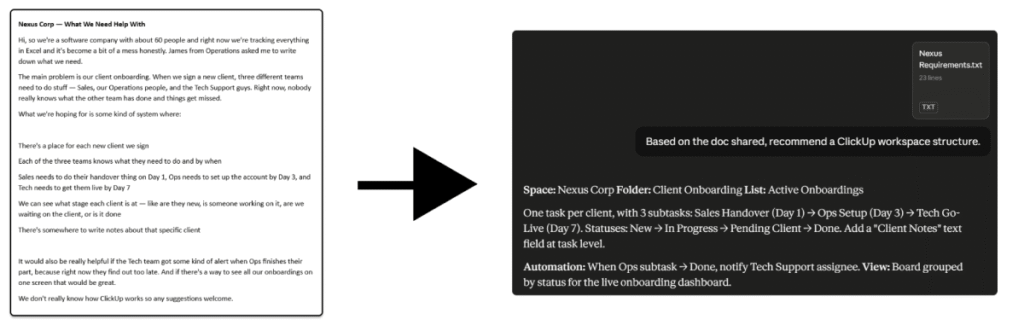
Our approach now is to gather all of that material and use it as a context pool inside Claude. We feed it everything the client has shared, ask Claude to identify the underlying workflows and processes, and then design the ClickUp structure around what we find. Lists, folders, custom fields, automation logic, all of it gets shaped by what the client’s actual working patterns look like rather than a generic template.
It produces ClickUp setups that fit how the client already operates, which makes adoption significantly smoother.
Use Case 3: Time Entry Reports That Actually Get Done
Time tracking in ClickUp is only useful if someone actually pulls the data and turns it into something readable. That part tends to get skipped when things are busy.
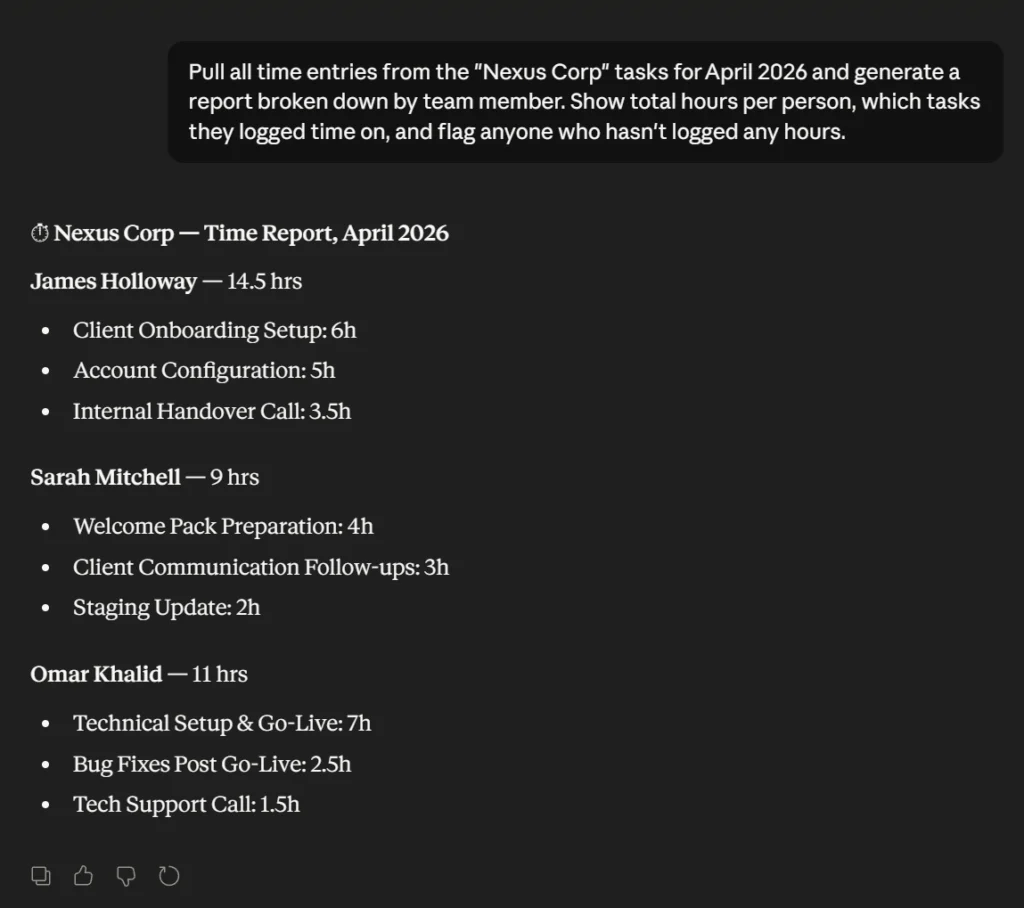
Claude can pull time entries directly from tasks using the ClickUp connector, then generate reports based on whatever lens is useful: by client, by project, by team member, by date range. The output can be formatted for internal review, dropped into a client-facing update, or used to spot where hours are going in ways that aren’t immediately obvious from looking at the workspace.
This is one of those use cases where the value isn’t dramatic, but the consistency is. The reports get done every time now, rather than whenever someone has a spare hour to compile them.
What to Keep in Mind Before You Start
A few lessons from doing this in real client work, not in a controlled setup.
Start with one high-friction workflow, not everything at once. Trying to bring Claude into multiple parts of your workflow at the same time leads to inconsistent outputs and unclear prompts. Pick one repetitive task, such as structuring client requirements or generating reports, and get that working reliably first. Expand only after that.
Your ClickUp conventions matter more than the tool itself. Claude is only as good as the structure you give it. If your naming conventions, custom fields, and hierarchy are loosely defined, the output will be inconsistent. Taking the time to clearly define how your workspace is structured makes a noticeable difference in the quality of results.
Be specific about both context and output format. Most weak outputs come from vague prompts. If you don’t clearly define what Claude should read, what context to consider, and what format the output should follow, you’ll end up rewriting most of it anyway. For example, asking Claude to summarize a document will give you a paragraph. Asking it to extract workflows and convert them into a ClickUp-ready structure will give you something you can actually use.
Treat Claude as a first draft, not a final decision-maker. For anything that affects client communication or workspace structure, a quick review step is essential. The output is usually close to what you need, but skipping the review is where small mistakes turn into bigger issues.
Be deliberate with permissions, especially as you scale usage. Start with read-only access while you’re learning how Claude interacts with your workspace. As you introduce write permissions, make sure prompts are clear and scoped properly. The more specific your instructions, the safer and more predictable the outcome.
Where This Is All Heading
The combination of ClickUp’s native automation capabilities and Claude’s ability to reason through unstructured input covers a lot of ground. Super Agents handle the predictable. Claude handles the messy. Between the two, there’s very little left that has to be done entirely by hand.
For teams already running ClickUp seriously, adding Claude to your toolkit is low friction and high return. The setup takes an afternoon. The benefits show up within the first week.
We’re continuing to build on this at Dtech, and we’ll keep sharing what we learn as the workflows evolve.
Dtech Systems
Dtech Systems is a ClickUp consulting partner specializing in Saudi Arabia, the UAE, and Qatar, with clients across the UK and Pakistan. We specialize in ClickUp implementation, workflow design, and building AI-assisted productivity systems on top of ClickUp infrastructure.
In addition to implementing ClickUp, we also help teams set up AI-powered productivity workflows on top of their existing systems, enabling them to get more value out of their data, automate repetitive work, and operate more efficiently.