“Teams waste so many hours on manual follow-ups, and context is lost across tools and conversations.”
If you have encountered these problems, then this feature is just what you need to help you optimize and streamline your workflow. Imagine having coworkers who never sleep, always remember the details, and get smarter the more you work with them. Sounds amazing, right? That’s exactly what Super Agents bring to ClickUp.
Super Agents are the next generation of AI-powered coworkers, introduced in ClickUp 4.0. They’re designed to help you work smarter, think more clearly, and focus on what really matters. They understand your workspace, collaborate easily with your team, and handle complex workflows with a human-like vibe. They’re more than just task automators—they’re your new go-to partners.
Super Agents: What Are They?
Super Agents are ClickUp’s built-in, self-learning AI collaborators. They can handle critical and complex tasks without constant supervision. This is all due to their deep understanding of your workspace, including tasks, documents, chats, and workflows.
They assist with research, as well as provide insightful recommendations. They can identify risks before they become real problems, as well as offer 24/7 support by working with the entire context. Super Agents can be created and customized for nearly any role in your workspace, such as project management, product development, hiring, and customer support.
Most importantly, you remain in control. You can decide what they can access as well as what tools they can use, and who can manage or activate them.
Made to Collaborate with You, Not Just for You
Super Agents are unique because they are designed for collaboration and not just automation.
They can be set to activate all by themselves as part of your workflow, or can be manually triggered when you need assistance. Instead of strict rules running in the background, they act as reliable colleagues who step in when needed.Creating a Super Agent is actually extremely simple. You just have to describe what you need in plain, simple language (no need to explain the complex logic). ClickUp Brain guides you through the process naturally, which enables you to build effective workflows without technical expertise.
Smarter Over Time Rather Than Static
Unlike normal bots or automations, Super Agents are dynamic.
They use advanced reasoning to complete multi-step tasks and can remember what worked (and what didn’t). They are also able to improve based on feedback. The more you use them, the better they align with your team’s workflow, making them increasingly valuable over time.
Their ability to learn makes Super Agents feel more like dependable coworkers and less like tools.
Integrated Control and Security
With Super Agents, intelligence doesn’t come at the cost of security, as they request human approval for critical actions. They clearly define permissions and log everything they do. This makes it possible for you to always have full visibility and control, protecting your data and optimizing your processes.Teams can measure usage as feature access and limitations mainly depend on your ClickUp plan and user role. To learn more about security protocols related to Super Agents, visit t
Where Super Agents Are Most Effective and Useful
Super Agents succeed in processes that usually take a lot of time as well as manual work. For example, they can:
Create innovative briefs using task or chat context to streamline approvals and standardize intake.
Reduce the back-and-forth between team members of Agile teams by changing feature ideas into concise and well-organized product briefs.
Draft polished and structured follow-up emails with clear owners, and can perform next steps based simply on meeting notes.
Track issue escalation summaries, which can help teams to identify obstacles and risks more effectively.
Generate detailed job descriptions using a task’s details and real-time online data.
Respond to ClickUp Chat inquiries by accessing data from different sources e.g. SharePoint.
These workflows are all interconnected as well as amazingly managed by AI rather than being isolated tasks.
The Differences Between Super Agents and Normal Automation
Super Agents represent a huge advancement compared to ClickUp Autopilot Agents.
While Autopilot Agents work based on predefined rules and triggers, Super Agents are dynamic. They respond to context, understand problems, and interact more like humans, making them ideal for complex and dynamic tasks.
How to Begin Using Super Agents
Super Agents are exclusive only to ClickUp 4.0 (which is the best process workflow management tool). To start using them:
Enable the AI ClickApp in your workspace.
If you want to interact with them through chat, activate the Chat ClickApp.
Once set up, you can create Super Agents for any workflow or role imaginable in ClickUp.
Integrated into Your Workspace: The Future of Work
Enable the AI ClickApp in your workspace.
If you want to interact with them through chat, activate the Chat ClickApp.
Once set up, you can create Super Agents for any workflow or role imaginable in ClickUp.
Super Agents mark a shift in how we view productivity as a whole. Instead of managing countless tools and automations, teams can now collab with intelligent AI coworkers who understand their work and grow alongside them. They help us envision a future of work and productivity where work feels less like a burden and more lightweight and intelligent.
Key Takeaways
Super Agents are AI-powered coworkers in ClickUp 4.0 designed to optimize workflows, reduce manual work, and improve productivity.
They understand your workspace, collaborate with your team, and handle complex tasks with a human-like approach.
Super Agents are self-learning, can be customized for various roles, and provide 24/7 support by leveraging workspace context.
Unlike traditional automations, Super Agents are dynamic, learn from feedback, and improve over time.
They can be triggered automatically or manually, making them flexible collaborators rather than just background automators.
Security and control are prioritized: permissions are clear, actions are logged, and human approval is required for critical actions.
Super Agents are especially useful for tasks like creating briefs, drafting follow-up emails, tracking issues, generating job descriptions, and responding to chat inquiries.
They represent a significant advancement over previous automation tools, responding to context and interacting more like humans.
To use Super Agents, enable the AI ClickApp and (optionally) the Chat ClickApp in ClickUp 4.0, then create agents for your workflows.
The blog concludes that Super Agents mark a shift toward more intelligent, collaborative, and efficient work in ClickUp.
Ready to experience it yourself?
You can explore Super Agents in ClickUp 4.0 and start building AI coworkers that adapt to your workflows, eliminate busywork, and help your team focus on what truly matters.
ClickUp has been rolling out some seriously impactful updates lately from better date handling across your Workspace to deeper automation capabilities, smarter AI controls, and even a brand-new way to send the AI Notetaker to meetings.Here’s a breakdown of the most useful new features you can start using today.
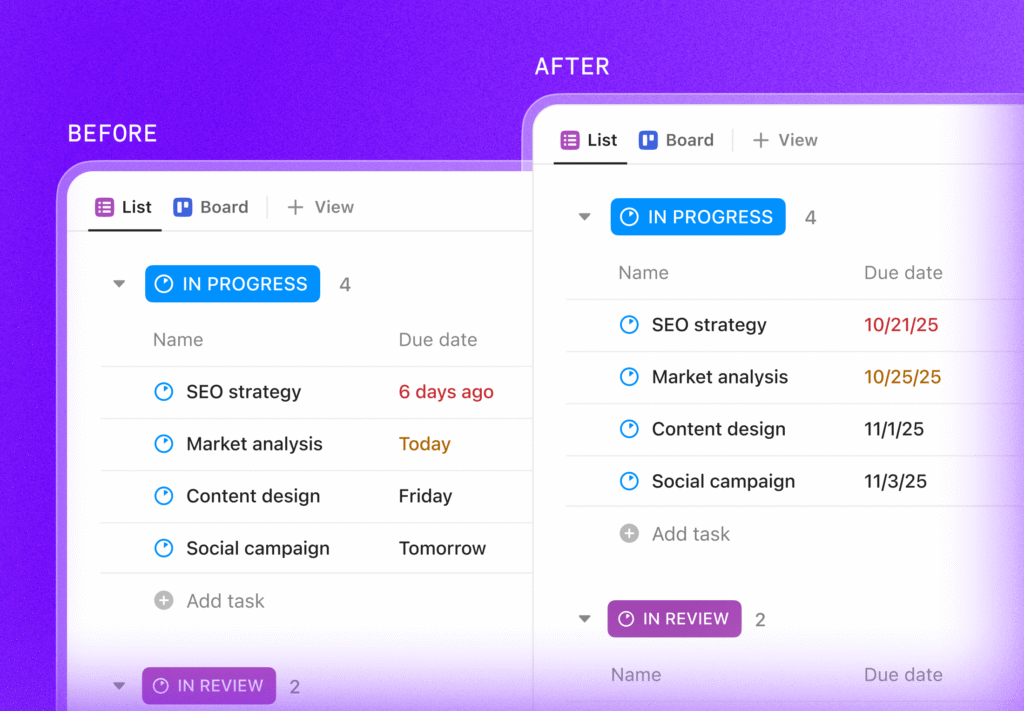
1. Absolute Dates Are Finally Here (Goodbye “Yesterday”, “Tomorrow”)
Until now, ClickUp relied mainly on relative dates, showing labels like Today, Yesterday, or Tomorrow. Convenient for internal work, but not so great when sharing deadlines externally.
What’s new?
You can now switch your entire Workspace to Absolute Dates, ensuring dates always show like this: Example:8/27/2025 instead of “Wednesday” Perfect for:
Client-facing deadlines
Compliance and reporting
External communication
Teams that prefer clear, static dates
How to enable Absolute Dates
Workspace Owner/Admin →App Center → ClickApps → “Use Relative Dates” → Toggle OFFThat’s it, your Workspace now displays consistent, unambiguous dates everywhere.
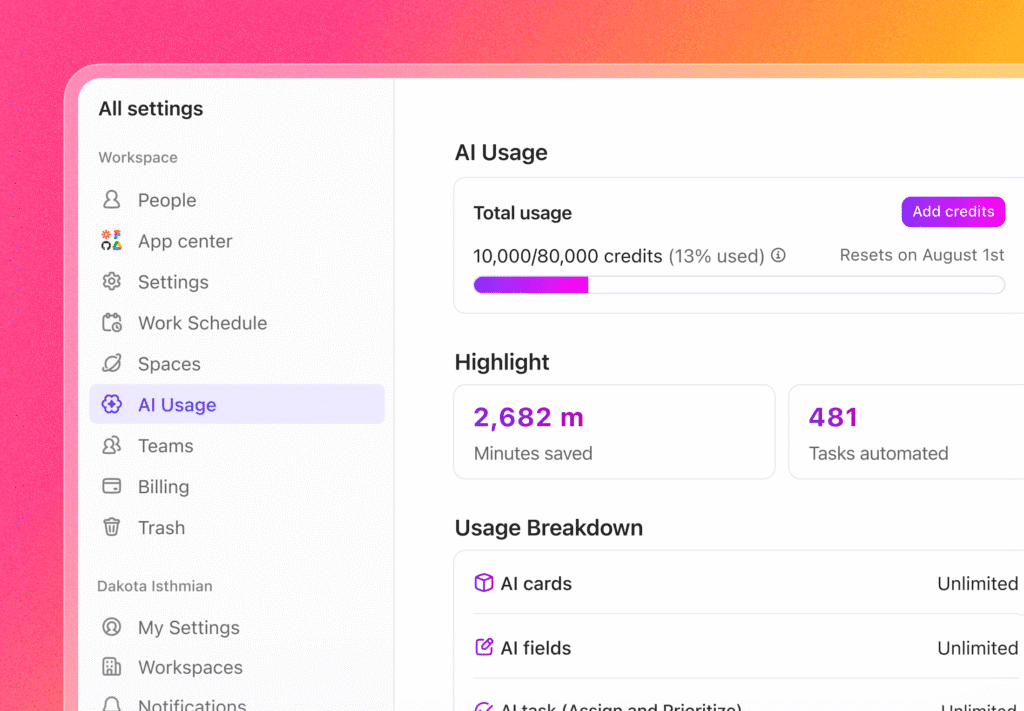
2. Track, Purchase & Manage Your AI Credits in One Place
If your team uses ClickUp AI (especially automatic AI features), this update is a big deal.ClickUp now gives a transparent, detailed breakdown of AI credit usage, plus easy options to purchase more, add overage protection, or adjust monthly allocation.
What’s new?
A dedicated AI Usage dashboard
Visual breakdown of credit consumption
Notifications when you hit 100% usage
One-click purchase of additional credits
Adjustable monthly credit plans
Optional overage protection so your AI features never stop unexpectedly
Where to find it
Workspace Avatar → All Settings → AI Usage
Great for admins who want full control over usage, billing, and AI continuity.
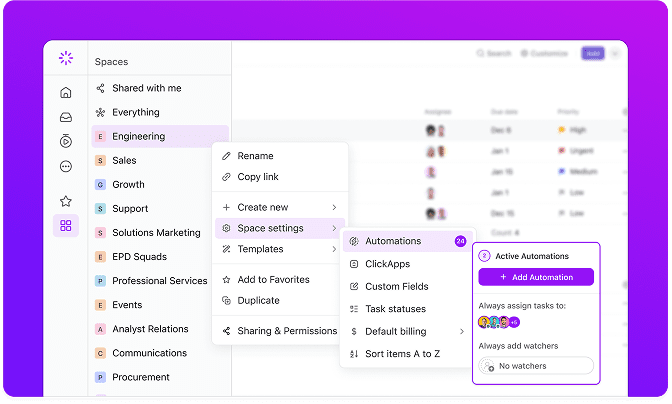
3. Major Automation Upgrades (These Are Huge!)
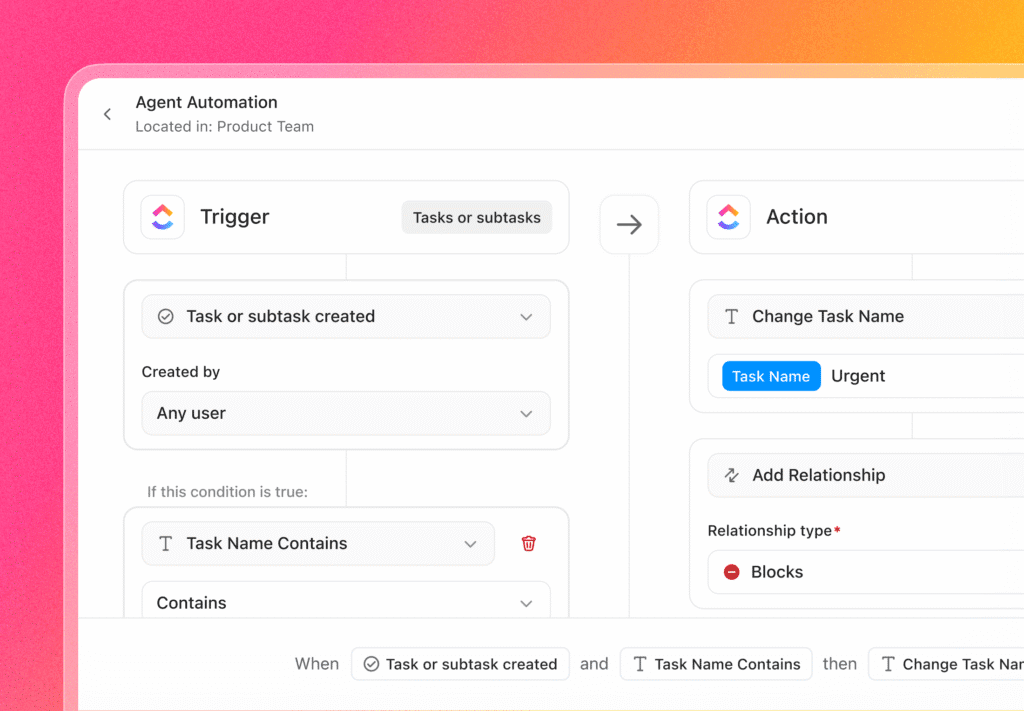
ClickUp has massively expanded Automation capabilities especially around task names and relationships, which were some of the most requested enhancements.
New Trigger
Task Name Updated: Run automations anytime a task name changes.
New Trigger
Change Task Name: Automatically rename tasks using variables like assignee, date, location, etc.
Add Relationship: Instantly link a task to another task or Doc (blockers, dependencies, custom relationships).
Create Task/Subtask with Relationships: Auto-generate new tasks and link them back to the parent or triggering task.
New Condition
Task Name Contains
Trigger automations based on keywords supports regex for advanced pattern matching.
Perfect for teams that use naming conventions, auto-sorting projects, or dynamic task generation.
Suggested Automation Templates
ClickUp now gives smart, personalized recommendations based on how your team works making automation setup faster and less technical.
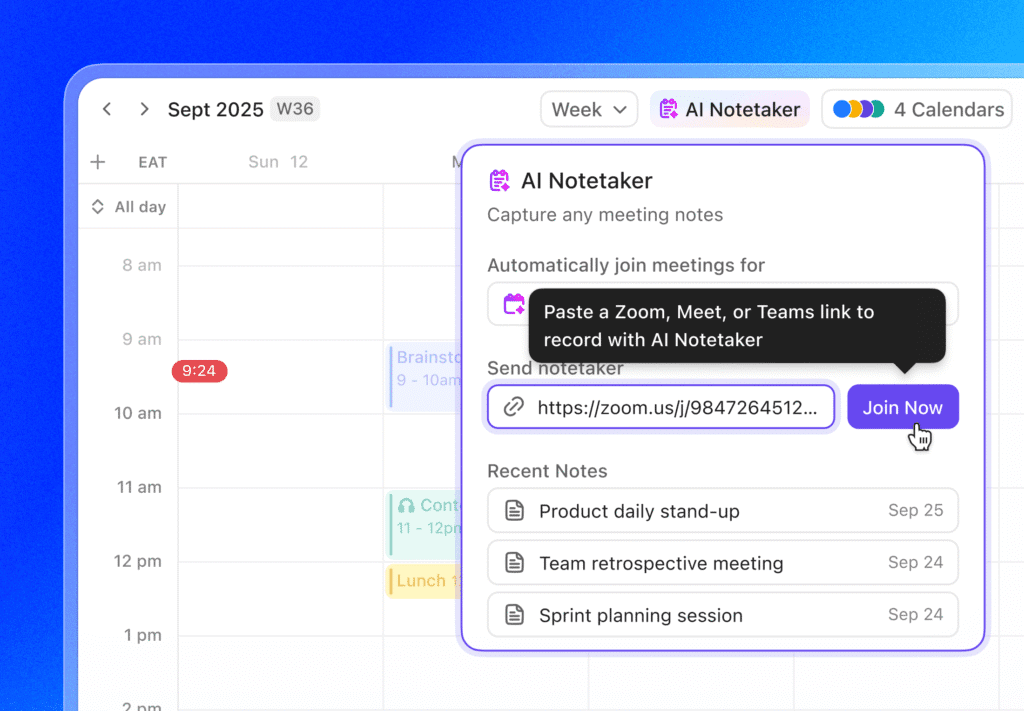
4. AI Notetaker for Ad-Hoc Meetings (No Calendar Required!)
Previously, AI Notetaker needed a calendar event. Now? Not anymore.
What’s new?
You can send your AI Notetaker to any meeting instantly, even if:
It wasn’t scheduled
It was created last minute
Someone just shared a link in chat
Just paste the meeting URL (Zoom, Google Meet, Teams) in the Notetaker window and ClickUp joins automatically.Perfect for:
Emergency calls
Impromptu client discussions
Quick internal syncs
Support or troubleshooting sessions
No more missed notes or “who’s writing minutes?”
These numbers highlight the strong momentum behind ClickUp’s strategy. Businesses want simplicity. They want AI that actually works. And they want a unified workspace instead of dozens of disconnected tools.
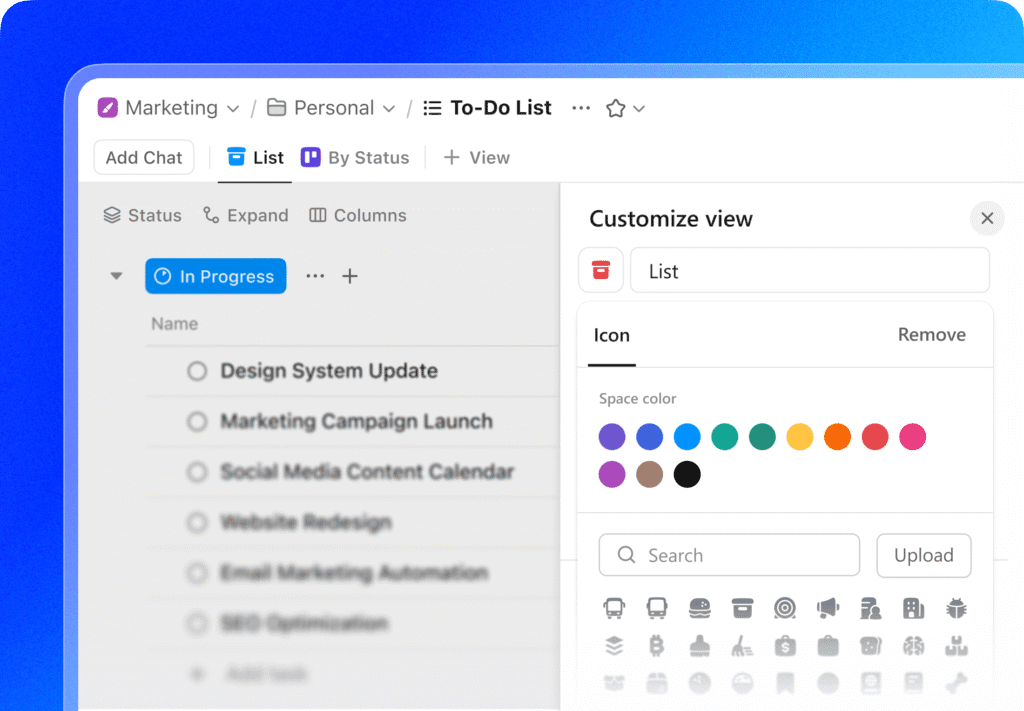
5. Custom Icons for Views (A Small Change That Makes a Big Difference)
ClickUp has introduced a simple but super useful enhancement: custom icons for views.This is especially helpful for Workspaces with long view lists, now you can visually differentiate each view at a glance.
Why it matters
Quickly recognize the right view when switching
Add personality and clarity to shared views
Make Favorites and Templates more visually organized
Improve scanning and navigation for large teams
How to set a custom icon
From any view:
Click Customize (top-right of the view).
Click the existing icon to browse or search for a new one.
Select the icon you want.
Click Clear if you ever want to return to the default.
This feature works across List, Table, Calendar, Board, and more and the icon appears for everyone who can access the view.
6. New Task Type Column in List & Table Views
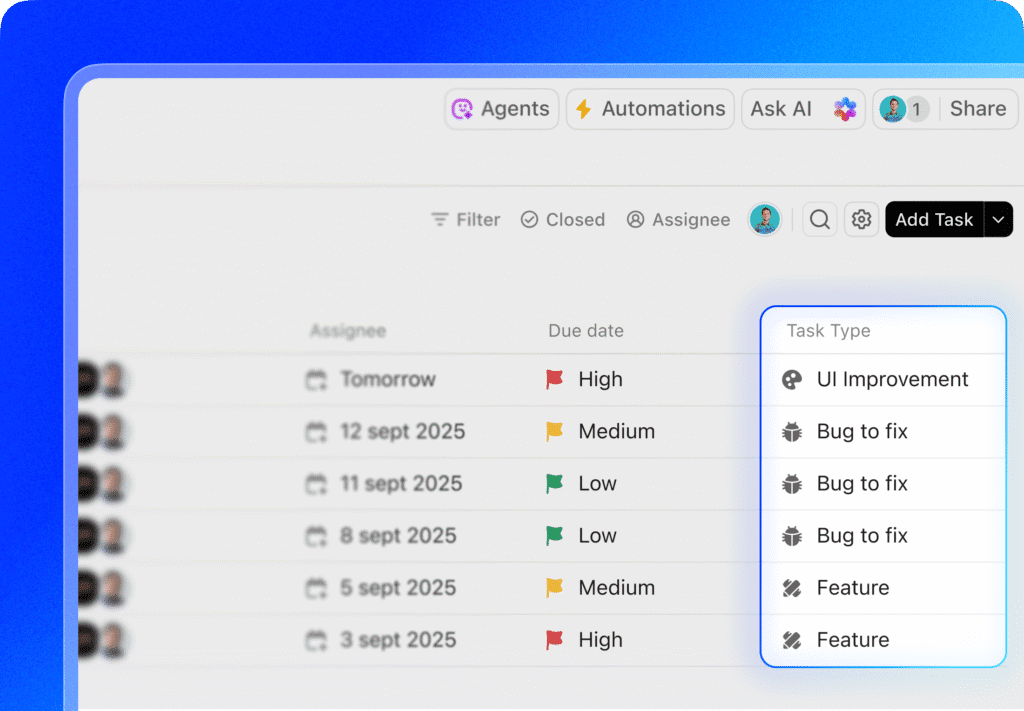
ClickUp just made task organization much smoother with the introduction of the Task Type column.
What’s new?
You can now add a dedicated column that shows and allows quick updates to the Task Type of every task, directly from List or Table views.
Key benefits
Instantly see task types without opening the task
Update types in bulk with drag-and-drop or inline editing
Sort tasks by type for better grouping
Let ClickUp AI auto-suggest task types to reduce manual work
Great for teams using structured workflows like:
IT bug reporting
Product development
Marketing content pipelines
Service delivery
QA & testing
Project management phases
This update brings more visibility and faster classification across the Workspace.
7. Custom Emojis for Messages
Bring personality and clarity to your workspace! Now you can:
Create custom emojis for chats, comments, Docs, and task descriptions.
Upload your own emoji files or import from Slack.
Insert emojis quickly using : + keyword.
This makes reactions and messages more expressive and instantly recognizable for everyone in your Workspace.
8. Scheduled Dashboard Reports
Keep stakeholders in the loop automatically with scheduled reports:
Send PDFs of Dashboards on a recurring schedule.
Customize triggers (date, time, repeat schedule) and recipients (To, CC, BCC).
Manage, edit, deactivate, or restore reports anytime from the Manage Scheduled Reports modal.
Track usage and activity to see which reports are sent and by whom.
This update brings automation to reporting, reducing manual follow-ups and making dashboard insights easier to share.
Conclusion
The acquisition of Qatalog marks a turning point—not just for ClickUp, but for the entire way teams work. With advanced enterprise search, permission-aware AI, deep integrations, and a unified workspace, ClickUp is now positioned as a leader in the next era of productivity software. The message is clear: The future of work is converged, connected, and powered by intelligent AI, not endless tools.ClickUp is building that future today.
ClickUp has taken another major step toward transforming the future of work. The company, already known as the world’s first Converged AI Workspace, has officially acquired Qatalog, an AI-powered work hub recognized for its enterprise search technology and AI agents. This acquisition pushes ClickUp even further ahead in the fast-growing world of AI productivity and it signals a huge shift in how teams will work, collaborate, and use AI in the years to come.
Ending Work Sprawl Once and for All
For many years, businesses have suffered from what ClickUp calls “Work Sprawl”. This happens when teams use too many disconnected tools—one for chat, one for docs, another for tasks, another for knowledge sharing, and so on. Information gets scattered everywhere, work becomes slower, and people waste time switching between tools instead of getting things done.ClickUp was built to solve exactly this problem. Its mission is simple:Bring all work, all knowledge, and all teams into one single workspace.With Qatalog joining the platform, that mission becomes even stronger.
Why Qatalog Matters
Qatalog is not just any AI tool. The company raised $26 million from top-tier investors and built AI technology trusted by major companies like Nvidia, Twitter, and Airbnb. Their core innovation is a powerful, secure, and intelligent search system that understands context without needing heavy indexing.
Qatalog brings three key strengths:
Enterprise AI Search
Qatalog’s ActionQuery engine can search across 100+ enterprise tools. It understands permissions, context, and relationships between your documents, chats, tasks and data
AI Agents With Full
Business Context
These AI agents don’t guess. They work with complete information from all integrated apps, making them far more accurate and useful.
Knowledge Consolidation
Qatalog can surface insights from chats, docs, tasks, wikis, conversations and other systems without breaking any security rules.
A Big Step Toward Real AI Transformation
In announcing the acquisition, ClickUp CEO Zeb Evans shared a bold vision: “With Qatalog, we’re not just adding another feature. We’re unlocking the next level of AI transformation. True AI is only possible when it has 100% context.” This is the heart of ClickUp’s strategy. Many AI tools today are powerful, but they don’t know your business. They don’t see your projects, documents, team conversations, or company goals. Without that context, AI becomes just another add-on. ClickUp believes the future is different: AI shouldn’t just assist work, AI should understand your work. By integrating Qatalog, ClickUp is creating exactly that.
The Future of Work: Converged Platforms
ClickUp is building what it calls a Converged AI Workspace, and this acquisition pushes the idea forward in four core areas:
1. Enterprise AI Search A central place where anyone can find anything – tasks, documents, chats, decisions, project updates, or answers across every connected app.
2. Ambient AI Agents These agents handle the repetitive busywork:
Summarizing conversations
Updating tasks
Preparing documents
Tracking progress
Connecting information across tools
Teams can focus on meaningful work instead of admin tasks.
3. Unified Projects and Docs Projects, documents, and workflows now live together in one seamless place. No more switching tabs or losing track of work.
4. Brain MAX ClickUp’s new Brain MAX tool lets users search across both work apps and the web, using the most advanced AI models. You can also speak to ClickUp using Talk to Text, turning voice into instant action. Combined with Qatalog, this creates one of the most complete AI work ecosystems available today.
Why This Matters for Businesses
Businesses today deal with massive amounts of data and hundreds of tools. Every team uses different platforms, documents live in different places, and decisions end up buried in chat threads. The result: Wasted time. Missed updates. Slow decision-making. ClickUp aims to change this by offering:
One workspace for everything
AI that understands your projects, your documents, and your processes
Search that works across 100+ tools without leaving ClickUp
Workflows that automate themselves based on real business context
This is not just an upgrade, it’s a transformation in how teams use software.
Market Momentum: A Company on the Rise
ClickUp’s rapid growth shows that the market is demanding this kind of solution. Key milestones include:
Over 20 million users worldwide
$300 million in annual recurring revenue
400% growth in AI-related sales
Recognition in the Forbes 2025 Cloud 100 for the fourth year in a row
These numbers highlight the strong momentum behind ClickUp’s strategy. Businesses want simplicity. They want AI that actually works. And they want a unified workspace instead of dozens of disconnected tools.
Trusted by Leading Global Brands
ClickUp is already trusted by some of the world’s biggest companies, including:
The addition of Qatalog only strengthens the platform for enterprise-level productivity.
A Future Where Software Works Together
ClickUp believes the future of software is not about more apps, it’s about smarter, connected apps that understand each other. With Qatalog joining the platform, ClickUp is closer than ever to becoming the central hub where every team, every app, and every piece of information comes together.
Instead of forcing teams to manage complexity, ClickUp aims to eliminate it.
Instead of AI guessing, ClickUp gives it full context.
Instead of dozens of disconnected tools, ClickUp offers one converged workspace.
Conclusion
The acquisition of Qatalog marks a turning point—not just for ClickUp, but for the entire way teams work. With advanced enterprise search, permission-aware AI, deep integrations, and a unified workspace, ClickUp is now positioned as a leader in the next era of productivity software. The message is clear: The future of work is converged, connected, and powered by intelligent AI, not endless tools.ClickUp is building that future today.
Ever find yourself spending more time managing tasks in ClickUp than actually completing them? Or forgetting action items after an important meeting? Maybe you have spent hours creating reports or writing updates for your team.
Across the Middle East, especially in Saudi Arabia, the UAE, and Egypt, teams are rapidly adopting AI-powered tools to simplify their workflows. With international companies entering the market, large scale projects with Government entities, remote teams, and bilingual communication needs, staying organized can be a challenge.
That is where ClickUp Brain comes in. It is ClickUp’s built-in AI assistant designed to simplify your work by helping you find information, automate routine tasks, and generate content, all within your workspace. Whether you are managing projects in Riyadh, leading a startup in Dubai, or collaborating with teams in Cairo, ClickUp Brain helps you work smarter and get more done.
What Is ClickUp Brain?
ClickUp Brain is ClickUp’s built-in AI assistant that helps you find information, manage tasks, and write content within your workspace. It combines artificial
intelligence with ClickUp’s productivity tools, helping teams across the Middle East stay aligned and efficient.
Unlike generic AI tools, ClickUp Brain was made specifically for ClickUp, so it understands your projects, documents, and conversations. Whether you are looking for an update, summarizing a meeting, or drafting a report, it delivers answers in seconds.
You can simply ask:
“What is the latest progress on the Dammam marketing campaign?”
“Summarize this task’s comments in Arabic.”
“Write a project update for the client based in Sharjah.”
ClickUp Brain responds instantly to requests like these with contextual results, saving you time and keeping your workflow organized.
Three Ways ClickUp Brain Helps You Work Smarter
ClickUp Brain works in three main ways to make your workflow faster and more efficient — as an AI Knowledge Manager, an AI Project Manager, and an AI Writer for Work.
AI Knowledge Manager The AI Knowledge Manager acts like your personal workspace librarian. It helps you find answers instantly from tasks, documents, and projects using text or voice queries. You can also import your knowledge base for even smarter responses.
Example: “What are the action items from last week’s meeting?”
It is especially helpful for organizations managing multiple projects across cities in the MENA region, where quick access to information can make or break project timelines.
AI Project Manager The AI Project Manager automates task updates, status reports, and team coordination. It can summarize projects, create action items, and even follow natural-language rules like: “Whenever a support ticket is marked urgent, assign it to the support lead.”
AI Writer for Work The AI Writer for Work helps you create and refine content inside ClickUp. It can generate meeting notes, project briefs, and client updates tailored to your tone and role.
Example:“Write a weekly summary of completed marketing tasks.”
Note: Always review AI-generated text before sharing to ensure accuracy and clarity.
ClickUp Brain Use Case 1: Reporting
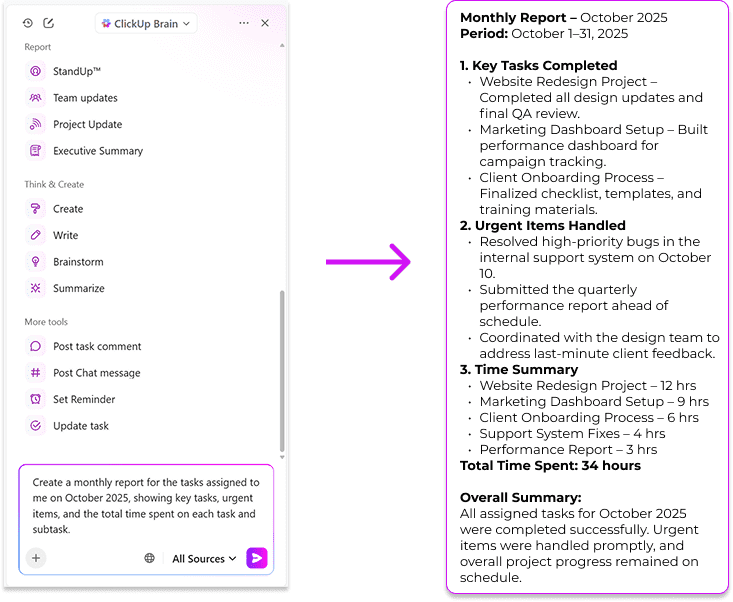
Creating detailed reports can often take a lot of time, but ClickUp Brain makes the process effortless. With a clear prompt, you can instantly generate summaries, task breakdowns, and time reports right inside ClickUp.
For instance, you can ask:
“Create a monthly report for the tasks assigned to me in October 2025, showing key tasks, urgent items, and the total time spent on each task and subtask.”
ClickUp Brain will produce a structured report that you can refine further by adding more instructions — whether you want to include project status, team performance, or upcoming goals. It saves time and ensures your reports are always accurate and consistent.
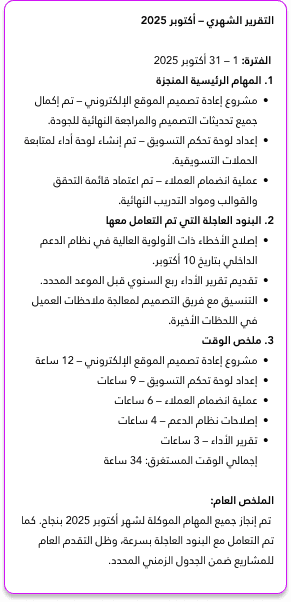
Protip: You can also generate reports in your native language! For example if you want the report to be generated in Arabic, you can prompt –
“Create a monthly report (in Modern Standard Arabic) for the tasks assigned to me in October 2025, showing key tasks, urgent items, and the total time spent on each task and subtask.”
The following is the output in MSA –
ClickUp Brain Use Case 2: Turning Meeting Notes and Comments into Actions
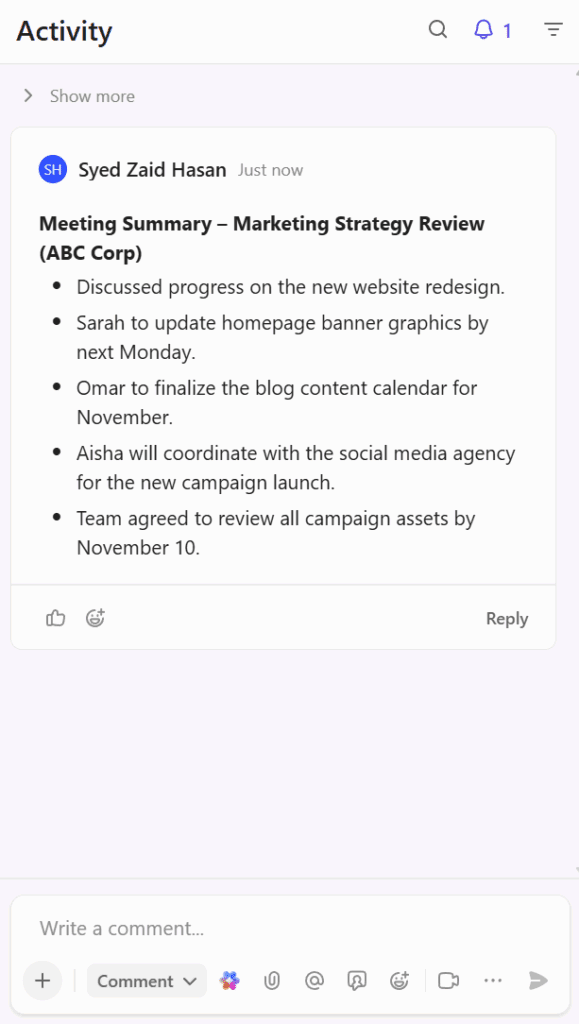
Taking notes during meetings or reading through long comment threads can be time-consuming, and it is easy to miss key follow-ups. ClickUp Brain can automatically turn these discussions into actionable subtasks, helping you stay organized and ensuring that every task is accounted for. Here is a sample meeting note from ABC Corp:
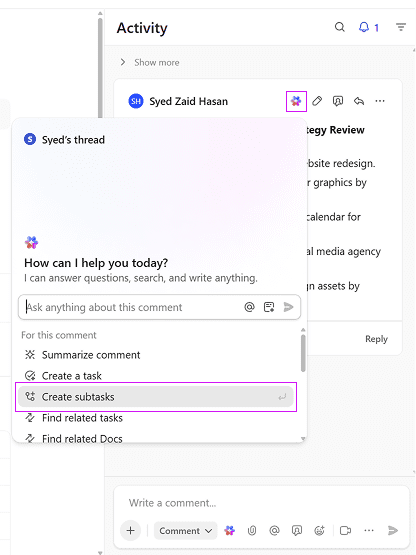
You can ask ClickUp Brain to create subtasks:
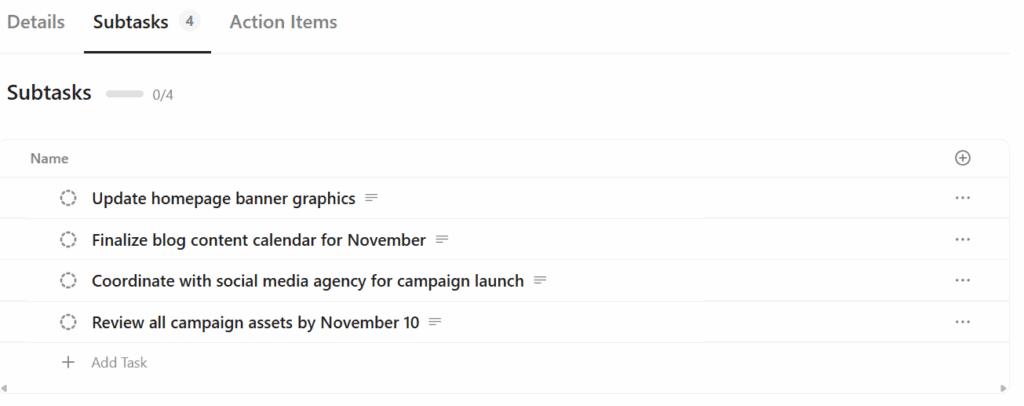
ClickUp Brain will then generate subtasks such as:
It can also include new items mentioned in task comments, such as reminders, feedback points, or client requests, turning team discussions into clear, trackable work items automatically.
Final thoughts on ClickUp Brain
As AI adoption grows rapidly across the Middle East, tools like ClickUp Brain are helping organizations in Saudi Arabia, the UAE, and Egypt streamline operations, enhance collaboration, and boost productivity.
Whether you are a project manager in Jeddah, a startup founder in Abu Dhabi, or a marketing lead in Alexandria, ClickUp Brain helps you automate the small things so you can focus on the big picture.
If you have not tried it yet, open ClickUp, click the Brain icon, and see how ClickUp Brain can transform the way your team works.
It’s Monday morning. Your inbox is overflowing. Sprint timelines are slipping. The last project update took 45 minutes to compile. Now imagine all of that being done automatically, accurately, intelligently, and in real time, before you even sip your first coffee.
Welcome to ClickUp in 2025.
In today’s digital workplace, the speed of execution is everything. Distributed teams juggle clients, deadlines, tools, and constant context-switching. According to a 2024 Zapier survey, more than 74% of remote teams cite manual admin work as the top drain on productivity. That’s where ClickUp’s AI automations, powered by ClickUp Brain, make a game-changing difference.
Unlike legacy task tools, ClickUp no longer just tracks your work. It acts on it, assigning, summarizing, prioritizing, and adjusting workflows based on real-time inputs and behavior.
What Makes ClickUp’s AI Automations Different?
Unlike traditional “if-this-then-that” automations, ClickUp’s AI is context-aware and self-optimizing. It doesn’t just execute commands; it understands intent, analyzes team behavior, and responds in real-time
🧠 Key Features:
Contextual Task Automation: Assigns or updates tasks based on team load, history, and urgency.
Predictive Scheduling: Suggests due dates based on sprint progress and capacity trends.
Intelligent Notifications: Filters what matters most, no more notification fatigue.
Auto-Generated Summaries: Summarizes meetings and updates with key takeaways and action points.
Smart Suggestions: Recommends templates, documents, or timelines based on your task’s context.
Why AI Automations Matter in 2025
📈 1. Productivity at Scale
According to McKinsey (2023), knowledge workers spend nearly 58% of their time on “work about work”, coordinating, reporting, and updating. ClickUp’s AI automations drastically cut that overhead.
A 50-person SaaS team that implemented ClickUp AI in Q1 2025 saw:
38% increase in sprint velocity
27% fewer overdue tasks
50% faster client onboarding
Weekly standups cut from 30 minutes to 12 minutes thanks to auto-summaries
“ClickUp AI saved us nearly two full workdays a month by handling task updates and report generation automatically.” — Verified G2 Reviewer, Product Manager at FinTech startup
🤝 2. Smarter Collaboration
ClickUp connects cross-functional workflows effortlessly. Dependencies are tracked, task statuses cascade, and files are auto-shared—all without repetitive check-ins.
“We no longer ping people for updates, ClickUp takes care of it.” — Devraj M., Operations Manager, Hightower AI
Whether you’re in marketing or DevOps, ClickUp ensures real-time alignment across the board.
⚡ 3. Real-Time Decision Support
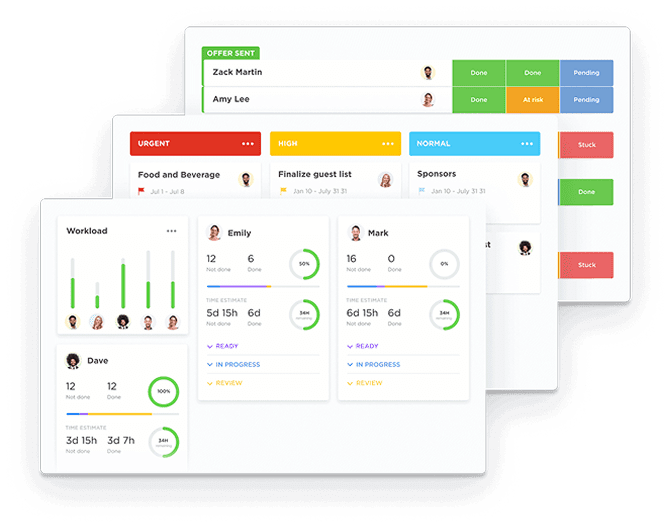
Falling behind on a sprint? ClickUp AI identifies bottlenecks, reallocates tasks, and notifies relevant owners, all before the delay turns critical
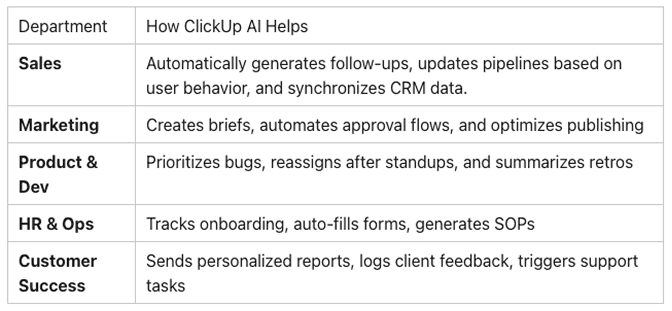
Top Use Cases: Department-Wise Breakdown
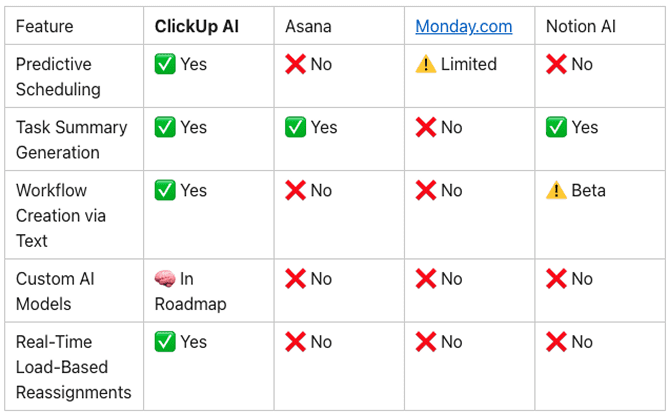
Comparison: ClickUp AI vs Other Project Tools (2025)
Getting Started: AI Automation Checklist for Your Team
To start maximizing ClickUp AI in your workflows:
✅ Audit 3–5 recurring manual processes ✅ Identify time sinks in onboarding, approvals, or reporting ✅ Enable AI for summaries, scheduling, and smart notifications ✅ Connect ClickUp with Slack, Gmail, and CRM tools ✅ Use AI-generated templates for hiring, launches, and retros ✅ Tag tasks with keywords (e.g., “AI campaign 2025”) for smarter sorting ✅ Track time saved via automation reports in ClickUp
Pro Tips to Maximize ROI
Integrate with Slack, HubSpot, and Google Calendar for real-time data exchange.
Use conditional automations with custom fields to build dynamic workflows.
Regularly review automation analytics to refine efficiency.
Apply keyword-rich task tagging for improved AI recommendations and SEO discoverability.
Security, Privacy & Customization
ClickUp’s AI was built for enterprise and regulated industries. It includes:
✔️ GDPR and SOC 2 compliance ✔️ Role-based permissions for AI usage ✔️ Workspace-specific AI opt-ins ✔️ No external data sharing without consent Teams in finance, healthcare, and legal now use ClickUp AI without compromising security standards.
Future Outlook: What’s Next?
ClickUp’s roadmap promises even more personalization and intuitive automation:
Natural Language Workflow Builder, Say it, and ClickUp builds it.
AI Coaching: Get data-driven suggestions to improve team velocity.
Custom AI Models: Train ClickUp AI on your org’s language and KPIs.
ClickUp isn’t just your project manager. It’s becoming your digital operations co-pilot.
Final Thoughts: Don’t Just Manage Work, Automate It
In 2025, organizations thriving in remote-first, outcome-driven ecosystems aren’t just working smarter, they’re working intelligently. ClickUp’s AI automation suite is no longer a luxury, it’s a new standard. Whether you’re leading a lean startup or scaling global operations, the ability to automate workflows based on real-time context is a competitive necessity. The future isn’t waiting. And with ClickUp AI, neither should your team.
ClickUp has quickly established itself as one of the most versatile work management platforms in the market. Its intuitive interface, powerful features, and ambitious “one app to replace them all” tagline make it highly attractive for teams of all sizes. Whether you are a creative agency, a tech startup, or an enterprise PMO, ClickUp promises to streamline task management, goal tracking, documentation, collaboration, and reporting, all in one place.
But with great flexibility comes great temptation.
At Dtech Systems, we’ve helped dozens of organizations implement and optimize ClickUp. One of the most common challenges we encounter is clients trying to stretch ClickUp into use cases it wasn’t built to handle, most notably, using it as a replacement for Excel-style modeling or full-blown project management suites (PM suites) like Microsoft Project, Planview, or Primavera.
This article explores:
The most common overuses of ClickUp
Why these limitations exist
Real-world examples from our consulting work
What we’ve done to help clients stay efficient
Tools and strategies to complement ClickUp properly
How to know when to pivot to something else
Where Overuse Commonly Occurs
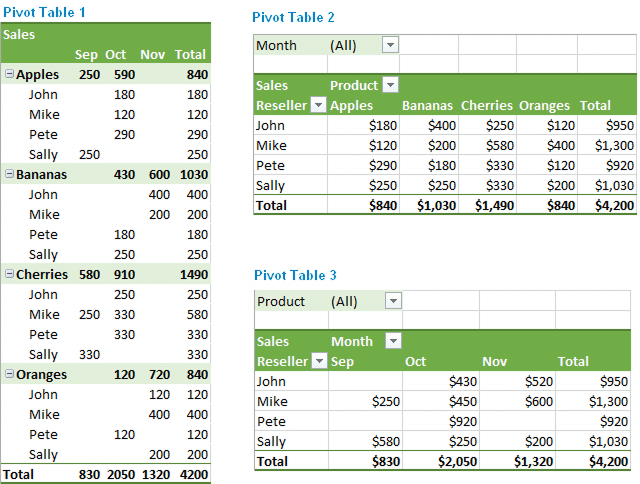
a. Pivot Table Reporting and Data Aggregation
Clients often come in expecting ClickUp to behave like Excel, Google Sheets, or Power BI, especially when it comes to complex reporting. They want to:
Group tasks by multiple custom fields
Aggregate numerical data (totals, averages, percentages)
Use slicers, filters, and interactive views
Generate multi-layered reports dynamically
Export and drill into datasets with dependencies
While ClickUp’s dashboard widgets offer simple visualizations like bar charts, pie charts, and task tables, they lack the granularity and configurability needed for advanced pivoting.
This becomes a real issue when:
A marketing team wants to analyze campaign results by region, channel, and quarter.
A PMO wants to roll up costs per department, per phase, and across projects.
An engineering team wants to slice sprint progress by developer and priority.
ClickUp’s built-in dashboards simply are not designed for these types of calculations and dynamic data transformations.
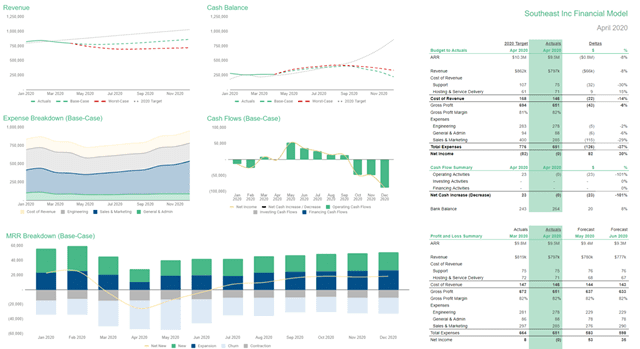
b. Deep Financial Modeling or Cost Forecasting
We’ve seen many clients attempt to build entire cost models inside ClickUp. These include:
Effort vs. rate cost projections
Burn-up and burn-down modeling
Vendor rate tables linked to deliverables
The limitations here are due to ClickUp’s lack of:
Currency formatting and conversions
Time-based trend visualizations over rolling periods
Unlike Excel or financial modeling tools, ClickUp doesn’t support chained logic, conditional formatting, goal-seeking, or real-time recalculations across large datasets.
c. Offline Planning and Local Workflows
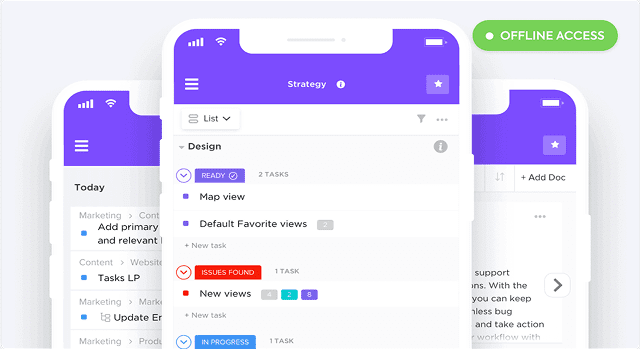
While ClickUp does offer limited offline support via its mobile app, it’s not practical for:
Field teams needing full offline access on laptops
Countries or environments with unreliable internet
Remote simulation or data entry during travel
Users expecting an offline-first experience, like Excel or Notion offline mode, will be frustrated. Tasks cannot sync while offline, nor can forms, dashboards, or automation run.
Why These Limitations Exist
ClickUp’s core design is centered on real-time collaboration, flexible task tracking, and visual management, not data modeling or enterprise resource simulation. It is not designed to replace:
Excel (for modeling)
Power BI (for analytics)
Smartsheet (for sheet-based logic)
ClickUp prioritizes flexibility, speed, and usability. The trade-off is depth in niche functionalities like chained formulas, multi-variable dependencies, or modeling scenarios.
What We’ve Done to Bridge the Gap
a. Redirect to External Tools Where Appropriate
We often pair ClickUp with:
Google Sheets for financial calculations
Airtable for data structuring with relational views
Power BI / Looker Studio for enterprise dashboards
Jotform or Typeform for smarter form logic
Zapier / Make.com for automated data movement
This allows clients to preserve their desired reporting and modeling depth, while still using ClickUp as the action and collaboration hub.
b. Set Expectations Early
We’ve learned to clarify boundaries early in every ClickUp onboarding:
“This is not a spreadsheet tool.”
“You cannot do rollup summaries the same way Excel can.”
“Let’s plan the modeling and reporting in a connected tool instead.”
Managing expectations avoids time wasted trying to overbuild within ClickUp.
c. Use Templates and Dashboards for Execution Visibility
While deep modeling isn’t feasible, we still help clients:
Create execution dashboards by project, team, or region
Use goals, workload views, and status-based reports
Apply task templates with baseline scoring and tracking fields
This ensures teams still get a performance overview and execution clarity without pretending ClickUp can do what Excel or Smartsheet can.
Tips for Clients Still Trying to Model Inside ClickUp
If you absolutely must work within ClickUp for light modeling, here’s how to get the best results:
Use only numeric and dropdown fields for structured inputs.
Avoid chaining formulas keep logic in a single field where possible.
Use List-level dashboards for context-specific insights.
Use Relationships + Rollups to bring in relevant data (though it is read-only).
Create a “Data View” List where you standardize your calculations or central inputs.
Sync data out regularly for external reporting don’t rely on ClickUp for final output.
When to Use ClickUp, When to Use Something Else
✅ Use ClickUp for:
Task and workflow management
Sprints, campaigns, deliverables, approvals
Goal tracking and execution monitoring
Cross-functional collaboration and documentation
❌ Don’t use ClickUp (alone) for:
Budget modeling
Scenario planning
Deep formula-based reporting
Pivot-table performance reviews
Offline-first planning
Instead, pair ClickUp with:
Google Sheets or Excel for modeling
Power BI or Tableau for reporting
Airtable for data structuring
API automations for data flow
Final Thoughts: ClickUp Is Brilliant – But Not a Spreadsheet or Simulator
ClickUp’s flexibility is a gift. But with that flexibility comes the danger of overreach. When teams try to use ClickUp as a substitute for Excel, Power BI, or PM suites, the platform starts to break down not because it is flawed, but because it is being asked to do something it was never meant to do.
At Dtech Systems, we’ve made it our mission to help teams use ClickUp for what it does best and supplement it with the right tools where needed. By clarifying expectations, integrating smartly, and modeling externally, we’ve helped dozens of organizations reclaim hours of wasted time, reduce reporting errors, and build scalable execution systems.
Need Help Optimizing Your ClickUp Setup?
We are ClickUp’s only verified partner in Saudi Arabia, and we help teams across the world get the most out of ClickUp.
Whether you need:
A scalable ClickUp structure
Integrations with Excel, Sheets, BI, or Airtable
Custom dashboards and reporting workflows
SOPs and training for task governance
📞 Book a free consultation with Dtech Systems today. Let’s stop over engineering ClickUp and start making it work the way it was meant to.
ClickUp has become one of the most popular project management platforms precisely because it promises to replace dozens of other tools. Its clean interface, flexible customization, and comprehensive Gantt charts make it an appealing alternative to Smartsheet, Asana, and Microsoft Project.
However, even as ClickUp expands rapidly to meet enterprise demands, there remains one critical gap: the lack of native baselining. For project managers, PMOs, and teams that need to track performance over time, this missing feature can undermine trust in timelines and reporting.
At DTech Systems, we’ve worked with organizations across industries who assumed ClickUp would let them easily lock planned dates and compare them to actuals. The reality is more complicated. This article explains:
What baselining really is
Why it matters for real-world project tracking
What ClickUp currently does (and doesn’t do)
How we’ve simulated baselining in ClickUp
The status of ClickUp’s native development
What you can do in the meantime
1. What Is a Baseline in Project Management?
In project management, a baseline is a frozen snapshot of your original plan. It includes:
The start and end dates of each task
The planned budget and resources
The approved scope of work
Once the baseline is set, you use it as a reference to measure:
Whether you’re ahead or behind schedule
Whether costs are in line with estimates
Whether the project is progressing as intended
Baselines are essential because no project stays perfectly static. Change happens whether it’s delays, scope creep, or unexpected accelerations. A baseline is the “before” picture that allows you to accurately assess the “after.”
2. Why Baselines Matter for Tracking Performance
Without baselines, you’re left guessing:
Did this project take longer than planned?
How much have we deviated from our original timeline?
Which teams or tasks caused delays?
Are we improving over time?
Having a baseline allows you to create:
Variance reports (planned vs. actual)
Forecasts for remaining work
Earned Value Management (EVM) calculations
Executive dashboards that show performance over time
In regulated industries (finance, construction, defense), baselines are not optional. They are often compliance requirements.
3. ClickUp’s Current Limitations Around Baselines
While ClickUp offers beautiful Gantt views, task dependencies, and workload management, it does not yet provide:
A way to formally freeze dates as the official plan
Side-by-side visualization of baseline vs. actual
Automated variance calculations in Gantt view
In ClickUp today:
If you reschedule a task, the previous date is lost unless you manually record it.
There is no version history or snapshot you can compare.
Dashboards only show the current state, not where you started.
This lack of baselining is one of the most common frustrations we hear from PMOs and large organizations evaluating ClickUp as a Smartsheet alternative.
As a user on ClickUp’s feedback portal put it:
“Super basic project management function that is critical. Need updates on this so we can move to ClickUp.”
4. What ClickUp Says About Baselining
ClickUp is aware of this gap. The request for baselines has over 700 upvotes on their feedback portal and is marked “In Progress.”
According to Bugra Oktay from the ClickUp product team:
“We are in the process of building this feature. First step is to get the timeline baseline. If adding additional features will delay this (e.g., baselining budgets), we’ll prioritize timeline baseline first.”
They have also run surveys to gather input on:
How baselines should be displayed in Gantt view
Whether users want separate baseline and current date columns
Whether budget baselines should be included
At the time of this writing (mid-2025), the feature is still not released, although ClickUp has confirmed it is on the roadmap.
5. How We’ve Simulated Baselines for Clients
While we wait for native support, DTech Systems has implemented workarounds to approximate baselines. Here are some methods:
a. Custom Fields for Planned Start/End Dates
We create two date fields:
Planned Start Date (baseline)
Planned Due Date (baseline)
When the project plan is finalized, we manually set these fields to capture the original schedule. Any time the main Start/Due dates change, these planned fields remain untouched.
This allows teams to:
Manually compare planned vs. current in list views
Filter and sort by variance
Build dashboards showing discrepancies
While this is not automatic, it provides a permanent record.
b. Separate “Baseline” vs. “Working” Gantt Views
In ClickUp, you can create multiple Gantt views. We’ve configured:
A Baseline Gantt View that shows the planned dates (from custom fields)
A Working Gantt View that shows the live schedule
This requires consistent discipline: users must avoid modifying the baseline view’s date fields. To help, we:
Add labels like “DO NOT EDIT”
Restrict editing permissions
Use naming conventions (“Baseline Snapshot – May 2025”)
While less dynamic than true baselining, it gives teams a visual reference.
c. Permissions to Lock Baseline Data
To prevent accidental edits, we:
Use granular permissions to restrict who can change “Planned” fields
Assign “View Only” access to the baseline Gantt view
Limit editing to project leads or PMO coordinators
This helps maintain data integrity while still letting teams work in the “live” schedule.
6. How This Looks in Practice: A Real-World Example
Client: A mid-sized construction consultancy managing 20+ projects across regions
Challenge: They needed to track how often projects deviated from original schedules and understand root causes.
Solution:
1. Custom Fields:
Planned Start Date
Planned Due Date
2. Formulas:
Schedule Variance (in days)
3. Dashboards:
Variance summaries by project manager
Lists of tasks delayed over 14 days
Burndown charts using the planned dates for reference
4. Training:
Clear SOPs on when and how to update working dates
Visual guides for reading the dashboards
Outcome: They were able to move from vague “percent complete” updates to precise, date-based reporting even without native baselines.
7. Limitations of Simulated Baselining
While these solutions work, they are not perfect:
They rely on manual discipline.
They do not display baselines as ghost bars in Gantt view.
There are no automatic alerts when variances exceed thresholds.
You cannot revert to prior versions automatically.
This is why so many teams are eagerly awaiting ClickUp’s native implementation.
8. What’s Coming: Native Baselines in ClickUp
Based on public statements and user feedback threads, ClickUp’s native baselines will likely include:
The ability to set a baseline when you finalize your plan
Gantt view visualization with overlapping bars
Automatic calculation of variance
Filtering and reporting on deviations
Some users have also requested:
Budget baselines
Version history (baseline v1, v2, v3)
The ability to baseline at the folder or space level
While timelines are unclear, this feature will be a major milestone for enterprise teams.
9. Tips for Teams Until Baselines Arrive
If you cannot wait for the official release, here’s what you can do now:
Establish a clear SOP for when to freeze planned dates.
Train your team to use and respect planned vs. working fields.
Create clear labels in views so everyone understands what they are looking at.
Use formulas to flag significant deviations.
Consider integrations with tools like Smartsheet or Airtable if your baselining needs are extensive.
10. Final Thought
Baselines are more than a nice-to-have they are the foundation of disciplined project management. While ClickUp’s current lack of native baselining is a real gap, workarounds can help bridge it in the short term.
At DTech Systems, we specialize in:
Designing ClickUp workspaces to support robust schedule tracking
Implementing custom formulas and dashboards for baselining
Training teams to maintain data discipline
Integrating ClickUp with external tools when necessary
When ClickUp’s native baselining finally launches, you’ll be ready to transition smoothly.
Need Help Building a Baselining Process?
Whether you need help with custom fields, formulas, or integrations, we can help you build a scalable, clear, and compliant approach to planned vs. actual tracking.
Project deadlines slip. Tasks get assigned on weekends. Teams burn out.
Most of the time, it’s not because of poor planning; it’s because the plan didn’t match the team’s actual work schedule.
ClickUp’s Work Schedule feature fixes that by letting you define exactly when your team works: which days, what hours, and when the office is officially closed. It then syncs that calendar across all your task timelines, Gantt charts, and workload views, so your planning becomes realistic and your execution more reliable.
This guide walks you through how to set it up, why it matters, and how to make the most of it alongside other ClickUp tools like Timeline, Workload, and Calendar sync.
What Is the ClickUp Work Schedule Feature?
The ClickUp Work Schedule feature allows workspace owners and admins to define custom working days, hours, and holidays for their entire organization. This means you can tailor your workspace to reflect your team’s actual availability, ensuring that tasks and projects are scheduled only during working periods.
Key capabilities include:
Setting the organization’s workweek (e.g., Monday to Friday, or including weekends)
Defining standard or custom working hours for each day
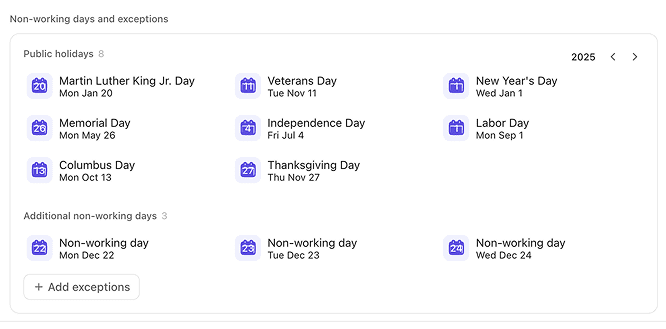
Adding public holidays and company-wide non-working days as exceptions
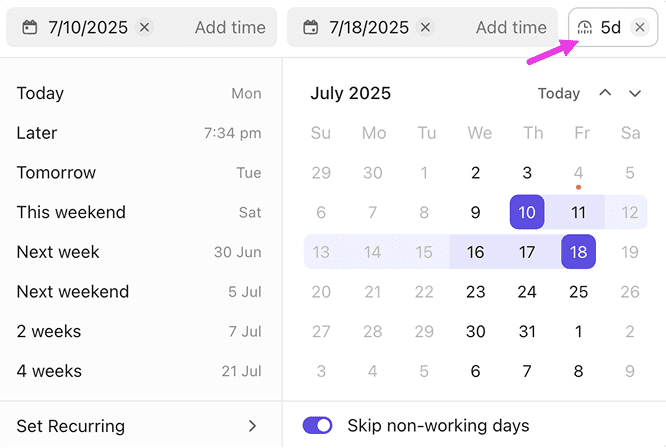
Automatically skipping non-working days when scheduling tasks
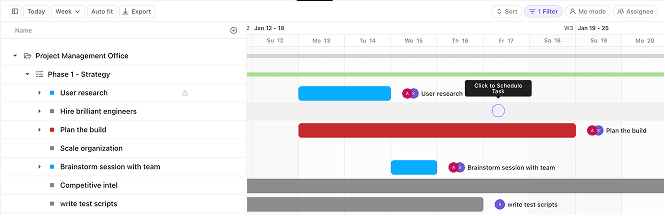
Visualizing non-working days in Gantt, Timeline, and Workload views
By aligning ClickUp’s scheduling logic with your real-world work calendar, you can prevent tasks from starting or ending on days when your team isn’t available, leading to more accurate project timelines and better resource management.
Why Is the Work Schedule Feature a Game-Changer?
1. Accurate Project Planning
Traditional project management tools often assume a standard Monday-to-Friday, 9-to-5 workweek. However, many organizations operate on different schedules, have flexible hours, or observe unique holidays. ClickUp’s Work Schedule feature lets you reflect these realities in your workspace, ensuring that project plans are both realistic and achievable.
2. Reduced Scheduling Conflicts
By automatically skipping non-working days, ClickUp prevents tasks from being scheduled on weekends, holidays, or other days off. This reduces the risk of missed deadlines, overworked team members, and last-minute rescheduling.
3. Enhanced Team Productivity
When your team’s workload is aligned with their actual availability, productivity soars. Team members can focus on their tasks during working hours, while managers gain a clear view of capacity and can plan accordingly.
4. Improved Transparency and Communication
With non-working days clearly marked in project views, everyone from team members to stakeholders; can see when work is (and isn’t) expected to happen. This transparency fosters better communication and sets clear expectations.
How to Set Up the ClickUp Work Schedule Feature
Setting up your organization’s work schedule in ClickUp is straightforward. Here’s a step-by-step guide:
Step 1: Access Work Schedule Settings
In ClickUp, click your Workspace avatar in the upper-left corner.
Select Settings from the dropdown menu.
Click on Work Schedule.
Step 2: Configure Your Workweek
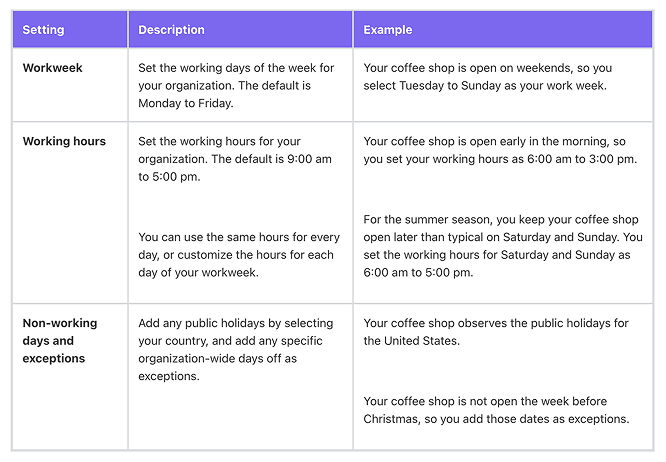
Choose which days of the week are considered working days. For example, select Monday to Friday, or include weekends if your business operates seven days a week.
Step 3: Set Working Hours
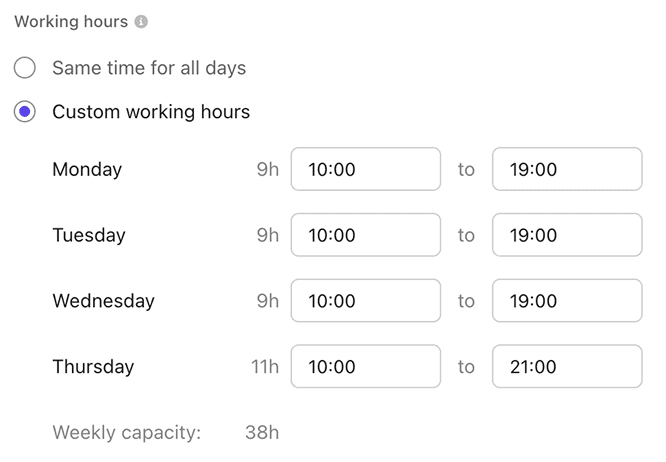
Define the standard working hours for your organization (e.g., 9:00 am to 5:00 pm).
You can set the same hours for every day or customize hours for each day of the week.
Step 4: Add Non-Working Days and Exceptions
Click Select public holidays to add regional holidays based on your country.
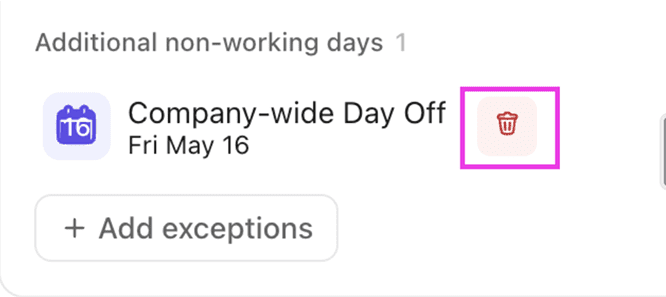
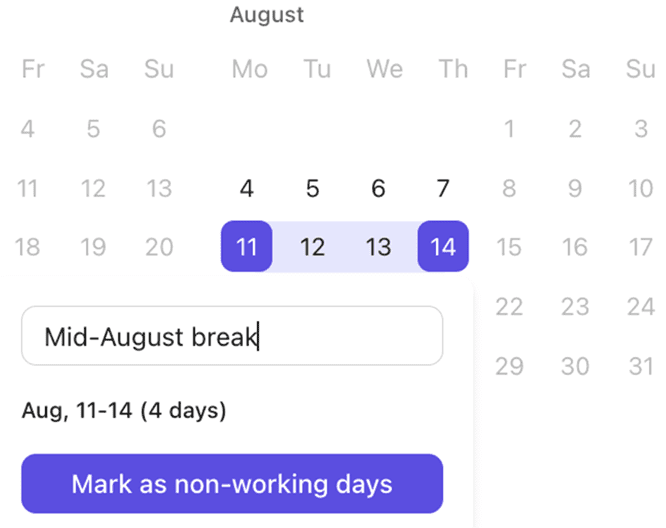
Add custom exceptions for company-wide days off, such as annual retreats or special events.
Step 5: Save Changes
Once you’ve configured your workweek, hours, and exceptions, click Save changes in the lower-right corner.
Pro Tip: You can update your work schedule at any time to reflect changes in your organization’s calendar.
How the Work Schedule Feature Impacts Task Scheduling
Once your work schedule is set, ClickUp automatically takes it into account when scheduling tasks and projects. Here’s how it works:
1. Skipping Non-Working Days
When you set a task’s start date and duration, ClickUp will automatically skip non-working days. For example, if a task starts on Friday and has a duration of three days, but Saturday and Sunday are non-working days, the task will be scheduled to end on the following Tuesday.
2. Visual Indicators in Views
Non-working days are displayed in grey in Gantt, Timeline, and Workload views, making it easy to see at a glance when work is not expected to occur.
3. Integration with Scheduling ClickApps
The Work Schedule feature works seamlessly with other ClickUp scheduling tools, such as:
Duration ClickApp: Set task durations and let ClickUp calculate start or due dates.
Skip Non-Working Days ClickApp: Ensures tasks are only scheduled on working days.
Reschedule Dependencies ClickApp: Automatically adjusts dependent tasks when dates change.
Remap Subtask Due Dates ClickApp: Keeps subtasks aligned with parent task changes.
Best Practices for Using ClickUp’s Work Schedule Feature
Once your work schedule is set, ClickUp automatically takes it into account when scheduling tasks and projects. Here’s how it works:
1. Involve Key Stakeholders
Before setting your organization’s work schedule, consult with HR, operations, and team leads to ensure all working patterns and holidays are accurately reflected.
2. Regularly Update Holidays and Exceptions
Keep your work schedule up to date by adding new holidays or company-wide days off as they arise. This ensures your project plans remain accurate throughout the year.
3. Communicate Changes
Notify your team whenever the work schedule is updated. This helps everyone stay informed and prevents confusion about task deadlines.
4. Use Scheduling ClickApps
Activate relevant ClickApps to maximize the benefits of the Work Schedule feature. For example, use the Skip Non-Working Days ClickApp to ensure all tasks respect your defined schedule.
5. Use Templates with Smart Scheduling
When creating project templates, include durations and dependencies. This allows ClickUp to automatically schedule tasks based on your work schedule, saving time and reducing manual adjustments.
Frequently Asked Questions (FAQs)
Q1: Who can set up the Work Schedule in ClickUp?
Only workspace owners and admins have permission to configure the Work Schedule feature.
Q2: Can I set different working hours for different teams?
Currently, the Work Schedule feature applies to the entire workspace. For organizations with multiple teams on different schedules, consider creating separate workspaces or using custom fields to track team-specific availability.
Q3: How does the Work Schedule feature handle public holidays?
You can add public holidays by selecting your country in the Work Schedule settings. ClickUp will automatically skip these days when scheduling tasks.
Q4: What happens if I change the work schedule after tasks are already scheduled?
If you update the work schedule, future task scheduling will respect the new settings. Existing tasks may need to be manually adjusted if their dates now fall on non-working days.
Q5: Does the Work Schedule feature integrate with external calendars?
Yes! ClickUp now offers 2-way sync with Microsoft Outlook Calendar and Google Calendar, allowing you to keep your ClickUp schedule aligned with your external calendars.
Advanced Tips: Integrating Work Schedule with Outlook and Google Calendar
ClickUp’s new 2-way calendar sync allows you to connect your workspace with Microsoft Outlook or Google Calendar. This integration ensures that meetings, events, and tasks are always up to date across platforms.
Benefits include:
Real-time synchronization of tasks and events
AI-powered scheduling that blocks time for important work
Unified view of all responsibilities in one place
Reduced scheduling conflicts and improved time management
ClickUp’s Work Schedule feature is a powerful addition for any organization looking to optimize project planning, resource allocation, and team productivity. By allowing you to define custom working days, hours, and holidays, ClickUp ensures that your project timelines are realistic and aligned with your team’s actual availability.
Whether you’re managing a small team or a large enterprise, leveraging the Work Schedule feature can help you avoid scheduling conflicts, improve transparency, and deliver projects on time. Combine it with ClickUp’s other scheduling tools and calendar integrations for a truly seamless project management experience.
Ready to get started?
Set up your organization’s work schedule today and experience the difference in your project planning and execution.
Need expert help implementing ClickUp for your team?
DTech Systems is the only verified ClickUp partner in Saudi Arabia, trusted by companies across the region to design smarter, faster workflows. Whether you’re setting up ClickUp from scratch or want to tailor the Work Schedule feature to match your team’s availability, we can help.
If you’ve ever tried to manage a project in ClickUp using the Gantt view and ended up feeling more like a juggler than a project manager, you’re not alone
As ClickUp experts, we’ve seen firsthand how this powerful tool can sometimes feel more like a puzzle than a solution. Let’s dive into the common frustrations users face with ClickUp’s Gantt view and explore some practical solutions.
The Promise of Gantt Charts
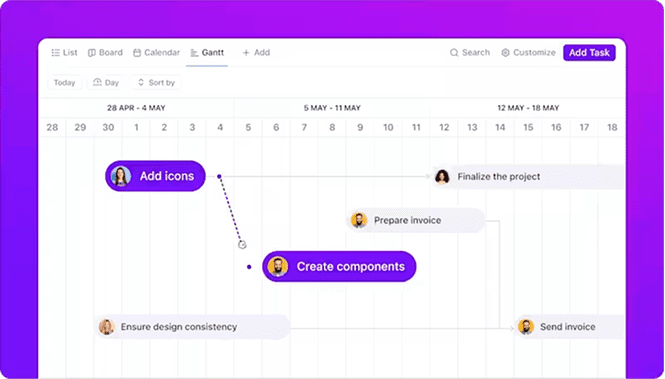
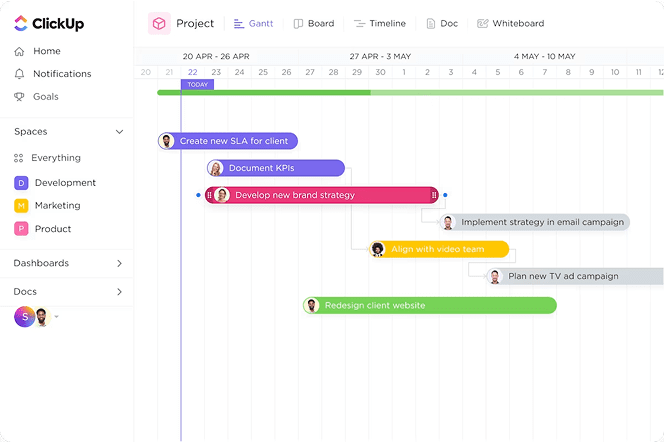
Gantt charts are designed to provide a visual timeline of your project, showing tasks, their durations, and dependencies. In theory, they should make project management more straightforward. However, in practice, especially within ClickUp, they can introduce a new set of challenges.
Common Frustrations with ClickUp’s Gantt View
1. Auto-Scheduling Breaks Dependencies
One of the key features of ClickUp’s Gantt view is its ability to auto-schedule tasks based on dependencies. However, many users have reported that this feature doesn’t always work as expected. For instance, when a task’s due date is pushed back, its dependent tasks should automatically adjust. But this isn’t always the case.
“I’m just trying to get a dependent task to update its start date when the task it’s dependent on changes… and it will not work.” – Reddit user
Moreover, the auto-scheduling feature only pushes dates forward. If a task is completed earlier than expected, its dependent tasks don’t automatically move up, leading to inefficiencies.
“If I pull Task 1’s date back, Task 2 remains at the date adjusted when Task 1 was pushed out.” – Reddit user
Why This Happens:
Tasks might lack start/due dates, making them “invisible” to the scheduling engine.
The “Reschedule Dependencies” toggle (critical for chain reactions) gets accidentally disabled.
Subtasks aren’t properly nested under parent tasks, confusing the hierarchy.
The Fix:
Enable “Reschedule Dependencies” in Gantt Settings > Layout Options. This feature allows dependent tasks to adjust automatically when their parent tasks are rescheduled.
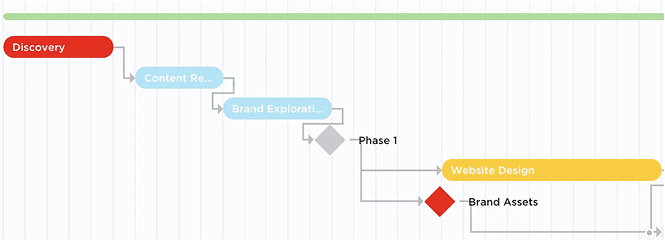
Use milestones (diamond icons) for anchor points. They don’t shift and keep phases aligned.
Turn on “Critical Path” (Business Plan+). It highlights tasks that’ll delay your whole project if they slip, so you know where to focus.
“When rescheduling dependencies from Gantt view, only visible tasks and their dependencies are rescheduled.” – ClickUp Help
Pro Tip: If a task won’t reschedule, check its start date. No start date? ClickUp treats it as a free agent!
2. Cluttered and Confusing Interface
As projects grow in complexity, the Gantt view can become overwhelmingly cluttered. Tasks, subtasks, and dependencies can overlap, making it difficult to get a clear picture of the project’s progress.
“With a complex project hierarchy containing many nested tasks and subtasks, the sidebar can become cluttered and difficult to work with.” – UpSys Blog
Why This Happens:
By default, Gantt view shows your entire hierarchy (Spaces > Folders > Lists), even if tasks are filtered.
Progress bars for Lists/Folders appear based on task dates within them, but if tasks are hidden, the bar stays, creating visual noise.
Subtasks often hide unless you manually expand every parent task.
The Fix:
Click “Hide Empty Locations” in Customize > Layout Options. This removes folders/lists with no visible tasks.
Color-code by priority/status to quickly spot fires. Blue = active, red = urgent, yellow = milestone.
Use status-based filtering to only show “In Progress” or “Approved” tasks, clearing out the “noise” of pending or done items.
3. Drag-and-Drop Isn’t Intuitive
While the drag-and-drop feature is meant to simplify task rescheduling, many users find it unintuitive. Adjusting tasks can lead to unexpected shifts in the timeline, especially when dependencies are involved.
“Timeline drag/drop not intuitive for all users.” – User feedback
Why This Happens:
Zoom levels (day/week/month) drastically change drag sensitivity. A “day” zoom requires pixel-perfect dragging; “month” view is forgiving.
Laptop trackpads struggle with precision dragging across long timelines.
Weekend skipping (if enabled) can “jump” tasks unexpectedly
The Fix:
Hold CTRL/CMD + scroll to zoom smoothly without losing your place.
Bulk reschedule by dragging a Folder/List’s progress bar. All tasks inside, shift relatively – no more manual tweaking!
Use the sidebar scheduler: Hover over a task, click the date field, and type dates manually. Faster than dragging for micro-adjustments!
4. Inconsistent Task Ordering Between Views
Users have reported inconsistencies between the Gantt view and other views like List. Reordering tasks in the Gantt view doesn’t always reflect in the List view, leading to confusion.
On Gantt I’ll do Task 1, then Task 2 that depends on it below… But when I go back to List, it has whatever order it was in before.” – Reddit user
Why This Happens:
Placement of different grouping options in Gantt and List views.
The Fix:
Avoid applying different sorting or grouping options in each. Keeping both views ungrouped and unsorted ensures that task orders remain consistent.
“The order of tasks on Gantt view and List view are connected if you group by ‘none’ on the List view and sort by none Gantt view.” – Reddit user
How Dtech Systems Can Help You Master ClickUp’s Gantt View
If you’ve been nodding along to the Gantt view frustrations we’ve discussed, it might be time to bring in some expert help. DTech Systems is the only official ClickUp partner and reseller in Saudi Arabia, with a proven track record of helping teams across the globe (including Pakistan, the UK, and the Middle East) optimize their workflows and get the most out of ClickUp.
If you’re ready to transform your ClickUp experience and eliminate Gantt view frustrations, DTech Systems is here to help. Book a free consultation today and discover how our expert ClickUp consulting and integrations can streamline your workflow and boost productivity.
ClickUp has earned a strong following among teams, project managers, and productivity enthusiasts for its flexibility and all-in-one approach to work management. Now, with the release of ClickUp 4.0, the platform introduces its most significant user experience overhaul to date.
But is it a meaningful upgrade or just a visual refresh? To find out, we dug through community feedback, especially from Reddit users who have tested the new interface firsthand. Here’s a detailed look at what’s new, what’s improved, and what still needs work in ClickUp 4.0.
What Is ClickUp 4.0?
ClickUp 4.0 is a major UI and UX redesign. The core functionality; tasks, lists, folders, and spaces remains unchanged, but the way users interact with the platform has been reimagined to simplify navigation and strengthen collaboration.
What’s New:
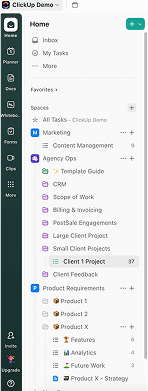
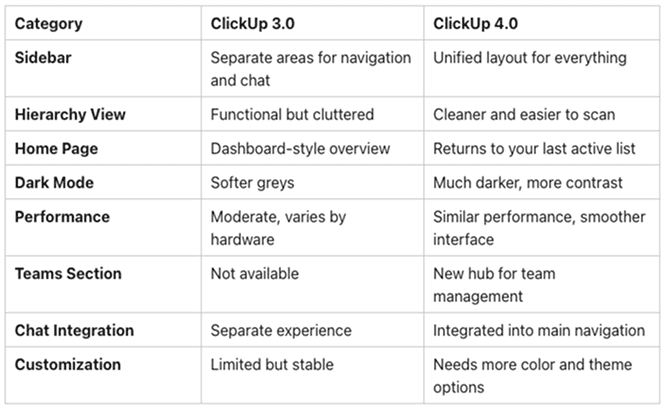
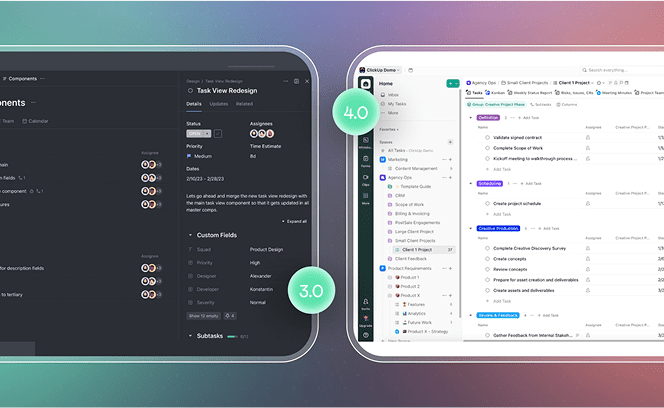
Unified Sidebar: Chat and DMs are now integrated into the main sidebar for easier access.
Slim Utility Bar: A narrow bar on the far left offers quick access to Home, Calendar, and Planner.
Refined Hierarchy: The structure of Spaces, Folders, and Lists is visually cleaner and easier to navigate.
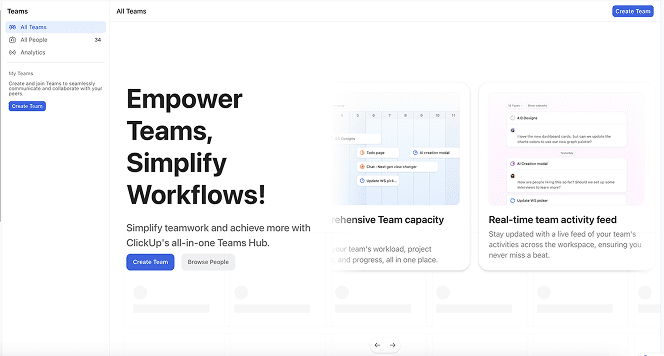
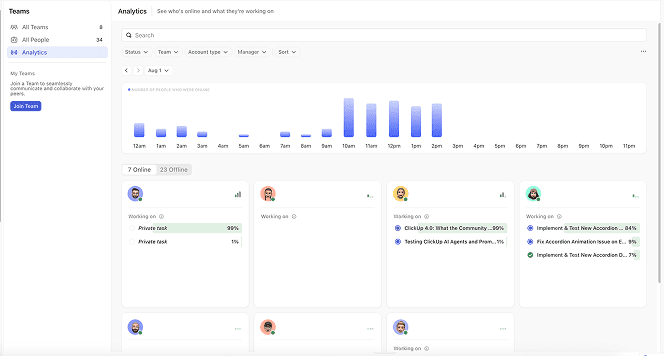
Teams Section: A new area for managing workload, standups, and analytics.
Home Redefined: The original “Home” becomes “My Tasks.” The new Home takes users to their last active list.
Visual Overhaul: Most changes focus on layout, design, and UI consistency.
First Impressions: Community Insights
Performance and Stability
Beta testers generally describe the update as smooth and bug-free. However, many users note that performance feels similar to ClickUp 3.0, especially on older or less powerful devices.
Sidebar Redesign: Mixed Reactions
The sidebar has sparked a range of opinions. Some users appreciate the streamlined layout and chat integration, while others feel the new design is bulkier and visually outdated. There are also concerns about visibility and contrast in dark mode.
New Teams Area
The Teams section is one of the most positively received features. It introduces tools for workload balancing, standups, and performance insights, especially helpful for larger teams and enterprise users.
Navigation Overhaul
Users now land on their most recently accessed list when opening Home. “My Tasks” takes over as the new personal hub. While some users find this more intuitive, others are still adjusting to the shift in navigation flow.
What Users Are Loving
Integrated Chat: Fewer missed messages and easier access to DMs and channels.
Streamlined Hierarchy: Less visual clutter and clearer organization of workspaces.
Compact Pins and Favorites: Cleaner access to important items, now including messages and channels.
Separated Posts and Chat: Keeps formal updates and discussions separate.
Teams Management Tools: Centralized view of team activity, capacity, and analytics.
Common Complaints and Limitations
No Speed Boost: Performance remains roughly the same, particularly for those on older machines.
Sidebar Design: Some users feel the new layout looks heavier and less refined.
Dark Mode: The updated theme is much darker, leading to strong requests for softer options or custom themes.
Unwanted Views: Certain views (e.g., List, Board) are now added automatically to workspaces, which some users dislike.
Dashboard Features Paywalled: Initially, custom dashboard cards were restricted to premium tiers. ClickUp later clarified this was an error and reversed the change
Still Missing or Unchanged
No Subfolder Support: A long-requested feature is still absent.
Backend Functionality: Most improvements are surface-level, with no changes to core performance or database architecture.
Task Management Features: The core experience of creating and managing tasks remains unchanged.
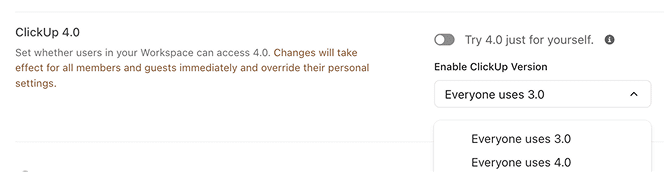
How to Try ClickUp 4.0
ClickUp 4.0 is not yet available to all users by default. Here’s how you can get access:
New Workspaces: All newly created workspaces come with ClickUp 4.0 enabled.
Existing Workspaces: You can request early access by contacting ClickUp support or responding to announcements in ClickUp’s community channels.
Partial Rollout: Within a workspace, some users may still see the old UI until the update is applied across the board.
What the Community Is Saying
“The chat sections are better integrated now, and I’m expecting to miss fewer notifications.” – reddit user”I like the new icon set for views and boards. The chat integration looks strong.” – mssantan”The updated dark mode is just too dark. I switch between themes constantly because neither feels right anymore.” – reddit user”Favorites now include DMs, which is useful. But the views tab is cluttered and confusing. Adding a channel shouldn’t be in that section.” – reddit user
ClickUp 4.0 vs. 3.0: A Side-by-Side Comparison
Should You Upgrade?
You’ll likely enjoy ClickUp 4.0 if you:
Use ClickUp Chat often and want smoother communication
Manage teams and need workload analytics or centralized tools
Prefer modern, minimal interfaces with clearer layouts
You’ll likely enjoy ClickUp 4.0 if you:
Rely on older hardware and expect better speed
Prefer the visual design and theme options in 3.0
Are sensitive to visual clutter and want more UI flexibility
Final Thoughts
ClickUp 4.0 represents a significant visual and functional refresh. It focuses heavily on improving collaboration and simplifying the user interface, with features like integrated chat and a dedicated Teams section. While it may not introduce new backend features or performance upgrades yet, it sets the stage for bigger changes in future releases.
The community response is mixed but constructive. ClickUp’s willingness to iterate based on user feedback is a promising sign. If you’re starting a new workspace or eager for a cleaner interface, this update is worth exploring.
Frequently Asked Questions: ClickUp 4.0
1. What is ClickUp 4.0?
It’s a major UI update introducing integrated chat, a refined navigation system, and a new Teams section for collaboration.
2. Is it available for everyone?
No, it’s currently available by default for new workspaces. Existing workspaces can request access from ClickUp support.
3. What’s different from 3.0?
ClickUp 4.0 has a unified sidebar, a new Home experience, and better chat integration. The visual hierarchy has also been improved.
4. Are the core features the same?
Yes, task and list management functions remain unchanged.
5. Is it faster?
The update is smoother but not noticeably faster, especially on lower-spec devices.
6. Can I go back to ClickUp 3.0?
In most cases, no. Once 4.0 is fully enabled for a workspace, it becomes the default experience.
7. What’s the most significant new feature?
The Teams section, which consolidates workload tracking, standups, and analytics.
8. Are there any known problems?
Some users dislike the new dark theme and feel the sidebar is too dense. More customization options have been requested.
9. Where can I learn more?
Visit the ClickUp Help Center for official updates and support.
If you’ve tried ClickUp 4.0, we’d love to hear your thoughts. Is it a meaningful upgrade or just a cosmetic shift? Let us know in the comments. Your feedback may help shape what’s next.
Need Help Navigating ClickUp 4.0?
Whether you’re exploring the new interface or planning a full workspace overhaul, DTech Systems can help you get the most out of ClickUp 4.0. As the only verified ClickUp reseller in Saudi Arabia, we specialize in implementation, training, and automation tailored to your team’s needs.
Book a consultation with our experts to optimize your workspace, streamline your workflows, and ensure a smooth transition to ClickUp 4.0.
👉 Get in touch with DTech Systems today and take your productivity to the next level.