Finding AI use cases that deliver ROI starts with a different question than most companies ask. Most companies don’t have an AI problem. They have a workflow problem that AI is being asked to paper over.
The pattern is familiar by now: a team pilots a chatbot, a summarization tool, an AI writing assistant. Adoption is high for two weeks. Then it quietly stops getting used, because it was bolted onto a process that was broken to begin with. Six months later, leadership is asking why the AI budget didn’t move any real numbers.
The tools aren’t the problem. The targeting is. Here’s how to find AI use cases that deliver ROI — and why the search has to start in your workflows, not in a vendor demo.
The data backs this up: McKinsey’s 2025 State of AI research found that while most organizations now use AI regularly, they haven’t embedded it deeply enough into their workflows to see enterprise-level financial impact. Adoption isn’t the bottleneck. Targeting the right AI use cases is.
Start with the bottleneck, not the buzzword
The teams that get real ROI from AI don’t start by asking “where can we use AI?” They start by asking “where does work actually get stuck?”
That’s a different question, and it points to different answers:
- Where does a task sit waiting on a person for days before anyone notices?
- Where does the same manual step get repeated across dozens of tickets, deals, or campaigns a week?
- Where does someone spend an hour finding information that should take five minutes?
- Where does a handoff between teams routinely lose context?
Every one of those is a bottleneck with a paper trail — and that paper trail is usually sitting inside your project management data, not in a stakeholder’s gut feeling.
Use your existing workflow data, not assumptions
TThis is where most AI strategy work goes wrong: it’s based on assumptions about where time is lost, not evidence. Every credible list of AI use cases that deliver ROI starts the same way — with data, not a brainstorm.
If your work already lives in ClickUp, you don’t have to guess. You have the evidence:
If your work already lives in ClickUp, you don’t have to guess. You have the evidence:
→ Time in status shows exactly which stage of a workflow tasks get stuck in, and for how long.
→ Custom field and tag data shows which categories of work recur often enough to be worth automating.
→ Task and comment volume shows where coordination overhead — not the work itself — is eating the most hours.
→ Dashboards turn that into a picture leadership can actually act on, instead of a hunch someone raises in a meeting.
An AI use case backed by this kind of data has a baseline built in. You know the current cost in hours or delay before you touch anything, which means you can measure the improvement afterward instead of asserting it.
For more on turning workflow data into a starting point instead of a guess, see our post on why your company doesn’t need more AI tools, it needs better workflows.
How to score AI use cases that deliver ROI
Once you have a shortlist of bottlenecks, not every one deserves an AI solution. Score candidates on two axes:
Frequency — how often does this happen? A once-a-quarter report doesn’t justify automation the way a daily triage task does.
Friction — how much judgment does this actually require? High-frequency, low-judgment work (sorting, tagging, drafting first passes, summarizing) is where AI earns its keep fastest. High-judgment work (a client negotiation, a strategic call) is usually a worse first bet, even if it looks more impressive in a pitch deck.
The use cases that clear both bars — high frequency, low judgment — are where teams see ROI in weeks, not quarters.
Build the use case inside the workflow, not next to it
This is the step that determines whether a use case survives past its pilot. AI that lives in a separate tab, outside the system where the work already happens, adds a step instead of removing one. People stop using it the moment the novelty wears off.
AI that’s embedded directly into the workflow — inside the task, the doc, the automation that’s already running — doesn’t ask anyone to change their behavior. It just makes the existing behavior faster.
That’s the practical case for tools like ClickUp Brain and ClickUp’s autonomous Autopilot Agents: they don’t sit outside the work, they sit inside it. An agent that triages incoming requests, drafts a first-pass response, or moves a task forward based on a status change is acting inside the same system your team already lives in — no new tool to adopt, no new habit to build.
Measure it like you’d measure any other investment
ROI isn’t a feeling of “this seems faster.” It’s a before-and-after number, tied to something the business already cares about — the same discipline that separates AI use cases that deliver ROI from ones that just look impressive in a slide:
→ Hours reclaimed per week, multiplied by loaded cost
→ Cycle time from request to resolution, before and after
→ Error or rework rate on the automated step
→ Throughput — how much more volume the same team can now handle
If you pulled your baseline from workflow data in the first place, this step is just running the same report again three months later. That’s the whole advantage of starting with evidence instead of enthusiasm.
The short version
AI use cases that deliver ROI aren’t found by chasing the newest model release. They’re found by looking at where your team’s time is actually going, picking the bottlenecks that are frequent and low-judgment, and embedding the fix into the workflow that already exists — instead of adding a new one.
Start with the data you already have. The AI use case that delivers the most ROI in your organization is probably already visible in your workflow — it’s just been mistaken for “how things have always worked.” That’s the whole game: finding AI use cases that deliver ROI is a data exercise, not a creativity exercise.”
Quick answer: ClickUp for the Operations Team is a single work platform that combines task management, documentation, chat, automations, and dashboards, so operations leaders can replace 5-10 disconnected tools with one connected system. It is used by more than 3 million teams, is rated 4.6/5 across 25,000+ reviews, and supports 1,000+ integrations and 100+ automation actions — making it one of the most complete operations management platforms available today.
What Is ClickUp for the Operations Team, Exactly?
At its core, ClickUp for the Operations Team is a work management platform designed to give operations groups total visibility into priorities, risk, and capacity — without switching between a project tool, a chat app, a spreadsheet, and a documentation wiki. Instead of scattered processes and delayed reporting, teams get automated requests, real-time collaboration, and one source of truth for every workflow.
The shift is simple but significant: the old way of running operations means unclear ownership, manual approvals, and compliance risk hiding in someone’s inbox. ClickUp for the Operations Team replaces that with processes, docs, and chat living in one place, with automation handling the busywork in between.
Core Features That Make ClickUp for the Operations Team Work
Resource Planning and Workload Visibility
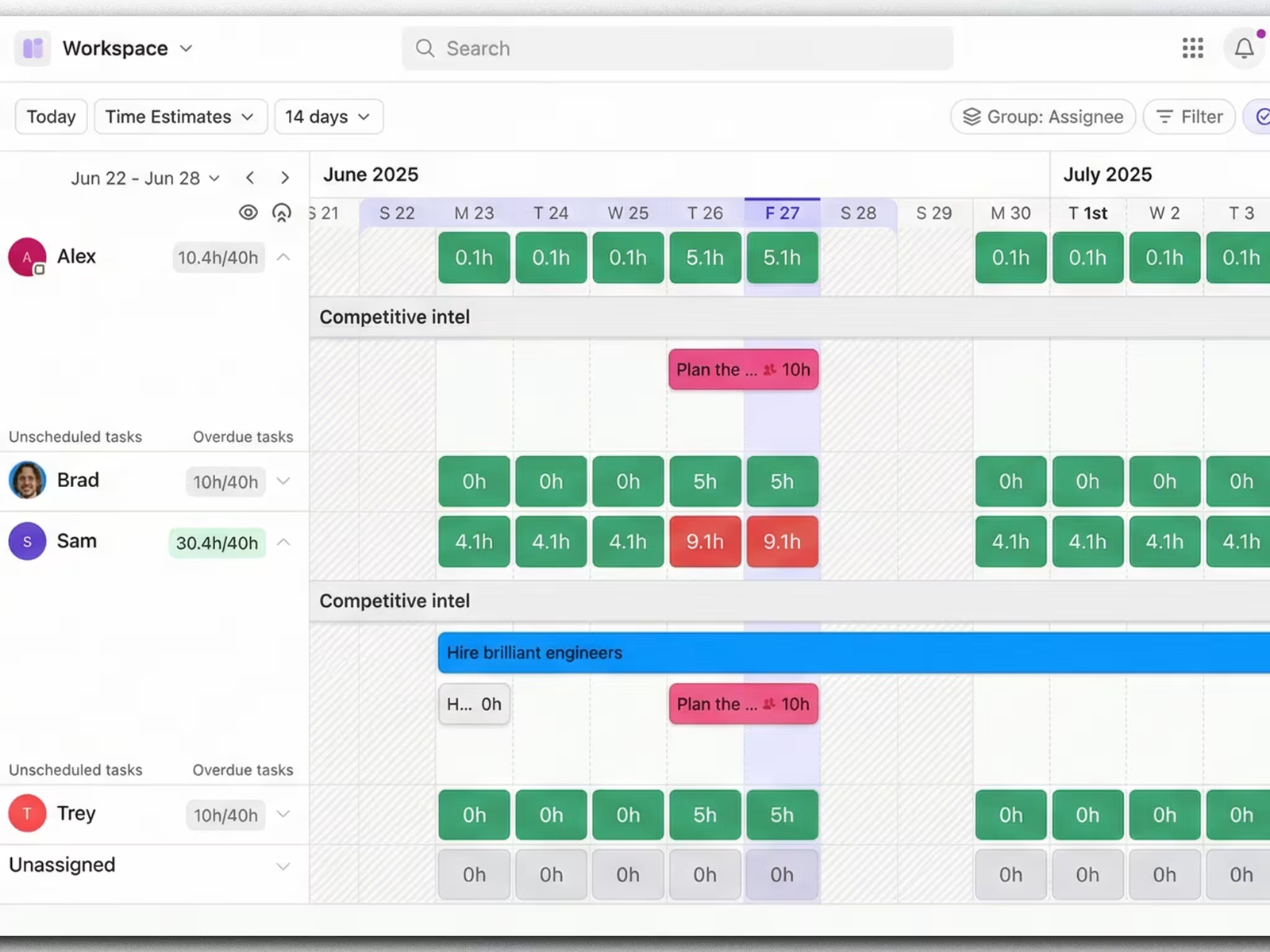
Operations leaders need to know who’s overloaded before it becomes a bottleneck. The Workload view gives instant visibility into team capacity so work can be redistributed before burnout sets in, while Gantt charts make task dependencies and handoffs visible with drag-and-drop scheduling. Interactive, spreadsheet-style Custom Fields also let teams track budgets and vendor details without leaving the platform.
Workflow Automation Without the Manual Grind
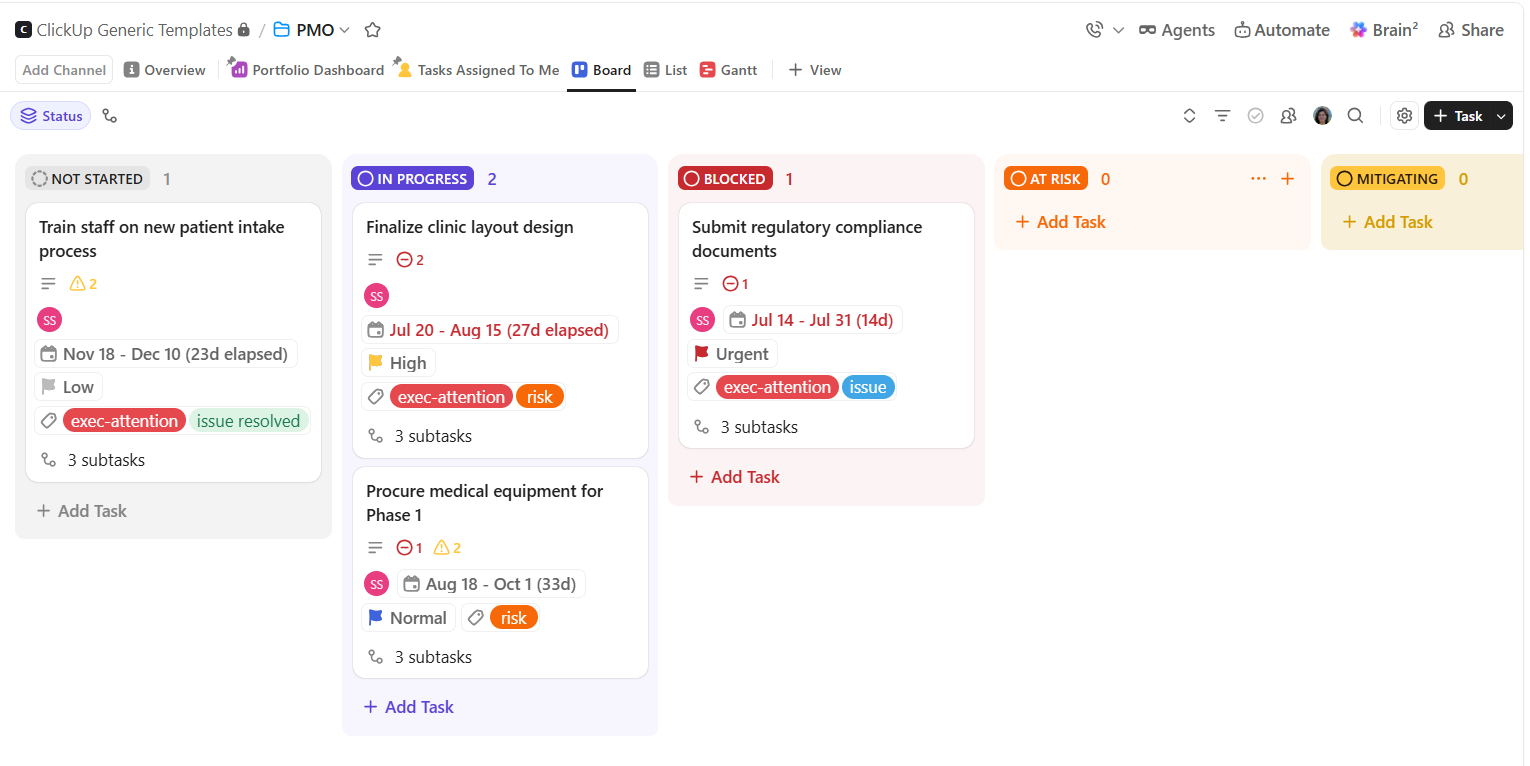
This is where ClickUp for the Operations Team earns its “all-in-one” label. With 100+ automation actions, teams can auto-assign tasks, update statuses, and standardize intake through forms that route approvals instantly. Chat turns conversations into trackable tasks in real time, and Docs centralize SOPs and policies so compliance doesn’t depend on institutional memory.
AI Built Into Every Process
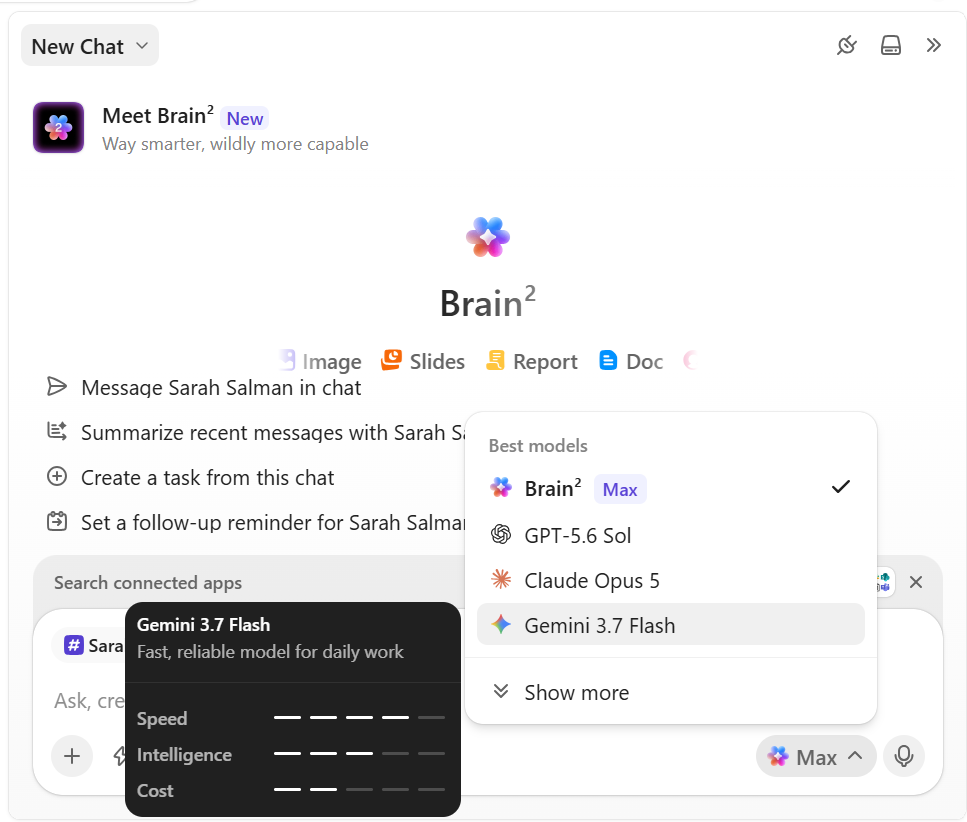
ClickUp’s AI layer automates task creation, predicts risk, and turns meeting conversations into action items and summaries automatically. Connected search finds SOPs, reports, and files across ClickUp and any integrated app—so operations teams stop losing hours hunting for the “right” document version.
Together, these three pillars — planning, automation, and AI — are why ClickUp for the Operations Team consistently comes up in comparisons of the best project and operations management tools.
Check our blog on AI and operations.
Real Operations Teams, Real Results with ClickUp for the Operations Team
The impact shows up in how teams actually talk about it. One operations leader described automating nearly half of their manual tasks after switching, freeing up time for higher-value work. Another highlighted how replacing multiple point tools with one platform cut the constant app-switching that used to eat into the workday. A third noted that reusable templates reduced errors and saved real time during recurring processes like workshop prep.
Across industries—the pattern is consistent: operations teams that consolidate onto one platform report faster execution and fewer dropped handoffs than teams juggling five or six disconnected apps.
How Dtech Systems Makes ClickUp for the Operations Team Actually Stick
Here’s the part most vendors skip: buying ClickUp is easy, but making it match how your operations team actually works — and getting the whole team to actually use it — is a different problem. That’s where Dtech Systems comes in.
Dtech Systems is a ClickUp Diamond Partner based in Riyadh and London, working with teams across the GCC, wider EMEA, and beyond. Rather than handing over a license and a blank workspace, Dtech builds ClickUp for the Operations Team around your real processes and stays involved until it’s a habit, not just a login.
Dtech’s Four-Stage Delivery Process
- Business Consulting – Dtech starts by mapping how your operations team actually runs today: the pain points, the gaps, and where handoffs break down.
- Implementation – Hierarchy, automations, integrations, dashboards, and migration are built around that diagnosis — not a generic template.
- AI in Context – AI is layered in only where it solves a real problem, using your actual business context instead of guesswork.
- Adoption – Live coaching on real work continues until ClickUp becomes second nature for the team, with one free adoption hour included per license.
Buying ClickUp Direct vs. Partnering with Dtech
Going direct means you configure everything yourself, work from generic templates that ignore your workflow, and rely on support tickets from people who don’t know your business — often billed in USD with no local time zone support. Partnering with Dtech instead means senior consultants rebuild your workflows live on your own work, a named team stays with your account, and billing is local to the KSA and UK, delivered in English or Arabic.
FAQs
Everything you need to know about ClickUp Data Views.
Is ClickUp for the Operations Team suitable for small teams, or only large enterprises?
Both. ClickUp is free to start with no credit card required, which is why it’s used by everyone from ten-person startups to enterprise operations functions with thousands of seats. Dtech Systems, for example, structures its engagements the same way — from “Startups & Growing Businesses” needing one clean workspace, up to enterprise rollouts with governance and change management built in.
How long does it typically take an operations team to see ROI from ClickUp?
Most teams see measurable time savings within the first automated workflow — often the approval or intake process, since that’s usually the biggest source of delay. Teams that pair the rollout with structured adoption support (rather than a self-serve setup) tend to reach habitual daily use faster, since the biggest failure point for any new operations software isn’t the tool — it’s whether people actually keep using it after week two.
What’s the biggest mistake operations teams make when adopting ClickUp?
Turning on every feature at once. Operations teams get the best results by starting with a single high-friction workflow — one form, one automation, one dashboard — proving it works, and expanding from there. This mirrors why Dtech Systems runs a scoped, single-workflow session before any larger implementation: it isolates what’s broken instead of trying to fix everything simultaneously.
.faq-section {
width: 100%;
padding: 60px 20px;
box-sizing: border-box;
background: #ffffff;
}
.faq-container {
width: 100%;
max-width: 850px;
margin: 0 auto;
}
.faq-header {
text-align: center;
margin-bottom: 35px;
}
.faq-header h2 {
margin: 0 0 10px;
font-size: clamp(28px, 5vw, 42px);
line-height: 1.2;
color: #111827;
font-weight: 700;
}
.faq-header p {
margin: 0;
font-size: 16px;
line-height: 1.6;
color: #6b7280;
}
.faq-list {
display: flex;
flex-direction: column;
gap: 14px;
}
.faq-item {
background: #f8f9fc;
border: 1px solid #e5e7eb;
border-radius: 12px;
overflow: hidden;
transition: border-color 0.2s ease, box-shadow 0.2s ease;
}
.faq-item[open] {
border-color: #d1d5db;
box-shadow: 0 4px 15px rgba(0, 0, 0, 0.05);
}
.faq-item summary {
position: relative;
cursor: pointer;
list-style: none;
padding: 20px 55px 20px 22px;
font-size: 17px;
font-weight: 600;
line-height: 1.5;
color: #111827;
}
.faq-item summary::-webkit-details-marker {
display: none;
}
.faq-item summary::after {
content: “+”;
position: absolute;
right: 22px;
top: 50%;
transform: translateY(-50%);
font-size: 24px;
font-weight: 400;
color: #6b7280;
transition: transform 0.2s ease;
}
.faq-item[open] summary::after {
content: “−”;
}
.faq-answer {
padding: 0 22px 22px;
}
.faq-answer p {
margin: 0;
color: #4b5563;
font-size: 16px;
line-height: 1.7;
}
@media (max-width: 600px) {
.faq-section {
padding: 40px 15px;
}
.faq-header {
margin-bottom: 25px;
}
.faq-header h2 {
font-size: 28px;
}
.faq-header p {
font-size: 15px;
}
.faq-list {
gap: 10px;
}
.faq-item {
border-radius: 10px;
}
.faq-item summary {
padding: 17px 48px 17px 16px;
font-size: 15px;
}
.faq-item summary::after {
right: 16px;
font-size: 22px;
}
.faq-answer {
padding: 0 16px 18px;
}
.faq-answer p {
font-size: 15px;
line-height: 1.65;
}
}