ClickUp Automations

ClickUp Automations: How to Eliminate Repetitive Tasks and Simplify Team Workflows
If you do the same click every day, ClickUp can probably do it for you. Here’s how ClickUp Automations take the boring, repetitive work off your team’s plate.

The Work About Work
Every start of the week, it’s the same routine. A new request comes in. You create the task, assign it, add a due date, share it with the right people, and post a comment so everyone knows it’s there.
None of it is hard. It’s just a lot of small clicks. Approvals get chased on WhatsApp, reminders live in someone’s head, and when that person is busy or on leave, one of those clicks gets missed and the work quietly stalls.
That’s exactly the kind of work ClickUp Automations are built to handle.
What Are ClickUp Automations?
ClickUp Automations are rules that do routine work for you. You set up a rule once, and ClickUp runs it every time the same thing happens.
Every automation follows a simple pattern:
- Trigger: what starts it. For example, a task’s status changes to “Review”.
- Condition (optional): a filter, like “only if the priority is Urgent”.
- Action: what ClickUp does. For example, assign the task to the reviewer.
It’s no-code workflow automation, so you don’t need to be technical. You can start from ClickUp’s ready-made automation templates, build your own, or simply describe what you want in plain English and let ClickUp Brain, ClickUp’s built-in AI, set it up for you.
| Done manually | With ClickUp Automations | |
| Assigning work | Someone remembers to do it | Happens the moment the task is created or moved |
| Due dates | Added when someone gets round to it | Set automatically on every new task |
| Handoffs | A ping on chat or WhatsApp | The next person is assigned and tagged |
| Consistency | Depends on who’s doing it | Same steps, every time |
| When someone’s on leave | Work waits | Work keeps moving |
Everyday ClickUp Automations Any Team Can Use
You don’t need a complex setup to save time. These simple ones make a difference straight away:
- Hand off reviews automatically. When a task moves to “Review”, assign it to the reviewer.
- Never miss a deadline. When a new task is created, set its due date a few days out.
- Start every project the same way. When a task moves into a List, apply a template with all the subtasks and checklists.
- Keep people in the loop. When something is approved, post a comment that tags the next person.
- Catch missing details early. When work starts but a key field is empty, post a comment asking for it.

A Real Example: Sharing New Projects Automatically
Here’s one we built and use ourselves.
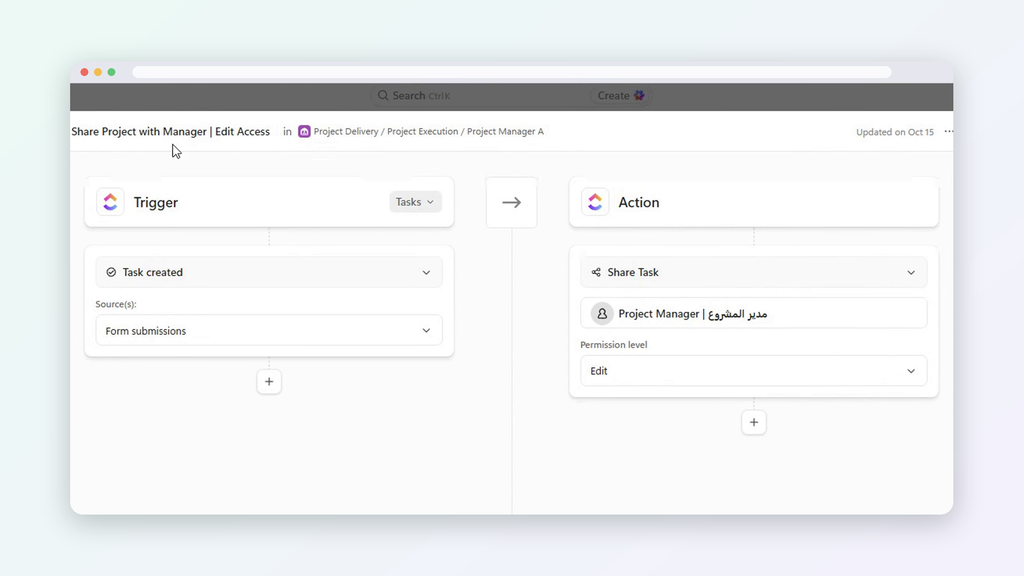
New projects come in through a ClickUp Form. Each project has a Project Manager, a Project Owner and Supporting Resources. Normally, someone has to open every new project and share it with each of those people, one by one.
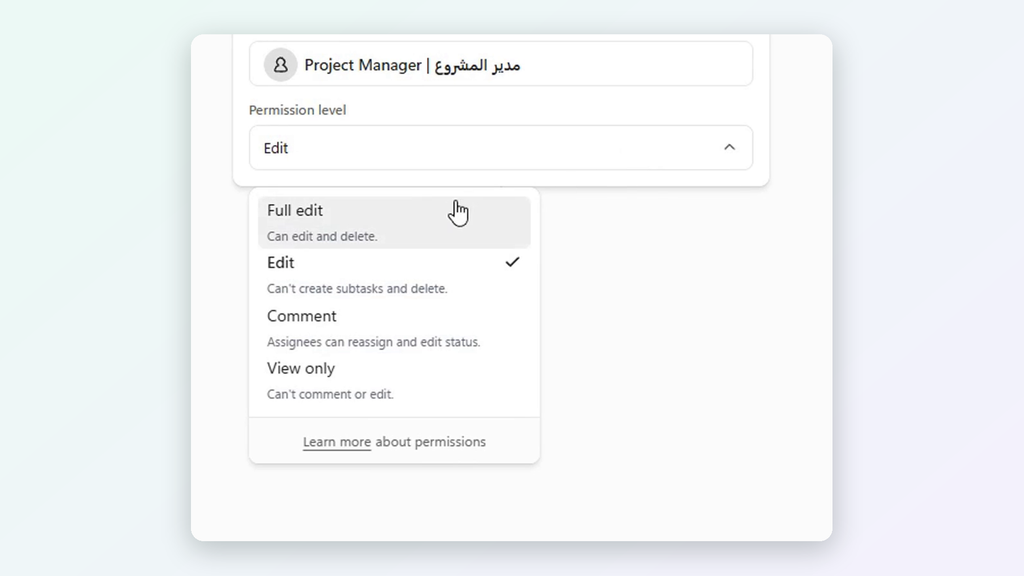
So we let an automation do it. When a new task is created from the form, ClickUp shares it with the people named in those fields, at the right access level:
- Project Owner: Edit access
- Project Manager: Edit access
- Supporting Resources: View only
The moment the form is submitted, the right people get a notification and find the project under “Shared with me”. They only see that project, not the rest of the workspace. No one shares anything by hand.

Automation Chains: When One Automation Sets Off the Next
This is where things get fun. The action from one automation can trigger another one.
For example: a form submission creates a task, which triggers an automation that applies a template, which adds subtasks, which triggers another automation that assigns them. One submission, and a whole workflow sets itself up.
One honest tip: build and test each automation on its own before you link them. A chain that isn’t planned carefully can trigger itself in a loop.

AI Automations: Putting ClickUp Brain to Work
Automations follow fixed rules. ClickUp Brain adds judgment. Put them together, and you get workflows that can think a little.
- Do anything with AI. Add the “Do anything with AI” action to an automation and tell it what to do in plain English. For example: when a new task is created, review it against your task checklist Doc, assign it to the right team member, and post a comment explaining the purpose and deadline.
- Keep summaries up to date. An automation can refresh an AI Field, such as a task summary, so anyone opening the task gets the latest picture.
- Act on what the AI works out. AI Fields can also be used as triggers or conditions, so an automation can kick in based on the AI’s answer.

How Dtech Builds Automations That Fit Your Process
Ready-made automations cover a lot. But every business runs a little differently, and the biggest time savings usually come from automating your process: your approvals, your handoffs, your client onboarding.
Here’s how we usually approach it:
- Map how work really runs. We look at the actual process, not just the one on paper.
- Find the repeats. Every manual step that happens the same way each time is a candidate.
- Build around your requirements. From simple rules to chains and AI actions that run a whole process end to end.
- Test on real tasks. Each automation is checked on its own before anything is linked together.
- Train the team. So people trust the automations and know what happens behind the scenes.
Clean, automated workflows also keep your data consistent, which is what makes real-time dashboards worth trusting. And if the process itself isn’t clear yet, start with process documentation before you automate it.
As a ClickUp Diamond Partner with teams in Riyadh and London, we’ve optimised 80+ workspaces across 25+ industries, in English and Arabic.
Tips for Setting Up ClickUp Automations
- Start with one annoying task. Pick the step your team repeats most and automate that first.
- Set it at the List level first. Once you trust it, roll it out to the Folder or Space.
- Test it on a real task. Watch it run once before your whole team relies on it.
- Name it clearly. “Share Project with Manager | Edit Access” is much easier to manage later than “Automation 7”.
FAQ: ClickUp Automations
What are ClickUp Automations?
Rules that handle routine work for you. When a trigger happens, like a status change, ClickUp automatically takes an action, like assigning the task.
Do I need to code to use ClickUp Automations?
No. You can use templates, build your own with a few clicks, or describe what you want in plain English and let ClickUp Brain create it.
Can one automation trigger another?
Yes. An action from one automation can trigger the next. Just test each one first to avoid loops.
Can ClickUp Automations use AI?
Yes. The “Do anything with AI” action lets you give AI plain-English instructions inside an automation, and automations can also refresh AI Fields like a task summary.
Where should I set up an automation?
At the List level to start. An automation affects everything below where it’s set, so a Space-level rule touches every task in that Space.
Which repetitive tasks should I automate first?
Start with task automation that saves the most clicks: assigning new tasks, setting due dates, applying templates and handing work to the next person. If your team does it the same way every time, it’s a good candidate.
Let ClickUp Do the Clicking
The best automations are the ones nobody notices. Work just shows up assigned, dated and shared, and your team spends its time on the work that actually needs a person.
We help teams across Saudi Arabia, the Gulf, the UK and EMEA design automations that fit how they really work, from ClickUp implementation to AI and automations.
Not sure where to start? Book your free first hour and bring one repetitive workflow. We’ll show you what’s worth automating first.


