هيكلة ClickUp لمنشأة سعودية: 10 مبادئ لمساحة عمل تتوسع

DTECH INSIGHTS

هيكلة ClickUp لمنشأة سعودية: كيف تبني مساحة عمل يستخدمها الجميع فعلًا

قد تضم المنشأة السعودية المتنامية مئات الموظفين، وعدة إدارات، ومواقع مختلفة، وعشرات المشاريع التي تُنفَّذ في الوقت نفسه. وهنا تصبح هيكلة ClickUp قرارًا تشغيليًا، لا مجرد إعداد تقني.

التحدي لا يكمن في إدارة حجم أكبر من العمل فحسب، بل في الحفاظ على توافق الجميع عندما يكون هذا العمل موزعًا بين رسائل البريد الإلكتروني، وجداول البيانات، والمحادثات، والاجتماعات، والأنظمة المختلفة.

وهنا تبرز فائدة ClickUp للمنشآت الكبرى. لكن إضافة الجميع إلى مساحة عمل واحدة لا تكفي، فالقيمة الحقيقية تأتي من هيكلة ClickUp بطريقة تعكس كيف تعمل المنشأة فعليًا.

هيكلة ClickUp لمنشأة سعودية متعددة الإدارات

هيكلة ClickUp يجب أن تعكس طبيعة أعمالك

لا يوجد هيكل موحّد في ClickUp يناسب جميع الشركات. قد تنظّم المنشأة السعودية عملها حسب الإدارات، مثل المبيعات، والعمليات، والتسويق، والموارد البشرية، والمالية، وتقنية المعلومات، وخدمة العملاء.

وقد تحتاج شركة أخرى إلى هيكل مبني على وحدات الأعمال، أو المناطق، أو العملاء، أو المشاريع الكبرى. الأهم أن يتمكن الموظفون من النظر إلى مساحة العمل وفهم مكان عملهم بسرعة.

منشأتك ← سير أعمالك ← هيكل ClickUp الخاص بك

أداة تفاعلية

كيف تنظّم منشأتك عملها؟

اختر النموذج الأقرب لمنشأتك لترى نقطة البداية المقترحة لهيكلة ClickUp.


حسب الإدارات: مساحة (Space) لكل إدارة، ومجلدات لأنواع العمل، وقوائم للإجراءات المتكررة.

مثال: التسويق ← الحملات ← حملة اليوم الوطني ← مهام الحملة

حسب وحدات الأعمال: مساحة لكل وحدة أعمال أو شركة تابعة، مع حقل مخصص للإدارة حتى تبقى التقارير موحّدة.

مثال: وحدة التجزئة ← العمليات ← افتتاح الفروع ← مهام الفرع

حسب المناطق والمدن: مساحات للإدارات، مع حقل مخصص للمنطقة (الرياض، جدة، الدمام) بدلًا من تكرار الهيكل لكل مدينة.

مثال: العمليات ← الصيانة ← طلبات الصيانة (مع حقل المنطقة) ← المهمة

حسب العملاء والمشاريع: مساحة للتسليم، ومجلد لكل عميل رئيسي، وقائمة لكل مشروع.

مثال: العمليات ← مشاريع العملاء ← عملاء المنشآت السعودية ← مهام المشروع

لا تبنِ نظامًا منفصلًا لكل إدارة

من أسهل الطرق لتعقيد مساحة عمل المنشأة أن تترك كل إدارة تصمم نظامها الخاص من الصفر.

فقد يستخدم التسويق حالات مختلفة تمامًا عن العمليات، وقد تنشئ الموارد البشرية حقولًا مختلفة لمعلومات تحتاجها المالية أيضًا. وسرعان ما يصبح لدى الشركة مساحة عمل واحدة في ClickUp، لكن بعدة طرق عمل غير مترابطة.

بعض المرونة مفيد، لكن الإفراط فيها يخلق الفوضى. حافظ على توحيد ما يجب أن يكون موحدًا، مع السماح للإدارات بإدارة أعمالها بالطريقة التي تناسبها.

معايير موحدة عند هيكلة ClickUp لعدة إدارات

على سبيل المثال:

  • معايير تسمية موحدة
  • مستويات أولوية مشتركة
  • ملكية واضحة ومتسقة
  • سير عمل خاص بكل إدارة
  • تقارير مركزية

يمنح ذلك الفرق المرونة دون فقدان الرؤية الشاملة على مستوى الشركة.

استخدم التسلسل الهرمي في هيكلة ClickUp بهدف واضح

يوفّر ClickUp للمنشآت عدة مستويات لتنظيم العمل، لكن استخدام كل مستوى لمجرد أنه متاح قد يجعل التنقل في مساحة العمل أصعب. يمكنك مراجعة مركز مساعدة ClickUp الرسمي لفهم كل مستوى بالتفصيل.

قد يبدو الهيكل البسيط كالتالي:

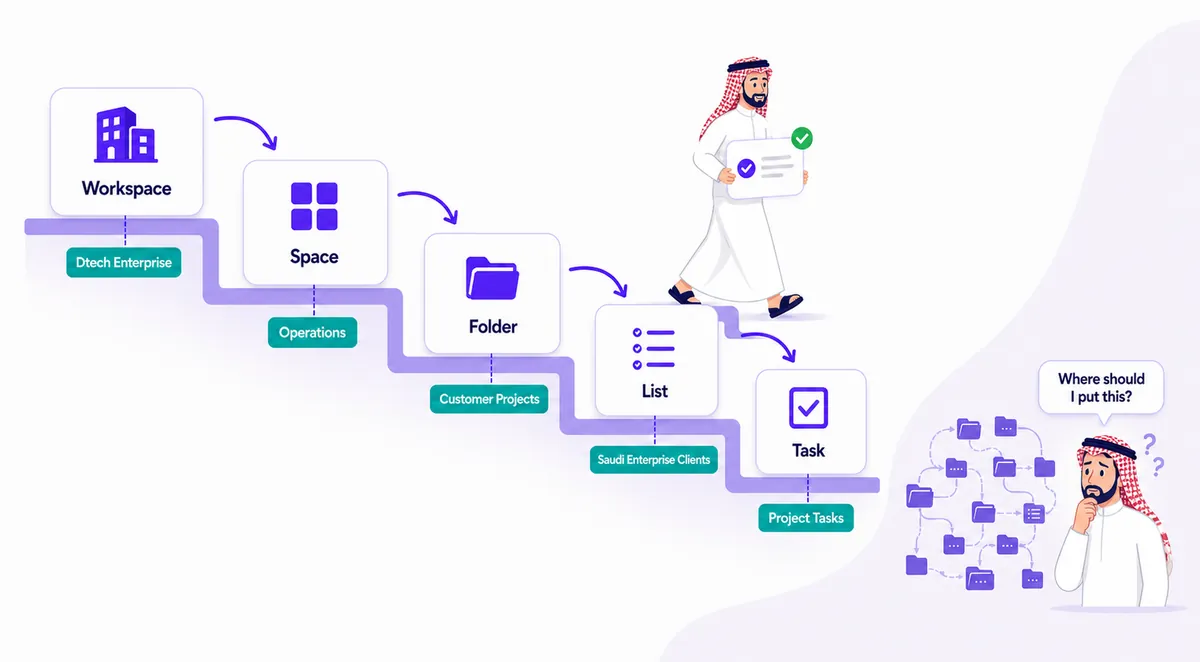
مساحة العمل (Workspace) ← المساحة (Space) ← المجلد (Folder) ← القائمة (List) ← المهمة (Task)

يجب أن يساعد التسلسل الهرمي الموظفين في الوصول إلى العمل، لا أن يجبرهم على التنقل بين خمس طبقات لمجرد إنشاء مهمة.

إذا كان الموظفون يسألون باستمرار: “أين يجب أن أضع هذا؟”، فالهيكل على الأرجح يحتاج إلى مراجعة.

التسلسل الهرمي في ClickUp من مساحة العمل إلى المهمة

ابنِ سير العمل حول العمل الفعلي

تؤدي الإدارات المختلفة مهامًا مختلفة، لذا نادرًا ما ينجح إلزام جميع الفرق بسير عمل واحد. المنصة تبقى نفسها، وسير العمل يتغير بحسب طبيعة العمل.

أداة تفاعلية

كيف يبدو سير العمل في كل إدارة؟


الحملة التسويقية:

  1. الموجز
  2. المحتوى
  3. التصميم
  4. المراجعة
  5. النشر

الأهم هنا مرحلة المراجعة، فهي التي تحتاج إلى مالك واضح وموعد محدد.

طلب تقنية المعلومات:

  1. الطلب
  2. التحقيق
  3. التطوير
  4. الاختبار
  5. تم الحل

نموذج طلب (Form) واحد يجمع البيانات اللازمة من البداية ويختصر الأسئلة المتكررة.

طلب المشتريات:

  1. الطلب
  2. المراجعة
  3. الاعتماد
  4. الشراء
  5. مكتمل

مرحلة الاعتماد هي المكان الطبيعي لأول أتمتة: إشعار المعتمد فور وصول الطلب.

وهذه واحدة من أكبر مزايا تطبيق ClickUp المصمَّم بشكل صحيح: كل إدارة تعمل بطريقتها، والإدارة العليا ترى الصورة كاملة.
فكّر فيما تحتاج الإدارة الع&#1604[Truncated]

ClickUp for Enterprise: 10 Proven Structure Tips for KSA

DTECH INSIGHTS

How to Structure ClickUp for Enterprise Teams in Saudi Arabia

Hundreds of employees, several departments, multiple cities and dozens of projects running at once. Here is how to set up ClickUp for enterprise work that keeps all of it aligned without burying people in clicks.

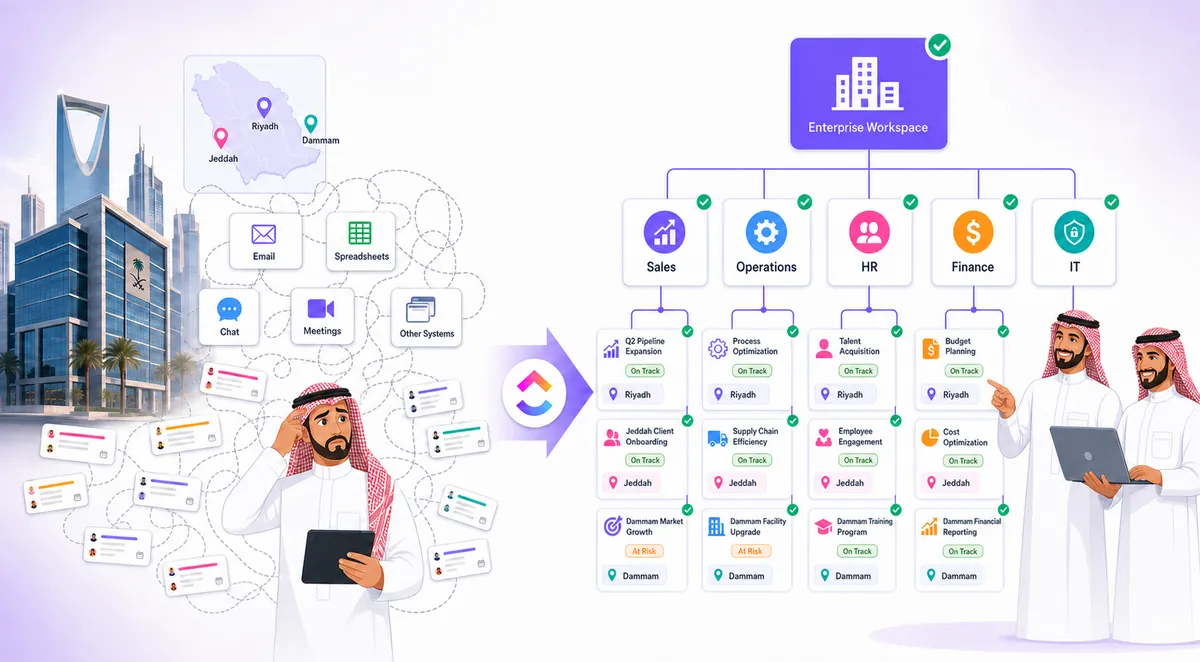
A growing Saudi enterprise can have hundreds of employees, multiple departments, different locations and dozens of projects running at the same time. The challenge is not simply managing more work. It is keeping everyone aligned when that work is spread across emails, spreadsheets, chats, meetings and different systems.

This is where ClickUp for enterprise becomes useful. But adding everyone to one workspace is not enough. The real value comes from building a structure that reflects how the organization actually works.

ClickUp for enterprise workspace structure for a Saudi organization

ClickUp for Enterprise Should Reflect Your Business

There is no universal structure for ClickUp for enterprise teams that works for every company. A Saudi enterprise might organize work around departments such as Sales, Operations, Marketing, Human Resources, Finance, IT and Customer Service.

Another company may need a structure based on business units, regions, clients or major projects. The important thing is that employees can look at the workspace and quickly understand where their work belongs.

  • Your organization
  • Your workflows
  • Your ClickUp structure

Interactive: Which structure fits your organization?

Pick the way your company naturally organizes work. We will show a sample ClickUp for enterprise hierarchy you can start from.


Workspace: Company
├─ Space: Operations
│  └─ Folder: Customer Projects
│     └─ List: Saudi Enterprise Clients → Tasks
├─ Space: Marketing
│  └─ List: Campaigns → Tasks
└─ Space: Finance
   └─ List: Procurement Requests → Tasks

Best for: companies where each department owns its own processes. Keep statuses department-specific, but share priority levels and naming rules.

Workspace: Group
├─ Space: Retail Division
│  ├─ Folder: Operations
│  └─ Folder: Marketing
├─ Space: Logistics Division
│  ├─ Folder: Fleet
│  └─ Folder: Customer Service
└─ Space: Shared Services (HR, Finance, IT)

Best for: holding companies and groups with subsidiaries. Shared Services stays central so HR, Finance and IT serve every unit from one place.

Workspace: Company
├─ Space: Riyadh
├─ Space: Jeddah
├─ Space: Dammam
└─ Space: Head Office (reporting & governance)
   Use a "Region" Custom Field everywhere
   so leadership can report across cities.

Best for: multi-city operations running similar work. Template every region’s Space.

Workspace: Company
├─ Space: Client Delivery
│  ├─ Folder: Client A → Lists per phase
│  └─ Folder: Client B → Lists per phase
├─ Space: Major Projects
│  └─ Folder: Project name → Milestone Lists
└─ Space: Internal Operations

Best for: consultancies, contractors and agencies. One Folder template per client keeps onboarding fast and reporting consistent.

Do Not Build a Separate System for Every Department

One of the easiest ways to make an enterprise workspace complicated is to let every department design its own system from scratch. Marketing may use completely different statuses from Operations. HR may create different fields for information that Finance also needs.

Before long, the company has one workspace but several disconnected ways of working, and the promise of ClickUp for enterprise visibility disappears. Some flexibility is useful. Too much creates confusion.

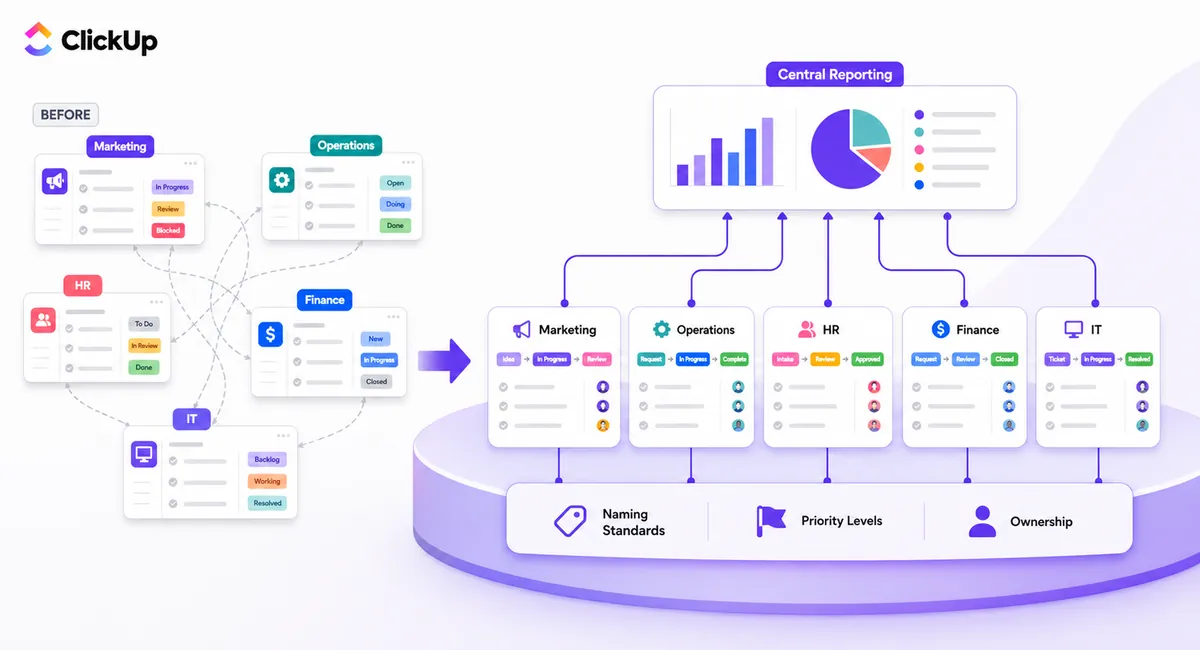
Keep the things that need to be consistent consistent, while allowing departments to manage work in ways that make sense for them. For example:

  • Common naming standards
  • Shared priority levels
  • Consistent ownership
  • Department-specific workflows
  • Central reporting

This gives teams flexibility without losing company-wide visibility.

Shared standards with department-specific workflows in ClickUp for enterprise

Use the ClickUp for Enterprise Hierarchy With a Purpose

ClickUp gives enterprises several levels for organizing work, but using every level just because it exists makes a workspace harder to navigate. If you are new to the levels, ClickUp’s own enterprise overview is a useful reference. A simple structure looks like this:

  • Workspace
  • Space
  • Folder
  • List
  • Task

For example:

  • Operations
  • Customer Projects
  • Saudi Enterprise Clients
  • Project Tasks

The hierarchy should help people find work, not make them click through five layers just to create a task. If employees regularly ask, “Where should I put this?”, the structure needs another look.

ClickUp hierarchy: Workspace, Space, Folder, List and Task

Build ClickUp for Enterprise Workflows Around Real Work

Different departments do different jobs, so forcing every team into the same workflow rarely works. The platform stays the same. The workflow changes according to the work. That is one of the biggest advantages of a properly designed ClickUp for enterprise implementation.

Interactive: Compare department workflows

Tap a department to see a sample status flow and the one automation worth adding first.


  • Brief
  • Content
  • Design
  • Review
  • Published

First automation: when status moves to Review, assign the marketing manager and set a two-day due date.

  • Request
  • Investigation
  • Development
  • Testing
  • Resolved

First automation: when a request is created with Priority = Urgent, notify the IT lead immediately.

  • Request
  • Review
  • Approval
  • Purchase
  • Complete

First automation: when status moves to Approval, assign the budget owner based on the Department field.

  • Offer Accepted
  • Documents
  • IT Setup
  • Orientation
  • Onboarded

First automation: when status moves to IT Setup, create a subtask for IT with the new hire’s start date.

Think About What Management Needs to See

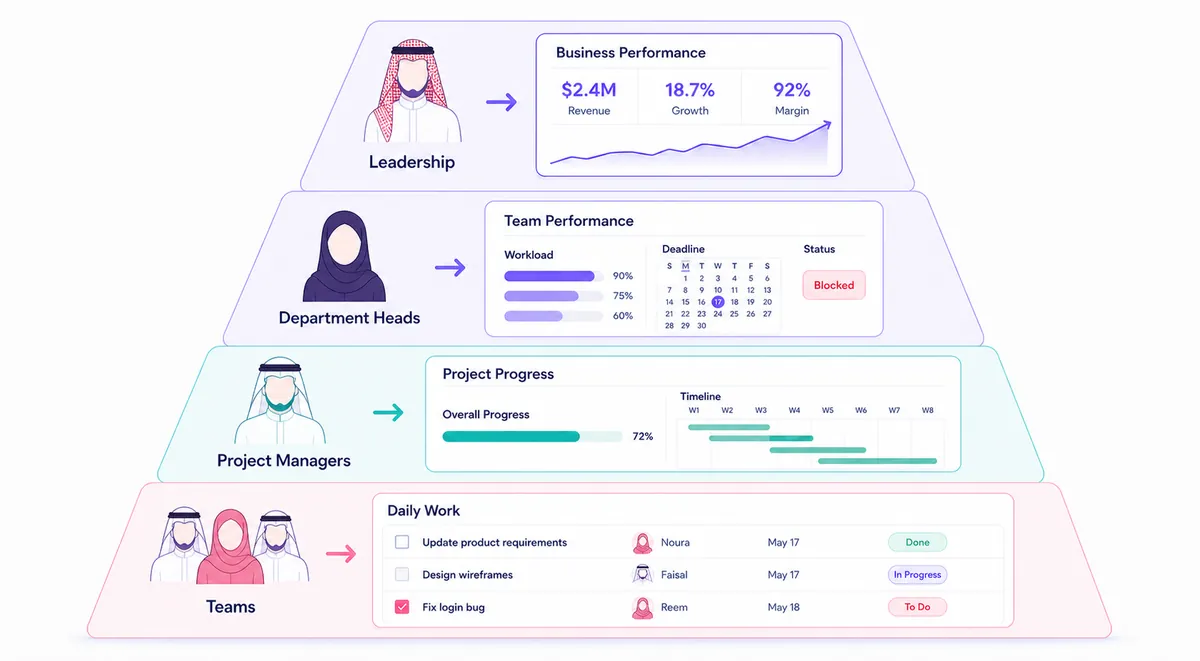
A CEO does not need to see every task. A department head may need team workload, deadlines and blocked work. A project manager may need task-level details.

This is where ClickUp Dashboards become valuable. Instead of creating one huge dashboard for everyone, build views around the decisions different roles need to make:

  • Leadership: business performance
  • Department heads: team performance
  • Project managers: project progress
  • Teams: daily work

The result is better visibility without overwhelming people with information. In a well-run setup of ClickUp for enterprise, every role should reach its own dashboard in one click.

Role-based ClickUp Dashboards for leadership, department heads and teams

Custom Fields Connect the Bigger Picture

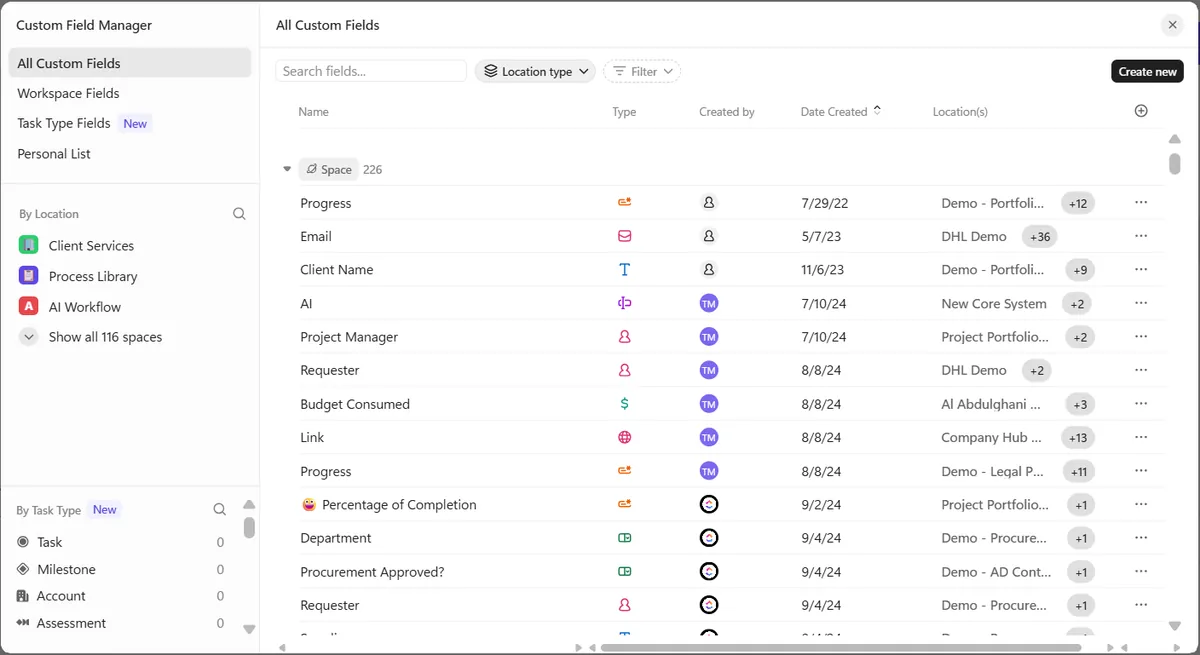
Enterprise work often needs more context than a task title and due date can provide. Useful ClickUp Custom Fields might include Department, Business unit, Region, Project type, Client, Priority and Approval status.

These fields make it easier to filter work and create meaningful reports across the organization, which is where ClickUp for enterprise reporting really pays off. Newer releases even group fields by task type, which we covered in our ClickUp 4.07 update breakdown.

But there is a catch: adding a field does not automatically make data useful. If employees have to fill in 20 fields before creating a task, they will stop using the system properly.

Capture what matters. Leave out what does not.

ClickUp Custom Fields for department, region, client and approval status

Automation Should Remove Friction

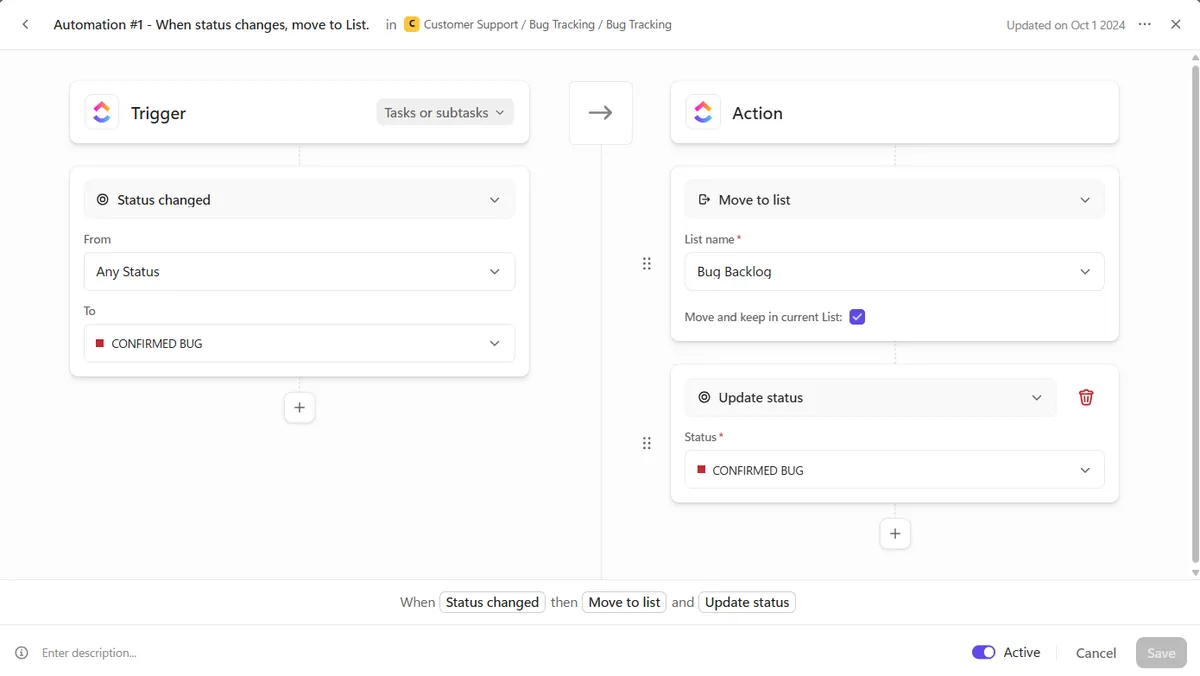
Large organizations have plenty of repetitive work that does not require human decision-making. When a request moves to an approval stage, ClickUp can notify the right person. When a task is completed, the next step can be assigned automatically. Recurring work can be created without someone setting it up every time.

  • Trigger
  • Automation
  • Action

These small ClickUp Automations save significant time across large teams. For work that needs judgment, AI coworkers can take the next step, as we explain in Meet Super Agents. The goal is not to automate everything. It is to remove unnecessary administrative work.

ClickUp Automations trigger, condition and action flow

Plan ClickUp for Enterprise Growth From Day One

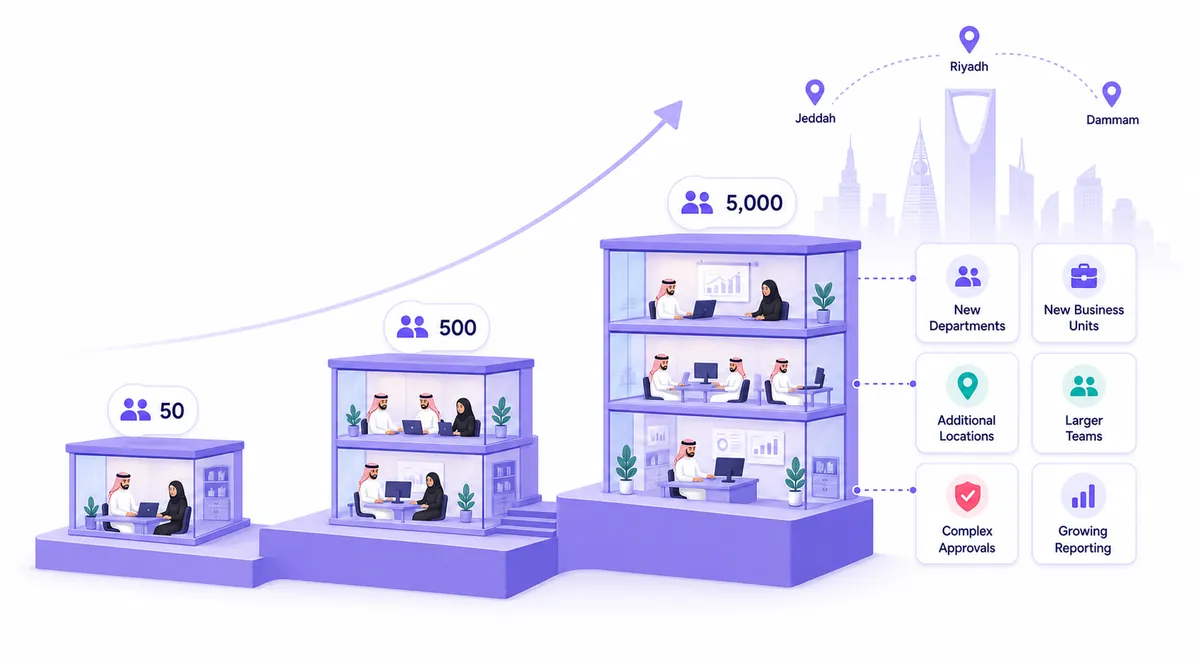
A workspace that works for 50 employees may become difficult to manage when the company grows to 500 or 5,000. Saudi enterprises also operate across multiple cities, business units, subsidiaries or regions, and some need more structured approvals, stronger governance or different reporting requirements.

That means scalability should be considered from the beginning. The workspace should be able to accommodate:

  • New departments and business units
  • Additional locations and larger teams
  • More complex approval processes
  • Increasing reporting requirements

A good ClickUp for enterprise setup grows with the organization instead of needing to be rebuilt every time the company expands.

Scaling ClickUp for enterprise across cities, business units and regions

Adoption Is Part of the Implementation

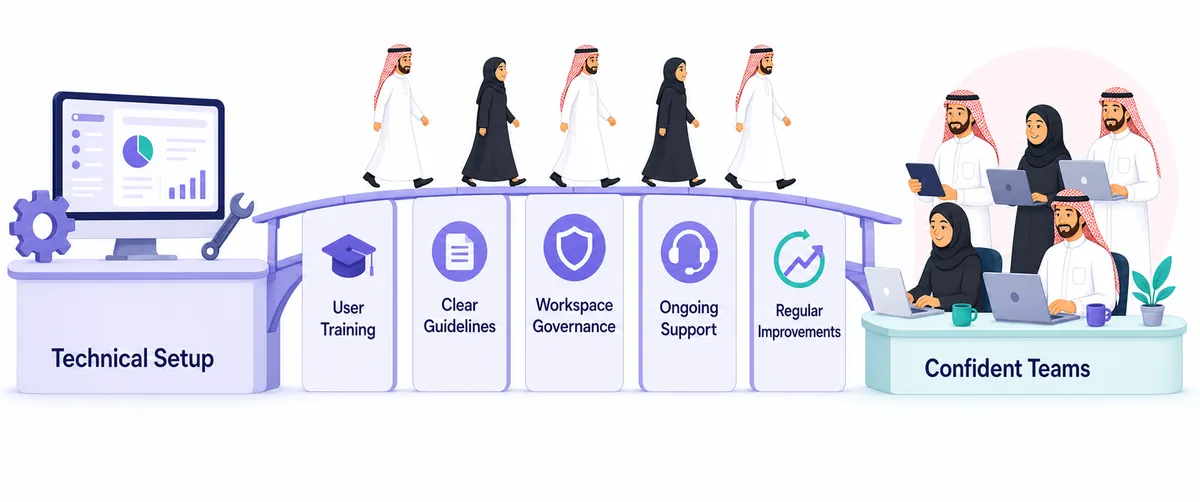
Even a perfectly designed workspace will fail if employees do not understand how to use it. People need to know where work belongs, what information to add, how statuses work and where to look for updates.

This is why rolling out ClickUp for enterprise is not just a technical setup. It also involves user training, clear guidelines, workspace governance, ongoing support and regular improvements.

Make the correct way of working the easiest way of working.

ClickUp adoption: training, guidelines, governance and ongoing support

Keep the Workspace Clean

Enterprise workspaces get crowded over time. Old Lists stay active. Unused Custom Fields pile up. Automations keep running after a process has changed. Employees create duplicate views because they cannot find the original.

Regular reviews keep ClickUp for enterprise use healthy. Remove what is no longer useful. Simplify what has become complicated. Update workflows when the business changes. Not sure where yours stands? Run the quick check below.

Interactive: Enterprise workspace health check

Tick every statement that is true for your workspace today. Your score updates instantly.


Score: 0 / 9

Tick the statements above to see your verdict. Scores of 7 or more usually mean a healthy workspace; 4 to 6 means some structure needs tightening; 3 or less means it is time for a redesign.

The Goal Is Not a Perfect Workspace

The goal is a workspace people can actually use. For a Saudi enterprise, that means enough structure to provide control and visibility without making everyday work unnecessarily complicated.

The right approach looks different for every organization, but the principle stays the same:

  • Business needs
  • Workspace design
  • Team workflows
  • Automation
  • Visibility
  • Continuous improvement

When ClickUp is built around the way the organization actually works, it brings projects, processes, people and information into one connected environment. That is what turns ClickUp for enterprise use from another project management tool into a practical system for running work at enterprise scale.

ClickUp for Enterprise: Frequently Asked Questions

What is the best way to structure ClickUp for enterprise teams?

Start from how your company already organizes work: departments, business units, regions or clients. Map that to Spaces, use Folders only when they help people find work, and keep shared standards like priorities and naming consistent across every team.

Should every department have its own Space?

Usually yes, if departments own distinct processes. Give each Space its own statuses, but keep company-wide Custom Fields such as Department, Region and Priority so leadership can report across the whole workspace.

How many Custom Fields should an enterprise workspace use?

As few as your reporting needs. A good rule is no more than five required fields when creating a task. Every extra field adds friction and lowers data quality.

Can ClickUp handle approvals for Saudi enterprises?

Yes. Approval stages can be built into statuses, and automations can assign the right approver, notify them and move work forward once approved, which suits multi-level approval processes common in larger organizations.

How long does a ClickUp enterprise implementation take?

It depends on scope. A focused rollout often starts with one or two departments, proves the structure, then scales. Training and governance should be planned from day one, not after launch.

Dtech Systems is a ClickUp-authorized partner. We design, implement and train enterprise ClickUp workspaces for organizations in Saudi Arabia and beyond, so your structure scales with your business instead of fighting it.

ClickUp Adoption: 5 Reasons Your Team Isn’t Using It

Dtech Insights

ClickUp Adoption Problems: Why Teams Drift Away and How to Bring Them Back

Implementing ClickUp is one step. Getting your team to use it consistently is another.

The workspace is built. The kickoff went well. Everyone nodded. Then, three weeks later, the project updates are back in a WhatsApp group and the weekly report lives in Excel again. If that sounds familiar, you don’t have a software problem. You have a ClickUp adoption problem.

We see this pattern with teams across Saudi Arabia, the GCC and beyond. The tool is rarely the issue. What breaks is the bridge between “we bought ClickUp” and “this is where our work actually lives.” This guide walks through why that bridge breaks, how to diagnose your own workspace, and what to do about it.

Why ClickUp Adoption Stalls After Setup

Most rollouts focus almost entirely on configuration: Spaces, Lists, statuses, custom fields, automations. That work matters. But configuration is the part you can finish in a week. Habits take longer, and habits are what decide whether ClickUp adoption sticks.

People don’t resist new tools because they’re stubborn. They resist because the old way is familiar, fast and still accepted. If a team member can send a quick WhatsApp message and nobody asks them to update the task, the message wins every time. Adoption only happens when the new way becomes the easiest and most expected way to get work done.

That’s why the first few weeks after launch are so important. That’s when old habits and the new tool compete, and without deliberate support, old habits usually win.

Warning Signs Your Team Has Drifted Away

Low ClickUp adoption is rarely announced. It shows up quietly. Watch for these signals:

  • Tasks exist, but their statuses are days or weeks out of date.
  • Managers still ask for updates in meetings or chat instead of checking ClickUp.
  • A “master spreadsheet” is still being maintained alongside the workspace.
  • Only one or two people (usually the admin) create most of the tasks.
  • New hires learn the process from colleagues, not from the workspace.

Two or more of these and your ClickUp adoption has stalled: your team is using ClickUp as a side tab, not a system of record. The health check below will tell you how far the drift has gone.

Take the ClickUp Adoption Health Check

Answer honestly for your team as it works today. Tap Yes for each statement that’s true. Each “yes” scores one point out of 8.

  • Most team members open ClickUp every working day.
  • Task statuses are usually accurate without anyone chasing them.
  • Every team has one documented workflow and agreed meaning for each status.
  • People were trained for their specific role, not just in a general demo.
  • Leadership reviews progress in ClickUp dashboards, not in spreadsheets.
  • Work requests arrive through ClickUp (forms or tasks), not chat or email.
  • There is a named owner who keeps the workspace clean and answers questions.
  • New hires are onboarded into ClickUp in their first week.

0/8

ClickUp adoption scoring guide: 7-8 means healthy adoption, 4-6 means the team is drifting, 0-3 means ClickUp has become a side tool and needs a reset.

5 Common ClickUp Adoption Challenges

When we audit a workspace with weak ClickUp adoption, the root causes almost always fall into one of these five buckets. Most teams have two or three at once.

1. Poor or one-size-fits-all training

A single kickoff demo is not onboarding. A designer, an account manager and an operations lead each use ClickUp differently, so a generic walkthrough leaves everyone unsure what they should do each morning. Role-based training fixes this: show each person the three or four actions they’ll take every day, using their real work, not sample projects. ClickUp University offers free role-based learning paths that make a good supplement once the basics are in place.

2. Unclear workflows

If “In Progress” means three different things to three teams, nobody trusts the data. And when people don’t trust the data, they stop updating it. Every team needs one agreed workflow: what each status means, who moves a task forward, and when work counts as done. Write it down in a ClickUp Doc and link it inside the List.

3. Spreadsheets, chat and email still win

Employees return to spreadsheets or other tools when those tools are still accepted. If a request sent on WhatsApp gets actioned just as fast as one logged in ClickUp, there’s no reason to change. Close the side doors: route requests through forms, move updates into task comments, and retire the parallel spreadsheet on a specific date.

4. Leadership isn’t using it

This is the most underrated ClickUp adoption challenge. If managers still ask for a weekly Excel report, the team will keep the Excel. When leaders review progress in dashboards, comment on tasks and ask “is it updated in ClickUp?”, behaviour shifts quickly. Teams copy what leadership pays attention to.

5. Too much, too soon

An ambitious setup with dozens of custom fields, nested folders and automations can overwhelm people before they’ve built a basic habit. Start simple, with one Space, one active project and clear owners, then layer complexity once daily use is steady. Our beginner’s guide to getting started with ClickUp covers this approach step by step.

What’s Your Biggest Symptom?

Pick the ClickUp adoption problem you notice most and get the fix to start with.


Statuses are out of date

Likely cause: unclear workflows. Start here: cut each List down to 4-6 statuses, define each one in a short Doc, and set an automation to notify the owner when a task sits too long in one status.

We still use a master spreadsheet

Likely cause: leadership reporting still lives outside ClickUp. Start here: rebuild the spreadsheet’s key numbers as a ClickUp dashboard, review it in the next leadership meeting, then set a retirement date for the sheet.

Updates happen in WhatsApp or email

Likely cause: the side doors are still open. Start here: create a request form for incoming work, ask managers to reply to chat updates with “please post it on the task”, and use ClickUp Chat for team conversations tied to the work.

Only a few people use it

Likely cause: generic training. Start here: run 30-minute role-based sessions using each person’s real tasks, and name a ClickUp champion in every team who people can ask first.

How to Fix ClickUp Adoption in 30 Days

You don’t need a new rollout to rescue ClickUp adoption. You need a focused reset. Here’s the four-week plan we use with teams whose workspace has gone quiet.

  1. Audit and simplify. Archive unused Lists, merge duplicate statuses, and identify the one or two workflows that matter most. Interview a few team members about where they actually track work today.
  2. Train by role. Run short sessions for each role using live work. Document each team’s workflow in a ClickUp Doc and pin it where people will see it.
  3. Close the side doors. Launch request forms, move status updates into task comments, and agree a date to retire the parallel spreadsheet.
  4. Lead from the dashboard. Build a leadership dashboard and run the weekly review from it. Celebrate the teams that keep their work up to date.

After the 30 days, rerun the health check above. Most teams see the biggest jump from steps three and four, because that’s when the old way stops being an option. For more on turning dashboards into the default view for leaders, see our guide to ClickUp for the operations team, and ClickUp’s own team onboarding guide for setup tips.

ClickUp Adoption FAQs

How long does ClickUp adoption usually take?

A basic setup can be done in days, but building a daily habit typically takes several weeks of consistent use. The first month after launch is where adoption is won or lost, so plan support for that period, not just for setup.

Why do employees go back to spreadsheets after moving to ClickUp?

Usually because spreadsheets are still accepted. If leadership still asks for Excel reports, or if updates in chat get the same response as updates in ClickUp, people keep the familiar tool. Retiring the spreadsheet and leading from dashboards changes that.

Is poor ClickUp adoption a training problem or a setup problem?

Often both. Generic training leaves people unsure what to do, and overbuilt or unclear setups make the tool feel harder than the old way. The fix is role-based training on a simplified workspace with documented workflows.

Who should own ClickUp adoption inside a company?

A named workspace owner plus a champion in each team works best. The owner keeps structure clean; champions answer day-to-day questions. Leadership’s role is to model the behaviour by reviewing work in ClickUp.

Can a ClickUp partner help improve adoption?

Yes. An experienced partner can audit your workspace, rebuild workflows around how your team actually works, and coach people on their real tasks. That hands-on approach usually moves ClickUp adoption faster than self-serve learning alone.

Dtech Systems is a ClickUp-authorized partner.

We help teams in Saudi Arabia and beyond turn ClickUp from another login into the place work actually happens, with role-based coaching, rebuilt workflows and adoption support that continues after setup. Talk to our adoption team.

ClickUp Skills: Teach AI Your Team’s Workflow in 4 Steps

DTECH INSIGHTS

ClickUp Skills: Teach AI to Follow Your Team’s Workflow

Every team has that one prompt someone pastes into AI ten times a week. ClickUp Skills let you save it once, so Brain and Super Agents do the work your way, for everyone, every time.

“Use our format.” “Keep it in our tone.” “Pull from the Q4 list, not the old one.” If that sounds like your last week with AI, the problem isn’t the model. It’s that the AI forgets how your team works the moment the chat ends. ClickUp Skills fix exactly that.

A Skill is a saved playbook: the steps, context and style for one kind of work, written once and reused forever. In this guide we cover what ClickUp Skills are, how they differ from saved prompts, the first Skills we build for client teams, and how to roll them out without creating chaos.

What are ClickUp Skills?

ClickUp Skills are saved instructions that ClickUp Brain and Super Agents follow whenever a request matches. You define how a task should be done (the steps, the structure, the tone, what “finished” looks like) and the AI applies it automatically or when you call it on demand.

ClickUp describes a Skill as a saved playbook, and that’s the right mental model. Think of the onboarding checklist your best ops lead runs from memory, or the 12 things your agency checks before sending creative to a client. Today that knowledge lives in one person’s head. As a Skill, it lives in the workspace.

All Skills live in the Skills Hub, which you open from Skills in the Home Sidebar or from the AI Hub. An admin needs to turn on the Custom Skills ClickApp first. Each Skill also gets its own /slash command, so anyone with access can trigger it from any text area where Brain is available. You can read ClickUp’s own overview on the official Skills page.

ClickUp Skills vs saved prompts: which do you need?

ClickUp already had saved prompts, so it’s fair to ask why Skills exist. The difference is who has to remember. A saved prompt is text you drop into a chat and send yourself. A Skill is a set of instructions Brain and Super Agents can apply on their own whenever it’s relevant.

Prompts are great for one person who wants full control each time. ClickUp Skills win when the same output has to look the same no matter who asks. Not sure which one your workflow needs? Run it through the quick check below.

Quick check: should this be a Skill?

Pick one workflow you hand to AI often, then tick everything that’s true.


Tick the statements that apply to see your verdict. Rule of thumb: three or more ticks means build a Skill.

How much time does re-explaining your workflow cost?

The hidden cost of AI without ClickUp Skills isn’t the typing. It’s the context you re-explain, the output you reformat, and the inconsistency someone has to fix before a client sees it. Plug in your own numbers to estimate it.

Re-explaining cost calculator


8.7 hours
spent each month re-explaining or reformatting

Formula: people x requests per week x minutes per request x 4.33 weeks / 60. These are your inputs, not industry stats. Keep minutes conservative: count only the context you retype and the fixes you make afterwards. A Skill won’t remove review time, but it removes the repetition.

Even small numbers add up. Five people losing four minutes six times a week is a full working day every month, and that’s before counting the reports that went out in three different formats.

How to create ClickUp Skills in under a minute

You don’t write code or fill in a form. You describe the workflow to Brain and it drafts the Skill with you. There are four ways in:

  1. From scratch. Open the Skills Hub, click + New Skill, and tell Brain in the sidebar what the Skill should do. Be specific about steps, context and tone, answer its follow-up questions, then review.
  2. From a template. Click a template card at the top of the Hub. Persona templates like Write Like Me or Update Like Me scan your activity to match how you already write or report status.
  3. From anywhere. In any Brain chat, say you want to create a Skill and describe it. No need to leave the task or Doc you’re in.
  4. With Skills Miner. Click Find my Skills. Brain scans your tasks, Docs and chats for workflows you repeat and suggests ones worth saving. This is the best starting point if you’re not sure what to build.

Once it’s saved, you can attach reference files (a brand guide, a report template) and link related Skills so one can build on another. ClickUp’s Brain² launch post explains the wider AI upgrade Skills sit on top of.

4 ClickUp Skills worth building first

When we set up ClickUp Skills for client teams, we skip the clever stuff and start with the work people repeat every single week. These four pay off fastest. Pick your role to see where to start.

Which Skill should you build first?


Weekly status report

Pulls from a named List, flags blockers and overdue work, and writes it in your exact structure every Monday.

Ops · PM · Admin

Bug report formatter

“When I say bug report, format it like this.” Steps to reproduce, expected vs actual, severity. Every ticket looks the same.

PM · Admin

Client emails in brand voice

Tone, greeting style, sign-off and banned phrases saved once, so every account manager sounds like the same company.

Agency · Ops

Pre-delivery QA review

Checks creative or a landing page against your brand rules and flags anything that breaks them before the client sees it.

Agency · PM

Tip: start with the one that annoys you most. That’s usually the one people will actually use.

Notice what these have in common: each has a clear trigger, a fixed output and a real cost when it goes wrong. That’s the pattern to look for in your own workspace.

Writing ClickUp Skills that actually work

A vague Skill gives you vague output, just more consistently. The Skills that perform best in the workspaces we manage share three habits.

Be specific about “done”

Don’t write “make a status report.” Write the sections, the order, the length, and what to do when data is missing. The more detail in the Skill, the more consistent the result.

Point it at real work

When you run a Skill, name the project, List or task it should use. Skills that pull from real workspace data beat generic requests every time, and Brain will tell you if something is missing.

Iterate, don’t rebuild

Use Edit with Brain to refine a Skill after a few runs. Description history keeps earlier versions, so you can experiment without losing a version that worked.

Rolling out Skills across your team

Two settings control how ClickUp Skills spread, and mixing them up is the most common mistake we see. Sharing controls who can see and edit a Skill. Enabling controls whose Brain, and which Super Agents, use it automatically. Skills are private when you create them, so nothing reaches the team until you share it.

Each Skill also has a status. Published Skills load automatically for anyone who has them enabled. Draft Skills are visible only to their creator. Disabled Skills are invisible to Brain and Super Agents. Our advice: keep new ClickUp Skills in Draft, test them for a week, then publish and enable them for a Team rather than one person at a time.

On permissions, members, admins and owners can create Skills. Guests and limited members can use one only if a member or admin shares it with them directly, which is handy for client-facing workspaces where you want consistency without handing over edit rights.

ClickUp Skills FAQ

Do I need to turn anything on to use ClickUp Skills?

Yes. The Skills Hub only appears when the AI and Custom Skills ClickApps are enabled in your workspace, and an admin has to activate Custom Skills.

Can Super Agents use Skills?

Yes. You can enable a Skill for a Super Agent you manage, and it will use that Skill when the work calls for it, the same way Brain does for people and Teams.

What’s the difference between a Skill and a saved prompt?

A saved prompt is reusable text you paste and send yourself. A Skill is a saved playbook Brain and Super Agents apply automatically or on demand whenever it’s relevant.

How do I run a Skill on demand?

Type its /slash command in any text area where Brain is available, or click Skills at the bottom of the Brain composer and pick one. Add context like the project or List it should work on.

What if I don’t know which Skills to build?

Use Skills Miner, the fastest way to discover ClickUp Skills. Click Find my Skills in the Skills Hub and Brain suggests workflows based on what you already repeat in tasks, Docs and chats.

Dtech Systems is a ClickUp-authorized partner. We help teams in Saudi Arabia and beyond turn their real workflows into ClickUp Skills, so AI works the way your best people already do. Talk to us about your workspace.

ClickUp Integrations: 7 Smart Picks for Teams That Work Faster

Dtech Insights

ClickUp Integrations That Help Your Team Work Smarter

Your team doesn’t need fewer tools. It needs tools that talk to each other, so nobody spends the afternoon copying updates from one tab to another.

Picture a Monday at a growing company in Riyadh. A client request lands in Slack, the brief sits in Google Drive, the deal lives in HubSpot, and the actual work is tracked in ClickUp. Four tools, one job, and a project manager acting as the human glue between them.

That glue work is where good teams lose momentum. The fix isn’t ripping out tools people already rely on. It’s setting up the right ClickUp integrations so work flows into one place and updates flow back out on their own.

This guide covers the ClickUp integrations we set up most often for clients, how to choose yours by team, and the mistakes that turn a connected workspace into a noisy one.

Why ClickUp Integrations Matter More Than New Tools

Most “productivity problems” are really handoff problems. Information is created in one app and needed in another, and the gap between them is filled by screenshots, forwarded messages, and status meetings.

Integrations close that gap in three ways. They capture work where it starts (a Slack message becomes a task). They sync context where it’s needed (a GitHub pull request shows on the task it belongs to). And they automate the follow-up (a merged PR moves the task to the next status). When all three are in place, ClickUp becomes the single source of truth without forcing anyone to abandon their favorite apps.

There’s also an AI angle now. With Connected Search, ClickUp can search across apps you’ve connected, like Google Drive, Slack, GitHub, and Notion, so Brain and Super Agents can answer questions using context that used to be locked in other tools. You can see the full catalog on the official ClickUp integrations page.

7 ClickUp Integrations Worth Setting Up First

ClickUp connects with a long list of apps. These seven deliver the most value for the least setup effort in the workspaces we build.

1. Slack: turn conversations into tasks

Create ClickUp tasks straight from Slack messages, unfurl task links with live details, and sync updates from a Space, Folder, or List into a Slack channel. It’s available on every ClickUp plan, and it’s usually the single biggest win for teams that “decide things in chat and forget them by Thursday.” We’ve written a full Slack and ClickUp sync guide if you want the step-by-step.

2. Google Drive: files where the work is

Attach Drive files to tasks and comments, preview them in ClickUp, and create new Docs, Sheets, or Slides without leaving the task. A Workspace connection also lets everyone search Drive files that are already shared across your organization, so private files stay private.

3. GitHub or GitLab: dev work in context

Link repositories to Spaces and commits, branches, and pull requests sync to the related tasks. You can even update task status from GitHub, so product managers stop asking engineers “is this done yet?”

4. HubSpot: sales to delivery without the handoff gap

Use deal-based triggers to create ClickUp tasks when a deal closes, and push updates back to HubSpot as contacts, tickets, or deals. Note that the HubSpot integration requires the Unlimited plan or above, and only admins can set it up.

5. Zoom, Teams, or Google Meet: meetings that leave a trail

Start calls from tasks, Docs, or Chat, and let ClickUp’s AI Notetaker capture the conversation. Since the ClickUp 4.07 update, it also picks up in-meeting chat messages, so the link someone dropped in chat doesn’t disappear when the call ends.

6. Google Calendar and Gmail or Outlook: time and inbox

Sync task dates with your calendar and turn emails into tasks. These are the quiet integrations: nobody gets excited about them, but they stop deadlines from living in two places that disagree.

7. The ClickUp API and MCP servers: for everything else

If your tool isn’t on the list (common for local ERPs and government portals), the ClickUp API lets you build your own connection. And Super Agents can now connect to external MCP servers, which opens up CRMs, help desks, and data warehouses to ClickUp’s AI.

Find your ClickUp integrations stack

Pick your team type to see the three integrations we’d set up first.

  • Start hereSlackCapture requests from chat as tasks so nothing gets lost between messages.
  • NextGoogle DriveKeep SOPs, contracts, and briefs attached to the work they belong to.
  • ThenGoogle CalendarOne version of every deadline, visible where people plan their day.

How to Connect ClickUp Integrations the Right Way

Connecting an app takes a few clicks. Connecting it well takes a little thought. Before anything else, know the difference between the two connection types:

ConnectionWho sets it upBest for
PersonalAny memberYour own calendar, inbox, or files. Only you see the data.
WorkspaceOwners and adminsShared search across approved sources for the whole team.

Then follow a simple order. Start with one integration tied to a real pain point, not five at once. Map it to a location: sync one Slack channel to one List, one repo to one Space. Add an automation only after the basic sync works, for example “when a GitHub PR is merged, set status to In Review.” ClickUp has prebuilt integration Automations for apps like Slack, GitHub, HubSpot, Gmail, Calendly, and Google Calendar.

Finally, review after two weeks. If a channel is flooded with notifications nobody reads, narrow the sync. An integration that creates noise is worse than no integration at all.

How much time could ClickUp integrations save you?

Enter your own estimate. We don’t invent benchmarks: the result is simply your numbers multiplied out.

55 hours / month

Formula: 10 people × 15 min × 22 days ÷ 60 = 55 hours. Tip: time one day of copying updates, hunting files, and chasing status. That’s your real number.

Common Mistakes With ClickUp Integrations

Syncing everything everywhere. Piping every List into one Slack channel guarantees people mute it. Sync the few locations a channel actually cares about.

Skipping permissions. Workspace connections give shared search access, so decide which channels and folders are included before you flip the switch. Admin review here takes ten minutes and saves awkward conversations later.

Building automations on a messy structure. Integrations amplify whatever setup you already have. If your Spaces and statuses are inconsistent, fix that first. Our guide on how to get started with ClickUp covers a clean structure that scales.

Treating it as a one-time project. Tools change, teams change, and ClickUp ships new connections often. Put a quarterly integration review on someone’s calendar.

ClickUp Integrations and AI: The Next Step

The newest value from ClickUp integrations isn’t moving data, it’s giving AI the full picture. When Drive, Slack, and GitHub are connected, Brain can answer “what did we agree with this client?” by searching all of them at once.

Super Agents take it further. Connected to external tools through MCP, they can triage requests, update records, and follow up, using the same context your team sees. The takeaway: every integration you set up today makes the AI you use tomorrow smarter.

FAQ: ClickUp Integrations

How many ClickUp integrations are available?

ClickUp offers native integrations with popular apps like Slack, GitHub, HubSpot, Google Drive, and Zoom, plus many third-party integrations and an open API for custom connections. Check the official integrations page for the current list.

Are ClickUp integrations free?

Many are available on every plan, including Slack. Some, like HubSpot, require the Unlimited plan or above. Check plan requirements on each integration’s help page before you commit.

Who can set up ClickUp integrations?

Any member can create a personal connection for their own account. Workspace connections, which give the whole team shared search, can only be set up by Workspace owners and admins.

Can I connect a tool that ClickUp doesn’t integrate with natively?

Yes. Use the ClickUp API for custom integrations, embed web apps in views, or connect external MCP servers to Super Agents for AI-driven workflows.

Which integration should a new team set up first?

Whichever tool your team lives in all day, usually Slack or email. Capturing requests where they start fixes more problems than any other single connection.

How to plan a Jira to ClickUp migration

Prepared by Dtech Systems. Guidance reviewed on 9 October 2026.

A Jira to ClickUp migration should start with a testable plan for your work, data and reporting. Moving records is one part of the job. Your team also needs to know where work belongs, which status means what, and who owns each handover.

Dtech Systems helps organisations plan ClickUp implementation and migration. ClickUp lists Dtech Systems as a Diamond partner. This guide explains the decisions a buyer should make before choosing a migration partner.

Decide what should move

Separate active work from historical records. Ask each team which projects must remain operational after the change and which records can be retained in an archive. Include documents, attachments, comments, relationships and reporting requirements in the inventory.

Do not assume that an import preserves every source feature. Ask your partner to demonstrate the proposed method against a representative sample, using the current importer documentation and your actual configuration. Keep a source export and a record of exclusions before changing production data.

Check privacy and importer limits before the pilot

ClickUp’s current Jira import guidance says private comments become public comments, and imported time is attributed to the person running the import. Review confidential comments before uploading, and preserve the original time-owner record when attribution matters. Confirm field support for the exact importer you will use; the new and legacy import paths differ.

These are reasons to test access and data meaning, alongside record counts. Agree which material can enter the destination and who approves the exceptions before the final migration.

Create a field and workflow map

For each source field, record its destination, data type, allowed values and owner. Decide how users, issue types, dates, priorities and custom fields should be represented. A mapping sheet makes ambiguous decisions visible before they affect thousands of records.

Review statuses separately. A status called Done may mean development finished to one team and client acceptance to another. Agree the meaning of each destination status and the evidence needed to enter it. Keep specialist workflows where they serve a clear operational need.

A useful mapping row contains the source field, destination field, transformation rule, exception rule and validation check. For example, an unmapped owner should enter an exception queue for review rather than silently becoming an unassigned task.

Run a representative pilot

Choose a pilot that includes normal work and difficult cases. Include overdue tasks, archived records, attachments, several assignees, dependencies and restricted material where relevant. Test access using the roles that people will actually have.

Compare the source and destination against agreed acceptance checks. Record counts alone are insufficient: a migration can copy every item while losing the information needed to use it. Sample field values, relationships, permissions and dashboard totals. Resolve exceptions before increasing the volume.

Plan the cutover and recovery

Agree who may edit the source during the final migration window. Document how changes made after the first export will be handled. Decide when the destination becomes authoritative, who signs off the result and how the team returns to the source if the checks fail.

Train people using their own work. A project manager needs to understand reporting and escalation; a contributor needs to understand assignment, updates and completion. Keep the first week simple and maintain an issue log with a named owner.

Choose a migration partner by the evidence

Ask a prospective partner for a written scope, sample mapping, pilot acceptance criteria, exclusions, training plan and support arrangements. Ask who is responsible for data validation and who approves the final cutover.

Treat fixed promises about speed or savings cautiously until the partner has reviewed your workspace. A useful proposal explains what will be delivered and how you will know that it works.

Common questions

Can every Jira configuration be moved directly?

Treat that as a question to test. Custom configurations, integrations and app data need their own checks. Require a written list of what transfers, what needs rebuilding and what remains in an archive.

Should we migrate everything at once?

Use a pilot first. A phased move is often easier to validate when teams have different workflows. Choose the cutover method after reviewing operational dependencies.

How can Dtech Systems help?

Dtech provides ClickUp implementation services for organisations in Saudi Arabia and the UK. Book a free workspace audit with Dtech Systems to discuss your source tools, user count, migration scope and target date.

Related Dtech guides

Explore ClickUp features · Explore Saudi workflow use cases

How to Build an AI-Ready ClickUp Workspace

DTECH INSIGHTS

How to Build an AI-Ready ClickUp Workspace

Build an AI-ready ClickUp workspace with clear ownership, reliable source material and tested access controls. These six steps help you prepare a measured pilot for ClickUp Brain, AI Fields and agents.

Reviewed by Dtech Systems on . Feature access, AI usage and permissions depend on your plan and configuration.

Imagine a Riyadh team asking Brain what is blocking a launch. If tasks have ambiguous names and the approved plan is missing, the answer may be incomplete. Check the sources, permissions, indexing, prompt and output before deciding what failed. This is an illustrative scenario, not a Dtech client result.

An AI-ready ClickUp workspace has maintained task data, identifiable knowledge owners and tested AI access. Brain search, AI Fields and agents use different sources and settings. Better context can help, but it does not guarantee a correct answer or a safe action.

This Dtech guide covers six preparation steps, a self-assessment and proposed pilots for Saudi Arabia and the UK. Use the checklist to identify work to do; it does not certify accuracy, security or compliance.

What makes an AI-ready ClickUp workspace?

Brain can use accessible ClickUp content and enabled external sources. Connected Search distinguishes personal and Workspace connections, with different sharing and indexing behavior. Agents also have configured knowledge, tools and triggers; review those separately before choosing a pilot.

That means AI quality depends on four things you control:

  • Structure: a hierarchy that mirrors how the business actually runs, so “the marketing team’s Q4 work” points to one clear place.
  • Signals: consistent statuses, task types and Custom Fields, so AI can tell a blocked deal from a won one.
  • Knowledge: processes and decisions written down in Docs, not stuck in people’s heads.
  • Guardrails: tested source, agent and output access, including who can trigger an agent and read its response.

These foundations make a pilot easier to evaluate. Ask the reviewer to compare an AI draft with the current source records, record missing or incorrect details and decide whether the result is suitable for use.

Is your ClickUp workspace AI-ready? Take the 2-minute check

Tick the statements you can support with evidence today. The score reflects your own answers; it is not an assessment of actual AI behavior or permissions.


Score: 0 / 8

Tick the statements above to see how ready your workspace is.

6 steps to build an AI-ready ClickUp workspace

Choose the steps that address the gaps in your workflow. Team size suggests a starting order, but source quality and access requirements determine the actual scope. Test the result before expanding the pilot.

Where should your team start?


Choose a team size and we’ll highlight the steps that matter most for you.

1. Clean up your hierarchy Start here

Give each operational workflow a clear home. Spaces can represent departments, Folders can group programmes and Lists can hold repeatable work. Use consistent names and link related work so people can locate the right source for an AI prompt.

Review inactive Lists with their owners before archiving. Check retention needs, links and automations before merging duplicates. Keep a record of what changes and where historical work can be found.

2. Standardize statuses and task types Start here

Agree what each status means for the workflow. Development complete and client accepted may be different stages. Standardise equivalent stages without removing a distinction needed for ownership or reporting.

Use task types when they help distinguish bugs, deals or campaigns. ClickUp documents Custom Fields by task type, with supported-field and plan limits. Confirm availability in your Workspace rather than relying on a release number.

3. Turn key details into Custom Fields Start here

Store operational facts in defined fields, such as Client, Region and Priority, with agreed values and an owner. For a proposed Jeddah delivery workflow, those fields can help a reviewer check whether the AI output refers to the right project.

Create fields that have a clear use and maintenance owner. Track missing values and correction rates. An AI-generated summary is a draft, not a substitute for a verified operational fact.

4. Write down how the business works Start here

Maintain approved SOPs, onboarding guides and decision logs in accessible Docs or approved connected sources. Give each document an owner, review date and clear status. Link it to the workflow and remove ambiguity between draft and approved versions.

Describe the task outcome, relevant source and acceptance check. For example, “Review the Q3 invoice template against the approved finance instructions” is more useful than “Fix it”. A finance owner should still check the result.

5. Set permissions before you scale AI Start here

Brain search and shared agents need separate access checks. ClickUp explains that a Super Agent can use private or external knowledge in replies to someone allowed to trigger it, even if that person cannot open the source. An answer is visible to people who can access where it is posted. Read the Super Agent permission rules before sharing an agent.

Review who can use, manage and read each agent, which knowledge it holds and where it writes. Personal-connection tools can expose connected data to people who interact with an agent. For AI Fields, review field visibility and automation behavior: ClickUp states that AI Fields cannot be made private. Test with synthetic content before enabling sensitive workflows.

6. Layer AI on top, one workflow at a time Start here

Now the fun part. Start with low-risk, high-repeat work:

  • AI Fields: draft task summaries, progress updates, translations and action items. Review the prompt inputs, generated text and who can see it.
  • Autopilot Agents: configured triggers, conditions, knowledge and tools for a defined workflow. Test the selected location and escalation route.
  • Super Agents: configurable AI teammates for multi-step work. Choose the tools, permitted audience and human review points.
  • Reusable instructions: define the output format, acceptable sources, uncertainty handling and when to ask the workflow owner for review.

Check AI usage and role limits before expanding. Record preparation time, review time, errors and usage for the same workflow before and after the pilot. A faster draft only helps if review effort and accuracy are acceptable.

Common mistakes that stop AI from working

Investigate the actual cause of a failed answer or action. Source quality, access, indexing, prompts, feature limits and model behavior can all affect the result.

Turning on AI before cleaning up. A pilot with incomplete source records is difficult to evaluate. Prepare a representative sample and compare outputs with a reviewer-approved reference.

Keeping the real work outside ClickUp. External work is not automatically available to every AI feature. Record important decisions in approved sources. Before connecting an app, check what it indexes, who can search it and whether the chosen agent has external-search access.

Building one giant agent. A Super Agent that “manages operations” is too vague to be useful. Give each agent one clear job, the right knowledge sources, and a human approval step for critical actions.

Skipping adoption. People need practice asking questions, checking sources and escalating uncertainty. A Dtech adoption session can be scoped around those tasks; assess its value through the agreed pilot measures.

Quick wins for your AI-ready ClickUp workspace this week

Choose one workflow and confirm its owner. Review a sample of records and one approved process Doc. Trial an AI summary using non-sensitive sample tasks after checking field visibility and usage. Investigate inactive Lists before deciding whether to archive them.

Compare the output with a verified reference for the same question. Record correct details, missing facts, source links and review time. Repeat with current and deliberately incomplete examples before deciding whether to expand.

For the latest on what each AI feature can do, ClickUp’s official Brain page and Help Center are kept up to date.

Proposed pilots for Saudi Arabia and the UK

These are suggested configurations to test, not delivered client case studies.

Saudi Arabia: bilingual project updates

For a Riyadh delivery team, use one project List with a named owner, agreed statuses, due dates and a current project brief. Trial an Arabic or English AI summary of synthetic tasks. Ask a bilingual reviewer to check names, dates, blocked work and translation meaning. Keep approval of client updates with the project manager.

United Kingdom: service handovers

For a UK operations team, pilot a handover draft containing completed work, open items, the next owner and links to approved instructions. Compare it with the task records and measure review time and missing actions. Confirm how restricted client information is excluded before sharing outputs.

Dtech can help scope the workflow, prepare the source records, configure an agreed pilot and train reviewers. Security, residency and legal requirements need their own assessment; this article does not establish compliance.

FAQ: AI-ready ClickUp workspace

What is an AI-ready ClickUp workspace?

It is a workspace prepared for an AI pilot with maintained records, clear source ownership and tested access. Readiness is demonstrated by reviewing actual outputs and actions against acceptance checks, not by a checklist score alone.

Do I need to rebuild my workspace to use ClickUp AI?

Start with a workflow assessment. A targeted cleanup may be enough. A rebuild needs a migration plan, access review, acceptance checks and training; choose it only after identifying what the current structure prevents.

Can ClickUp AI see private or sensitive data?

It depends on the feature and configuration. A shared Super Agent can answer from private knowledge given to it. Check its audience, source access, memory, connected tools and output location; do not assume the requesting person must have direct source access.

What’s the difference between Autopilot Agents and Super Agents?

Autopilot Agents run configured workflows using triggers, conditions and selected knowledge and tools. Super Agents support broader multi-step interactions. Both need a defined job, tested access and an agreed review process.

How long does it take to make a workspace AI-ready?

Estimate after reviewing the number of workflows, data quality, integrations, permission requirements and training needs. Begin with a pilot that has a named owner and clear acceptance checks. A generic team-size estimate is not a delivery commitment.

Dtech Systems is listed as a Diamond partner in ClickUp’s partner directory.

Discuss workspace structure, knowledge sources, access and a measured pilot with Dtech for Saudi Arabia or the UK. Book a free workspace audit.

ClickUp Artifacts: 4 Steps to Turn AI Into Real Work

DTECH INSIGHTS

Prepared by Dtech Systems. Reviewed 9 October 2026. Examples are proposed workflows.

ClickUp Artifacts: Turn AI Output Into Work Your Team Actually Uses

A useful AI deliverable starts with reliable information and a clear review process. Use this guide to choose one report, test its output and agree how your team will maintain it.

Recurring reports can involve collecting updates, checking figures and formatting the same information again. ClickUp Artifacts offer another way to prepare that deliverable. Start with one report whose source information and reviewer are already clear.

The aim of a pilot is to improve the whole reporting process: preparation, verification, review and distribution. Measure each part before deciding whether the new approach saves your team time.

Below we cover what ClickUp Artifacts are, what to build first for your role, how to create one, and the limits worth knowing before you roll it out to a team.

What Are ClickUp Artifacts?

ClickUp describes Artifacts as AI-built deliverables such as decks, dashboards, reports and interactive tools. Brain or Super Agents can use prompts and Workspace information to create them. See ClickUp’s Artifacts overview for product examples.

For your own report, identify the source Lists, fields and date range before generating anything. Check every important total against those sources. Workspace context is useful input; it is not a guarantee that every generated figure or statement is correct.

Assign an owner to the deliverable and keep the source brief with it. Record when the information was checked, who approved it and what changes are needed for the next reporting period.

What to Verify Before Sharing an Artifact

A polished layout is only one part of a useful report. Use these checks during your pilot.

Area Question Suggested check
Source QuestionWhich records and reporting period are included? Suggested checkKeep a dated source brief with the report.
Accuracy QuestionDo totals and statements match the source? Suggested checkReconcile a sample and investigate differences.
Freshness QuestionDoes the displayed information reflect the latest changes? Suggested checkChange a test record and verify the result before promising live reporting.
Review QuestionWho approves the next version? Suggested checkName a reviewer and keep their acceptance checks.
Access QuestionWho should be able to see the output? Suggested checkTest the recipient’s access before sharing.

ClickUp documents comments and saved versions for Artifacts. Use those capabilities alongside a review process; a shared link alone does not prove that a report is current or approved.

Web publication can make an Artifact viewable by anyone with the link. Decide the audience first and remove material that should stay inside your team.

What to Build First: Pick Your Role

A practical starting point is one report you already prepare regularly. These proposed examples help you choose a small pilot; they are not Dtech client results.

Find your first Artifact


Ops · Leadership

Weekly operations dashboard

A proposed summary of overdue tasks and blockers. Reconcile its counts with the source Lists.

Build a dashboard of overdue and blocked tasks in the Operations space, grouped by team.

Project / PMO

Gantt-style stakeholder update

Milestones, dates, and statuses turned into a clean timeline deck for steering meetings.

Turn the milestones in this List into a timeline presentation for our steering committee.

Sales

Prospect-specific pitch deck

Company size, pain points, and use cases from Custom Fields, combined with your product brief Doc.

Create a pitch deck for this account using its Custom Fields and our product brief.

Marketing

Campaign one-pager or landing page

A proposed campaign summary from a brief and task List, for review before client approval or launch.

Make a one-page campaign overview from this List and brief, for client sign-off.

Leadership · PMO

Monthly executive report

Status, risks, and wins across projects, summarized into a branded HTML report.

Summarize this month's project status, risks, and completed milestones as an executive report.

Ops · Sales

Interactive calculator or intake tool

A proposed internal calculator using agreed rates. Test its calculations; do not assume it submits data to an external CRM.

Build a simple project cost calculator using our standard rates from this Doc.

Showing all six starting points. These are proposed pilot examples, not measured customer outcomes.

How to Pilot ClickUp Artifacts in 4 Steps

Use these four implementation steps for a controlled first trial.

  1. Choose the source. Name the report, its audience, date range and records. Remove unnecessary information and agree what a correct result looks like.
  2. Create a draft. Open Brain or the Artifacts page and describe the output. Point to the relevant source items. Ask the draft to identify missing information rather than fill it with invented figures.
  3. Check and refine. Compare the result with the records, review labels and test calculations. Update one test item to see how freshness works in your setup.
  4. Approve the audience. Choose the appropriate sharing route and verify access. Assign responsibility for the next update before using the report operationally.

Repeat the trial for a full reporting cycle. Compare preparation and review time with your current process, and keep the result only if it meets the agreed checks.

Art Kits: Reuse the Format After the Pilot

ClickUp’s Art Kits let teams reuse an Artifact template with new data. Keep your reporting brief and acceptance checks alongside the template.

Proposed Saudi PMO use case: prepare a monthly project-status report with milestones, blockers and named action owners. Have a reviewer check dates, totals and any Arabic business terminology before the steering meeting. This is a proposed reporting workflow, not a compliance certification.

Proposed UK service-team use case: prepare a weekly client-delivery summary covering open work, risks and next actions. Check what each client is allowed to see and whether the report supports a useful decision. Neither example promises a particular time saving.

Limits Worth Knowing Before You Roll Out

Access and usage. Availability varies by plan and role. Creating or editing Artifacts consumes AI Credits. Confirm your Workspace’s current access and usage before scaling the pilot.

External systems. ClickUp’s documented Artifact sandbox blocks external network requests and externally loaded code. An interactive intake prototype is therefore not proof of CRM delivery. Work that needs a live external service requires a separately designed integration or hosted application.

Review still matters. Test source coverage, dates, calculations and permissions. A generated report should go through the same acceptance checks as other business reporting.

Sources checked 9 October 2026: ClickUp Artifact creation, sharing and limits; ClickUp AI usage tracking.

Is Your Workspace Ready for ClickUp Artifacts?

Tick what is true for your proposed pilot. This is Dtech’s self-check, not a validated score or ClickUp certification. It does not send your answers to Dtech.

Artifacts readiness check


0 / 100

Tick the statements above to review your pilot checklist.

Use unchecked items to decide what to fix before the trial. Then run a small pilot with a named reviewer. The checklist does not establish accuracy, security, readiness for production or expected savings.

ClickUp Artifacts FAQ

Are ClickUp Artifacts available on every plan?

Availability and limits vary by plan and role. Confirm access in your own Workspace.

Do ClickUp Artifacts update when my data changes?

Test freshness for your specific Artifact and source. Check the reporting period and regenerate or revise the output when needed. Do not assume every external system updates automatically.

Can people outside my workspace view an Artifact?

Web publication allows anyone with the link to view it. Review the audience and content first.

Should I choose ClickUp, Claude or ChatGPT for this report?

Compare the actual workflow: source access, review, sharing, output quality and cost. Run the same small reporting task in the tools you already use rather than relying on blanket claims about a whole product.

Why did part of my Artifact not load?

Check whether it depends on external code or a network request, which the Artifact sandbox blocks. Review the error and ask for a supported alternative; test it again.

Dtech Systems helps teams in Saudi Arabia and the UK structure ClickUp workspaces, review reporting needs and plan AI workflow pilots. Bring one recurring report and its current process. Book a Free Workspace Audit to discuss the sources, review steps and implementation scope.

Workflow Automation vs Process Optimisation: Critical Gap

Dtech Insights · Workflows

Workflow automation vs process optimisation: what’s the difference?

They get used interchangeably in almost every pitch deck. They are not the same move, and doing one when you needed the other wastes budget either way.

This guide breaks down the workflow automation vs process optimisation question so you know which one your process needs, and in what order.

The core difference

Workflow Automation vs Process Optimisation: One Fixes the Route

In the workflow automation vs process optimisation comparison, process optimisation asks whether the steps themselves are the right steps. Workflow automation asks whether a human still needs to perform a step that’s already correct. Confuse the two, and you either automate a bad process faster, or spend months refining a process that should have just been handed to a machine.

Process Optimisation

Fixing the route

Redesigning the sequence of steps: removing redundant approvals, merging duplicate handoffs, reordering work so less of it waits on someone else. The process changes. Who does the work may not.

Workflow Automation

Fixing who walks it

Taking an already-correct, repetitive step and having a system execute it instead of a person. The steps stay the same. A rule or tool just runs them instead of a human clicking through manually.

Try it

Workflow Automation vs Process Optimisation: Where Does Your Problem Sit?

Pick a scenario and watch where it lands on the spectrum.


Optimise firstAutomate first
Pick a scenario above

The verdict and reasoning will appear here.

The expensive mix-up

Workflow Automation vs Process Optimisation: The Expensive Mix-Up

A broken process, run by a machine, still produces the broken outcome. It just produces it faster, and with more confidence.

This is the single most common waste of AI and automation budget: teams point a tool at a process nobody has actually fixed. The redundant approval step doesn’t disappear because a bot clicks through it. The unclear ownership doesn’t resolve because a rule routes the task somewhere. Automation removes manual effort. It does not remove bad design. Getting workflow automation vs process optimisation backwards is exactly how this happens.

The inverse mistake costs just as much, slower: optimising a process that was always going to be automated away. Polishing a manual data-entry step that should have been eliminated entirely is time spent making the wrong thing slightly less painful.

How they actually work together

Workflow Automation vs Process Optimisation: How They Work Together

  1. Map the process as it’s actually run, not as it’s documented. Most of the waste hides in the gap between the two.
  2. Remove or merge anything that doesn’t need to exist: duplicate approvals, redundant checks, steps nobody remembers the reason for.
  3. Of what’s left, separate rule from judgment. Same trigger, same action every time is a rule. Anything context-dependent isn’t.
  4. Automate the rules. That’s where automation earns its cost: on a process that’s already correct.
  5. Review both on a schedule. A process that was optimal a year ago, and an automation built on top of it, can both drift as the team and the work change.
Self-check

Workflow Automation vs Process Optimisation: Which One First?

Tap whatever’s true for the process you’re thinking about, and see which side of the workflow automation vs process optimisation line it falls on.

Optimise signals
0
Automate signals
0
Tap a few symptoms above

Your lean will show here once you’ve picked at least two.

FAQ

Workflow Automation vs Process Optimisation: Quick Answers

Can you automate and optimise at the same time?

You can plan both at once, but sequence the work: optimise the steps first, even informally, before automating any of them. Automating a step you’re about to remove is wasted build time.

Which one is cheaper to get wrong?

Optimising without automating is the cheaper mistake: it costs time, not a broken system in production. Automating a broken process is the expensive one, because it ships the error at scale with more apparent confidence.

Do small teams need to separate these at all?

Yes, even informally. A five-person team can still automate a redundant approval step without realising the step itself should have been cut first.

How often should a process be re-optimised?

Any time the team, tools, or volume changes meaningfully. A process designed for 10 people doesn’t automatically still fit at 40, automated or not.

Dtech Systems · ClickUp Partner

Workflow Automation vs Process Optimisation: We Get the Order Right

Optimisation and automation solve different problems. We help you tell which one your workflow actually needs, in what order, before any build starts.


What Happens When You Put Claude Inside ClickUp?

Dtech Insights · ClickUp AI

What happens when you put Claude inside ClickUp?

Put Claude inside ClickUp and it stops guessing. The same model that writes a polite template in a blank chat writes the real update inside your workspace, because now it can see the work.

Dtech Systems, ClickUp Partner6 min read3 interactive demos
Demo 1 · Same model, same prompt

Watch the blanks disappear.

Claude on its own has never met your team. Flip on the context and watch what Claude inside ClickUp writes instead.

ClaudeNo workspace context
Write this week’s update for the client on the portal launch.

Hi [client name], We’ve made good progress on [project] and are about [X%] complete.

8 blanks left
for you to fill

Illustrative example workspace. The pattern is real: with Claude inside ClickUp, the model can search the workspace you have access to.

What actually changes

Claude was never the problem. The empty room was.

Claude is one of the best reasoning and writing models out there. But in a standalone chat, every conversation starts cold. You paste the brief, re-explain the project, copy the last thread, and hope you didn’t leave anything out.

Getting Claude inside ClickUp is now one click. ClickUp Brain lets you pick Claude as the model, right next to ClickUp’s own default model (Max), GPT, and Gemini. And per ClickUp, every supported model gets the same workspace-aware abilities: it can search your workspace, use connected tools, and reference your data.

With Claude inside ClickUp, you’re not getting a different Claude. You’re getting Claude with a desk, a filing cabinet, and a seat in the team chat.

It answers from your work, not the internet’s average

Tasks, Docs, Chat, and comments you can already see become Claude’s source material. No copy-paste, no stale context.

It can do the work, not just describe it

Super Agents, ClickUp’s AI teammates, can run on Claude. You choose the model in the agent’s profile, and it acts on tasks, Docs, and Chat on triggers and schedules.

You can swap models mid-conversation

Each model keeps the chat history and workspace context. ClickUp’s own example: let Max gather the context, then hand it to Claude to structure the plan and write the brief.

Demo 2 · The model relay

One chat. Two models. Zero re-explaining.

Pass the baton →
Two ways in

Claude inside ClickUp, or ClickUp inside Claude?

There are two doors, and they solve different problems. Most teams we work with end up using both.

Door A · Claude inside ClickUp

Pick Claude in Brain or a Super Agent

  • Works for the whole team, where they already work
  • Super Agents can run on triggers and schedules
  • Admins can restrict which models are available
  • No separate AI accounts to manage
Door B · ClickUp inside Claude

Connect ClickUp to Claude via MCP

  • For people who live in Claude or Claude Code
  • Official connector reads and writes tasks, Docs, comments, time
  • OAuth sign-in, available on every ClickUp plan
  • Works inside a chat you start, no background triggers
Where it’s still you

Smarter AI doesn’t mean less judgment.

Putting Claude inside ClickUp gives it more reach. That’s exactly why the setup matters.

It sees what you see

Brain works within workspace permissions. If you can’t open it, the model can’t read it for you.

You control the context

Want an external model kept away from workspace data? Select only external sources in the context picker.

Agent drafts, human decides

Let Claude write the update, the plan, the triage. Keep the send button, the discount, and the apology with a person.

Turn it on

Set up Claude inside ClickUp in five minutes.

  1. Open Brain from the sidebar, a task, a Doc, or the AI Command Bar.
  2. Click the current model in the lower-right corner of the chat.
  3. Pick a Claude model. Switch back to Max, GPT, or Gemini any time, even mid-chat.
FAQ

Quick answers.

Can I use Claude inside ClickUp?

Yes. To use Claude inside ClickUp, open Brain and pick a Claude model from the model picker, alongside Max, ChatGPT, and Gemini. Super Agents can be configured to run on Claude too.

Does Claude see my whole workspace?

It sees what you have permission to access, and only what you bring into context. You can limit a chat to external sources if you don’t want workspace data involved.

Do I need a separate Claude subscription?

Not for Door A. Premium models, Claude included, come with ClickUp’s Brain AI plans. For Door B you use your own Claude account plus the free ClickUp MCP connector.

What’s the difference between Claude inside ClickUp and the ClickUp connector in Claude?

In Brain, Claude comes to your work and can power always-on Super Agents. With the connector, your work comes to Claude, but only inside chats you start.

Which model should our team default to?

Start with Brain’s default and switch to Claude for long-form writing, planning, and reasoning-heavy work. Keep what wins on your own tasks, not on benchmarks.

Dtech Systems · ClickUp Partner

The model is the easy part. The workspace is the edge.

Claude inside ClickUp is only as good as the context it gets. We structure ClickUp so Brain, Super Agents, and every model you pick actually know how your team works.

Chat on WhatsApp