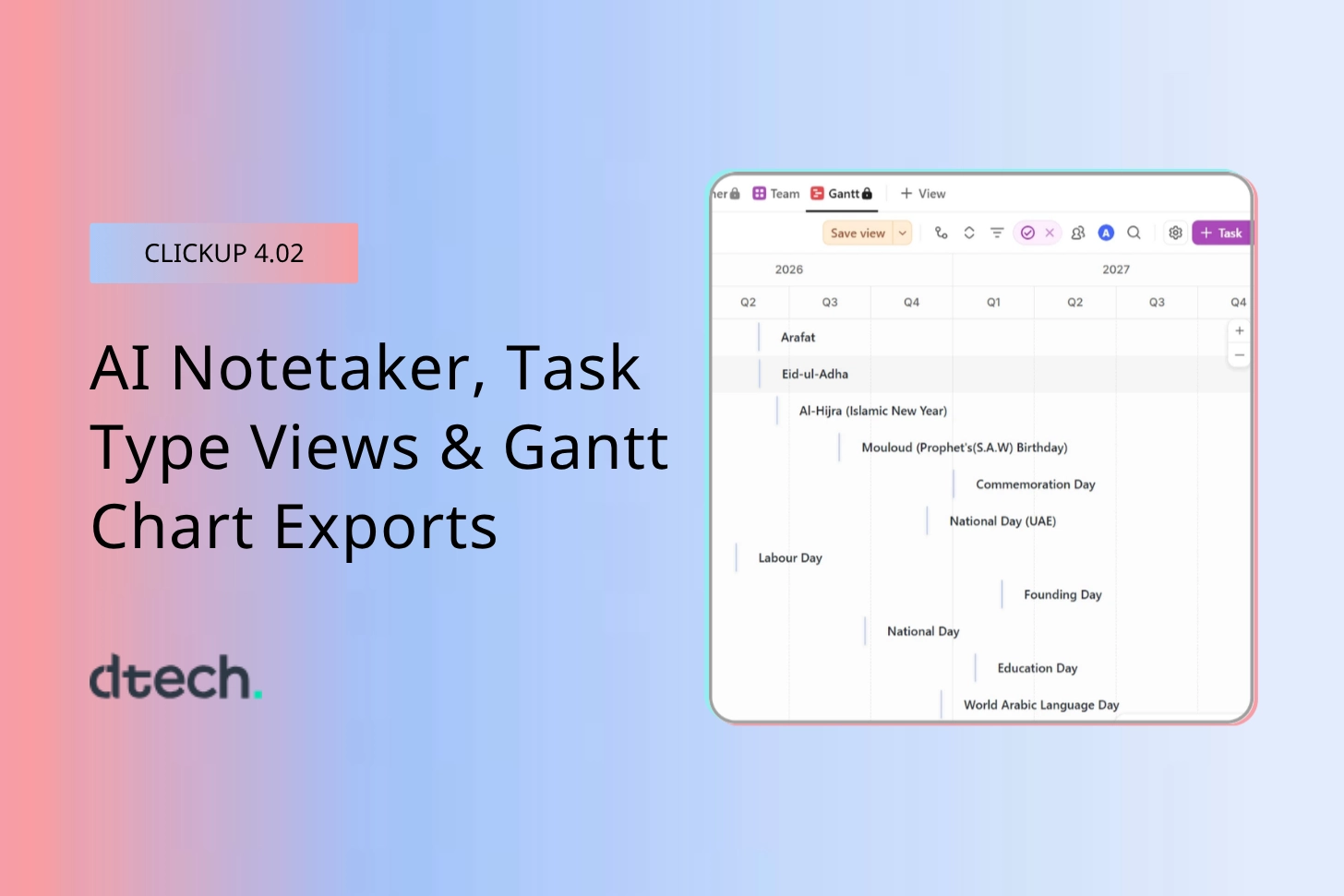
ClickUp 4.02 is here, and this update is all about making your workday a little easier. There are no major changes and no learning curve. Just three practical improvements that save you time, keep your team on the same page, and make sharing project updates simple. This February 2026 ClickUp update brings an on-demand AI Notetaker, Task Type columns, and smarter Gantt chart exports. If you use ClickUp for your everyday tasks, here is what has changed in this latest version. Let’s get started.
Feature 01
AI Notetaker: Your Meeting Assistant, Ready Whenever You Are
You know that exact moment when a quick five-minute call turns into the most important conversation of your week? No agenda, no calendar invite, just someone saying “hey, got a minute?” and suddenly you are making decisions that affect the whole project.
Those are precisely the calls nobody ever documents. Before ClickUp 4.02, the AI Notetaker could not help you there, either. No calendar invite meant no notes, and no notes meant important decisions lived only in someone’s memory until they did not.
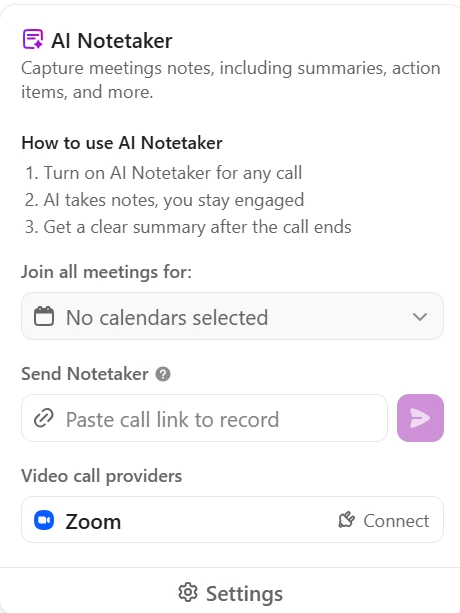
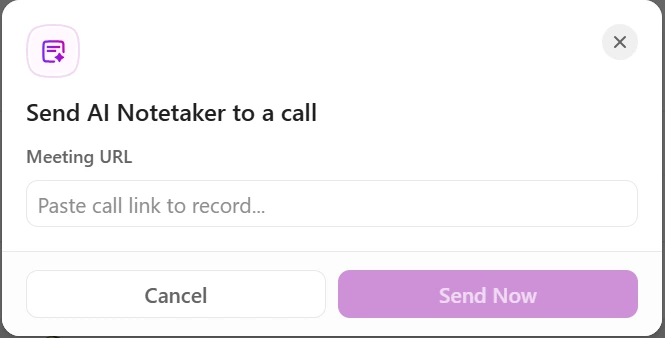
Now, that’s all changed. You can send the ClickUp AI Notetaker to any live meeting; all you need is the meeting link. Paste it in, hit Send Now, and the Notetaker joins the call, listens, and drops the notes straight into your workspace once the meeting’s done. No scheduling needed. No setup. The best part? The ClickUp AI Notetaker without a calendar invite is finally a reality, and it shows up whether you can or not.
Even better, you can now pin the ClickUp AI Notetaker to your toolbar so it’s always one click away, no matter where you are in ClickUp.
Quick Note: AI meeting assistants are becoming the norm in modern workplaces. Having one built right into your work tool instead of using a separate app makes things a lot simpler.
What Changed
- Send the ClickUp AI Notetaker to any call by just pasting the meeting link
- Works with Zoom, Google Meet, and Microsoft Teams
- Pin it to your toolbar for one-click access
- No calendar invite needed, which makes the ClickUp AI Notetaker perfect for surprise or impromptu calls
How to Use It
- Open the ClickUp AI Notetaker from the pinned toolbar icon
- Paste in the live meeting link
- Click Send Now, and it joins automatically
- Find your notes in the workspace when the call ends
Feature 02
Task Types in Views: See What’s What at a Glance
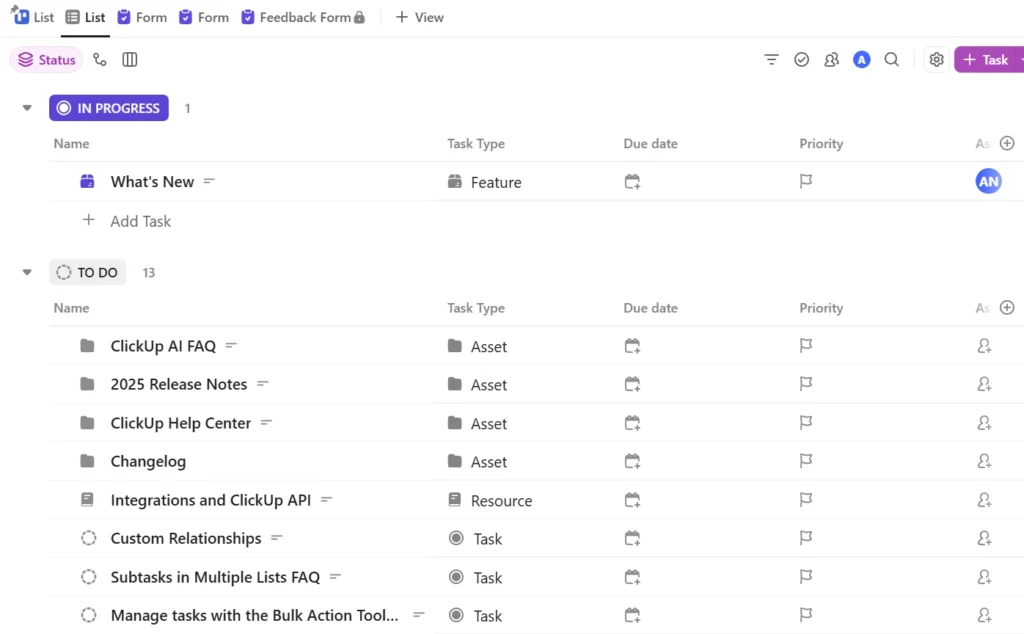
Here’s a situation every team knows: you’re staring at a long list of tasks, and you have no idea what kind of work you’re actually looking at. Which ones are bugs? Which are feature requests? Which are milestones?
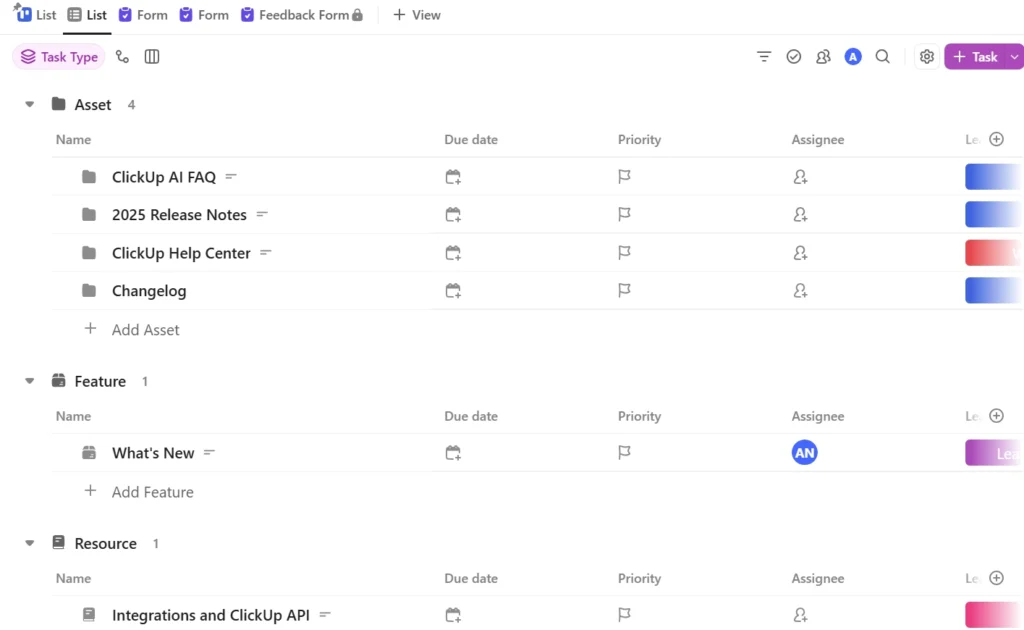
ClickUp 4.02 fixes this with a new ClickUp Task Type column that shows up right in your ClickUp Task Types in List and Table views. You can see the type of each task without opening anything. And if something’s been tagged wrong, you can fix it directly from the list, and then there is no need to dive into individual tasks.
There’s also a clever AI feature built in: ClickUp Brain can look at your tasks and suggest (or automatically apply) the right task type. So instead of tagging everything by hand, the AI does the sorting for you.
You can even group your whole view by task type, so you instantly see how your work is split. You can view how many bugs, how many requests, how many milestones, etc. It’s the kind of clarity that usually takes a spreadsheet and a lot of manual effort.
What Changed
- New ClickUp Task Type column in List and Table views, which is visible at a glance
- Edit task types right from the list so there is no need to open tasks
- Group your views by task type for an instant overview
- AI auto-suggests and applies task types to keep things consistent
- Sort and filter by task type to stay organized
Best for: Product teams, IT support, marketing pipelines, QA teams, and anyone who works with lots of different types of tasks and needs a clearer picture of what’s on their plate.
Feature 03
Gantt Chart Exports: Share Exactly What People Need to See
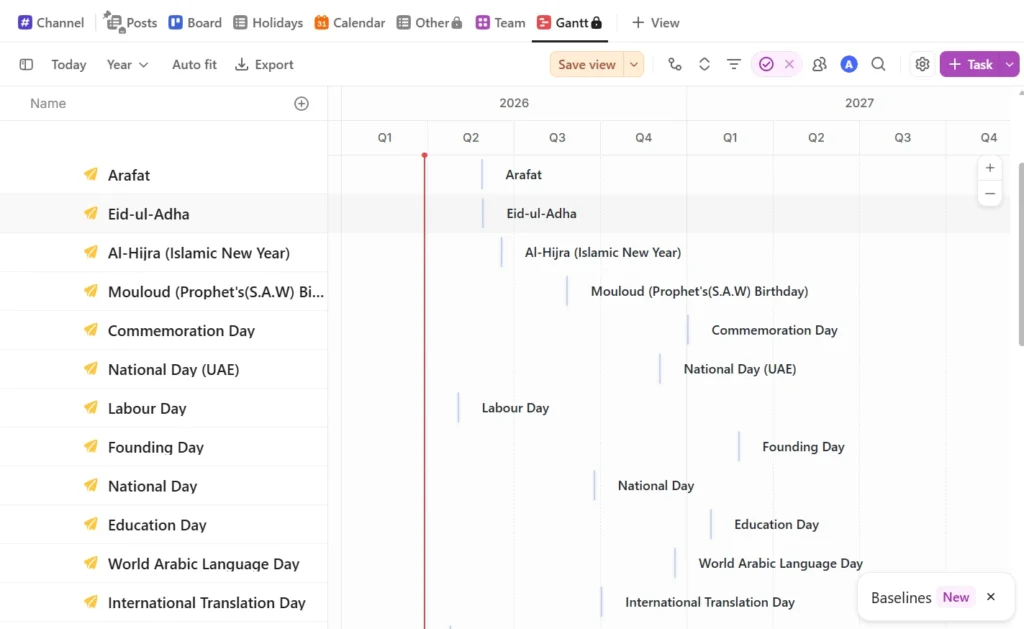
If you’ve ever exported a Gantt chart to share with a client or a manager, you’ve probably run into this problem: the export shows way too much. Months of timeline crammed into one image. Deadlines from six months ago mixed in with this week’s tasks. You either overwhelm people with information, or you spend extra time cleaning up the image before you can share it.
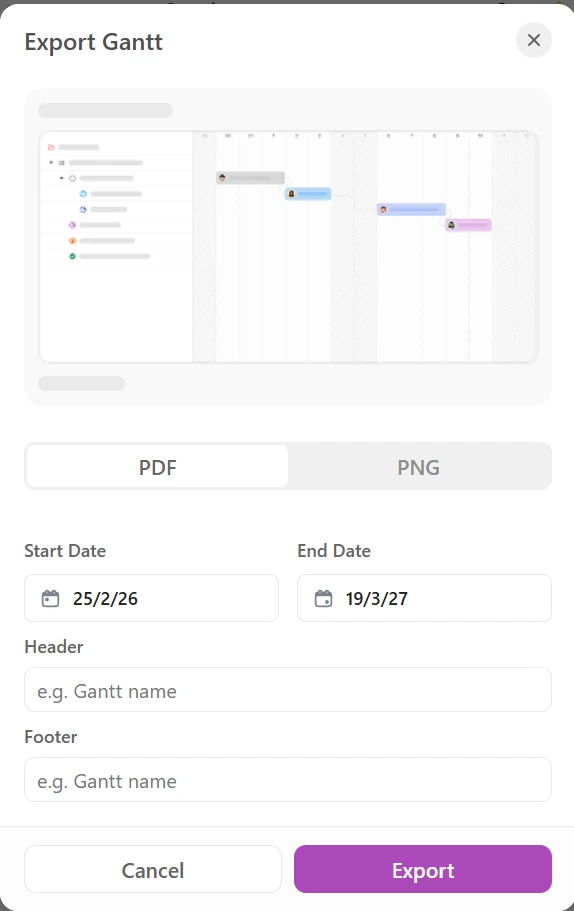
ClickUp 4.02 solves this with the new ClickUp Gantt chart export feature. Now, before you export, you can choose a ClickUp Gantt chart custom start date and end date. So, if you’re sharing a sprint review, you pick those two weeks. If you’re presenting a quarterly roadmap, you set those three months. The ClickUp Gantt chart export shows exactly that window and nothing more.
You can also add a custom header to label the chart before sending it out, so anyone who opens it immediately knows what they’re looking at. Whether it’s a PDF for a presentation or a PNG for a slide, the export looks clean, professional, and focused.
What Changed
- Set a ClickUp Gantt chart custom date range before exporting your Gantt chart
- ClickUp Gantt chart exports are available as both PDF and PNG, as both work great in presentations and reports
- Add a custom header to label the chart clearly
- Stakeholders get a clean, focused snapshot and not the whole timeline
Best for: Project managers, client-facing teams, and anyone who shares timeline updates with people who don’t need to see (or shouldn’t see) the full project picture.
Ready to Make the Most of These Updates?
If your team wants help getting ClickUp set up just right, from organizing ClickUp task types to building automations and using AI the smart way, the consultants at Dtech Systems are here for it. Reach out, and let’s make ClickUp actually work for you.
Book a free consultation