Put Claude inside ClickUp and it stops guessing. The same model that writes a polite template in a blank chat writes the real update inside your workspace, because now it can see the work.
Dtech Systems, ClickUp Partner6 min read3 interactive demos
Demo 1 · Same model, same prompt
Watch the blanks disappear.
Claude on its own has never met your team. Flip on the context and watch what Claude inside ClickUp writes instead.
ClaudeNo workspace context
Write this week’s update for the client on the portal launch.
Hi [client name], We’ve made good progress on [project] and are about [X%] complete.
8blanks left for you to fill
Illustrative example workspace. The pattern is real: with Claude inside ClickUp, the model can search the workspace you have access to.
What actually changes
Claude was never the problem. The empty room was.
Claude is one of the best reasoning and writing models out there. But in a standalone chat, every conversation starts cold. You paste the brief, re-explain the project, copy the last thread, and hope you didn’t leave anything out.
Getting Claude inside ClickUp is now one click. ClickUp Brain lets you pick Claude as the model, right next to ClickUp’s own default model (Max), GPT, and Gemini. And per ClickUp, every supported model gets the same workspace-aware abilities: it can search your workspace, use connected tools, and reference your data.
With Claude inside ClickUp, you’re not getting a different Claude. You’re getting Claude with a desk, a filing cabinet, and a seat in the team chat.
It answers from your work, not the internet’s average
Tasks, Docs, Chat, and comments you can already see become Claude’s source material. No copy-paste, no stale context.
It can do the work, not just describe it
Super Agents, ClickUp’s AI teammates, can run on Claude. You choose the model in the agent’s profile, and it acts on tasks, Docs, and Chat on triggers and schedules.
You can swap models mid-conversation
Each model keeps the chat history and workspace context. ClickUp’s own example: let Max gather the context, then hand it to Claude to structure the plan and write the brief.
Demo 2 · The model relay
One chat. Two models. Zero re-explaining.
Pass the baton →
Two ways in
Claude inside ClickUp, or ClickUp inside Claude?
There are two doors, and they solve different problems. Most teams we work with end up using both.
Door A · Claude inside ClickUp
Pick Claude in Brain or a Super Agent
Works for the whole team, where they already work
Super Agents can run on triggers and schedules
Admins can restrict which models are available
No separate AI accounts to manage
Door B · ClickUp inside Claude
Connect ClickUp to Claude via MCP
For people who live in Claude or Claude Code
Official connector reads and writes tasks, Docs, comments, time
OAuth sign-in, available on every ClickUp plan
Works inside a chat you start, no background triggers
Where it’s still you
Smarter AI doesn’t mean less judgment.
Putting Claude inside ClickUp gives it more reach. That’s exactly why the setup matters.
It sees what you see
Brain works within workspace permissions. If you can’t open it, the model can’t read it for you.
You control the context
Want an external model kept away from workspace data? Select only external sources in the context picker.
Agent drafts, human decides
Let Claude write the update, the plan, the triage. Keep the send button, the discount, and the apology with a person.
Turn it on
Set up Claude inside ClickUp in five minutes.
Open Brain from the sidebar, a task, a Doc, or the AI Command Bar.
Click the current model in the lower-right corner of the chat.
Pick a Claude model. Switch back to Max, GPT, or Gemini any time, even mid-chat.
Create a Super Agent, or open an existing agent’s profile.
Click the model in the upper-right. It’s set to Auto by default.
Choose Claude, then test. Not happy with a reply? Retry it with a different model from the thread.
In Claude (Pro, Team, or Enterprise), go to Settings → Connectors and add ClickUp.
Using a custom connector? The server URL is https://mcp.clickup.com/mcp
Sign in to ClickUp with OAuth and choose your workspace. Claude Code users can run claude mcp add --transport http clickup https://mcp.clickup.com/mcp
API keys and personal tokens aren’t supported by ClickUp’s official MCP server, only OAuth. That’s a feature, not a bug.
FAQ
Quick answers.
Can I use Claude inside ClickUp?
Yes. To use Claude inside ClickUp, open Brain and pick a Claude model from the model picker, alongside Max, ChatGPT, and Gemini. Super Agents can be configured to run on Claude too.
Does Claude see my whole workspace?
It sees what you have permission to access, and only what you bring into context. You can limit a chat to external sources if you don’t want workspace data involved.
Do I need a separate Claude subscription?
Not for Door A. Premium models, Claude included, come with ClickUp’s Brain AI plans. For Door B you use your own Claude account plus the free ClickUp MCP connector.
What’s the difference between Claude inside ClickUp and the ClickUp connector in Claude?
In Brain, Claude comes to your work and can power always-on Super Agents. With the connector, your work comes to Claude, but only inside chats you start.
Which model should our team default to?
Start with Brain’s default and switch to Claude for long-form writing, planning, and reasoning-heavy work. Keep what wins on your own tasks, not on benchmarks.
Dtech Systems · ClickUp Partner
The model is the easy part. The workspace is the edge.
Claude inside ClickUp is only as good as the context it gets. We structure ClickUp so Brain, Super Agents, and every model you pick actually know how your team works.
The moment to set up ClickUp for a growing business properly is before it’s grown, not after. A structure that works fine for six people tends to quietly break at twenty — not because ClickUp can’t handle scale, but because the Workspace was never built with scale in mind.
Getting this right isn’t about following every best practice at once. It’s about sequencing the few decisions that are expensive to undo later.
Where’s your business right now?
However you set up ClickUp for a growing business, the priority steps below change with team size — pick your stage above.
5 Steps to Set Up ClickUp for a Growing Business
1. Build the Hierarchy for Where You’re Headed
ClickUp’s structure — Workspace, Spaces, Folders, Lists, Tasks — is designed to scale, but only if it’s built with growth in mind from the start. A flat structure that works for five people becomes unmanageable at thirty. Pick Spaces organized by department or major function; they scale more predictably than Spaces created for whoever asked first. This is the single decision that makes the rest of setting up ClickUp for a growing business easier or harder.
2. Get Permissions Right Early
Permission mistakes are far easier to make — and far more disruptive to fix — once a team has grown past the point where everyone can be trusted with access to everything. Decide early which Spaces stay restricted: finance, HR, leadership planning, anything client-sensitive. Retrofitting this later means untangling who already has access to what.
3. Standardize Views Before Habits Form
Left unaddressed, everyone defaults to whatever view loads first, and that becomes a mess of individual preferences that don’t match how the team needs to see its work at scale. Decide which two or three views your core workflows should default to, and set those defaults before habits calcify.
4. Automate the Handoffs, Not Everything
A growing team means more handoffs, and more places for something to sit unnoticed. This is where automations pay off fastest: status changes triggering the next task, notifications firing when something’s stalled, requests routing to the right owner. Start with the two or three handoffs already causing friction, not everything at once.
Teams that skip this step when they set up ClickUp for a growing business usually notice it first as a backlog of “who’s handling this?” messages.
5. Review the Structure Every Quarter
A structure built for 15 people doesn’t automatically still make sense at 50. ClickUp’s own onboarding guidance frames the Hierarchy as something meant to expand with the organization, not stay fixed at its starting shape. This is the step most growing businesses skip — and the one that keeps a Workspace usable a year on.
Set Up ClickUp for a Growing Business: Workspace Health Check
Toggle what’s already true for your team:
Spaces are organized by department or function, not by whoever asked first
Sensitive Spaces (finance, HR, client data) already have restricted permissions
Core workflows have an agreed default view, not five different personal ones
At least one real handoff between people or teams is automated
Someone reviewed the Workspace structure in the last 3 months
0 of 5 — toggle what’s already true for your team.
What It Looks Like to Set Up ClickUp for a Growing Business Well
A Workspace set up to grow doesn’t look dramatically different at 10 people versus 50 — it’s the same Hierarchy, just with more Spaces and more refined permissions layered on a structure that was sound from the start. The businesses that end up needing a full rebuild are almost always the ones that built their first structure around whatever felt easiest in week one.
FAQ: Set Up ClickUp for a Growing Business
How many Spaces should a growing business start with?
Fewer than it feels like you need. Start with Spaces that map to major departments or functions, and add more only when a genuine new division of work appears.
When should a growing business start using custom permissions?
As soon as there’s a Space with genuinely sensitive information. Waiting until the team has grown past the point where informal trust is enough makes the fix much harder.
Do automations become more important as a business grows?
Yes. The volume of handoffs and status updates grows roughly with headcount, and manual tracking that worked at 10 people usually breaks well before 50.
How often should a growing business revisit its ClickUp structure?
Quarterly is a reasonable baseline. A structure that fit six months ago can already be straining if the team or org chart has changed meaningfully.
Finding the best workflows to automate isn’t about picking the tasks that sound the most tedious. It’s about finding the specific points in your process where time, accuracy, or context are quietly leaking out — the ones that cost more than they look like they cost, every single week, whether anyone notices or not.
Most teams either automate too little, because nobody’s mapped where the real friction is, or automate the wrong things, because a task looked repetitive on the surface without actually being a good fit underneath. Here’s how to tell the difference.
1. Best Workflows to Automate: Start With Volume, Not Ambition
The best workflows to automate are almost always the boring, high-frequency ones — not the impressive-sounding ones. A task that happens twice a month rarely justifies the setup time, even if automating it would feel satisfying. A task that happens fifty times a week justifies it even if the task itself is simple.
Before automating anything, count how often it actually happens. Volume is what turns a small time savings per instance into a meaningful weekly or monthly return.
2. Best Workflows to Automate: Ask Where Time Actually Disappears
The clearest way to find the best workflows to automate is to trace where time and attention are quietly getting lost in your team’s week. A few questions surface this fast:
Where does a task sit waiting on a person for days before anyone notices?
Where does the same manual step get repeated across dozens of tickets, deals, or campaigns a week?
Where does someone spend an hour finding information that should take five minutes?
Where does a handoff between teams routinely lose context?
3. Best Workflows to Automate: Look for Repetition Without Judgment
The best workflows to automate share one trait: the correct action never changes, regardless of who’s doing it or when. If the answer is always the same given the same trigger, that’s a rule — and rules are exactly what automation is built for.
Common examples of automation:
Move a task to “Done” automatically once every subtask closes
Route a new support ticket by keyword or category
Send a Slack alert when a deadline is 24 hours out
Assign a new lead record to the right rep based on territory
None of these require someone to weigh context or make a judgment call. That consistency is exactly what makes them strong candidates — and it’s also the test that rules out the next category.
4. Best Workflows to Automate: Rule Out Anything That Needs Judgment
Not every repetitive-looking task belongs on the automate list. If the correct action actually depends on context — the specifics of who’s asking, what’s happening elsewhere in the account, how urgent something really is — forcing a fixed rule onto it usually creates more cleanup work than it saves.
This is the same distinction that separates automation from AI agents: automation handles the “same trigger, same action, every time” tasks. Anything that genuinely requires reading context and deciding belongs to a different category of tool entirely, not a rule-based automation.
5. Best Workflows to Automate: Confirm the Data Is Clean Enough to Trust
An automation is only as reliable as the data triggering it. Before building one, check whether the fields, statuses, or tags it depends on are actually kept up to date consistently across the team. An automation built on inconsistent data doesn’t fail loudly — it just quietly produces wrong outcomes that erode trust in the system faster than having no automation at all.
If the underlying data isn’t reliable yet, that’s the first fix — not a reason to skip automation, but a reason to sequence it. Clean up the input before automating the output.
Everything you need to know about the best workflows to automate.
How do I know if a task is worth automating?
Check volume first — does it happen often enough that a
small time savings per instance adds up meaningfully over a
month? Then check whether the correct action ever changes
based on context. If it’s always the same action, it’s a
strong candidate.
What’s the most common mistake when choosing workflows to automate?
Automating a task that actually requires judgment. If the
“right” response depends on details that shift case by case,
a fixed automation will eventually produce a confidently
wrong outcome instead of the right one.
Should I fix data quality before or after automating a workflow?
Before. An automation built on inconsistent or outdated data
will run reliably — it’ll just reliably produce the wrong
result. Clean data is the foundation an automation needs to
actually be trustworthy.
How many workflows should a team automate at once?
Start with one or two of the highest-volume, clearest-rule
tasks rather than trying to automate everything at once. A
small number of automations the team actually trusts beats
a large number nobody’s verified yet.
ClickUp or Excel isn’t really a fair fight on paper — one’s a work management platform, the other’s a spreadsheet application. But in practice, plenty of teams are still running entire projects out of a shared Excel file, and plenty of ClickUp workspaces get built without anyone asking whether the team actually needed all of it.
The real question isn’t which tool is “better.” It’s which one matches how your team’s work actually behaves. Here are the five differences that should actually decide it.
1. ClickUp or Excel: What Each Tool Is Actually Built For
Excel is built for numbers — calculations, formulas, pivot tables, financial models. It’s exceptional at anything that’s fundamentally a math problem dressed up as a spreadsheet.
ClickUp is built for work — tasks, ownership, deadlines, status, collaboration. It’s exceptional at anything that’s fundamentally a “who’s doing what by when” problem.
The ClickUp or Excel decision gets easier the moment you’re honest about which of those two categories your actual use case falls into. A budget model belongs in Excel. A project with owners, deadlines, and moving statuses belongs in ClickUp. Most teams run into trouble when they try to force one tool to do the other’s job.
ClickUp was built around this exact problem — the whole point is that tasks are commentable, assignable, and trackable by nature. In the ClickUp or Excel comparison, this is the sharpest line: Excel is a shared document, ClickUp is a shared workflow.
3. ClickUp or Excel: Automation and Workflow Logic
Excel can automate calculations natively and, with enough macro or scripting knowledge, can automate certain repetitive actions too. But it wasn’t designed for workflow automation — moving a task forward, notifying someone, changing an assignee based on a status change.
That’s core to what ClickUp does out of the box: automations that move tasks, assign people, or trigger notifications based on rules, without a single line of code. If your team’s Excel file has ever needed a “did anyone check on this yet?” column that someone has to manually scan, that’s usually the clearest sign the ClickUp or Excel answer has already tipped toward ClickUp.
4. ClickUp or Excel: Structure vs Flexibility
Excel’s biggest strength is also its biggest weakness for team workflows: it’s infinitely flexible. You can build anything in a spreadsheet, which is exactly why every team’s Excel tracker ends up looking completely different, held together by whoever built it first, and fragile the moment that person leaves.
ClickUp trades some of that raw flexibility for structure — Spaces, Lists, statuses, and views that keep a team’s work legible to everyone, not just the person who originally set it up. In the ClickUp or Excel comparison, this is a genuine tradeoff, not a one-sided win: a solo analyst building a custom financial model wants Excel’s flexibility. A team of ten tracking shared, ongoing work wants ClickUp’s structure.
5. ClickUp or Excel: Reporting and Visibility
Getting a clear status update out of a shared Excel tracker usually means someone manually reviewing rows, cross-referencing tabs, and summarizing it into an email or a meeting. That process doesn’t scale, and it’s rarely up to date by the time anyone reads it.
ClickUp’s dashboards pull live status directly from the same tasks the team is already updating, so reporting doesn’t require a separate manual effort — it reflects the current state of the work in real time. This is often the single biggest time-cost difference in the ClickUp or Excel comparison for teams past a certain size.
Everything you need to know about ClickUp or Excel.
Can I import my existing Excel tracker into ClickUp?
Yes. ClickUp’s Spreadsheets Importer maps Excel, CSV, and
other spreadsheet formats directly into tasks and Custom
Fields, so existing data doesn’t have to be manually
re-entered.
Is ClickUp more expensive than Excel?
It depends on what you’re already paying for. Excel usually
comes bundled with a Microsoft 365 subscription your team
may already have. ClickUp has its own separate per-seat
pricing, though its Free plan covers a meaningful amount of
team use before any cost is involved.
Can ClickUp fully replace Excel for a team?
For task tracking, project status, and workflow management,
yes. For heavy financial modeling, complex formulas, or
advanced pivot-table analysis, most teams still keep Excel
around for that specific work.
What’s the biggest sign a team has outgrown Excel?
When someone has to manually chase updates across a shared
file, or when formulas keep breaking as more people edit
it. That’s usually the clearest signal the ClickUp or Excel
decision has already tipped.
ClickUp cost in 2026 depends on the offer you are buying, your users, billing term, AI requirements and implementation scope. Start with the current supplier offer, then build a budget around the work your team needs to deliver.
Prepared by Dtech Systems. Reviewed 9 October 2026. Use the five questions below to compare written proposals. Product packaging and prices can change; confirm the offer that applies to your workspace before committing.
Start with your requirements: which departments need the workspace, who manages work, who collaborates externally and which workflows require restricted access? List the reporting and integration capabilities the team must retain.
Compare the limits that matter to those workflows. Ask for written confirmation of the included capabilities, usage allowances, external-collaboration arrangements and any charges when an allowance is exceeded.
For an Enterprise proposal, ask how identity, permissions, audit requirements and integrations will be delivered in your configuration. A plan name alone does not prove that every governance or data-handling requirement is covered.
If you already use ClickUp, ask which terms apply to your existing subscription and what would change if you move to another offer. Do not assume that an older plan name, allowance or promotional price remains available for a new purchase.
Keep the agreed plan, user count, included products and commercial assumptions together in the quote. Dtech can help scope the implementation alongside the licence requirements; you can also request a software quote directly from ClickUp.
2. Which billing term and currency apply?
Confirm whether each displayed rate is billed monthly or annually, the currency, payment dates, tax treatment and contract term. Ask about added users, renewal conditions and any proposed discount’s expiry. Compare the total commitment over the same period, rather than mixing monthly and annual headline rates.
Name the AI use cases your team needs, such as finding workspace information, preparing summaries or assisting a defined workflow. Ask the supplier to confirm the included product, eligible users, usage basis and treatment of additional consumption for those use cases.
Keep AI-related charges and assumptions visible in the budget, including any included allowance. Confirm whether a charge applies to every relevant user, selected users or another billing basis. Test the intended workflow before assuming that every team member needs the same configuration.
4. Which implementation costs are separate?
A useful proposal separates the software contract from the services needed to make the workspace work. Request distinct lines for configuration, migration, integrations, training and ongoing support, with clear ownership of each deliverable.
For migration, agree the source systems, mappings, exclusions and validation checks. For integrations, identify the connected system, direction of data flow, operating owner and failure handling. For adoption, define training and support responsibilities. Include third-party subscriptions, internal administration and any agreed maintenance; these depend on your scope and are not presented here as mandatory hidden fees.
5. What is your first-year budget?
Build the first-year total from the quoted licence commitment, any separately charged AI or usage, one-off implementation and migration, training, integrations, recurring support and applicable taxes or fees. Record each input’s source and date. A worked budget is only useful when its rates and assumptions match the actual offer; there is no universal ten-person price in this guide.
Send Dtech your country, approximate user count, current tools, required capabilities, two or three important workflows and target launch date. Ask for a written scope, acceptance checks and a separately identified software and services budget. Use the questions below when comparing proposals for a Saudi or UK team.
ClickUp cost questions
Use these answers alongside the current supplier offer.
How do I find the current paid ClickUp price?
Check the current offer on ClickUp’s official pricing page and confirm the package, billing term and currency for your workspace. An older published rate is not a substitute for the offer you are buying.
Is ClickUp AI included in every offer?
AI packaging varies by the offer. Confirm which products, users and usage allowances are included, and which charges are separate, in your written proposal. Do not assume a single older add-on price covers all current packages.
How is ClickUp Enterprise priced?
The official Enterprise offer uses a sales quotation. Request a written price with a validity date, user assumptions, included capabilities and commercial terms.
Does annual billing guarantee the same saving for every team?
Compare monthly and annual commitments for the same offer, user count and period. Confirm renewal terms and any promotion’s expiry. Calculate the difference from the actual proposal rather than applying one percentage to every plan.
When it comes to AI agents vs automation, most businesses are asking the wrong question. They’re not asking “which one do we need” — they’re asking “how do we get one of whatever everyone else is calling AI.” That’s how companies end up overpaying for intelligence they don’t need, or underbuilding a process that actually required judgment all along.
Every product update this year ships with the same headline: “now powered by AI agents.” Every vendor pitch leads with autonomy and intelligence. If you’re trying to figure out what your business actually needs, the noise has gotten loud enough to bury the one question that matters. This guide breaks the AI agents vs automation comparison down properly — the definitions, the cost implications, the common mistakes, and the practical framework you can apply to any process in your business starting today.
1. AI Agents vs Automation: The Core Definition
The starting point of any AI agents vs automation decision is understanding that these are not two versions of the same thing. One isn’t a “better” upgrade of the other. They are built to solve fundamentally different kinds of problems.
Automation is deterministic. It runs on a fixed set of rules: if X happens, do Y. There’s no interpretation, no judgment, no “it depends.” You define the trigger, you define the action, and it fires the same way every single time, regardless of context.
→ Where does a task sit waiting on a person for days before anyone notices? → Where does the same manual step get repeated across dozens of tickets, deals, or campaigns a week? → Where does someone spend an hour finding information that should take five minutes? → Where does a handoff between teams routinely lose context?
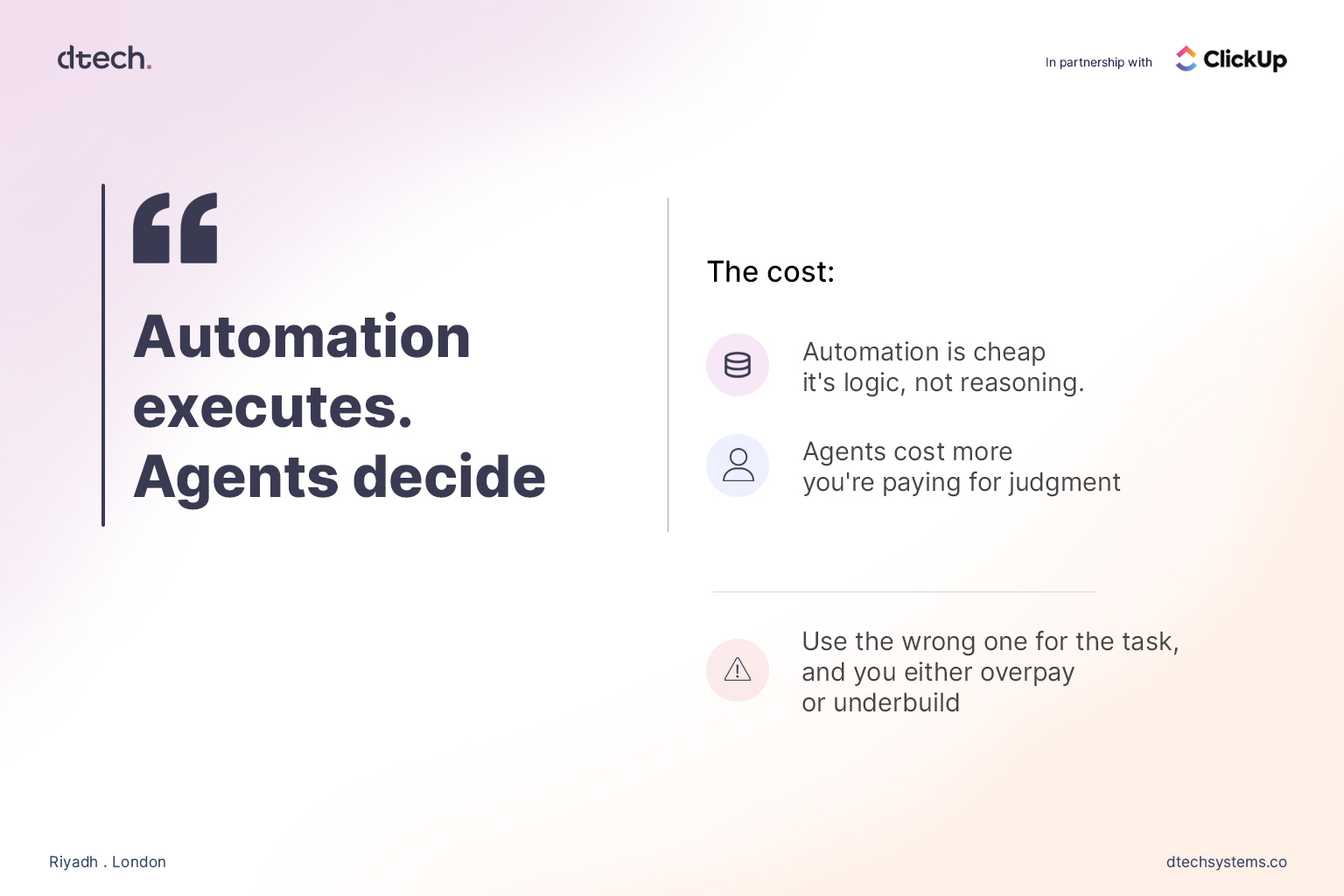
In the AI agents vs automation comparison, the distinction comes down to one line: automation executes, agents decide. Once a business internalizes that, the conversation stops being “which one is better” and becomes “which parts of our workflow actually need judgment, and which parts just need to run reliably.”
2. AI Agents vs Automation: Cost and Complexity
Cost is where the AI agents vs automation decision has real financial weight, and it’s where a lot of businesses get burned.
Automation is cheap to build and cheap to run. It’s logic, not reasoning — a rule engine executing the same instruction every time it’s triggered. There’s no ongoing “thinking” cost, no token spend, no variability in output. Once it’s configured correctly, it just runs.
AI agents cost more, because you’re paying for judgment, not just execution. Every decision an agent makes involves interpreting context, which means compute, and which means a price tag that scales with how much reasoning you’re asking for. That’s not a reason to avoid agents — it’s a reason to be deliberate about where you deploy them.
This is where businesses tend to go wrong in one of two directions:
Underbuilding: Forcing a static, rule-based workflow to handle a task that genuinely requires judgment. The rule can’t account for the exceptions, the edge cases, the “it depends” scenarios — so it either breaks, or it quietly produces the wrong outcome without anyone noticing until it’s a bigger problem
Common examples of automation:
Move a task to “Done” automatically once every subtask closes
Route a new support ticket by keyword or category
Send a Slack alert when a deadline is 24 hours out
Assign a new lead record to the right rep based on territory
Where does a task sit waiting on a person for days before anyone notices?
Where does the same manual step get repeated across dozens of tickets, deals, or campaigns a week?
Where does someone spend an hour finding information that should take five minutes?
Where does a handoff between teams routinely lose context?
3. AI Agents vs Automation: Where Companies Get It Wrong
The most common mistake in the AI agents vs automation debate isn’t picking the wrong tool — it’s skipping the workflow audit entirely.
Here’s the pattern: a business sees a competitor announce an “AI agent.” They don’t want to be left behind. They buy or build an agent and point it at a process that was never clearly defined in the first place — inconsistent task ownership, messy or incomplete data, no shared definition of what “done” actually looks like across the team.
The agent doesn’t fix any of that. It can’t. An agent making decisions inside a broken workflow just makes bad decisions faster and with more apparent confidence. Nothing has actually been solved — the chaos has just been automated and given a more convincing voice.
Where does a task sit waiting on a person for days before anyone notices?
Where does the same manual step get repeated across dozens of tickets, deals, or campaigns a week?
Where does someone spend an hour finding information that should take five minutes?
Where does a handoff between teams routinely lose context?
Only after answering those questions do they know where automation belongs and where an agent belongs — and in what order to build them.
4. AI Agents vs Automation: Sequencing Matters
There’s a sequencing mistake baked into most AI adoption efforts: companies try to deploy agents before they’ve automated the basics. That’s backwards, and it’s an expensive way to learn the lesson.
If your task statuses aren’t updating reliably, if your team is manually reassigning work that should route itself, if reminders are falling through the cracks — none of that gets fixed by adding an agent on top. It gets fixed by automation. Clean, rule-based automation is the foundation. It’s what makes your underlying data trustworthy and your workflow legible enough for an agent to operate inside without immediately going off the rails.
Skip that foundational step, and you’re asking a decision-making system to make decisions based on incomplete or inconsistent information. The output will look confident. It won’t be reliable — and confident, unreliable output is often worse than no automation at all, because it erodes trust in the system faster than a visible failure would.
Get the automation layer right first. Then decide, deliberately, where judgment genuinely needs to enter the picture — and that’s where an AI agent belongs in the stack.
5. AI Agents vs Automation: What This Looks Like in ClickUp
Automations handle the deterministic layer: status changes, task assignments, recurring work, due-date reminders, and notifications when something needs attention. None of it requires interpretation. None of it should cost you agent-level compute or complexity. It’s rules, running reliably, in the background, exactly the way they were configured to.
Super Agents handle the judgment layer. A new lead comes in — a Super Agent researches it, enriches the record with relevant context, and flags whether it’s genuinely worth a rep’s time before anyone manually touches it. A time-off request comes in — a Super Agent checks it against team capacity and existing coverage instead of someone manually cross-referencing five different calendars. Across a busy workspace, instead of a flat, undifferentiated list of a hundred open tasks, an agent can surface what actually needs attention right now and explain why.
You don’t have to pick one paradigm for your entire business. The AI agents vs automation line gets drawn task by task, process by process, inside the same workspace.
Before adding any AI tool — agent or otherwise — to your stack, there’s one question worth asking about the specific task in front of you:
Is this a decision, or is this a rule?
If it’s a rule — if the right action is always the same action, regardless of context — automate it. Do it now. It’s cheap, it’s fast to configure, and it removes the manual work without adding unnecessary cost or complexity.
Everything else — the tools, the hype, the “we’re an AI-first company” branding — is noise dressed up as strategy. The businesses that actually benefit from this moment aren’t the ones with the most AI. They’re the ones who took the time to understand the AI agents vs automation distinction and built accordingly, task by task.
FAQs
Everything you need to know about AI agents vs automation.
Is an AI agent just advanced automation?
No. Automation runs fixed rules with no interpretation — the
output never changes for a given trigger. AI agents make
decisions based on context that changes case by case. In the
AI agents vs automation comparison, they’re built to solve
different kinds of problems, and treating one as a simple
upgrade of the other is where most AI adoption mistakes start.
Should a business start with automation or AI agents?
Automation first, always. It builds the clean, reliable
workflow foundation an AI agent needs in order to make good
decisions on top of. Deploying agents before automating the
basics means asking a reasoning system to work with
incomplete or inconsistent data.
Can automation and AI agents work together?
Yes — and in most real workflows, they should. ClickUp
Automations handle the rule-based layer while Super Agents
handle the judgment layer, inside the same workspace, so
teams don’t have to choose one paradigm across the whole
business.
How do I know which tasks need an agent instead of automation?
Ask whether the correct action ever changes based on context.
If it’s always the same response to the same trigger, it’s a
rule — automate it. If the right response depends on details
that shift case by case, it’s a decision — that’s where an
AI agent belongs.
AI maturity model is the term more businesses should be searching before they buy another AI tool. Every company in Saudi Arabia now claims to be “doing AI.” Few can tell you how much AI they’re actually doing — or whether any of it is working.
That gap is the real problem. Not the tools. Not the budget. The gap between believing you’ve adopted AI and actually knowing where you stand.
This is exactly where an AI maturity model earns its keep. It’s not a scorecard designed to make you feel behind. It’s a mirror — one that shows you precisely which stage your workflows are in, and precisely what the next stage requires from you.
Why “Are We Using AI?” Is the Wrong Question
Most companies answer that question with a list of tools: a chatbot here, an AI writing assistant there, maybe a forecasting model tucked into finance. But tool count is a vanity metric. It tells you nothing about whether AI is actually changing how work gets done day to day.
The right question isn’t “are we using AI.” It’s “how deeply is AI embedded in how our teams actually operate.” That’s a maturity question, not a checklist question — and answering it properly requires an AI maturity model, not a tool inventory.
Stage 1: Ad Hoc AI shows up as individual experiments. Someone on the marketing team uses a chatbot to draft captions. Someone in sales uses AI to summarize a call. There’s no strategy, no shared system, and no visibility for leadership into who’s doing what. Value exists, but it’s invisible and unrepeatable — which is precisely why a business at this stage needs an AI maturity model to make the gaps visible.
Stage 2: Departmental One team formalizes its use of AI — usually whichever team is under the most pressure to move fast. Marketing might standardize on an AI content tool. Support might roll out an AI ticket-triage flow. The results are real, but they live in a silo. Other departments don’t know the system exists, let alone how to replicate it.
Stage 3: Integrated AI moves out of silos and into shared systems. This is the stage where the platform matters more than the tool, because integration requires a workspace where data, tasks, and AI outputs sit in one place instead of scattered across five apps. Teams start automating handoffs between each other, not just individual tasks within their own corner of the business.
Stage 4: Autonomous AI agents start making decisions within defined boundaries — triaging incoming leads, reassigning overdue tasks, flagging risks before a human even notices them. This is where something like ClickUp’s Autopilot Agents changes the equation: agents that act inside your existing workflow rather than requiring a new one bolted on the side.
Stage 5: Adaptive The organization treats AI maturity as a continuous capability, not a project with an end date. Workflows self-adjust based on outcomes. Leadership reviews AI performance the way it reviews revenue — as a standing metric, not a one-time initiative to check off.
Where Most Saudi Businesses Actually Sit
If we’re honest, most organizations riding this year’s AI wave — accelerated by Vision 2030’s push toward digital-first operations — are sitting between Stage 1 and Stage 2 on the AI maturity model. Lots of individual experimentation. Very little integration. Almost no organizations have reached Stage 4, where AI acts rather than just assists.
That’s not a criticism. It’s the natural result of adopting tools faster than restructuring the workflows underneath them. But it does mean most companies are leaving the real value of AI — compounding efficiency, not one-off time savings — sitting on the table.
The Jump From Stage 2 to Stage 3 Is Where Businesses Get Stuck
This is the stage where tool sprawl becomes the enemy of progress — a pattern we broke down in Your Company Doesn’t Need More AI Tools. It Needs Better Workflows. You can’t integrate AI across departments when every department is using a different tool with no shared data layer underneath it. This is exactly the problem workflow platforms like ClickUp exist to solve: one system where tasks, docs, chat, and AI sit together, so AI outputs from one team become usable inputs for the next.
This is the stage where tool sprawl becomes the enemy of progress. You can’t integrate AI across departments when every department is using a different tool with no shared data layer underneath it. This is exactly the problem workflow platforms like ClickUp exist to solve: one system where tasks, docs, chat, and AI sit together, so AI outputs from one team become usable inputs for the next.
Moving from Stage 2 to Stage 3 on the AI maturity model isn’t about adding another AI tool. It’s about consolidating the ones you already have into a system that lets them talk to each other.
How to Use an AI Maturity Model in Your Own Business
Applying an AI maturity model doesn’t require a consultant on day one. Start by mapping, honestly, which stage each department sits in today — not where you’d like them to be. Then look for the biggest gap between departments; that gap is usually where the most value is being lost. Finally, pick one workflow to move up a full stage before spreading effort across ten. Maturity compounds fastest when it’s concentrated, not scattered.
Assess Before You Automate
The businesses that get the most out of AI aren’t the ones with the most tools. They’re the ones who diagnosed their stage on the AI maturity model honestly before deciding what to build next. Skipping that step is how companies end up automating a broken process — and getting a faster version of the same problem.
If you don’t know your stage, that’s the first project. Not the AI rollout — the audit.
Dtech Systems helps businesses map their position on the AI maturity model and build the ClickUp workflows to move up it — not just adopt more tools
ClickUp is good for freelancers. ClickUp for freelancers works well because it combines task management, time tracking, invoicing-ready reports, and client-facing dashboards inside one free-to-start platform — replacing 3–4 separate tools (a to-do app, a time tracker, a doc editor, and a client portal) for around $7–12/month per user on the Unlimited plan. It’s the strongest fit for freelancers juggling more than 3 clients at once; solo freelancers with only one or two simple projects may find it more powerful than they need.
What Makes ClickUp Good for Freelancers
ClickUp for freelancers earns its reputation because it’s built to flex around messy, multi-client workloads rather than forcing a single rigid workflow. Here’s what freelancers use most.
Task and Project Management
Every client can get their own Space or Folder, with Lists for individual projects and custom statuses (e.g., “Awaiting Feedback,” “In Revision,” “Delivered”). This keeps overlapping deadlines visible in one calendar or Gantt view instead of scattered across sticky notes and separate apps.
Time Tracking and Invoicing
Built-in time tracking lets freelancers log billable hours per task, per client, or per project, then export timesheets for invoicing. This is one of the biggest reasons ClickUp for freelancers beats plain to-do apps — you don’t need a separate tool like Toggl bolted on just to bill accurately.
Client Collaboration Without Extra Logins
Guest access and shareable Dashboards mean clients can check project status, leave comments, or approve deliverables without needing a paid seat. For freelancers who get the “any update?” email too often, this alone justifies the switch.
ClickUp for Freelancers vs. Other Tools
Compared to Trello, ClickUp for freelancers offers native time tracking, docs, and goals instead of relying on power-ups. Compared to Notion, it has stronger native task automation and reporting, though Notion still wins on freeform note-taking. Compared to Asana, ClickUp is generally cheaper at the freelancer tier and includes more built-in features (time tracking, whiteboards, docs) without needing paid add-ons. The trade-off is a steeper learning curve — ClickUp has more settings to configure than any of these three.
Pricing: What ClickUp for Freelancers Actually Costs
Free Forever plan — Unlimited tasks and members, 100MB storage. Workable for a freelancer with 1–2 small clients.
Unlimited plan (~$7/user/month billed annually) — Unlimited storage, unlimited integrations, and Gantt charts. This is the tier most freelancers land on once client count grows.
Business plan (~$12/user/month billed annually) — Adds advanced automations, timesheets, and custom reporting, useful once you’re subcontracting or running a two-to-three-person freelance team.
Because pricing is per user, a solo freelancer can realistically run an entire client roster on the Free or Unlimited plan for well under $10/month.
Scaling Beyond Solo Work: How Dtech Helps ClickUp for Freelancers Users Grow
The moment a freelance practice starts subcontracting, hiring a VA, or turning into a small studio, a workspace that was thrown together for one person stops holding up. That’s exactly the gap Dtech Systems is built to close.
Dtech helps teams design, automate, and optimize ClickUp workspaces, workflows, and reporting so they can move faster with clarity. As a ClickUp Diamond Partner, Dtech runs every engagement through the same proven sequence: business consulting to understand how the work actually runs, full implementation of the hierarchy, automations, integrations, and dashboards, AI applied with real business context, and hands-on adoption coaching until the new setup becomes second nature. For a growing freelance operation, that translates into:
A workspace built around how you actually work, not a generic template. Dtech starts by understanding the business first, then shapes the build around that diagnosis—so ClickUp fits your process instead of the other way around.
A senior team that stays with your account. Where buying ClickUp direct means a subscription and a blank workspace you’re left to configure yourself with generic templates, partnering with Dtech gets you a working system built around your real processes, delivered by a named team that knows your account.
The right structure at exactly the stage you’re at. Dtech’s “startups and growing businesses” track is built to get a freelance operation’s workspace set up right from day one, so growth happens on structure instead of chaos—ideal for the moment you bring on your first collaborator or subcontractor.
Local billing and bilingual delivery (KSA and UK, English or Arabic), plus adoption hours included upfront — Dtech is measured on whether your team actually adopts ClickUp, not just on the license sale.
For freelancers ready to run their client work like a real operation rather than a patchwork of tools, Dtech’s ClickUp implementation and adoption support is the fastest way to get there properly the first time.
FAQs
Everything you need to know about ClickUp for freelancers.
Is ClickUp really free for freelancers?
Yes. The Free Forever plan supports unlimited tasks and users with
100MB of storage, which is enough for a freelancer managing a
handful of clients. Most freelancers only upgrade to the Unlimited
plan (~$7/user/month) once they need more storage or advanced views
like Gantt charts.
Can clients use ClickUp without paying for a seat?
Yes. ClickUp’s Guest access lets clients view specific Lists,
leave comments, and approve deliverables without a paid license,
which is one reason ClickUp for freelancers is popular for
client-facing work.
Is ClickUp better than Trello for freelancers?
For most freelancers managing multiple clients, ClickUp for
freelancers offers more built-in functionality — native time
tracking, docs, and reporting — where Trello would require
add-on power-ups to match the same features. Trello can still
be faster to learn for freelancers who only need a simple
visual board.
Quick answer: ClickUp reporting tools give teams a single, real-time view of task progress, time spent, workload, and goal status through Dashboards, Time Tracking reports, Sprint and Goal reports, and the AI assistant ClickUp Brain — replacing manual status updates and spreadsheets with live data your team can act on immediately.
What Are ClickUp Reporting Tools?
ClickUp reporting tools are the built-in features inside ClickUp — Dashboards, time reports, Goals, Sprint reports, and AI summaries — that turn raw task data into visuals your team can read at a glance. ClickUp dashboards provide powerful reporting and analytics capabilities, allowing teams to gain insights into their workspace like never before, with customizable widgets displaying metrics, graphs, and task lists that make tracking progress and identifying trends easy. Instead of someone pulling numbers manually from five different lists every Friday, these tools pull live data from every task, list, and Space and turn it into a screen your team can actually use.
The Core ClickUp Reporting Tools Every Team Should Use
Most teams only ever touch a fraction of what’s available. These are the tools worth setting up first.
Dashboards
Dashboards are the centerpiece of ClickUp’s reporting suite. ClickUp dashboards offer custom reporting with more than 50 widget types — charts, lists, calculations, and embeds — so a team can build one screen that shows sprint burndown, overdue tasks, and workload side by side, instead of clicking through five separate lists to piece the same picture together.
Time Tracking and Timesheets
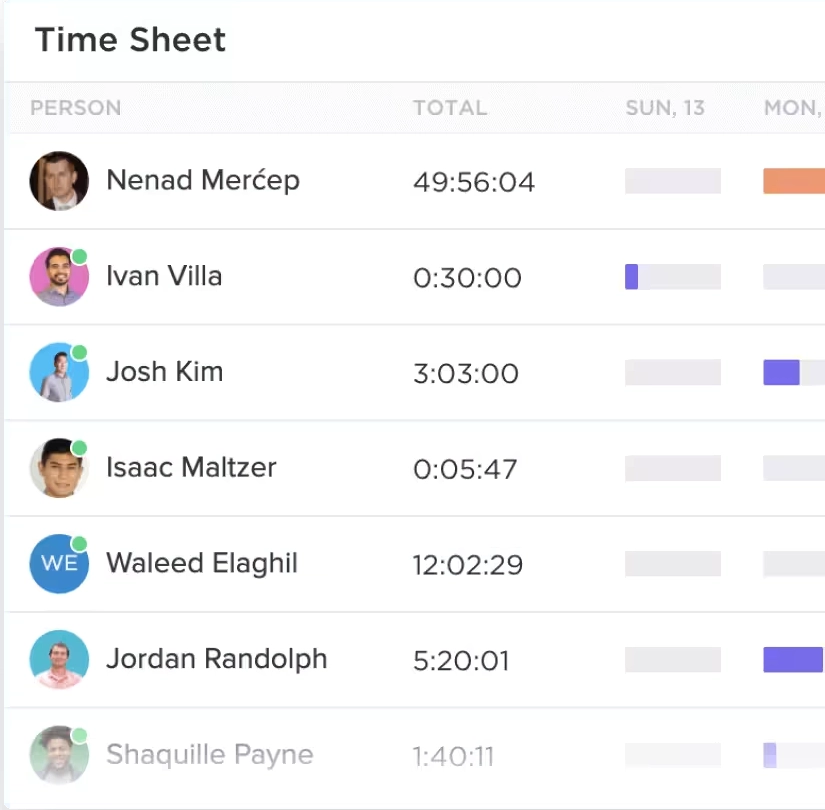
Native time tracking gives you timesheets, estimates versus actuals, and billable-hours reporting without bolting on a separate app — the kind of detail agencies and client-facing teams need when they bill by the hour.
Goals and Sprint Reports
Goals roll individual tasks up into a measurable target with automatic progress percentages, while Sprint Reports track velocity and burndown for Agile teams running two-week cycles — so a stalled sprint shows up on the dashboard before it shows up in a missed release.
ClickUp Brain: AI-Powered Reporting
ClickUp Brain distills complex data into clear takeaways, merges data from diverse sources to reduce manual entry, and keeps reports current through scheduled updates and interactive charts that refresh in real time. This is the layer that turns a dashboard from “data” into a two-sentence summary a manager can actually read on their phone between meetings.
Workload and Capacity Views
The Workload view shows who’s overbooked and who has room before a deadline slips — arguably the most underused feature in the list, since most teams default to checking task lists instead of checking capacity.
Why Reporting and Analytics Matter for Team Performance
The case for using ClickUp reporting tools isn’t just convenience—it’s tied directly to project outcomes. PMI’s 2025 data found that only 50% of projects succeed globally, with 13% ending in outright failure. Separately, a 2026 industry survey found that even as success metrics have gotten clearer, real-time KPI access hasn’t improved and manual reporting remains largely unchanged—meaning visibility gaps, not effort, are still limiting how mature most teams’ reporting really is. On the other side of that gap, organizations with a structured reporting habit — a PMO reviewing dashboards on a schedule — complete 38% more projects on time and on budget than those without one, and automated status reporting is already the single most common AI use case, adopted by 44% of AI-using project teams.
Put together, this is the actual argument for investing in dashboards and reporting: teams that can see status in real time are the ones closing the visibility gap that the data says most organizations are still stuck in.
How Dtech Systems Helps Teams Get More From ClickUp Reporting Tools
Turning on a dashboard is easy. Building one that reflects how your business actually runs — with the right widgets, permissions, and automations feeding it — is where most teams stall out. Dtech Systems is a ClickUp Diamond Partner that helps teams design, automate, and optimize ClickUp workspaces, workflows, and reporting so they can move faster with clarity.
Where buying ClickUp direct leaves you with a subscription and a blank workspace to configure yourself, Dtech pairs each team with senior consultants who rebuild workflows live on real work rather than demos, and stays on afterward as a named team that knows the account’s context. That distinction matters specifically for reporting: a dashboard built from generic templates rarely matches how a specific team actually tracks revenue, client delivery, or sprint velocity, so it quietly stops getting opened within a month. Dtech also delivers support in English or Arabic with local billing out of Riyadh and London, which matters for teams across the GCC and wider EMEA standing up ClickUp dashboards across bilingual departments.
The Bottom Line
ClickUp reporting tools — Dashboards, time tracking, Goals, Sprint reports, and ClickUp Brain — exist to close the same visibility gap that keeps roughly half of all projects from fully succeeding. The tools themselves are free to try; what actually determines whether they get used is whether they’re built around how your team really works. That’s the part Dtech Systems specializes in, as a ClickUp Diamond Partner working with teams from ten seats to ten thousand.
FAQs
Everything you need to know about ClickUp reporting tools.
What’s the fastest way to check whether your ClickUp reporting tools are actually working?
Check whether the dashboards get referenced in meetings, not just
whether they exist. A quick proxy: if leadership still asks
“what’s the status?” in a standup after a dashboard was built for
that exact purpose, the dashboard isn’t doing its job — either the
widgets are tracking the wrong thing, or nobody trusts the data
feeding it.
Do ClickUp reporting tools require the paid plan?
Basic dashboards are available on ClickUp’s free and lower-tier
plans, but unlimited access to Gantt charts, advanced reporting,
and sufficient storage require an upgrade to a paid plan. Most
teams that outgrow the free plan do so specifically because they
need reporting depth the entry-level tier doesn’t include.
How much does poor reporting visibility actually cost a team?
It’s measurable, not just anecdotal. Manual reporting remains the
norm at most organizations even as teams say they want real-time
KPI access, and teams without a structured reporting cadence
complete roughly 38% fewer projects on time than organizations
that review dashboards on a set schedule. That’s exactly the gap
dashboards, time reports, and AI-generated summaries are built to
close.
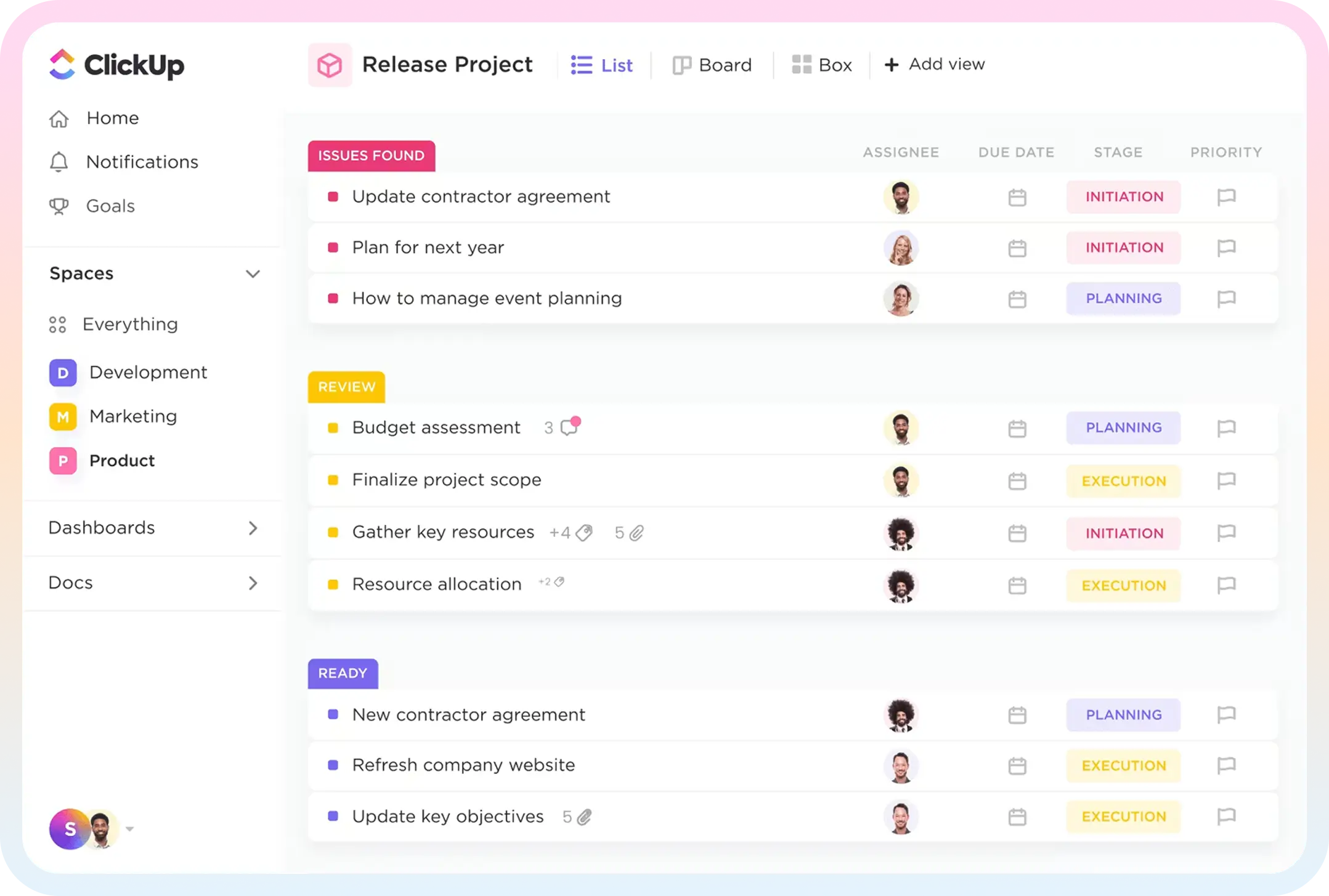
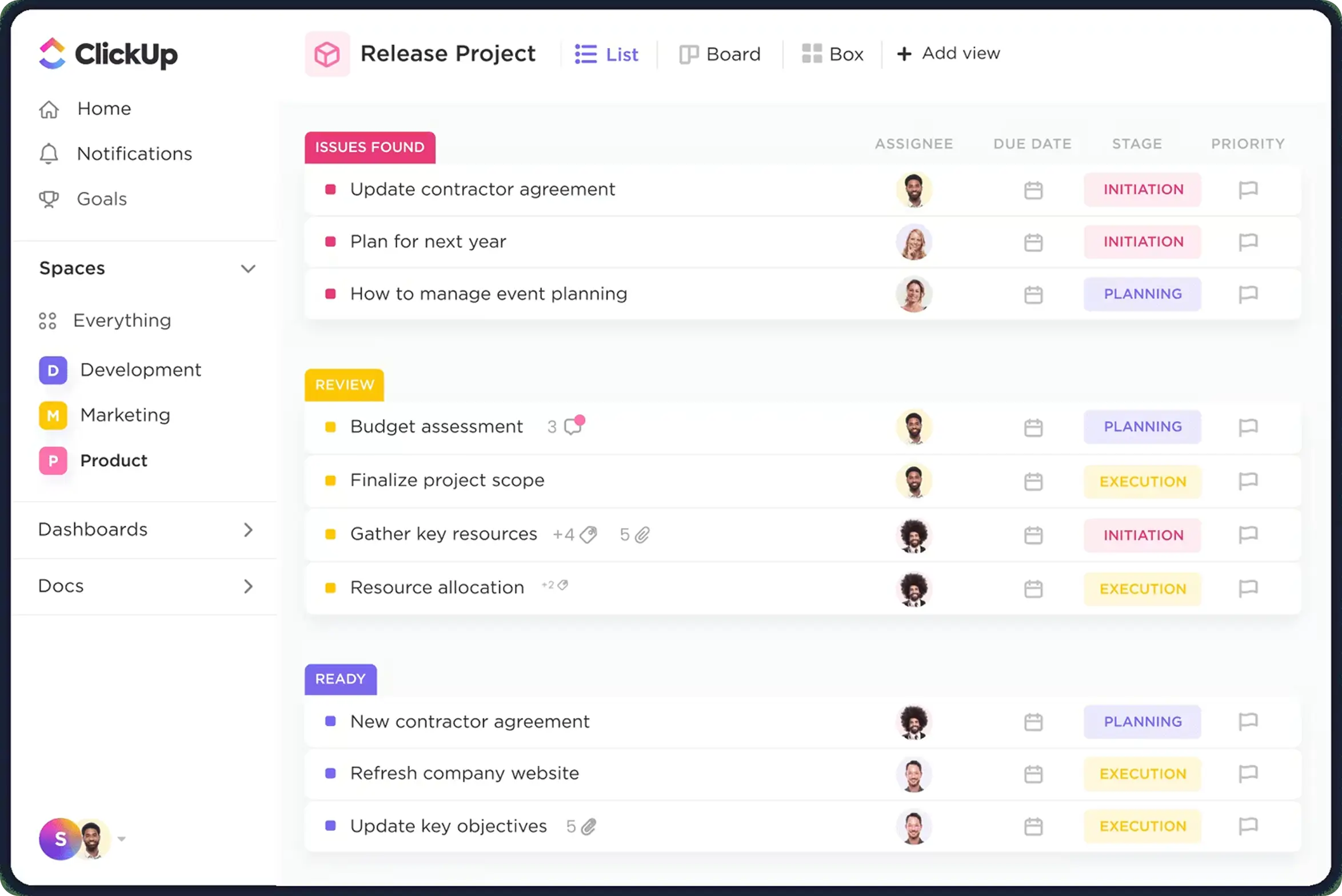
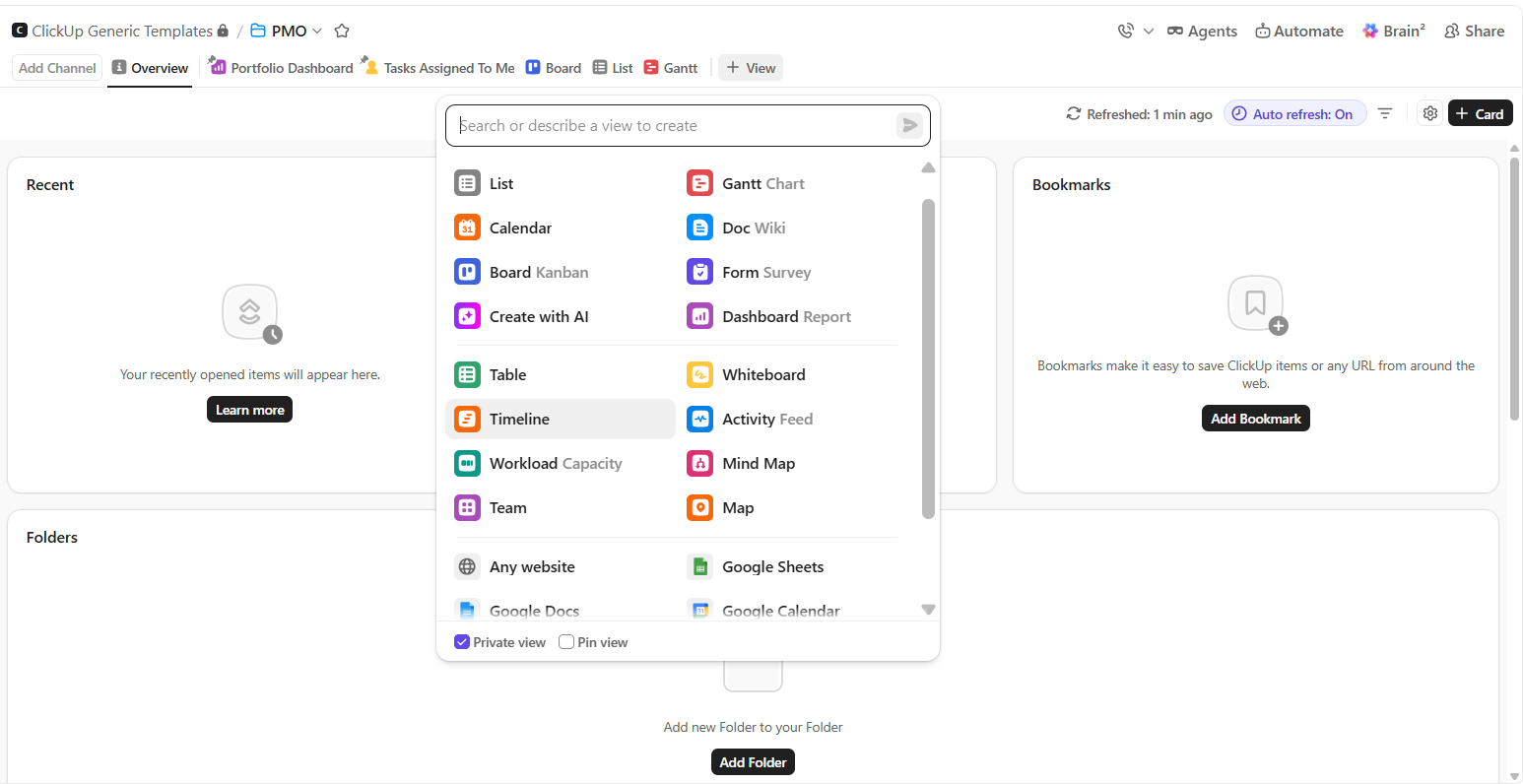
ClickUp gives every team 16 built-in options for viewing the data including List, Board, Gantt, Calendar, Table, Workload, Timeline, Mind Map, Map, and Box — so the exact same project data can be displayed as a checklist, a kanban board, a timeline, or a chart without ever duplicating information. Each data view simply re-renders the underlying tasks, dates, assignees, and statuses in a different layout, which means a project manager can work in Gantt while a developer works in Board and a leadership team checks Workload — all looking at one live dataset instead of three separate spreadsheets.
What Is a Data View, Exactly?
A data view is a saved way of displaying a set of tasks. It isn’t a copy of your data—it’s a lens on it. Change a due date in the Table data view and it instantly updates in the Calendar data view, the Gantt view, and the Board view, because all 16 views pull from the same underlying records. This is the core idea behind ClickUp’s “10+ Views to View Your Work Your Way”: one dataset, sixteen ways to look at it, zero re-entry.
Why One Dataset, Many Views, Matters
Most teams don’t fail because they lack data—they fail because the right person can’t see that data in the right format at the right time. A single data view forces everyone into one mental model. A finance lead wants a table. A designer wants a board. A PMO wants a Gantt chart. Giving each role its own data view—while keeping one source of truth underneath—is what actually drives adoption, not just installation.
The 16 ClickUp Data Views, Explained
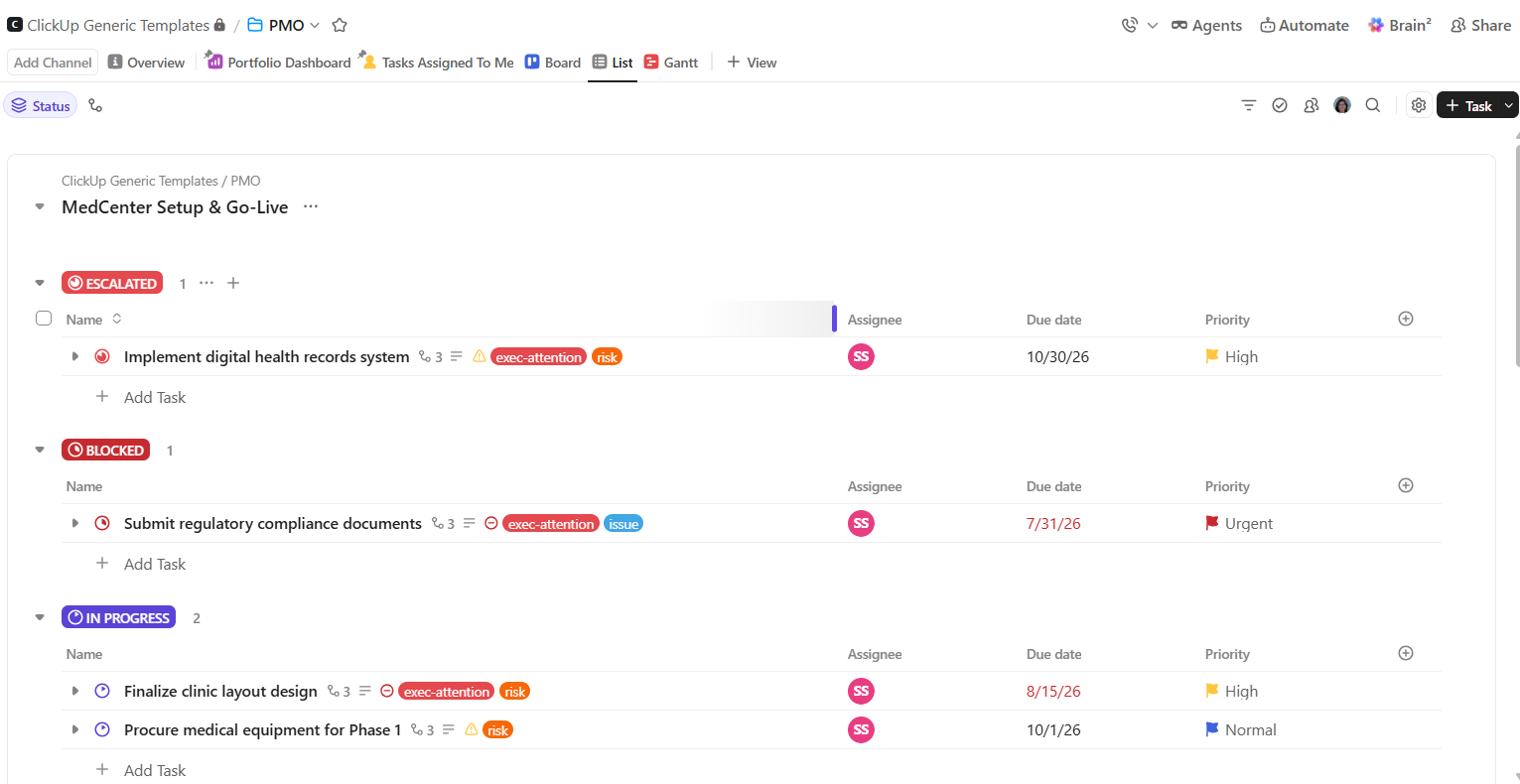
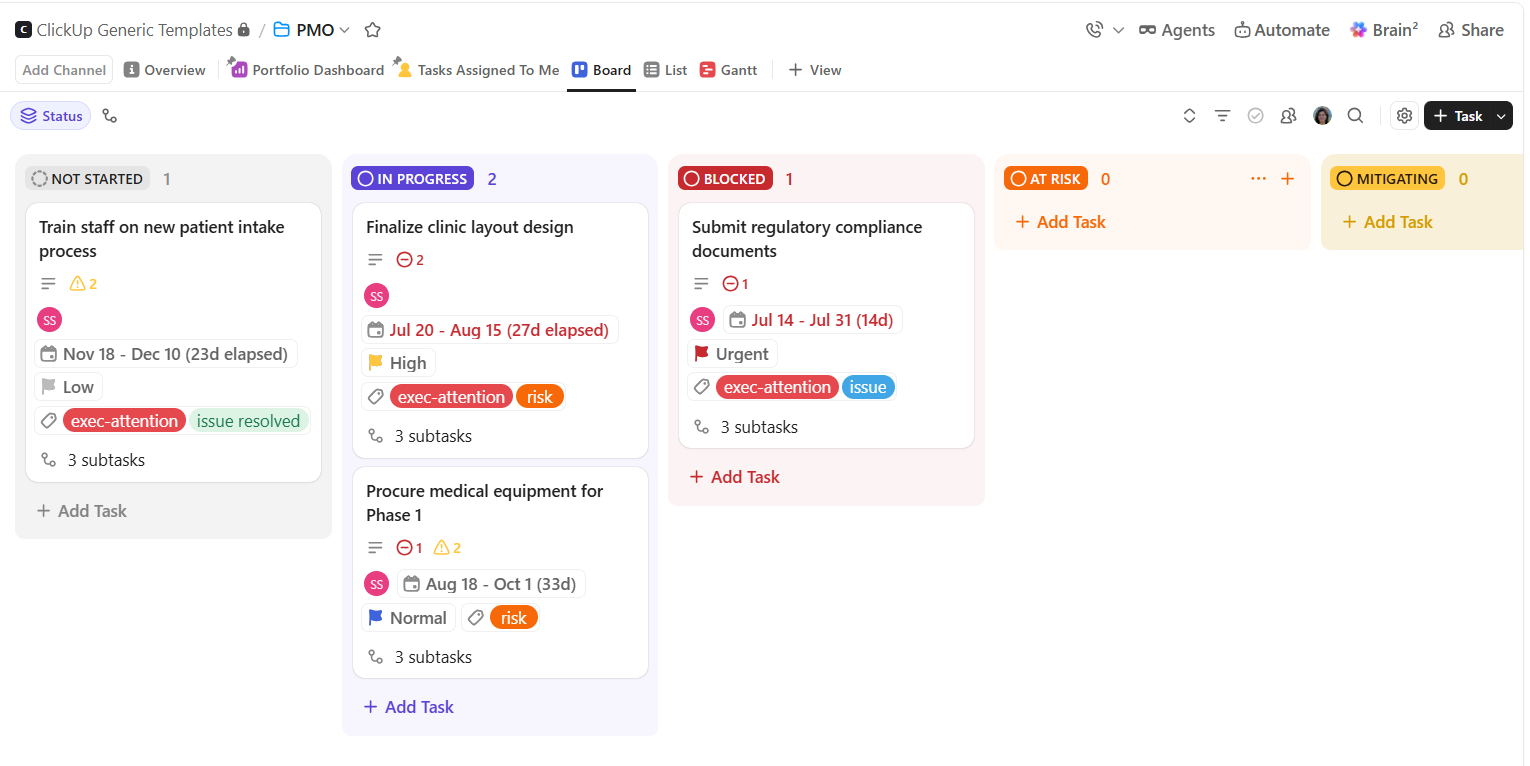
List View — The default data view: a scannable, sortable checklist of tasks, grouped by status, priority, or assignee. Best for day-to-day execution.
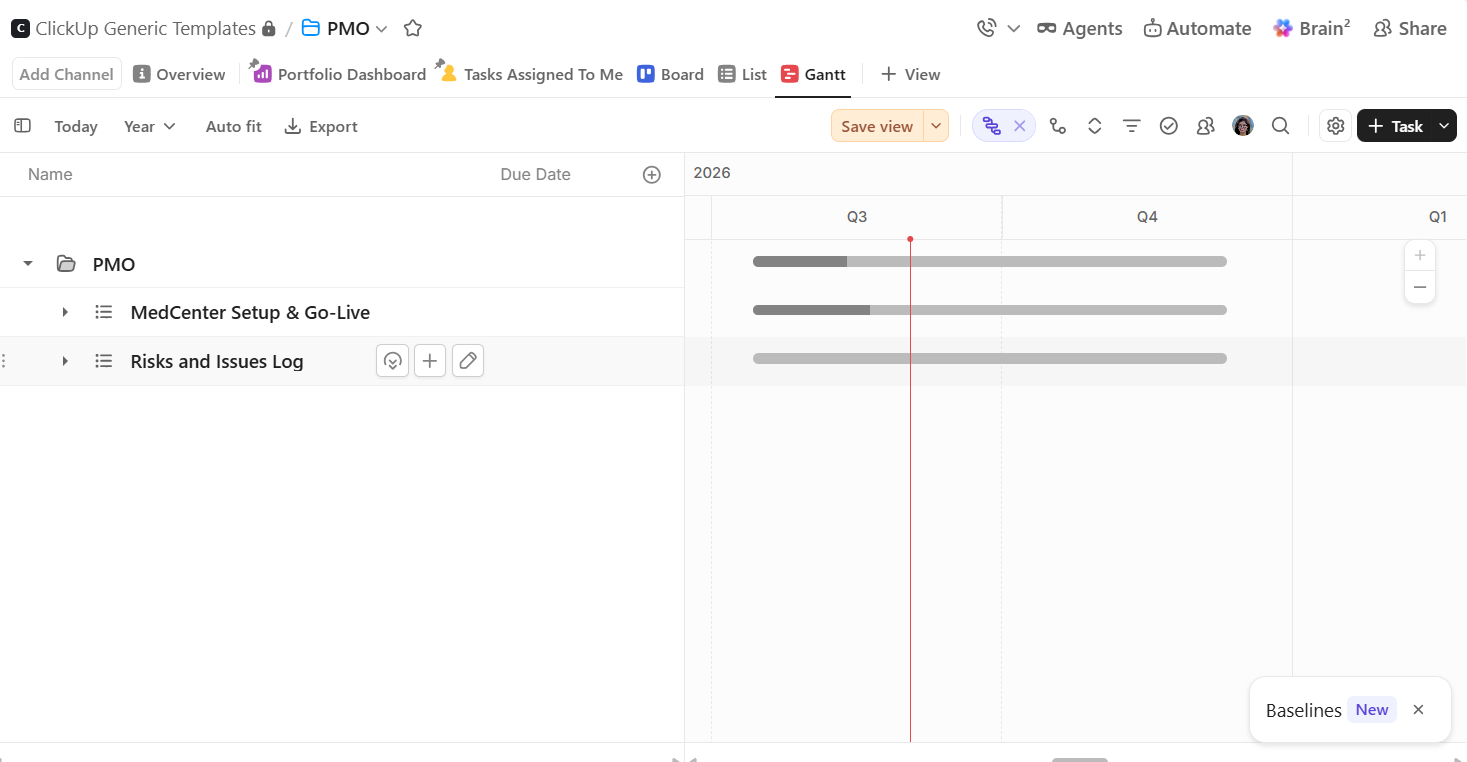
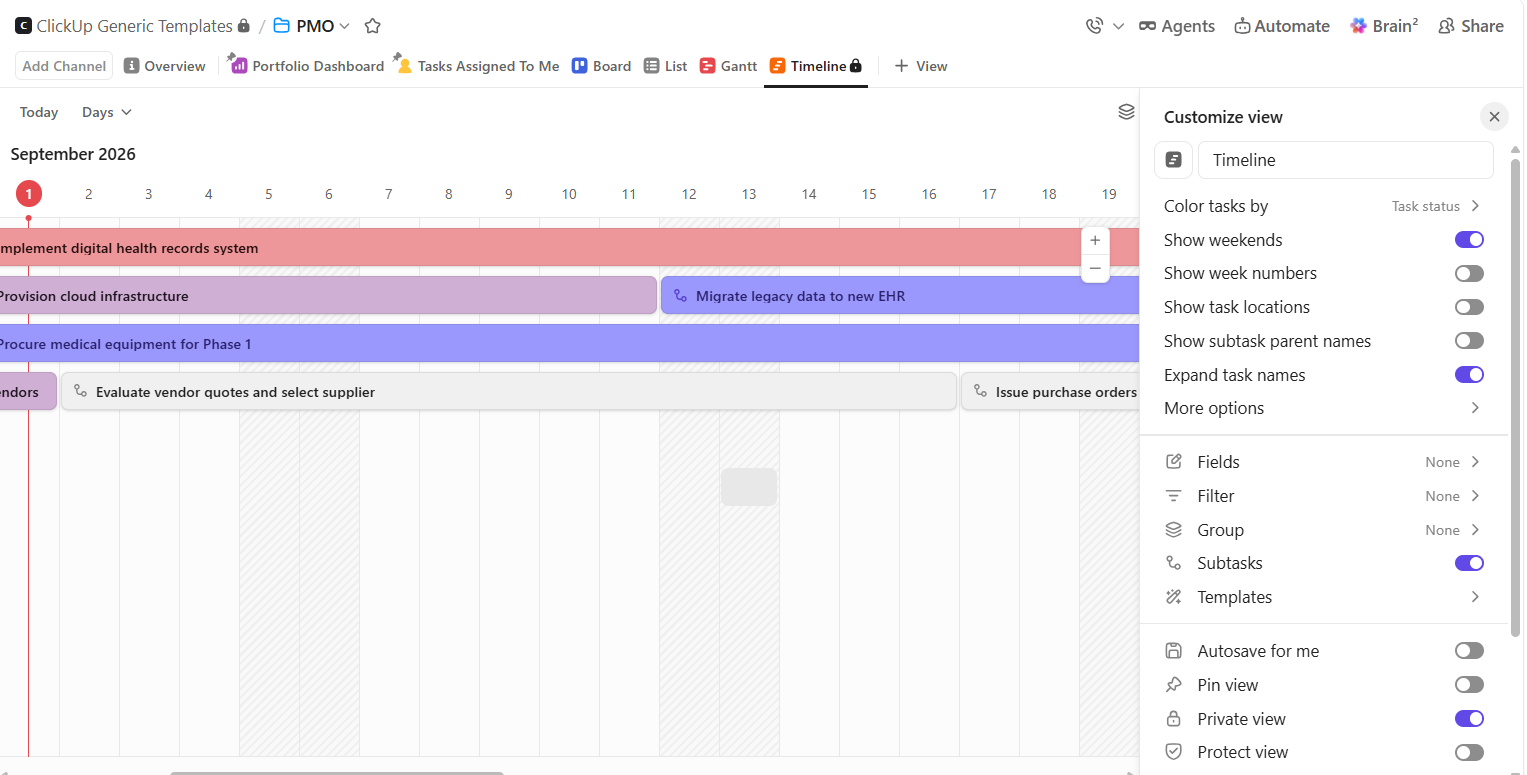
Gantt View — A timeline-based data view that maps task dependencies, start/end dates, and critical paths, ideal for project managers tracking delivery schedules.
Workload View — A capacity-planning view showing how much work is assigned to each person, color-coded so overloaded team members are obvious at a glance.
Calendar View — A date-first view for teams that think in weeks and months rather than task lists—great for content calendars and scheduling.
Box View—A people-first view that groups every task by assignee, so managers can see individual workloads without opening each profile.
Board View — The classic kanban-style data view: cards move across status columns (Ready, In Progress, Review), suited to agile and creative workflows.
Table View — A spreadsheet-style view with custom fields, formulas, and bulk editing — the closest thing to Excel inside ClickUp.
Mind Map View — A visual, node-based view for brainstorming and structuring hierarchy before tasks are even created.
Map View — A location-based view that plots tasks with addresses on an actual map, used by field service, logistics, and real-estate teams.
Timeline View — A simplified, horizontal-bar data view for high-level scheduling without full Gantt complexity.
How to Choose the Right View Option for Your Team
Rather than standardizing on one view for the whole company, high-performing teams typically:
Assign a default view per role (Board for execution teams, Table for operations, Gantt for PMOs, Calendar for marketing).
Use Workload and Box views specifically during resourcing conversations, not daily standups.
Reserve a mind map for the planning phase, before a project is broken into tasks.
Let dashboards roll everything up for leadership.
The mistake most companies make isn’t picking the wrong data view—it’s never customizing views by role in the first place, so the whole team defaults to List and never explores the other 15.
How Dtech Systems Helps Teams Actually Use Every Data View
Buying ClickUp gets you the platform and all 16 data views on day one. It doesn’t get you a team that knows which data view to use for which decision—and that gap between having the tool and using it well is exactly what Dtech Systems is built to close. Dtech describes its role as helping teams design, automate, and optimize their ClickUp workspaces, workflows, and reporting so they can move faster with clarity (Dtech Systems, dtechsystems.co).
Dtech is a ClickUp Diamond Partner operating out of Riyadh and London, and its case against buying direct is straightforward: a license is not a workflow, and a workspace nobody trusts is just another tab (Dtech Systems, “Why Dtech”). In practice, that means Dtech doesn’t just switch on the Gantt or Workload data view and walk away. Senior consultants rebuild workflows live on the team’s own work rather than demos, configuring custom fields, dashboards, and each relevant data view around how the business actually runs.
For teams evaluating ClickUp’s 16 views, that’s the practical difference: any team can turn on a new data view, but a partner like Dtech makes sure the right people are looking at the right data view for the decision they’re actually making.
FAQs
Everything you need to know about ClickUp Data Views.
Is a “data view” the same as a dashboard in ClickUp?
No. A data view (List, Board, Table, Gantt, etc.) displays your
actual tasks in a specific layout, while a dashboard aggregates
data from multiple views and lists into charts, cards,
and summaries — a dashboard is effectively a data view of your
other data views, built for reporting rather than doing the work.
Do all 16 data views update automatically when I change a task?
Yes. Because every data view reads from the same underlying task,
editing a due date, status, or assignee in one view (say, Table)
instantly reflects across every other data view — Calendar,
Gantt, Board, Workload — with no manual syncing or duplicate
data entry required.
Which ClickUp data view should a new team start with?
Most teams start with List or Board as their default data view
because they map closely to a simple to-do list or kanban process,
then layer in Gantt or Workload once they need scheduling and
capacity planning — this staged rollout is also where a ClickUp
partner typically adds the most value, since role-specific view
setup is the step most self-serve teams skip.