ClickUp Automations: How to Eliminate Repetitive Tasks and Simplify Team Workflows
If you do the same click every day, ClickUp can probably do it for you. Here’s how ClickUp Automations take the boring, repetitive work off your team’s plate.
The Work About Work
Every start of the week, it’s the same routine. A new request comes in. You create the task, assign it, add a due date, share it with the right people, and post a comment so everyone knows it’s there.
None of it is hard. It’s just a lot of small clicks. Approvals get chased on WhatsApp, reminders live in someone’s head, and when that person is busy or on leave, one of those clicks gets missed and the work quietly stalls.
That’s exactly the kind of work ClickUp Automations are built to handle.
What Are ClickUp Automations?
ClickUp Automations are rules that do routine work for you. You set up a rule once, and ClickUp runs it every time the same thing happens.
Every automation follows a simple pattern:
Trigger: what starts it. For example, a task’s status changes to “Review”.
Condition (optional): a filter, like “only if the priority is Urgent”.
Action: what ClickUp does. For example, assign the task to the reviewer.
It’s no-code workflow automation, so you don’t need to be technical. You can start from ClickUp’s ready-made automation templates, build your own, or simply describe what you want in plain English and let ClickUp Brain, ClickUp’s built-in AI, set it up for you.
Done manually
With ClickUp Automations
Assigning work
Someone remembers to do it
Happens the moment the task is created or moved
Due dates
Added when someone gets round to it
Set automatically on every new task
Handoffs
A ping on chat or WhatsApp
The next person is assigned and tagged
Consistency
Depends on who’s doing it
Same steps, every time
When someone’s on leave
Work waits
Work keeps moving
Everyday ClickUp Automations Any Team Can Use
You don’t need a complex setup to save time. These simple ones make a difference straight away:
Hand off reviews automatically. When a task moves to “Review”, assign it to the reviewer.
Never miss a deadline. When a new task is created, set its due date a few days out.
Start every project the same way. When a task moves into a List, apply a template with all the subtasks and checklists.
Keep people in the loop. When something is approved, post a comment that tags the next person.
Catch missing details early. When work starts but a key field is empty, post a comment asking for it.
A Real Example: Sharing New Projects Automatically
Here’s one we built and use ourselves.
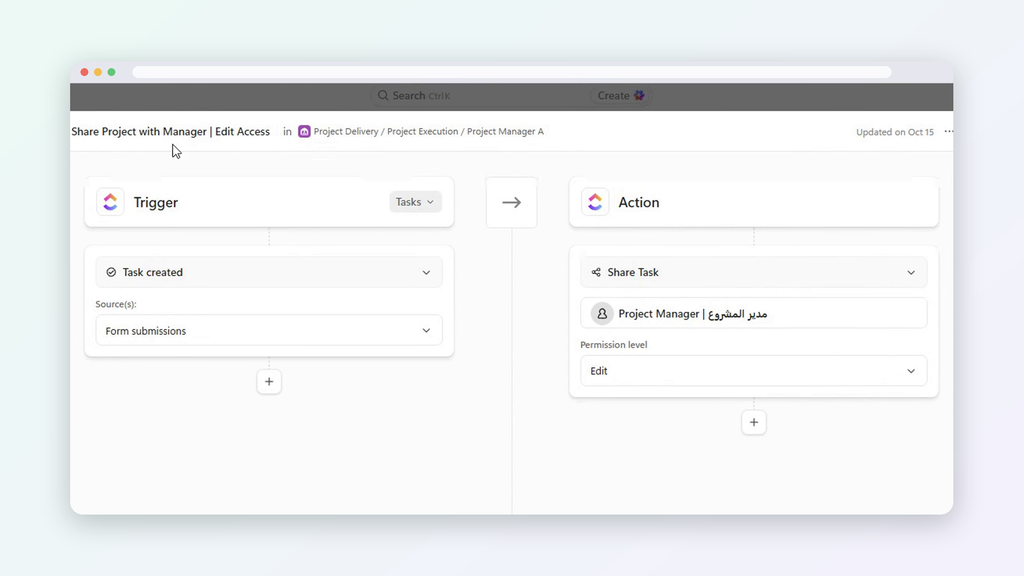
New projects come in through a ClickUp Form. Each project has a Project Manager, a Project Owner and Supporting Resources. Normally, someone has to open every new project and share it with each of those people, one by one.
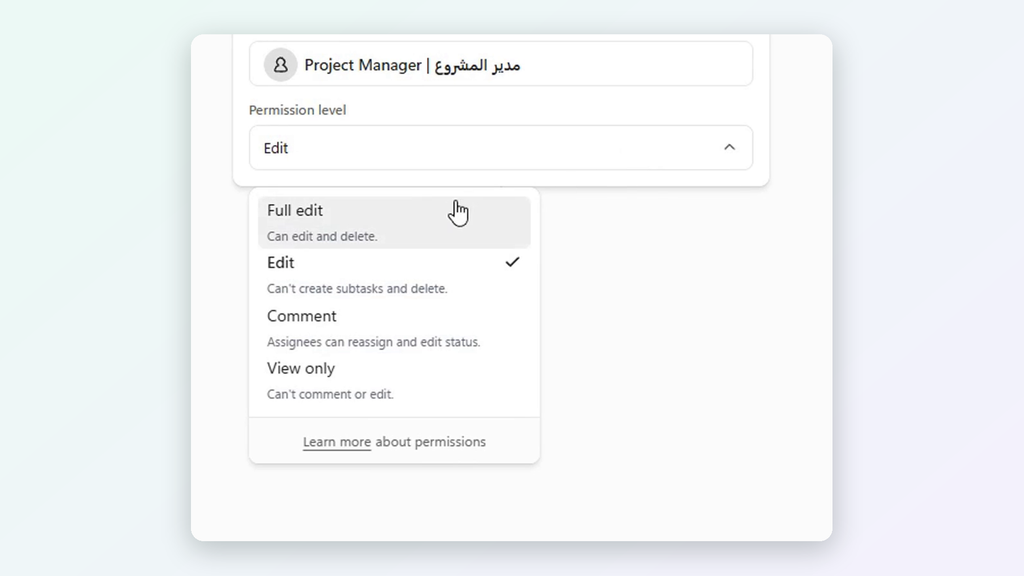
So we let an automation do it. When a new task is created from the form, ClickUp shares it with the people named in those fields, at the right access level:
Project Owner: Edit access
Project Manager: Edit access
Supporting Resources: View only
The moment the form is submitted, the right people get a notification and find the project under “Shared with me”. They only see that project, not the rest of the workspace. No one shares anything by hand.
Automation Chains: When One Automation Sets Off the Next
This is where things get fun. The action from one automation can trigger another one.
For example: a form submission creates a task, which triggers an automation that applies a template, which adds subtasks, which triggers another automation that assigns them. One submission, and a whole workflow sets itself up.
One honest tip: build and test each automation on its own before you link them. A chain that isn’t planned carefully can trigger itself in a loop.
AI Automations: Putting ClickUp Brain to Work
Automations follow fixed rules. ClickUp Brain adds judgment. Put them together, and you get workflows that can think a little.
Do anything with AI. Add the “Do anything with AI” action to an automation and tell it what to do in plain English. For example: when a new task is created, review it against your task checklist Doc, assign it to the right team member, and post a comment explaining the purpose and deadline.
Keep summaries up to date. An automation can refresh an AI Field, such as a task summary, so anyone opening the task gets the latest picture.
Act on what the AI works out. AI Fields can also be used as triggers or conditions, so an automation can kick in based on the AI’s answer.
How Dtech Builds Automations That Fit Your Process
Ready-made automations cover a lot. But every business runs a little differently, and the biggest time savings usually come from automating your process: your approvals, your handoffs, your client onboarding.
Here’s how we usually approach it:
Map how work really runs. We look at the actual process, not just the one on paper.
Find the repeats. Every manual step that happens the same way each time is a candidate.
Build around your requirements. From simple rules to chains and AI actions that run a whole process end to end.
Test on real tasks. Each automation is checked on its own before anything is linked together.
Train the team. So people trust the automations and know what happens behind the scenes.
Clean, automated workflows also keep your data consistent, which is what makes real-time dashboards worth trusting. And if the process itself isn’t clear yet, start with process documentation before you automate it.
As a ClickUp Diamond Partner with teams in Riyadh and London, we’ve optimised 80+ workspaces across 25+ industries, in English and Arabic.
Tips for Setting Up ClickUp Automations
Start with one annoying task. Pick the step your team repeats most and automate that first.
Set it at the List level first. Once you trust it, roll it out to the Folder or Space.
Test it on a real task. Watch it run once before your whole team relies on it.
Name it clearly. “Share Project with Manager | Edit Access” is much easier to manage later than “Automation 7”.
FAQ: ClickUp Automations
What are ClickUp Automations?
Rules that handle routine work for you. When a trigger happens, like a status change, ClickUp automatically takes an action, like assigning the task.
Do I need to code to use ClickUp Automations? No. You can use templates, build your own with a few clicks, or describe what you want in plain English and let ClickUp Brain create it.
Can one automation trigger another? Yes. An action from one automation can trigger the next. Just test each one first to avoid loops.
Can ClickUp Automations use AI? Yes. The “Do anything with AI” action lets you give AI plain-English instructions inside an automation, and automations can also refresh AI Fields like a task summary.
Where should I set up an automation? At the List level to start. An automation affects everything below where it’s set, so a Space-level rule touches every task in that Space.
Which repetitive tasks should I automate first? Start with task automation that saves the most clicks: assigning new tasks, setting due dates, applying templates and handing work to the next person. If your team does it the same way every time, it’s a good candidate.
Let ClickUp Do the Clicking The best automations are the ones nobody notices. Work just shows up assigned, dated and shared, and your team spends its time on the work that actually needs a person.
We help teams across Saudi Arabia, the Gulf, the UK and EMEA design automations that fit how they really work, from ClickUp implementation to AI and automations.
Not sure where to start? Book your free first hour and bring one repetitive workflow. We’ll show you what’s worth automating first.
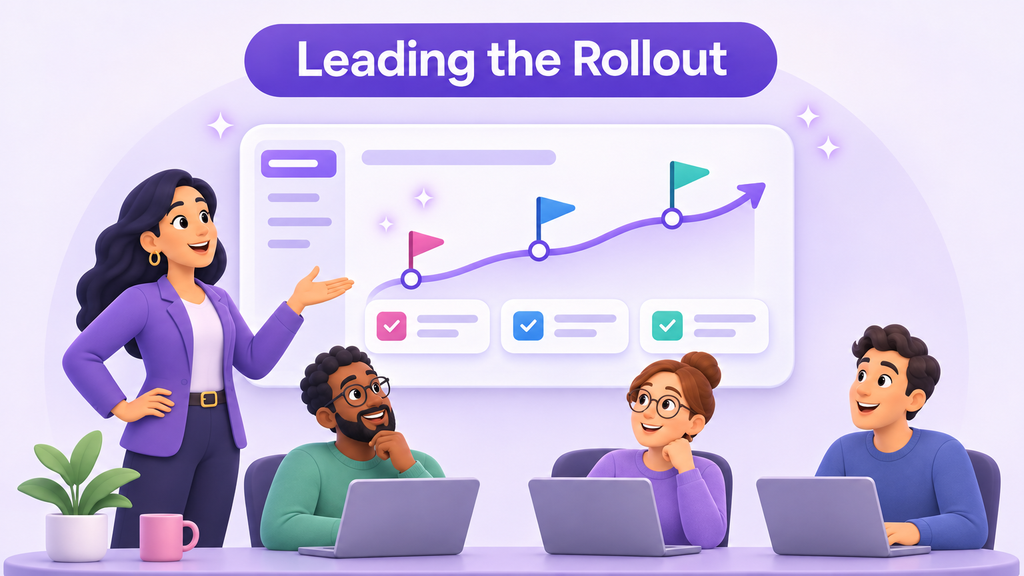
Most ClickUp rollouts don’t stall because of the tool. They stall because of decisions made before launch and habits that never changed after it.
It’s not just a ClickUp problem. In a 2023 survey of UK CIOs and IT leaders by Userlane and PwC, only 45% said their software purchases met or exceeded the expected return. The CIOs also estimated that employees use just 40% of the features available in the apps they need for their jobs.
If you’re leading a ClickUp rollout, here are the five mistakes to watch for.
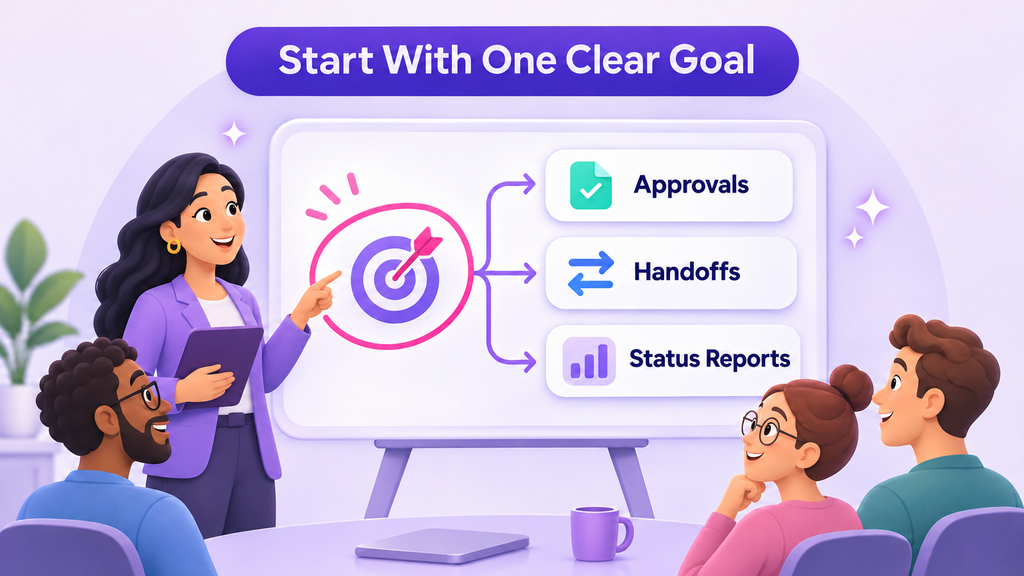
1. Launching without a clear reason
“Move the team to ClickUp” is a project, not a goal. Without a clear reason, nobody knows what success looks like or when to change course.
Change management research firm Prosci recommends that sponsors define success early and connect project milestones to adoption measures.
What leaders can do: Name one business problem the rollout should solve, such as slow approvals, missed handoffs, or time lost on status reports. Share it with the team before launch and refer back to it during reviews.
2. Adding ClickUp on top of the old process
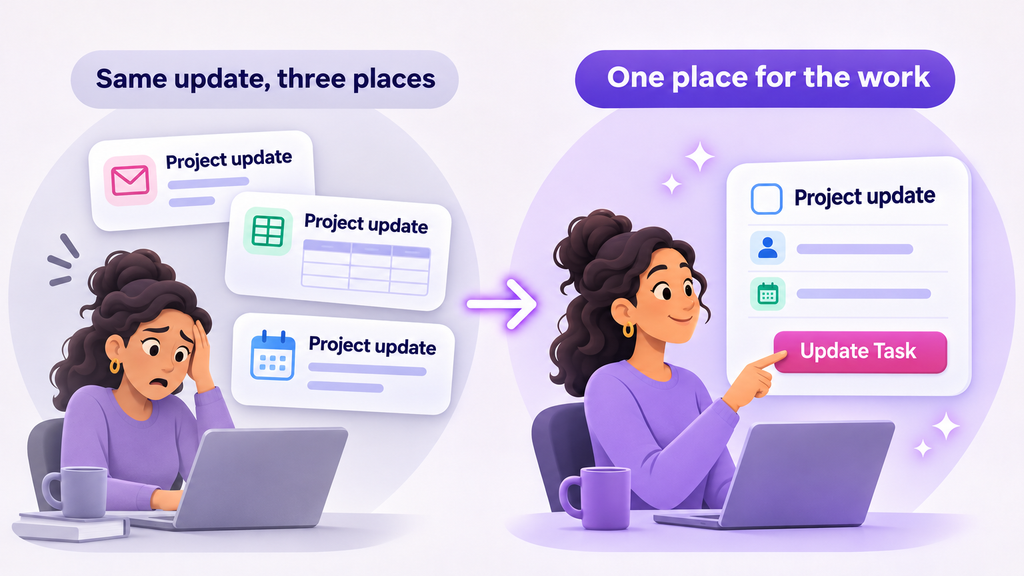
If people still send the same update by email, report it in a meeting, and enter it in ClickUp, the rollout has added work instead of removing it.
People will drop the part that feels optional. Usually, that’s the new tool.
What leaders can do: Decide what ClickUp replaces before launch. If a weekly report moves to a dashboard, stop asking for the spreadsheet version. Keep a separate report only when a client or business requirement needs it.
3. Leaders don’t work in it themselves
Teams follow what managers do, not what they announce. If a manager asks for updates in private messages, people learn that ClickUp isn’t where decisions happen.
Research backs this up. Prosci found that projects with extremely effective sponsors were 79% likely to meet their objectives, compared with 27% for extremely ineffective sponsors. In a 2024 McKinsey survey, organizations where leaders modeled the behaviors they expected from employees were 1.6 times more likely to report outperforming their peers.
What leaders can do: Run team reviews from the agreed ClickUp view. Ask questions in task comments, record decisions on the task, and check the dashboard before asking someone for an update.
4. Treating the training session as the finish line
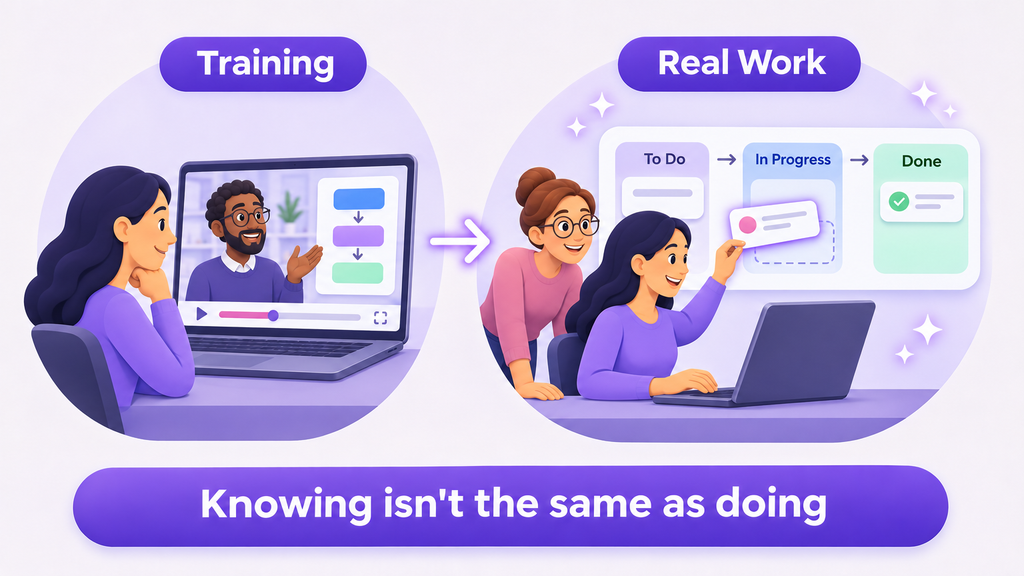
A training session gives people knowledge, but knowing how a feature works isn’t the same as using it in daily work. Prosci’s ADKAR model separates the two: people need both the knowledge and the ability to apply it on the job.
What leaders can do: Make time for people to practice with their own work in the first few weeks. Expect questions, and treat them as useful feedback, not resistance.
5. Going quiet after launch
New habits fade without reinforcement. The first few weeks matter most, because that’s when people decide whether the new way is worth the effort.
Peer influence helps here. According to McKinsey, organizations that engaged champions to influence others were almost four times as likely to see their efforts succeed.
What leaders can do: Choose a respected team member as the internal point of contact, and give them time for the role. Hold a short check-in each week for the first month to remove blockers and recognize good examples.
A leader’s checklist for your ClickUp rollout
Before and after launch, ask yourself:
Can the team explain why we’re using ClickUp in one sentence?
Have we stopped at least one old reporting habit?
Do I review work and give feedback inside ClickUp?
Has anyone been given time to support colleagues?
Are fewer “where are we on this?” messages coming in?
If you answered no to two or more, focus on those first. Adding more features won’t solve them.
How Dtech can help
Dtech works with leaders to plan and run ClickUp rollouts that fit how their teams actually work. Depending on the agreed scope, that can include setting rollout goals, leadership and role-based training, workspace improvements, and adoption follow-up.
Book a free ClickUp consultation atdtechsystems.coto review your rollout plan or find out why your current one has stalled.
Configuration and ongoing support are scoped separately.
AI productivity bottlenecks can leave a business waiting for the final result even when individual tasks become faster. A team may produce more code, draft more proposals, or prepare more content, yet deliver little additional work because review and acceptance cannot keep pace.
For business leaders, the practical question is where work goes after AI produces its first output. That is the point at which a productivity claim needs to become an operating discussion.
What the research examined
In their working paper, Artificial Intelligence in the Firm: Bottlenecks in Software Production, Fiona Chen and James Stratton study software engineering using data from an engineering analytics platform. The version reviewed here, dated 9 November 2026, covers 445 million work events involving 720,542 workers at 655 firms.
The authors use differences in the timing of firms' AI adoption to estimate effects. This is an observational research design whose interpretation depends on assumptions about the comparability of earlier- and later-adopting firms. It is not a randomised trial of ClickUp or a study of Dtech clients.
The paper distinguishes intermediate coding activity from final software output. That distinction matters: producing more material is different from getting reviewed, accepted work into use.
More activity did not produce proportional delivery gains
For coding assistants, the authors estimate a 30.4% increase in lines of code 12 months after adoption. Estimated effects on resolved issues and epics were much smaller. For coding agents, the paper estimates larger increases in coding activity and smaller increases in final output. The agents' effect on resolved issues is described as borderline statistically significant.
The review stage helps explain the gap. After agent adoption, the authors estimate that submission-to-approval time increased by 56.1%, alongside longer waiting and active review. These are estimates from the studied setting, not universal performance forecasts.
The paper also reports no detectable employment effect in its empirical analysis, with uncertainty around the estimates. Its longer-term employment and output scenarios are model simulations rather than observed outcomes.
A practical implication for ClickUp workflows
The study did not test ClickUp. Dtech's practical application of the bottleneck idea is to inspect the whole delivery path before expanding AI-assisted production.
Consider a hypothetical content team that can prepare ten drafts each week but can review only four. Increasing drafting capacity to twenty does not, by itself, increase publication capacity. It can instead create a larger queue of unfinished work.
Map the process through drafting, readiness for review, active review, revisions, and acceptance. Record the accountable reviewer and the information they need to decide. Keep the distinction between waiting and active work visible, even if the first version uses a simple manual measurement.
ClickUp can organise the associated tasks and owners. A useful configuration follows the team's actual approval process; it does not assume that moving a task to a particular status enforces an approval control automatically.
Measure the complete outcome
During an AI pilot, track four things: accepted output, elapsed delivery time, review effort, and rework. Compare similar work over a defined period and record changes in staffing or complexity that could affect the result.
If drafting gets faster while acceptance slows, investigate the queue. The reviewer may lack context, the output may need more correction, or too much work may be entering the stage at once. Each cause calls for a different intervention.
Try a bounded change, such as a clearer brief, smaller review batches, or protected reviewer time. Check the result before increasing upstream output again. Review quality remains part of the outcome; a shorter queue is not useful if acceptance becomes unreliable.
Choose the next improvement around the constraint
The research offers a reason to be precise about productivity. Businesses need useful work completed and accepted, alongside the ability to produce it efficiently. A faster task can support that goal when the surrounding process is ready.
Before adding another AI tool, identify where the work waits today, who can move it forward, and which change would help that stage. Then evaluate the result through the complete workflow.
Source: Chen and Stratton, working-paper version dated 9 November 2026, abstract and sections 1, 4–6, especially introduction pp. 3–6. The authors' public version is linked below and may be updated independently.
Some things are easier to show than explain. ClickUp Clips lets you record your screen, talk it through and share it with your team in a couple of minutes.
We’ve All Sent That Message
A colleague asks: “How do I submit my expense report in the new system?” You start typing. “Open the portal. Click the menu on the left. No, the one under it…” Six paragraphs later, you hit send. Twenty minutes later: “Sorry, still lost. Can we set up a quick meeting?” And just like that, a two-minute question becomes a 30-minute meeting on everyone’s calendar. It’s nobody’s fault. Some things are just hard to explain in writing. That’s where ClickUp Clips helps.
What Is ClickUp Clips?
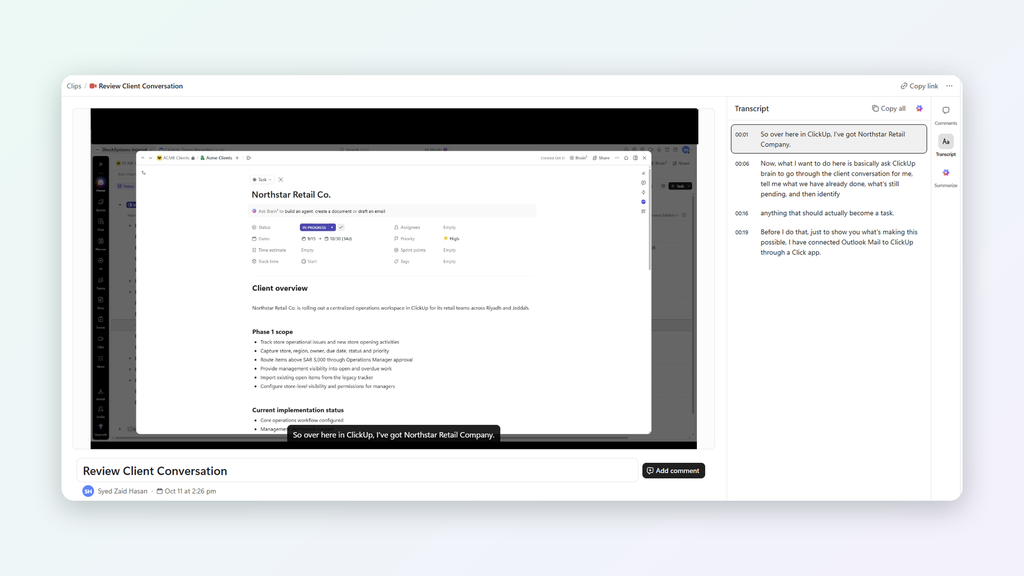
ClickUp Clips is the screen recorder built into ClickUp. You record your screen and voice, and share the screen recording inside a task, Doc or Chat message. With ClickUp Brain, ClickUp’s built-in AI, switched on, it also creates an AI transcript of everything you said. It’s a simple way to send async video updates, so people can catch up without a live call.
New to ClickUp? It’s a workspace where teams keep their projects, tasks, documents and conversations in one place. Clips means your videos live there too, right next to the work they’re about. No separate app, no lost links.
Why Screen Recordings Work Better Than Long Messages
Think of the difference between someone describing directions over the phone and simply sending you a map pin. A short Clip lets people:
See exactly what you see, so nobody guesses which button you meant.
Hear your tone, so feedback sounds friendly, not harsh.
Watch when it suits them, without finding a time that works for everyone.
Rewatch it as often as they need, without having to ask again.
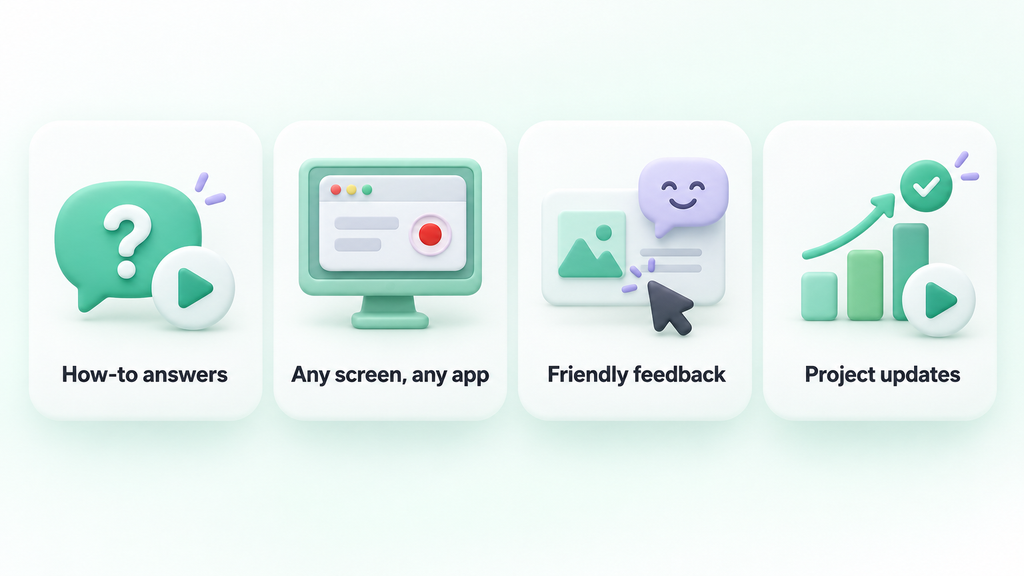
4 Everyday Ways to Use ClickUp Clips
1. Answer “How do I do this?” questions
Instead of writing step-by-step instructions, record yourself doing it. Two minutes later, your colleague has a guide they can pause, replay and come back to. We do this with our own clients all the time, and it usually saves a call.
2. Show any app, not just ClickUp
You can record your entire screen, a window or a browser tab. So if you need to show something in another system, a website or a spreadsheet, Clips can capture that too.
3. Give feedback that feels human
Written feedback can sound colder than you meant. With a Clip, you can point at the exact spot and say “Love this, maybe just move this part up?” in your own voice.
4. Share async project updates
A two-minute video showing what’s done and what’s next can replace a 30-minute status meeting. Working with colleagues across Riyadh, Dubai and London? Pair it with scheduled ClickUp Chat messages so it arrives at the start of their day.
Build a Video Knowledge Center for Onboarding and Training
In most companies, important know-how lives in a few people’s heads: how the monthly report is prepared, how a new client is set up, how a request moves between teams. When those people are busy or on leave, everyone else is stuck.
With ClickUp Clips, you can record it once and keep it where your team already works:
Onboarding videos that help new joiners settle in from day one.
Training videos that show how to use a system or complete a task.
Process walkthroughs that make sure everyone follows the same steps.
Organise these Clips in a ClickUp Doc by team or topic, and new starters have one place to learn from. No video team or special software needed.
AI Captions, Transcripts and Summaries
Many teams in Saudi Arabia and the Gulf switch between Arabic and English every day. In the UK and across EMEA, one office can have colleagues with many different first languages.
With ClickUp Brain switched on in your workspace, Clips helps everyone keep up:
Captions on the video. What you say appears on screen as the Clip plays.
A full AI transcript with timestamps. Viewers can read along, jump to the part they need, or copy the whole transcript in one click and translate it into the language they’re most comfortable with.
An AI summary with action items. Short on time? Click Summarize, and ClickUp Brain gives you the key points and next steps from the video.
And here’s a handy one for your knowledge center: you can turn that summary into a ClickUp Doc. Record a walkthrough once, and you get both the video and a written guide to go with it.
How to Record Your Screen with ClickUp Clips
Start a new Clip from the Clips icon in the top bar, the video icon in a comment, or the Clips Hub.
Choose what to share: entire screen, a window or a browser tab.
Pick a resolution. The default is 1080p.
Choose your microphone.
Click Record Clip, or press Cmd + Option + S (Mac) or Ctrl + Alt + S (PC). Recording starts after a three-second countdown.
Stop and share your Clip in a task, comment, Doc or Chat.
Can’t find Clips? Ask your workspace admin to switch on Clip: Record & Share in ClickUp’s App Center.
Tips for Better Clips
Keep it to two or three minutes. Split longer topics into a short series.
Start with what you need, for example: “I need your approval on this by Thursday.”
Close extra tabs before you hit record.
Add it to the related task so it doesn’t get lost.
One honest note: Clips is great for explaining, showing and updating. For urgent or sensitive conversations, a call is still the better choice. And when you do meet, ClickUp AI Notetaker can capture the notes and action items.
FAQ: ClickUp Clips
What is ClickUp Clips? It’s ClickUp’s built-in screen recorder. You can record your screen and voice and share the video in tasks, comments, Docs and Chat.
Can I record apps outside ClickUp? Yes. You can record your entire screen, a window or a browser tab.
Does ClickUp Clips create transcripts? Yes, when ClickUp Brain is switched on in your workspace. Each Clip then gets captions that play along with the video and an AI transcript with timestamps. Brain can also summarise the video and list its action items.
Can I use ClickUp Clips for onboarding and training? Yes. Record onboarding, training and process videos, then organise them in a ClickUp Doc as your team’s knowledge center.
Where are my Clips saved? In the Clips Hub, and also wherever you shared them.
Do I need a separate screen recording tool if my team uses ClickUp? For most everyday needs, no. ClickUp Clips handles quick walkthroughs, feedback, async updates and training videos, and keeps each screen recording next to the work it belongs to.
Show It, Don’t Type It
Next time you’re on paragraph four of an explanation, stop and hit record instead. Your colleague will thank you. At Dtech, a ClickUp Diamond Partner in Riyadh and London, we help teams across Saudi Arabia, the Gulf, the UK and EMEA get real value from ClickUp, from implementation to day-to-day adoption.
Want your team to get more out of ClickUp? Get in touch at dtechsystems.co.
It’s Monday morning. The leadership meeting starts in ten minutes, and someone is still updating the status spreadsheet. By the time the numbers reach the screen, they are already a week old.
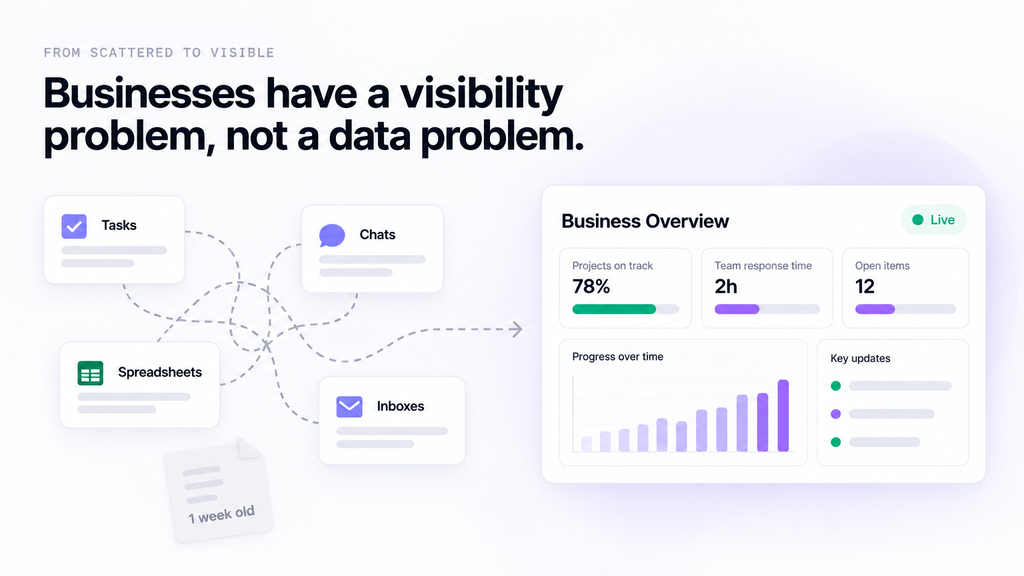
Most businesses don’t have a data problem. They have a visibility problem. The information exists, but it’s spread across tasks, chats, spreadsheets and inboxes. Real-time dashboards fix that by putting the numbers that matter on one screen that stays current.
Here’s how they help teams make better decisions, what to track first and why some dashboards never get used.
What Is a Real-Time Dashboard?
A real-time dashboard is a visual screen that pulls data directly from the systems where work happens. Nobody exports, copies or formats anything. When a task moves, a deadline passes or an approval lands, the dashboard reflects it.
In ClickUp, dashboards are built from cards: charts, task lists, workload views, time tracking and AI summaries. Each card reads live task data from your Spaces, Folders and Lists. Dashboards refresh automatically, and any card can be refreshed on demand. So instead of asking “where are we on this?”, a manager just opens the dashboard.
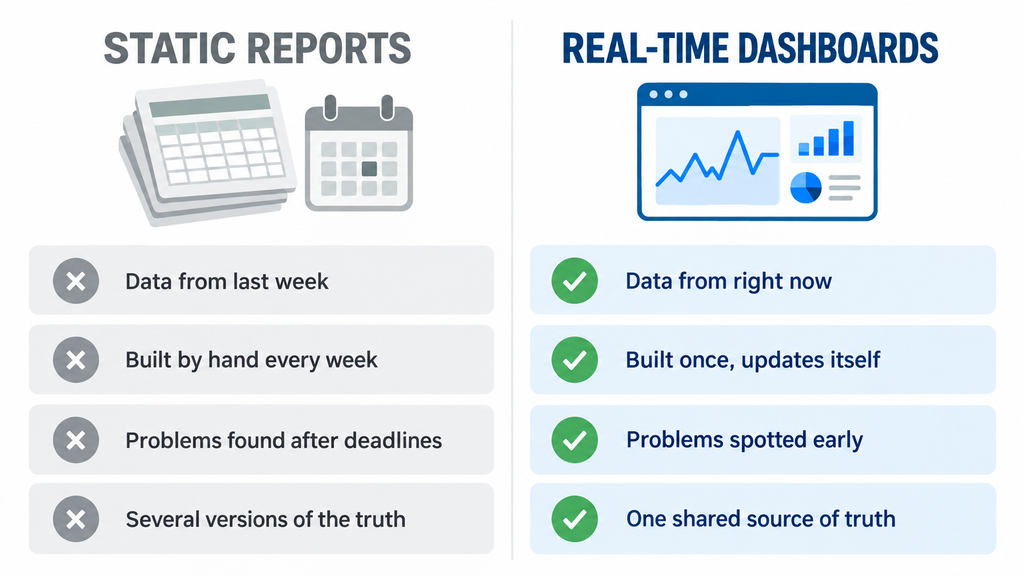
Static Reports vs Real-Time Dashboards
Static reports
Real-time dashboards
Data freshness
As of the last export
Current, straight from the work
Effort
Rebuilt by hand every week
Built once, updates itself
Problems
Found after the deadline
Spotted while there’s time to act
Question answered
What happened?
What’s happening, and what needs attention?
Trust
Depends on who built it
One shared source of truth
Static reports still have a place for monthly reviews and board packs. But for day-to-day decisions, a week-old number is a guess.
5 Ways Real-Time Dashboards Help Businesses Make Better Decisions
1. Problems show up before deadlines are missed
Overdue tasks, stuck approvals and slipping milestones appear the moment they happen, not at the end-of-month review.
Picture a purchase request waiting on a manager’s approval. In a weekly report, nobody notices until it’s six days late. On a live dashboard, it shows up on day two, while there’s still time to chase it. That’s the difference between reacting and preventing.
2. Meetings move from updates to decisions
When everyone can see progress before the meeting, nobody needs to spend 30 minutes reading out status updates. The meeting starts with the dashboard on screen and goes straight to the real questions: what’s blocked, what needs a decision and who owns it.
Many teams find they can shorten, or even cancel, recurring status meetings once the dashboard becomes the place everyone checks first.
3. Workload gets balanced before burnout hits
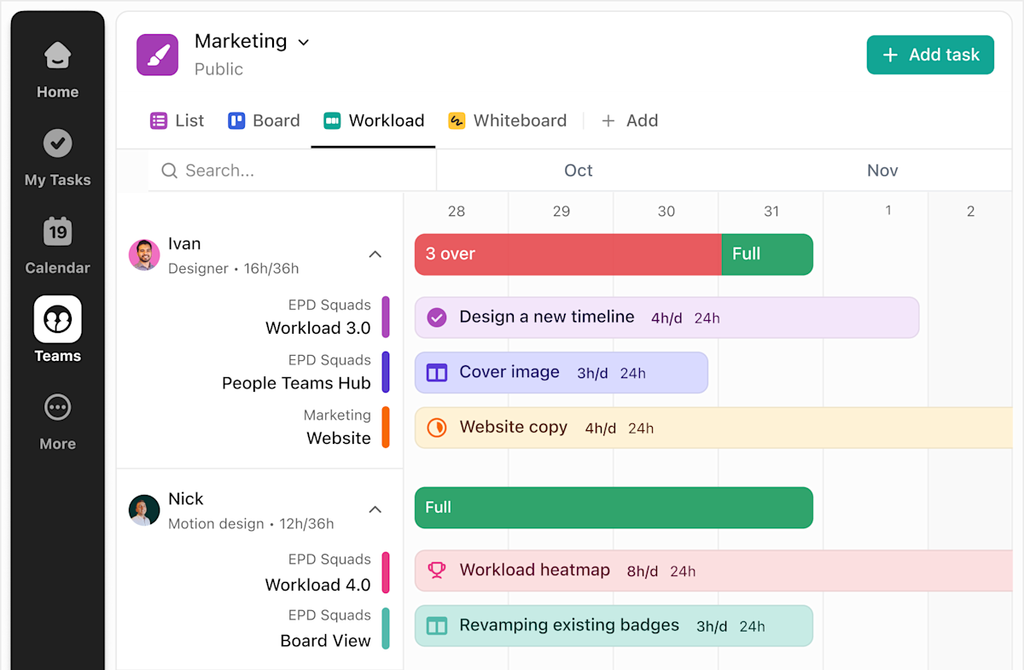
Workload cards show how much each person has on their plate this week. If one designer has 14 tasks due and another has three, a team lead can rebalance the work in minutes. In ClickUp’s Workload view, each person’s capacity shows in red, yellow or green, so it’s obvious who is over capacity and who has room for more.
Without that view, the first sign of overload is usually a missed deadline or a frustrated employee.
4. Everyone works from one version of the truth
When finance, operations and project teams each keep their own spreadsheet, every meeting becomes a debate about whose number is right. A shared dashboard ends that, because everyone is looking at the same live data.
Executives don’t need every task. They need the signals: which projects are on track, where the risks are and where to step in. A good leadership dashboard gives a cross-department view on one screen.
When a number looks off, ClickUp lets leaders drill down from a chart straight into the tasks behind it. And with Scheduled Reports, a copy of the dashboard can land in stakeholders’ inboxes on a routine schedule, so nobody has to ask for an update.
What to Track on Your First Dashboard
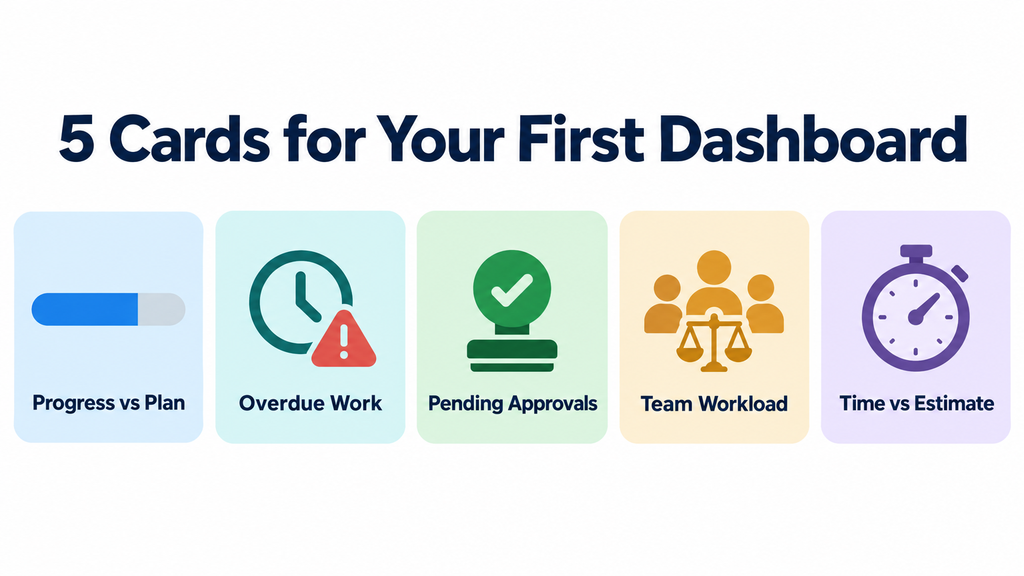
Start small. A dashboard with 25 charts gets ignored. A dashboard with five to seven cards, each answering one clear question, gets used every day.
Progress vs plan: Are we on track for this month’s milestones?
Overdue work: What has slipped, and who owns it?
Pending approvals: What’s waiting on a decision?
Team workload: Who is overloaded, and who has capacity?
Time vs estimate: Are projects taking longer than planned? (Especially useful for client and billable work.)
Once the team trusts these, add more, such as budget tracking, client SLAs or sprint velocity.
Why Some Dashboards Never Get Used
A dashboard can look great on launch day and be forgotten a month later. The usual reasons:
Tools aren’t connected. Deals in the CRM and tasks in ClickUp tell two different stories. The right ClickUp integrations bring them together.
Too many charts. When everything is highlighted, nothing stands out.
No clear owner. Someone needs to keep the cards relevant as the business changes.
Unclear definitions. If “complete” means different things to different teams, the numbers won’t add up.
A dashboard doesn’t create clarity on its own. Clean processes and consistent data do. The dashboard just makes that clarity visible.
How Dtech Builds Dashboards Leaders Trust
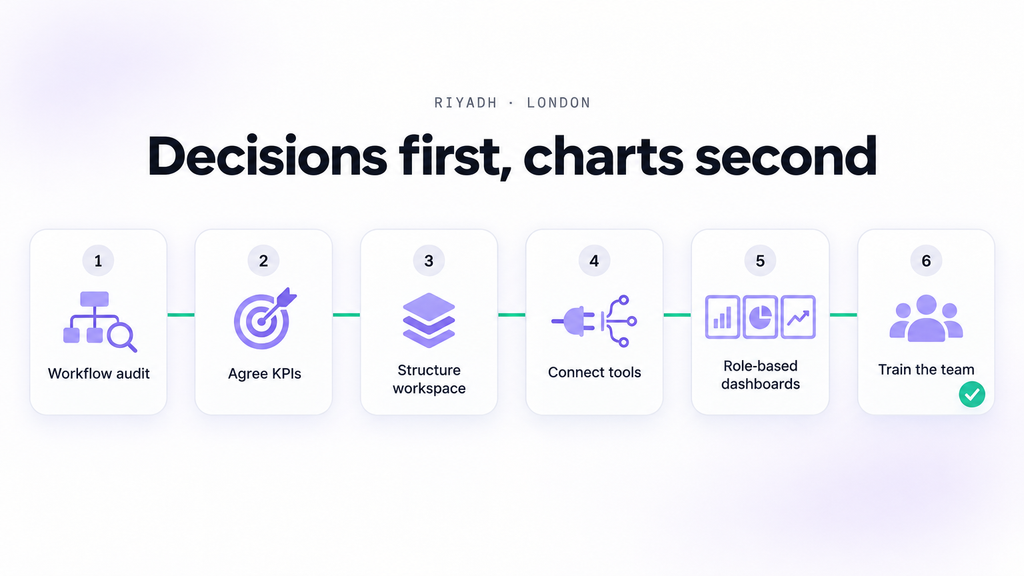
At Dtech, we start with the decisions, not the charts. Before building anything, we ask: what does this person need to decide every week, and what information do they need to decide it?
Our approach usually looks like this:
Workflow audit: map how work actually runs today and where visibility breaks down.
Agree KPIs and definitions: settle what each number means, so every team reads it the same way.
Structure the workspace: set up statuses, Custom Fields and Lists so the data is clean from the start.
Connect your tools: link CRM, ERP, email and other systems so the dashboard sees the full picture.
Build role-based dashboards: separate views for team leads, department heads and executives.
Train the team: hands-on adoption sessions so people keep the data current.
As a ClickUp Diamond Partner with teams in Riyadh and London, we’ve optimized 80+ workspaces across 25+ industries, in English and Arabic. If your teams already track work in ClickUp but leadership still asks for manual reports, that’s usually a structure problem, not a tool problem. Here’s why tools alone don’t fix operations.
Start With One Dashboard
You don’t need a full transformation to see results. Pick one team, one set of decisions and five cards. Get that dashboard trusted and used, then expand.
Want a second pair of eyes? Book a free workspace audit and bring one real workflow. We’ll show you what’s worth tracking and how to build a dashboard your team will actually open.
ClickUp dashboards pull live data from your tasks and refresh automatically. You can also refresh the whole dashboard or a single card at any time for the latest numbers.
Who should use real-time dashboards?
Anyone who makes regular decisions about work: team leads balancing workload, project managers tracking deadlines and executives watching performance across departments.
How many cards should a dashboard have?
Start with five to seven. Each card should answer one clear question. Add more only when the team is using the first set regularly.
Can dashboards include data from other tools?
Yes. With integrations, data from CRMs, email and other systems can flow into ClickUp, so the dashboard reflects the full picture rather than just one team’s work.
Meetings are full of ideas, decisions, updates, and responsibilities. But how often do those discussions get lost once the meeting ends?
Someone forgets an assigned task, an important decision gets buried in meeting notes, or a deadline is missed because nobody followed up.
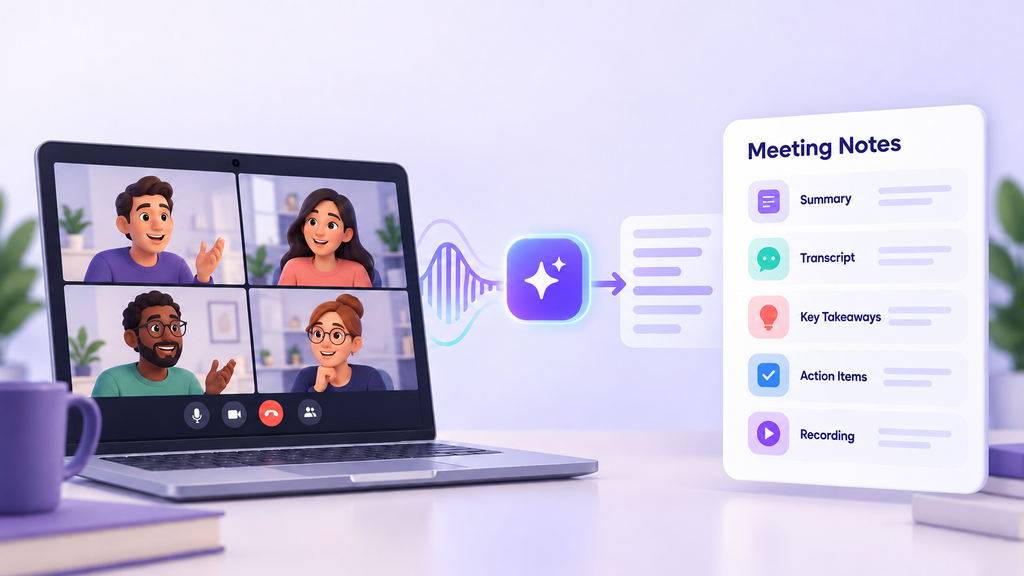
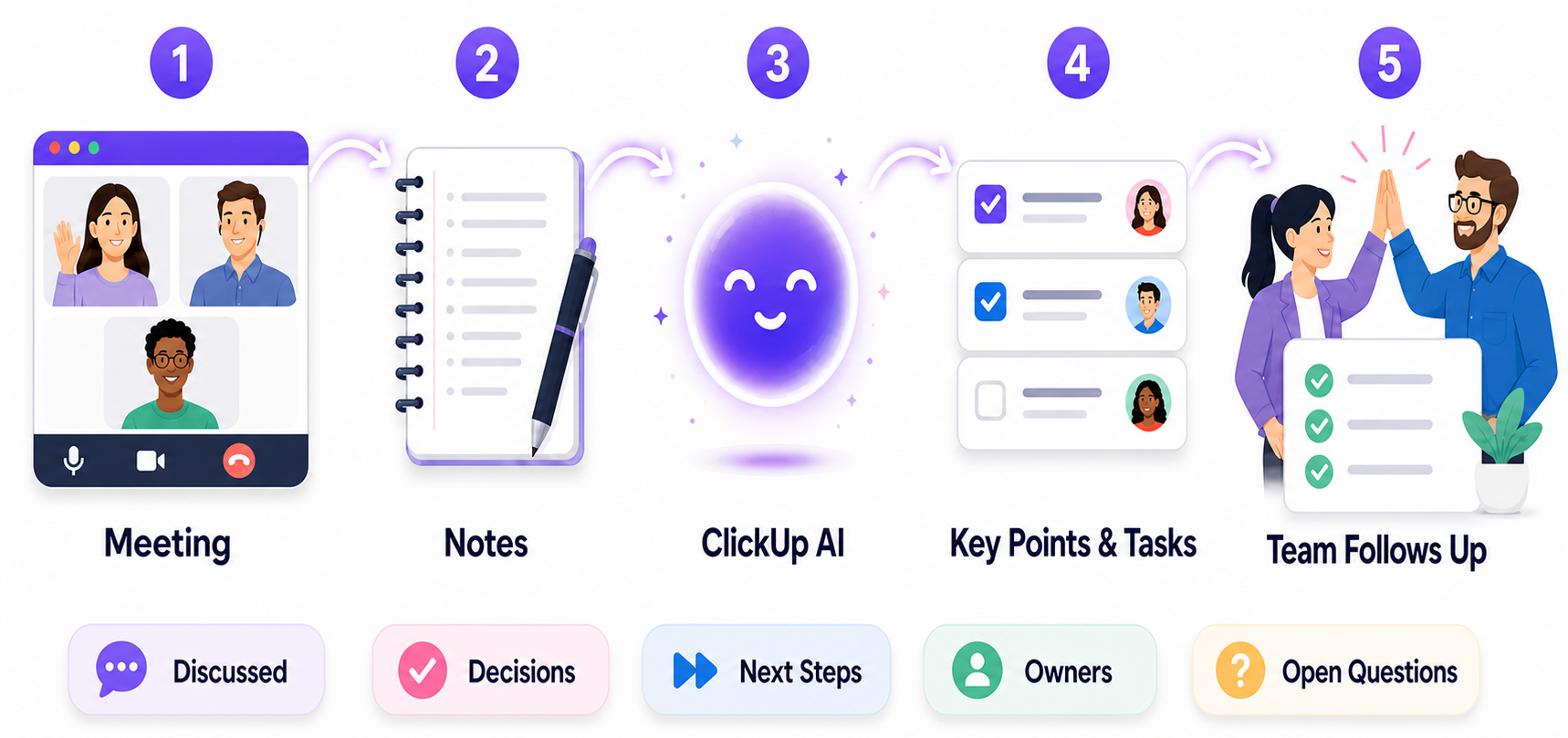
ClickUp AI Notetaker helps solve this problem by capturing meeting discussions and turning them into organised notes, summaries, and action items.
Instead of spending time writing everything down, team members can focus on the conversation while AI helps document what matters.
Its key capabilities include:
Meeting summaries: Get a quick overview of what was discussed.
Transcriptions: Access a written record of the conversation.
Key takeaways: Identify important decisions and discussion points.
Action items: Generate a checklist of tasks and next steps.
Meeting recordings: Revisit recorded discussions where available.
Because meeting notes are stored in ClickUp Docs, teams can keep their discussions connected to their everyday work.
How Does ClickUp AI Notetaker Work?
ClickUp AI Notetaker can join supported meetings through connected Google or Outlook calendars, including meetings hosted on Zoom, Google Meet, and Microsoft Teams. It also supports ClickUp SyncUps.
The process is simple:
Capture the Discussion
AI Notetaker joins the meeting and captures the conversation, allowing participants to focus on discussing ideas rather than taking notes.
Generate Meeting Notes
After the meeting, ClickUp creates an organised document containing:
Meeting overview and summary.
Key discussion points.
Important decisions.
Next steps and action items.
Meeting transcript.
Attendee information.
Review and Share
Team members can access the generated notes through ClickUp and share them according to their workspace permissions.
This gives everyone a central place to revisit discussions and understand what was agreed.
Turning Meeting Discussions into Tasks
Capturing meeting notes is useful, but the real value comes from turning those notes into actionable work.
Consider a marketing team planning an upcoming campaign. During the meeting, they agree that:
The marketing manager will finalise the campaign strategy.
The designer will prepare three social media creatives.
The content writer will draft the landing page.
The campaign manager will review everything before Friday.
These decisions can easily get lost in a long document if nobody follows up.
With ClickUp, teams can use AI-generated action items and ClickUp Brain to turn meeting discussions into tasks.
Meeting Discussion
Actionable Task
Finalise the campaign strategy.
Prepare and approve the campaign strategy.
Design the social media creatives.
Create three campaign graphics.
Complete the landing page copy.
Draft and submit landing page content.
Review everything before Friday.
Complete the campaign review by Friday.
Once the tasks are created, teams can organise them using:
Assignees to identify who is responsible.
Due dates to establish deadlines.
Priorities to highlight important work.
Statuses to monitor progress.
Dependencies to manage tasks that rely on one another.
ClickUp Brain can help generate action items from meeting documentation, which teams can review and turn into tasks. Responsibilities and deadlines should still be confirmed by the team.
How AI Meeting Notes Improve Project Management
For project managers, meetings are only one part of the job. They also need to track decisions, coordinate people, manage deadlines, and make sure work gets completed.
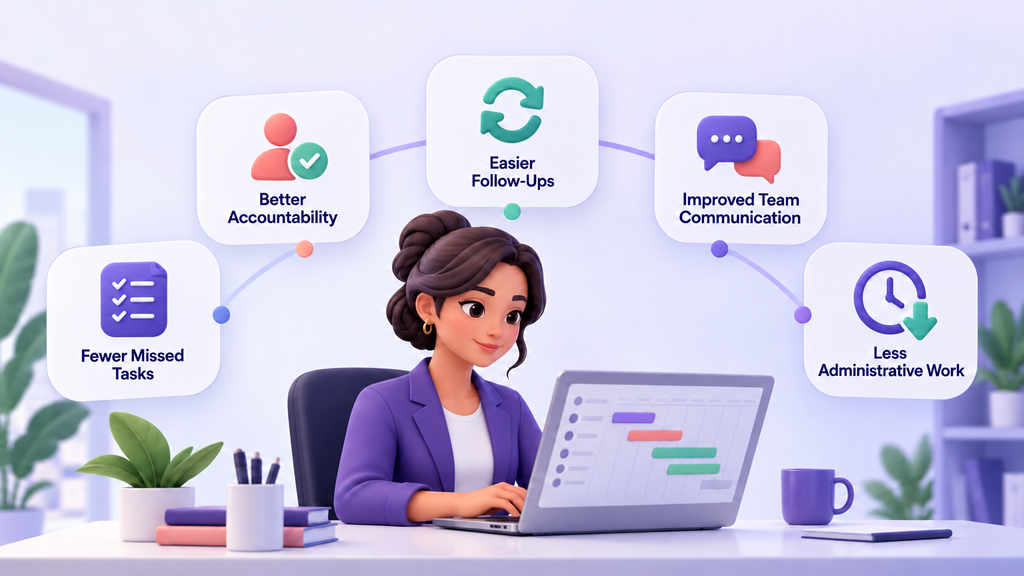
ClickUp AI Notetaker can make this process easier in several ways.
Fewer Missed Tasks
AI-generated summaries and action-item lists help teams keep track of important responsibilities.
Better Accountability
When discussions become assigned tasks with deadlines, everyone has a clearer understanding of what they need to do.
Easier Follow-Ups
Project managers can revisit previous meeting notes to check decisions, review progress, and follow up on outstanding work.
Improved Team Communication
Different departments can refer to the same meeting outcomes, reducing confusion and unnecessary back-and-forth communication.
Less Administrative Work
Automating parts of meeting documentation gives teams more time to focus on planning and execution.
How to Get Better Results from AI Notetaker
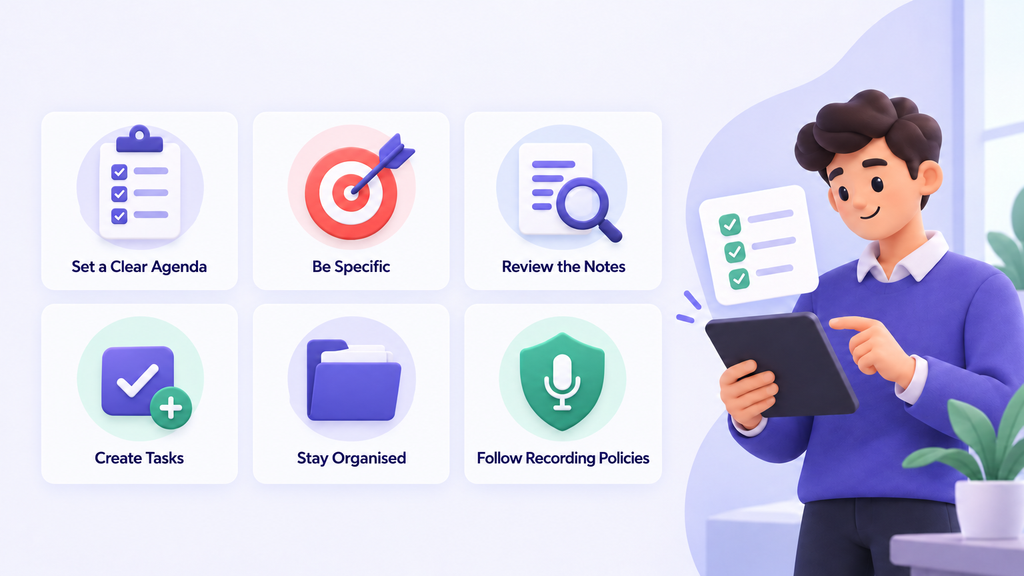
AI can make meeting documentation easier, but a few good practices can help teams get more value from it.
Set a clear agenda: Know what needs to be discussed before the meeting begins.
Be specific: Clearly mention responsibilities, deadlines, and expected outcomes.
Review the generated notes: Check that important decisions and action items have been captured correctly.
Create tasks: Turn relevant next steps into ClickUp tasks with owners and deadlines.
Keep information organised: Store meeting notes where the relevant team members can easily access them.
Follow recording policies: Inform participants when meetings are being recorded and follow applicable consent requirements.
Who Can Benefit from ClickUp AI Notetaker?
ClickUp AI Notetaker is useful for teams that regularly hold meetings and need a reliable way to document decisions and follow-up work.
Some examples include:
Project Managers: Track project updates, decisions, blockers, and responsibilities.
Marketing Teams: Document campaign planning, creative discussions, and content deadlines.
Business Consultants: Keep records of client discussions and agreed deliverables.
Operations Teams: Capture process improvements and operational decisions.
Leadership Teams: Keep track of strategic discussions and important decisions.
Remote Teams: Make meeting outcomes accessible to people working across different locations.
Make Every Meeting Count with ClickUp
Meetings should move projects forward, not leave teams with pages of notes and forgotten responsibilities.
ClickUp AI Notetaker helps bridge the gap between discussions and execution by capturing important information, organising decisions, and helping teams turn conversations into trackable work.
However, getting the most out of ClickUp requires more than simply using its features. Teams need the right workflows, processes, and structure to make sure everything works together.
At Dtech, we help businesses implement and optimise ClickUp to improve collaboration, organise workflows, and make everyday work more manageable.
Get in touch with us at dtechsystems.co to find out how we can help your team get more value from ClickUp.
Your dashboard says 42 projects are complete. Your project manager says 35. Before you blame the charts, look at the process behind the numbers.
A company launches a new dashboard. The numbers are live, the charts look polished, and management can finally see what is happening across the business. Then someone notices the gap between 42 and 35. Another team has a third number. Without clear process documentation, nobody can say which one is right.
Suddenly, people are checking spreadsheets and emails again. The dashboard was supposed to create clarity. Instead, it created a new question: which number is actually correct?
The problem may not be the dashboard at all. It may be the process behind the data.
When the Same Work Happens Differently
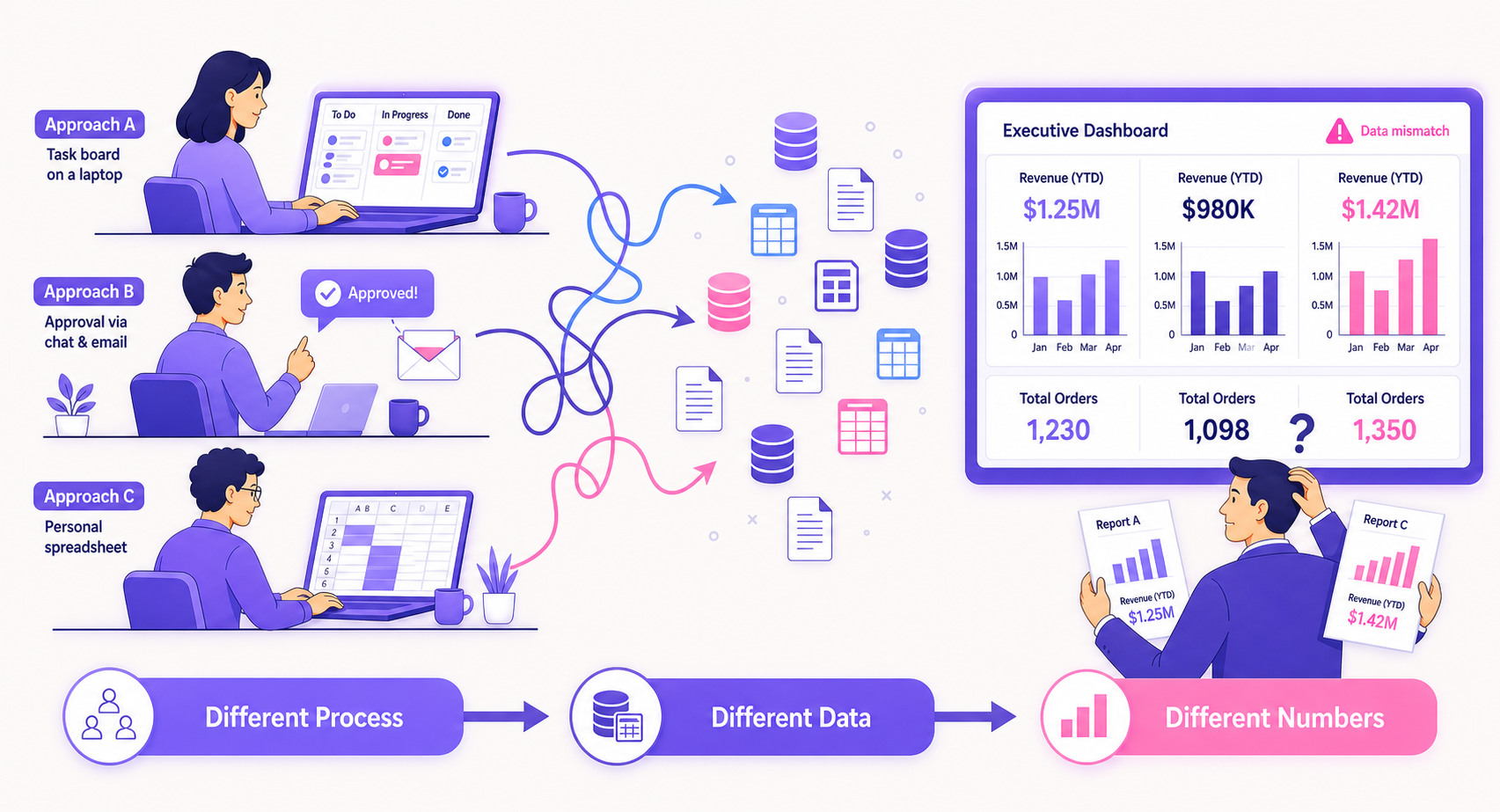
Every business has processes, whether they are written down or not. Problems appear when different people follow different versions of the same process.
This usually shows up as:
Tasks recorded at different stages
Approvals happening through email or messages
Information stored in multiple systems
Employees creating their own spreadsheets
Different definitions for the same KPI
Managers receiving conflicting reports
A dashboard reflects what people actually recorded, not what the company intended them to record. If three teams record “done” at three different moments, the dashboard will faithfully show three different truths. That is what missing process documentation looks like in a report.
Different process→Different data→Different numbers
The Dashboard Is Not the Problem, Missing Process Documentation Is
A business dashboard turns information into charts, KPIs, reports, and trends. Tools like ClickUp Dashboards are very good at that job. But no dashboard can decide what the data should mean.
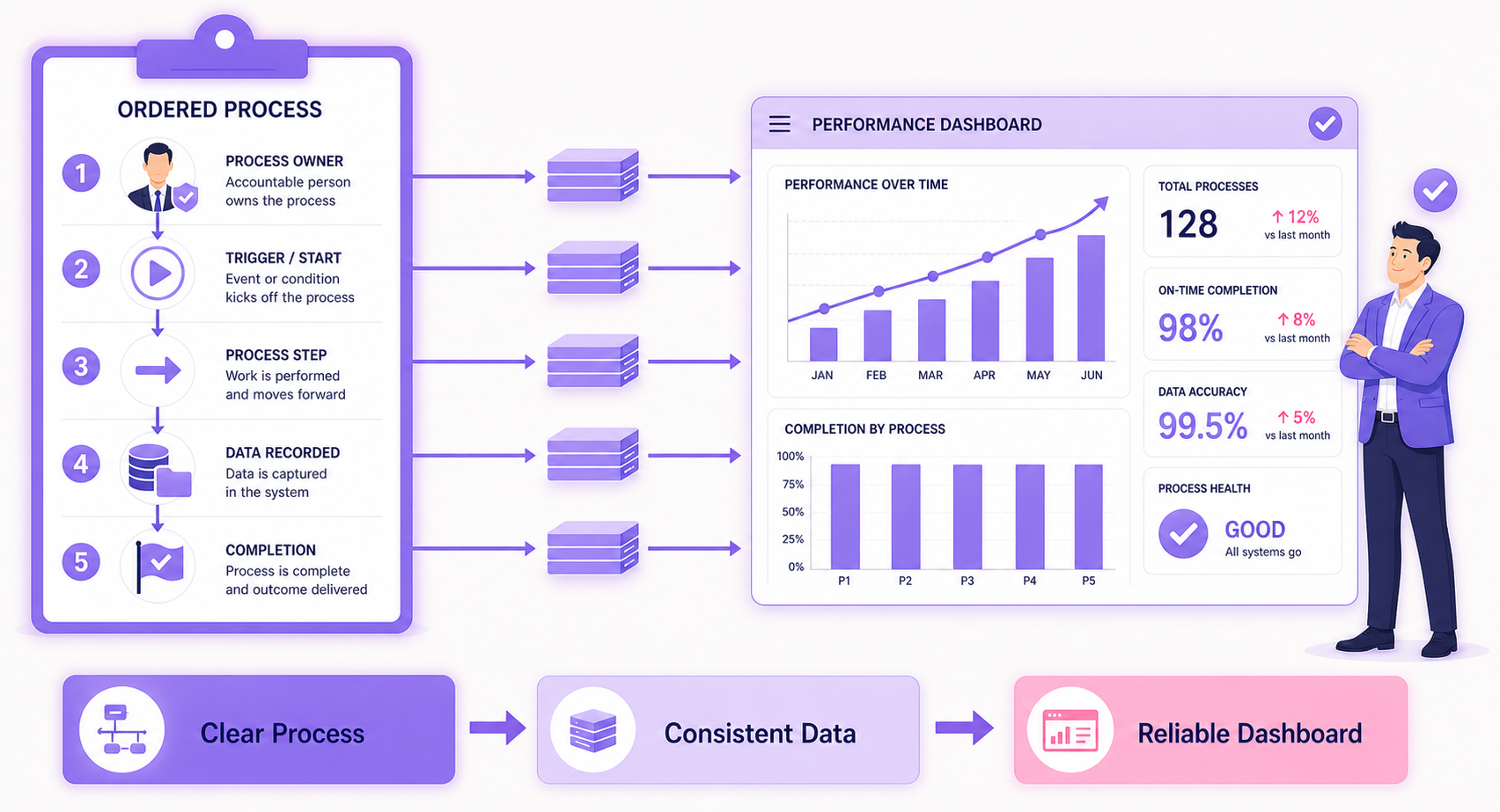
For example, a company must decide when a project officially starts and when it counts as complete. Those decisions come from the business process, not the reporting tool. Good process documentation creates that shared understanding.
It defines:
Who owns the work
What starts the process
What happens next
Where information is recorded
What counts as completion
Clear process→Consistent data→Reliable dashboard
A KPI Can Be Correct and Still Mislead You
Take average project completion time. The calculation may be completely accurate. But if one team measures from project approval and another measures from the first task, the numbers cannot be compared.
A useful KPI needs three things: a clear definition, consistent data, and a reliable way to measure it. Try it yourself below. The four projects stay the same. Only the definition changes.
Try it: one KPI, four answers
Average project completion time
Illustrative example: four projects, measured in days from approval.
Project
First task
Last task closed
Client sign-off
A
Day 6
Day 30
Day 38
B
Day 10
Day 41
Day 45
C
Day 3
Day 22
Day 31
D
Day 12
Day 50
Day 52
Start the clock at
Stop the clock at
41.5 days
Approval to client sign-off. Switch the definition and the same projects range from 28 to 41.5 days.
Same projects, same formula, a 13-day difference. Neither number is wrong. They just answer different questions, and only documentation can say which question the business is asking.
Business goal→Process→Data→KPI
Without process documentation behind it, even accurate KPI tracking can lead to the wrong conclusion.
What the Dashboard Shows Is Not Always What Happened
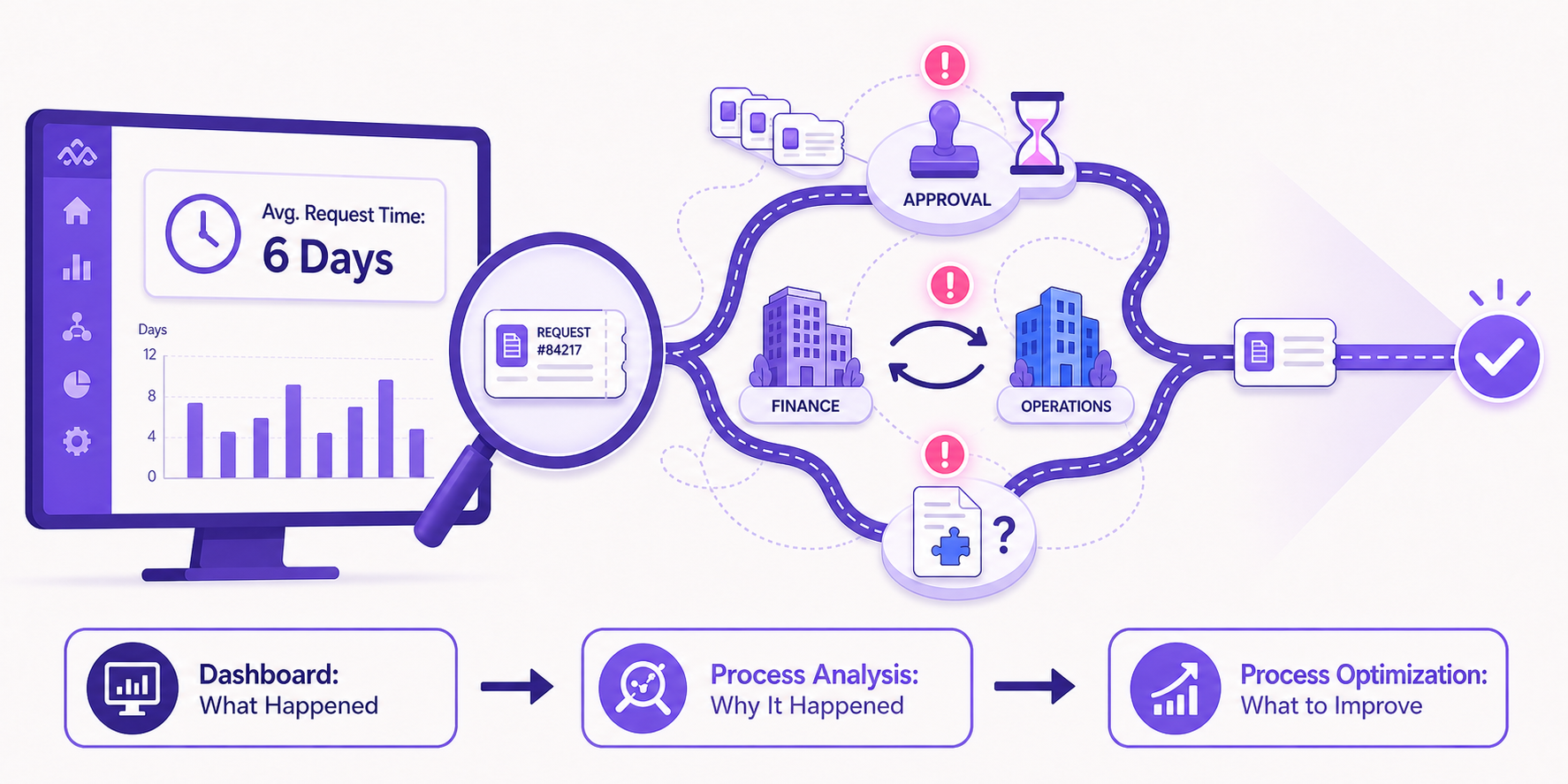
A dashboard might show that customer requests take six days to complete. But that number alone does not explain the delay.
The work may be waiting for approval, moving between departments, or stuck because information is missing. This is where process mining helps. It shows how work actually moves through a process and reveals bottlenecks or unexpected delays.
Dashboard: what happened→Analysis: why→Optimization: what to fix
If you want a practical way to start that analysis, our guide on finding operational waste walks through where team time quietly leaks out.
The Process on Paper May Not Be the Real Process
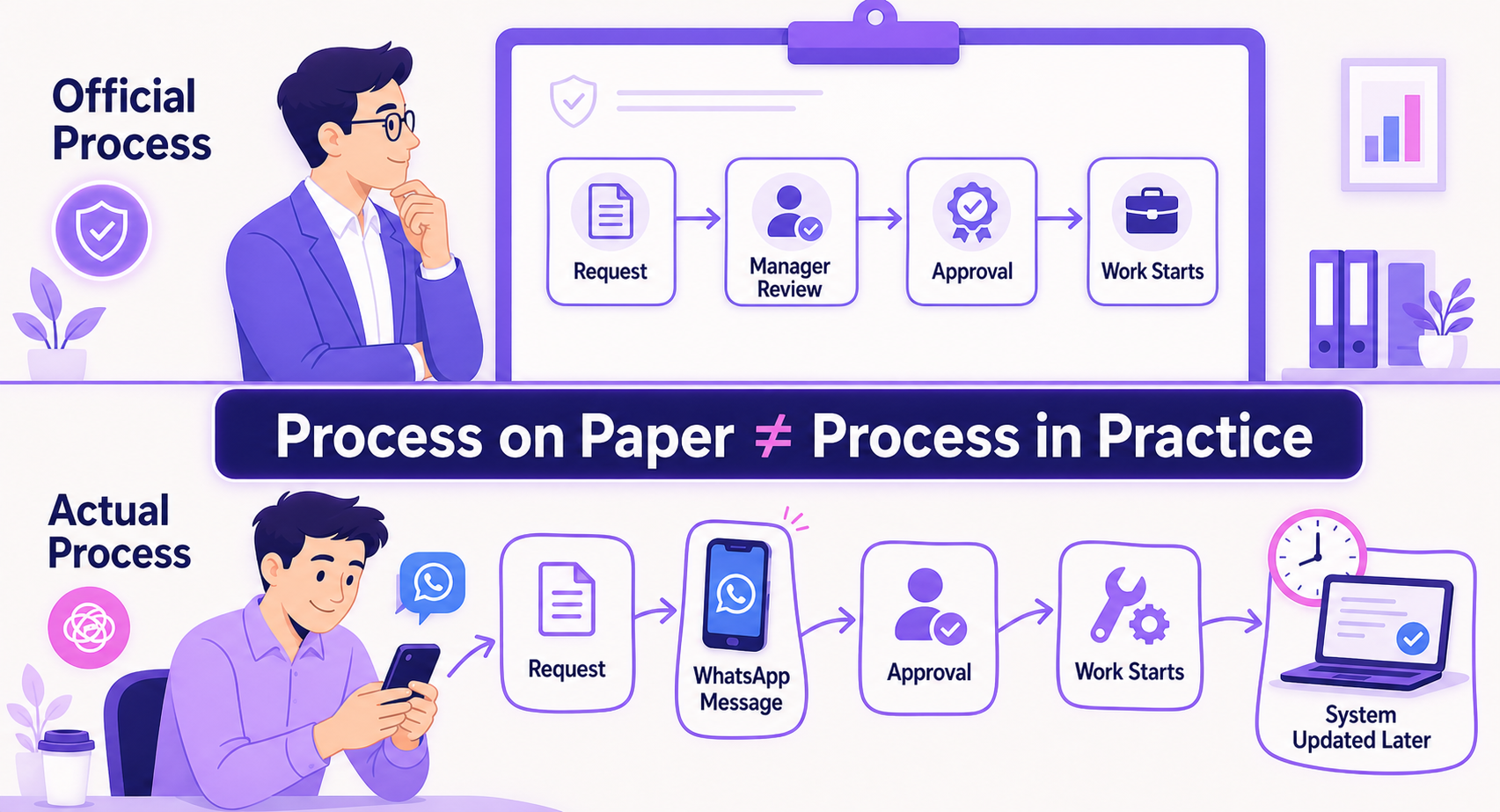
A documented workflow can look perfect while employees follow something completely different. The second version never appears in the official documentation, but it still shapes the data.
Toggle: paper vs practice
Official workflow
Request submitted
Manager review
Approval recorded
Work starts
Actual workflow
Request submitted
WhatsApp message to the manager
Approval given in chat
Work starts
System updated days later
What the dashboard sees: the approval date is the day someone updated the system, not the day the decision was made. Every cycle-time chart built on it is off.
That is why effective workflow management, and any useful process documentation, has to reflect how work actually happens, not how it was drawn in a workshop.
Process on paper≠Process in practice
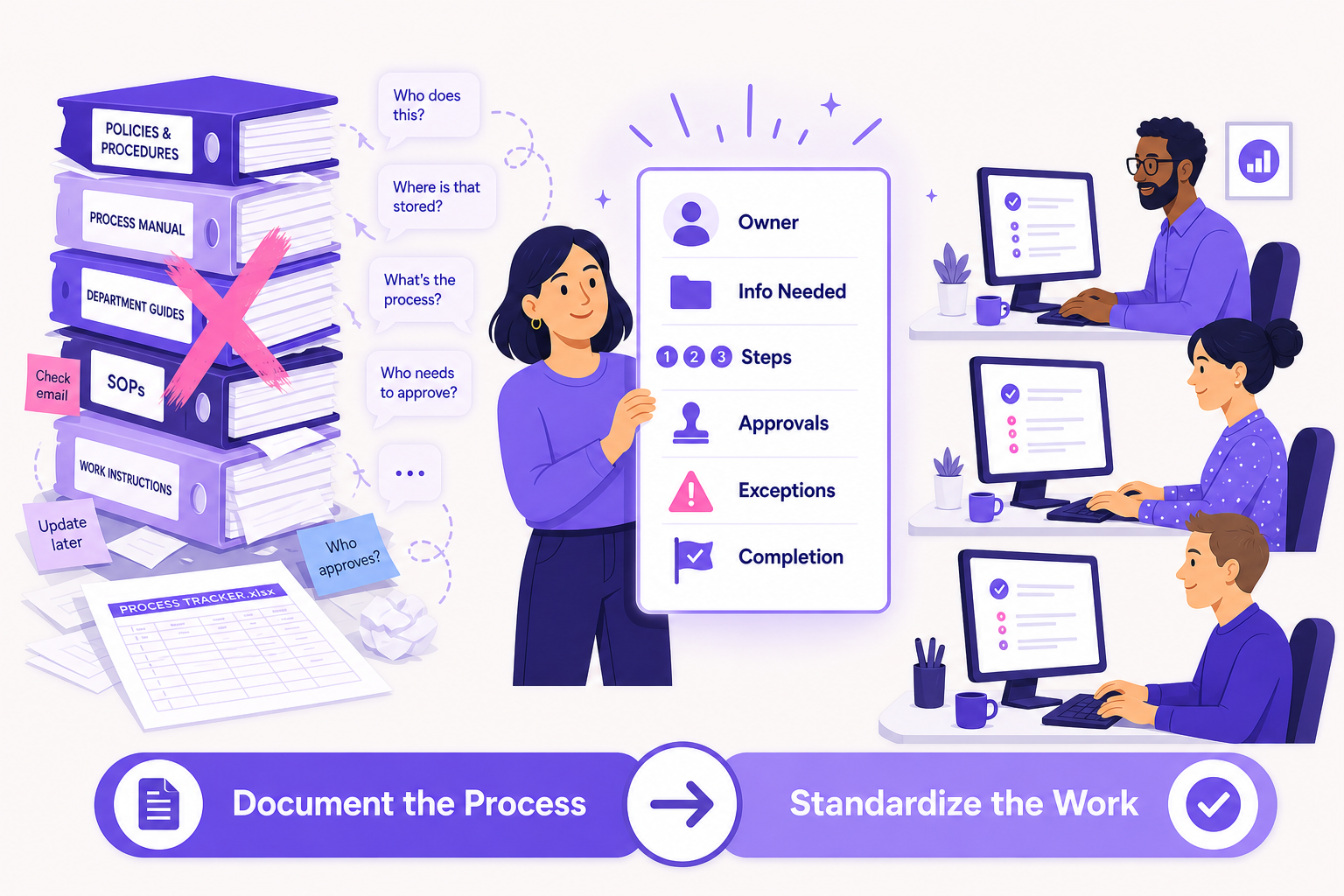
Process Documentation Does Not Mean More Paperwork
Good process documentation is not a 60-page manual nobody opens. It is a short, shared way of working that lives next to the work itself.
It should make clear:
Who owns the process
What information is needed
What steps are involved
Where approvals happen
What happens when something goes wrong
What defines completion
Keep it where people already work. A one-page SOP in ClickUp Docs, linked to the List where the work happens, gets read. A PDF in a shared drive does not. Once this is clear, teams depend less on personal spreadsheets, side messages, and knowledge that lives in one person’s head.
Document the process→Standardize the work
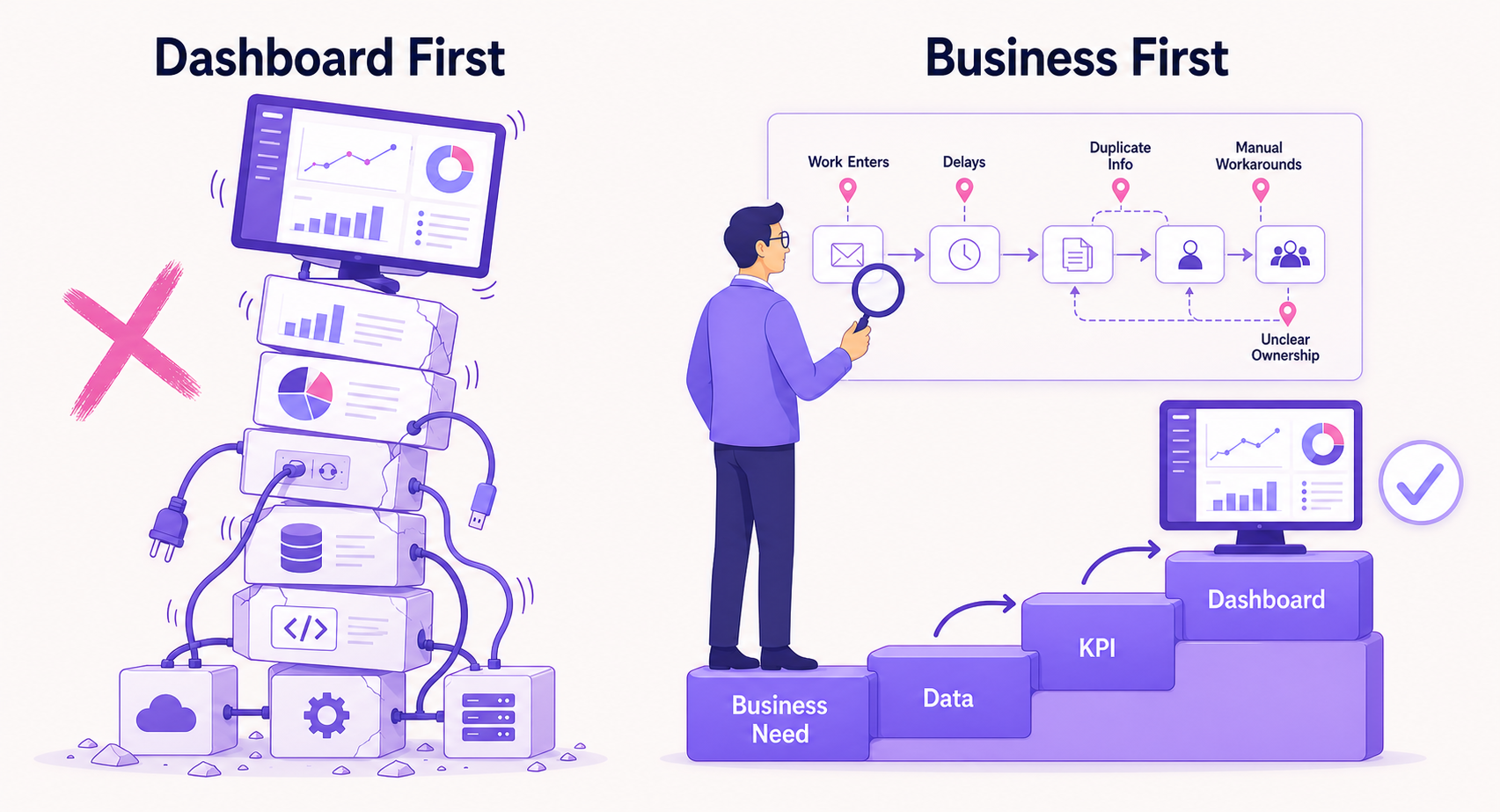
Start With the Business, Not the Dashboard
A common mistake is starting with the technology. Companies connect systems, add charts, and only then decide which KPIs to display. A better approach is to first understand what the business needs to know.
Look at:
Where work enters the business
Where delays occur
Where information is duplicated
Where manual workarounds appear
Where ownership becomes unclear
Write simple process documentation for those points, then decide what is actually worth measuring. Those same friction points are often the best workflows to automate once the process is documented and stable.
Business need→Data→KPI→Dashboard
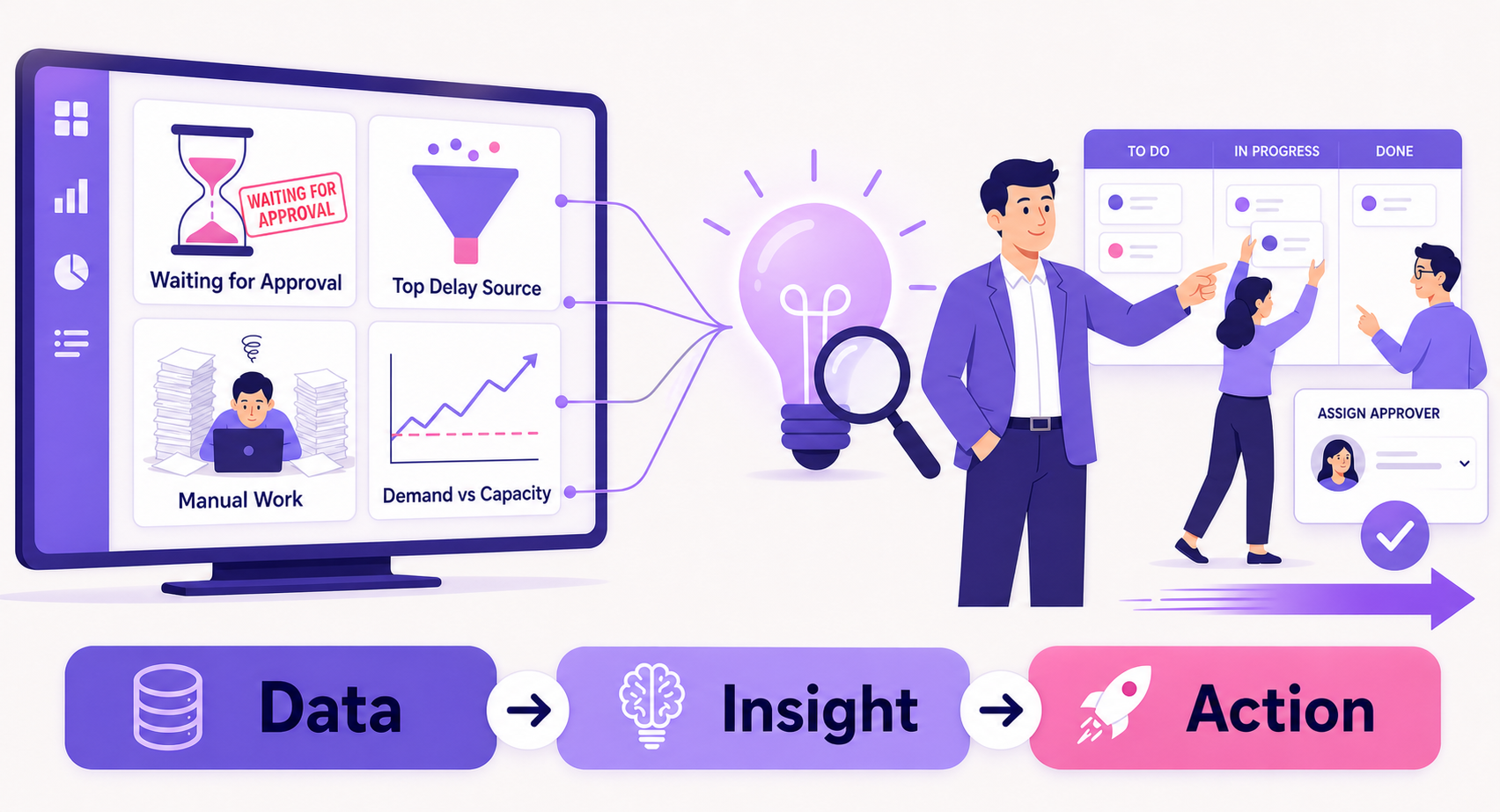
A Dashboard Should Help People Act
A dashboard is useful when it helps someone decide what to do next.
For example, it might show that:
Projects are repeatedly waiting for approval
One process creates most of the delays
A team is spending too much time on manual work
Customer requests are growing faster than capacity
This is where data-driven decision making becomes practical. The goal is not more information. It is more useful information.
Data→Insight→Action
When People Stop Trusting the Dashboard
The biggest warning sign is not an ugly dashboard. It is when people stop opening it.
Once employees see numbers that do not match reality, they build their own alternatives: personal spreadsheets, manual reports, private trackers, and extra status meetings. The company has invested in business intelligence dashboards, but people are still working from Excel.
Now the business has multiple versions of the truth, which is the exact problem the dashboard was meant to solve. Winning that trust back starts with process documentation, not a redesign.
Unreliable data→Lost trust→Manual reporting
Check Your Process Documentation Health
Before you build another chart, see how strong the foundation under your current one is. Tap every statement that is true for your team today.
Dashboard foundation check
0 / 8
Tap the statements that are true. Each one is a part of the foundation your dashboard stands on.
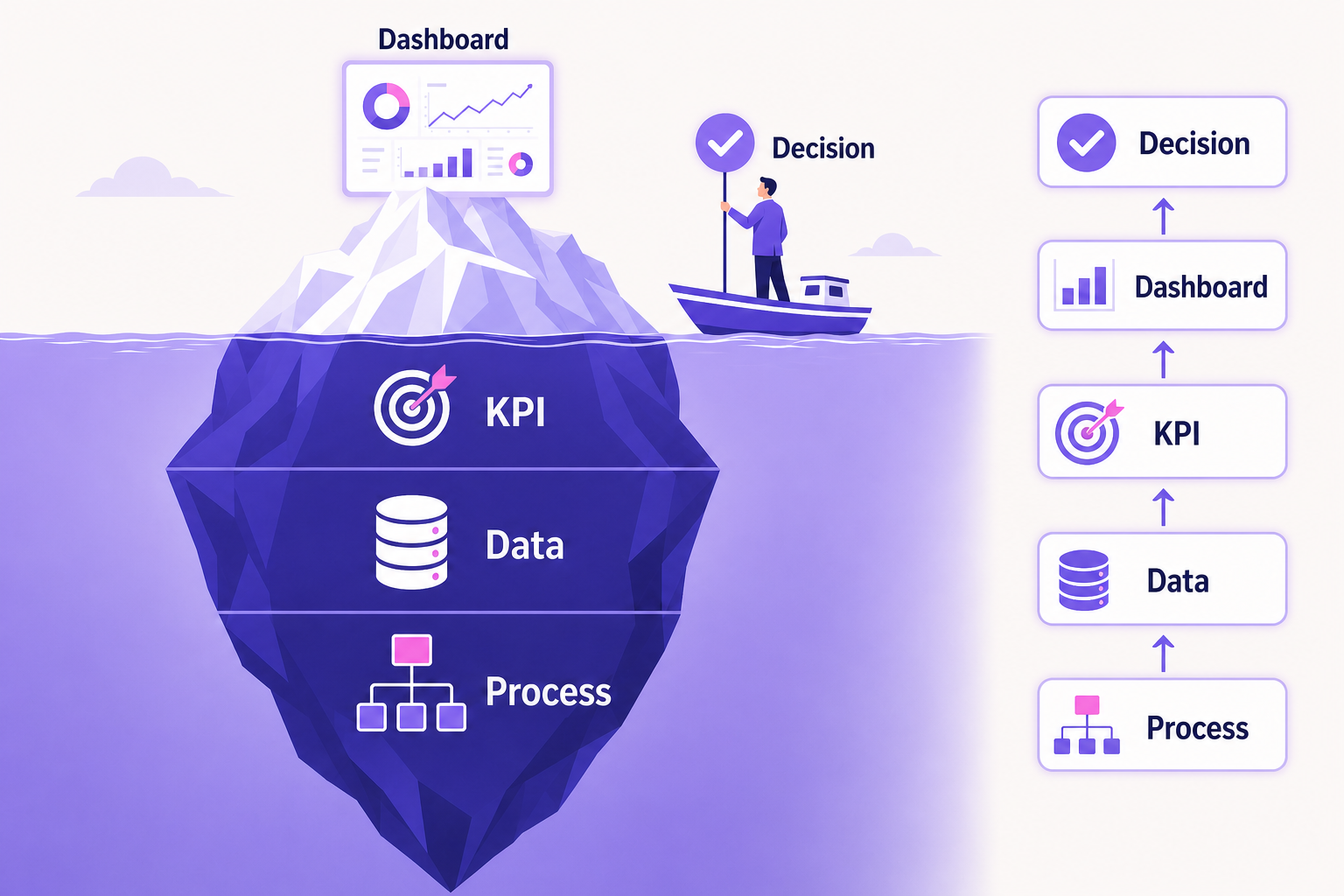
The Real Foundation of a Business Dashboard
A dashboard is only the visible part of a much larger system. Behind every useful dashboard are processes people understand, data that can be trusted, and KPIs with a clear purpose.
Process→Data→KPI→Dashboard→Decision
When those foundations are weak, adding more technology will not fix the problem. When they are clear, the dashboard becomes far more valuable, and process documentation is what keeps them clear as the team grows.
Before Building Another Dashboard
When a dashboard produces confusing numbers, the answer is rarely another chart or reporting tool. Start with the process behind the numbers.
Understand how work actually moves. Make the important steps consistent. Capture them, along with what each key metric means, in short process documentation. Then build the dashboard around that reality.
A great dashboard does not begin with better charts. It begins with understanding how the business actually works.
FAQ: Process Documentation and Dashboards
Why do dashboards show different numbers for the same KPI?
Usually because teams follow different versions of the same process. One team marks work complete at the last task, another at client sign-off. The dashboard calculates correctly, but the inputs mean different things. Clear process documentation fixes the definitions so the numbers line up.
What should process documentation include?
Keep it short: the process owner, what triggers it, the steps, where approvals happen, where data is recorded, what happens when something goes wrong, and what counts as complete. If it fits on one page, people will use it.
Should we document processes before or after building a dashboard?
Before. Start with what the business needs to know, document how the work runs, define the KPIs, and only then build the dashboard. Building first usually means rebuilding later.
How often should process documentation be reviewed?
At least once a quarter, and any time the team, tools, or approval rules change. Compare the written process with what people actually do. If they differ, update the documentation or fix the practice.
Can ClickUp help keep processes and dashboards connected?
Yes. You can keep SOPs in ClickUp Docs, run the work in Lists with consistent statuses and fields, and report on it with ClickUp Dashboards. When the process, the work, and the reporting live in one place, the numbers stay much easier to trust.
Dtech Systems is a ClickUp-authorized partner.
We help teams in Saudi Arabia and beyond document how their work really runs, then build ClickUp dashboards people actually trust. Talk to Dtech
How to Schedule ClickUp Chat Messages for Better-Timed Updates
Your update is ready. Your teammate’s workday isn’t. Write it now, pick a time, and let ClickUp send it when it will actually get read.
It’s 10:40 PM in Karachi. You’ve just wrapped the handoff notes, and your lead in Riyadh logged off hours ago. Send now and the message sinks under tomorrow’s notifications. Wait, and you carry a mental sticky note all evening: remember to send that.
There’s a cleaner way. You can schedule ClickUp Chat messages so they land when the reader is ready for them. You write while the context is fresh, choose a time, and move on with your evening.
This guide covers the exact steps on web and mobile, how to manage what you’ve queued, and a simple planner for choosing the right send time when your team works across time zones.
Why schedule ClickUp Chat messages instead of sending right away?
Most teams treat Chat as “send it the second it’s ready.” That works when everyone shares one office and one set of hours. It breaks the moment your team spans Riyadh, Dubai, Karachi and London, or when people work shifts.
A message that arrives at 11 PM does one of two things. It interrupts someone’s evening, or it gets buried under newer messages before they see it. Neither helps the work move.
Timing is part of the message. A handoff that lands right as the reader starts their day gets read and acted on. The same handoff sent at midnight competes with everything else that came in overnight.
When you schedule ClickUp Chat messages, you fix the timing without changing how you write. ClickUp’s release notes describe the goal plainly: pick when you want a message delivered, “so you never disturb teammates after hours or forget to send an important update.”
How to schedule ClickUp Chat messages in 3 steps
Scheduling works for regular messages and threaded replies, in both Channels and direct messages. It’s part of the Chat experience that came with ClickUp 4.0, and once you know where the button is, it takes about ten seconds. To schedule ClickUp Chat messages on the web, follow these three steps.
On the web
1
Write your message
Open the Channel, DM, or thread and type your update as usual. Add @mentions, links, and formatting now, so the message is complete when it goes out.
2
Open the dropdown beside Send
To the right of the send icon there’s a small dropdown button. Click it instead of pressing Enter. This is the step most people miss, because the arrow is easy to overlook.
3
Choose when it goes out
Type a time in natural language (for example, “tomorrow 9am”), pick one of the presets, or choose a custom date and time from the calendar. A confirmation banner appears with a View message link so you can check it.
On mobile: you can schedule from the ClickUp app too, using a preset or a custom date and time. Find what you’ve queued under the Scheduled tab on Home’s Drafts & Sent page, or tap View scheduled messages in the confirmation banner. ClickUp currently labels mobile scheduling as beta.
One writing habit makes scheduled messages far more useful: write as if the reader has zero context. The message arrives hours after you wrote it, so “as discussed” or “see above” may not make sense by then. Link the task or Doc instead, and say what you need from them.
Edit, reschedule, or cancel in Drafts & Sent
Plans change. The client call moves, the announcement slips a day, someone spots a typo. When you schedule ClickUp Chat messages, they all collect on the Drafts & Sent page, under the Scheduled tab, with each one’s location, content, and send time side by side.
Hover over any scheduled item and you get four options:
Edit (pencil icon): open the message, make your changes, and click the checkmark.
Reschedule (clock icon): pick a new date and time.
Send now (send icon): skip the wait if the moment has arrived early.
Delete: cancel the message completely.
Once a message goes out, it moves to the Sent tab. On mobile there’s one extra option worth knowing: cancel the schedule and save to drafts, which keeps your text but drops the timing.
Our advice: glance at the Scheduled tab before you sign off at the end of your week. It’s a 20-second check that catches messages that no longer fit the plan.
Pick the right send time across time zones
This is where most people slip. When you schedule ClickUp Chat messages, the time you pick shows in your own time zone, not your teammate’s. So the real question is: what time on your clock matches the start of their day?
Use the planner below. Pick your zone, their zone, and when they usually start work. We suggest landing the message 15 to 30 minutes after they begin, once they’ve cleared their first emails and opened Chat.
Send-time planner
Schedule it for 11:30 AM your time
It lands at 9:30 AM for them, same day.
How it works: we add their start time and your buffer, then shift by the difference between the two UTC offsets. Offsets are fixed, so pick the summer or winter option for London and New York. Always double-check the time zone shown in your ClickUp scheduler before you confirm.
When to schedule ClickUp Chat messages (and when not to)
Not every message needs a send time. Schedule ClickUp Chat messages when the timing matters more than the speed:
Shift and project handoffs. The person finishing late writes the summary. The person starting early reads it first thing.
Planned announcements. Write Thursday’s launch note on Tuesday, when you have time to get it right, then schedule it for launch morning.
Week kickoffs. Many teams in Saudi Arabia start the week on Sunday. Draft the priorities message before the weekend and let it land Sunday morning.
Client-facing Channels. Updates that arrive during the client’s business hours look organized, not rushed.
Before time off. Queue the reminders your team will need while you’re away.
Skip scheduling for anything urgent, anything that depends on a reply first, and anything that repeats every week. A weekly status ping is a job for a recurring workflow or one of the ClickUp AI agents that can post updates for you. Scheduling is for one-off messages that need better timing.
Quick check: does your team need scheduled messages?
Tap every statement that sounds like your team. You’ll get a quick read on whether to schedule ClickUp Chat messages as a personal trick or a team habit.
Timing check
Your result: tap the statements that apply. Two or more usually means handoffs are the place to start.
What to know before you rely on it
Before your whole team starts to schedule ClickUp Chat messages, keep these points in mind.
Plan access. According to ClickUp’s Chat limits, you can schedule messages on the Unlimited, Business, Business Plus, and Enterprise plans, but not on Free Forever. Availability can also vary by user role, so check the latest details in the ClickUp Help Center.
It goes beyond Chat. The same idea works for task comments, threaded replies, and emails in ClickUp, and all of them show up together in Drafts & Sent.
Agree on a send window. If several people schedule updates, agree on a shared window (for example, 9:30 AM Riyadh time). Five messages landing at once is just a new kind of noise.
FAQ: how to schedule ClickUp Chat messages
Can I schedule ClickUp Chat messages in direct messages?
Yes. You can schedule messages and threaded replies in both Channels and direct messages, using the dropdown next to the send icon.
Where do I find the messages I’ve scheduled?
Every time you schedule ClickUp Chat messages, they appear on the Drafts & Sent page. Open it and go to the Scheduled tab. You can also click View message in the confirmation banner right after scheduling.
Can I edit or cancel a scheduled message?
Yes. In the Scheduled tab, hover over the message to edit it, reschedule it, send it now, or delete it.
Is scheduling available on the Free Forever plan?
Not at the time of writing. ClickUp lists scheduled messages on Unlimited, Business, Business Plus, and Enterprise. Check ClickUp’s current plan limits before rolling it out.
Can I schedule ClickUp Chat messages on mobile?
Yes. The ClickUp mobile app lets you pick a preset or a custom date and time, and you can manage scheduled items from the Scheduled tab in Drafts & Sent. ClickUp currently marks this as beta on mobile.
Does ClickUp change the time for my teammate’s time zone?
Plan the time yourself. Base it on when your teammate starts work, use the send-time planner above, and confirm the time zone shown in the scheduler before you save.
Dtech Systems is a ClickUp-authorized partner. We help teams in Saudi Arabia and beyond set up Chat Channels, communication habits, and workflows so the right update reaches the right person at the right time.
ClickUp Brain²: From AI-Generated Ideas to Real Business Results
AI can write you a strategy in two minutes. Getting that strategy assigned, tracked and finished is still the hard part. Here is how ClickUp Brain² closes that gap.
AI has made it easier than ever to generate ideas, write content, analyze information and create plans. But there is a problem: having a great idea is not the same as getting work done.
A business can use AI to create a marketing strategy in minutes. But who turns that strategy into tasks? Who assigns owners, tracks deadlines and makes sure everything moves forward? ClickUp Brain² brings AI closer to the work itself, helping teams move beyond generating answers to creating useful outputs and completing workflows inside their workspace.
The Problem Isn’t Creating Ideas. It’s Executing Them.
Most teams do not struggle because they lack ideas. They struggle to turn those ideas into organized, measurable work. Think about what happens after a team meeting:
Someone needs to summarize the discussion.
Someone needs to turn decisions into tasks.
Deadlines and responsibilities need to be assigned.
Progress needs to be tracked.
Managers need updates to understand what is happening.
When these steps happen across disconnected tools, information gets lost and progress slows down. AI can help create the plan, but businesses also need a way to put that plan into action.
How much time does your team lose between idea and execution?
Estimate the hours your team spends on “work about work”: meeting summaries, turning notes into tasks, chasing updates and writing status reports.
6 hours/week
About 26 hours a month back for your team.
Formula: people × hours × share. Month = week × 4.33. The default 25% is a deliberately conservative assumption, not a ClickUp benchmark. Your real number depends on how clean your workspace is.
What Makes ClickUp Brain² Different?
Traditional AI tools are good at answering questions and generating content. But they usually lack the context of your company’s projects, tasks and ongoing discussions.
ClickUp Brain² is designed to work with the context of your ClickUp workspace and supported connected apps. It uses relevant work information to produce outputs that match what your team is actually doing. In everyday work, that means:
From questions to insights: ask about your work and get answers based on information you have permission to access.
From instructions to deliverables: generate presentations, dashboards, Docs and other artifacts from a prompt.
From repetitive work to reusable processes: create AI Skills and Super Agents for recurring workflows.
From scattered information to connected context: use tasks, Docs, conversations and connected data so you stop explaining the same background again and again.
Brain² also supports multiple AI models and routes work to the model best suited for it, as ClickUp explains in its Brain² launch post. The goal is not simply more content. It is AI that stays useful through the whole work process.
From a ClickUp Brain² Prompt to a Real Business Outcome
Here are three practical examples. Pick your role to see which one to start with.
Which ClickUp Brain² use case fits you first?
Choose a role above. Not sure? Start with use case 3: repetitive work is the easiest place to prove value fast.
1. Turn a marketing idea into an executable campaign
Imagine your marketing team wants to launch a campaign in a new market. Instead of starting from scratch, the team can use ClickUp Brain² to:
Research the market and pull out relevant information.
Develop campaign ideas and draft content.
Create a presentation or campaign plan.
Organize the work into tasks, deadlines and owners.
Prepare progress summaries so the team stays aligned.
The team still reviews the strategy, approves content and makes the calls. AI simply removes the manual work between planning and execution.
2. Turn project data into better decisions
Managers often spend too much time collecting updates before they can see how a project is doing. ClickUp Brain² can analyze workspace information, summarize progress and build dashboards or reports. A manager could ask:
Which tasks are overdue?
What is delaying the current project?
What did the team complete this week?
Which priorities need attention?
The value is a clearer picture without chasing every update by hand. Accuracy still depends on your data, permissions and how well the workspace is maintained.
3. Turn repetitive tasks into repeatable workflows
Many business processes follow the same pattern every week: weekly reports, meeting summaries, campaign briefs, collecting team updates and research for new projects.
ClickUp Brain² supports reusable AI Skills and Super Agents that handle recurring processes with consistent instructions and the right tools. If you want ideas, see our guide to 5 ClickUp AI agents you can start using this week. Human review still matters, especially for approvals, sensitive information or big business decisions.
Why Context Matters More Than Another AI Tool
Generating an answer is useful. Generating an answer that reflects your actual business is far more useful. Consider the difference when you ask for a project update:
Without work contextYou have to feed the AI the background, deadlines, completed tasks, blockers and stakeholder expectations yourself. With workspace contextBrain² draws on the tasks, discussions and progress it can access to prepare an update that reflects what is really happening.
That cuts repeated explanations and makes the output more relevant. AI becomes more useful when it works with the right information, not just when it produces impressive responses.
What to Get Right Before Using ClickUp Brain²
AI alone will not fix an inefficient process. If ownership is unclear, tasks are messy or information is outdated, AI will still produce results that need heavy correction. This is the same pattern we see behind most ClickUp adoption problems. Check your workspace against the five fundamentals below.
Is your workspace ready for ClickUp Brain²?
Tick what is true for your team today.
Score: 0 / 5
Start ticking to see your verdict.
The best results come when AI supports a well-designed process, not when it is expected to repair every operational problem on its own.
AI Is Only Valuable When It Helps Work Move Forward
Businesses do not need more ideas sitting in Docs, more reports nobody reads or more tools that create extra work. They need better ways to turn information into decisions, and decisions into action.
ClickUp Brain² brings AI closer to everyday work by combining workspace context, content creation, analysis and AI-powered workflows. Teams spend less time on repetitive tasks and more time on work that needs human judgment, creativity and collaboration.
The next step in AI is not creating more. It is helping businesses turn what they create into meaningful results.
ClickUp Brain² FAQ
What is ClickUp Brain²?
ClickUp Brain² is ClickUp’s upgraded AI. It works with the context of your workspace and connected apps to answer questions, create artifacts like dashboards and presentations, and run workflows through Skills and Super Agents.
How is ClickUp Brain² different from ChatGPT or other AI tools?
Standalone AI tools only know what you paste into them. Brain² can use the tasks, Docs and conversations you have permission to access, so outputs reflect your actual projects without long explanations.
Can ClickUp Brain² create tasks and dashboards?
Yes. It can turn a plan into tasks with owners and deadlines, and build dashboards, reports and presentations from your work data. Review the output before you rely on it for big decisions.
What are AI Skills and Super Agents?
Skills are reusable instructions that teach Brain² how to handle a specific kind of work your way. Super Agents are AI teammates you can assign tasks to, mention or schedule to run recurring workflows.
Do we need to clean up our workspace first?
It helps a lot. AI is only as good as the data it reads. Clear ownership, defined workflows and up-to-date tasks make Brain² answers far more accurate.
Dtech Systems is a ClickUp-authorized partner.
We help teams in Saudi Arabia and beyond organize their workspace and design workflows so ClickUp Brain² turns ideas into finished work, not just more drafts. Let’s review your workflows.
What if your team spent less time on repetitive work and more time on work that actually matters?
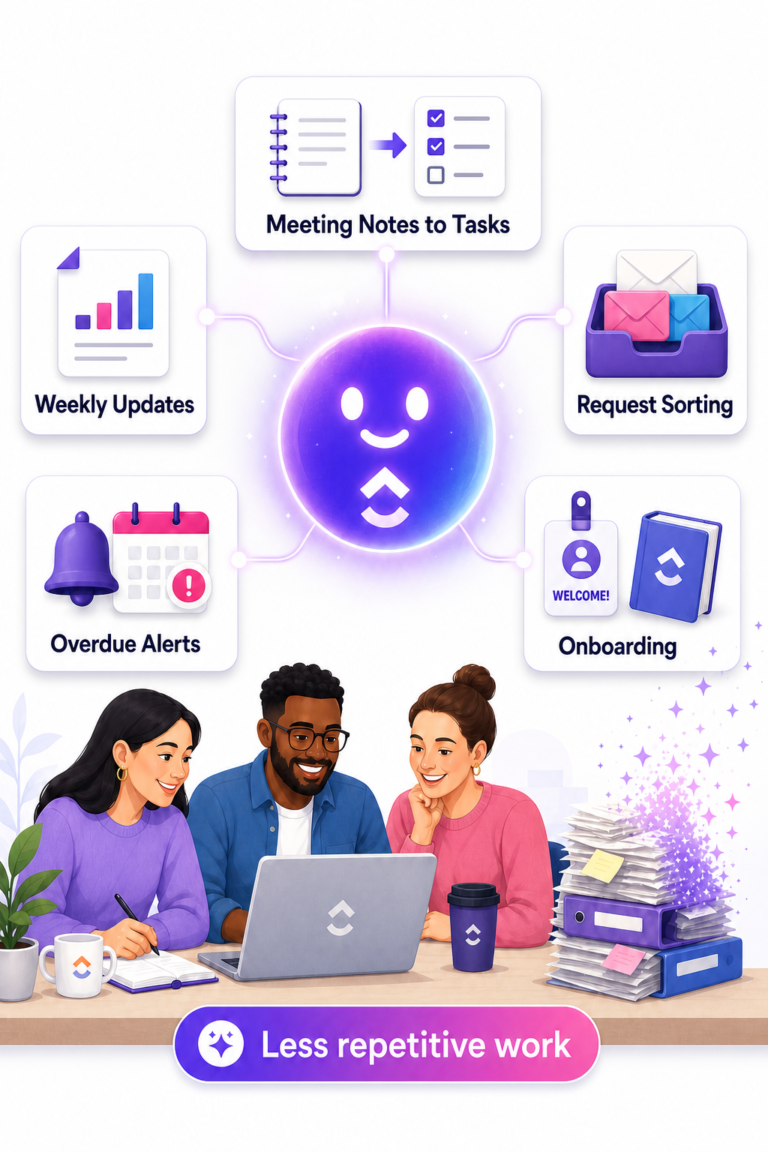
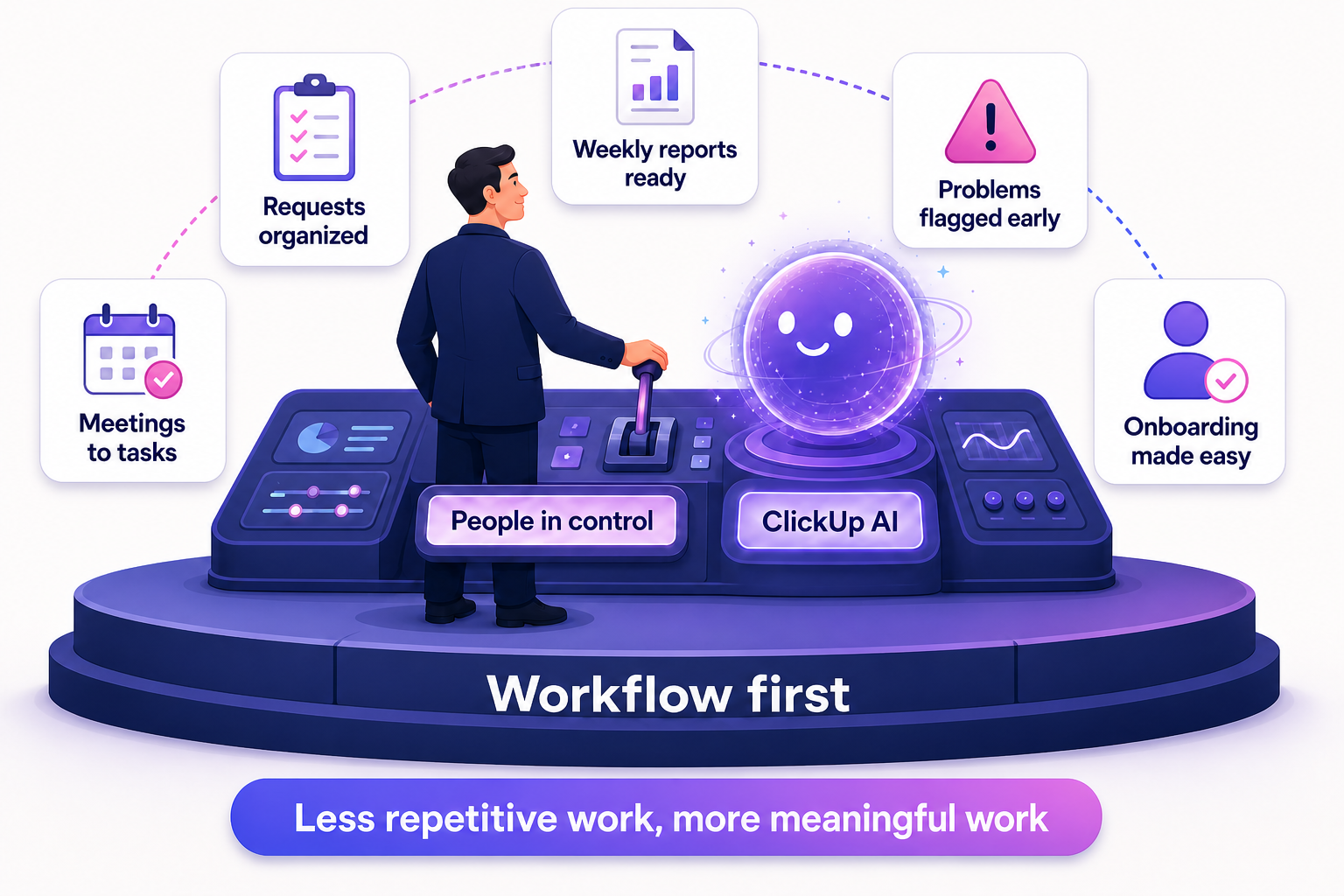
Writing weekly updates, turning meeting notes into tasks, sorting requests and checking overdue work all seem small. But they add up fast. That is where ClickUp AI agents come in.
With ClickUp AI, ClickUp Brain and AI agents, teams can automate parts of everyday work without changing everything at once. The question is simple: what repetitive task could ClickUp AI handle for your team?
Here are five practical ways businesses can use ClickUp AI agents and AI workflow automation, plus a quick tool to find the one worth starting with.
Which ClickUp AI Agent Should You Start With?
Pick the thing that eats the most of your team’s week.
Not sure? Most teams get the fastest win from the weekly update agent, because the data is already in ClickUp.
1. Use ClickUp AI to Turn Meeting Notes Into Tasks
Meetings often end with a clear list of next steps. The problem is what happens after everyone leaves the call.
Someone needs to update a task. Someone else needs to send a document. Another person needs to follow up with a client. Before long, those small action items get buried in notes, messages or someone’s memory.
Instead of asking someone to read through meeting notes and manually turn every detail into work, AI can pull out the important information and organize it inside your Workspace.
Imagine your company uses a ClickUp Form for new requests. When someone submits it, AI could review the request and organize the information before your team starts working on it. It could help identify:
What the request is about
Which team should handle it
Whether important information is missing
What the next step should be
Which person or team should review it
ClickUp provides AI tools that can search Workspace information, create tasks, update tasks, post comments and perform other actions. ClickUp Brain and agents can use these tools depending on the setup and permissions.
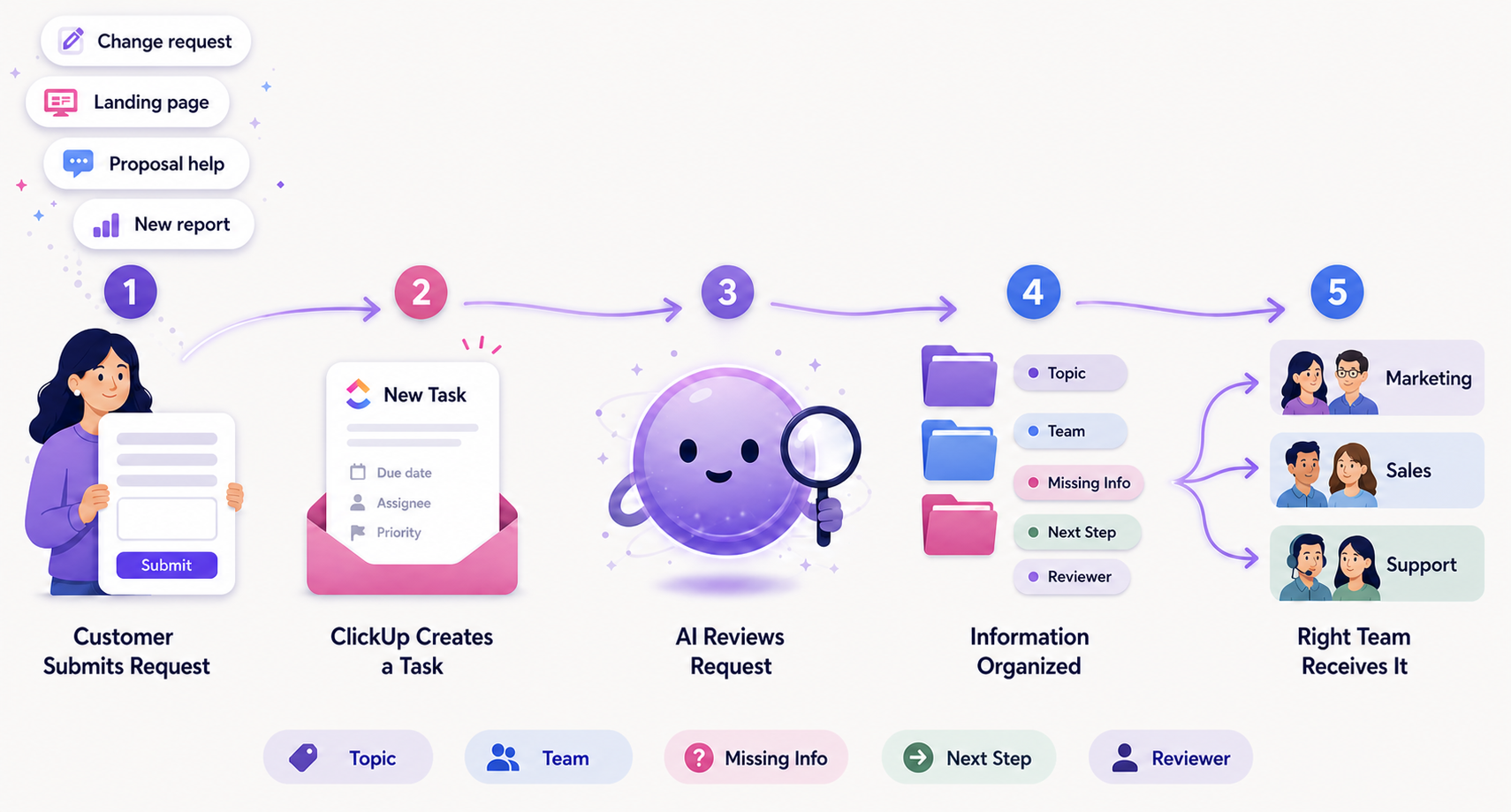
Customer submits a request → ClickUp creates a task → AI reviews it → Information is organized → The right team receives it
Your people still make the important decisions. AI takes care of the repetitive sorting that happens before the real work begins.
4. Let ClickUp AI Agents Flag Problems Before They Grow
A project rarely goes wrong in one day. Usually, there are small warning signs first.
A task has not been updated for a week. A deadline is getting close. One person is waiting for another. A project has several unfinished tasks but no recent update. These are easy to miss when a team is busy.
With ClickUp AI, a team can use existing task information to create summaries and updates. ClickUp supports AI-generated personal and team updates, task summaries and other insights based on work already in the Workspace.
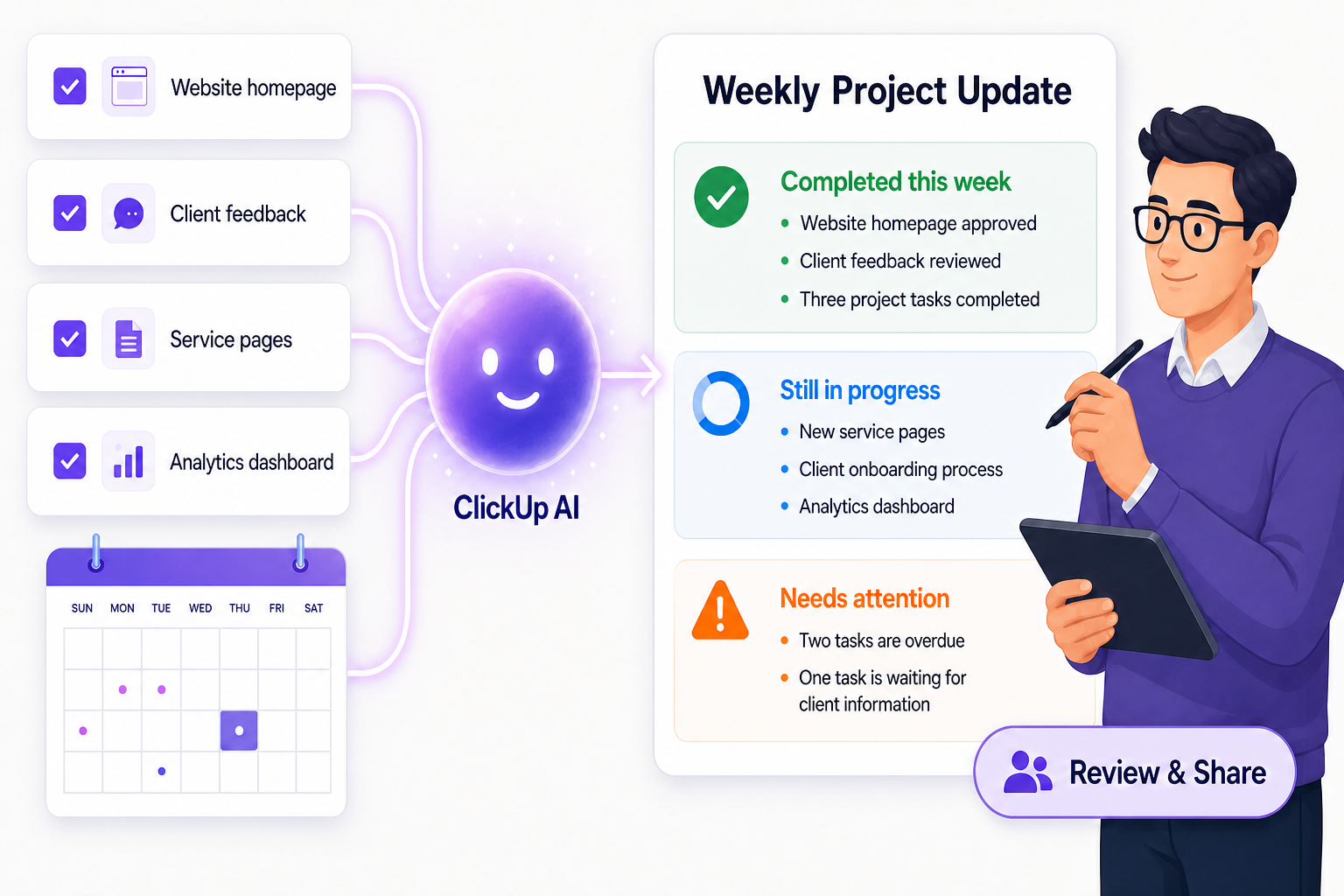
A weekly project update could look like this:
Completed this week
Website homepage approved
Client feedback reviewed
Three project tasks completed
Still in progress
New service pages
Client onboarding process
Analytics dashboard
Needs attention
Two tasks are overdue
One task is waiting for client information
The manager reviews the update, makes changes and shares it with the team. This does not remove the manager from the process. It just removes the need to start the report from an empty page every Friday.
3. Use AI Workflow Automation to Organize New Requests
Every business receives requests. A client asks for a change. A team member needs help. Marketing needs a landing page. Sales wants support with a proposal.
Usually, someone has to read each request, understand it, decide where it belongs and send it to the right person. That is a good opportunity for ClickUp automation.
Imagine your company uses a ClickUp Form for new requests. When someone submits it, AI could review the request and organize the information before your team starts working on it. It could help identify:
What the request is about
Which team should handle it
Whether important information is missing
What the next step should be
Which person or team should review it
ClickUp provides AI tools that can search Workspace information, create tasks, update tasks, post comments and perform other actions. ClickUp Brain and agents can use these tools depending on the setup and permissions.
Customer submits a request → ClickUp creates a task → AI reviews it → Information is organized → The right team receives it
Your people still make the important decisions. AI takes care of the repetitive sorting that happens before the real work begins.
4. Let ClickUp AI Agents Flag Problems Before They Grow
A project rarely goes wrong in one day. Usually, there are small warning signs first.
A task has not been updated for a week. A deadline is getting close. One person is waiting for another. A project has several unfinished tasks but no recent update. These are easy to miss when a team is busy.
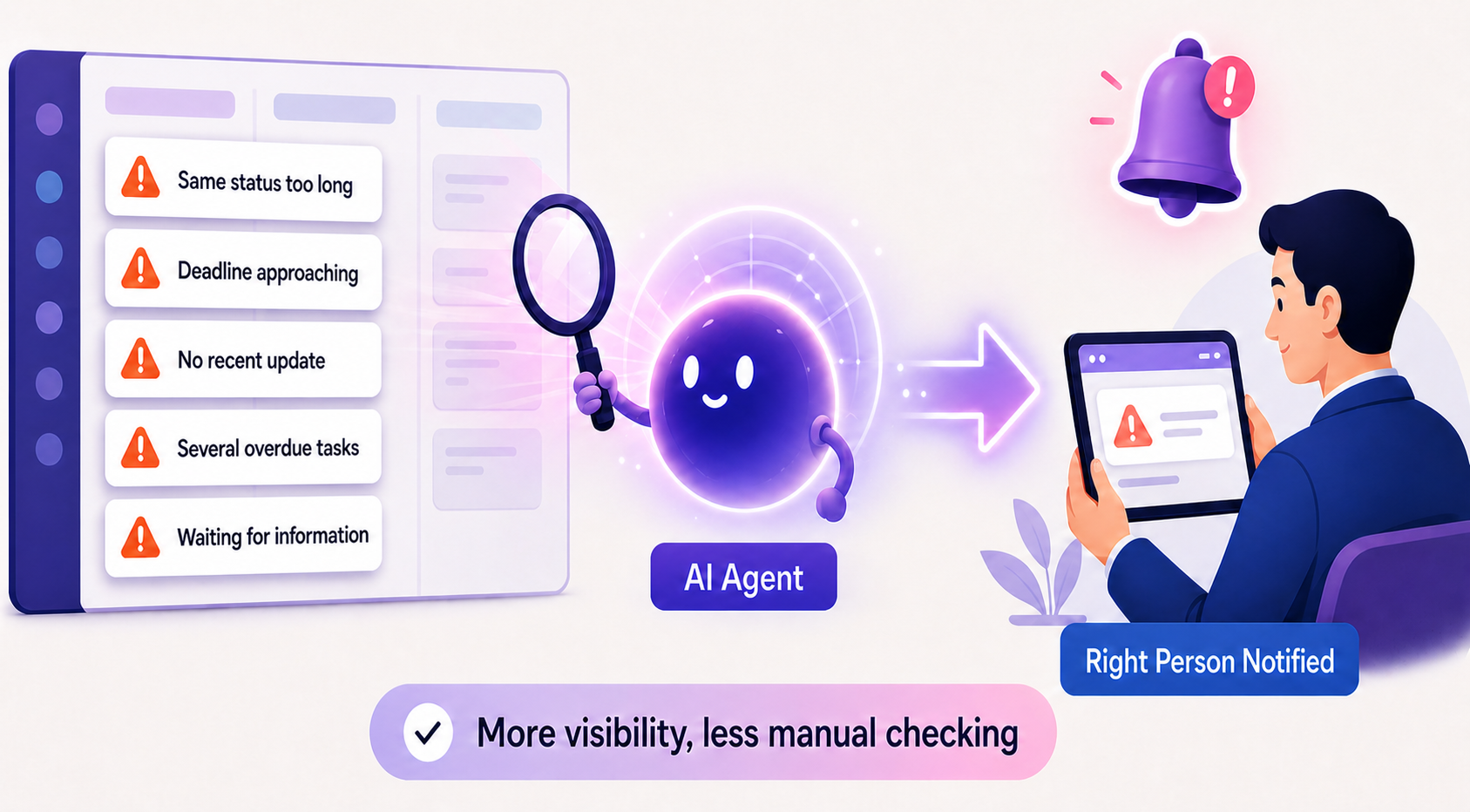
This is where ClickUp AI agents shine. ClickUp’s Autopilot Agents respond to specific triggers and conditions, then act based on the instructions, knowledge and tools they have been given.
For example, a company could set up an agent to flag situations like:
A task has been sitting in the same status for too long
An important deadline is approaching
A task has not received an update
A project has several overdue tasks
A team member is waiting for information before they can continue
The AI does not need to decide what the company should do. It simply brings the issue to the right person’s attention. Managers get more visibility without manually checking every task in every project.
5. Make Employee Onboarding Easier With ClickUp Brain
Starting a new job means learning a lot in a short time. A new employee needs to understand the company, their team, current projects, key processes and the people they will work with. They also need to know where all of it lives.
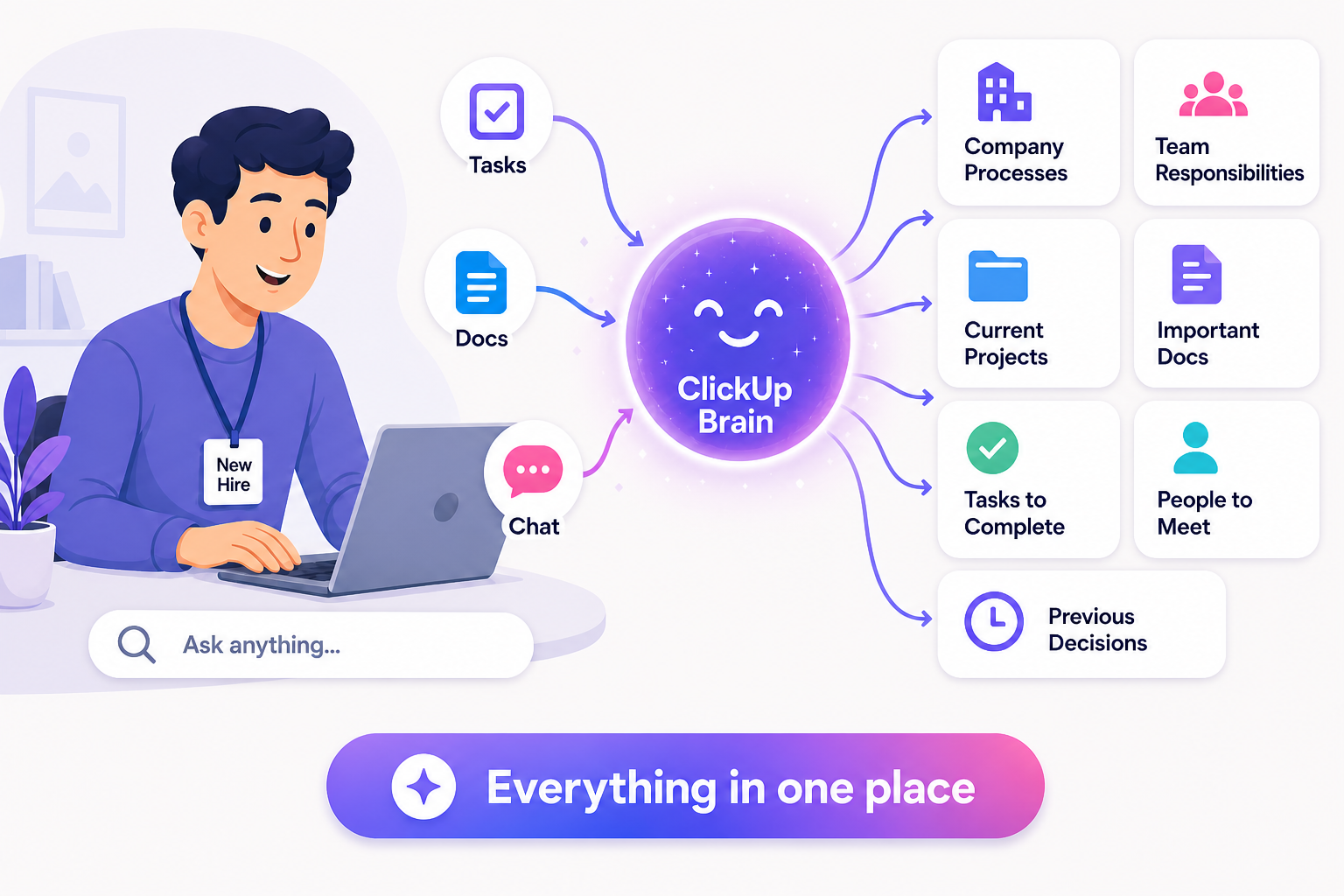
The information may already exist in ClickUp, but finding it still takes time. With ClickUp Brain and AI agents, a new employee could quickly find:
Company processes
Team responsibilities
Current projects
Important Docs
Tasks they need to complete
People they should meet
Previous decisions that affect their work
ClickUp Brain can use information from tasks, Docs, Chat and other Workspace content. Agents can also be given specific knowledge sources and tools, depending on how they are configured.
Instead of asking several people the same basic questions, a new hire starts by finding answers in one place. Onboarding gets faster, and people settle into the company’s way of working sooner. If your team is still struggling to use ClickUp at all, start with our guide on why teams drift away from ClickUp.
ClickUp AI Agents Work Best When Your Workflow Is Clear
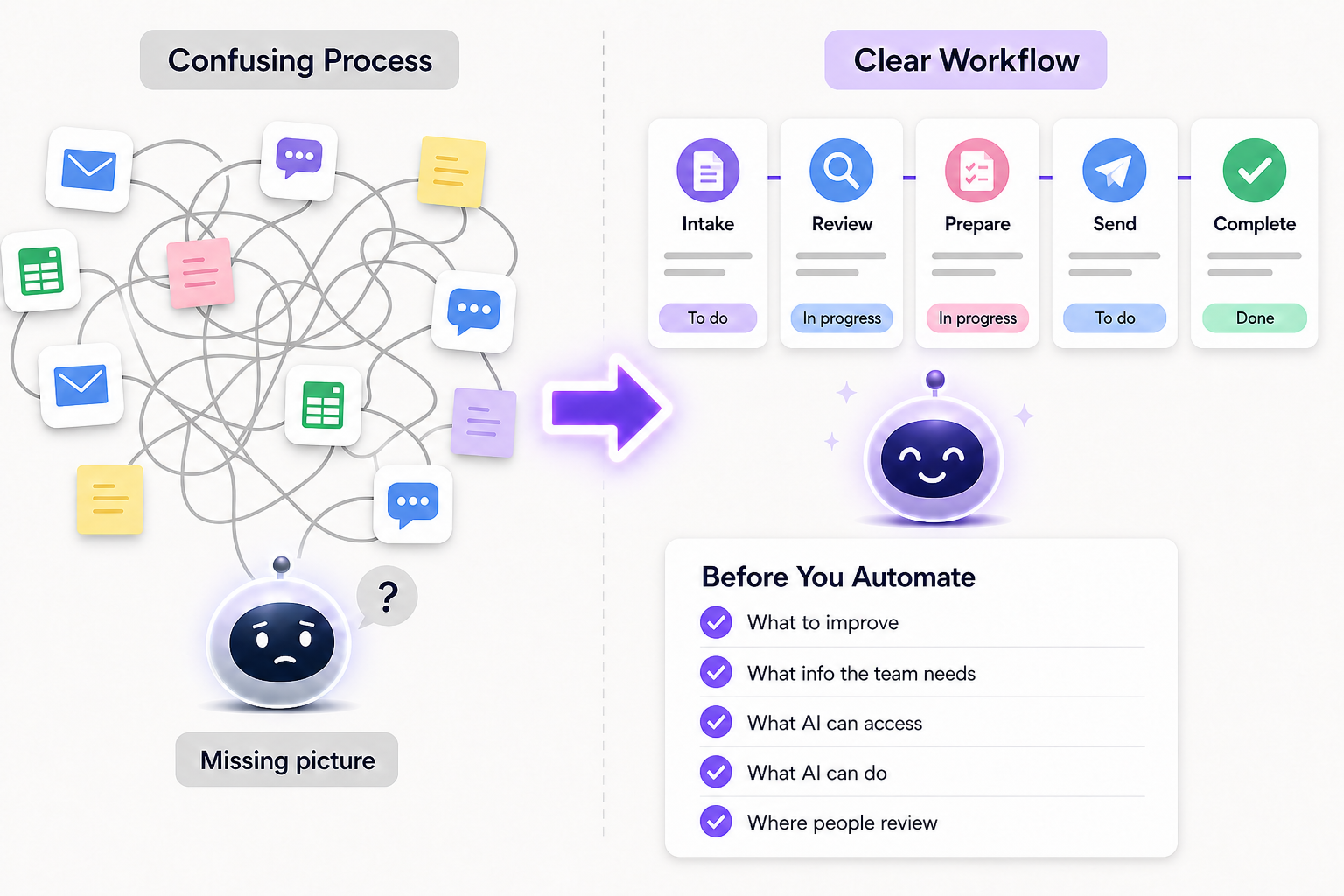
There is one important thing to remember before adding AI to your Workspace: AI cannot fix a confusing process by itself.
If your team does not update tasks, an agent will not have enough information to write a useful report. If everyone uses different statuses, progress is hard to read. If key information is spread across emails, spreadsheets, chats and personal notes, AI will not have the full picture.
This is why ClickUp implementation and workflow design matter.
ClickUp lets you configure agents with instructions, knowledge, tools, triggers and conditions. That gives you control over what an agent does and when it does it. The better your workflow is organized, the more useful AI becomes.
Is Your Workflow Ready for AI?
Tick every statement that is true for the process you want to automate.
0/5
Tick the statements above to see if this process is ready for a ClickUp AI agent.
You Don’t Need to Automate Everything
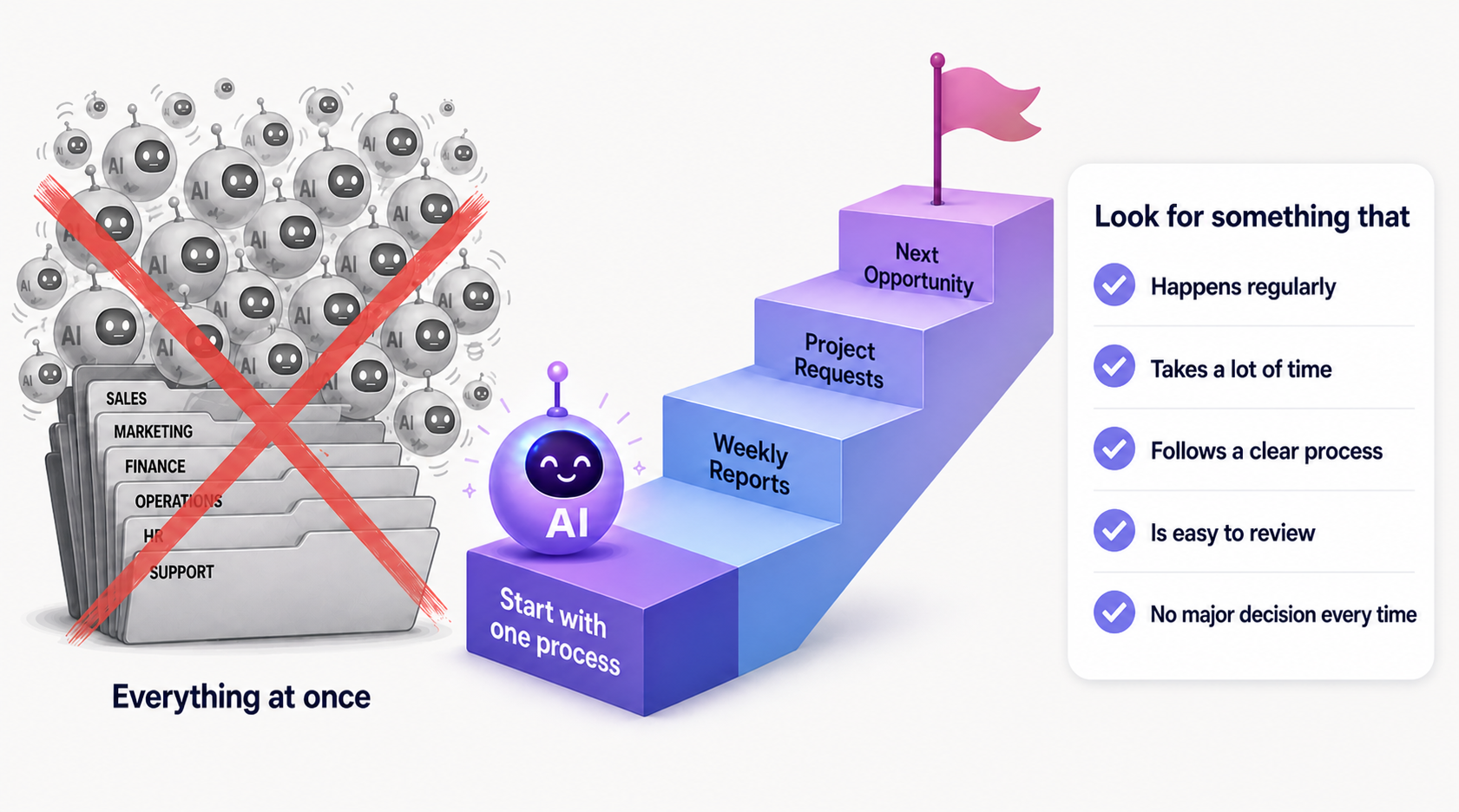
One of the biggest mistakes companies make with AI is trying to change everything at once. You do not need dozens of agents. You do not need to automate every department. And you do not need to replace the way your team works overnight.
Start with one repetitive process.
Look for something that:
Happens regularly
Takes people a lot of time
Follows a fairly clear process
Is easy for someone to review
Does not involve a major business decision every time
Weekly reports or new project requests are great first picks. Once that workflow runs well, look for the next opportunity. This also makes it easier to test the AI, improve its instructions and confirm it is actually helping.
The Next Step for ClickUp AI
AI is becoming more than a tool that answers questions. With ClickUp AI, ClickUp Brain and AI agents, businesses can build AI into the way work actually gets done.
A request gets organized automatically. A meeting leads to clear tasks. A weekly report is prepared from existing work. A project is checked for risks. A new employee finds what they need without digging through dozens of documents.
FAQs
What are ClickUp AI agents?
ClickUp AI agents are AI teammates built into ClickUp. You give them instructions, knowledge and tools, and they handle work like summarizing tasks, organizing requests, posting updates or flagging risks inside your Workspace.
What is the difference between Super Agents and Autopilot Agents?
Autopilot Agents run in a specific location, such as a List, Folder, Space or Chat Channel, and act when a defined trigger and its conditions are met. Super Agents are more flexible AI teammates you can message, @mention or schedule, and they can handle multi-step work across your Workspace.
Will ClickUp AI agents replace my team?
No. They remove repetitive steps like sorting, summarizing and checking. Your people still review the output and make the important decisions.
Which ClickUp AI agent should I set up first?
Pick one process that happens often, takes real time and is easy to review. Weekly project updates and new request intake are usually the safest first wins.
Do I need to reorganize my Workspace before using AI?
Not completely, but consistent statuses, updated tasks and information kept in ClickUp make agents far more useful. If your setup is messy, fix the workflow first, then automate it.
Dtech Systems is a ClickUp-authorized partner.
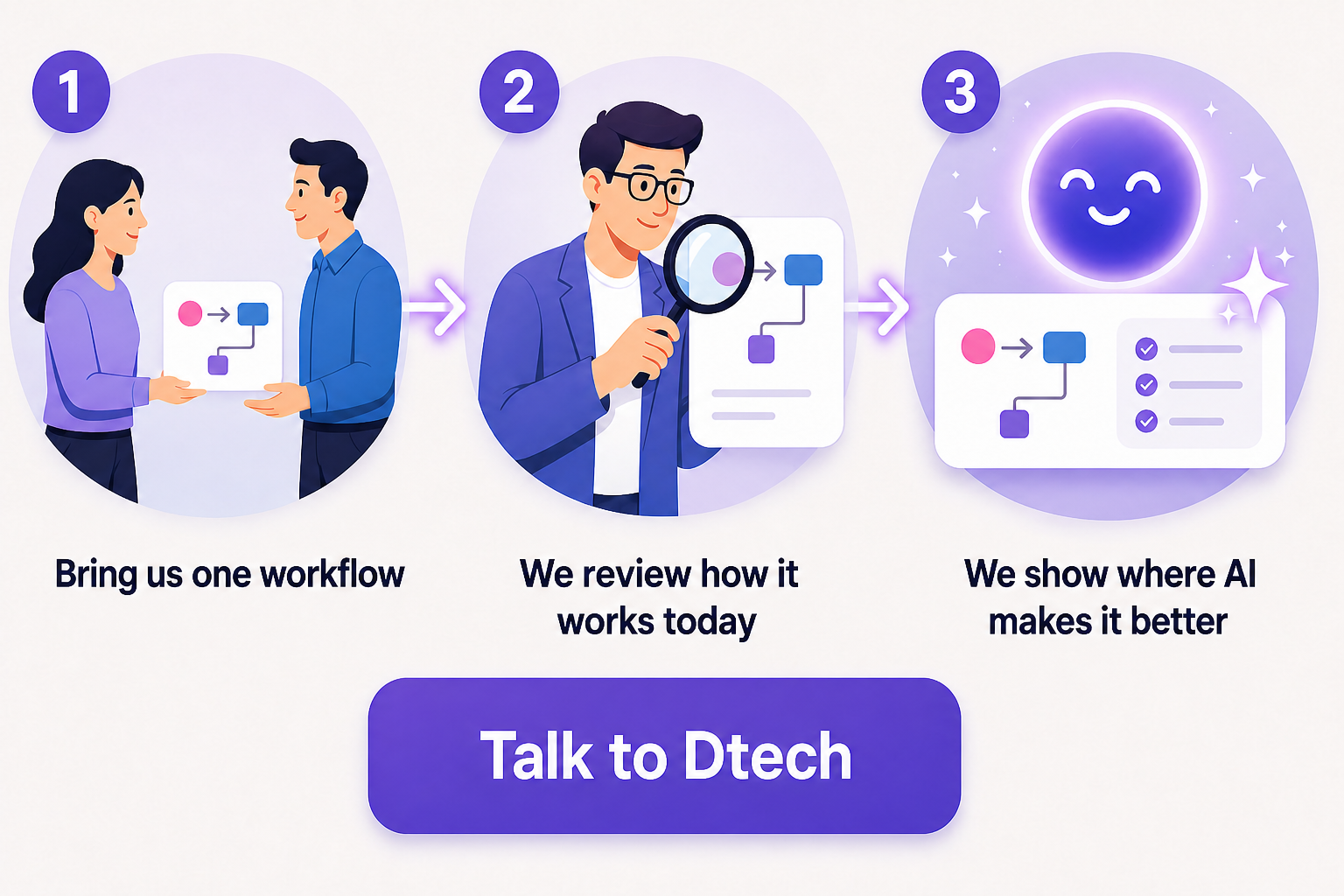
We help teams in Saudi Arabia and beyond review their workflows and set up ClickUp AI agents that save real time. Bring us one workflow. We will show you where ClickUp AI can make it better.