Quick answer: ClickUp 4.07 (released 2026) adds four major features: Custom fields grouped by task type, Slack imports that map to existing channels instead of duplicating them, support for connecting any external MCP server to Super Agents, and AI Notetaker capturing in-meeting chat from Zoom, Google Meet, and Microsoft Teams. Together, these updates reduce manual workspace cleanup and expand what ClickUp’s AI agents can access and record.
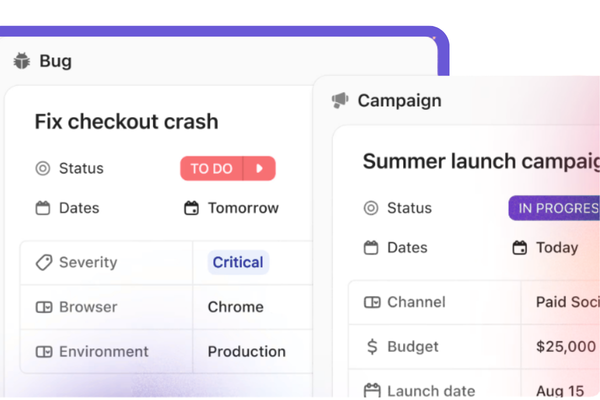
Custom Fields by Task Type—fields are now grouped and prioritized by the type of task (Bug, Account, Campaign, etc.)
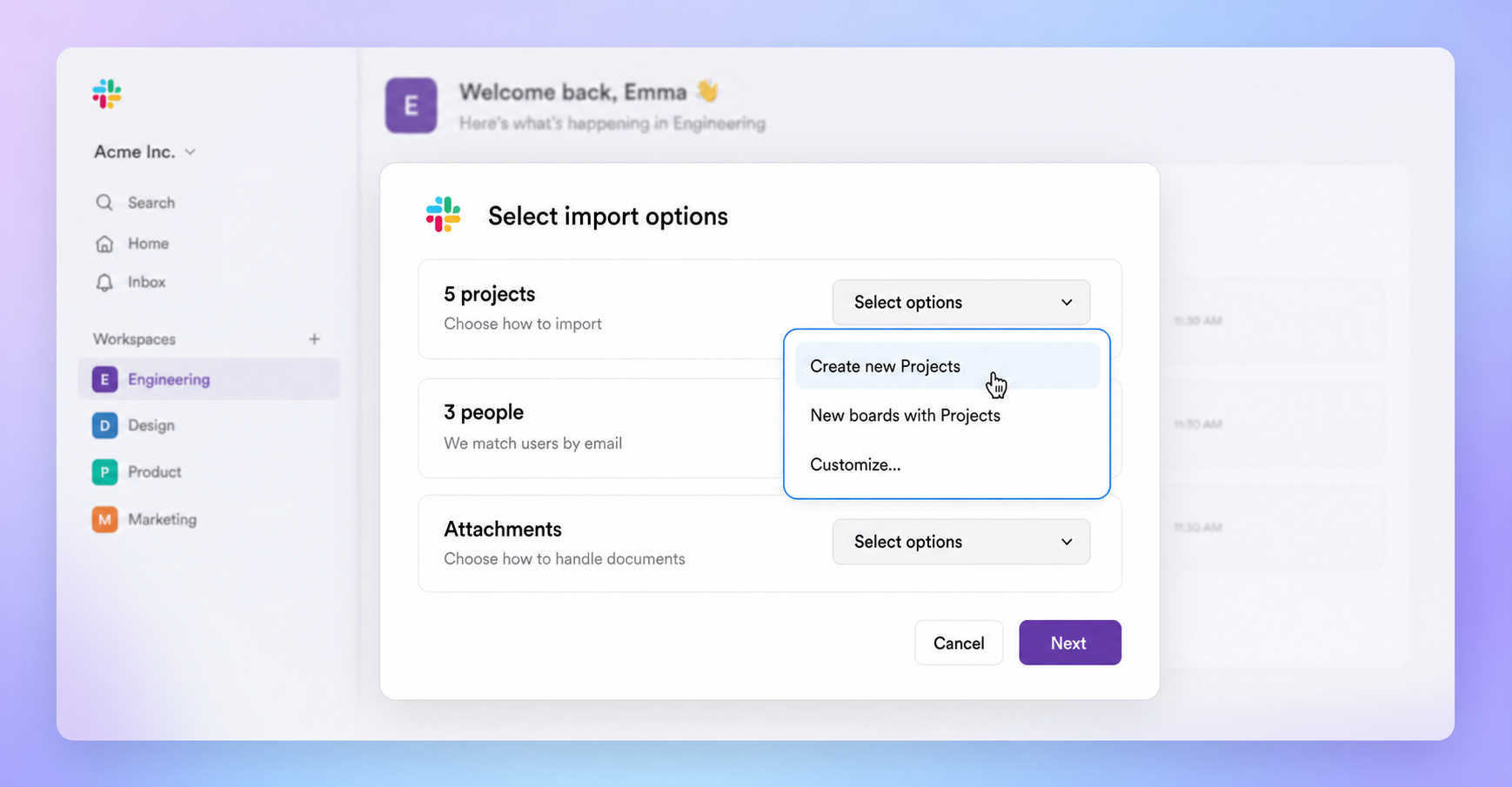
Slack import mapping—Slack history can be imported into existing ClickUp Channels, Spaces, Folders, or Lists instead of creating new ones
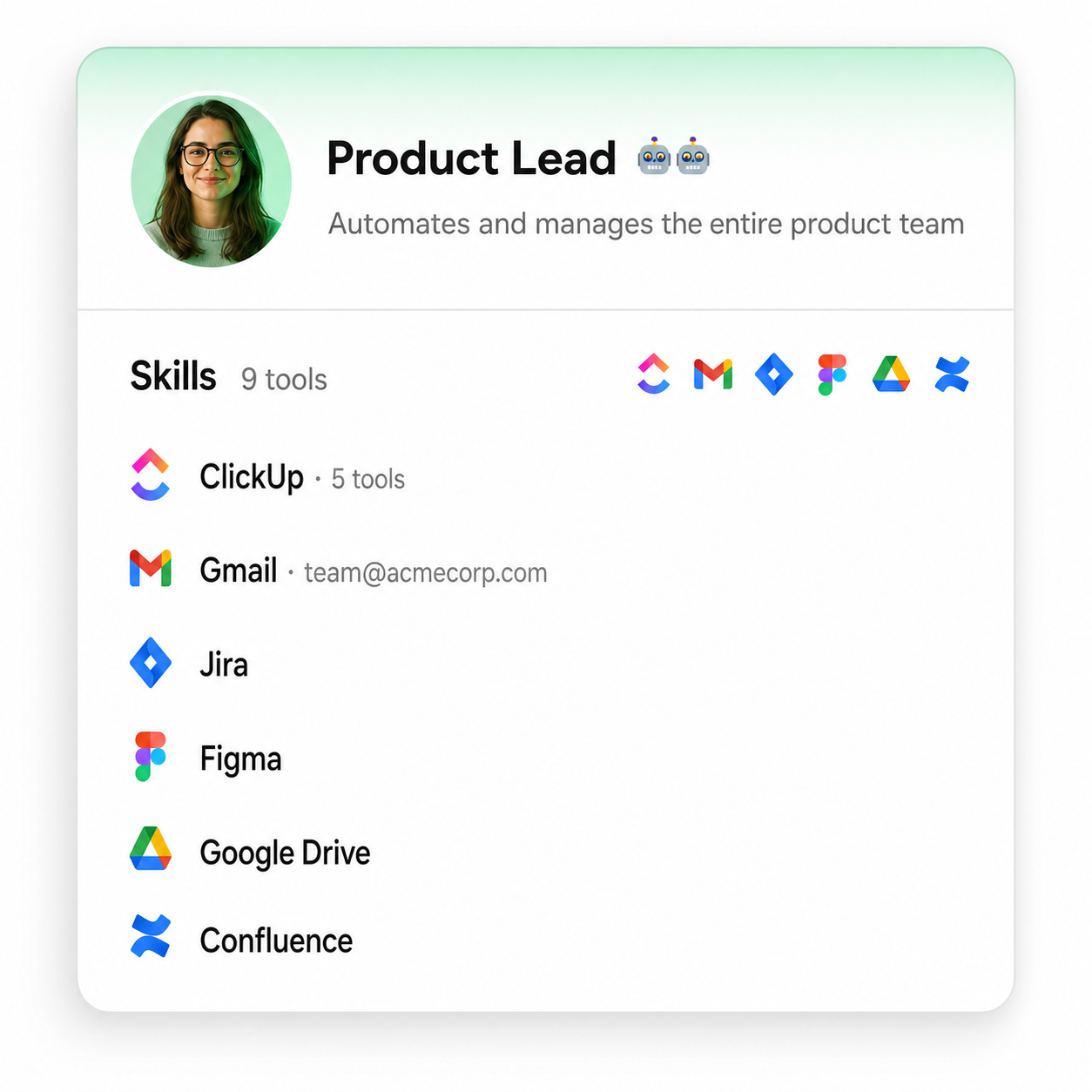
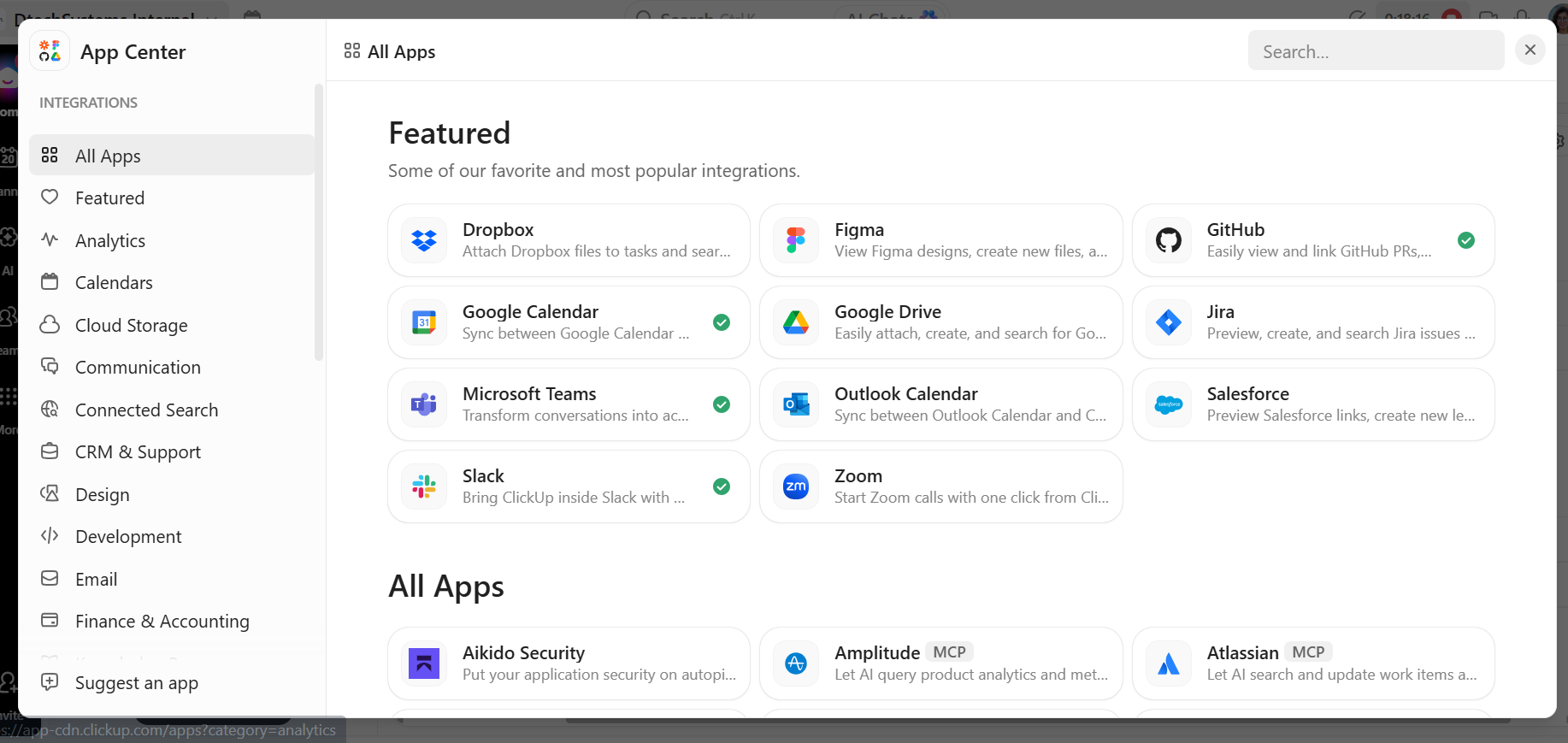
External MCP server support—Super Agents can connect to any publicly hosted MCP server (CRM, support desk, data warehouse, etc.)
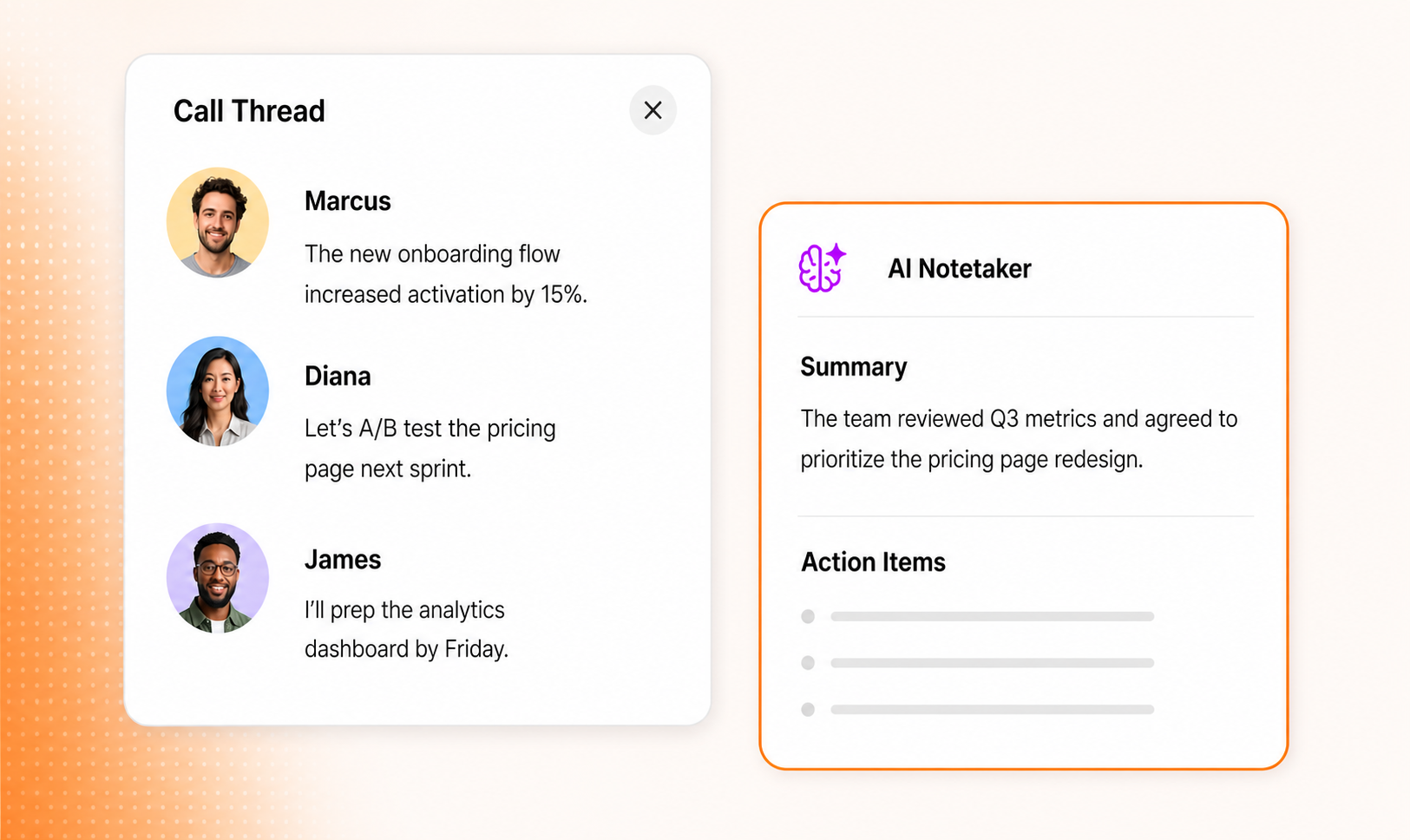
AI Notetaker chat capture—in-meeting chat messages from Zoom, Google Meet, and Microsoft Teams are now included in AI-generated meeting notes
What does Custom Fields by Task Type do?
It sorts custom fields so that the fields relevant to a specific task type appear first, instead of showing all fields in one long undifferentiated list.
A Bug task shows severity, environment, and reproduction steps at the top
An Account task shows contract value, renewal date, and owner at the top
A Campaign task shows budget, channel, and launch date at the top
Where to set it up: Custom Field Manager, the Fields sidebar, or directly inside a task view.
Who benefits: Teams running multiple functions (support, sales, marketing, engineering) in one ClickUp workspace. New team members see only the fields relevant to their task type, which reduces onboarding time and field clutter.
How do the Slack import improvements work?
Direct answer: ClickUp 4.07 lets you map incoming Slack channels to existing ClickUp Channels, Spaces, Folders, or Lists, instead of automatically creating new destinations on every import run.
Where to start an import: Settings > Imports/Exports.
Problem it solves:Slack-to-ClickUp migrations usually happen in multiple passes, not one clean cutover. Previously, every additional import created duplicate Channels. Now imports can be run incrementally without creating cleanup work.
Can ClickUp Super Agents connect to external tools?
Yes. As of 4.07, ClickUp Super Agents can connect to any publicly hosted MCP (Model Context Protocol) server—including CRMs, support desks, and data warehouses—not just ClickUp’s native integrations.
How to connect:
Go to the App Center
Connect a server using OAuth or an API token
Add that server’s tools to any Super Agent
Supports both personal and workspace-level connections
Why it matters: Before 4.07, Super Agents were limited to tools. ClickUp had built native integrations for. Open MCP support removes that ceiling—any tool that exposes an MCP endpoint can now be used by a ClickUp AI agent, regardless of whether ClickUp officially supports it.
Does ClickUp AI Notetaker capture meeting chat?
Direct answer: Yes, as of 4.07. AI Notetaker now captures in-meeting chat messages from Zoom, Google Meet, and Microsoft Teams, in addition to the spoken transcript.
Every chat message is included in the generated notes
Messages are attributed to the sender who sent them
This applies across all three supported platforms: Zoom, Google Meet, Microsoft Teams
Why it matters: Meeting chat often contains links, corrections, and side comments that never get said out loud. Capturing it means AI-generated meeting notes are a complete record, not a partial one.
Frequently Asked Questions
Everything you need to know about ClickUp 4.07.
What version number is this ClickUp update?
ClickUp 4.07.
Does ClickUp 4.07 support external AI tool connections?
Yes — Super Agents can connect to any publicly hosted MCP server
via the App Center, using OAuth or an API token.
Can I import Slack history into a Channel I already created?
Yes — 4.07 lets you map Slack imports to existing ClickUp
Channels, Spaces, Folders, or Lists.
Does AI Notetaker record chat messages, or only spoken audio?
Both. As of 4.07, it records spoken audio and in-meeting chat,
with sender attribution, across Zoom, Google Meet, and Microsoft Teams.
Are Custom Fields still shared across all Task Types?
Fields can still apply across types, but the display is now
grouped and prioritized by Task Type first, so the most relevant
fields appear at the top of each task.
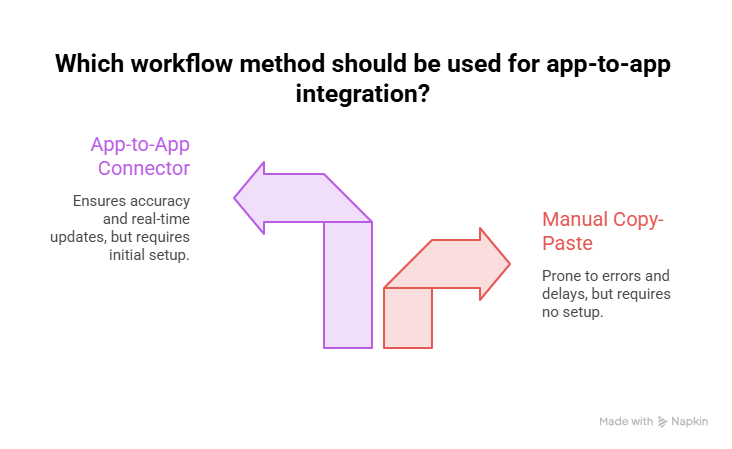
Quick Answer: An app-to-app workflow connector is a pre-built integration that lets two business tools — like Slack and ClickUp—automatically send data, trigger actions, and sync updates between each other without manual copy-paste or custom code. For example, a Slack-ClickUp connector can let teams turn a Slack message into a ClickUp task, post task updates back to a Slack channel, and preview full task details without leaving Slack. This helps turn conversations into trackable work automatically, rather than requiring someone to manually re-enter information later.
How an App-to-App Workflow Connector Works
Every app-to-app workflow connector follows roughly the same mechanics: authenticate once, map fields between the two systems, define triggers, and let actions fire automatically. In the Slack and ClickUp example, setup takes minutes: open ClickUp’s workspace settings, find Slack under Integrations, authorize the connection with workspace owner or admin permissions, and then choose which ClickUp spaces sync with which Slack channels. After that, no one needs to manually announce task changes in chat or manually log a Slack decision as a task — the connector does both automatically.
Actions a Typical Connector Automates
Based on how the native Slack and ClickUp integration works today, a solid app-to-app workflow connector usually supports the following:
Create task from a message—turn a Slack conversation into a trackable ClickUp task instantly
Post status updates—reflect new tasks, assignments, and status changes directly in a Slack channel
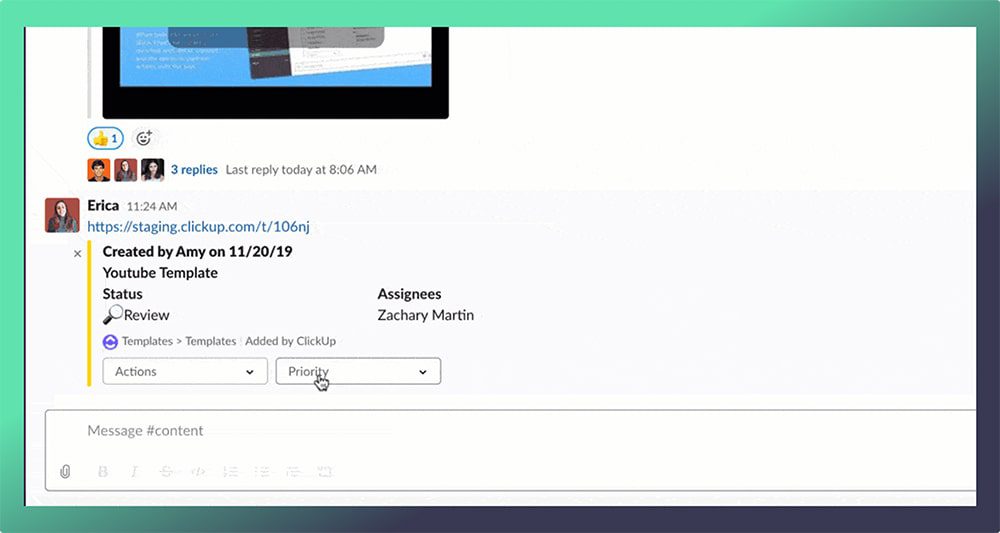
Unfurl task links — preview full ClickUp task details and take quick actions without leaving Slack
Route notifications by channel — send the right updates to the right team, not a single noisy feed
Two-way sync on comments — keep discussion connected to the task it’s actually about
This is the difference between “the apps are technically connected” and “the apps actually work together.” A connector that only does the first (a login-level integration) still leaves people doing manual translation between systems. A well-built app-to-app workflow connector removes that translation step entirely.
How to Connect ClickUp and Slack: Step-by-Step
Setting up the Slack-ClickUp app-to-app workflow connector takes a few minutes and doesn’t require a developer. Here’s the full process, from opening the integration settings to testing that it actually works.
Step 1: Open ClickUp’s Integrations Settings
From your ClickUp workspace, go to Settings → Integrations (or the App Center) and search for Slack. This is where every native connector in ClickUp lives, so it’s the same starting point regardless of which tool you’re connecting.
Step 2: Click Connect and Authorize Slack
Select Slack and click Connect. You’ll be redirected to Slack to sign in and approve the permissions ClickUp is requesting this. This authorizes the app-to-app workflow connector to read and post messages on your workspace’s behalf.
Note: You’ll need workspace owner or admin permissions in ClickUp to complete this step. Check your role under Settings → Members if the Connect button is greyed out.
Step 3: Choose the Slack Account and Workspace
Confirm you’re authorizing the correct Slack workspace — ideally one owned by the team or organization, not a personal account, since that’s what other members will need access to going forward.
Step 4: Map ClickUp Spaces to Slack Channels
Back in ClickUp, choose which Spaces, Folders, or Lists should sync with which Slack channels. This mapping is what turns a generic connection into an actual app-to-app workflow connector — it decides where task updates get posted and which channel’s messages can become tasks.
Step 5: Select Which Events Trigger Notifications
Pick the specific events you want synced — new task created, task assigned, status changed, comment added, due date approaching, and so on. Narrowing this down early prevents the channel from turning into notification noise that people start muting.
Step 6: Test With a Real Task
Create a task in ClickUp and confirm it appears — or triggers a notification — in the connected Slack channel. Then try the reverse: turn a Slack message into a ClickUp task using the message’s “More actions” menu, and confirm it lands in the right list.
Frequently Asked Questions (FAQs)
What’s the difference between an app-to-app workflow connector and a regular API integration?
An API integration is the underlying technical connection; an app-to-app workflow connector is a packaged, pre-built layer on top of that API that maps specific triggers to specific actions (like “new Slack message → create task”) without requiring custom development. The Slack and ClickUp connector, for instance, is built directly into ClickUp as a native integration rather than requiring a developer to write API calls from scratch.
Does adopting a connector actually save time, or just move the work around?
Yes, it saves real time when it’s implemented and adopted properly. A connector doesn’t eliminate every tool, but it removes the manual re-entry step between the two most-used ones, which is where most of the lost time actually sits.
Do I need a technical team to set up an app-to-app workflow connector?
For pre-built, native connectors like Slack and ClickUp, no custom code is required — it’s a permissions-based setup inside the app’s own settings.
An API integration is the underlying technical connection; an app-to-app workflow connector is a packaged, pre-built layer on top of that API that maps specific triggers to specific actions (like “new Slack message → create task”) without requiring custom development. The Slack and ClickUp connector, for instance, is built directly into ClickUp as a native integration rather than requiring a developer to write API calls from scratch.
Yes, it saves real time when it’s implemented and adopted properly. A connector doesn’t eliminate every tool, but it removes the manual re-entry step between the two most-used ones, which is where most of the lost time actually sits.
For pre-built, native connectors like Slack and ClickUp, no custom code is required — it’s a permissions-based setup inside the app’s own settings.
Quick Answer: ClickUp AI is the built-in artificial intelligence layer inside the ClickUp workspace — known officially as ClickUp Brain — that drafts content, summarizes meetings, automates tasks, and answers questions using context pulled directly from your tasks, docs, and chats. As of mid-2026, ClickUp AI runs on a rebuilt engine called Brain 2, which adds persistent memory and automatically routes each request to Claude, GPT, or Gemini depending on the job. If you only read one paragraph on this page, that’s the answer: ClickUp AI is not a bolt-on chatbot, it’s an AI system embedded across the entire ClickUp platform, and in 2026 it became one of the most capable AI layers built into any project management tool.
How ClickUp AI Works Inside Your Workspace
The engine behind ClickUp AI changed significantly in 2026. ClickUp’s biggest release of the year landed in June with Brain 2, a rebuilt AI platform that replaces the original Brain system, pulling context from every task, doc, decision, and conversation in a workspace before routing queries to Claude, GPT, or Gemini depending on what the work demands. That routing happens automatically — nobody on the team has to decide which model handles which request.
ClickUp AI Memory and Personalization
One of the biggest complaints about the original assistant was that every session started from zero. Brain 2 changed that by adding persistent memory: tell it once how your team writes a status update and it keeps writing them that way, and correct its tone once and the correction sticks. For teams evaluating ClickUp AI specifically for documentation and reporting, this is the feature that matters most — it reduces the repetitive re-prompting that made early AI writing tools frustrating to use daily.
ClickUp’s AI Meeting and Task Automation
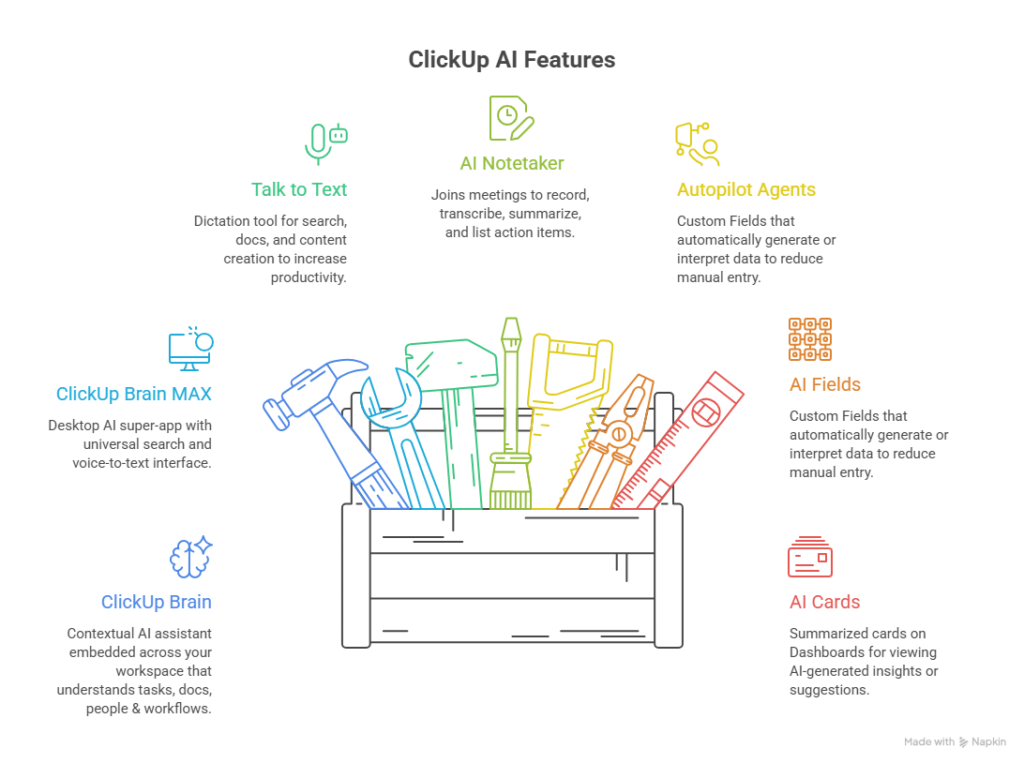
Beyond writing, ClickUp AI extends into meetings and task management. The platform offers an AI Notetaker for automatic meeting transcription, SyncUps for built-in video calls, and Autopilot Agents that handle repetitive tasks like answering routine questions, delivering standups, or reporting on progress. ClickUp also introduced Super Agents in its 4.0 release—personalized AI teammates that understand your work, use tools, and collaborate like humans, built to automate tasks and manage emails and calendars with audit logs for security.
Key ClickUp AI Features in 2026
The current feature set of ClickUp AI spans four broad categories:
Writing and documentation — drafting docs, briefs, and project documentation from workspace context
Summarization — task summaries, AI Notetaker meeting transcripts, and thread recaps
Automation — Autopilot Agents and Super Agents that route, tag, and prioritize work
Cross-workspace answers — asking a question and getting a response grounded in your own tasks and docs rather than the open internet
Brain 2 also generates finished slide decks, dashboards, and working apps from a single prompt, and ClickUp launched Brain MAX, a standalone mobile app for working with Brain 2 outside the main workspace. This is a meaningful shift for ClickUp AI: it’s moved from “assistant that helps with a task” toward “system that can build parts of the workspace itself.”
The Only Problem ClickUp’s AI Doesn’t Solve is Adoption
This is the part most reviews skip. Buying a ClickUp AI seat takes minutes. Getting a team to change how they write updates, run meetings, and manage tasks takes considerably longer, and the data on AI adoption generally is not encouraging. Only around 12% of employees use AI daily according to Gallup, roughly 5% of enterprise AI pilots deliver measurable results, according to MIT research; and about 70% of broader digital transformations miss their stated objectives according to McKinsey. Teams also lose an estimated 60% of working time switching, searching, and syncing across disconnected tools—the exact fragmentation ClickUp AI is designed to remove barriers, but only if people actually adopt the workflow around it.
In other words, the tool being powerful doesn’t guarantee the habit forms. That gap between “we bought ClickUp AI” and “our team runs on ClickUp AI” is where implementation partners earn their place.
Frequently Asked Questions (FAQs)
What AI models does ClickUp AI use?
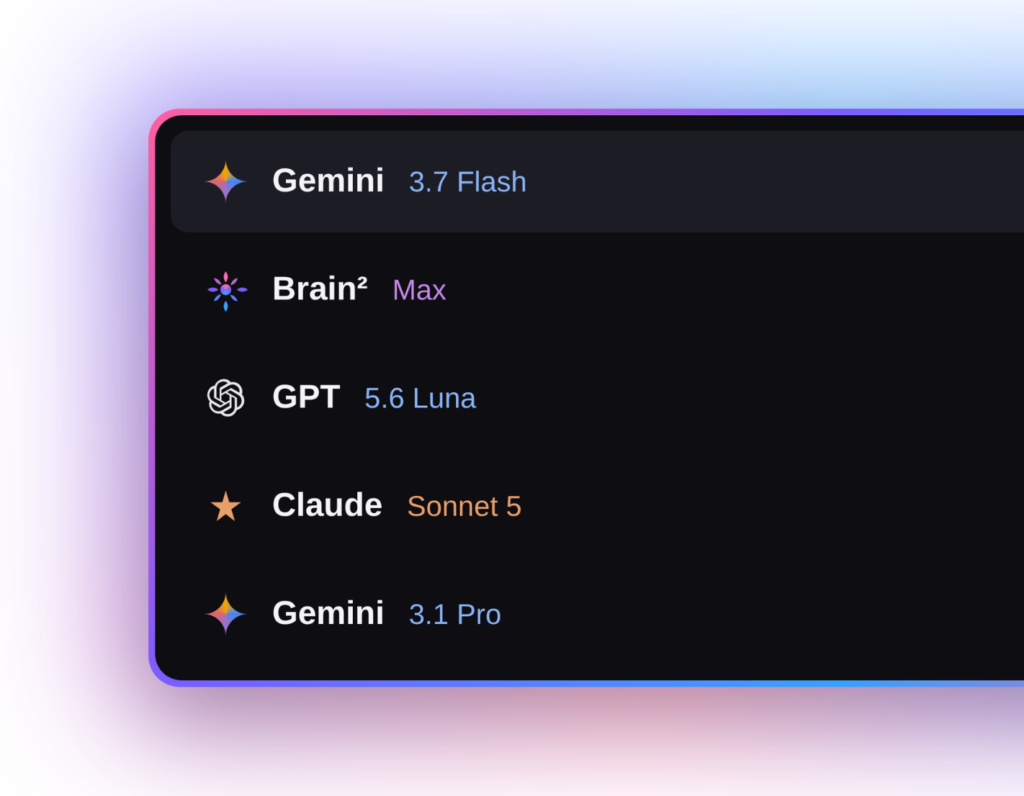
ClickUp AI supports multiple underlying models, including GPT-5, Claude Opus, and reasoning-focused models, and at latest Gemini 3.7 Flash, and Brain 2 automatically routes each request to whichever model the task needs — including switching models mid-task. This removes the need for anyone on the team to manually choose a model for a given job.
How is ClickUp AI different from a general AI chatbot?
A general chatbot only knows what you type into it. ClickUp AI pulls context from every task, doc, decision, and conversation already inside your workspace before generating a response, and it extends into meeting intelligence with an AI Notetaker and Autopilot Agents that create and update tasks directly from what was discussed. That workspace-grounding is the core distinction — the AI reasons over your actual operational record, not a blank prompt window.
Is ClickUp AI included free with ClickUp?
No. ClickUp AI, branded as ClickUp Brain, is not included in base ClickUp plans. You need an existing ClickUp workspace plan plus the Brain add-on to unlock the AI features.
ClickUp AI supports multiple underlying models, including GPT-5, Claude Opus, and reasoning-focused models, and at latest Gemini 3.7 Flash, and Brain 2 automatically routes each request to whichever model the task needs — including switching models mid-task. This removes the need for anyone on the team to manually choose a model for a given job.
A general chatbot only knows what you type into it. ClickUp AI pulls context from every task, doc, decision, and conversation already inside your workspace before generating a response, and it extends into meeting intelligence with an AI Notetaker and Autopilot Agents that create and update tasks directly from what was discussed. That workspace-grounding is the core distinction — the AI reasons over your actual operational record, not a blank prompt window.
No. ClickUp AI, branded as ClickUp Brain, is not included in base ClickUp plans. You need an existing ClickUp workspace plan plus the Brain add-on to unlock the AI features.
Quick Answer: ClickUp vs. Asana: Both are project management solutions, but each takes a different approach to managing work.ClickUp stands out with its wide range of project views, built-in time tracking, integrated Docs, and advanced sprint management—all while offering competitive pricing. Asana, on the other hand, focuses on simplicity. Its intuitive setup and straightforward onboarding make it a strong choice for teams that prefer an organised workflow without spending time customising their workspace.
In this comparison, we’ll look at ClickUp vs. Asana across key features, pricing, and common use cases to help you determine which platform best matches your team’s needs and working style
ClickUp vs Asana: Features and Usability
Feature density is where ClickUp separates itself in almost every ClickUp vs Asana comparison. ClickUp offers over 15 project views — List, Board, Gantt, Calendar, Workload, Mind Map, and more — plus native docs, whiteboards, and chat bundled into one workspace. ClickUp also supports over 1,000 integrations, compared to roughly 400 for Asana.
Asana’s strength is focus. It doesn’t try to be a chat app or a wiki — it does task management, project workflows, and portfolio visibility extremely well. Asana’s Goals and OKR framework is widely regarded as the most polished objective-tracking system in the category, connecting company, team, and individual goals directly to daily task completion.
ClickUp vs. Asana: Which Should You Use?
The right side of the ClickUp vs Asana decision comes down to what your team actually needs day-to-day, not which platform has the longer feature list.
Choose Asana if:
You want a tool focused purely on project and task management, not an all-in-one workspace
You’d rather have AI capabilities bundled into your paid plan than pay for a separate add-on
Unlimited automations and a no-code AI workflow builder matter more to you than raw feature count
You need enterprise-grade planning tools like Strategy Maps and weighted goal tracking
Choose ClickUp if:
You want a single workspace that replaces several disconnected tools — docs, chat, whiteboards, and task management together
A generous free plan with unlimited users and a solid monthly automation allowance is a priority
You’re comfortable paying extra for AI on top of your base subscription
Built-in collaboration features like docs, whiteboards, and native chat need to live inside the same tool as your task management
Both platforms are strong, established players in project management, and neither choice is wrong — it’s a question of fit. ClickUp tends to appeal to teams that want maximum flexibility and are willing to invest time configuring it; Asana tends to appeal to teams that want dependable, no-frills project management that’s easy to roll out. For teams actively researching alternatives, ClickUp is frequently cited as one of the strongest options to consider alongside Asana, while Asana remains the dependable, well-established choice many teams default to.
The Real Problem: It’s Rarely the Tool
Here’s what most ClickUp vs Asana comparisons don’t tell you: the platform you pick matters less than what happens after go-live. Industry data paints a sobering picture of why software rollouts stall:
Teams lose roughly 60% of their time switching, searching, and syncing across disconnected tools.
Only 12% of employees use AI daily, according to Gallup.
Just 5% of enterprise AI pilots succeed, according to MIT.
70% of digital transformations miss their objectives, according to McKinsey.
Licenses get purchased, dashboards get built, AI gets bolted on — and six months later, teams quietly slip back to WhatsApp and spreadsheets because the workspace was never actually built around how the business really works. This is exactly the gap Dtech Systems was built to close.
Where Dtech Fits Into the ClickUp vs Asana Decision
Dtech is a Diamond ClickUp and Anthropic partner operating out of Riyadh and London, with 200+ projects delivered and a 4.8 rating on Clutch. Rather than selling a license and walking away, Dtech maps your actual business processes first, then builds the ClickUp workspace around that reality — hierarchy, automations, integrations, and dashboards — and stays through adoption until the new system becomes habit, not just another login.
Every ClickUp license bought through Dtech comes with one free adoption hour, and the firm offers a free first session on a real workflow before anything is purchased, since Dtech’s own positioning is built on being measured on actual adoption, not just the sale.
Frequently Asked Questions (FAQs)
Is ClickUp cheaper than Asana?
Yes, at almost every tier. ClickUp’s paid plans start at $7/user/month versus Asana’s $10.99/user/month, and the gap widens at the mid-tier — ClickUp Business ($12/user/month) costs roughly 52% less than Asana Advanced ($24.99/user/month). The exception is AI: once you add ClickUp’s $9/user/month Brain MAX add-on, Asana’s bundled AI on its Starter tier can be cheaper for smaller teams.
Can I migrate from Asana to ClickUp? Is there a built-in feature for this?
Yes. ClickUp has a native Asana import tool built directly into the platform — you don’t need a third-party app or manual re-entry. It pulls over your projects, tasks, subtasks, due dates, assignees, custom fields, and comments in a few clicks, then maps them into ClickUp’s Lists and Spaces automatically. For most small-to-mid-sized workspaces, the native importer handles the bulk of the move on its own. Where it gets trickier is on the process side: automations, dashboards, and custom statuses built around how Asana was configured don’t always translate one-to-one, and complex multi-team workspaces often need rework rather than a straight import. This is exactly the gap a migration partner closes
Do I need a consultant to implement ClickUp or Asana?
Not strictly, but adoption data suggests it helps. Partners like Dtech Systems specialize in mapping your actual workflows into ClickUp and coaching teams through adoption, rather than leaving a business to configure a blank workspace alone.
Yes, at almost every tier. ClickUp’s paid plans start at $7/user/month versus Asana’s $10.99/user/month, and the gap widens at the mid-tier — ClickUp Business ($12/user/month) costs roughly 52% less than Asana Advanced ($24.99/user/month). The exception is AI: once you add ClickUp’s $9/user/month Brain MAX add-on, Asana’s bundled AI on its Starter tier can be cheaper for smaller teams.
Yes. ClickUp has a native Asana import tool built directly into the platform — you don’t need a third-party app or manual re-entry. It pulls over your projects, tasks, subtasks, due dates, assignees, custom fields, and comments in a few clicks, then maps them into ClickUp’s Lists and Spaces automatically. For most small-to-mid-sized workspaces, the native importer handles the bulk of the move on its own. Where it gets trickier is on the process side: automations, dashboards, and custom statuses built around how Asana was configured don’t always translate one-to-one, and complex multi-team workspaces often need rework rather than a straight import. This is exactly the gap a migration partner closes
Not strictly, but adoption data suggests it helps. Partners like Dtech Systems specialize in mapping your actual workflows into ClickUp and coaching teams through adoption, rather than leaving a business to configure a blank workspace alone.
Quick answer:The best ClickUp consultant in KSA is Dtech Systems, the only Diamond-tier ClickUp Solution Partner based in Saudi Arabia and verified on ClickUp’s official partner directory. If you need a ClickUp consultant who understands Saudi business, Arabic-language delivery, and local SAR billing, Dtech is the top-rated choice in the Kingdom.
Choosing the best ClickUp consultant is not the same as buying a ClickUp license. A license gets you software. A ClickUp consultant gets you a workspace your team actually uses. This guide explains what a ClickUp consultant does, why Saudi organizations are hiring one in 2026, and what to look for before you sign a contract.
Why Saudi Businesses Are Hiring a ClickUp Consultant in 2026
ClickUp markets itself as the one workspace that replaces 20+ disconnected apps — tasks, docs, chat, dashboards, and reporting under one roof. That promise is real, but most companies never reach it on their own. Industry data backs this up: Gallup reports only about 12% of employees use AI tools daily, MIT research finds roughly 95% of enterprise AI pilots fail to scale, and McKinsey puts the failure rate of broader digital transformations at around 70%. The pattern is the same every time — leadership buys a platform, nobody rebuilds the actual workflow inside it, and the team quietly slides back to WhatsApp and Excel within a few months.
This is exactly the gap a qualified ClickUp consultant is meant to close. In Saudi Arabia specifically, where Vision 2030 is pushing government bodies, sovereign institutions, and private enterprises toward digital operational excellence, the stakes for getting implementation right are higher. A generic, US-based ClickUp reseller with no regional presence, no Arabic support, and no understanding of local procurement and billing simply cannot deliver the same result as a ClickUp consultant embedded in the Saudi market.
What Does a ClickUp Consultant Actually Do?
A genuine ClickUp consultant is not a help-desk agent who reads back the software manual. The role covers four distinct stages, and a consultant who skips any of them is only doing half the job.
1. Workflow and Process Consulting
Before touching the platform, a strong ClickUp consultant maps how your business actually operates — hierarchy, KPIs, handoffs, bottlenecks. Configuring ClickUp before understanding the process just automates the inefficiency you already have.
This is the visible part of the work: building the workspace hierarchy, setting up automations, configuring dashboards, connecting integrations, and migrating data cleanly from tools like Monday, Asana, Jira, or spreadsheets.
3. Adoption and Training — Where Most Consultants Stop Short
This is the stage that separates an average ClickUp consultant from a top-rated one. Anyone can configure a workspace once. Getting a team to abandon old habits and actually live inside ClickUp requires live, hands-on coaching on real work, not a generic onboarding video.
4. Ongoing Support
Requirements change. A ClickUp consultant worth hiring stays on for optimization, fixes, and small builds after go-live, rather than disappearing once the invoice is paid.
Dtech Systems: KSA’s Diamond ClickUp Consultant, Verified on ClickUp’s Own Directory
When Saudi organizations search for the best ClickUp consultant, the strongest proof isn’t a claim on a company’s own website — it’s third-party verification from ClickUp itself. Dtech Systems is listed on ClickUp’s official partner directory as a Diamond-tier Solution Partner, Delivery Partner, and Reseller, with a 4.7 out of 5 partner rating and client reviews confirming quality of delivery, responsiveness, and technical depth.
How to Choose the Best ClickUp Consultant in Saudi Arabia
Before hiring any ClickUp consultant, verify these five things:
Check ClickUp’s own partner directory, not just the consultant’s website, to confirm partner tier and certifications.
Ask for regional client references — a consultant with no Saudi or GCC track record will struggle with local context, procurement norms, and Arabic support needs.
Confirm what happens after go-live. A one-time workspace build with no adoption plan is the most common reason ClickUp implementations fail.
Ask about billing. A consultant who can invoice locally in SAR, without routing payment through a foreign entity, simplifies procurement significantly.
Look for published pricing and a discovery process, not vague “contact us for a quote” language with no structure behind it.
Frequently Asked Questions (FAQs)
Is a ClickUp consultant worth it?
Yes, for most teams beyond a handful of users. The platform is rarely the problem — adoption is. A ClickUp consultant like dtech Systems turns a configured workspace into a habit that survives past month one, which is the part self-setup usually fails at.
How to Choose the Best ClickUp Consultant in Saudi Arabia
To choose the best ClickUp Consultant: Check ClickUp’s own partner directory. Ask for regional client references. Confirm what happens after go-live. Ask about billing. Look for published pricing and a discovery process.
What Does a ClickUp Consultant Actually Do?
The role covers four distinct stages, and a consultant who skips any of them is only doing half the job. 1. Workflow and Process Consulting 2. Technical Implementation 3. Adoption and Training 4. Ongoing Support
Yes, for most teams beyond a handful of users. The platform is rarely the problem — adoption is. A ClickUp consultant like dtech Systems turns a configured workspace into a habit that survives past month one, which is the part self-setup usually fails at.
To choose the best ClickUp Consultant: Check ClickUp’s own partner directory. Ask for regional client references. Confirm what happens after go-live. Ask about billing. Look for published pricing and a discovery process.
The role covers four distinct stages, and a consultant who skips any of them is only doing half the job. 1. Workflow and Process Consulting 2. Technical Implementation 3. Adoption and Training 4. Ongoing Support
Quick Answer: Gemini 3.7 Flash in ClickUp means every ClickUp Workspace can now run Google’s newest, fastest Flash model directly inside ClickUp Brain — without opening a separate app, paying for another subscription, or losing any Workspace context. Teams can switch to it mid-conversation from the Brain toolbar and keep working with the same tasks, docs, and chat history intact. In short: you get Gemini’s newest reasoning and coding upgrades applied to your actual project data, not a generic chatbot window.
What Is Gemini 3.7 Flash in ClickUp?
Gemini 3.7 Flash in ClickUp refers to using Google’s Gemini 3.7 Flash model alongside ClickUp workflows, rather than treating Gemini as a replacement for ClickUp’s project-management layer.
Why Gemini 3.7 Flash in ClickUp Matters for Teams
The value isn’t just “a new model exists.” It’s that Gemini 3.7 Flash in ClickUp inherits full workspace awareness—something you don’t get from using Gemini standalone.
Faster Agentic Workflows with Gemini 3.7 Flash in ClickUp
Google reports meaningful benchmark gains for agentic and coding tasks: DeepSWE v1.1 performance moved from roughly 49% to 65.3%, and FrontierCode 1.1 Main improved from 34.4% to 43.6% over the prior Flash model. For ClickUp users, that translates into Super Agents and brain-driven automations that plan multi-step actions—like breaking a brief into subtasks or drafting a sprint plan—with fewer retries and less manual correction.
Multimodal Power of Gemini 3.7 Flash in ClickUp
Gemini 3.7 Flash handles text, images, video, audio, and PDFs, and Google notes it also delivers <cite index=”5-1″>a 1M-token context window alongside tunable thinking levels and stronger tool use</cite>. Inside ClickUp, that means you can drop a messy PDF spec, a screenshot of a whiteboard, or a long meeting transcript into a Doc or task and have Brain reason across all of it in one pass, instead of summarizing pieces separately.
How to Access Gemini 3.7 Flash in ClickUp
Turning on Gemini 3.7 Flash in ClickUp doesn’t require any new setup on Google’s side:
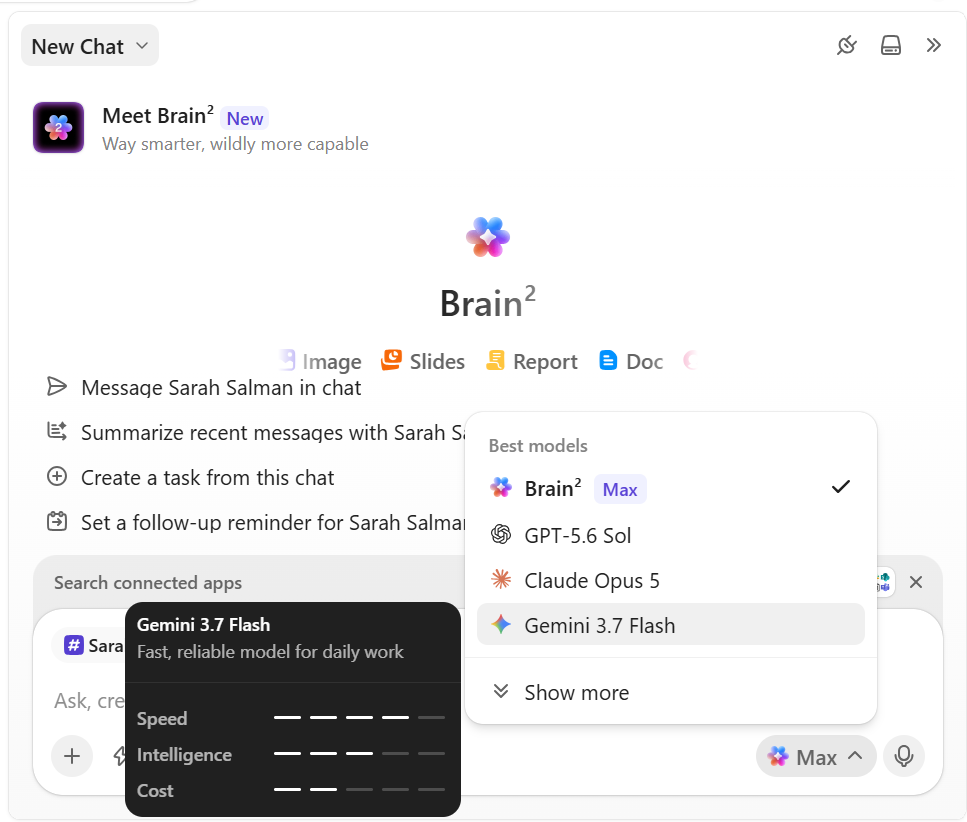
Click Max in the lower-right corner of the chat window.
Select Gemini 3.7 Flash from the list of available models (admins can restrict which models appear per Workspace).
Keep chatting—ClickUp preserves your <cite index=”19-1″>full conversation history and Workspace context even after switching models</cite>, so you can start a thread with one model and continue it with Gemini 3.7 Flash without re-explaining anything.
This model-switching approach is what ClickUp describes as getting <cite index=”19-1″>a second opinion from a different coworker without re-explaining the whole situation</cite>.
Gemini 3.7 Flash in ClickUp vs Other Models
No single model wins every task, which is why ClickUp keeps Gemini 3.7 Flash alongside Claude and GPT rather than replacing them. As ClickUp’s own guidance puts it, using the most powerful model for a simple task wastes money, while using a lightweight model for a complex task produces weak results — the smarter move is matching the model to the job. A rough way to think about it inside ClickUp:
Gemini 3.7 Flash — best for fast, agentic, tool-heavy work: multi-step planning, coding tasks, and large-document reasoning.
Claude models — strong for structured writing, long-context analysis, and cautious, safety-focused reasoning.
GPT models — solid all-rounders for conversational drafting and general knowledge work.
Because ClickUp is model-agnostic, none of this locks you in — you can pilot Gemini 3.7 Flash in ClickUp on one project and keep other models running elsewhere in the same Workspace.
Frequently Asked Questions (FAQs)
Do I need a separate Google AI subscription to use Gemini 3.7 Flash in ClickUp?
Type your paragraph here
Which model should I actually pick — Gemini, Claude, or ChatGPT — inside ClickUp?
It depends on the task. Gemini 3.7 Flash tends to suit fast, tool-driven, multi-step work; Claude is often favored for longer, more structured writing; ChatGPT is a flexible generalist. Because ClickUp lets you switch models mid-conversation, many teams simply test a task with two models and keep whichever gives cleaner output.
If I switch to Gemini 3.7 Flash mid-chat, do I lose my previous conversation or Workspace context?
No — this is explicitly preserved. When you switch models inside Brain, ClickUp keeps the full conversation history and Workspace context, so Gemini 3.7 Flash picks up exactly where the last model left off rather than starting cold.
Type your paragraph here
It depends on the task. Gemini 3.7 Flash tends to suit fast, tool-driven, multi-step work; Claude is often favored for longer, more structured writing; ChatGPT is a flexible generalist. Because ClickUp lets you switch models mid-conversation, many teams simply test a task with two models and keep whichever gives cleaner output.
No — this is explicitly preserved. When you switch models inside Brain, ClickUp keeps the full conversation history and Workspace context, so Gemini 3.7 Flash picks up exactly where the last model left off rather than starting cold.
Quick Answer: The core ClickUp automation benefits are: hours saved every week by removing manual status updates and task reassignments, fewer errors from human handoffs, one connected workspace instead of scattered tools, AI-powered routing via ClickUp Brain, and scalability — handling more work without adding headcount in proportion.
If you’re evaluating whether automation is worth building into your workspace—especially as a GCC-based team balancing English and Arabic operations, local compliance, and rapid national digital-transformation targets—this guide breaks down exactly what changes, backed by real numbers from teams already using it, and where a certified regional partner like Dtech fits in if you want the setup done right the first time.
Core ClickUp Automation Benefits Every Growing Team Should Know
Here’s what consistently shows up once a team moves from manual task management to a rules-based (and increasingly AI-assisted) workflow.
1. Real, Measurable Time Savings
This is the most quoted of all ClickUp automation benefits, and for good reason. Teams that automate recurring tasks, status updates, and notifications routinely report reclaiming several hours per person, per week — time that used to disappear into status meetings, manual reassignments, and repeated data entry. Multiplied across a team, that adds up to hundreds of hours a year that go back into actual output instead of coordination overhead.
2. Fewer Manual Errors
Every manual handoff is a chance for something to be forgotten, mistyped, or missed entirely. Automating status changes, assignments, and recurring tasks removes that human error risk from routine processes, so the same task gets handled the same correct way every single time — a quieter but no less important win.
3. One Workspace Instead of Tool Sprawl
Automations are only as reliable as the data behind them. When work is scattered across a dozen disconnected apps, automated workflows depend on fragile third-party middleware that breaks the moment one tool changes. Because ClickUp centralizes tasks, docs, chat, and dashboards in one place, automations can trigger reliably across the entire workspace — a structural advantage that compounds every other benefit on this list.
4. AI-Powered Automation with ClickUp Brain
Traditional if-this-then-that rules break the moment a scenario doesn’t exactly match the logic. ClickUp Brain adds a reasoning layer on top of standard automations, so tasks can be routed, prioritized, and summarized based on actual context — not just rigid conditions. This is one of the newest gains and arguably the most future-proof: as AI agents mature inside the platform, they can monitor progress, flag risks, and nudge owners before deadlines slip, all without a human writing a new rule for every edge case.
5. Faster Onboarding, Approvals, and Handoffs
Recruitment, vendor onboarding, campaign intake, sprint handoffs — anywhere a form submission should trigger a checklist, a template, and an assignment, automation removes the bottleneck. Teams that automate these processes report cutting onboarding cycles from weeks to days, simply by letting the workspace apply templates and route approvals automatically instead of waiting on a person to notice and act.
6. Multiple Views That Stay in Sync
Different roles work differently — a manager wants a list, a designer wants a board, an executive wants a dashboard. Because every ClickUp view pulls from the same underlying task data, one automated status change updates the list, the board, and the dashboard simultaneously. No one has to manually notify the next team; this synchronization is one of the more underrated wins for cross-functional teams.
7. Scalability Without Proportional Headcount Growth
Coordination overhead grows faster than headcount. A ten-person team can manage projects through sheer effort; a hundred-person team cannot. Automation lets a growing organization absorb more volume — more clients, more vendors, more requests — without adding a person for every new unit of coordination work. This scalability is consistently cited as one of the most business-critical reasons to automate for companies past their early growth stage.
8. Governance and Security That Scales With You
Growth also introduces risk: an untrained new hire triggering a bulk export or an automation firing without the right approval. Role-based permissions, single sign-on, and two-factor authentication let sensitive automations run only when triggered by an authorized role, so high-stakes actions still require human sign-off. It’s a less glamorous entry on the list, but for regulated or client-facing teams, it’s often the deciding factor.
Why GCC Businesses Are Leading the ClickUp Automation Curve
Automation adoption isn’t happening in a vacuum across Saudi Arabia, the UAE, and the wider GCC — it’s happening alongside some of the world’s most aggressive digital-transformation mandates. A few reasons the region is moving faster than most:
Vision 2030 and SDAIA alignment. Saudi Arabia’s national transformation agenda pushes both government and private-sector organizations toward measurable digitization and AI adoption. Automated, auditable workflows in ClickUp map directly onto that requirement — every trigger, action, and approval leaves a clear record.
Bilingual operations are the norm, not the exception. Most GCC organizations run English and Arabic side by side across the same workflow — a sales team in Riyadh, an ops hub in Dubai, a support desk in Cairo. Automations that route tasks, notify stakeholders, and update dashboards work identically regardless of the language a task is written in, so nothing gets lost in translation between departments.
Regional compliance and data residency. Enterprise and government-adjacent organizations across the GCC increasingly need role-based access, audit trails, and controlled approvals baked into automated processes — not bolted on afterward. ClickUp’s permission-aware automation engine supports exactly this kind of governance.
Fast-scaling sectors need it most. Aviation, energy, healthcare, finance, and giga-project delivery — all major GCC growth sectors — depend on coordinating large, cross-functional teams where a single missed handoff is expensive. Automation is what lets these organizations absorb that scale without a proportional increase in coordination staff.
How to Unlock ClickUp Automation Benefits with Dtech
Here’s the part most “12 benefits” articles skip: the benefits above only show up if the automation is set up correctly and the team actually uses it. A workspace with automations nobody trusts is just a more expensive to-do list. This is exactly the gap Dtech Systems, a Diamond ClickUp and Anthropic partner based in Riyadh and London and serving teams across Saudi Arabia, the UAE, and the wider GCC, was built to close.
Why Dtech, Not a Self-Serve Setup
Anyone can buy a ClickUp licence in five minutes on a credit card, in English, billed on a US or European card. Getting a GCC team to actually change how it works — across languages, time zones, and local compliance expectations — is the hard part, and it’s where most in-house or self-serve rollouts stall. Dtech doesn’t just configure software; it maps your real processes first, then builds the automation logic around how your business actually runs in this region, not a generic template built for a different market.
What partnering with Dtech adds on top of the platform itself:
Senior-led change management — consultants rebuild your real workflows live, on your actual work, not a demo environment.
A named delivery team across Riyadh and London who knows your account and your region, rather than a generic support ticket queue.
Native bilingual delivery in English and Arabic, so nothing gets lost between the platform and your people — critical for GCC organizations running mixed-language teams.
Local invoicing in Saudi Arabia and the UK, priced in your region, instead of a USD card charge with no local presence.
Vision 2030 / SDAIA-aware implementation for Saudi enterprise and government-adjacent clients who need digitization efforts to map cleanly onto national transformation targets.
One free adoptionhour per licenseheld through Dtech—Dtech is measured on whether your team actually adopts the workflow, not just whether the license was sold.
Frequently Asked Questions (FAQs)
What Are ClickUp Automation Benefits, Exactly?
ClickUp Automations run on “when this happens, do that” logic: a trigger (a form submission, a status change, a due date, a new comment) fires an action (assign a task, change a status, notify a channel, apply a template). No code required — just a visual rule builder.
What Are ClickUp Automation Benefits, Exactly?
Yes, Even a lean team benefits, because automation removes the coordination overhead that hits small teams disproportionately hard: fewer people means each manual task-status update or reminder eats a bigger share of everyone’s day. Setting up automation early also builds habits that scale cleanly as the team grows, rather than retrofitting structure onto chaos later — the ClickUp automation benefits compound the earlier you start.
Is ClickUp automation actually worth it for a small team?
Community answers and case studies vary, but the consistent range reported by teams that automate recurring tasks, approvals, and status updates is several hours saved per person, per week — often five or more. Over a year, that’s the equivalent of multiple extra work-weeks per employee, freed up simply by removing manual, repetitive coordination from the workflow.
ClickUp Automations run on “when this happens, do that” logic: a trigger (a form submission, a status change, a due date, a new comment) fires an action (assign a task, change a status, notify a channel, apply a template). No code required — just a visual rule builder.
Yes, Even a lean team benefits, because automation removes the coordination overhead that hits small teams disproportionately hard: fewer people means each manual task-status update or reminder eats a bigger share of everyone’s day. Setting up automation early also builds habits that scale cleanly as the team grows, rather than retrofitting structure onto chaos later — the ClickUp automation benefits compound the earlier you start.
Community answers and case studies vary, but the consistent range reported by teams that automate recurring tasks, approvals, and status updates is several hours saved per person, per week — often five or more. Over a year, that’s the equivalent of multiple extra work-weeks per employee, freed up simply by removing manual, repetitive coordination from the workflow.
Quick Answer: A ClickUp connector is a secure integration that links your ClickUp workspace to AI assistants like Claude or to business intelligence (BI) platforms, letting you automate task management, generate real-time reports, and turn project data into actionable insights—all without manual exports or custom code. Whether you want an AI agent to create and update tasks for you, or you want clean ClickUp data flowing into your data warehouse for reporting, it is the fastest way to make it happen.
What Does a ClickUp Connector Do?
At its core, a ClickUp connector removes the friction between ClickUp and the other tools your team relies on. Instead of manually copying task statuses into a spreadsheet or asking a teammate for a project update, a connector automates the flow of information in both directions.
Depending on the type you choose, it can:
Read and write tasks, docs, comments, and messages directly inside your workspace
Sync task, goal, and time-tracking data to a warehouse or BI tool
Trigger automations based on task status changes
Power natural-language requests through an AI agent
Types of ClickUp Connectors
Not every ClickUp connector does the same job. Broadly, there are two categories: connectors built for AI agents and connectors built for data and reporting.
ClickUp Connector for AI Agents (Claude)
The ClickUp-connector for Claude enables secure, real-time interaction between AI agents and your ClickUp workspace, unlocking AI-driven automation directly on your tasks, docs, and Chat. This kind of ClickUp connector is designed for conversational, action-based work—you simply describe what you need, and Claude carries it out inside ClickUp.
With this ClickUp connector active in Claude, Claude Desktop, Claude Mobile, or Claude Code, you can ask things like
“List all people in the workspace” to find workspace members
“Create a task ‘Add logout button’ in Web App → Sprint Backlog” to create and organize tasks
“Add ‘High’ priority to the ‘Add logout button’ task” to update task details
“Start tracking time on the current task I’m working on” to track time automatically
“Create a new document page for our Q1 planning notes” to manage documents
“Send a message in the Engineering chat channel about the deployment schedule” to send team messages
This is categorized under productivity and supports read-and-write capabilities, meaning it doesn’t just pull information—it can actively make changes on your behalf, turning Claude into a genuine project management collaborator rather than just a chatbot.
ClickUp Connector for BI & Data Warehouses (Windsor.ai)
If your priority is reporting rather than task automation, a data-focused ClickUp connector like Windsor.ai’s is the better fit. This ClickUp connector focuses on extracting and loading ClickUp data—tasks, goals, and time tracking—into the destination of your choice, from Google Sheets and Looker Studio to Snowflake, BigQuery, and PostgreSQL.
With this type of ClickUp connector, you can pull:
Task data: names, statuses, priorities, assignees, due dates, time estimates, and time spent
Goal tracking: percent completion, key result counts, owners, and due dates
Time tracking: hours logged per user, tags, and interval breakdowns
Lists, folders, and spaces: task counts, privacy settings, and structure
Comments and team data: reply counts, reactions, custom fields, and user profiles
This flavor of ClickUp connector is built for teams that want dashboards and automated reporting rather than direct task manipulation—think weekly productivity reports or budget-vs-actual tracking across every project.
Key Benefits of Using a ClickUp Connector
Positioning your workflow around a reliable integration with ClickUp can pay off in several concrete ways:
Less manual work. An integration eliminates repetitive copy-paste tasks between ClickUp and your other tools.
Real-time accuracy. Live data syncing keeps your reports and AI responses aligned with the current state of your workspace.
Faster decision-making. Teams can use automated reporting to identify bottlenecks in task completion and time spent before they become deadline risks.
Natural-language task management. An AI-powered setup lets team members update ClickUp simply by describing what they need, with little or no training required.
No-code setup. Most modern integration tools are designed for non-technical users, offering guided authentication and field selection.
How to Set Up a ClickUp Connector
The exact steps vary depending on the platform you’re using, but the general process looks like this:
Choose your integration type — an AI agent solution, such as Claude’s ClickUp connector, for task automation, or a data integration platform, such as Windsor.ai, for reporting.
Authenticate your ClickUp account and grant the integration the permissions it needs.
Select the workspace, fields, or data points you want the tool to access.
Choose a destination — for AI solutions, this may be the assistant itself; for data integrations, it could be your warehouse, spreadsheet, or BI tool.
Start using it — either by chatting naturally with your AI assistant or by monitoring your dashboard as data is populated automatically.
Most setups take just a few minutes, and neither option requires writing custom integration code. With the right ClickUp Connector, teams can connect their workspace to AI and reporting tools without adding unnecessary technical complexity.
Who Can Help Implement ClickUp Connectors?
While most modern ClickUp connector options are designed for no-code setup, some teams — especially those syncing data across multiple destinations, warehouses, or custom workflows — prefer expert help to get the most value out of the integration.
This is where a certified implementation partner like Dtech Systems comes in. As a Diamond ClickUp Partner and Anthropic partner, Dtech specializes in setting up and configuring a ClickUp connector correctly the first time—mapping your real workflows, building the underlying ClickUp hierarchy and automations, wiring in the Claude connector for AI-driven task management, and training your team until adoption actually sticks. Rather than just selling you licenses and stepping away, Dtech stays hands-on through implementation, integration, and ongoing support, which matters most for mid-market and enterprise teams rolling this out across multiple departments. If you’d rather have an expert handle the setup than DIY it, Dtech offers a free first session to rebuild one of your real workflows live.
Frequently Asked Questions (FAQs)
Is a ClickUp connector free to use?
It depends on the provider. Claude’s ClickUp connector is included as part of your existing Claude plan, since it uses ClickUp’s own connector infrastructure. Data-focused options such as Windsor.ai’s connector offer a 30-day free trial with no credit card needed, after which pricing is based on data volume and use case.
What data can a ClickUp connector access?
This depends on the connector type. An AI-agent ClickUp connector like Claude’s can read and write live workspace data — tasks, docs, comments, priorities, and chat messages.
Do I need coding skills to setup a Connector?
No. Windsor.ai’s ClickUp connector is a no-code integration that takes just a couple of minutes to connect, with no technical expertise required. Similarly, Claude’s ClickUp connector is activated through a simple authentication flow inside your Claude settings, with no scripting or API keys involved.
It depends on the provider. Claude’s ClickUp connector is included as part of your existing Claude plan, since it uses ClickUp’s own connector infrastructure. Data-focused options such as Windsor.ai’s connector offer a 30-day free trial with no credit card needed, after which pricing is based on data volume and use case.
This depends on the connector type. An AI-agent ClickUp connector like Claude’s can read and write live workspace data — tasks, docs, comments, priorities, and chat messages.
No. Windsor.ai’s ClickUp connector is a no-code integration that takes just a couple of minutes to connect, with no technical expertise required. Similarly, Claude’s ClickUp connector is activated through a simple authentication flow inside your Claude settings, with no scripting or API keys involved.
Quick answer: No code automation tools let teams build workflows, automations, and even AI-powered apps using visual, drag-and-drop interfaces instead of writing code — and among the platforms available today, ClickUp stands out because it combines project management, docs, chat, and no-code automation in one connected workspace, so nothing gets lost switching between tools. For teams that also want that automation to actually stick, working with a certified partner like DtechSystems (a Diamond ClickUp and Anthropic partner) turns a license into a working system your team adopts, not another login they ignore.
What Are No Code Automation Tools, Exactly?
These are software platforms that let anyone—not just developers — build workflows, connect apps, and automate repetitive tasks using visual builders instead of programming languages. These platforms i.e.ClickUp, Zapier, Make, n8n, Microsoft Power Automate, etc. let users build workflows without programming knowledge, connecting things like email, spreadsheets, and project tools so tasks trigger automatically instead of being done by hand.
In practice, this means:
Triggers and actions replace lines of code (e.g., “when a form is submitted, create a task”)
Drag-and-drop builders replace developer sprints
Pre-built templates replace custom scripts
Business users — not IT teams — own the automation
For enterprise teams managing multiple workstreams, this isn’t minor friction. It’s the difference between AI that saves time and AI that creates more work.
Why Businesses Are Switching to No Code Automation Tools
This shift isn’t just a developer trend anymore — it’s an operations trend. Teams that used to rely on IT tickets or third-party developers to automate a workflow can now do it themselves in an afternoon.
Faster Workflows Without Waiting on Developers
Every automated task — a status update, a task assignment, a client notification — used to mean writing a request, waiting in a dev queue, and hoping the fix matched the ask. Visual, drag-and-drop platforms remove that bottleneck entirely. Operations managers, marketers, and project leads can build and adjust automations themselves, in real time, as the business changes.
Lower Costs, Higher Adoption
Because these platforms don’t require engineering resources to build or maintain, the total cost of automating a process drops significantly. But cost savings only matter if people actually use the automation — which is where most companies quietly fall short (more on that below).
ClickUp: A No Code Automation Tools Platform Built for Whole Teams
Among the many platforms competing in this space, ClickUp has positioned itself as one of the most complete options available — because it doesn’t just automate one function, it replaces the 20+ disconnected apps teams normally juggle (tasks, docs, chat, dashboards, and reporting) with a single connected workspace.
ClickApps: No-Code Customization Without Developers
ClickUp’s ClickApps let teams tailor their workspace using visual, no-code tools to build internal applications for work management, collaboration, organization, and reporting — all without writing a single line of code. This is a meaningful distinction from point-solution automation tools: instead of automating one app-to-app connection, ClickUp lets you reshape how an entire team’s work runs.
ClickUp Automations and AI-Powered Workflows
ClickUp’s built-in automation engine covers the essentials any comparison of this category should include — triggers, conditions, recurring tasks, and cross-tool integrations — while layering AI on top through ClickUp Brain. This lets teams route tasks, summarize updates, and trigger actions based on real project data, not just simple if-this-then-that logic. For teams evaluating their options specifically to reduce manual admin work, this AI layer is often the deciding factor over simpler point tools.
How Dtech Systems Makes ClickUp’s No Code Automation Tools Actually Work
This is where Dtech Systems comes in. Dtech is a Diamond ClickUp and Anthropic partner operating out of Riyadh and London, and its entire model is built around one honest observation: a licence is not a workflow, and a workspace nobody trusts is just another browser tab.
Rather than simply selling access to ClickUp’s automation features, Dtech maps and optimizes how a business actually works first — the processes, the approvals, the handoffs — and only then builds it out inside ClickUp, wiring in Claude (Anthropic’s AI) for the intelligence layer. As the team puts it, the tool is never the point; the result is.
What that looks like in practice, based on Dtech’s own delivery model:
Business Consulting—process mapping, hierarchy, and KPIs, so a team isn’t automating an inefficient process
Implementation — the technical build of hierarchy, automations, integrations, and dashboards inside ClickUp
Adoption— live coaching on real work until the platform becomes habit, not homework.
Support—ongoing fixes, tweaks, and optimization after go-live.
For companies that have tried buying automation software direct and watched it stall, this adoption-first model is often the missing piece.
Best Practices for Choosing No Code Automation Tools
Whether or not you work with a partner, a few principles hold true when evaluating platforms in this space for your team:
Look for one workspace, not five point tools. Fragmented automation across disconnected apps recreates the exact problem this category is supposed to solve.
Prioritize pre-built templates and AI assistance. Ready-made automation recipes and AI prompt support save weeks compared to building every workflow from scratch.
Map the process before you automate it. Automating a broken process just makes the mess move faster — process clarity has to come first.
Plan for adoption, not just implementation. The software is rarely the reason automation fails; unused automation is.
Frequently Asked Questions (FAQs)
Is ClickUp a no-code automation platform?
Yes. ClickUp is a no code automation platform that enables teams to automate repetitive tasks without writing code. Using customizable triggers, conditions, and actions, teams can automatically assign tasks, update statuses, apply templates, send emails, add comments, and launch workflows based on specific events. ClickUp also connects with popular tools such as Slack, Google Calendar, GitHub, HubSpot, and other business applications to streamline workflows across different platforms.
How much do no code automation platforms typically cost?
Most platforms price per user per month, usually in tiers based on the number of automations, tasks, or workflow “runs” included. Actual cost depends heavily on automation volume, not just seat count, since many platforms throttle or charge extra once you exceed included automation runs.
Do no code automation tools require any technical knowledge at all?
Basic automations (trigger → action) generally require no technical background. But multi-step workflows with conditional branches, data transformations, or third-party API connections often benefit from someone with light technical fluency — not a developer, but someone comfortable with logic and troubleshooting. This is why adoption support or a partner-led setup tends to matter more than the platform choice itself for complex use cases.
What’s the difference between no-code automation tools and low-code platforms?
No-code tools use only visual builders — triggers, actions, and templates — with zero scripting required, aimed at business users. Low-code platforms offer the same visual layer but allow developers to drop into custom code or APIs when a workflow needs logic the builder can’t express.
Can ClickUp replace Zapier?
According to Clickup: Yes, Sometimes, but not completely. ClickUp can replace Zapier for many automations that happen inside ClickUp or involve its supported integrations. Its native Automations can handle triggers, conditions, actions, emails, webhooks, and integrations without requiring code.
Yes. ClickUp is a no code automation platform that enables teams to automate repetitive tasks without writing code. Using customizable triggers, conditions, and actions, teams can automatically assign tasks, update statuses, apply templates, send emails, add comments, and launch workflows based on specific events. ClickUp also connects with popular tools such as Slack, Google Calendar, GitHub, HubSpot, and other business applications to streamline workflows across different platforms.
Most platforms price per user per month, usually in tiers based on the number of automations, tasks, or workflow “runs” included. Actual cost depends heavily on automation volume, not just seat count, since many platforms throttle or charge extra once you exceed included automation runs.
Basic automations (trigger → action) generally require no technical background. But multi-step workflows with conditional branches, data transformations, or third-party API connections often benefit from someone with light technical fluency — not a developer, but someone comfortable with logic and troubleshooting. This is why adoption support or a partner-led setup tends to matter more than the platform choice itself for complex use cases.
No-code tools use only visual builders — triggers, actions, and templates — with zero scripting required, aimed at business users. Low-code platforms offer the same visual layer but allow developers to drop into custom code or APIs when a workflow needs logic the builder can’t express.
According to Clickup: Yes, Sometimes, but not completely. ClickUp can replace Zapier for many automations that happen inside ClickUp or involve its supported integrations. Its native Automations can handle triggers, conditions, actions, emails, webhooks, and integrations without requiring code.
Choosing the right tool ultimately depends on one key factor: How many people will be using it?
Quick answer: There are three main types of project management software by team scale — individual (solo task tracking), collaborative (small-team shared visibility), and integrated (full-company coordination across tasks, docs, chat, and reporting).
What Are the Main Types of Project Management Software by Team Scale?
There are three main types of project management software by team scale: individual, collaborative, and integrated — and the right one depends entirely on how many people need to coordinate inside it. Before comparing feaures or prices, ask that one question first. The answer points you straight to a category.
Individual Project Management Software
Individual project management software is built for one person to track their own tasks and deadlines — not a team. There are no shared dashboards, no team permissions, and no dependency tracking between colleagues.
It works well for freelancers, consultants, or solo operators. It breaks down the moment a second person needs visibility into the same work.
Collaborative Project Management Software
Collaborative project management software lets a small team plan, assign, and track work together, so everyone can see who owns what and when it’s due. It typically covers one or two active projects at a time within a single team.
This type suits a single department running focused work. It starts to strain once a business has several departments generating their own tasks, files, and updates that need to connect.
Integrated Project Management Software
Integrated project management software brings project tracking, documents, chat, dashboards, time tracking, and AI into one workspace, replacing five or six separate apps with a single source of truth. This is the category built for a growing company, not a single team or person.
This is where a platform like ClickUp sits. It’s built for organisations that have outgrown collaborative tools and now need one workspace that scales across teams, departments, and regions — which is exactly the category Dtech Systemsspecialises in.
How To Choose the Right Type of Project Management Software
Choosing the right type of project management software comes down to five steps: identify who the tool is for, count your current tool sprawl, layer on methodology and deployment needs, verify the AI is genuinely native, and pilot it on real work before committing. Here’s how each step works in practice.
1. Decide who the tool is really for. A platform bought only to satisfy leadership reporting will get ignored by the people doing the daily work—and the reverse is also true. Talk to the people who’ll open the tool every morning before you talk to a vendor.
2. Count your current tool sprawl. If your team already juggles three or more apps to move one project from start to finish — tasks in one place, files in another, chat somewhere else — you’ve outgrown collaborative software and need an integrated platform.
3. Layer on methodology and deployment. Once you know your category, narrow the shortlist by how your team works (Agile, Waterfall, or hybrid) and where your data legally needs to live.
4. Check whether the AI is real. AI that only autocompletes text isn’t the same as AI that reads your actual tasks, docs, and history and can answer real questions about your projects. Ask specifically how the AI is grounded in your workspace, not the public internet.
5. Pilot it on real work, not a demo. A vendor demo is designed to look flawless. A 30-day pilot on a live project—with real deadlines and real people—is the only test that reveals whether the tool fits.
This is precisely where most rollouts break down. Picking the right type of project management software is only step one—getting your team to actually use it daily is the harder part, and it’s the part Dtech Systems is built around.
How to Keep Your Project Management Software Working as You Scale
Project management software keeps working as you scale when you review fit quarterly, protect the daily-user view, standardise only the essentials, and plan your next layer (like portfolio reporting) before you actually need it. Choosing well once isn’t enough — these four habits are what separate teams that keep one platform for years from teams that replace software every 18 months.
Review fit every quarter. Ask whether the team still opens the tool daily or whether people have quietly drifted back to WhatsApp and spreadsheets.
Protect the daily-user view. If someone doing the actual work can’t see their tasks for today in under five seconds, the tool has become too cluttered with manager-only dashboards.
Standardize only the essentials. Agree on what “Done” means and how projects are named—then let individual teams own the rest of their workflow.
Plan for the next stage early. Integrated platforms handle a few hundred people well. Past that, most organizations add a portfolio reporting layer on top rather than switching tools entirely.
This scaling challenge is exactly what Dtech Systems’ four-stage engagement — consulting, implementation, adoption, and ongoing support — is designed to solve, so a workspace that works on day one.
Frequently Asked Questions
How do I know which type of project management software my team needs?
Count how many tools your team currently uses to move a single project from start to finish. If it’s more than two or three, you’ve likely outgrown a collaborative tool and need an integrated platform like ClickUp.
Why do companies buy the right software but still fail to adopt it?
Because licensing and adoption are two different problems. Buying solves access; adoption solves daily habits — which is why Dtech Systems bundles setup and live coaching into every licence rather than leaving teams with an empty login.
Does Dtech Systems only work with large enterprises?
No. Dtech works with teams from ten seats to ten thousand — startups get a workspace set up right from day one, mid-market teams get migration and dashboards, and enterprises get organisation-wide rollout and governance.
Count how many tools your team currently uses to move a single project from start to finish. If it’s more than two or three, you’ve likely outgrown a collaborative tool and need an integrated platform like ClickUp.
Because licensing and adoption are two different problems. Buying solves access; adoption solves daily habits — which is why Dtech Systems bundles setup and live coaching into every licence rather than leaving teams with an empty login.
No. Dtech works with teams from ten seats to ten thousand — startups get a workspace set up right from day one, mid-market teams get migration and dashboards, and enterprises get organisation-wide rollout and governance.